Philips 242E2FA/00 - User Manual
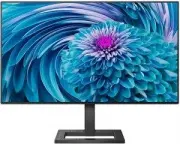
Philips 242E2FA/00 Monitor – User Manual, read for free online in PDF format. We hope this helps you resolve any issues you may have. If you have further questions, please contact us through the contact form.


Table of Contents:
- Page 2 – Table of Contents; Safety precautions and; Philips’ Flat Panel Monitors
- Page 3 – Warnings
- Page 4 – Maintenance
- Page 5 – Notational Descriptions; Notes, Cautions and Warnings
- Page 7 – Setting up the monitor; monitor; Package contents; Start; Note
- Page 8 – Connecting to your PC; input; Connect to PC
- Page 9 – Operating the monitor; Description of the control buttons
- Page 10 – The OSD Menu; AMD FreeSync
- Page 11 – Resolution notification
- Page 12 – Remove the Base Assembly
- Page 13 – Image Optimization; How to enable SmartImage?
- Page 14 – Helps improve reading
- Page 15 – Operating system
- Page 16 – Technical Specifications; Connectivity
- Page 17 – Dimension
- Page 18 – Weight
- Page 19 – Maximum Resolution
- Page 21 – Customer care and warranty; Customer care and; Pixels and Sub pixels
- Page 24 – Philips Customer Care Center number listed below.
- Page 25 – FAQs; Common Problems
E Line
241E2/242E2
EN
User
manual
1
Customer care and warranty
Troubleshooting & FAQs
"Loading the manual" means you need to wait until the file loads and becomes available for online reading. Some manuals are very large, and the time they take to appear depends on your internet speed.
Was this manual helpful?
About this manual
- Brand
- Philips
- Model
- 242E2FA/00
- Document type
- User Manual
- Category
- Monitor
- Language(s)
- English
- Pages
- 29
- File size
- 2 MB
- Format
Other Manuals for Philips 242E2FA/00
Summary
Table of Contents 1. Important ....................................... 1 1.1 Safety precautions and maintenance .................................. 1 1.2 Notational Descriptions ............. 31.3 Disposal of product and packing material ........................................... 4 2. Setting up the...
1 1. Important 1. Important This electronic user’s guide is intended for anyone who uses the Philips monitor. Take time to read this user's manual before you use your monitor. It contains important information and notes regarding the operation of your monitor. The Philips guarantee applies provided ...
2 1. Important • To avoid potential damage, for example the panel peeling from the bezel, ensure that the monitor does not tilt downward by more than -5 degrees. If the -5 degree downward tilt angle maximum is exceeded, the monitor damage will not be covered under warranty. • Do not knock or drop th...
Ask a question
Related manuals
Popular Philips Monitors


More Philips Monitors models
 Philips 223V5LSB/00 User Manual
 Philips 241B8QJEB/00 User Manual
 Philips 241V8L/00 User Manual
 Philips 241V8L/01 User Manual
 Philips 242B1H/00 User Manual
 Philips 242V8LA/00 User Manual
 Philips 243B9/00 User Manual
 Philips 243V7QDAB/00 User Manual
 Philips 243V7QDSB/00 User Manual
 Philips 243V7QJABF/00 User Manual
 Philips 243V7QSB/00 User Manual
 Philips 246V5LHAB/00 User Manual