Page 2 - Safety precautions; Unit; WARNING
2 SQT1349 Ta ble of co ntents Safety precautions Unit ≥ To reduce the risk of fire, electric shock or product damage, j Do not expose this unit to rain, moisture, dripping or splashing. j Do not place objects filled with liquids, such as vases, on this unit. j Use only the recommended accessories. j...
Page 3 - Precautions; About Bluetooth
Precautions SQT1349 3 About Bluetooth ® ∫ Frequency band used This system uses the 2.4 GHz frequency band. ∫ Certification of this device ≥ This system conforms to frequency restrictions and has received certification based on frequency laws. Thus, a wireless permit is not necessary. ≥ The action be...
Page 4 - Table of contents; Before use
4 SQT1349 Table of contents Safety precautions............................................................................................. 2About Bluetooth ® ............................................................................................... 3 Before use Supplied items ....................
Page 5 - Supplied items; Check the supplied accessory before using this system.; The illustrations shown may differ from your unit.; Accessory; Remote control
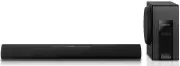
Precautions Reference Getting started Before use Operations SQT1349 5 Be fo re us e Supplied items Check the supplied accessory before using this system. ≥ Product numbers are correct as of January 2016. These may be subject to change. ≥ The illustrations shown may differ from your unit. ≥ Operation...
Page 6 - Control reference guide; Subwoofer
6 SQT1349 Control reference guide 1 Standby/on switch ( Í /I ) Press to switch the unit from on to standby mode or vice versa. In standby mode, the unit is still consuming a small amount of power. 2 Adjust the volume of this system ( > 17) 3 Select the input source ( > 17) “TV” --# “BD/DVD” --...
Page 7 - Wall mounting hole; Main unit
Before use SQT1349 7 8 AC mains lead ( > 10) 9 Wall mounting hole 10 OPTICAL DIGITAL AUDIO IN terminal ( > 9) 11 AUDIO IN terminal ( > 9) 12 MULTI ANGLE switch ( > 14, 15) Switch the audio quality according to the placement method of the main unit. 13 Subwoofer terminal14 Speaker cable §...
Page 8 - About remote control signal sensor; The remote control signal sensor is located on the main unit.; Remote control; Before using for the first time
8 SQT1349 1 Turn the main unit on or off ( > 17) 2 Turn the surround effect on or off ( > 17) 3 Turn the clear voice effect on or off ( > 17) 4 Select the TV as the source ( > 17) 5 Select the BD/DVD as the source ( > 17) 6 Adjust the output level of the subwoofer(bass sound) ( > 1...
Page 9 - Step 1 Connections; Optical digital audio cable; Audio cable; Connection with the TV; TV
Getting started SQT1349 9 Before use Ge tting started Step 1 Connections ≥ Turn off all equipment before connection and read the appropriate operating instructions. Do not connect the AC mains lead until all other connections are completed. A Optical digital audio cable ≥ When you use the optical di...
Page 10 - Match the connector shape and connect to the terminal.; speaker cable; This system consumes a small amount of AC power (; Speaker cable connection; To a household mains socket; AC mains lead
10 SQT1349 Match the connector shape and connect to the terminal. A speaker cable ≥ Connect only after all other connections are completed. ≥ This system consumes a small amount of AC power ( > 23) even when it is turned off. In the interest of power conservation, if you will not be using this sy...
Page 11 - Getting started; Preparation; Select “SC-HTB18” from the Bluetooth; Bluetooth
Getting started SQT1349 11 By using the Bluetooth ® connection, you can listen to the sound from the Bluetooth ® audio device from this system wirelessly. ≥ Refer to the operating instructions of the Bluetooth ® device for further instruction on how to connect a Bluetooth ® device. Preparation ≥ Tur...
Page 12 - Step 2 Placement; When carrying the subwoofer; Safety Precautions; Caution; The subwoofer; Do not hold the subwoofer from this opening.; The parts inside may get damaged.; Wireless interference
12 SQT1349 Step 2 Placement ≥ Do not hold the main unit in one hand to avoid injury, you may drop the main unit when carrying it. ≥ To prevent damage or scratches, lay down a soft cloth and perform the assembly on it. When carrying the subwoofer To avoid interference, maintain the following distance...
Page 13 - Choose a placement method that suits you best.; When placing the main unit in front of the TV; Try using the TV’s remote control from a different angle.; Selecting the placement method
Getting started SQT1349 13 Precautions Choose a placement method that suits you best. ∫ When placing the main unit in front of the TV The main unit may block or interfere with the TV’s various sensors (C.A.T.S. (Contrast Automatic Tracking System) sensor, remote control sensor, etc.) and the 3D Eyew...
Page 14 - Press the AC mains lead into the holder.; Attach the cord to the main unit.; Cord; When placing the main unit on a rack or on a table
14 SQT1349 Additionally required accessories (commercially available) ≥ Fall prevention cord ..................................................................................................................... k 1 ≥ Screw eye (to attach the fall prevention cord)........................................
Page 15 - Refer to step 3 for details about the required screws.; Additionally required accessories (commercially available); Slide the MULTI ANGLE switch to “WALL MOUNT”.; When attaching the main unit to a wall
Getting started SQT1349 15 Precautions Make sure that the screw used and the wall are strong enough to support the weight of at least 33 k g . The screws and other items are not supplied as the type and size will vary with each installation. ≥ Refer to step 3 for details about the required screws. ≥...
Page 16 - Screw eye; DO
16 SQT1349 Drive a screw into the wall. ≥ Use the measurements indicated below to identify the screwing positions on the wall. ≥ Leave at least 20 mm of space above of the main unit to allow enough space for fitting the main unit. ≥ Leave at least 10 mm of space on both sides of the main unit. Witho...
Page 17 - Using this system; Press; Indication
Getting started Operations SQT1349 17 Precautions Op era tion s Using this system Preparation ≥ Turn on the TV and/or connected device. Press [ Í ] to turn on the main unit. Select the source. ≥ This remote control cannot be used to control the operations of the connected devices. ∫ When you select ...
Page 18 - Advanced operations; Audio format indicator
18 SQT1349 Advanced operations To display the current audio format. Press and hold [SURROUND] for more than 4 sec. ≥ The current audio format is indicated for 5 sec. Audio format is not indicated when “BD/DVD” or “ ” is selected as the source. The main unit is automatically turned off if there is no...
Page 19 - Operations; Remote control code; Change the remote control code to code 2:; To turn off the volume limitation
Operations SQT1349 19 ∫ Remote control code When other Panasonic devices respond to this system’s remote control, change the remote control code on this system and the remote control. Preparation ≥ Turn off all other Panasonic products. ≥ Turn on the main unit. Change the remote control code to code...
Page 20 - Troubleshooting; The remote control does not work properly.; While the main unit is on, press and hold [; General operation
20 SQT1349 Referenc e Troubleshooting Before requesting service, make the following checks. If you are in doubt about some of the check points, or if the solutions indicated in the following guide do not solve the problem, consult your dealer for instructions. No power. ≥ Insert the AC mains lead se...
Page 21 - Reference; Unit care; Clean this system with a soft, dry cloth; Licenses
Reference SQT1349 21 There is no audio.The power of the main unit turns off automatically. (When the main unit detects a problem, a safety measure is activated and the main unit automatically switches to standby mode.) ≥ There is a problem with the amplifier. ≥ Is the volume extremely high?If so, lo...
Page 22 - Indicator illumination
22 SQT1349 Indicator illumination The indicators display the condition of this system by flashing. The indicator patterns illustrated below are displayed during normal operational conditions. They do not refer to the indications of a problem. Indicator Description The indicator blinks for 20 sec. ≥ ...
Page 23 - Specifications
Reference SQT1349 23 Specifications ≥ Specifications are subject to change without notice. ≥ Mass and dimensions are approximate. ≥ Total harmonic distortion is measured by a digital spectrum analyzer. AMPLIFIER SECTION RMS Output power : Dolby Digital Mode Front ch (non-simultaneous drive) 30 W per...
Page 27 - Panasonic Warranty; SHOULD BE RETAINED BY THE CUSTOMER AT ALL TIMES; Panasonic Australia Pty. Limited
SQT1349 27 Reference Limited Warranty (ONLY FOR AUSTRALIA) Panasonic Warranty 1. The product is warranted for 12 months from the date of purchase. Subject to the conditions of this warranty Panasonic or its Authorised Service Centre will perform necessary service on the product without charge for pa...
Page 28 - Panasonic Corporation
Panasonic Corporation Web Site: http://www.panasonic.com C Panasonic Corporation 2016 p SQT1349 F0116BL0 SC-HTB18GN_SQT1349.book 24 ページ 2016年1月12日 火曜日 午後3時27分