Page 2 - Table of contents
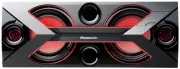
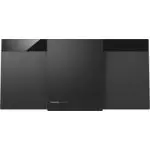
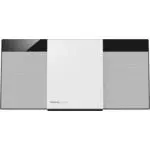
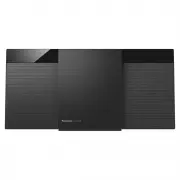
2 RQ T0 B 01 These operating instructions are applicable for models SC-HC297 and SC-HC295.Unless otherwise indicated, illustrations in these operating instructions are of SC-HC297. Your system and the illustrations can look differently. Bottom of product Table of contents Safety precautions . . . . ...
Page 3 - Caution for AC mains lead
3 RQ T0 B 01 Caution for AC mains lead (For the AC mains plug of three pins) For your safety, please read the following text carefully. This appliance is supplied with a moulded three pin mains plug for your safety and convenience.A 5-ampere fuse is fitted in this plug.Should the fuse need to be rep...
Page 4 - Making the connections; Preparing the remote control
4 RQ T0 B 01 Making the connections Connect the AC mains lead only after all the other connections have been made. 1 For the United Kingdom and Ireland Connect the DAB antenna. Be sure to tighten fully the nut. Do not use any other DAB antenna except the supplied one. For others Connect the FM indoo...
Page 5 - Overview of controls
5 RQ T0 B 01 Overview of controls Do the procedures with the remote control. You can also use the buttons on the main unit if they are the same. A Standby/on switch [ ` ], [ 1 ] Press to switch the unit from on to standby mode or vice versa. In standby mode, the unit is still consuming a small amoun...
Page 6 - Preparing the media; Disc; USB; Pairing a device; Connecting a device; Disconnecting a device
6 RQ T0 B 01 Preparing the media Disc 1 Press [USB/CD] to select “CD”. 2 Press [CD x ] (main unit: [ x OPEN/CLOSE]) to open the sliding door. Put in a disc with the label facing towards you. 3 Press [CD x ] (main unit: [ x OPEN/CLOSE]) again to close the sliding door. Keep fingers away from the slid...
Page 7 - Media playback; Basic playback
7 RQ T0 B 01 One-Touch Connection (NFC) For NFC-compatible Bluetooth ® devices (Android™ devices) only Simply by touching an NFC (Near Field Communication)-compatible Bluetooth ® device on the system, you can complete all preparations, from registering a Bluetooth ® device to establishing a connecti...
Page 8 - Play menu; Link mode; Input level; Note on disc
8 RQ T0 B 01 Play menu CD USB 1 Press [PLAY MENU] repeatedly to select “PLAYMODE” or “REPEAT”. 2 Press [ R , T ] to select the setting and then press [OK]. Note: • During random playback, you cannot skip to tracks which have been played. • The setting is cancelled when you open the sliding door or d...
Page 9 - Radio; Manual tuning; Automatic presetting; Improving the sound quality; AM allocation setting
9 RQ T0 B 01 Radio Preparation For Australia and New Zealand Press [RADIO/AUX] to select “FM” or “AM”. For others Press [RADIO/AUX] to select “FM”. Manual tuning 1 Press [PLAY MENU] repeatedly to select “TUNEMODE”. 2 Press [ R , T ] to select “MANUAL” and then press [OK]. 3 Press [ 2 / 3 ] or [ 5 / ...
Page 10 - Selecting a preset station
10 RQ T0 B 01 DAB/DAB+ For the United Kingdom and Ireland Preparation Press [RADIO/AUX] to select “DAB+”. Note: If you select “DAB+” for the first time, the system will tune automatically. Manual tuning 1 Press [PLAY MENU] repeatedly to select “MANUAL SCAN”. 2 Press [ R , T ] to select the frequency...
Page 11 - Clock and timers; Setting the clock; Sleep timer; Play timer
11 RQ T0 B 01 Clock and timers Setting the clock This is a 24-hour clock. 1 Press [SETUP] repeatedly to select “CLOCK”. 2 Press [ R , T ] to set the time and then press [OK]. To check the time Press [SETUP] repeatedly to select “CLOCK” and then press [OK]. In standby mode, press [DISPLAY]. Note: Res...
Page 12 - Sound effects; Saving the sound settings; External equipment
12 RQ T0 B 01 Sound effects 1 Press [SOUND] repeatedly to select the sound effect. 2 Press [ R , T ] to select the setting and then press [OK]. Note: The default setting is underlined. Changed settings will be kept until it is changed again, unless otherwise indicated. Saving the sound settings You ...
Page 13 - Others; Auto off; Bluetooth; Charging a portable device; Maintenance
13 RQ T0 B 01 Others Auto off This system automatically switches off when you do not use it for approximately 20 minutes. 1 Press [SETUP] repeatedly to select “AUTO OFF”. 2 Press [ R , T ] to select “ON” and then press [OK]. To cancel, select “OFF”. Note: • This function does not work when you are i...
Page 14 - Troubleshooting; Common problems
14 RQ T0 B 01 Troubleshooting Before requesting service, make the following checks. If you are in doubt about some of the check points, or if the solutions indicated do not solve the problem, consult your dealer for instructions. █ Common problems The unit cannot be switched on. • Connect the AC mai...
Page 15 - Remote control code; To set the code to “REMOTE 2”; System memory reset
15 RQ T0 B 01 “F61”“F77” • Disconnect the AC mains lead and consult your dealer. “F703” • Examine the Bluetooth ® connection. • Disconnect the Bluetooth ® device. Switch off the system and then switch on again. “F76” • There is a problem with the power supply.• Disconnect the AC mains lead and consu...
Page 16 - Specifications
16 RQ T0 B 01 Specifications █ Amplifier section RMS output power stereo mode Front Ch (both ch driven) 10 W per channel (8 Ω ), 1 kHz, 10% THD Total RMS stereo mode power 20 W For Asia and the Middle East PMPO output power 200 W █ Tuner, terminals section Preset memory FM 30 stations For Australia ...
Page 17 - Installation accessories; Supplied accessories; Installation instructions
17 RQ T0 B 01 Attaching the unit to a wall (optional) For the United Kingdom and Ireland You can use the supplied wall mount brackets to attach this unit to the wall. Preparation Disconnect the antenna(s) and the AC mains lead. Installation accessories █ Supplied accessories 2 Wall mount brackets ...
Page 18 - References; About Bluetooth; Sales and Support Information
18 RQ T0 B 01 References About Bluetooth ® Frequency band • This system uses the 2.4 GHz frequency band. Certification • This system conforms to the frequency restrictions and has received certification based on frequency laws. Thus, a wireless permit is not necessary. • The actions below are punish...
Page 19 - Panasonic Australia Pty. Limited; Panasonic Warranty
19 RQ T0 B 01 Limited Warranty (Australia) Panasonic Australia Pty. Limited ACN 001 592 187 ABN 83 001 592 187 1 Innovation Road, Macquarie Park NSW 2113 PRO-031-F11 Issue: 4.0 01-01-2011 If you require assistance regarding warranty conditions or any other enquiries, please visit the Panasonic Austr...
Page 20 - Panasonic Corporation
Disposal of Old Equipment and BatteriesOnly for European Union and countries with recycling systems These symbols on the products, packaging, and/or accompanying documents mean that used electrical and electronic products and batteries must not be mixed with general household waste.For proper treatm...