Page 2 - Table of Contents
Introduction Model composition .......................................4Accessory information ..................................4Graphical symbols for use on equipment andtheir descriptions ..........................................7 Important Information For your safety ................................
Page 3 - Index
Index Index.........................................................102 3 Table of Contents TGF57xUSA(en)_1201_ver031.pdf 3 1/12/2016 6:41:04 PM
Page 4 - Supplied accessories; Introduction
Model composition Series Model No. Base unit Handset Part No. Part No. Quantity KX-TGF570series KX-TGF572 KX-TGF570 KX-TGFA51 2 KX-TGF573 KX-TGF570 KX-TGFA51 3 KX-TGF574 KX-TGF570 KX-TGFA51 4 KX-TGF575 KX-TGF570 KX-TGFA51 5 KX-TG785SK KX-TGF570 KX-TGFA51 5 Accessory information Supplied accessories ...
Page 5 - Additional/replacement accessories; Other information; Expanding your phone system; Bluetooth
Additional/replacement accessories Please contact your nearest Panasonic dealer for sales information (page 99). Accessory item Model number/Specifications Rechargeablebatteries HHR-4DPA *1 R To order, please visit http://shop.panasonic.com/support Battery type:– Nickel metal hydride (Ni-MH)– 2 x AA...
Page 6 - Trademarks
Your Bluetooth cellular phone *1 : 2 max. (for cellular calls: page 19) Your Bluetooth headset *1 : 1 max. (for a wireless hands-free conversation: page 63) *1 Your cellular phone and headset must be Bluetooth wireless technology compatible. For more details and the list of compatible cellular phone...
Page 8 - For your safety; WARNING; Power connection; Medical; CAUTION; Installation and location; Important Information
For your safety To prevent severe injury and loss of life/property, read this section carefully beforeusing the product to ensure proper and safeoperation of your product. WARNING Power connection R Use only the power source marked on theproduct. R Do not overload power outlets andextension cords. T...
Page 9 - Battery; Important safety; For best performance; Base unit location/avoiding noise
R This product is unable to make calls when:– the handset batteries need recharging or have failed. – there is a power failure. Battery R We recommend using the batteries notedon page 5. USE ONLY rechargeable Ni-MH batteries AAA (R03) size. R Do not mix old and new batteries. R Do not open or mutila...
Page 10 - Notice
R If the reception for a base unit location isnot satisfactory, move the base unit toanother location for better reception. Environment R Keep the product away from electrical noisegenerating devices, such as fluorescentlamps and motors. R The product should be kept free fromexcessive smoke, dust, h...
Page 11 - Specifications
Specifications R Standard: DECT 6.0 (Digital Enhanced CordlessTelecommunications 6.0)Bluetooth wireless technology 2.1 R Frequency range: 1.92 GHz to 1.93 GHz (DECT)2.402 GHz to 2.48 GHz (Bluetooth) R RF transmission power: 115 mW (max.) R Power source: 120 V AC, 60 Hz R Power consumption:Base unit:...
Page 12 - Setting up; Connections; Battery installation; Getting Started
Setting up Connections R If you do not connect the telephone linecord and use only cellular lines, set thecellular line only mode to use this unit moreconveniently (page 21). n Base unit Connect the AC adaptor to the unit bypressing the plug firmly.Fasten the cord by hooking it.Connect the AC adapto...
Page 13 - Removing the battery; Battery charging; Note when setting up; Note for connections
Removing the battery 1 2 Battery charging Charge for about 7 hours. R Confirm “ Charging ” is displayed ( 1 ). R When the batteries are fully charged, “ Fully charged ” is displayed. 1 Note when setting up Note for connections R The AC adaptor must remain connected atall times. (It is normal for the...
Page 14 - Intelligent eco mode; Controls; Handset
R You can set the unit to play a voiceannouncement when the battery is low orneeds charging. (page 18) Panasonic Ni-MH batteryperformance (supplied batteries) Operation Operating time In continuous use 12 hours max. *1 Not in use (standby) 7 days max. *1 *1 If eco mode is on. Note: R Actual battery ...
Page 15 - J I
M OFF N ( ) M N (Assist) M FLASH N R You can use the handset to operatethe voice recognition feature of yourcellular phone by pressing M N . (page 62) Charge contacts n Control type Soft keys By pressing a soft key, you can select thefeature shown directly above it on thedisplay. After a cellular ph...
Page 16 - Display icons/Indicators; Handset display items; Base unit display items
Display icons/Indicators Handset display items Item Meaning Within base unit rangeOut of base unit range The landline is in use. R When flashing:The call is on hold. R When flashing rapidly: Anincoming call is now beingreceived. – A cellular line is in use. *1 R When flashing:The cellular call is on...
Page 17 - CELL indicators on the base unit; Language settings; Display language; Voice announcement language
Item Meaning – A cellular call is in progress on that line. – The cellular line is selected for the setting. Blocked call (page 34) A Bluetooth headset isconnected to the base unit.It is ready for use.A Bluetooth headset is in use. In use Answering system is beingused by the handset. Cell1 inuse Som...
Page 18 - Date and time; Other settings; Dialing mode; Low battery alert; Setting low battery alert
Handset 1 M MENU N#112 2 MbN : Select the desired setting. a M SAVE N a M OFF N Date and time Handset 1 M MENU N#101 2 Enter the current month, date, and yearby selecting 2 digits for each. Example: July 12, 2017 07 12 17 3 M OK N 4 Enter the current hour and minute(12-hour clock format) by selectin...
Page 19 - Unpairing a cellular phone; Link to Cell
Link to cell feature You can connect your base unit and cellularphone using Bluetooth wireless technology, sothat you can make or answer cellular callsusing your phone system. This allows you to:– use the unit to talk on cellular calls even if some areas of your home have poorcellular reception, sim...
Page 20 - Link to cell settings; Ring as cell mode
Handset 1 For CELL 1: M MENU N#6111 For CELL 2: M MENU N#6112 2 MbN : “ Yes ” a M SELECT N R When the cellular phone is unpaired,the CELL indicator is turned off. 3 M OFF N Link to cell settings Selecting which unit receivescellular calls You can select which unit rings and receivescalls for a cellu...
Page 22 - When you use the landline again; Cellular line selection
– Voicemail features (page 72) R After this mode is turned on or off, the baseunit reboots.– Bluetooth connections from cellular phones or Bluetooth headset aredisconnected. If the auto connection isturned on (page 21), the cellular phonesare reconnected. – will be displayed on the handset momentari...
Page 23 - Making cellular calls; Erasing a number in the redial list; Making landline calls; Making/Answering Calls Using the Handset
Making cellular calls Important: R The unit can be used to talk on 2 lines atthe same time (for example, 2 cellular lines,or the landline and 1 cellular line). R Only 2 Bluetooth devices can be used withthe unit at the same time (for example, 2cellular lines, or the headset and 1 cellularline *1 ). ...
Page 24 - Making a call using the redial list; Answering calls; Adjusting the handset ringer volume; Useful features during a
To switch back to the receiver, press MZN / M N . R In step 1, you can store the dialed phonenumber to the phonebook by pressing andholding MFN W for a few seconds. Making a call using the redial list The last 5 phone numbers dialed are stored inthe redial list (48 digits max. each). 1 MEN REDIAL 2 ...
Page 25 - Flash for landline calls; Handset equalizer
Mute1 Press M MUTE N during a call. 2 To return to the call, press M MUTE N . Note: R M MUTE N is a soft key visible on the display during a call. Flash for landline calls M FLASH N allows you to use the special features of your host PBX such as transferringan extension call, or accessing optionalte...
Page 26 - Call share
Note: R The setting you made is kept for each line(landline and cellular lines). R Depending on the condition and quality ofyour telephone line, this feature mayemphasize existing line noise. If it becomesdifficult to hear, turn this feature off. R This feature is not available while using thespeake...
Page 27 - Answering a 2nd call; Power backup operation
Transferring a cellular call from acellular phone to the handset During a conversation using a cellular phone,the call cannot be transferred to the handsetby the cellular phone. Perform the followingwith the handset. 1 During a conversation using a cellularphone, press M CELL N . R The call is trans...
Page 28 - Making a call using the phonebook
– Not in use in power backup mode: 2 hours max. Making calls during a powerfailure n When only 1 handset is registered: 1 Lift the handset and dial the phonenumber. 2 Within 1 minute, place the handset onthe base unit. R Wait until speakerphone is turnedon automatically and the call ismade. 3 When t...
Page 29 - Adjusting the speaker volume; Making/Answering Calls Using the Base Unit
Making cellular calls Important: R The unit can be used to talk on 2 lines atthe same time (for example, 2 cellular lines,or the landline and 1 cellular line). R Only 2 Bluetooth devices can be used withthe unit at the same time (for example, 2cellular lines, or the headset and 1 cellularline). R Be...
Page 30 - Adjusting the base unit ringer volume
Example: If you need to dial the line access number “9” when making outside calls with aPBX: 1 9 a M PAUSE N 2 Dial the phone number. a MZN Note: R A 3.5 second pause is inserted each time M PAUSE N is pressed. Answering calls When a landline call is being received, theSP-PHONE indicator flashes rap...
Page 33 - Making an intercom call; Intercom
Intercom Intercom calls can be made:– between handsets– between a handset and the base unit Note: R When paging unit(s), the paged unit(s)beeps for 1 minute. R If you receive an outside call while talkingon the intercom, the interrupt tone sounds(page 46, 50).– Handset: To finish intercom, press M O...
Page 34 - Storing a single phone number; Call Block
Call block You can press the M CALL BLOCK N button in the following situations to disconnect thecurrent call and add a phone number to thecall block list:– when an incoming call is being received– when an incoming call is being recorded by the answering system – when talking on an outside callOnce a...
Page 35 - Storing a range of number
n When a cellular phone is not paired: 1 MCN CID 2 MbN : Select the desired entry to be blocked. R To edit the number: M MENU N a MbN : “ Edit ” a M SELECT N Press M EDIT N repeatedly until the phone number is shown in the10-digit format. a M SAVE N a MbN : “ Call block ” a M SELECT N a Go to step 4...
Page 37 - Adding phonebook entries; Entering characters; Phonebook
Phonebook You can add 3,000 names (16 charactersmax.) and phone numbers (24 digits max.) tothe phonebook, and assign each phonebookentry to the desired group (page 38). Thefollowing groups are available:– Group 1: “ Home ” *1 (default) – Group 2: “ Cell 1 ” *1 – Group 3: “ Cell 2 ” *1 – Group 4-9: Y...
Page 38 - Groups
Note for base unit: R If you stored redial list number to thephonebook using the base unit, the entry isautomatically assigned to “ Home ” . R If you want to edit the caller name or thegroup, you can do so using the handset(page 39). Storing caller information to thephonebook Handset n When a cellul...
Page 39 - Editing entries; Erasing entries; Erasing an entry
n Using a cellular line: Handset 1 M CELL N R The unit starts dialing when:– Only 1 cellular phone is paired.– A specific line is set to make cellular calls (page 22). 2 MbN : Select the desired cellular phone. a M SELECT N Base unit Press M CELL 1 N or M CELL 2 N . n Using a landline: Handset M N B...
Page 40 - Erasing all entries; Chain dial; Speed dial
3 MbN : “ Yes ” a M SELECT N a M OFF N Base unit 1 Find the desired entry (page 38). 2 M ERASE N a MbN : “ Yes ” a M SELECT N a M EXIT N Erasing all entries Handset 1 MFN W a M MENU N 2 MbN : “ Erase all ” a M SELECT N 3 MbN : Select the desired group. a M SELECT N 4 MbN : “ Yes ” a M SELECT N 5 MbN...
Page 41 - Editing an entry; Viewing an entry/Making a call
Editing an entry Handset 1 Press and hold the desired speed dial key( 1 to 9 ). a M MENU N 2 MbN : “ Edit ” a M SELECT N 3 Edit the name if necessary. a M OK N 4 Edit the phone number if necessary. a M OK N a M SELECT N a M OFF N Erasing an entry Handset 1 Press and hold the desired speed dial key( ...
Page 42 - Menu list; Display menu tree and direct command code table; Programming
Menu list To access the features, there are 2 methods. Handset / Base unit n Scrolling through the display menus 1 M MENU N 2 Press MCN or MDN to select the desired main menu. a M SELECT N 3 Press MCN or MDN to select the desired item from the next sub-menus. a M SELECT N 4 Press MCN or MDN to selec...
Page 51 - Alarm
*7 The preset melodies in this product ( “ Tone 3 ” - “ Melody 10 ” ) are used with permission of © 2009 Copyrights Vision Inc. *8 The preset melodies in this product ( “ Tone 1 ” and “ Tone 2 ” ) are used with permission of © 2013 Copyrights Vision Inc. *9 This feature allows the unit to automatica...
Page 52 - Silent mode; Turning silent mode on/off; Changing the start and end time
n Weekly: MbN : Select the desired day of the week and press M SELECT N . a M OK N 5 Set the desired time. 6 * : Select “ AM ” or “ PM ” . a M OK N 7 Enter a text memo (10 characters max.). a M OK N 8 MbN : Select the desired alarm tone. a M SELECT N R We recommend selecting a differentringer tone f...
Page 53 - Baby monitor; Setting the baby monitor; To monitor with a unit
2 MbN : Select the desired groups. a M SELECT N R “ ” is displayed next to the selected group numbers. R To cancel the selected group: MbN : Select the group. a Press M SELECT N again. “ ” disappears. 3 M SAVE N 4 Proceed with the operation for your unit. Handset: M OFF N Base unit: M EXIT N Baby mo...
Page 54 - Answering the baby monitor
Note: R If you edit a phonebook entry which isassigned for monitoring, the edited entrydoes not transfer to the monitor. n By entering phone numbers: 1 M MENU N#268 2 MbN : “ On ” a M SELECT N 3 MbN : Select “ Outgoing call ” to monitor from outside. a M ADD N 4 MbN : “ Manual ” a M SELECT N 5 Enter...
Page 55 - Other programming; Changing the handset name; Displaying the handset name; Registering a unit; Operating additional units; Additional handsets
– To answer the call with the base unit, press MZN 3 times. *1 *1 If M MUTE N is pressed, press MZN 2 times. n When monitoring from outside: Answer the call.If you want to respond from your monitoringphone, press #1 using tone dialing. You can turn off the baby monitor featureby pressing #0 . Note: ...
Page 56 - Using Caller ID service; Caller ID features; Missed calls; Phonebook name display; Talking Caller ID; Phonebook name announcement; Caller list; Caller ID Service
Using Caller ID service Important: R This unit is Caller ID compatible. To useCaller ID features, you must subscribe to aCaller ID service. Contact your phoneservice provider for details. Caller ID features Handset / Base unit When an outside call is being received, thecaller information is displaye...
Page 57 - Editing a caller’s phone number; Caller ID number auto edit feature
2 Press MCN to search from the most recent call, or MDN to search from the oldest call. 3 To call back, press M SELECT N . To exit, press M OFF N . 4 M CELL N R The unit starts dialing immediately inthe following situations.– Only 1 cellular phone is paired.– A specific line is set to make cellular ...
Page 58 - Erasing all caller information
– When the call is being received, the Caller ID number is displayed in the same formatas the edited number. – After the call has ended, the caller’s phone number is displayed in the same format asthe edited number, when reviewed from thecaller list. For example, you can use this feature to setthe u...
Page 59 - Setting conversion codes; Using Bluetooth® Devices
Copying phonebook from a cellular phone (phonebook transfer) You can copy phonebook entries from thepaired cellular phones or other cellular phones(not paired) to the unit’s phonebook. A cellularphone must be compatible with Bluetoothwireless technology. Important: R Your cellular phone must support...
Page 60 - Link to Cell app; Installing the Link to Cell app; Starting the app for the first time
– “ Trunk prefix ” : A trunk prefix; the initial digit(s) to be dialed in a domestic call, priorto the area code. Handset 1 M MENU N 2 To store “ International code ” : #117 To store “ Country code ” : #118 To store “ Trunk prefix ” : #119 3 Enter the desired number. a M SAVE N a M OFF N Note: R Aft...
Page 61 - Requirements; Alert settings for your; Setting the voice alert
– Android phone: [Application Alerts manager] *1 must be turned on. – Handset or base unit: “ Alert On/ Off ” must be turned on (page 61). R If this feature does not work, turn on yourdevice’s Bluetooth feature, unplug the baseunit’s AC adaptor, and then reconnect it. *1 Turning on [Application Aler...
Page 62 - Selecting the alert tone; Remote voice assist; Activating remote voice assist
2 MbN : Select the desired setting. a M SAVE N 3 Proceed with the operation for your unit. Handset: M OFF N Base unit: M EXIT N Selecting the alert tone Handset 1 For CELL 1: M MENU N#6041 For CELL 2: M MENU N#6042 2 MbN : Select the desired setting. a M SAVE N a M OFF N Remote voice assist For iPho...
Page 63 - Using a Bluetooth headset; Unpairing a Bluetooth headset
cellular phone’s microphone to operate itsvoice recognition feature. In this case,disconnect your cellular phone from thebase unit. R The compatible voice commands dependson the cellular phone voice recognitionfeature. Using a Bluetooth headset (optional) By pairing a Bluetooth headset to the baseun...
Page 65 - Turning the answering; Recording your greeting message; Answering System for Landline
Answering system for landline The answering system can answer and recordcalls for you when you are unavailable toanswer the phone.You can also set the unit to play a greetingmessage but not to record caller messages byselecting “ Greeting only ” as the recording time setting (page 71). Important: R ...
Page 66 - Listening to messages; Using the base unit; Erasing all messages; Using the handset
Resetting to a pre-recorded greetingmessage Use this procedure to erase your greetingmessage and use a pre-recorded one. Handset 1 M MENU N#304 2 M YES N a M OFF N Playing back the greetingmessage Handset 1 M MENU N#303 2 To exit, press M OFF N . Listening to messages Important: R When using the bas...
Page 68 - Audible message alert; New message alert by a call; Editing the set phone number
Advanced new message alerting features Audible message alert This feature allows the base unit to beep toinform you of a new message arrival whennew messages are recorded. The base unitbeeps 2 times every minute until you listen tothe messages, if the “ Base unit beep ” setting is turned on. The def...
Page 69 - Remote operation; Remote access code; Deactivating remote operation
4 MbN : “ Yes ” a M SELECT N a M OFF N R The new message alert setting isturned off. Activating/inactivating the remoteaccess code to play messages If you activate this feature, you must enter theremote access code (page 69) to play thenew message from the new message alertcall. This is so that unau...
Page 70 - Answering system settings; Call screening
Voice guidance n When the English voice guidance isselected During remote operation, the unit’s voiceguidance starts and prompts you to press 1 to perform a specific operation, or press 2 to listen to more available operations. n When the Spanish voice guidance isselected To start the voice guidance...
Page 71 - Caller’s recording time; Selecting “
of the 5th ring when there are no newmessages. If you call your phone from outsideto listen to new messages (page 69), youknow that there are no new messages whenthe phone rings for the 3rd time. You can thenhang up without being charged for the call. Handset 1 M MENU N#211 2 MbN : Select the desire...
Page 72 - To erase the voicemail access number; Turning VM tone detection on/off; Useful Information
Voicemail service for landline In addition to your unit’s answering systemyou may also have voicemail service fromyour phone service provider. Voicemail is an answering service that may be offered byyour phone service provider. This service canalso record calls when you are unavailable toanswer the ...
Page 73 - Listening to voicemail messages; Wall mounting
Listening to voicemail messages When new messages have been recorded, “ Voicemail msg. via phone co. ” *1 / “ Voicemail msg. ” *2 are displayed if message indication service is available.*1 Handset*2 Base unit Handset 1 M MENU N#330 R The speakerphone turns on. 2 Follow the pre-recorded instructions...
Page 74 - To stand on a desk; Charger
3 Mount the unit on a wall then slide downto secure in place. R This product is compliant with thefollowing wall phone plate sizes (2types). 1 83 mm (3 1 / 4 inches) 2 102 mm (4 inches) Fit the slots of the unit onto thecorresponding wall phone plate tabsfor ( 3 ) and ( 4 ) respectively. 3 4 3 4 1 2...
Page 75 - Error messages
Error messages Display message Cause/solution Ask phonecompany forVM access # R You have not stored the voicemail access number.Store the number (page 72). Main unit no power or No link. Re-connect baseAC adaptor. or No link. R Confirm the base unit’s AC adaptor is connected tothe unit and the power...
Page 76 - Troubleshooting; General use
Display message Cause/solution Invalid R There is no handset registered to the base unitmatching the handset number you entered. R The handset is not registered to the base unit.Register the handset (page 55). Requiressubscriptionto Caller ID. R You must subscribe to a Caller ID service. Once yourec...
Page 77 - Battery recharge
Problem Cause/solution I cannot connect a cellularphone to the base unit. R Confirm that your cellular phone is turned on. R Confirm that your cellular phone is within base unit range(page 16). R Your cellular phone’s Bluetooth feature is turned off. Turnit on. R Depending on the state of the wirele...
Page 79 - Caller ID/Talking Caller ID
Problem Cause/solution I can make and answer cellularcalls but cannot hear a sound. R The Bluetooth technology on your cellular phone may notbe functioning normally. Turn off and on your cellularphone. R Disconnect and reconnect the base unit AC adaptor andtry again. I cannot switch cellular callsfr...
Page 81 - Using Bluetooth devices
Using Bluetooth devices Problem Cause/solution I cannot copy phonebookentries from a cellular phone. R Confirm that the cellular phone supports Bluetoothwireless technology. R Confirm that the cellular phone supports the Phone BookAccess Profile (PBAP) or Object Push Profile (OPP)specification. R If...
Page 83 - Answering system; Bluetooth PIN
Answering system Problem Cause/solution The unit does not record newmessages. R The answering system is turned off. Turn it on (page 65). R The answering system does not answer or record callsfrom cellular lines. R The message memory is full. Erase unnecessarymessages (page 66, 67). R The recording ...
Page 84 - Voicemail; Liquid damage
Voicemail Problem Cause/solution “ Voicemail msg. via phone co. ” is shown on the handset display.or “ Voicemail msg. ” is shown on the base unit display.How do I remove this messagefrom the display? R This notification is displayed when your phone serviceprovider’s voicemail service (not the unit’s...
Page 85 - FCC and other information
FCC and other information This equipment complies with Part 68 of the FCC rules and the requirements adopted by the ACTA. On the bottom of this equipment is a label that contains, among other information, a product identifier in the format US:ACJ----------.If requested, this number must be provided ...
Page 88 - Conexiones; Guía Rápida Española
Guía Rápida Española Conexiones 1 Conecte el adaptador de corriente alterna a la toma de corriente. Unidad base 1 Conecte el adaptador de corriente alterna a la unidad presionándolo firmemente. 2 Enganche el cable para fijarlo. 3 Conecte el adaptador de corriente alterna a la toma de corriente. 4 Co...
Page 89 - Instalación y carga de la batería
Instalación y carga de la batería Cargue aproximadamente durante 7 horas. Nota: L UTILICE SOLO baterías recargables de Ni-MH tamaño AAA (R03) ( ). L NO utilice baterías alcalinas, de manganeso ni de Ni-Cd. L Confirme que las polaridades estén correctas ( S , T ). L Cambie el idioma de la pantalla. L...
Page 90 - Sugerencias de operación
Sugerencias de operación Teclas de función Al oprimir una tecla de función, puede seleccionar la función que aparece directamente encima de ella en la pantalla. Preste atención a la pantalla para ver qué funciones están asignadas a las teclas de función durante la operación. Tecla navegadoraAuricula...
Page 91 - English; Enlace a celular
Cambio de idiomas (predeterminado: “ English ”) Cuando instale las baterías por primera vez, es posible que aparezca “ Set date/time Press SELECT ” . Oprima { OFF } para salir. Idioma de la pantalla (Auricular/Unidad base) 1 { MENU } ( 11 ) s { r } : “ Español ” 2 Continúe operando su unidad. Auricu...
Page 94 - Operaciones básicas
Operaciones básicas Cómo hacer y contestar llamadas (Auricular) Para hacer llamadas de celular 1 Marque el número telefónico. s { CEL. } L Cuando el modo exclusivo para la línea celular está configurado, también puede oprimir {C} / {s} en lugar de { CEL. } . L Cuando solo hay 1 teléfono celular empa...
Page 96 - Cómo usar dispositivos Bluetooth
Cómo usar dispositivos Bluetooth Copiado de entradas del directorio telefónico desde un teléfono celular con Bluetooth (transferencia del directorio telefónico) Puede copiar entradas del directorio telefónico desde los teléfonos celulares emparejados o desde otros teléfonos celulares (no emparejados...
Page 98 - Preguntas frecuentes
Preguntas frecuentes Pregunta Causa y solución ¿Por qué aparece _ ? L El auricular está demasiado lejos de la unidad base. Acérquelo. L El adaptador para corriente de la unidad base no está conectado correctamente. Conecte de nuevo el adaptador para corriente a la unidad base. L El auricular no está...
Page 99 - Customer services; Customer Services Directory; Shop; for all your Panasonic gear; Appendix
Customer services Accessories! hp://shop.panasonic.com/support Customer Services Directory Shop for all your Panasonic gear Go to Get everything you need to get the most out of your Panasonic products Accessories & Parts for your Camera, Phone, A/V products, TV, Computers & Networking, Pers...
Page 100 - Panasonic Products Limited Warranty
Limited Warranty (ONLY FOR U.S.A.) Limited Warranty Coverage (For USA Only) Labor One (1) Year Parts One (1) Year To submit a new repair request and for quick repair status visit our Web Site athttp://shop.panasonic.com/support Panasonic Products Limited Warranty Online Repair Request Mail-In Servic...
Page 101 - Limited Warranty Limits and Exclusions
Limited Warranty Limits and Exclusions (As examples, this excludes damages for lost time, travel to and from the servicer, loss of or damage to media or images, data or other memory or recorded content. The items listed are not exclusive, but for illustration only.) This warranty ONLY COVERS failure...
Page 104 - Read; troubleshooting; page in the; Operating Instructions
1 Reconnect AC adaptor to the base unit. 2 Check if telephone line cord is connected. 3 Use rechargeable Ni-MH batteries. (Alkaline/Manganese/Ni-Cd batteries CANNOT be used.) 4 Read troubleshooting page in the Operating Instructions . Visit our Web site: http://shop.panasonic.com/support L FAQ and t...


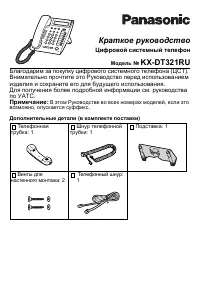 Panasonic KX-DT321
Manual
Panasonic KX-DT321
Manual
 Panasonic KX-NT343RU / KX-NT346RU
User Manual
Panasonic KX-NT343RU / KX-NT346RU
User Manual
 Panasonic KX-NT366RU
User Manual
Panasonic KX-NT366RU
User Manual
 Panasonic KX-NT400
User Manual
Panasonic KX-NT400
User Manual
 Panasonic KX-NT700
User Manual
Panasonic KX-NT700
User Manual
 Panasonic KX-PRX120RU
User Manual
Panasonic KX-PRX120RU
User Manual
 Panasonic KX-PRX150RU
User Manual
Panasonic KX-PRX150RU
User Manual
 Panasonic KX-T7735
Manual
Panasonic KX-T7735
Manual
 Panasonic KX-TCD156RUB
User Manual
Panasonic KX-TCD156RUB
User Manual
 Panasonic KX-TCD215RU / KX-TCD225RU
User Manual
Panasonic KX-TCD215RU / KX-TCD225RU
User Manual
 Panasonic KX-TCD235RU / KX-TCD245RU
User Manual
Panasonic KX-TCD235RU / KX-TCD245RU
User Manual
 Panasonic KX-TCD286RU / KX-TCD296RU
User Manual
Panasonic KX-TCD286RU / KX-TCD296RU
User Manual
 Panasonic KX-TCD325RU
User Manual
Panasonic KX-TCD325RU
User Manual
 Panasonic KX-TCD345RUS
User Manual
Panasonic KX-TCD345RUS
User Manual
 Panasonic KX-TCD420
User Manual
Panasonic KX-TCD420
User Manual
 Panasonic KX-TCD460RUS
User Manual
Panasonic KX-TCD460RUS
User Manual
 Panasonic KX-TCD465RU
User Manual
Panasonic KX-TCD465RU
User Manual
 Panasonic KX-TCD556RUV
User Manual
Panasonic KX-TCD556RUV
User Manual
 Panasonic KX-TCD566RUS
User Manual
Panasonic KX-TCD566RUS
User Manual