Page 2 - Table of Contents
Table of Contents 2 Introduction Model composition . . . . . . . . . . . . . . . 3Accessory information . . . . . . . . . . . . . 4 Important Information For your safety . . . . . . . . . . . . . . . . . . 7Important safety instructions . . . . . . . . 8For best performance . . . . . . . . . . . . ....
Page 3 - Introduction; Model composition
Introduction 3 For assistance, please visit http://www.panasonic.com/help Model composition ■ KX-TG6511 series ■ KX-TG6521/ KX-TG6531 series ■ KX-TG6541 series L Model shown isKX-TG6512. L Model shown isKX-TG6522. L Model shown isKX-TG6542. Series Model No. Base unit Handset Part No. Part No. Quanti...
Page 4 - ENERGY STAR; Accessory information; Supplied accessories
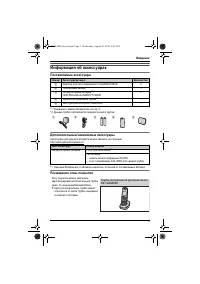
Introduction 4 For assistance, please visit http://www.panasonic.com/help Feature differences ENERGY STAR Accessory information Supplied accessories Series Answering system Talking Caller ID Headset jack Call with base unit *1 Intercom *2 | ⇔ N *3 KX-TG6511 series – – r – – KX-TG6521 series r r – – ...
Page 5 - Additional/replacement accessories
Introduction 5 For assistance, please visit http://www.panasonic.com/help *1 KX-TG6511/KX-TG6531/KX-TG6541*2 KX-TG6512/KX-TG6522/KX-TG6572/KX-TG6532/KX-TG6542*3 KX-TG6513/KX-TG6523/KX-TG6533/KX-TG6543*4 KX-TG6524/KX-TG6534/KX-TG6544*5 KX-TG6525/KX-TG6545*6 The handset cover comes attached to the han...
Page 6 - Expanding your phone system
Introduction 6 For assistance, please visit http://www.panasonic.com/help Expanding your phone system Optional handset feature overview You can expand your phone system by registering optional handsets (6 max.) to a single base unit. L Optional handsets may be a different color from that of the supp...
Page 7 - Important Information; For your safety; WARNING; CAUTION
Important Information 7 For assistance, please visit http://www.panasonic.com/help For your safety To prevent severe injury and loss of life/property, read this section carefully before using the product to ensure proper and safe operation of your product. WARNING Power connection L Use only the pow...
Page 8 - For best performance
Important Information 8 For assistance, please visit http://www.panasonic.com/help Battery L We recommend using the batteries noted on page 5. USE ONLY rechargeable Ni-MH batteries AAA (R03) size. L Do not mix old and new batteries. L Do not open or mutilate the batteries. Released electrolyte from ...
Page 9 - Other information; Specifications
Important Information 9 For assistance, please visit http://www.panasonic.com/help L When you leave the product unused for a long period of time, unplug the product from the power outlet. L The product should be kept away from heat sources such as heaters, kitchen stoves, etc. It should not be place...
Page 10 - Getting Started; Setting up; Connections; Battery installation; Battery charge; Correct; Charging
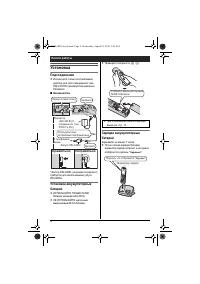
Getting Started 10 For assistance, please visit http://www.panasonic.com/help Setting up Connections L Use only the supplied Panasonic AC adaptor PQLV219. ■ Base unit *DSL/ADSL filter (not supplied) is required if you have DSL/ADSL service. ■ Charger Battery installation L USE ONLY Ni-MH batteries A...
Page 11 - Note when setting up
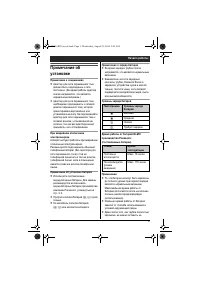
Getting Started 11 For assistance, please visit http://www.panasonic.com/help Note when setting up Note for connections L The AC adaptor must remain connected at all times. (It is normal for the adaptor to feel warm during use.) L The AC adaptor should be connected to a vertically oriented or floor-...
Page 12 - Controls
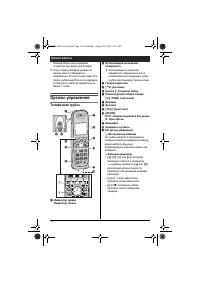
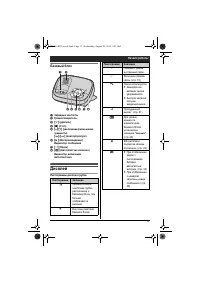
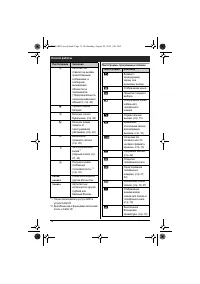
Getting Started 12 For assistance, please visit http://www.panasonic.com/help L Eco mode is turned off when the clarity booster is activated (page 19). Controls Handset (KX-TGA652) A Charge indicatorRinger indicatorMessage indicator B Nonslip pad L Nonslip pad offers support when you cradle the hand...
Page 14 - Belt clip; Display language
Getting Started 14 For assistance, please visit http://www.panasonic.com/help Belt clip Display Handset display items *1 KX-TG6521/KX-TG6531/KX-TG6541 series: page 3 Initial settings Display language You can select either “ English ” or “ Español ” as the display language. The default setting is “ E...
Page 15 - Dialing mode; Date and time
Getting Started 15 For assistance, please visit http://www.panasonic.com/help 3 { SAVE } i { OFF } Dialing mode If you cannot make calls, change this setting according to your telephone line service. The default setting is “ Tone ” . “ Tone ” : For tone dial service. “ Pulse ” : For rotary/pulse dia...
Page 16 - Making/Answering Calls; Making calls; Using the handset; Using the base unit
Making/Answering Calls 16 For assistance, please visit http://www.panasonic.com/help Making calls Using the handset 1 Lift the handset and dial the phone number. L To correct a digit, press { CLEAR } . 2 Press {C} or { CALL } . 3 When you finish talking, press { OFF } or place the handset on the bas...
Page 17 - Answering calls
Making/Answering Calls 17 For assistance, please visit http://www.panasonic.com/help L While on a call, you can switch from the base unit to the handset:– Press {C} on the handset, then press { SP-PHONE } on the base unit with the privacy mode off (page 19). – If the handset is on the base unit, sim...
Page 18 - Mute
Making/Answering Calls 18 For assistance, please visit http://www.panasonic.com/help Useful features during a call Hold This feature allows you to put an outside call on hold. 1 Press { MENU } during an outside call. 2 {V} / {^} : “ Hold ” i { SELECT } 3 To release hold, press {C} . L Another handse...
Page 19 - Handset clarity booster
Making/Answering Calls 19 For assistance, please visit http://www.panasonic.com/help For call waiting or Call Waiting Caller ID service users To use call waiting, you must first subscribe to call waiting from your service provider/telephone company.This feature allows you to receive calls while you ...
Page 20 - Shared Phonebook; Shared phonebook; Adding entries
Shared Phonebook 20 For assistance, please visit http://www.panasonic.com/help Shared phonebook The shared phonebook allows you to make calls without having to dial manually. Any handset registered to the base unit can use the shared phonebook. You can add 50 names and phone numbers to the shared ph...
Page 21 - Editing entries
Shared Phonebook 21 For assistance, please visit http://www.panasonic.com/help ringer tone feature is available for Caller ID subscribers (page 34). Changing group names The default group name is “ Group 1 ” to “ Group 9 ” . 1 { C } i { MENU } 2 {V} / {^} : “ Group ” i { SELECT } 3 {V} / {^} : Selec...
Page 22 - Chain dial
Shared Phonebook 22 For assistance, please visit http://www.panasonic.com/help Chain dial This feature allows you to dial phone numbers in the phonebook while you are on a call. This feature can be used, for example, to dial a calling card access number or bank account PIN that you have stored in th...
Page 23 - Programming; Programmable settings; Programming by scrolling through the display menus
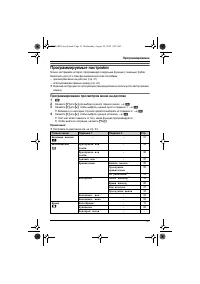
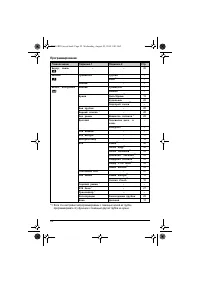
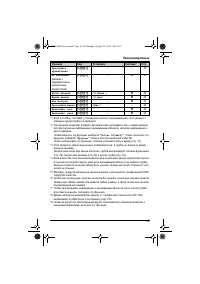
Programming 23 For assistance, please visit http://www.panasonic.com/help Programmable settings You can customize the unit by programming the following features using the handset.To access the features, there are 2 methods:– scrolling through the display menus (page 23) – using the direct commands (...
Page 25 - Programming using the direct commands
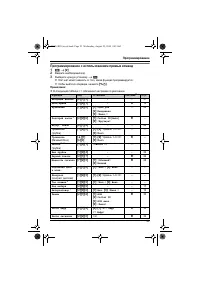
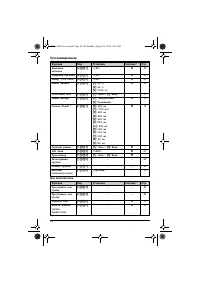
Programming 25 For assistance, please visit http://www.panasonic.com/help *1 If you program these settings using one of the handsets, you do not need to program the same item using another handset. Programming using the direct commands 1 { MENU } i { # } 2 Enter the desired code. 3 Select the desire...
Page 29 - Special programming; Alarm
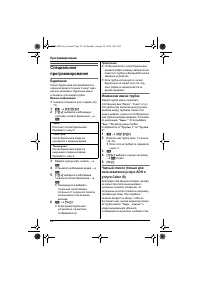
Programming 29 For assistance, please visit http://www.panasonic.com/help Special programming Alarm An alarm sounds at the set time for 3 minutes once or daily. Alarm can be set for each handset. Important: L Set the date and time beforehand (page 15). 1 { MENU } i { # }{ 7 }{ 2 }{ 0 } 2 {V} / {^} :...
Page 30 - Changing the handset name
Programming 30 For assistance, please visit http://www.panasonic.com/help Changing the start and end time 1 { MENU } i { # }{ 2 }{ 3 }{ 7 } 2 Continue from step 3, “Turning silent mode on/off”, page 29. Changing the handset name Each handset can be given a customized name (“Bob”, “Kitchen”, etc.). T...
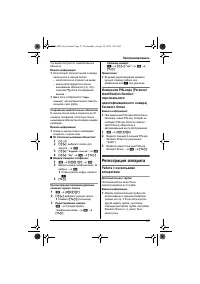
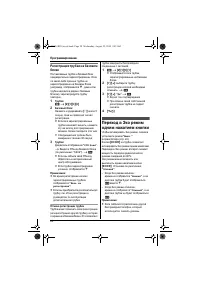
Page 31 - Registering a unit; Operating additional units
Programming 31 For assistance, please visit http://www.panasonic.com/help Block calls without phone number You can reject a call without phone number including “ Out of area ” , “ Private caller ” , or “ Long distance ” . 1 { MENU } i { # }{ 2 }{ 4 }{ 0 } 2 {V} / {^} : Select the desired setting. i ...
Page 33 - Caller ID Service; Using Caller ID service; Caller ID features; Talking Caller ID
Caller ID Service 33 For assistance, please visit http://www.panasonic.com/help Using Caller ID service Important: L This unit is Caller ID compatible. To use Caller ID features, you must subscribe to a Caller ID service. Contact your service provider/telephone company for details. Caller ID feature...
Page 34 - Caller list
Caller ID Service 34 For assistance, please visit http://www.panasonic.com/help “ Toll saver ” is selected and there is a new message, the unit does not announce the caller information. L When you receive a call while on the phone, the 2nd caller’s name is not announced even if you subscribe to both...
Page 35 - Erasing all caller information
Caller ID Service 35 For assistance, please visit http://www.panasonic.com/help 3 Press { EDIT } repeatedly until the phone number is shown in the desired format. 4 {C} Caller ID number auto edit feature Once you call back an edited number, the handset which was used to call back remembers the area ...
Page 36 - Answering System; Answering system; Call screening
Answering System 36 For assistance, please visit http://www.panasonic.com/help Answering system The answering system can answer and record calls for you when you are unavailable to answer the phone.You can also set the unit to play a greeting message but not to record caller messages by selecting “ ...
Page 37 - Greeting message
Answering System 37 For assistance, please visit http://www.panasonic.com/help To adjust the speaker volume, press {^} or {V} repeatedly. You can answer the call by pressing { SP-PHONE } . To turn off while screening a call, press {V} repeatedly until the sounds goes off. Note: L If you adjust the s...
Page 38 - Erasing all messages
Answering System 38 For assistance, please visit http://www.panasonic.com/help Operating the answering system during playback *1 If pressed within the first 5 seconds of a message, the previous message is played. Erasing all messages Press { ERASE } 2 times while the unit is not in use. Listening to...
Page 39 - Voice memo; Recording a voice memo; Remote operation; Remote access code
Answering System 39 For assistance, please visit http://www.panasonic.com/help *1 If pressed within the first 5 seconds of a message, the previous message is played. *2 To resume playback: {V} / {^} : “ Playback ” i { SELECT } *3 You can also erase as follows: { ERASE } i {V} / {^} : “ Yes ” i { SEL...
Page 40 - Voice guidance
Answering System 40 For assistance, please visit http://www.panasonic.com/help Using the answering system remotely 1 Dial your phone number from a touch-tone phone. 2 After the greeting message starts, enter your remote access code. L The unit announces the number of new messages. L The voice guidan...
Page 41 - Caller’s recording time
Answering System 41 For assistance, please visit http://www.panasonic.com/help 3 Enter your remote access code within 10 seconds after the long beep. L The greeting message is played back. L You can either hang up, or enter your remote access code again and begin remote operation (page 39). Answerin...
Page 42 - Message alert
Answering System 42 For assistance, please visit http://www.panasonic.com/help Select “ Greeting only ” in step 2 on “Caller’s recording time”, page 41. Note: L When you select “ Greeting only ” : – If you do not record your own message, the unit will play the pre-recorded greeting-only message aski...
Page 43 - Voice Mail Service; Voice mail service
Voice Mail Service 43 For assistance, please visit http://www.panasonic.com/help Voice mail service Voice mail is an automatic answering service offered by your service provider/telephone company. After you subscribe to this service, your service provider/telephone company’s voice mail system answer...
Page 45 - Intercom; Making an intercom call; Handset locator
Intercom/Locator 45 For assistance, please visit http://www.panasonic.com/help Intercom Intercom calls can be made: – between handsets – between the handset and base unit (KX-TG6541 series: page 3) Note: L If you receive an outside call while talking on the intercom, you hear 2 tones.– To answer the...
Page 47 - Useful Information; Wall mounting; Charger
Useful Information 47 For assistance, please visit http://www.panasonic.com/help Wall mounting The base unit can be mounted on a wall by revolving the bracket to “WALL” position (default: “DESK” stand position). Note: L Make sure that the wall is strong enough to support the weight of the unit. Base...
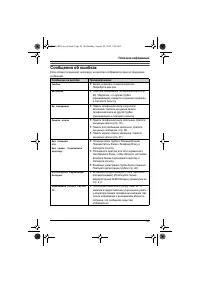
Page 48 - Error messages
Useful Information 48 For assistance, please visit http://www.panasonic.com/help Error messages If the unit detects a problem, one of the following messages is shown on the display. *1 KX-TG6521/KX-TG6531/KX-TG6541 series: page 3 Display message Cause/solution Base no power or No link. Re-connect ba...
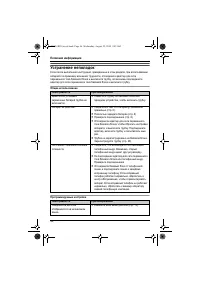
Page 49 - Troubleshooting
Useful Information 49 For assistance, please visit http://www.panasonic.com/help Troubleshooting If you still have difficulties after following the instructions in this section, disconnect the base unit’s AC adaptor, then reconnect the base unit’s AC adaptor. Remove the batteries from the handset, a...
Page 54 - FCC and other information
Useful Information 54 For assistance, please visit http://www.panasonic.com/help FCC and other information This equipment complies with Part 68 of the FCC rules and the requirements adopted by the ACTA. On the bottom of this equipment is a label that contains, among other information, a product iden...
Page 56 - Guía Rápida Española; Instalación; Correcto
Guía Rápida Española 56 Para obtener ayuda, visite http://www.panasonic.com/help (solo en inglés) Guía Rápida Española Instalación Correcto Incorrecto CARGUEAPROXIMADAMENTE DURANTE 7 HORAS Auricular Cargador Unidad base L Use solo el adaptador de corriente Panasonic PQLV219 incluido. (120 V CA, 60 H...
Page 57 - Sugerencias de operación; Operaciones básicas
Guía Rápida Española 57 Para obtener ayuda, visite http://www.panasonic.com/help (solo en inglés) Sugerencias de operación Teclas de función El auricular incluye 3 teclas de función. Al oprimir una tecla de función, puede seleccionar la función que aparece directamente encima de ella en la pantalla....
Page 58 - Preguntas frecuentes
Guía Rápida Española 58 Para obtener ayuda, visite http://www.panasonic.com/help (solo en inglés) Cómo hacer y contestar llamadas (Auricular) Para ajustar el volumen del timbre del auricular 1 { MENU } i { # }{ 1 }{ 6 }{ 0 } 2 {V} / {^} : Seleccione el volumen deseado. i { GUARDA } i { OFF } Cómo ha...
Page 60 - Appendix; Customer services
Appendix 60 For assistance, please visit http://www.panasonic.com/help Customer services Customer Services Directory (United States and Puerto Rico) Obtain Product Information and Operating Assistance; locate your nearest Dealer or Service Center; purchase Parts and Accessories; or make Customer Ser...
Page 61 - Warranty (For United States and Puerto Rico); Limited Warranty Coverage; Parts; Panasonic Telephone Products
Appendix 61 For assistance, please visit http://www.panasonic.com/help Warranty (For United States and Puerto Rico) PANASONIC CORPORATION OF NORTH AMERICA One Panasonic Way, Secaucus, New Jersey 07094 Limited Warranty Coverage If your product does not work properly because of a defect in materials o...
Page 62 - Limited Warranty Limits And Exclusions; ALL EXPRESS AND IMPLIED; When you ship the product
Appendix 62 For assistance, please visit http://www.panasonic.com/help Limited Warranty Limits And Exclusions This Limited Warranty ONLY COVERS failures due to defects in materials or workmanship, and DOES NOT COVER normal wear and tear or cosmetic damage. The Limited Warranty ALSO DOES NOT COVER da...
Page 63 - Index
Index 63 Index # 4-way conference: 19 A Additional handset: 31 Alarm: 29 Answering calls: 17 Answering system Call screening: 36 Erasing messages: 38 , 39 , 40 Greeting message: 37 Greeting only: 41 Listening to messages: 37 , 38 , 40 MEMO: 39 Number of rings: 41 Recording time: 41 Remote access cod...
Page 64 - Reconnect AC adaptor to the base unit.; Read; troubleshooting; page in the; Operating Instructions; Attach your purchase receipt here.
PNQX2397XA CM1209DW3050 For your future reference We recommend keeping a record of the following information to assist with any repair under warranty. Copyright: This material is copyrighted by Panasonic System Networks Co., Ltd., and may be reproduced for internal use only. All other reproduction, ...