Page 2 - English; Safety Information
1 2 CQ-VD6505W English Safety Information Warning Observe the following warnings when usingthis unit. ❑ The driver should neither watch the display noroperate the system while driving. Watching the display or operating the system will distractthe driver from looking ahead of the vehicle and can caus...
Page 3 - Caution
2 3 CQ-VD6505W English Caution Observe the following cautions when usingthis unit. ❑ Keep the sound volume at an appropriate level. Keep the volume level low enough to be aware of road andtraffic conditions while driving. ❑ Do not insert or allow your hand or fingers to becaught in the unit. To prev...
Page 5 - Notes on Use; Liquid Crystal Panel; Before Reading These Instructions; Differences among 4 Models; ALL
4 5 CQ-VD6505W English Notes on Use Components 4. Operating Instructions <YFM284C681ZA> Qty.: 1 XXXXXXXXXXXXXXX XXXXXXXXXXXXXXXXX XXXXXXXXXXXXXX XXXXXXXXXXXXXXXX OO-OOOOO 3. Wiping Cloth <YEFX9991793> Qty.: 1 2. Remote Control Unit <EUR7641060>(includes a battery: CR2025) Qty.: 1 C...
Page 6 - Features; Built-in Dolby Digital decoder, DTS decoder; Touch Panel Operation
5 6 CQ-VD6505W English Features ■ Simultaneous Multi-Device Connection(with Expansion Module (hub unit)) You can connect the optional Expansion Module (hubunit) (CY-EM100N). Connection of the ExpansionModule allows you to simultaneously connectoptional devices mentioned before as well as otherAV dev...
Page 7 - Contents
7 CQ-VD6505W Contents ¢ Safety Information .......................... 2 ¢ Notes on Use ................................................... 5 ¢ Before Reading These Instructions .............. 5 ¢ Components .................................................... 5 ¢ Features ..............................
Page 8 - Preparation; RADIO; Subwoofer; Other Settings; Remote Control Unit; Battery Replacement; First Time Power On
7 8 CQ-VD6505W English Preparation (user settings) ( a page 30) display unit, clock , ID code, memory clear, other (screen settings) ( a page 32) dimmer, picture (audio settings) ( a page 32) sound setup, graphic equalizer, CS Auto, speaker set up,speaker level, time alignment, source level, cross o...
Page 9 - Pictographs; Symbols used in this manual; Disc Marks
8 9 CQ-VD6505W English Pictographs You can perform some operations of this unit in one ormore methods with the touch panel or remote control.This book explains such operations in tabular form as fol-lows. Refer to the following for the pictographs located inthe upper part of each table. Symbols used...
Page 10 - Name of Controls and Functions; Main Unit
9 10 CQ-VD6505W English Name of Controls and Functions u [ s ] [ d ] (TUNE TRACK) ASPECT MUTE MENU NAVI TUNE FOLDER ALBUM TRACK SRC VOL ASP P-MODE PWR TILT CQ-VD6505W Main Unit Disc slot Remote control sensor Security LED ( a page 31) SECURITY LED e [+] [–](VOL) r [ MUTE ] q [SRC] (PWR) (SOURCE/POWE...
Page 11 - MUTE; Remote Control
10 11 CQ-VD6505W English CAR AV MUTE ENT VOL SRC PWR DVD MENU RET RETURN TOP MENU ENTER / BAND r [ MUTE ] t [+] [–] (VOL) q [SRC] (PWR) (SOURCE/POWER) e [RET] (RETURN) u [ ] (TOP MENU/DVD MENU) w [ ■ ] [ ❚ ❚ ] [ B ] [ s ] [ d ] Aim the remote control at the remote control sensor of the main unit and...
Page 12 - Touch Panel Operation Overview; The State of Operation Screen; Notes on the Touch Panel; Prohibition; Source Button; Source Selection Screen
11 12 CQ-VD6505W English Touch Panel Operation Overview The State of Operation Screen ❒ Notes on the Touch Panel Before operation ¡ Clean the surface of the touch panel. ( a page 47) Operation ¡ Use only your fingers to operate the touch panel. ¡ Do not press the panel forcefully. ¡ Do not scratch t...
Page 13 - Switching the display; Standard Screen; How to Call up Operation Screen; Showing the hidden part of the screen.
12 13 CQ-VD6505W English Switching the display Touching allows users to switch between screens as follows. Please refer to the separate “System Upgrade Guidebook” for how to operate this unit when optional devices areconnected. Radio( a page 24) * 1 To switch Operation Screen ON, touch the center of...
Page 14 - General; General Operations; Power; TILT
13 14 CQ-VD6505W English Operations General [SRC] – – – [SRC] [SRC] ( a page 12) [SRC] General Operations Power ON : Source selection [ u ] ¡ Press once to open. Press again to close. Display Open/Close Note: ¡ The display automatically closes after a warning alarm sounds if no operation is per-form...
Page 15 - Volume
14 15 CQ-VD6505W English CAR AV MUTE ENT VOL SRC PWR DVD MENU RET RETURN TOP MENU ENTER / BAND MUTE SRC MUTE SRC VOL [SRC] (PWR: power ) [MUTE] [ ] ] [ [ ] [ +] [–] (VOL) q Press and hold for more than 2 sec-onds. w Press to adjust. Setup is the same asfrom MENU. Refer to for details. ( a page 30) D...
Page 16 - Before Disc Playback; Discs that can be Played Back; Symbols used on jackets; Note; Region Management Information; Disc Type; Discs not supported
15 16 CQ-VD6505W English Before Disc Playback Discs that can be Played Back ❒ Symbols used on jackets (Examples of such symbols include) ¡ : Number of subtitle languages ¡ : Number of audio tracks ¡ : Number of angles The numbers indicate the number of languages,tracks, angles, etc., recorded on the...
Page 17 - Disc Eject; Disc Insert
16 17 CQ-VD6505W English ASPECT MUTE MENU NAVI TUNE FOLDER ALBUM TRACK SRC VOL ASP P-MODE PWR TILT CQ-VD6505W Disc Eject Press [ u ] to stop playback and eject the disc. (Press [ u ] again to reload the disc.) Note: ¡ If you leave a disc in the slot for more than 30 secondsafter its ejection, the di...
Page 18 - Disc Player; Video Mode; DVD; CD; mode display; Audio Mode
17 18 CQ-VD6505W English Disc Player Video Mode ❒ Folder/File/Track Selection q Touch (folder name) to select a folder. , : scrolls up/down the file list by 1 page. , : scrolls up/down the file list by 1 line. w Touch (file name) to play. q Press [ ] ] , [ [ ] , [ } ] or [ { ] to select a folder. [ ...
Page 19 - Basic Operations
18 19 CQ-VD6505W English …… Touch/Press and hold Operations Operations WMA WMA WMA MP3 MP3 MP3 CD CD CD VCD VCD VCD DVD DVD DVD Compatible Discs Compatible Discs Compatible Discs Disques compatibles Compatible Discs Compatible Discs Compatible Discs Discos compatibles Compatible Discs DVD DVD DVD Tr...
Page 20 - Chapter/title Selection
19 20 CQ-VD6505W English Disc Player (continued) To switch Operation Screen ON, touch the center of touch panel or press [ENTER] on the remote control. Note: ¡ If no operation is performed for 8 seconds after you have touched , the operation buttons disappear. ¡ If the title/chapter number is inputt...
Page 21 - Subtitle Language; Useful Function
20 21 CQ-VD6505W English Note: ¡ If no operation is performed for 10 seconds or is touched, the operation buttons disappear. ¡ It may not be possible to switch the language unless the unit is at the DVD menu ( a previous page) or is at the DVD settings. ( a page 36) ¡ The language on the DVD setting...
Page 22 - Points to remember when making MP3/WMA files; Common; Display Information; Displayed items
21 22 CQ-VD6505W English Notes on MP3/WMA What is MP3/WMA? MP3* (MPEG Audio Layer-3) and WMA (Windows Media TM Audio) are the compression formats of digital audio. Theformer is developed by MPEG (Motion Picture Experts Group),and the latter is developed by Microsoft Corporation. Usingthese compressi...
Page 23 - Supported file systems; Folder selection order/file playback order; Maximum number of files/folders; Compression formats; Copyright
22 23 CQ-VD6505W English Root Folder (Root Directory) Folder Selection File Selection Tree 1 Tree 2 Tree 3 Tree 4 Tree 8 (Max.) 2 1 4 3 q q e w r t y y 5 6 7 1 8 8 – In the order – In the order ¡ You are recommended to minimize the chances of makinga disc that contains both CD-DA files and MP3/WMA f...
Page 24 - Radio; Band Selection; Tuning; Radio Mode Selection
23 24 CQ-VD6505W English Radio ASPECT MUTE MENU NAVI TUNE FOLDER ALBUM TRACK SRC VOL ASP P-MODE PWR TILT CQ-VD6505W SRC [BAND] – Operations Band Selection List Selection Refer to the next page. Station Selection Seek Tuning …… Touch/Press and hold [ [ ] [ d ] Up [ ] ] [ s ] Down [ [ ] [ d ] Up [ ] ]...
Page 26 - AV Mode Selection
25 26 CQ-VD6505W English AV1/AV2 ASPECT MUTE MENU NAVI TUNE FOLDER ALBUM TRACK SRC VOL ASP P-MODE PWR TILT CQ-VD6505W SRC Press [SRC] to change to the desired mode. [SRC] Source Button To switch Operation Screen ON, touch the center oftouch panel or press [ENTER] on the remote control. Preparation: ...
Page 28 - Settings
27 28 CQ-VD6505W English Settings DISPLAY UNITCLOCKID-CODEMEMORY CLEAROTHER DIMMERPICTURE SOUND SETUPGRAPHIC-EQ CS Auto SP SETUP SP LEVELTIME ALIGNMENTSOURCE LEVELCROSS OVER LANGUAGEDISPLAYDVD SOUND MULTI-CH NAVI SETUPSOURCE SKIPINPUT SELECTOUTPUT SELECTH-F SETUP FM SETUPAM SETUP (*1) Please refer t...
Page 29 - MENU Operation
28 29 CQ-VD6505W English ❏ MENU Operation Note : ¡ The display returns to the previous status if there is no operation for more than 60 seconds after changing to thesetting menu. (Example: DVD mode) Touch in Operation Screen. Touch desired setting. q w (Example: setting screen of “DISPLAY UNIT” a pa...
Page 30 - USER; CLOCK; MINUTE ADJUST; DISPLAY
29 30 CQ-VD6505W English ID-CODE ID Code Setting Prior to operating this unit, it is advisable to assign a 4-digit ID code for security. Once the ID code has been set,the unit cannot be operated if the main power supply isdisconnected then re-connected. It is electronically lockedso that a thief can...
Page 31 - MEMORY CLEAR; OTHER
30 31 CQ-VD6505W English MEMORY CLEAR Memory clearance The state of all of the current memories are returned todefault settings. Note: ¡ The ID code is not deleted by executing memory clear. : clears the memory to default settings : no memory clear. The display returns to the previous one. appears w...
Page 32 - AUDIO; DIMMER; PICTURE; CONTRAST; SCREEN; SOUND SETUP; SOUND EFFECT
31 32 CQ-VD6505W English Settings (continued) RADIO INPUT/OUTPUT DVD AUDIO SCREEN USER DIMMER Adjusting the brightness : automatically adjusted according to ambient light intensity. default: AUTO 4 3 2 1 AUTO PICTURE Display appearance : decreases the contrast between black and white. : increases th...
Page 33 - SELECT
¡ To set the level to flat, touch and hold (flat) for more than 2 seconds. ¡ Expectable effects vary with the audio format to beused, settings in the menu, and other factors. 32 33 CQ-VD6505W English : more : less : more : less : more : less Setting range: off, +1 to +10 default: off ] [ (Applies to...
Page 34 - SP LEVEL
33 34 CQ-VD6505W English Settings (continued) SP LEVEL (Speaker level) Adjusting the output balance of each speaker : down, : up : down, : up : down, : up : down, : up : down, : up : down, : up Setting range: –10 dB to +10 dB (1 dB steps) default: ± 0 dB for all speakers ¡ If the speaker setting is ...
Page 35 - CROSS OVER
34 35 CQ-VD6505W English : enables the test tone. : disables the test tone. default: ¡ When the test tone is set to on, test signal (a continu-ous tone) is output from each speaker for approximately2 seconds. Adjust the output balance so that the tone appears tohave the same volume from each speaker...
Page 36 - LANGUAGE
35 36 CQ-VD6505W English Settings (continued) DISPLAY Display aspect and DVD software mode : plays a video in 4:3 screen. : plays a video in wide screen (16:9). default: WIDE WIDE NARROW (Display aspect setting) DVD ASPECT : plays wide-screen video in Pan & Scan mode (in which the left and right...
Page 37 - AV2 SKIP; DVD SOUND; DR COMP
36 37 CQ-VD6505W English MULTI-CH (Multiple channel) Sound output of Dolby Digital 2 ch. from all speakers : changes sound from 2 ch. to 5.1 ch. : keeps the source output 2 ch. sound. default: OFF OFF ON NAVI SETUP (Navigation set up) ( a System Upgrade Guidebook) SOURCE SKIP Source skip If AV1 is n...
Page 38 - FM SETUP; AUTO PRESET; NOISE SUPPRESSION
37 38 CQ-VD6505W English Settings (continued) FM SETUP Setting for FM stations : adjusted automatically : narrows the frequency bandwidth to be received to prioritize noise reduction. : widens the frequency bandwidth to be received to prioritize sound quality. default: : saves the preset stations in...
Page 39 - Aspect Ratio
38 39 CQ-VD6505W English ¡ The conventional displayimage has a 4 to 3 ratio ofhorizontal to vertical. ¡ In this case, a blank arearemains on the right and leftsides of the display. NORMAL ¡ The screen is extended hori-zontally as a whole to theaspect ratio of 16 to 9. ¡ The extension ratio is thesam...
Page 40 - Private Mode
39 40 CQ-VD6505W English ❑ Private Mode You can mute the sounds from the rear speakers if nec-essary. Activation of the private mode allows you to enjoythe front monitor and rear monitor independently withdifferent sources at the same time. Default: Private mode off Press and hold [ASP] (P•MODE) on ...
Page 41 - Troubleshooting; If You Suspect Something Wrong
40 41 CQ-VD6505W English Troubleshooting ■ Common ❑ If You Suspect Something Wrong Check and take steps as described below. If the described suggestions do not solve the problem, it is rec-ommended to take the unit to your nearest authorized PanasonicService Center. The product should be serviced on...
Page 44 - Remote control unit; Display Settings
43 44 CQ-VD6505W Troubleshooting (continued) English No response to pressing buttons The battery is inserted in the wrong direction. A wrong battery is inserted. a Insert a correct battery in the correct direction. The battery is weak. a Replace the battery with new one. The aiming direction of the ...
Page 45 - No sound from the; Left and right sounds are; No sound on the; Sound settings
44 45 CQ-VD6505W English No sound from the subwoofer Playing back a disc having a subwoofer channel ¡ Subwoofer is set to in the speaker setting. a Set subwoofer to . ¡ Private mode is set to . a Set private mode to . ¡ Pro Logic is set to . a Set Pro Logic to . OFF ON OFF ON YES NO No sound from le...
Page 46 - Error Display Messages; ID CODE; ID code memo
45 46 CQ-VD6505W English Troubleshooting (continued) ❑ Error Display Messages Note: ¡ There may be cases when the disc numbers affected by an error are displayed before “NON PLAYABLE DISC”. ■ CD/MP3/WMA/DVD/VCD (Video CD) Display Possible cause a Possible solution NON PLAYABLE DISC Disc is dirty, or...
Page 47 - Product Servicing; Maintenance; Cleaning this Unit; Cleaning without the supplied cloth; Caution on Cleaning
46 47 CQ-VD6505W English ❑ Product Servicing If the suggestions in the charts do not solve the problem,we recommend that you take it to your nearest authorizedPanasonic Service Center. The product should be servicedonly by a qualified technician. ❑ Replacing the Fuse Use fuses of the same specified ...
Page 48 - Notes on Discs
47 48 CQ-VD6505W English Notes on Discs How to hold the disc ¡ Do not touch the underside of the disc. ¡ Do not scratch the disc. ¡ Do not bend disc. ¡ When not in use, keep disc in the case. Do not use discs that fit any of the descriptions givenbelow. Using these discs may damage the discs orcause...
Page 49 - Language Code List
48 49 CQ-VD6505W English Language Code List 8277 Rhaeto-Romance 8279 Romanian 8285 Russian 8365 Sanskrit 8368 Sindhi 8372 Serbo-Croatian 8373 Singhalese 8375 Slovak 8376 Slovenian 8377 Samoan 8378 Shona 8379 Somali 8381 Albanian 8382 Serbian 8385 Sundanese 8386 Swedish 8387 Swahili 8465 Tamil 8469 T...
Page 50 - Definition of Terms; Dolby Digital
49 50 CQ-VD6505W English Definition of Terms Dolby Digital This fully discrete format divides the music signalsinto 5.1 channels: Front Left (L), Front Right (R),Center (C), Left Surround (LS), Right Surround (RS)and Subwoofer (SW: 0.1 channel) for recording andplayback. The number of channels that ...
Page 51 - Specifications
50 51 CQ-VD6505W English Specifications General ¡ Power supply : 12 V DC (11 V – 16 V), test voltage 14.4 V, negativeground ¡ Current consumption : Less than 10 A (during disc playback) ¡ Power Output : 18 W x 4 ch (1 kHz, 1 %, 4 Ω ) ¡ Maximum power output : 50 W x 4 ch ¡ Compatible speaker impedanc...
Page 55 - Upgrade Options
2 3 CQ-VD6505W English Upgrade Options Safety Information................................................2Upgrade Options ..................................................3Installation ............................................................4Electrical Connections .................................
Page 56 - Installation Opening
3 4 CQ-VD6505W English Installation Preparation Dashboard Installation ¡ Before installation, check the radio operation withantenna and speakers. ¡ Disconnect the cable from the negative (–) battery ter-minal (see caution below). ¡ The unit should be installed in a horizontal positionwith the front ...
Page 57 - Before Installation; Wiring
4 5 CQ-VD6505W English <YFX994C134ZA> Lock Cancel Plate e 2 ❏ Transportation Bracket Removal Be sure to remove the transportation brackets beforeuse (installation). Use round head screws (5 mm ø x 8 mm) for installation. ( a page 7) Be careful not to lose these screws. Round Head Screw (5 mm ø...
Page 58 - (When using Mounting Collar; Mounting and removing the Main Unit; Method for Fixing the Rear of the Unit
5 6 CQ-VD6505W English Installation (continued) ❏ Mounting Procedures (A) (When using Mounting Collar w ) Mounting and removing the Main Unit Note: ¡ The car model, installation conditions and combinationof the units used may impose some restrictions onopening and closing the monitor as well as on t...
Page 59 - (When not using Mounting Collar; Removing Procedures; Remove the trim plate; Pull the unit out with both hands.
6 7 CQ-VD6505W English ❏ Mounting Procedures (B) (When not using Mounting Collar w ) Use the brackets supplied with your car when mountingthis unit. The bracket shape and mounting method varywith car manufacturers, car types and manufacturingyear. Please consult your nearest dealer or installer. ❏ R...
Page 60 - Electrical Connections
7 8 CQ-VD6505W English F U S E 1 5 A F U S E 1 5 A F U S E 1 5 A 8 m m M A X > P B T < J A M - S A a AV-OUT CAMERA-IN 3 5 6 2 4 1 Electrical Connections Caution ¡ This unit is designed for use in a car having a 12 V negative ground battery system. ¡ Be sure to insulate any exposed wires from t...
Page 62 - Connecting the Side Brake (Parking Brake) Connection Lead; Hand brake
9 10 CQ-VD6505W English — + SIDE BRAKE The side brake (parking brake) switch position varies with car model.For details on the exact location of the side brake (parking brake) switchin your car, contact your dealer. q Attach a Clip Connector !2 to the end of the side brake (parking brake) connection...
Page 63 - Connection with TV Tuner; TV Tuner
10 11 CQ-VD6505W English Connection with TV Tuner Note: ¡ Refer to the operating instructions for the connected devices, in addition. F U S E 1 5 A F U S E 1 5 A F U S E 1 5 A 8 m m M A X > P B T < J A M - S A a PWR-CONT TV Tuner CY-TUP133W/CY-TUN133W (option) CQ-VD6505W(Rear) (Video)(Yellow) ...
Page 64 - DVD Changer
11 12 CQ-VD6505W English Electrical Connections (continued) CHANGER IN BATTERY 5 A ACC F U S E 1 5 A F U S E 1 5 A F U S E 1 5 A 8 m m M A X > P B T < J A M - S A a Connection with DVD Changer (CX-DH801W) CQ-VD6505W(Rear) RCA Cord (Video)(Yellow) (L) (White) (R) (Red) DIN Connector DIN Cord (B...
Page 65 - CD Changer
F U S E 1 5 A F U S E 1 5 A F U S E 1 5 A 8 m m M A X > P B T < J A M - S A a CHANGER IN 12 13 CQ-VD6505W English (L) (White) (R) (Red) DIN Connector Conversion Cable for DVD/CDChanger (CA-CC30N, option) Connection with CD Changer (CX-DP880) CQ-VD6505W(Rear) System-up connector DIN Cord (Black...
Page 67 - Connection with Rear Monitor; Rear Monitor; Connection with VCR or Camcorder; VCR
14 15 CQ-VD6505W English Connection with Rear Monitor Note: ¡ Refer to the operating instructions for the connected devices, in addition. ¡ Please observe what shapes the connectors of the connecting devices are and where each of them is connected to inorder to establish a proper connection. COLOR L...
Page 68 - Connecting the Reverse Lead; Connection with Rear View Camera
15 16 CQ-VD6505W English Electrical Connections (continued) P ND2L REVERSE R F U S E 1 5 A F U S E 1 5 A F U S E 1 5 A 8 m m M A X > P B T < J A M - S A a CAMERA-IN Panaso nic Connecting the Reverse Lead If using an optional rear view camera, the reverse lead mustbe connected. Connect the reve...
Page 70 - Installation Instructions
YFM294C102CA PTW0107-1027 Printed in China Matsushita Electric Industrial Co., Ltd. Web Site : http://panasonic.net Installation Instructions
Page 74 - System upgrade sample
3 4 CQ-VD6505W English Before Reading These Instructions This is a guide book specific to system upgrading. Please refer to the operating instructions for basic operations,menu operations, specifications, etc. Panasonic welcomes you to our constantly growing family of electronic products owners.We e...
Page 75 - Hands-Free Phone System
4 5 English CQ-VD6505W Connectable devices ■ DVD Changer The optional adapter (Conversion Cable for DVD/CD Changer: CA-CC30N) allows you to connect the optional Panasonic DVD changer unit (CX-DH801W). For details, referto the operating instructions for the DVD changer unit. ■ CD Changer The optional...
Page 76 - Simultaneous Multi-Device Connection
5 6 CQ-VD6505W Before Reading These Instructions (continued) English System upgrade sample Expansion Module (CY-EM100N, option) CD Changer (CX-DP880, option) DVD Changer (CX-DH801W, option) Conversion Cable for DVD/CD Changer (CA-CC30N, option) Direct cable for iPod (CA-DC300N, option) Hands-Free Ki...
Page 80 - TV Tuner Control; TV Mode Selection
9 10 CQ-VD6505W TV Tuner Control English Preparation: ¡ Connect a TV tuner (CY-TUP133W/CY-TUN133W,option) to the unit. ¡ It is required to install the TV antenna to receive TVbroadcasts. ¡ For receiving TV broadcasts, stop your car wherethere is no obstacle to broadcast reception around. [SRC] Sourc...
Page 82 - CD Changer Control; CD Changer Mode Selection
11 12 CQ-VD6505W English CD Changer Control ¡ CD changer functions are designed for optionalPanasonic CD changer unit. (CX-DP880) Preparation: ¡ Connect the CD changer, and load a magazine (discs). Disc number Total track number Total time Current track Track selection Source Button Random PlayScan ...
Page 83 - DVD Changer Control; DVD Changer Mode Selection
12 13 CQ-VD6505W English DVD Changer Control To switch Operation Screen ON, touch the center oftouch panel or press [ENTER] on the remote control. …… Touch/Press and hold Operations Operations MP3 MP3 MP3 CD CD CD VCD VCD VCD DVD DVD DVD Compatible Discs Compatible Discs Compatible Discs Disques com...
Page 84 - Slow Playback
13 14 CQ-VD6505W English DVD Changer Control (continued) …… Touch/Press and hold Slow Playback VCD VCD VCD DVD DVD DVD MP3 MP3 MP3 CD CD CD VCD VCD VCD DVD DVD DVD Note: ¡ Reverse slow playback is not possible. – [ d ] Basic Operations (continued) ¡ Touch/press and hold in the pausemode. Playback is...
Page 86 - Bluetooth Hands-Free Kit; Bluetooth Hands-Free Mode
15 16 CQ-VD6505W English Bluetooth Hands-Free Kit When receiving a call... Example: DVD mode Preparation: ¡ Connect the Bluetooth hands-free kit (CY-BT100N)and establish the pairing. Refer to the instructionmanual for the Bluetooth hands-free kit for furtherinformation. Connection of the optional Bl...
Page 88 - iPod Control; Title Scroll; iPod Mode Selection
ASPECT MUTE MENU NAVI TUNE FOLDER ALBUM TRACK SRC VOL ASP P-MODE PWR TILT CQ-VD6505W 17 18 CQ-VD6505W iPod Control English Preparation: ¡ Connect the iPod through connecting cable (CA-DC300N, option). text/title scroll operation buttons Information of current track/file Operations Track/file Selecti...
Page 89 - Shuffle Songs
18 19 CQ-VD6505W English Useful Function Shuffle Songs – – To cancel, touch again. Shuffle Albums – – To cancel, touch and hold again. Repeat Play – – To cancel, touch again. Note: ¡ The shuffle function of iPod corresponds to the RANDOM function of this unit. Note: ¡ The All Repeat Play function of...
Page 90 - INPUT SELECT
This is a guide book specific to system upgrading. Please refer to the operating instructions for basic operations,menu operations, specifications, etc. 19 20 CQ-VD6505W English Settings RADIO INPUT/OUTPUT DVD AUDIO SCREEN USER INPUT SELECT Input selection : connected to the RGB input cord, or a car...
Page 91 - OUTPUT SELECT; REAR MONITOR
20 21 CQ-VD6505W English OUTPUT SELECT Output Selection You can have different picture and sound on the frontand rear monitors at the same time. Preparation: Connect another optional rear monitor. ( a Installation Instruction) ❑ When the Expansion Module (CY-EM100N, option) is disconnected: : same a...
Page 93 - CD Changer/DVD Changer Control
22 23 CQ-VD6505W English ❑ Error Display Messages Note: ¡ There may be cases when the disc numbers affected by an error are displayed before “NON PLAYABLE DISC”. ¡ Displays and the steps to be taken for errors vary in part from changer to changer. For details, refer to the OperatingInstructions for ...
Page 94 - System Upgrade Guidebook
YFM284C682CA PTW0107-2037 Printed in China Matsushita Electric Industrial Co., Ltd. Web Site : http://panasonic.net System Upgrade Guidebook


 Panasonic CQ-C3353W
User Manual
Panasonic CQ-C3353W
User Manual
 Panasonic CQ-C3453W
User Manual
Panasonic CQ-C3453W
User Manual
 Panasonic CQ-C5153W
User Manual
Panasonic CQ-C5153W
User Manual
 Panasonic CQ-C5302W
User Manual
Panasonic CQ-C5302W
User Manual
 Panasonic CQ-C7302N
User Manual
Panasonic CQ-C7302N
User Manual
 Panasonic CQ-C7353N
User Manual
Panasonic CQ-C7353N
User Manual
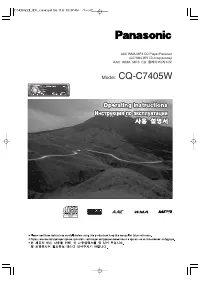 Panasonic CQ-C7405W
User Manual
Panasonic CQ-C7405W
User Manual
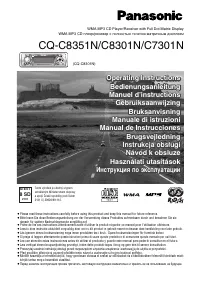 Panasonic CQ-C8301N
Manual
Panasonic CQ-C8301N
Manual
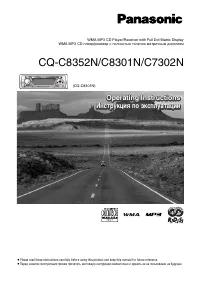 Panasonic CQ-C8352N
User Manual
Panasonic CQ-C8352N
User Manual
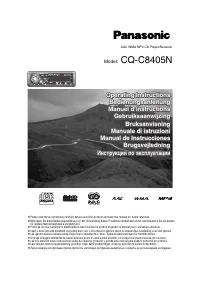 Panasonic CQ-C8405N
User Manual
Panasonic CQ-C8405N
User Manual
 Panasonic CQ-CK2303W
User Manual
Panasonic CQ-CK2303W
User Manual
 Panasonic CQ-D1703N
User Manual
Panasonic CQ-D1703N
User Manual
 Panasonic CQ-DFX572N
Manual
Panasonic CQ-DFX572N
Manual
 Panasonic CQ-DP153W
User Manual
Panasonic CQ-DP153W
User Manual