Nokia 500 - Manuals
Nokia 500 Smartphone – User Manual, Manual in PDF format online.
Manuals:
User Manual Nokia 500
Summary
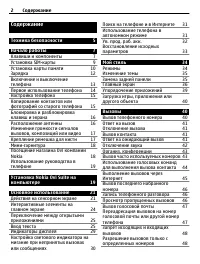
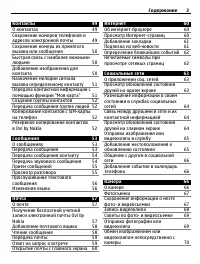
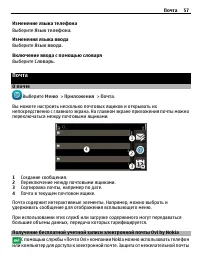
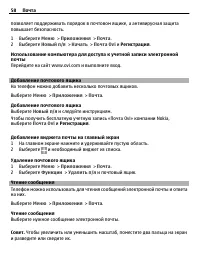
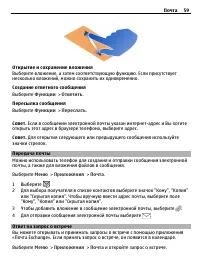
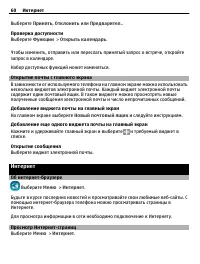
5 7 7 SIM- 9 1012 13 14 15 15 16 16 , 17 17 - 18 Ovi Nokia 18 19 Nokia Ovi Suite 19 21 21 24 25 25 29 30 31 31 . . . . 32 33 34 34 35 35 36 39 , 40 40 40 41 41 41 41 42 . 43 43 44 45 46 46 46 47 47 48 48 2
. . . . , , , , , , , . .. - . . , ! , . . , , Nokia . . . . 5
. USB. USB , ? , , USB- . , USB- . . Э USB- . , , , . . . . 13
1 , , . Bluetooth. 2 , . . . . . . 3 OK . , , . . . , , . . 1 > > > . . . . 2 , . . - . 16
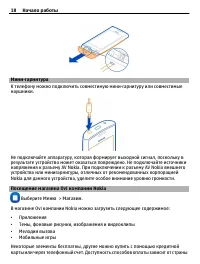
- - . , , . AV Nokia. AV Nokia , Nokia , . Ovi Nokia > . Ovi Nokia : •• , , • • , . 18
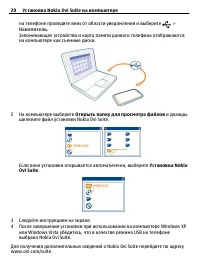
> . . 2 Nokia Ovi Suite. , Nokia Ovi Suite . 3 . 4 Windows XP Windows Vista , USB Nokia Ovi Suite. Nokia Ovi Suite www.ovi.com/suite. 20 Nokia Ovi Suite
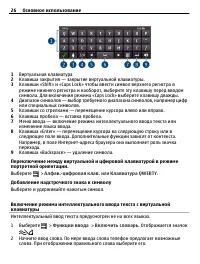
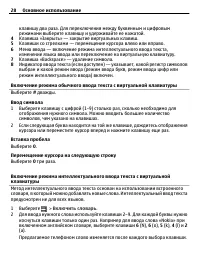
1 2 — . 3 «Shift» «Caps Lock» , . «Caps Lock» . 4 — , . 5 — . 6 — . 7 — . 8 «Enter» — . . , - . 9 «Backspace» — . . > .- . QWERTY . . . 1 > > . . 2 . . . 26
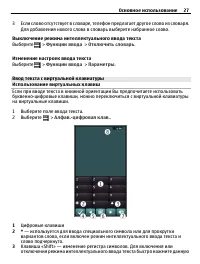
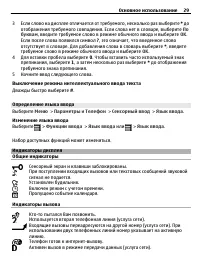
3 , . . > > . > > . - , . 1 . 2 > .- . . 1 2 * — , . 3 «Shift» — . 27
3 . ? - ( ), . 1 . 2 . 3 . , . , . . OVI . , . . , > . 1 . 2 . 3 . , ? , - , . 38
. , . , , . Ovi , . > Nokia. 1 . 2 , . , . 3 , , . Nokia, Nokia . , . 4 , . 5 . 6 . . , > . . WLAN , , . . Ovi, Nokia. . . 1 . "+", , * . 40
1 > . . 2 . , , . . . . - - . - , , VoIP . - - . - . - 3G - . - - Ovi. . www.ovi.com. 1 - . 2 , . 3 . - , . - - . > . 45
> . . . PIN2- . , . 1 > . SIM . 2 , , . . " " . , SIM- , . > . , . . , . > . 1 > . 2 . 1 . 2 . 3 . , > > > . 49
. . . > > . . . 1 . 2 . 3 , . 4 . . , . , . Ovi by Nokia « Ovi» Nokia . 57
. > . « » Ovi. , Facebook Twitter, ., : • , , . • . • , • • • • , . . Э , . . , Nokia. , . . . . . . > . 63
1 . 2 . 3 . 4 . , , . Social . > . . . « », . > . 1 . 2 . 3 , . , Facebook Twitter, Ovi by Nokia . Social. Social Social. , . , . 64
, , . . > . > > GPS > . . GPS , , . , , , , . . : — . . — . . , . > . 1 . 2 , . . 3 , . , . . 4 . . . . > > . 68
1 . - . USB. 2 . 3 > . 4 USB , > USB . 5 > . . Bluetooth. > Bluetooth . Bluetooth . . USB , USB. . > > . . . . Ovi. Ovi www.ovi.com. , . > > . . . . , ? ? USB, . 74
1 . 2 . . 3 . 1 . 2 , . 1 . 2 , . , . > . Nokia, . 1 . 2 > SMS / . , . . - « Ovi» , . - « Ovi» Nokia. > Ovi . Nokia . 90
, . ZIP ZIP- . ZIP . > > > Zip manager . > > . , . > > . . , . . . 1 . 2 . 3 , , . , . 99
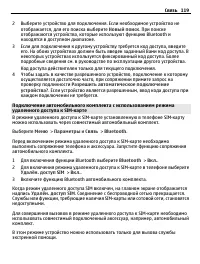
•• (.sis .sisx) • , , , , ( ) . > . . , . : • Java™ ME .jad .jar; • , Symbian, .sis .sisx; • .wgz. . , . > . . 1 . . . 2 , , . . , , . - , . . . . 109
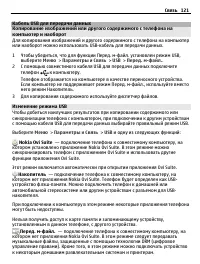
USB USB- . 1 , . - . USB, > > USB > . - . . 2 USB . . . - ., . 3 . USB , USB USB. > > USB : Nokia Ovi Suite — , Nokia Ovi Suite. Ovi Suite Ovi Suite. Э Ovi Suite. — , Nokia Ovi Suite. USB- - . USB- . . , , . . - . — , Nokia Ovi Suite. , DRM ( ). , . 121
Manual Nokia 500
Summary
4 Contents For your safety.......................... 6 1. Introduction .......................... 7 Bluetooth wireless technology........... 7Global Positioning System (GPS) ....... 7DVD ............................................................ 8 2. Get started ......................... 10 Keys a...
F o r y o u r s a f e t y 6 For your safety Read these simple guidelines. Not following them may be dangerous or illegal. Read the complete user guide for further information. ROAD SAFETY COMES FIRST Obey all local laws. Always keep your hands free to operate the vehicle while driving. Your first co...
I n t r o d u c t i o n 7 1. Introduction You can use the Nokia 500 Auto Navigation device for GPS navigation in a car and outdoors. You can also make calls, view photos, watch videos, and listen to music. Read this user guide carefully before using the device. Also read the user guide for your mobi...
I n t r o d u c t i o n 8 The GPS antenna is located at the top of the navigation device. Some car windscreens and windows may contain metal, that may block or weaken the satellite signals. If you stand still, GPS cannot detect which way you are facing because it determines your direction on the bas...
I n t r o d u c t i o n 9 DVD into the compatible DVD drive on your PC. The setup wizard starts automatically (if allowed in the settings of the DVD drive) and guides you through the setup. If you want to change the contents of the memory card, select all the maps, POI databases, and languages that ...
G e t s t a r t e d 10 2. Get started ■ Keys and parts Parts of the device are magnetic. Metallic materials may be attracted to the device. Do not place credit cards or other magnetic storage media near the device, because information stored on them may be erased. Front, right, and top view 1. Cover...
G e t s t a r t e d 11 Back, left, and base view 1. Loudspeaker 2. Main power switch 3. Mini USB port/charger connector 4. Reset key 5. Microphone ■ Chargers This device is intended for use when supplied with power from the DC-1001 charger. Warning: Use only chargers approved by Nokia for use with t...
G e t s t a r t e d 12 1. Connect the charger to the mini USB port on the navigation device, and insert the charger plug into the cigarette lighter socket of your car. Power must be supplied by the 12 V car battery. Ensure that the charger is properly inserted in the cigarette lighter socket and doe...
G e t s t a r t e d 13 The Navigator application starts and the map view is displayed. Now you can start to use the device. Next, set the time and date. See “Adjust device settings,” p. 22. To pair and connect the navigation device with a compatible mobile phone using Bluetooth wireless technology, ...
G e t s t a r t e d 14 Bluetooth connection at startup When you switch on the device or exit the standby mode, you are asked whether you want to connect the device to the previous mobile phone. To connect to the previous phone, tap its name. The map screen is displayed. To connect to some other devi...
G e t s t a r t e d 15 If the navigation device was connected to your phone, the Bluetooth name of the device is displayed. You can define the Bluetooth name in your phone. The navigation device is shown in the menu of your phone where you can view the currently paired Bluetooth devices. You can pai...
G e t s t a r t e d 16 To turn off Bluetooth connectivity when a device is connected to the navigation device, press the menu key, and tap Phone > > > Yes . To turn on Bluetooth connectivity, press the menu key, and tap Phone > > > Yes . ■ Install the device in a car To install the...
G e t s t a r t e d 17 storage temperature falls below -40°C (-40°F) or exceeds + 100°C (212°F). Attach mobile holder to mounting device Attach the mobile holder to the mounting device using the supplied screw (1), and snap the supplied protection plate with the "Nokia" text over the screw. ...
G e t s t a r t e d 18 the cup and the windscreen (2). Check that the suction cup is firmly attached. If you want to detach the mounting device from the windscreen, carefully push the locking lever toward the top of the mounting device, and pull the strap located on the edge of the suction cup. Plac...
G e t s t a r t e d 19 Use only compatible SD cards approved by Nokia for use with this device. Nokia uses approved industry standards for memory cards, but some brands may not be fully compatible with this device. Incompatible cards may damage the card and the device and corrupt data stored on the ...
G e t s t a r t e d 20 Plug one end of the supplied DKE-2 USB data cable to the mini USB port on the device and the other end to a compatible USB port on the PC. The operating system detects the navigation device as a mass storage device, and Mass storage mode is displayed on the navigation device. ...
B a s i c o p e r a t i o n 21 3. Basic operation ■ Touch screen To use most features of the device, tap the screen with your finger. Important: Avoid scratching the touch screen. Never use a pen or pencil or other sharp objects to write on the touch screen. ■ Open applications from map screen When ...
B a s i c o p e r a t i o n 22 The battery charge is low. If this indicator is blue, Bluetooth connectivity is turned on but the navigation device is not connected to a compatible device. If this indicator is grey, Bluetooth connectivity is turned off. The navigation device is connected to a compati...
B a s i c o p e r a t i o n 23 • To set the time after which the backlight turns off if the device is not used, in Energy saver (battery) , tap + or - . If you select Never , the backlight does not automatically turn off. Time and date To define the time and date settings, tap Time & date . Tap ...
B a s i c o p e r a t i o n 24 FM transmitter The device has an FM transmitter that you can use to listen to music from the Music application through your FM car radio system. The FM transmitter can also be used for phone calls. To use the FM transmitter with Music , see p. 42. To define the setting...
N a v i g a t o r 25 4. Navigator The navigation device has an internal GPS receiver that you can use to detect your current position and for turn-by-turn navigation. When you switch on the device, the map view of the Navigator application is displayed. To use navigation, press the menu key, and tap...
N a v i g a t o r 26 Tracking mode In the tracking mode, the map follows your GPS position and displays the following information: 1. Current speed 2. Time 3. Elevation above mean sea level 4. Geographic coordinates 5. Number of GPS satellites to which the device is connected 6. Compass rose 7. Name...
N a v i g a t o r 27 Browsing mode In the browsing mode, the bottom of the screen is orange, and north is on the top. The map displays the following information: 1. Compass rose 2. Name of the current position 3. Current GPS position 4. Cursor 5. Zoom out 6. Zoom in To select a location on the map, ...
N a v i g a t o r 28 ■ Navigate to a destination To navigate to a destination, press the menu key, and tap Navigator > Destination and one of the following: • Address — you can enter the address of the destination. See “Navigate to an address,” p. 30 . • Recent — you can navigate to a recently vi...
N a v i g a t o r 29 Navigation screen After the device has calculated the route to the destination, the navigation screen is displayed: 1. Next street 2. Route 3. Next turn and distance to it 4. Current speed 5. Estimated time of arrival to the destination 6. Distance to the destination 7. Average ...
N a v i g a t o r 30 For one-way streets, the allowed direction is indicated with a blue arrow. To browse the map, tap it. To stop the navigation, tap . Functions available in navigation screen To use the functions available during navigation, tap . You can do the following: • To block the calculate...
N a v i g a t o r 31 When you use the keypad, you can only tap the keys that lead to a search result; other keys are inactive. To delete the last character, tap Clr . You can enter characters until you have narrowed down the search to only one result, or you can tap and the desired address on the li...
N a v i g a t o r 32 To edit an address, tap the address and Edit . To use other available options, tap the address and the desired option. You can navigate to the address, add it to a route ( Via ), view it on the map, delete it, or delete all the addresses. Bookmarks To manage the destinations tha...
N a v i g a t o r 33 To navigate to a location, add it to a route ( Via ), tap the location and the desired option. ■ Plan a route You can plan your route in advance, also without GPS connection. To plan a route, press the menu key, and tap Navigator > Destination . Select the start point for the...
N a v i g a t o r 34 ■ Traffic information (TMC) To view a list of traffic incidents along your route during navigation or in the tracking mode, tap > Traffic info. . The list is sorted by the distance to your current position. The list is based on TMC (Traffic Message Channel) messages that you ...
N a v i g a t o r 35 not suggest an alternate route. See also “Traffic information (TMC),” p. 34. To select a male or female voice for navigation instructions, tap VoiceSkin and the desired voice. (To select the language, see “Language,” p. 22.) In some languages, you can select a text-to-speech ski...
N a v i g a t o r 36 • Slow — assumes slower driving. • Bike — takes into account bike paths and restricts highways where bikes are prohibited. There are no voice instructions. • Van — takes into account van restrictions. • Motorbike — takes into account motorbike restrictions. • Pedestrian — takes ...
C a l l h a n d l i n g 37 5. Call handling If you answer a call when you use the Navigator application, the spoken navigation instructions are muted until you end the call. To view the map and minimise the in-call options screen, press the menu key. is displayed in the top right corner of the scree...
C a l l h a n d l i n g 38 Call a saved contact To call a contact that you have downloaded from your mobile phone, press the menu key, and tap Phone > Contacts . Tap the first few letters of the desired name using the displayed keypad. (To delete the last character, tap Clr .) The first matching ...
C a l l h a n d l i n g 39 Speed dialling (Favourites) To speed dial a phone number, press the menu key, and tap Phone > Favourites when you are not in a call. To make a call, tap the desired contact. Assign a speed dialling number To add a contact to the Favourites view, tap an unassigned button...
C a l l h a n d l i n g 40 If you press the menu key to view the map and minimise the in-call options screen, the number of calls is shown beside . ■ In-call options You can use some call functions during a call. The available functions are shown in an in-call options screen that is displayed when y...
C a l l h a n d l i n g 41 Bluetooth To turn the Bluetooth feature on or off, in Bluetooth , tap the current setting until the desired option is displayed. Contacts download To download contacts from the currently connected mobile phone, tap the download status in Contacts download and Yes . The dow...
M u s i c p l a y e r 42 6. Music player To play songs that you have saved on the memory card, press the menu key, and tap Music . To copy files to the memory card, see “Memory card,” p. 18. To easily find the songs in the Music application, copy them to the Music folder. The application supports th...
M u s i c p l a y e r 43 volume to the desired level. You should hear the music from your car radio system. The use of the FM transmitter increases the demand on battery power and reduces the battery life. Headphones The navigation device has a stereo audio-out connector for compatible headphones wi...
M u s i c p l a y e r 44 To delete a song from the memory card, tap in the player screen, the song that you want to delete, and . To close the music player, tap . ■ Exit to navigation screen To go to Navigator while listening to music, press the menu key, or tap . The music continues to play in the ...
V i d e o p l a y e r 45 7. Video player To watch video clips that you have saved on the memory card, press the menu key, and tap Gallery > Videos . To copy files to the memory card, see “Memory card,” p. 18. To easily find the video clips in the Videos application, copy them to the Video folder....
I m a g e v i e w e r 47 8. Image viewer To view images that you have saved on the memory card, press the menu key, and tap Gallery > Images . To copy files to the memory card, see “Memory card,” p. 18. To easily find the images in the Images application, copy them to the Photos folder. The appli...
B a t t e r y i n f o r m a t i o n 49 9. Battery information This device has an internal, nonremovable, rechargeable battery. Do not attempt to remove the battery from the device as you may damage the device. The battery can be charged and discharged hundreds of times, but it will eventually wear o...
C a r e a n d m a i n t e n a n c e 50 Care and maintenance Your device is a product of superior design and craftsmanship and should be treated with care. The following suggestions will help you protect your warranty coverage. • Keep the device dry. Precipitation, humidity, and all types of liquids ...
Nokia Smartphones Manuals
-
Nokia 101
User Manual
-
Nokia 202
User Manual
-
Nokia 208
User Manual
-
Nokia 300
User Manual
-
Nokia 2310
User Manual
-
Nokia 3120
User Manual
-
Nokia 5000
User Manual
-
Nokia 5230
User Manual
-
Nokia 5250
User Manual
-
Nokia 5800
User Manual
-
Nokia 6260
User Manual
-
Nokia 9300
Manual
-
Nokia 9500
Manual
-
Nokia 2600 classic
User Manual
-
Nokia 301 Dual SIM
User Manual
-
Nokia 515 Dual SIM
User Manual
-
Nokia 5230XpressMusic
User Manual
-
Nokia 5630 XpressMusic
User Manual
-
Nokia 5800 Black
User Manual
-
Nokia 5800 XpressMusic
User Manual