Page 4 - Contents
C o n t e n t s 4 Contents For your safety .............................................................. 6 General information .................................................... 11 Access codes ............................................................................................. 11Shared ...
Page 6 - For your safety
F o r y o u r s a f e t y 6 For your safety Read these simple guidelines. Not following them may be dangerous or illegal. Read the complete user guide for further information. SWITCH ON SAFELY Do not switch the phone on when wireless phone use is prohibited or when it may cause interference or dange...
Page 9 - About your device; Network services
F o r y o u r s a f e t y 9 ■ About your device The wireless device described in this guide is approved for use on the EGSM 900 and GSM 1800 networks. Contact your service provider for more information about networks. When using the features in this device, obey all laws and respect privacy and legi...
Page 11 - General information; Access codes; Menu; Shared memory
G e n e r a l i n f o r m a t i o n 11 General information ■ Access codes The security code supplied with the phone protects your phone against unauthorized use. The preset code is 12345. The PIN code supplied with the SIM card helps to protect the card against unauthorized use. The PIN2 code suppli...
Page 12 - Nokia support on the Web
G e n e r a l i n f o r m a t i o n 12 remaining features sharing memory. For example, saving many text messages may use all of the available memory. Your device may display a message that the memory is full when you try to use a shared memory feature. In this case, delete some of the information or...
Page 13 - Get started; Install the SIM card and battery
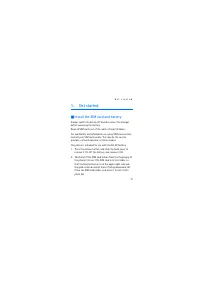
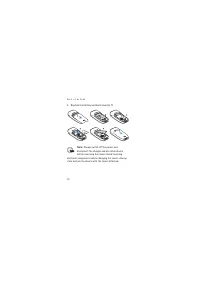
G e t s t a r t e d 13 1. Get started ■ Install the SIM card and battery Always switch the device off and disconnect the charger before removing the battery. Keep all SIM cards out of the reach of small children. For availability and information on using SIM card services, contact your SIM card vend...
Page 15 - Charge the battery
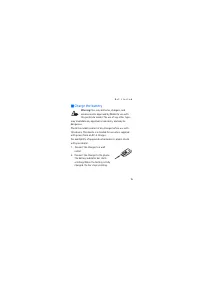
G e t s t a r t e d 15 ■ Charge the battery Warning: Use only batteries, chargers, and enhancements approved by Nokia for use with this particular model. The use of any other types may invalidate any approval or warranty, and may be dangerous. Check the model number of any charger before use with th...
Page 16 - Switch on and off
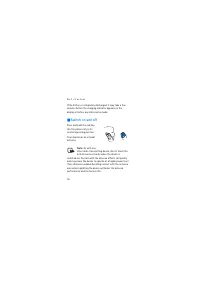
G e t s t a r t e d 16 If the battery is completely discharged, it may take a few minutes before the charging indicator appears on the display or before any calls can be made. ■ Switch on and off Press and hold the end key. Use the phone only in its normal operating position. Your device has an inte...
Page 17 - Keys and parts
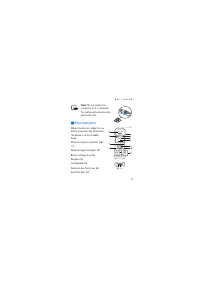
G e t s t a r t e d 17 Note: Do not touch this connector as it is intended for use by authorized service personnel only. ■ Keys and parts When the phone is ready for use, before you enter any characters, the phone is in the standby mode. Network name or operator logo (1) Network signal strength (2) ...
Page 18 - Shortcuts in the standby mode
G e t s t a r t e d 18 Scroll key (8) Call key (9) End key and power key (10) Keypad (11) Charger connector (12) Headset connector (13) Warning: The scroll key in this device may contain nickel. It is not intended to come into prolonged contact with the skin. Continuous exposure to nickel on the ski...
Page 19 - Go to; Lock the keypad
G e t s t a r t e d 19 Press and hold to activate the radio. Press the right selection key ( Go to ) to view the functions in your shortcut list. Press the call key once to access the list of dialed numbers. Scroll to the name or number that you want, and press the call key to call the number. ■ Loc...
Page 21 - Call functions; Make and answer a call; Clear; Options
C a l l f u n c t i o n s 21 2. Call functions ■ Make and answer a call To make a call, enter the phone number, including the country code and area code if necessary. Press the call key to call the number. Scroll right to increase or left to decrease the volume of the earpiece or headset during the ...
Page 22 - Loudspeaker
C a l l f u n c t i o n s 22 ■ Loudspeaker If available, you may select Loudsp. or Hands. to use the loudspeaker or the earpiece of the phone during a call. Warning: Do not hold the device near your ear when the loudspeaker is in use, because the volume may be extremely loud. ■ Voice messages To cal...
Page 23 - Write text; Spell
W r i t e t e x t 23 3. Write text You can enter text using traditional text input or predictive text input . To use traditional text input, press the key repeatedly until the letter appears. To turn on predictive text input when writing, select Options > Dictionary and the desired language; to t...
Page 25 - Menu functions; Message settings
M e n u f u n c t i o n s 25 4. Menu functions The phone functions are grouped into menus. Not all menu functions or option items are described here. In the standby mode, select Menu and the desired menu and submenu. Select Exit or Back to exit the current menu. Press the end key to return to the st...
Page 26 - Create a message
M e n u f u n c t i o n s 26 messages. You obtain this number from your service provider. Select Messages sent as (network service) to choose the message type ( Text , Fax , Paging , or E-mail ). Select Message validity (network service) to choose how long the network attempts to deliver your messag...
Page 27 - OK
M e n u f u n c t i o n s 27 The number of available characters and the current part number of a multipart message are shown on the top right of the display (for example, 918/1). 1. Select Menu > Messages > Create message . 2. Write the message. 3. To send the message, select Options > Send...
Page 28 - Show; Chat; Picture messages
M e n u f u n c t i o n s 28 Show to view the messages immediately, or Exit to view them later in Menu > Messages > Inbox . In Drafts , you can view the messages that you saved with Save message . In Sent items , you can view the copies of the messages that you sent. Chat You can have a conver...
Page 29 - Delete messages
M e n u f u n c t i o n s 29 messages. Therefore, sending one picture message may cost more than one text message. Note: The picture message function can be used only if it is supported by your network operator or service provider. Only compatible devices that offer picture message features can rece...
Page 31 - Settings for contacts; Call register
M e n u f u n c t i o n s 31 Settings for contacts Select Menu > Contacts > Settings and from the available options: Memory in use —to select whether the names and phone numbers are saved in Phone or SIM card . When you change the SIM card, SIM card memory is automatically selected. Contacts v...
Page 33 - Tone settings
M e n u f u n c t i o n s 33 ■ Settings In this menu, you can adjust various phone settings. To reset some menu settings to their default values, select Restore factory settings . Tone settings Select Menu > Settings > Tone settings and from the available options: Ringing tone —to set the tone...
Page 34 - Display settings
M e n u f u n c t i o n s 34 Warning tones —to set the phone to sound tones, for example, when the battery is running out of power Display settings Select Menu > Settings > Display settings and from the following: Themes — Scroll to the desired theme, and select Options > Activate or Edit t...
Page 35 - Profiles; Time settings; Call settings
M e n u f u n c t i o n s 35 Profiles You can customize the profiles for certain features, such as ringing tones and the screen saver. Select Menu > Settings > Profiles , the profile that you want to modify, and Personalise . Time settings Select Menu > Settings > Time settings > Cloc...
Page 37 - Phone settings; Cost settings
M e n u f u n c t i o n s 37 Phone settings Select Menu > Settings > Phone settings > Language to select the language for the display texts, Network selection to set the phone to automatically select a cellular network available in your area or to select the network manually, Start-up tone ...
Page 38 - Enhancement settings
M e n u f u n c t i o n s 38 Note: When no more charging units or currency units are left, calls may only be possible to the official emergency number programmed into the device. Enhancement settings The enhancement setting items are visible only after one of the enhancements is connected to the pho...
Page 39 - Right selection key settings; Alarm clock
M e n u f u n c t i o n s 39 Right selection key settings In the standby mode, you may select Go to to access a list of shortcuts. To define or organize the shortcuts, select Menu > Settings > Right selection key settings . To select functions for shortcuts, select Select options , to change t...
Page 40 - Yes
M e n u f u n c t i o n s 40 device or Yes to make and receive calls. Do not select Yes when wireless phone use may cause interference or danger. ■ Radio You can listen to the radio with a headset or the loudspeaker. Keep the headset connected to the phone. The lead of the headset functions as the r...
Page 41 - Radio functions
M e n u f u n c t i o n s 41 Radio functions When the radio is on, press and hold the scroll keys up or down to start the channel search. Searching stops when a channel is found. To save the channel, select OK to set the frequency, enter the name of the channel, and select the location where you wan...
Page 42 - Reminders
M e n u f u n c t i o n s 42 Set frequency —to enter the frequency of the desired radio channel Loudspeaker or Headset —to listen to the radio using the loudspeaker or headset Clock radio —to set the time to turn on the radio as the alarm tone You can normally make a call or answer an incoming call ...
Page 43 - Games; Extras; Calculator
M e n u f u n c t i o n s 43 ■ Games Each game has a brief help text. To adjust common game settings, select Menu > Games > Settings . You can set the sounds ( Game sounds ) and vibrations ( Shakes ) for the game. ■ Extras Calculator Note: This calculator has limited accuracy and is designed f...
Page 44 - Converter; Calendar; Composer
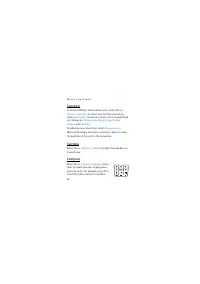
M e n u f u n c t i o n s 44 Converter To convert different measurement units, select Menu > Extras > Converter . To access your last five conversions, select Last 5 conv. . You can also select to use six predefined unit categories: Temperature , Weight , Length , Area , Volume , and Currency ...
Page 45 - SIM services
M e n u f u n c t i o n s 45 lengthen (+) the duration of the note or rest. Press 0 to insert a rest, * to set the octave, and # to make the note sharp (not available for notes e and b ). When the tone is complete, select Options > Play , Save , Tempo , Send , Clear screen , or Exit . Leaving app...
Page 46 - Battery information; Charging and discharging
B a t t e r y i n f o r m a t i o n 46 5. Battery information ■ Charging and discharging Your device is powered by a rechargeable battery. The full performance of a new battery is achieved only after two or three complete charge and discharge cycles. The battery can be charged and discharged hundred...
Page 49 - Authenticate hologram
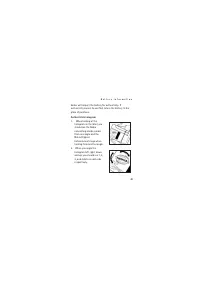
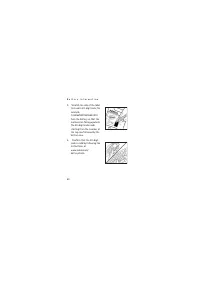
B a t t e r y i n f o r m a t i o n 49 dealer will inspect the battery for authenticity. If authenticity cannot be verified, return the battery to the place of purchase. Authenticate hologram 1. When looking at the hologram on the label, you should see the Nokia connecting hands symbol from one angl...
Page 51 - What if your battery is not authentic?
B a t t e r y i n f o r m a t i o n 51 To create a text message, enter the 20-digit code, for example, 12345678919876543210, and send to +44 7786 200276. National and international operator charges will apply. You should receive a message indicating whether the code can be authenticated. What if you...
Page 52 - Enhancements
E n h a n c e m e n t s 52 6. Enhancements A few practical rules about accessories and enhancements: • Keep all accessories and enhancements out of the reach of small children. • When you disconnect the power cord of any accessory or enhancement, grasp and pull the plug, not the cord. • Check regula...
Page 53 - Care and maintenance
C a r e a n d m a i n t e n a n c e 53 Care and maintenance Your device is a product of superior design and craftsmanship and should be treated with care. The suggestions below will help you protect your warranty coverage. • Keep the device dry. Precipitation, humidity, and all types of liquids or m...
Page 56 - Additional safety information; Operating environment
A d d i t i o n a l s a f e t y i n f o r m a t i o n 56 Additional safety information Your device and its enhancements may contain small parts. Keep them out of the reach of small children. ■ Operating environment Remember to follow any special regulations in force in any area, and always switch of...
Page 57 - Medical devices
A d d i t i o n a l s a f e t y i n f o r m a t i o n 57 above separation distance instructions are followed until the transmission is completed. Parts of the device are magnetic. Metallic materials may be attracted to the device. Do not place credit cards or other magnetic storage media near the de...
Page 58 - Pacemakers; Hearing aids
A d d i t i o n a l s a f e t y i n f o r m a t i o n 58 Pacemakers Pacemaker manufacturers recommend that a minimum separation of 15.3 centimeters (6 inches) be maintained between a wireless phone and a pacemaker to avoid potential interference with the pacemaker. These recommendations are consiste...
Page 59 - Vehicles
A d d i t i o n a l s a f e t y i n f o r m a t i o n 59 ■ Vehicles RF signals may affect improperly installed or inadequately shielded electronic systems in motor vehicles such as electronic fuel injection systems, electronic antiskid (antilock) braking systems, electronic speed control systems, an...
Page 60 - Potentially explosive environments
A d d i t i o n a l s a f e t y i n f o r m a t i o n 60 improperly installed and the air bag inflates, serious injury could result. Using your device while flying in aircraft is prohibited. Switch off your device before boarding an aircraft. The use of wireless teledevices in an aircraft may be dan...
Page 61 - Emergency calls; To make an emergency call:
A d d i t i o n a l s a f e t y i n f o r m a t i o n 61 chemical transfer or storage facilities, vehicles using liquefied petroleum gas (such as propane or butane), and areas where the air contains chemicals or particles such as grain, dust, or metal powders. ■ Emergency calls Important: Wireless p...




 Nokia X3-00 User Manual
 Nokia X3-02 User Manual
 Nokia X7-00 User Manual
 Nokia 1 Manual
 Nokia 1110i Manual
 Nokia 3120 User Manual
 Nokia 5100 Manual
 Nokia 5230 User Manual
 Nokia 5630 XpressMusic User Manual
 Nokia 5800 User Manual
 Nokia 5800 XpressMusic User Manual
 Nokia 6100 Manual
 Nokia 6210 Manual
 Nokia 6310i Manual
 Nokia 6610 Manual