Page 4 - Contents
4 Copyright © 2004 Nokia. All rights reserved . Contents FOR YOUR SAFETY ............................................................................................ 11 General information .......................................................................................... 14 Typographics used...
Page 11 - FOR YOUR SAFETY
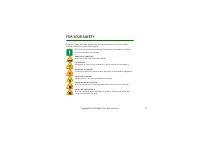
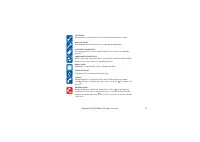
11 Copyright © 2004 Nokia. All rights reserved . FOR YOUR SAFETY Read these simple guidelines. Breaking the rules may be dangerous or illegal. Further detailed information is given in this manual. Do not switch the phone on when wireless phone use is prohibited or when it may cause interference or d...
Page 13 - Network Services
13 Copyright © 2004 Nokia. All rights reserved . ■ Network Services The wireless phone described in this guide is approved for use on the EGSM 900, GSM 1800 and GSM 1900 network. Triband is a network dependent feature. Check with your local service provider if you can subscribe to and use this featu...
Page 14 - General information; Typographics used in this user’s guide; Insert; Menu; Access codes; Security settings
14 Copyright © 2004 Nokia. All rights reserved . General information ■ Typographics used in this user’s guide The texts that appear on the phone display are printed in blue, for example Insert SIM card . The display texts related to the selection keys are printed in bold blue, for example Menu . ■ A...
Page 16 - Overview of the functions in the phone; Changing the front and back cover
16 Copyright © 2004 Nokia. All rights reserved . Overview of the functions in the phone The Nokia 3120 phone provides many functions which are practical for daily use, such as Calendar, Clock, Alarm clock, Profiles, and many more. Also a range of Xpress-on TM covers are available for your phone. To ...
Page 17 - PC Suite; Before you can use GPRS technology; Setting up the phone for a service; Pricing for GPRS and applications
17 Copyright © 2004 Nokia. All rights reserved . menu, see Gallery (Menu 7) on page 91 or via the PC suite, see PC Suite on page 118 . ■ General Packet Radio Service (GPRS) GPRS technology is a network service that allows mobile phones to be used for sending and receiving data over an Internet Proto...
Page 18 - MIDP Java; applications; Nokia OTA settings service
18 Copyright © 2004 Nokia. All rights reserved . ■ MIDP Java TM applications Your phone supports Java technology and includes some MIDP Java TM games that have been specially designed for mobile phones. You can download applications and new games to your phone, see Applications (Menu 10) on page 97 ...
Page 19 - Keys and connectors; Power key; Create message
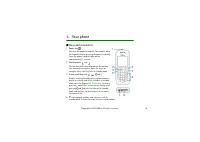
19 Copyright © 2004 Nokia. All rights reserved . 1. Your phone ■ Keys and connectors 1. Power key Switches the phone on and off. For example, when the keypad is locked, pressing the power key briefly turns the phone’s display lights on for approximately 15 seconds. 2. Selection keys and The function...
Page 20 - Exits from any function.; Making a connection to a service; Standby mode
20 Copyright © 2004 Nokia. All rights reserved . 5. ends an active call. Exits from any function. 6. - key in numbers and characters. and are used for various purposes in different functions. In standby mode, pressing and holding calls your voice mailbox. In standby mode, pressing and holding the In...
Page 21 - Contacts; Go to; Wallpaper; Gallery
21 Copyright © 2004 Nokia. All rights reserved . • Contacts , you can access the Contacts menu. • Go to , you can scroll to the specific function (personal shortcut) and select it. To set the functions for your personal shortcut, see Personal shortcuts on page 76 . Same functions can also be activat...
Page 22 - Essential indicators; Incoming call alert
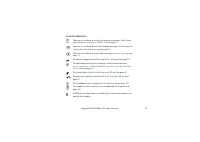
22 Copyright © 2004 Nokia. All rights reserved . Essential indicators You have received one or several text or picture messages. See Reading and replying to a message or a SMS e-mail on page 52 . You have received one or several multimedia messages. See Reading and replying to a multimedia message o...
Page 23 - Divert all voice calls
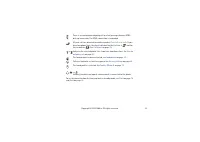
23 Copyright © 2004 Nokia. All rights reserved . There is an incoming or outgoing call or a text message during a GPRS dial-up connection. The GPRS connection is suspended. All your calls are diverted to another number, Divert all voice calls . If you have two phone lines, the divert indicator for t...
Page 24 - Installing the SIM card and the battery; so be careful when handling, inserting or removing the card.
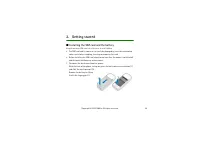
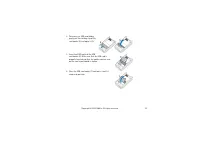
24 Copyright © 2004 Nokia. All rights reserved . 2. Getting started ■ Installing the SIM card and the battery Keep all miniature SIM cards out of the reach of small children. • The SIM card and its contacts can easily be damaged by scratches or bending, so be careful when handling, inserting or remo...
Page 26 - Charging the battery; Charging
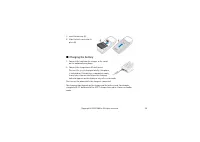
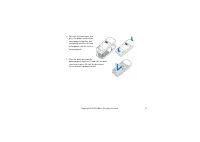
26 Copyright © 2004 Nokia. All rights reserved . 5. Insert the battery (8). 6. Slide the back cover into its place (9). ■ Charging the battery 1. Connect the lead from the charger to the socket on the bottom of your phone. 2. Connect the charger to an AC wall socket. The text Charging is displayed b...
Page 27 - Switching the phone on and off; Insert SIM card; PIN code request; OK
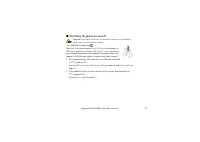
27 Copyright © 2004 Nokia. All rights reserved . ■ Switching the phone on and off Warning: Do not switch the phone on when wireless phone use is prohibited or when it may cause interference or danger. Press and hold the power key . Note that if the phone displays Insert SIM card even though the SIM ...
Page 28 - Normal operating position; Locking the keypad; Automatic keyguard
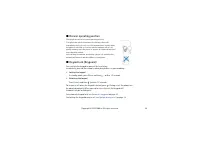
28 Copyright © 2004 Nokia. All rights reserved . ■ Normal operating position Use the phone only in its normal operating position. Your phone has a built-in antenna. As with any other radio transmitting device, do not touch the antenna unnecessarily when the phone is switched on. Contact with the ant...
Page 30 - Insert the key mat on the
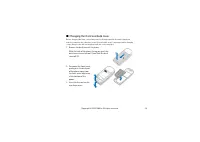
30 Copyright © 2004 Nokia. All rights reserved . ■ Changing the front and back cover Before changing the front cover, always switch off the power and disconnect the phone from the charger or any other device. Avoid touching electronic components while changing covers. Always store and use the phone ...
Page 32 - Making a call; Clear; Options during a call; Making a call using the contacts directory; Searching for a contact; Last number redialling
32 Copyright © 2004 Nokia. All rights reserved . 3. Basic functions ■ Making a call 1. Key in the phone number, including the area code. If you key in a wrong character, press Clear to delete it. For international calls, press twice for the international prefix (the + character replaces the internat...
Page 33 - Voice messages; Speed dialling a phone number; Speed dials; Making a conference call; Options; New call; Call; Conference
33 Copyright © 2004 Nokia. All rights reserved . Calling your voice mailbox • In standby mode, press and hold , or press and . If the phone asks for the voice mailbox number, key it in and press OK . See also Voice messages on page 61 . Speed dialling a phone number Assign a phone number to one of t...
Page 34 - Private; Answering or rejecting an incoming call; Silence; Divert if busy; Call waiting
34 Copyright © 2004 Nokia. All rights reserved . 6. To have a private conversation with one of the participants: Press Options and select Private and select the desired participant. Rejoin the conference call as described in step 4. 7. To end the conference call, press . ■ Answering or rejecting an ...
Page 35 - Loudspeaker
35 Copyright © 2004 Nokia. All rights reserved . Mute or Unmute , End call , End all calls , Contacts , Menu and Hold or Unhold , New call , Conference , Private , Answer , Reject and Loudspeaker or Handset . Lock keypad to activate the keypad lock. Send DTMF to send DTMF tone strings, for example, ...
Page 36 - Setting predictive text input on or off; Dictionary; Using predictive text input
36 Copyright © 2004 Nokia. All rights reserved . 4. Writing text You can key in text, for example when writing messages, using the traditional or predictive text input. When you are writing text, the predictive text input is indicated by and the traditional text input by at the top left of the displ...
Page 37 - Nokia; Tips for writing text; Matches; Spell
37 Copyright © 2004 Nokia. All rights reserved . 1. Start writing a word by using the keys to . Press each key only once for one letter. The word changes after each keystroke. Example: To write Nokia when the English dictionary is selected, press once for N, once for o, once for k, once for i and on...
Page 38 - Writing compound words; Using traditional text input; Phone language
38 Copyright © 2004 Nokia. All rights reserved . Writing compound words Key in the first part of the word and confirm it by pressing . Write the last part of the word and confirm the word. ■ Using traditional text input Press a number key, to , repeatedly until the desired character appears. Not all...
Page 40 - Insert contact; View details; Select
40 Copyright © 2004 Nokia. All rights reserved . • To insert a number while in letter mode, press Options and select Insert number . Key in the phone number or search it in contacts and press OK . • To insert a name from contacts, press Options and select Insert contact . To insert a phone number or...
Page 41 - Help text activation; Accessing a menu function; By scrolling; Settings; Back
41 Copyright © 2004 Nokia. All rights reserved . 5. Using the menu The phone offers you an extensive range of functions which are grouped in menus. Most of the menu functions are provided with a brief help text. To view the help text, scroll to the menu function you want and wait for approximately 1...
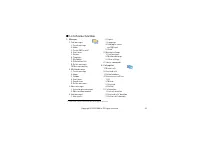
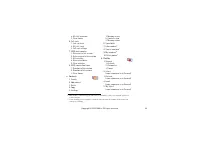
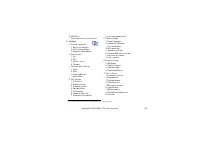
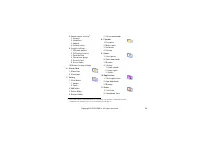
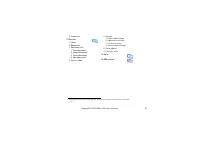
Page 43 - List of menu functions; on SIM card
43 Copyright © 2004 Nokia. All rights reserved . ■ List of menu functions 1. Messages 1. Text messages 1. Create message2. Inbox3. Create SMS e-mail4. Sent items5. Archive6. Templates7. My folders8. Distribution lists9. Delete messages10.Message counter 2. Multimedia msgs. 1. Create message2. Inbox3...
Page 48 - Message settings; Text messages; Writing and sending messages; Messages
48 Copyright © 2004 Nokia. All rights reserved . ■ Messages (Menu 1) You can read, write, send and save text, multimedia, and e-mail messages. All the messages are organised in folders. Before you can send any text, picture, and e-mail messages, you need to save your message centre number, see Messa...
Page 49 - Writing text
49 Copyright © 2004 Nokia. All rights reserved . 2. Key in a message. See Writing text on page 36 . The number of available characters / the current part number of a multi-part message are shown on the top right of the display, for example 120/2. • To insert a text templates, press Options and selec...
Page 50 - Options for sending a message; Sending options; Done; Send to list; Writing and sending a SMS e-mail
50 Copyright © 2004 Nokia. All rights reserved . Press OK to send the message. Copyright protection may prevent some images, ringing tones and other content from being copied, modified, transferred or forwarded. Note: When sending messages via the SMS network service, your phone may display the word...
Page 52 - Reading and replying to a message or a SMS e-mail; messages received; Show; Copy to calendar
52 Copyright © 2004 Nokia. All rights reserved . Note: When sending e-mails via the SMS network service, your phone may display the words Message sent . This is an indication that the e-mail has been sent by your phone to the e-mail server. This is not an indication that the e-mail has been received...
Page 53 - Inbox and outbox folders
53 Copyright © 2004 Nokia. All rights reserved . Select Message details to view the sender’s name and phone number, the message centre used, reception date and time. Select Use detail to extract numbers, e-mail addresses and website addresses from the current message. When reading a picture message,...
Page 54 - Copying contacts
54 Copyright © 2004 Nokia. All rights reserved . To access the template list, press Menu , and select Messages , Text messages and Templates . Archive folder and my folders To organise your messages, you can move some of your messages to the Archive folder, or add new folders for your messages. Whil...
Page 55 - Message counter
55 Copyright © 2004 Nokia. All rights reserved . Press Options to get the following options to edit a distribution list: • View list to view the names in the selected distribution list. Press Options to edit the content of a distribution list: • Add contact to add a name to the distribution list. • ...
Page 56 - Multimedia messages
56 Copyright © 2004 Nokia. All rights reserved . To view a counter, press Menu , and select Messages , Text messages , Message counter and Sent messages or Received messages . To clear the counters select Clear counters . Multimedia messages Note: This function can be used only if it is supported by...
Page 57 - Keying in the service settings manually; Writing and sending a multimedia message; Settings for the
57 Copyright © 2004 Nokia. All rights reserved . Note that you are not able to receive any multimedia messages if you have a call in progress, a game or another Java application running, or an active service connection over GSM data (see Keying in the service settings manually on page 106 ). Because...
Page 58 - Settings for the multimedia messages; Reading and replying to a multimedia message; Multimedia messages memory full; Reading the message later:
58 Copyright © 2004 Nokia. All rights reserved . 3. To view the message before sending it, press Options and select Preview . 4. To send the message, press Options and select Send to number (or Send to e- mail or Send to many ). 5. Key in the recipient’s phone number (or e-mail address) or search fo...
Page 59 - Inbox, Outbox, Saved and Sent items folders
59 Copyright © 2004 Nokia. All rights reserved . 2. Scroll to view the message. Press Options and some of the following options may be available. • Delete message to delete a saved message. • Reply or Reply to all to reply to a message. To send the reply message, refer to Writing and sending a multi...
Page 60 - Shared; Deleting messages
60 Copyright © 2004 Nokia. All rights reserved . The sent multimedia messages are saved in the Sent items folder of the Multimedia msgs. submenu. Multimedia messages memory full Received messages are automatically stored in the shared memory, see Shared memory on page 18 . When you have an incoming ...
Page 61 - Line for outgoing
61 Copyright © 2004 Nokia. All rights reserved . To delete all messages from all text message folders, select All messages and when Delete all messages from all folders? is displayed, press OK . If the folders contain unread messages, the phone will ask whether you want to delete them also. Voice me...
Page 62 - Info messages; Settings for text and e-mail messages
62 Copyright © 2004 Nokia. All rights reserved . Info messages With the info message network service you can receive messages on various topics, for example weather or traffic conditions, from your service provider. For available topics and relevant topic numbers, contact your service provider. If t...
Page 63 - Overwrite settings
63 Copyright © 2004 Nokia. All rights reserved . • For message type Text , select Default recipient number to save a default number to send messages for this message profile. For message type E-mail , select E-mail server to save the e-mail server number. • Select Delivery reports to request the net...
Page 64 - Font size setting
64 Copyright © 2004 Nokia. All rights reserved . • Save sent messages . Select Yes to set the phone to save the sent multimedia messages in the Sent items folder. If you select No , the sent messages are not saved. • Delivery reports to ask the network to send delivery reports about your messages (n...
Page 65 - Service commands; Recent calls lists
65 Copyright © 2004 Nokia. All rights reserved . Service commands Press Menu , and select Messages and Service commands . Key in and send service requests (also known as USSD commands) such as activation commands for network services, to your service provider. ■ Call register (Menu 2) The phone regi...
Page 66 - List; Received calls; Call counters and call timers; Call register
66 Copyright © 2004 Nokia. All rights reserved . Tip: When a note about missed calls is being displayed, press List to access the list of phone numbers. Scroll to the number you would like to call back and press . • Received calls to view the list of the last ten phone numbers from which you have mo...
Page 68 - Shared memory; Selecting settings for contacts; Saving names and phone numbers (Add contact); Selecting settings for
68 Copyright © 2004 Nokia. All rights reserved . • The phone’s contacts directory may save names with numbers and textual notes for each name. You can also save an image for a certain number of names. How many names can be saved depends on the length of the names, and the number and length of phone ...
Page 69 - Saving multiple numbers and text items per contact; Phone
69 Copyright © 2004 Nokia. All rights reserved . 2. Key in the name and press OK . See Using traditional text input on page 38 . 3. Key in the phone number, and press OK . To key in the numbers, see Making a call on page 32 . 4. When the name and number are saved, press Done . Tip: Quick save In sta...
Page 72 - Deleting numbers, text items or images
72 Copyright © 2004 Nokia. All rights reserved . Deleting numbers, text items or images Press in standby mode, scroll to the desired name (and number) and press Details . Scroll to the number or text item you want to delete, press Options and select Delete number or Delete detail , respectively. If ...
Page 73 - Sending and receiving a business card; Receiving a business card; Via text message; Assigning a number to a speed dialling key
73 Copyright © 2004 Nokia. All rights reserved . Sending and receiving a business card You can send and receive a person’s contact information as a business card an OTA message if supported by the network. Receiving a business card When you have received a business card, press Show . Press Save to s...
Page 74 - Info numbers; Service numbers; My numbers; Caller groups
74 Copyright © 2004 Nokia. All rights reserved . Info numbers You can call the information numbers of your service provider if the numbers are included in your SIM card. Press Menu , and select Contacts and Info numbers . Scroll in a category to an information number and press to call the number. Se...
Page 75 - Tone settings
75 Copyright © 2004 Nokia. All rights reserved . phone numbers belonging to a selected caller group, see Alert for in Tone settings on page 86 . Press Menu , and select Contacts and Caller groups and select the desired caller group. Select • Group name , key in a new name for the caller group and pr...
Page 76 - Personal shortcuts
76 Copyright © 2004 Nokia. All rights reserved . • To set the profile to be active until a certain time up to 24 hours, select Timed and set the time the profil setting shall end. When the time set for the profile expires, the previous profile that was not timed, becomes active. • To personalise the...
Page 77 - Screen saver
77 Copyright © 2004 Nokia. All rights reserved . • To select the name for the right selection key displayed in standby mode, select Right selection key . Select Go to or Contacts . • To select the desired functions for your personal shortcut list, select Select Go to options and the list of availabl...
Page 78 - Power saving; Time and date settings; Clock; Date
78 Copyright © 2004 Nokia. All rights reserved . Independent of the screen saver settings, for power saving a digital clock view will be activated when for a certain time no function of the phone has been used. See Power saving on page 21 . Note that the screen saver overrides all the graphics and t...
Page 79 - Auto update of date and time; Call settings; Call divert
79 Copyright © 2004 Nokia. All rights reserved . • Date separator to select the separator in the selected date format. Auto update of date and time Press Menu , and select Settings , Time and date settings and Auto-update of date & time (network service). To set the phone to automatically update...
Page 80 - Anykey answer; Automatic redial; Speed dialling; Summary after call
80 Copyright © 2004 Nokia. All rights reserved . To cancel all the active call diverts at once, select the option Cancel all diverts . To see the divert indicators in standby mode, see Standby mode on page 20 . Anykey answer Press Menu , and select Settings , Call settings and then Anykey answer . S...
Page 81 - Send my caller identity; Line for outgoing calls
81 Copyright © 2004 Nokia. All rights reserved . Send my caller identity Press Menu , and select Settings , Call settings and Send my caller identity . Select Yes and your phone number will be displayed to the person you are calling (network service). Select Set by network and the setting agreed upo...
Page 82 - Phone settings
82 Copyright © 2004 Nokia. All rights reserved . Phone settings Phone language Select the language the phone shall display. Press Menu , and select Settings , Phone settings and Phone language . If you select Automatic the phone selects the language according to the information on the SIM card. Auto...
Page 83 - Cell info display; Welcome note; Network selection; Confirm SIM service actions
83 Copyright © 2004 Nokia. All rights reserved . Cell info display Press Menu , and select Settings , Phone settings and Cell info display (network service). Select On to set the phone to indicate when it is used in a cellular network based on Micro Cellular Network (MCN) technology. If the GPRS con...
Page 84 - Using the menu; Display settings; To select a wallpaper picture
84 Copyright © 2004 Nokia. All rights reserved . Help text activation To set the phone to show or not to show the help texts, press Menu , and select Settings , Phone settings and Help text activation . See also Using the menu on page 41 . Start-up tone To set the phone to play or not to play a star...
Page 85 - Colour schemes; Operator logo; PC; Display brightness
85 Copyright © 2004 Nokia. All rights reserved . Press Menu , and select Settings , Display settings and Wallpaper . To activate/ deactivate the wallpaper, select On / Off , respectively. Colour schemes You can change the colour in some display components, for example, indicators and signal bars. Pr...
Page 87 - Mark; Enhancement settings
87 Copyright © 2004 Nokia. All rights reserved . • Alert for to set the phone to ring only upon calls from phone numbers that belong to a selected caller group. Scroll to the caller group you want or All calls and press Mark . Tip: If you receive a ringing tone via OTA or by downloading, you can sav...
Page 89 - Restore factory settings
89 Copyright © 2004 Nokia. All rights reserved . • Closed user group . Closed user group is a network service that specifies the group of people whom you can call and who can call you. For more information contact your network operator or service provider. • Security level . The preset security code...
Page 90 - Alarm clock; When the alarm time expires
90 Copyright © 2004 Nokia. All rights reserved . ■ Alarm clock (Menu 6) The alarm clock uses the time format set for the clock. Press Menu , and select Alarm clock . • To set the alarm, select Alarm time and key in the alarm time. To change the time when the alarm time is set, select On . • To set a...
Page 91 - Bookmarks
91 Copyright © 2004 Nokia. All rights reserved . ■ Gallery (Menu 7) You can save images and ringing tones, for example, if received in a multimedia message, in the folders of the gallery, see Reading and replying to a multimedia message on page 58 . The gallery uses shared memory, see Shared memory ...
Page 93 - Calendar; Day notes; View
93 Copyright © 2004 Nokia. All rights reserved . ■ Calendar (Menu 8) The calendar helps you to keep track of reminders, calls that you need to make, and birthdays. The calendar uses shared memory, see Shared memory on page 18 . Note: Your phone must be switched on to use the functions in the Calenda...
Page 94 - The other options for the calendar views may include:; Making a calendar note
94 Copyright © 2004 Nokia. All rights reserved . The other options for the calendar views may include: • Options for making a note, sending a note to another phone or copying a note to another day. • Options for deleting, editing, moving and repeating a note. • Settings to set the date, time, date o...
Page 95 - With tone; When the phone alarms for a note; Launching a game; Games; Open
95 Copyright © 2004 Nokia. All rights reserved . press OK . To set the alarm for the note, select With tone or Silent (no alarm tone) and then set the alarm time. When you have set the alarm, the indicator is displayed when you view the notes. When the phone alarms for a note The phone beeps, and di...
Page 96 - Other options available for a game or game set; Other options available for an application or application; Game downloads
96 Copyright © 2004 Nokia. All rights reserved . Otherwise, a list of games in the selected game set is displayed. To launch a single game, scroll to the desired game and press Options and select Open , or press . Note that running some games may consume the phone’s battery faster (and you may need ...
Page 97 - Memory status for games; Game settings
97 Copyright © 2004 Nokia. All rights reserved . Note that Nokia does not warrant for applications from non-Nokia sites. If you choose to download applications from them, you should take the same precautions, for security or content, as you would with any site. Memory status for games To view the si...
Page 98 - Launching an application; Other options available for an application or application set
98 Copyright © 2004 Nokia. All rights reserved . Launching an application 1. Press Menu , and select Applications and Select application . 2. Scroll to an application or an application set (name depends on the application). 3. Press Options and select Open or press . If the selection is a single app...
Page 99 - Downloading an application; Browsing the pages of a service
99 Copyright © 2004 Nokia. All rights reserved . • Web page to provide further information or additional data for the application from an Internet page. This feature needs to be supported by the network. It is only shown if an Internet address has been provided with the application. • Connect via th...
Page 101 - Memory status for applications; Calculator
101 Copyright © 2004 Nokia. All rights reserved . • Unknown (appearing in the Application's list), the application is invalid. Memory status for applications To view the size of memory available for game and application installations, press Menu , and select Applications and Memory . The application...
Page 102 - Making a currency conversion; Countdown timer
102 Copyright © 2004 Nokia. All rights reserved . Tip: Alternatively, press once to add, twice to subtract, three times to multiply or four times to divide. 4. Key in the second number. 5. For a total, press Options and select Equals . Repeat steps 3 to 5 as many times as is necessary. 6. To start a...
Page 103 - Stopwatch; Time observation and time splitting
103 Copyright © 2004 Nokia. All rights reserved . • To change the countdown time, select Change time , or to stop the timer, select Stop timer . If the alarm time is reached when the phone is in standby mode, the phone sounds a tone and flashes the note text if it is set or else Countdown time up . ...
Page 104 - Lap times; Time observation; Viewing and deleting times
104 Copyright © 2004 Nokia. All rights reserved . Start to start the time observation again. The new time is added to the previous time. Save to save the time. Key in a name for the measured time and press OK . If no name is keyed in, the total time is used as a title. Reset to reset the time withou...
Page 105 - Basic steps for accessing and using services; Make a connection to the given service. See page
105 Copyright © 2004 Nokia. All rights reserved . Check the availability of these services, pricing and tariffs with your network operator and/or the service provider whose service you wish to use. Service provider will also give you instructions on how to use their services. Note: Your phone must b...
Page 106 - Saving the service settings received as an OTA message
106 Copyright © 2004 Nokia. All rights reserved . Setting up the phone for a service You may receive the service settings as an OTA message from the network operator or service provider that offers the service that you want to use. You can also key in the settings manually or add and edit the settin...
Page 107 - Activate; Settings when GSM data is the selected data bearer
107 Copyright © 2004 Nokia. All rights reserved . 3. Scroll to the connection set you would like to activate and press Activate . You need to activate the connection set where you want to save the service settings. A connection set is a collection of settings required to make a connection to a servi...
Page 110 - Services; Using the phone keys while browsing
110 Copyright © 2004 Nokia. All rights reserved . Press Menu , and select Services and then Go to address . Key in the address of the service and press OK . Note that it is not necessary to add the prefix http:// in front of the address since it will be added automatically. Browsing the pages of a s...
Page 112 - Clearing the cache memory; Direct calling; Disconnect from a service; Appearance settings of the multi-mode browser
112 Copyright © 2004 Nokia. All rights reserved . Note: If you have tried to access or have accessed confidential information requiring passwords (for example, your bank account), empty the cache of your phone after each use. To empty the cache, see Clearing the cache memory on page 115 . Direct cal...
Page 113 - Selecting Cookie settings
113 Copyright © 2004 Nokia. All rights reserved . Select Show images . Select No and any pictures appearing on the page are not shown. This can speed up the browsing of pages that contain a lot of pictures. Selecting Cookie settings A cookie is data that a site saves in your phone’s browser cache me...
Page 114 - Receiving a bookmark; Downloading; Service inbox
114 Copyright © 2004 Nokia. All rights reserved . Note that your phone may have some pre-installed bookmarks for sites not affiliated to Nokia. Nokia does not warrant or endorse these sites. If you choose to access them, you should take the same precautions, for security or content, as you would wit...
Page 115 - Service inbox settings
115 Copyright © 2004 Nokia. All rights reserved . • If you press Exit the message is moved to the Service inbox . To access the Service inbox later, press Menu , and select Services , Settings and Service inbox . To access the Service inbox while browsing, press Options and select Other options and ...
Page 116 - Authority certificates; Viewing the list of authority certificates; Security indicator
116 Copyright © 2004 Nokia. All rights reserved . • while browsing, press Options , and select Other options and Clear the cache , or • in standby mode, press Menu , and select Services and Clear the cache . Authority certificates For using some services, such as banking services, you need security ...
Page 118 - Nokia Application Installer
118 Copyright © 2004 Nokia. All rights reserved . 6. PC Connectivity With the PC suite you can, for example, send text and picture messages, synchronise contacts and calendar between your phone and a compatible PC. Connect the connectivity adapter cable DKU-5 to the USB port on the back of your comp...
Page 120 - Battery statements; Charging and Discharging
120 Copyright © 2004 Nokia. All rights reserved . 7. Battery statements ■ Charging and Discharging Your phone is powered by a rechargeable battery. Note that a new battery's full performance is achieved only after two or three complete charge and discharge cycles! The battery can be charged and disc...
Page 122 - CARE AND MAINTENANCE
122 Copyright © 2004 Nokia. All rights reserved . CARE AND MAINTENANCE Your phone is a product of superior design and craftsmanship and should be treated with care. The suggestions below will help you to fulfil any warranty obligations and to enjoy this product for many years. • Keep the phone and a...
Page 123 - IMPORTANT SAFETY INFORMATION; Traffic Safety; Operating environment; Electronic devices
123 Copyright © 2004 Nokia. All rights reserved . IMPORTANT SAFETY INFORMATION ■ Traffic Safety Do not use a hand-held telephone while driving a vehicle. Always secure the phone in its holder; do not place the phone on the passenger seat or where it can break loose in a collision or sudden stop. Rem...
Page 124 - Pacemakers; Hearing aids
124 Copyright © 2004 Nokia. All rights reserved . Pacemakers Pacemaker manufacturers recommend that a minimum separation of 20 cm (6 inches) be maintained between a handheld wireless phone and a pacemaker to avoid potential interference with the pacemaker. These recommendations are consistent with t...
Page 125 - Vehicles; Potentially explosive atmospheres
125 Copyright © 2004 Nokia. All rights reserved . Vehicles RF signals may affect improperly installed or inadequately shielded electronic systems in motor vehicles (e.g. electronic fuel injection systems, electronic anti-skid (anti-lock) braking systems, electronic speed control systems, air-bag sys...
Page 127 - To make an emergency call:
127 Copyright © 2004 Nokia. All rights reserved . Emergency calls may not be possible on all wireless phone networks or when certain network services and/or phone features are in use. Check with local service providers. To make an emergency call: 1. If the phone is not on, switch it on. Check for ad...





 Nokia 500
User Manual
Nokia 500
User Manual
 Nokia 2310
User Manual
Nokia 2310
User Manual
 Nokia 5230
User Manual
Nokia 5230
User Manual
 Nokia 5250
User Manual
Nokia 5250
User Manual
 Nokia 5800
User Manual
Nokia 5800
User Manual
 Nokia 6260
User Manual
Nokia 6260
User Manual
 Nokia 9300
Manual
Nokia 9300
Manual
 Nokia 9500
Manual
Nokia 9500
Manual
 Nokia 5630 XpressMusic
User Manual
Nokia 5630 XpressMusic
User Manual
 Nokia 5800 XpressMusic
User Manual
Nokia 5800 XpressMusic
User Manual
 Nokia 9300i
Manual
Nokia 9300i
Manual
 Nokia C5-03
User Manual
Nokia C5-03
User Manual
 Nokia C5-06
User Manual
Nokia C5-06
User Manual
 Nokia C6-00
User Manual
Nokia C6-00
User Manual
 Nokia C7-00
User Manual
Nokia C7-00
User Manual
 Nokia E5-00
User Manual
Nokia E5-00
User Manual
 Nokia E51
User Manual
Nokia E51
User Manual
 Nokia E52
User Manual
Nokia E52
User Manual
 Nokia E55
User Manual
Nokia E55
User Manual