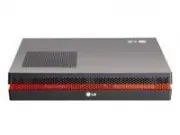
Page 2 - Contents; Digital Signage Media Player
Contents Digital Signage Media Player Introduction of SuperSign ...........................................................................................1 Characteristics of the product (What is SuperSign?) ..........................................................................1Minimum System R...
Page 4 - Introduction of SuperSign; Minimum System Requirement
1 Introduction of SuperSign Characteristics of the product (What is SuperSign?) LG SuperSign is a solution to allow users to transmit media and information files stored on a computer installed with SuperSign Software using LAN. Differentiated special feature VAR(SI: System Integration), a software t...
Page 5 - Product Specifications; General Specfication; Files supported by SuperSign
2 Introduction of SuperSign * Product specifications can be changed without notice for improvement of the product Product Specifications Size Weight CPU Main Memory Secondary Storage Device O/S 250 mm (W) x 43 mm (H) x 205 mm (D) (only Set) 1.43 kg (only Set) Intel ATOM Processor 330 1.6 GHz(Dual Co...
Page 6 - Operation Specification
3 Introduction of SuperSign Chip SetSerial PortUSB PortLAN PortVGA / HDMI4-in-1 Card PCI Express Card SlotLINE OUTSPDIF(Digital audio out) Nvidia MCP7A-IONOne external RS-232 Serial port Hi-Speed USB 2.0 port 480 Mbps rate (x 5)Realtek RTL8103E 10/100 Mbyte Ethernet controllerNvidia MCP7A-ION integr...
Page 7 - Composition of SuperSign; Parts
4 Composition of SuperSign Parts !!! Thank you very much for purchasing our product !!! Case Power Cable Handle x 2 M3, L8 x 4 (For attachment of handle) M3, L12 x 4 (for attachment of Box Guide on the monitor) Rail x 2 Box Guide RS-232C Cable Setup program/ User Manual Parts may look different than...
Page 8 - Name of each part
5 Composition of SuperSign 1 2 3 4 12 11 10 4 9 8 7 5 6 4 Power cable input terminal Power Switch RS-232C output terminal USB input terminal Operation and program installation can be carried out using USB Memory, USB Hard-disk, USB CD-ROM, Keyboard (wired/wireless), Mouse (wired/wireless), etc. HDMI...
Page 9 - Installation procedure of the product
6 4. Please attach Box Guide on four hole on the back of monitor as shown in the diagram using screws. 5. Please attach the case on the Box Guide as shown in the diagram. Composition of SuperSign 1. Please insert the handle into the groove on the side of product as shown in the picture. 2. Please se...
Page 10 - Cable connection procedure of the product
7 Composition of SuperSign Connect using D-SUB input cable (Check monitor RGB input)LINE-OUT Cable should be connected for Audio output during D-SUB connectionPower CableRS-232C CableProvided RS-232C cable is to connect the SuperSign to the monitor.HDMI Cable (Check monitor HDMI input)* When connect...
Page 11 - Usage of the SuperSign Manager Software; to user’s monitor and SuperSign.; Installation of SuperSign program
8 Usage of the SuperSign Manager Software 1. Installation window appears automatically when you click on ‘SuperSign Manager’ from main screen of the CD Please Install SuperSign Manager Software in the order shown below. In order to use SuperSign program, install the SuperSign Manager Software from t...
Page 13 - Removing SuperSign Software
10 Removing SuperSign Software Usage of the SuperSign Manager Software Select remove Supersign Manager removal of installed SuperSign Manager Software. * When deleting from the control panel 1. <Windows XP / Windows 2003> Select Start -> Configuration -> Control Panel -> Add/ Remove P...
Page 14 - Usage of each item on SuperSign Manager Software; SuperSign Login
11 Usage of each item on SuperSign Manager Software SuperSign Login 1. Following login window appears when SuperSign Manager Software is executed. 2. Default ID is “Administrator”. ID and password is stored as the values input during initial login. Password can be changed from File Menu. ID is fixed...
Page 15 - Canvas Setting
12 Usage of each item on SuperSign Manager Software Canvas Setting 2. Select “OK” after selecting desired template and layout setting. 1. Select “OK” after selecting desired resolution. 3. Move to Edit screen
Page 16 - Main Window; CONTENTS EDIT MENU
13 Usage of each item on SuperSign Manager Software * Media Library : Desired video, image, sound, flash and documents can be imported. ( : Import files by clicking on the icons.) * Canvas : Zone of respective files are created when files registered on Media Library dragged and dropped on Canvas or ...
Page 18 - Registering Media Library
15 Usage of each item on SuperSign Manager Software 1. Click on Media icon on “Library tab " to open the popup window.2. Select the file to upload from the popup window.3. “File Uploading” popup window will be displayed while the file is being uploaded, and it will automatically disappear when t...
Page 19 - Creation of Contents
16 Usage of each item on SuperSign Manager Software 1. Zone of respective file is created when a file registered on Media Library is dragged and dropped on Canvas or Time Line. * It is added to one single Zone if several files are selected, dragged and dropped simultaneously.2. Zone : Only a Zone is...
Page 20 - Configuration of TimeLine
17 Usage of each item on SuperSign Manager Software 3. Zone name can be changed by double-clicking on the Zone. Zone name is created depending on the type of media by default.4. : Repeated play back for entire duration occurs when repeat function is selected. Default setting is “on”.(On : , Off : )5...
Page 21 - Contents Properties
18 Usage of each item on SuperSign Manager Software <When background is selected> <Photo> Displays connected Player or group information. Nothing is displayed when there is no connected Player. Displays connected Player or group information. Nothing is displayed when there is no connecte...
Page 25 - Configuration of service function
22 Usage of each item on SuperSign Manager Software 1. URL : Add = Web Zone is created when clicked after entering a URL. Reset = Stored URL disappears.2. RSS Feed Add = RSS Zone is created when clicked after entering a URL. Reset = Stored URL disappears.3. Widget Add = Widget Zone is created when c...
Page 26 - PLAN MENU; Main Plan Window
23 Usage of each item on SuperSign Manager Software PLAN MENU Main Plan Window 1. Information of connected Player can be viewed.2. List of created contents and media files can be viewed from ‘Contents edit’.3. Units of displayed time can be selected. (10minutes/ 30minutes/ 1hour are supported.)4. Co...
Page 27 - Plan configuration
24 Usage of each item on SuperSign Manager Software 1. Create Time Cell by drag & drop after selecting contents or media files. Play back time of Time Cell can be adjust by selecting a Time Cell and dragging each corner of the Time Cell. 2. It is name of selected content for media file. 3. Time ...
Page 28 - Contents Copy
25 Usage of each item on SuperSign Manager Software Contents Copy 1. Select a Time Cell2. Shape of mouse point is changed and enters into copy mode when Ctr l + C is pressed.3. Paste copied Time Cell by clicking on desired location.4. Exit from copy mode by pressing “ESC” key. 5. Changed schedule is...
Page 29 - Main Management Screen; MANAGEMENT MENU
26 1. Shows currently connected Players.2. Contents and media file lists created from ‘Contents Edit’ can be viewed.3. Information and Control function. However, information is not shown in case of a group. * : Group : Player : Display Device Usage of each item on SuperSign Manager Software 4. Scan ...
Page 30 - Management configuration
27 Usage of each item on SuperSign Manager Software 1. Select a Player.2. Drag & drop by selecting contents or media files.3. Contents and Player information to be played back can be viewed.* Time Setting- Infinite Repeat Time: Repeated play back until a newly scheduled content is executed. - Du...
Page 31 - Tile Mode Control Cable
28 Usage of each item on SuperSign Manager Software Tile Mode Control Cable 1 2 1. Tile mode can be configured when several monitors are connected to one SuperSign2. Connect ‘RS232C Out’ of SuperSign to ‘RS232C In’ of the monitor. 3. For connection between monitors, connect ‘RS232C In’ and ‘RS232C O...
Page 32 - Control Tile Configuration
29 Usage of each item on SuperSign Manager Software A tab to configure Tile Mode of the display connected to a Player. Tile size can be configured with mouse drag and clicks. Can go to the next step. Display is arranged by configured Tile Size Selected button is activated in white color when each di...
Page 34 - OPTION
31 1. When Display is searched manually after connecting a monitor with RS232C cable, select Player and use ‘Display Search Control’ from "Control -> Option -> Daisy Chain Display". 2. When ‘Search’ button is clicked after selecting Daisy Chain, the Display is found and added. It is a ...
Page 36 - Massage
33 Usage of each item on SuperSign Manager Software A function to display messages in cases of situations such as notice, information and emergency. 1. It changes text attributes (size,color,etc).2. It changes text messages to be displayed.3. It adjust a message location to send.4. It changes play t...
Page 38 - File Menu
35 Usage of each item on SuperSign Manager Software File Menu Edit Menu View Menu
Page 40 - Login Screen; Player Menu usage of SuperSign
37 Enter password. Default password is "0000" and it can be changed. Move the cursor with the mouse. Screen that appears when an incorrect password is entered. <When incorrect password is entered> <When nothing is entered> 1 2 Login Screen Player Menu usage of SuperSign ※ You can...
Page 41 - Network
38 Player Menu usage of SuperSign Network When setting as Dynamic IP, IP assigns automatically.Player Name can be put in Dynamic IPOther items be arrangement disable state.Player Name is able to put by number/English/special characters.When input is done and click “Save”, setting condition is saved....
Page 43 - Display; Menu for setting display form.
40 Player Menu usage of SuperSign Display Menu for setting display form. Submenu is Landscape and Portrait. Initial condition is Landscape. <Landscape> <Portrait>
Page 44 - Password
41 Password It is a menu to change password.Password provided initially can be changed. Enter desired password on ‘Change’ field and press “OK” to save.Input the changed password at Verify menu to check the password.Input the password at Verify and click “OK”, then password will be saved. * Screen t...
Page 46 - Others
43 Player Menu usage of SuperSign Others Composition of SuperSign Player Tray Icon Menu Open exported file : Exported canvas can be selected by creating a file open window. (Identical function when tray icon is double clicked) Play schedule : Returns to Signage mode and if a schedule exists, it is p...
Page 47 - Setting Regional and Language Options
44 Set the Windows Language to the SuperSign Manager and SuperSign Player by using the Regional and Language Options menu from Windows Control Panel. Windows language on SuperSign Manager should be identical to SuperSign Player. * How to change the Windows Language setting 1. Disable the EWF. 2. Cli...
Page 48 - Program Restriction items; Installation / Removal
45 Program Restriction items - As for monitor resolutions supported from SuperSign, only 1360*768, 1920*1080, 768*1360 and 1080*1920 are supported. - Images included in the templates provided cannot be exported. - When sending contents with ‘Send to Player’, previously sent schedule from the Plan is...
Page 49 - Management Manager
46 Program Restriction items - During transmission of prepared schedule through ‘Send to Player’, it may take some time depending of network status, and it can be stopped during transmission using ‘Cancel’ button. In this case, download of stopped contents cannot be resumed, and overwrite is carried...
Page 50 - Preview Player Manager
47 Program Restriction items - Play may slow down when more than 2 Full HD video (H.264, MPEG-2, WMV) and other media are combined.- Blinking may occur when more than 2 messages or text are overlaid on a video.- PowerDVD SE is installed on the Player. Accelerated play of video cannot be done if Powe...
Page 53 - SuperSign network connection guide; SuperSign Manager
50 SuperSign network connection guide 1. Simple network connection (LAN) 1:1 connection 1:N connection <When the SuperSign manager and Supersign player are connected to the same network> - Same network refers to the case of using the same Gateway and Subnet Address in IP communications. - Supe...
Page 54 - Hierarchical connection
51 SuperSign network connection guide 2. Hierarchical network connection (Internet) <When SuperSign manager and Supersign player are connected through a different network> - SuperSign manager cannot find the SuperSign player in a different network through the scan function.- SuperSign player c...
Page 55 - Wireless network connection
52 SuperSign network connection guide 3. Wireless network connection - SuperSign manager and Supersign player supports both wired and wireless network connections.- SuperSign player may not work properly when both the wireless and wired network devices are used simultaneously. - When connecting to S...
Page 56 - Limitation of Windows embedded; Microsoft Windows Embedded Standard limited element
53 Limitation of Windows embedded Microsoft Windows Embedded Standard limited element - When you run Full Screen (Alt+Enter) from the DOS window, the font can be broken.- When saving the file with a different name from the Print window, the name of the menu window is displayed in English - When movi...
Page 57 - Restrictions of Nvidia Graphic chipset; screen of monitors from Display properties.
54 Restrictions of Nvidia Graphic chipset ※ Nvidia Graphic chipset included to NC1000 does not support change in main/sub screen of monitors from Display properties. ※ Main/sub screen of monitors can be changed from Control Panel/NVDIA Control Panel Menu.












