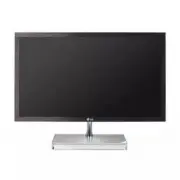
Page 2 - Important Precautions; On Safety; The appliance coupler is used as the disconnect device.; Do not Open the Display:
1 Important Precautions This unit has been engineered and manufactured to ensure your personal safety,however improper use may result in potential electrical shock or fire hazards. Inorder to allow the proper operation of all safeguards incorporated in this display,observe the following basic rules ...
Page 3 - On Installation; Avoid high temperatures and humidity.
2 Important Precautions On Installation Do not allow anything to rest upon or roll over the power cord, and do not place thedisplay where the power cord is subject to damage. Do not use this display near water such as near a bathtub, washbowl, kitchen sink,laundry tub, in a wet basement, or near a s...
Page 4 - On Cleaning; screen because over-spraying may cause electrical shock.; On Repacking; your local authority.
Important Precautions 3 On Cleaning Unplug the display before cleaning the face of the display screen.Use a slightly damp (not wet) cloth. Do not use an aerosol directly on the display screen because over-spraying may cause electrical shock. When cleaning the product, unplug the power cord and scrub...
Page 5 - Accessories; NOTE
4 Accessories Owner's Manual/Cards Power Cord 15-pin D-Sub Signal Cable DVI-D Signal Cable (This feature is not available in all countries.) NOTE This accessories may look different from those shown here.User must use shielded signal interface cables (D-sub 15 pin cable, DVI-D cable) with ferritecor...
Page 6 - Connecting the Display; Positioning your display; Tilt Range : -5 ̊ to 15 ̊; IMPORTANT
5 Connecting the Display Before setting up the monitor, ensure that the power to the monitor, the computersystem, and other attached devices is turned off. Positioning your display Adjust the position of the panel in various ways for maximum comfort. Tilt Range : -5˚ to 15˚ IMPORTANT It is recommend...
Page 7 - Connect HDMI Cable; Connecting with the PC
6 Connecting the Display A B Connect DVI-D(Digital signal) CableConnect D-sub(Analog signal) Cable Connect HDMI Cable 1. Before setting up the monitor, ensure that the power to the monitor, the computersystem, and other attached devices is turned off. 2. Connect signal input cable and power cord in ...
Page 8 - is executed automatically.
7 Connecting the Display NOTE ‘ Self Image Setting Function’? This function provides the user with optimal display settings.When the user connects the monitor for the first time, this function automatically adjuststhe display to optimal settings for individual input signals. ‘AUTO’ Function? When yo...
Page 9 - Control Panel Functions; Front Panel Controls; MENU Button; The message; MENU button; for several seconds. The message
8 Control Panel Functions Front Panel Controls MENU Button OSD LOCKED/UNLOCKED This function allows you to lock the current controlsettings, so that they cannot be inadvertently changed.Press and hold the MENU button for several seconds. The message "OSD LOCKED" should appear. You can unlock...
Page 10 - AUTO Button; AUTO IMAGE ADJUSTMENT; button before entering the On Screen; EXIT Button
9 Control Panel Functions AUTO Button AUTO IMAGE ADJUSTMENT When adjusting your display settings, always pressthe AUTO button before entering the On Screen Display(OSD). (Only Analog Mode) This will automatically adjust your display image tothe ideal settings for the current screen resolutionsize (d...
Page 11 - On Screen Display (OSD) Control Adjustment; Screen Adjustment
10 On Screen Display (OSD) Control Adjustment Screen Adjustment Making adjustments to the image size, position and operatingparameters of the display is quick and easy with the On ScreenDisplay Control system. A short example is given below to familiarize you with the use of thecontrols. The followi...
Page 12 - On Screen Display(OSD) Selection and Adjustment; The order of icons may differ depending on the model (11 to 19).; OTHERS
11 On Screen Display(OSD) Selection and Adjustment The following table indicates all the On Screen Display control, adjustment,and setting menus. NOTE The order of icons may differ depending on the model (11 to 19). : D-SUB(Analog signal) input : DVI-D(Digital signal) input : HDMI signal D-SUB DVI-D...
Page 13 - Menu Name; Move to the upper menu; Press the; MENU; Button, then the main menu of the OSD appears.
12 On Screen Display(OSD) Selection and Adjustment You were introduced to the procedure of selecting and adjusting an item using theOSD system. Listed below are the icons, icon names, and icon descriptions of theall items shown on the Menu. Sub-menus NOTE OSD (On Screen Display) menu languages on th...
Page 14 - To adjust the contrast of the screen.
13 On Screen Display(OSD) Selection and Adjustment Main menu Sub menu Description BRIGHTNESS CONTRAST SHARPNESS WHITEBALANCE BLACK LEVEL To adjust the brightness of thescreen. To adjust the contrast of the screen. To adjust the clearness of the screen. If the output of the video card isdifferent fro...
Page 16 - : Move to the upper menu; NORMAL
15 On Screen Display(OSD) Selection and Adjustment Main menu Sub menu Description : Move to the upper menu , : Move Select this when you want to use theproduct in the most general usingenvironment. Select this when you are watching avideo or movie. Select this when you want to use theoriginal standa...
Page 17 - INTERNET
16 On Screen Display(OSD) Selection and Adjustment Main menu Sub menu Description : Move to the upper menu , : Move Select this when you are working onthe document (Word etc.) Select this when you are playing agame. Select this when you watching generalsports. INTERNET GAME SPORTS D-SUB/DVI-D input ...
Page 19 - VOLUME; To adjust the volume of headphone/
18 On Screen Display(OSD) Selection and Adjustment VOLUME To adjust the volume of headphone/ Earphone. (Only for HDMI input) : Move to the upper menu: Decrease: Increase : Mute Main menu Sub menu Description HDMI input
Page 21 - Troubleshooting; Check the following before calling for service.; No image appears
20 Troubleshooting No image appears Check the following before calling for service. No image appears Do you see a "OSD LOCKED" message on the screen? ● Is the power cord of the display connected? ● Is the power indicator light on? ● Is the power indicator red? ● Do you see an "OUT OF RAN...
Page 22 - Display image is incorrect; Check
21 Troubleshooting Display image is incorrect ● Display Position is incorrect. ● On the screen background, verticalbars or stripes arevisible. ● Any horizontal noise appearing in anyimage or charactersare not clearlyportrayed. • Press the AUTO button to automatically adjust your display image to the...
Page 23 - The Audio function is not working; The screen color is
22 Troubleshooting The Audio function is not working Display image is incorrect ● The screen color is mono or abnormal. ● The screen blinks. • Check if the signal cable is properly connected and use a screwdriver to fasten if necessary. • Make sure the video card is properly inserted in the slot. • ...
Page 24 - Specifications
23 Specifications 54.6 cm (21.5 inch) Flat Panel Active matrix-TFT LCD Anti-Glare coating Visible diagonal size : 54.6 cm0.248 mm x 0.248 mm (Pixel pitch) Display Sync Input Video Input Max VESA 1920 x 1080 @ 60 Hz Recommend VESA 1920 x 1080 @ 60 Hz Resolution Plug&Play On Mode : 26 W (Typ.) Sle...
Page 25 - Indicator; LED Color; HDMI Video Input
24 Specifications Preset Modes (Resolution) - D-sub(Analog) / DVI-D(Digital) INPUT Display Modes (Resolution) Horizontal Freq. (kHz) Vertical Freq. (Hz) *Recommend Mode 123456789 1011 *12 720 x 400640 x 480640 x 480800 x 600800 x 600 1024 x 7681024 x 7681152 x 864 1280 x 10241280 x 10241680 x 105019...
Page 26 - MODEL
As an ENERGY STAR Partner LGE U. S. A.,Inc. has determined that this product meets the ENERGY STAR guidelines for energy efficiency. E N E RGY STA R i s a s et o f p owe r- s a v i n g guidelines issued by the U.S. Environmental Protection Agency(EPA). Make sure to read the Important Precautions bef...