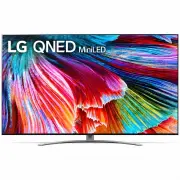
Page 2 - Separate Purchase
2 Title Before reading this manual • Read this manual thoroughly before operating your TV, and keep it for future reference. • On the website you can download the manual including installation, using, troubleshooting, specifications, license etc and view its contents on your PC or mobile device. Use...
Page 4 - Warning! Safety instructions
4 Warning! Safety instructions CAUTION RISK OF ELECTRIC SHOCK DO NOT OPEN CAUTION : TO REDUCE THE RISK OF ELECTRIC SHOCK, DO NOT REMOVE COVER (OR BACK). NO USER-SERVICEABLE PARTS INSIDE. REFER TO QUALIFIED SERVICE PERSONNEL. This symbol is intended to alert the user to the presence of uninsulated “d...
Page 7 - Preparing; Lifting and moving the TV
7 Preparing Lifting and moving the TV Please note the following advice to prevent the TV from being scratched or damaged and for safe transportation regardless of its type and size. • It is recommended to move the TV in the box or packing material that the TV originally came in. • Before moving or l...
Page 8 - Mounting on the Table; Securing TV to the Wall
8 Mounting on the Table 1 Lift and tilt the TV into its upright position on a table. • Leave a 10 cm (minimum) space from the wall for proper ventilation. 2 Connect the power cord to a wall outlet. 10 cm 10 cm 10 cm (Depending on model) • Do not apply foreign substances (oils, lubricants, etc.) to t...
Page 9 - Mounting to the Wall
9 Mounting to the Wall Attach an optional wall mount bracket at the rear of the TV carefully and install the wall mount bracket on a solid wall perpendicular to the floor. When you attach the TV to other building materials, please contact qualified personnel. LG recommends that wall mounting be perf...
Page 10 - Wall Mounting Bracket
10 Wall Mounting Bracket (Depending on model)Make sure to use screws and wall mount bracket that meet the VESA standard. Standard dimensions for the wall mount kits are described in the following table. A B Model 65QNED90*65QNED91*65QNED95*65QNED96*65QNED99* Model 75QNED90*75QNED91*75QNED95*75QNED96...
Page 11 - Satellite dish
11 Antenna/Cable Connect the TV to a wall antenna socket with an RF cable (75 Ω). • Use a signal splitter to use more than 2 TVs. • If the image quality is poor, install a signal amplifier properly to improve the image quality. • If the image quality is poor with an antenna connected, try to realign...
Page 12 - Starting TV; Turning on the TV; Using button
12 Starting TV Turning on the TV You can simply operate the TV functions, using the button. Using button Power On (Press)Power Off 1) (Press and Hold) Menu Control (Press 2) ) Menu Selection (Press and Hold 3) ) 1) All running apps will close, and any recording in progress will stop. (Depending on c...
Page 13 - Inserting the battery; Registering Magic Remote Control; How to register the Magic Remote Control; How to deregister the Magic Remote Control
13 Inserting the battery When the message [Magic Remote battery is low. Please change the battery.] is displayed, replace the battery.To replace batteries, open the battery cover, replace batteries (1.5 V AA) matching the and ends to the label inside the compartment, and close the battery cover. • D...
Page 14 - Connecting Smart Devices using NFC Tagging; Using the NFC Feature
14 Connecting Smart Devices using NFC Tagging Using the NFC Feature NFC is technology that uses Near Field Communication, allowing you to conveniently send and receive information without separate settings. By bringing a smart device near the NFC-enabled remote control, you can install the LG ThinQ ...
Page 15 - Using Remote Control; Using Magic Remote Control
15 Using Remote Control Using Magic Remote Control (Depending on model)The descriptions in this manual are based on the buttons on the remote control. Please read this manual carefully and use the TV correctly. Power Turns the TV on or off. 1 (DASH) Inserts a between numbers such as 2-1 and 2-2. Acc...
Page 16 - Connections; HDMI
16 Connections Connect various external devices to the TV and switch input modes to select an external device. For more information of external device’s connection, refer to the manual provided with each device. HDMI • When connecting the HDMI cable, the product and external devices should be turned...
Page 18 - Troubleshooting
18 Troubleshooting Cannot control the TV with the remote control. • Check the remote control sensor on the product and try again. • Check if there is any obstacle between the product and the remote control. • Check if the batteries are still working and properly installed ( to , to ). No image displ...
Page 19 - Specifications
19 Specifications (Depending on country) Broadcasting Specifications Digital TV (Depending on country) Analogue TV (Depending on country) Television system DVB-T/T2 1) DVB-T/T2/C/S/S2 2) PAL B/B, PAL B/G, PAL D/K, PAL-I SECAM B/G, SECAM D/K NTSC-M Programme coverage VHF, UHF C-Band 2) , Ku-Band 2) V...
Page 21 - Open Source Software Notice Information; Licenses
21 Open Source Software Notice Information To obtain the source code under GPL, LGPL, MPL, and other open source licenses, that is contained in this product, please visit https://opensource.lge. com . In addition to the source code, all referred license terms, warranty disclaimers and copyright noti...
Page 22 - Regulatory; Symbols
22 Regulatory WARNING! (STABILITY HAZARD) A television set may fall, causing serious personal injury or death. Many injuries, particularly to children, can be avoided by taking simple precautions such as: - ALWAYS use cabinets or stands or mounting methods recommended by the manufacturer of the tele...
Page 23 - Environmental Information; 㜵ⱬ Osnlps nP; aVVUUV
23 Environmental Information (Only India)Disposal of your old appliance (as per e-waste Rules) 1. When this crossed out wheeled bin symbol is depicted on the product and its operator’s manual, it means the product is covered by the e-waste Management and Handling Rules, 2011 and are meant to be recy...