LG 50UR81006LJ - Manuals
LG 50UR81006LJ TV – User Manual in PDF format online.
Manuals:
User Manual LG 50UR81006LJ
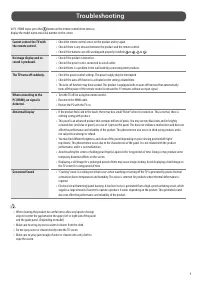
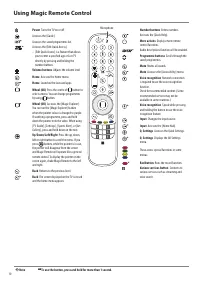
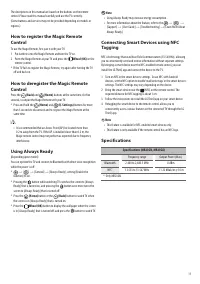
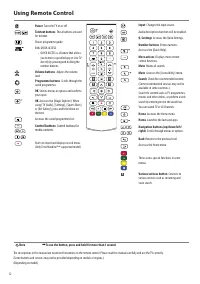
Summary
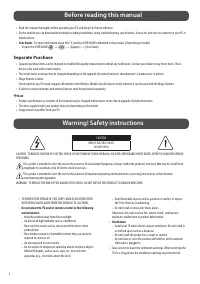
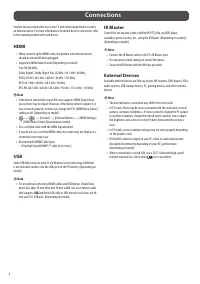
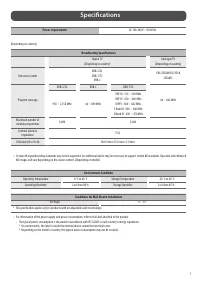
2 Before reading this manual • Read this manual thoroughly before operating your TV, and keep it for future reference. • On the website you can download the manual including installation, using, troubleshooting, specifications, license etc and view its contents on your PC or mobile device. • User Gu...
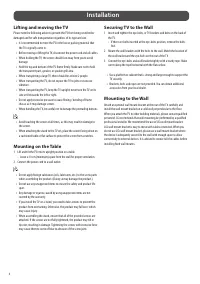
4 Installation Lifting and moving the TV Please note the following advice to prevent the TV from being scratched or damaged and for safe transportation regardless of its type and size. • It is recommended to move the TV in the box or packing material that the TV originally came in. • Before moving o...
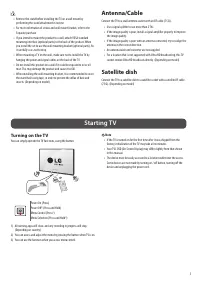
5 • Remove the stand before installing the TV on a wall mount by performing the stand attachment in reverse. • For more information of screws and wall mount bracket, refer to the Separate purchase. • If you intend to mount the product to a wall, attach VESA standard mounting interface (optional part...
LG TVs Manuals
-
 LG 19
User Manual
LG 19
User Manual
-
 LG 37
User Manual
LG 37
User Manual
-
 LG 42
User Manual
LG 42
User Manual
-
 LG 19LD355
User Manual
LG 19LD355
User Manual
-
 LG 19LE3300
User Manual
LG 19LE3300
User Manual
-
 LG 19LS3500
Manual
LG 19LS3500
Manual
-
 LG 19LV2300
User Manual
LG 19LV2300
User Manual
-
 LG 19LV2500
Manual
LG 19LV2500
Manual
-
 LG 19MN43D-PZ
User Manual
LG 19MN43D-PZ
User Manual
-
 LG 22LB491U
User Manual
LG 22LB491U
User Manual
-
 LG 22LD351
User Manual
LG 22LD351
User Manual
-
 LG 22LD355
User Manual
LG 22LD355
User Manual
-
 LG 22LE5500
User Manual
LG 22LE5500
User Manual
-
LG 22LE5500
Manual
-
 LG 22LK330
User Manual
LG 22LK330
User Manual
-
 LG 22LS3510
Manual
LG 22LS3510
Manual
-
 LG 22LV2300
User Manual
LG 22LV2300
User Manual
-
 LG 26LD355
User Manual
LG 26LD355
User Manual
-
 LG 26LE5500
User Manual
LG 26LE5500
User Manual
-
LG 26LE5500
Manual