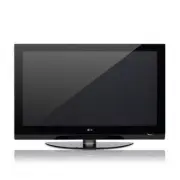
LG 50PG25 - Manuals
User Manual LG 50PG25
Manual LG 50PG25
Summary
2 WARNING / CAUTION WARNING / CAUTION To prevent fire or shock hazards, do not exposethis product to rain or moisture. FCC NOTICE Class B digital device This equipment has been tested and found to com-ply with the limits for a Class B digital device, pur-suant to Part 15 of the FCC Rules. These limi...
3 IMPORTANT SAFETY INSTRUCTIONS SAFETY INSTRUCTIONS Important safety instructions shall be provided with each apparatus. This information shall be given in a separatebooklet or sheet, or be located before any operating instructions in an instruction for installation for use andsupplied with the appa...
4 SAFETY INSTRUCTIONS Use only with the cart, stand, tripod, bracket, or table specified by the manufacturer, or sold with the apparatus. When a cart is used, use caution when moving the cart/apparatus combination to avoid injury from tip-over. Never touch this apparatus or antenna during a thunder ...
5 CONTENTS HOW TO USE THE OWNER'S MANUAL ON THE CD-ROM To view the Owner's Manual on the CD-ROM, Adobe Acrobat Reader must be installed on your PC. The “ACRORD" folder on the CD-ROM contains the installation programs for them.If you want to install those programs, Open the “My Computer” Open the...
PREP AR ATION 6 PREPARATION ACCESSORIES Ensure that the following accessories are included with your TV. If an accessory is missing, please contact thedealer where you purchased the product. The accessories included may differ from the images below.For further information, see the the Owner's Manual...
PREP AR ATION 7 FRONT PANEL INFORMATION ■ Image shown may differ from your TV. ■ NOTE : If your TV has a protection tape attached, remove the tape. And then wipe the TV with a cloth (If a polishing cloth is included with your TV, use it). CH VOL MENU INPUT ENTER INPUT Button MENU Button ENTER Button...
PREP AR ATION 8 BACK PANEL INFORMATION PREPARATION ■ Image shown may differ from your TV R RGB IN COMPONENT IN AUDIO (RGB/DVI) RGB(PC) ANTENNA/ CABLE IN 1 2 RS-232C IN (CONTROL & SERVICE) VIDEO AUDIO VIDEO AUDIO OUT OPTICAL COAXIAL MONO ( ) AUDIO S-VIDEO DIGITAL AUDIO OUT A V IN 1 HDMI/DVI IN 3 ...
PREP AR ATION 10 REMOTE CONTROL FUNCTIONS PREPARATION When using the remote control, aim it at the remote control sensor on the TV. INPUT FAV MUTE TV STB POWER Q. MENU MENU AV MODE RETURN ENTER VOL CH 1 2 3 4 5 6 7 8 0 9 FLASHBK P A G E DVD VCR TV/STB/DVD/VCR POWER Q.MENU MENU INPUT VOLUME UP /DOWN ...
PREP AR ATION 11 Installing Batteries ■ Open the battery compartment cover on the back side and installthe batteries matching correct polarity (+with +,-with -). ■ Install two 1.5V AAA batteries. Don’t mix old or used batteries withnew ones. ■ Close cover. THUMBSTICK (Up/Down/Left Right/ENTER) RETUR...
PREP AR ATION 12 STAND INSTALLATION PREPARATION ■ Image shown may differ from your TV Carefully place the TV screen side down on acushioned surface to protect the screen fromdamage. Assemble the TV as shown. Fix the 4 bolts securely using the holes in theback of the TV. 1 2 Assemble the parts of the...
PREP AR ATION 14 PREPARATION PREPARATION CABLE MANAGEMENT Plasma TV Model Connect the cables as necessary.To connect additional equipment, see the EXTERNAL EQUIPMENT SETUP section. Install the CABLE MANAGEMENT CLIP as shown.If your TV has the CABLE HOLDER, install itas shown and bundle the cables. 1...
PREP AR ATION 15 LCD TV Model Connect the cables as necessary.To connect additional equipment, see the EXTERNAL EQUIPMENT SETUP section. Install the CABLE MANAGEMENT CLIP as shown. CABLE MANAGEMENT CLIP Align the hole with the tab on the C C AA BB LL EE M M AA N N AA G G EE M M EE N N TT C C LL II P...
PREP AR ATION 16 DESKTOP PEDESTAL INSTALLATION PREPARATION For proper ventilation, allow a clearance of 4 inches on all four sides from the wall. ■ Image shown may differ from your TV. 4 inches 4 inches 4 inches 4 inches SWIVEL STAND After installing the TV, you can adjust the TV set manually to the...
PREP AR ATION 17 VESA WALL MOUNTING This TV accepts VESA FDMI compliant mounts via the four screw holes on the back of the TV. We recommend that you use a wall mounting bracket of LG brand when mounting the TV to a wall. G G Screw length needed depends on the wall mount used. For further information...
PREP AR ATION 18 PROTECTION COVER PREPARATION ■ Image shown may differ from your TV. Plasma TV Models LCD TV Models You can remove the stand before installing the TV on a wall mount by performing the previous stand instructionsin reverse. After removing the stand, install the included pp rr oo tt ee...
PREP AR ATION 19 SECURING THE TV TO THE WALL TO PREVENT FALLING We recommend that you set up the TV close to a wall so it cannot fall over if pushed backwards. Additionally, we recommend that the TV be attached to a wall so it cannot be pulled in a forward direction,potentially causing injury or dam...
PREP AR ATION 20 ANTENNA OR CABLE CONNECTION PREPARATION 1. Antenna (Analog or Digital) Wall Antenna Socket or Outdoor Antenna without a Cable BoxConnection.For optimum picture quality, adjust antenna direction if needed. 2. Cable Wall Antenna Socket Outdoor Antenna (VHF, UHF) Cable TV Wall Jack Mul...
EXTERNAL EQUIPMENT SETUP 21 EXTERNAL EQUIPMENT SETUP HD RECEIVER SETUP This TV can receive Digital Over-the-air/Cable signals without an external digital set-top box. However, if you doreceive digital signals from a digital set-top box or other digital external device, refer to the figure as shown b...
EXTERNAL EQUIPMENT SETUP 22 EXTERNAL EQUIPMENT SETUP DVD SETUP HDMI Connection Connect the HDMI output of the DVD to theH H D D M M II // D D VV II II N N 1 1, 22 , 33 or 44 jack on the TV. No separate audio connection is necessary.HDMI supports both audio and video. 1. How to connect 2. How to use ...
EXTERNAL EQUIPMENT SETUP 23 VCR SETUP Composite (RCA) Connection G G If you have a mono VCR, connect the audio cable fromthe VCR to the AA U U D D II O O LL // M M O O N N O O jack of the TV. NOTE ! NT IN AUDIO (RGB/DVI) REMOTE CONTROL IN ANTENNA/ CABLE IN RS-232C IN (CONTROL & SERVICE) L R AUDI...
EXTERNAL EQUIPMENT SETUP 24 EXTERNAL EQUIPMENT SETUP PC SETUP Connect the VGA output of the PC to the RR G G BB (( PP C C)) jack on the TV. Connect the PC audio output to the AA U U D D II O O (( RR G G BB // D D VV II)) jack on the TV. 1. How to connect 2. How to use ■ Turn on the PC and the TV. ■ ...
W ATCHING TV 26 WATCHING TV TURNING ON TV CHANNEL SETUP NOTE ! G G If you intend to be away on vacation, disconnect the power plug from the wall power outlet. First, connect power cord correctly. At this moment, the TV switches to standby mode. ■ In standby mode to turn TV on, press the , IIN NPPU U...
W ATCHING TV 27 QUICK MENU ON-SCREEN MENUS SELECTION Q.Menu (Quick Menu) is a menu of features which users might use frequently. Display each menu. Select a menu item. Enter to the pop up menu. 1 MENU 3 2 ENTER ENTER Return to TV viewing. 4 MENU Your TV's OSD (On Screen Display) may differ slightly ...
USB 30 ENTRY MODES USB When you connect a USB device, this screen is displayed automatically.In USB device, you can not add a new folder or delete the existing folder. Precautions when using the USB device G G Only a USB storage device is recognizable. G G If the USB storage device is connected thro...
USB 31 PHOTO LIST You can view .JPG files from USB storage devices.The On Screen Display on your model may be slightly different. Photo Selection and Popup Menu ■ Use the C C H H button to navigation in the photo page. ■ Use the FFAAVV button to mark or unmark a photo.When one or more photos are mar...
USB 32 USB Full Screen Menu You can change the Photo List view so that it fills thescreen. More operations are available in full screen mode. Select the target folder or drive. Select the desired photos. Show the Popup menu. 5 Select VV ii ee w w. The selected photo is displayed infull size. 2 3 1 4...
USB 33 MUSIC LIST You can use the Music List menu to play MP3 files form a USB storage device. This TV cannot play back copy-protected files. The On Screen Display on your model may be slightly different. Screen Components Supported music file: *.MP3 Bit rate range 40Kbps ~ 320Kbps • Sampling rate (...
USB 34 USB Music Selection and Popup Menu G G PP ll aa yy (During stop): Play the selected music. Once a song finishes playing, the next selectedone will be played. When there are no selectedmusics to play, the next one in the current fold-er will be played. If you go to a different folderand press ...
APPENDIX 35 TROUBLESHOOTING APPENDIX TThhee ooppeerraattiioonn ddooeess nnoott w woorrkk nnoorrm maallllyy.. TThhee vviiddeeoo ffuunnccttiioonn ddooeess nnoott w woorrkk.. No picture &No sound No or poor color or poor picture Poor reception on some channels Lines or streaks in pictures No pictur...
APPENDIX 36 APPENDIX TThheerree iiss aa pprroobblleem m iinn PPC C m mooddee.. ((O Onnllyy PPC C m mooddee aapppplliieedd)) ■ Adjust resolution, horizontal frequency, or vertical frequency. ■ Check the input source. ■ Work the Auto configure or adjust clock, phase, or H/V position. (Option) ■ Check ...
APPENDIX 37 PRODUCT SPECIFICATIONS ■ The specifications shown above may be changed without prior notice for quality improvement. MODELS AC100-240V ~ 50/60Hz NTSC-M, ATSC, 64 & 256 QAM VHF 2-13, UHF 14-69, CATV 1-135, DTV 2-69, CADTV 1-135 75 ohm 32 ~ 104°F (0 ~ 40°C) Less than 80% -4 ~ 140°F (-2...
APPENDIX 39 OPEN SOURCE SOFTWARE NOTICE - This feature is not available for all models. The following GPL executables and LGPL/MPL libraries used in this product are subject to the GPL/LGPL/MPL License Agreements: GPL EXECUTABLES: ■ Linux kernel 2.6.12 ■ busybox LGPL LIBRARIES: ■ uclibc MPL LIBRARIE...
LG TVs Manuals
-
LG 19
User Manual
-
LG 37
User Manual
-
LG 42
User Manual
-
LG 19LD355
User Manual
-
LG 19LE3300
User Manual
-
LG 19LS3500
Manual
-
LG 19LV2300
User Manual
-
LG 19LV2500
Manual
-
LG 19MN43D-PZ
User Manual
-
LG 22LB491U
User Manual
-
LG 22LD351
User Manual
-
LG 22LD355
User Manual
-
LG 22LE5500
User Manual
-
LG 22LE5500
Manual
-

LG 22LK330
User Manual
-
LG 22LS3510
Manual
-
LG 22LV2300
User Manual
-
LG 26LD355
User Manual
-
LG 26LE5500
User Manual
-
LG 26LE5500
Manual
















