Page 2 - Read this first
Read this first Before using this documentation and the product it supports, ensure that you read and understand the following: • Safety and Warranty Guide • Setup Guide • Generic Safety and Compliance Notices First Edition (April 2022) © Copyright Lenovo 2022. LIMITED AND RESTRICTED RIGHTS NOTICE: ...
Page 3 - Contents
Contents Discover your Lenovo notebook . . . . . iii Chapter 1. Meet your computer . . . . . 1 Front view . . . . . . . . . . . . . . . . . . 1Side view . . . . . . . . . . . . . . . . . . 3Bottom view . . . . . . . . . . . . . . . . . 5Rear view . . . . . . . . . . . . . . . . . . 6Features and spe...
Page 4 - ii
Appendix B. Notices and trademarks . . . . . . . . . . . . . . . 61 ii T14s Gen 3 and X13 Gen 3 User Guide
Page 5 - Discover your Lenovo notebook; Thank you for choosing a Lenovo; iii
Discover your Lenovo notebook Thank you for choosing a Lenovo ® notebook! We are dedicated to delivering the best solution to you. Before starting your tour, please read the following information: • Illustrations in this documentation might look different from your product. • Depending on the model,...
Page 6 - iv
Page 7 - Chapter 1. Meet your computer; Front view
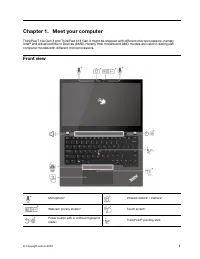
Chapter 1. Meet your computer ThinkPad T14s Gen 3 and ThinkPad X13 Gen 3 might be shipped with different microprocessors, namely Intel ® and Advanced Micro Devices (AMD). Hereby Intel models and AMD models are used to distinguish computer models with different microprocessors. Front view Microphone*...
Page 8 - Webcam privacy shutter
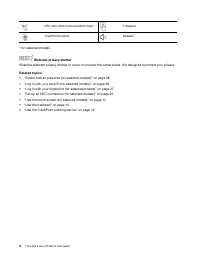
NFC (near field communication) mark* Trackpad TrackPoint buttons Speaker * for selected models Webcam privacy shutter Slide the webcam privacy shutter to cover or uncover the camera lens. It is designed to protect your privacy. Related topics • “Detect human presence (for selected models)” on page 2...
Page 9 - Side view; Intel models
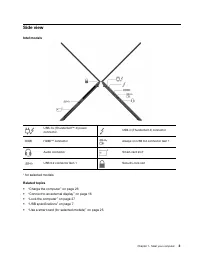
Side view Intel models USB-C ® (Thunderbolt ™ 4) power connector USB-C (Thunderbolt 4) connector HDMI ™ connector Always on USB 3.2 connector Gen 1 Audio connector Smart-card slot* USB 3.2 connector Gen 1 Security-lock slot * for selected models Related topics • “Charge the computer” on page 23 • “C...
Page 10 - AMD models; Related topics
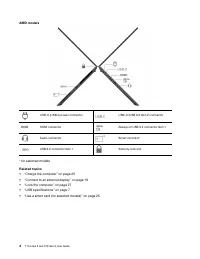
AMD models USB-C (USB 4) power connector USB-C (USB 3.2 Gen 2) connector HDMI connector Always on USB 3.2 connector Gen 1 Audio connector Smart-card slot* USB 3.2 connector Gen 1 Security-lock slot * for selected models Related topics • “Charge the computer” on page 23 • “Connect to an external disp...
Page 11 - Bottom view
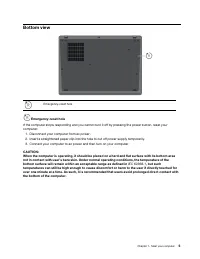
Bottom view Emergency-reset hole Emergency-reset hole If the computer stops responding and you cannot turn it off by pressing the power button, reset your computer: 1. Disconnect your computer from ac power. 2. Insert a straightened paper clip into the hole to cut off power supply temporarily. 3. Co...
Page 12 - Rear view; Related topic
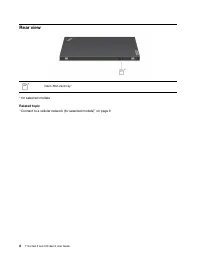
Rear view Nano-SIM-card tray* * for selected models Related topic “Connect to a cellular network (for selected models)” on page 9 6 T14s Gen 3 and X13 Gen 3 User Guide
Page 13 - Features and specifications; USB specifications
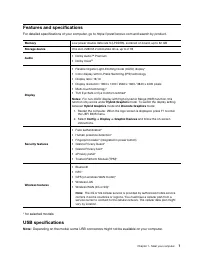
Features and specifications For detailed specifications of your computer, go to https://psref.lenovo.com and search by product. Memory Low power double data rate 5 (LPDDR5), soldered on board, up to 32 GB Storage device One slot, 2280 M.2 solid-state drive, up to 2 TB Audio • Dolby Audio ™ Premium •...
Page 14 - Statement on USB transfer rate
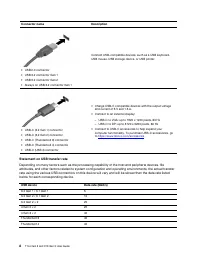
Connector name Description • USB 2.0 connector • USB 3.2 connector Gen 1 • USB 3.2 connector Gen 2 • Always on USB 3.2 connector Gen 1 Connect USB-compatible devices, such as a USB keyboard, USB mouse, USB storage device, or USB printer. • USB-C (3.2 Gen 1) connector • USB-C (3.2 Gen 2) connector • ...
Page 15 - Chapter 2. Get started with your computer; Access networks; Connect to Wi-Fi networks; Connect to the wired Ethernet
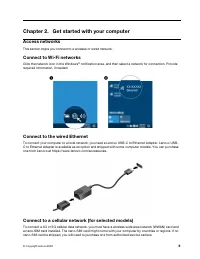
Chapter 2. Get started with your computer Access networks This section helps you connect to a wireless or wired network. Connect to Wi-Fi networks Click the network icon in the Windows ® notification area, and then select a network for connection. Provide required information, if needed. Connect to ...
Page 16 - Turn on the Airplane mode; Interact with your computer
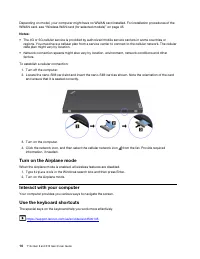
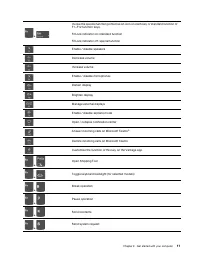
Depending on model, your computer might have no WWAN card installed. For installation procedures of the WWAN card, see “Wireless WAN card (for selected models)” on page 45. Notes: • The 4G or 5G cellular service is provided by authorized mobile service carriers in some countries or regions. You must...
Page 18 - Use the TrackPoint pointing device
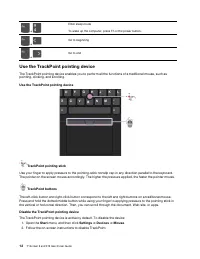
+ Enter sleep mode To wake up the computer, press Fn or the power button. + Go to beginning + Go to end Use the TrackPoint pointing device The TrackPoint pointing device enables you to perform all the functions of a traditional mouse, such as pointing, clicking, and scrolling. Use the TrackPoint poi...
Page 19 - Replace the pointing-stick nonslip cap; Use the trackpad
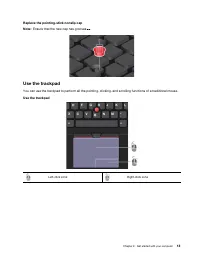
Replace the pointing-stick nonslip cap Note: Ensure that the new cap has grooves a . Use the trackpad You can use the trackpad to perform all the pointing, clicking, and scrolling functions of a traditional mouse. Use the trackpad Left-click zone Right-click zone Chapter 2 . Get started with your co...
Page 20 - Use the touch screen (for selected models)
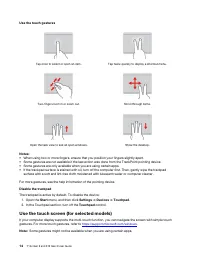
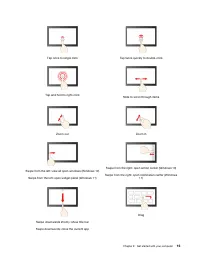
Use the touch gestures Tap once to select or open an item. Tap twice quickly to display a shortcut menu. Two-finger zoom in or zoom out. Scroll through items. Open the task view to see all open windows. Show the desktop. Notes: • When using two or more fingers, ensure that you position your fingers ...
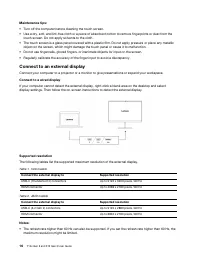
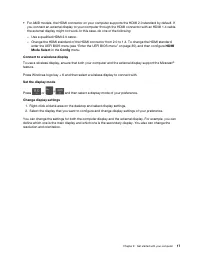
Page 22 - Connect to an external display; Connect to a wired display
Maintenance tips: • Turn off the computer before cleaning the touch screen. • Use a dry, soft, and lint-free cloth or a piece of absorbent cotton to remove fingerprints or dust from the touch screen. Do not apply solvents to the cloth. • The touch screen is a glass panel covered with a plastic film....
Page 25 - Chapter 3. Explore your computer; Lenovo apps; Key features
Chapter 3. Explore your computer Lenovo apps This section provides introduction to the Vantage and Lenovo Quick Clean / Clean Your Device apps. The Vantage app The preinstalled Vantage app is a customized one-stop solution to help you maintain your computer with automated updates and fixes, configur...
Page 27 - Smart Pointer; Promote digital wellness
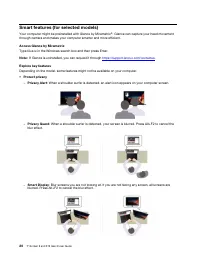
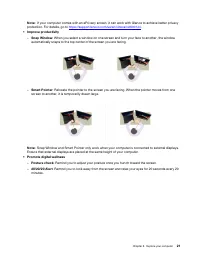
Note: If your computer comes with an ePrivacy screen, it can work with Glance to achieve better privacy protection. For details, go to https://support.lenovo.com/us/en/videos/vid500144 . • Improve productivity – Snap Window : When you select a window on one screen and turn your face to another, the ...
Page 28 - Intelligent cooling; For models with Windows 10; When the auto mode is disabled:; When the auto mode is enabled:
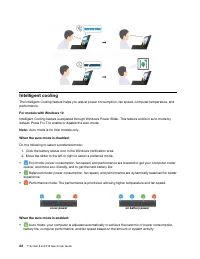
Intelligent cooling The Intelligent Cooling feature helps you adjust power consumption, fan speed, computer temperature, and performance. For models with Windows 10 Intelligent Cooling feature is adjusted through Windows Power Slider. This feature works in auto mode by default. Press Fn+T to enable ...
Page 30 - Change the power settings
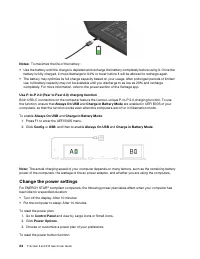
Notes: To maximize the life of the battery: • Use the battery until the charge is depleted and recharge the battery completely before using it. Once the battery is fully charged, it must discharge to 94% or lower before it will be allowed to recharge again. • The battery may optimize its full charge...
Page 31 - Transfer data; Set up an NFC connection (for selected models)
1. Go to Control Panel and view by Large icons or Small icons. 2. Click Power Options , and then click Choose what the power buttons do on the left pane. 3. Change the settings as you prefer. Transfer data Quickly share your files using the built-in Bluetooth or NFC technology among devices with the...
Page 32 - Accessories
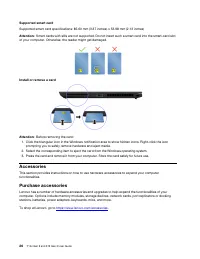
Supported smart card Supported smart card specifications: 85.60 mm (3.37 inches) x 53.98 mm (2.13 inches) Attention: Smart cards with slits are not supported. Do not insert such a smart card into the smart-card slot of your computer. Otherwise, the reader might get damaged. Install or remove a card ...
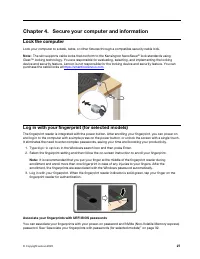
Page 33 - Chapter 4. Secure your computer and information; Lock the computer; Log in with your fingerprint (for selected models); Associate your fingerprints with UEFI BIOS passwords
Chapter 4. Secure your computer and information Lock the computer Lock your computer to a desk, table, or other fixtures through a compatible security cable lock. Note: The slot supports cable locks that conform to the Kensington NanoSaver ® lock standards using Cleat ™ locking technology. You are r...
Page 35 - Protect your privacy (for selected models); Use the ePrivacy screen; Protect data against power loss (for selected models); SYSTEM INFORMATION; UEFI BIOS passwords
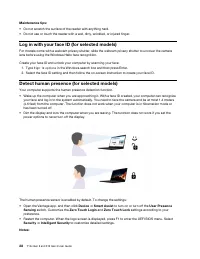
• If the Airplane mode is enabled, human presence detection is disabled. • Your computer uses a human presence sensor to detect your presence and the IR camera to recognize your face. Lenovo does not collect any personal data. • For some countries or regions, the human presence sensor is disabled ac...
Page 41 - Chapter 5. Configure advanced settings; Startup
Chapter 5. Configure advanced settings UEFI BIOS UEFI BIOS is the first program that the computer runs. When the computer turns on, UEFI BIOS performs a self test to make sure that various devices in the computer are functioning. Enter the UEFI BIOS menu Restart the computer. When the logo screen is...
Page 42 - Detect memory retraining (for Intel models)
3. Navigate the interface by pressing the following keys, and then see details by selecting each item. • ↑↓ : Move keyboard focus • PgUp / PgDn: Scroll page • Enter: Select • F3: Exit The following BIOS event logs might be listed on your screen depending on the UEFI BIOS activities. Each log consist...
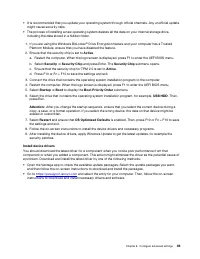
Page 44 - Install a Windows operating system and drivers
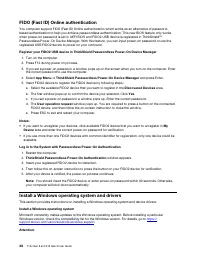
FIDO (Fast ID) Online authentication You computer support FIDO (Fast ID) Online authentication which works as an alternative of password- based authentication to help you achieve passwordless authentication. This new BIOS feature only works when power-on password is set in UEFI BIOS and FIDO2 USB de...
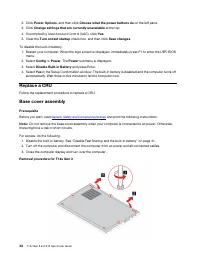
Page 47 - Chapter 6. CRU replacement; CRU list; Optional-service CRUs; Disable Fast Startup and the built-in battery; Control Panel
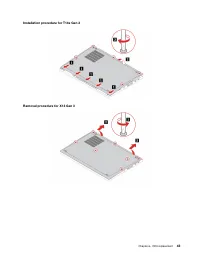
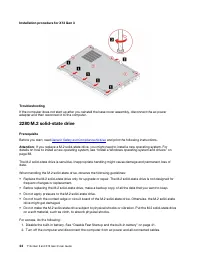
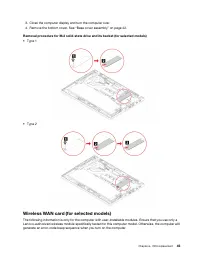
Chapter 6. CRU replacement Customer Replaceable Units (CRUs) are parts that can be upgraded or replaced by the customer. The computers contain the following types of CRUs: • Self-service CRUs : Refer to parts that can be installed or replaced easily by customer themselves or by trained service techn...
Page 52 - Prerequisite; Removal procedure
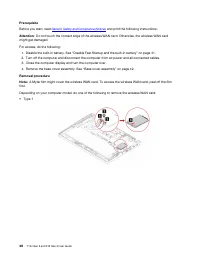
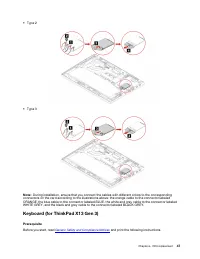
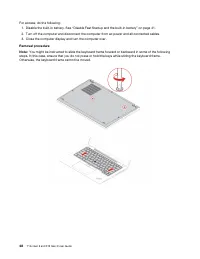
Prerequisite Before you start, read Generic Safety and Compliance Notices and print the following instructions. Attention: Do not touch the contact edge of the wireless WAN card. Otherwise, the wireless WAN card might get damaged. For access, do the following: 1. Disable the built-in battery. See “D...
Page 55 - Installation procedure
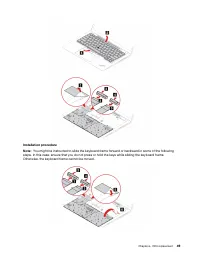
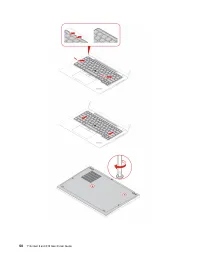
Installation procedure Note: You might be instructed to slide the keyboard frame forward or backward in some of the following steps. In this case, ensure that you do not press or hold the keys while sliding the keyboard frame. Otherwise, the keyboard frame cannot be moved. Chapter 6 . CRU replacemen...
Page 57 - Chapter 7. Help and support; Frequently asked questions
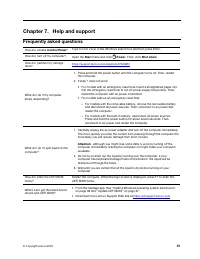
Chapter 7. Help and support Frequently asked questions How do I access Control Panel ? Type Control Panel in the Windows search box and then press Enter. How do I turn off my computer? Open the Start menu and click Power . Then, click Shut down . How do I partition my storage drive? https://support....
Page 58 - Error messages
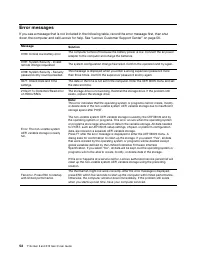
Error messages If you see a message that is not included in the following table, record the error message first, then shut down the computer and call Lenovo for help. See “Lenovo Customer Support Center” on page 56. Message Solution 0190: Critical low-battery error The computer turned off because th...
Page 59 - Beep errors
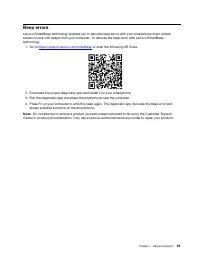
Beep errors Lenovo SmartBeep technology enables you to decode beep errors with your smartphone when a black screen occurs with beeps from your computer. To decode the beep error with Lenovo SmartBeep technology: 1. Go to https://support.lenovo.com/smartbeep or scan the following QR Code. 2. Download...
Page 61 - Windows label
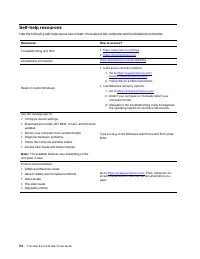
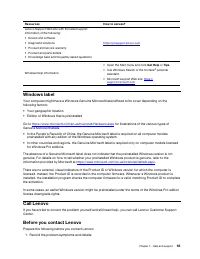
Resources How to access? Lenovo Support Web site with the latest support information of the following: • Drivers and software • Diagnostic solutions • Product and service warranty • Product and parts details • Knowledge base and frequently asked questions https://pcsupport.lenovo.com Windows help in...
Page 62 - Lenovo Customer Support Center; Telephone numbers
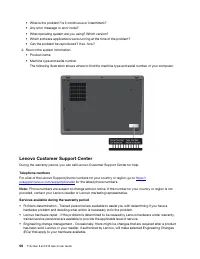
• What is the problem? Is it continuous or intermittent? • Any error message or error code? • What operating system are you using? Which version? • Which software applications were running at the time of the problem? • Can the problem be reproduced? If so, how? 2. Record the system information: • Pr...
Page 63 - Services not covered; Purchase additional services
Services not covered • Replacement or use of parts not manufactured for or by Lenovo or nonwarranted parts• Identification of software problem sources• Configuration of UEFI BIOS as part of an installation or upgrade• Changes, modifications, or upgrades to device drivers• Installation and maintenanc...
Page 65 - Appendix A. Compliance information; Certification-related information; Locate the UltraConnect wireless antennas
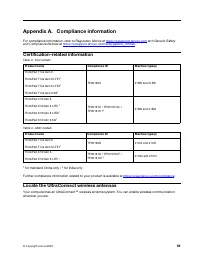
Appendix A. Compliance information For compliance information, refer to Regulatory Notice at https://pcsupport.lenovo.com and Generic Safety and Compliance Notices at https://pcsupport.lenovo.com/docs/generic_notices . Certification-related information Table 3. Intel models Product name Compliance I...
Page 66 - Operating environment; Maximum altitude (without pressurization)
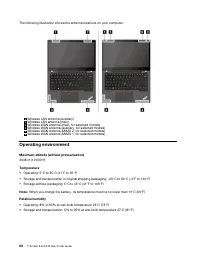
The following illustration shows the antenna locations on your computer: 1 Wireless LAN antenna (auxiliary) 2 Wireless LAN antenna (main) 3 Wireless WAN antenna (main, for selected models) 4 Wireless WAN antenna (auxiliary, for selected models) 5 Wireless WAN antenna (MIMO 2, for selected models) 6 ...
Page 67 - Appendix B. Notices and trademarks; Notices
Appendix B. Notices and trademarks Notices Lenovo may not offer the products, services, or features discussed in this document in all countries. Consult your local Lenovo representative for information on the products and services currently available in your area. Any reference to a Lenovo product, ...
Page 68 - Trademarks
Any performance data contained herein was determined in a controlled environment. Therefore, the result obtained in other operating environments may vary significantly. Some measurements may have been made on development-level systems and there is no guarantee that these measurements will be the sam...





 Lenovo 15 G2
User Manual
Lenovo 15 G2
User Manual
 Lenovo 82SB00K9US
User Manual
Lenovo 82SB00K9US
User Manual
 Lenovo 82XG0019US
User Manual
Lenovo 82XG0019US
User Manual
 Lenovo 82Y0000FUS
User Manual
Lenovo 82Y0000FUS
User Manual
 Lenovo 82Y20003US
User Manual
Lenovo 82Y20003US
User Manual
 Lenovo 83A100E8US
User Manual
Lenovo 83A100E8US
User Manual
 Lenovo B40-80
User Manual
Lenovo B40-80
User Manual
 Lenovo B50-80
User Manual
Lenovo B50-80
User Manual
 Lenovo B70-80
User Manual
Lenovo B70-80
User Manual
 Lenovo E31-70
User Manual
Lenovo E31-70
User Manual
 Lenovo Flex 2 14 (D)
User Manual
Lenovo Flex 2 14 (D)
User Manual
 Lenovo Flex 2 15 (D)
User Manual
Lenovo Flex 2 15 (D)
User Manual
 Lenovo Flex 2 Pro-15
User Manual
Lenovo Flex 2 Pro-15
User Manual
 Lenovo Flex 3-1120
User Manual
Lenovo Flex 3-1120
User Manual
 Lenovo Flex 3-1130
User Manual
Lenovo Flex 3-1130
User Manual
 Lenovo Flex 3-1435
User Manual
Lenovo Flex 3-1435
User Manual
 Lenovo Flex 3-1470
User Manual
Lenovo Flex 3-1470
User Manual
 Lenovo Flex 3-1570
User Manual
Lenovo Flex 3-1570
User Manual