Page 2 - QUICK USER MANUAL; Index
QUICK USER MANUAL MMC-B18 2 Index The Remote control 3 The Player Outputs 4 Connecting to TV 5 Connection to Internet 6 The Home Screen 9 The Apps Centre 10 Smart Apps 11 Settings 12 Operating Live TV 14 Feature Overview 19 FAQ 20 Specifications 21 IMPORTANT SAFETY INSTRUCTIONS AND PRECAUTIONS - Rea...
Page 3 - THE REMOTE CONTROL
QUICK USER MANUAL MMC-B18 3 THE REMOTE CONTROL 1 Power On / Off 9 Setup 2 (Red button) Picture size *WHILE WATCHING TV 10 Play / Pause (Green button) Channel information *WHILE WATCHING TV 11 Volume Up / Down (Blue button) Multi-function 12 Turn Air Mouse On / Off (Yellow button) Multi-function 3 Go...
Page 5 - BEST – via HDMI Cable
QUICK USER MANUAL MMC-B18 5 CONNECTING TO TV GOOD – via RCA Cables BEST – via HDMI Cable Note: RCA A/V Cable not supplied Note: HDMI A/V Cable not supplied
Page 9 - APP OVERVIEW
QUICK USER MANUAL MMC-B18 9 APP OVERVIEW The Home screen Live TV play and view Live TV (Antenna connection required) YouTube Stream Youtube Videos Music Player Play Music through the device Media Center Connect to DLNA Server to play Media Photo Viewer View photos on the device Netflix Stream Movies...
Page 10 - Add apps to
QUICK USER MANUAL MMC-B18 10 The Apps Centre File Browser Browse your files My APPs View app the installed apps Media Player Play Media through the device + Add apps to the Apps Centre screen
Page 12 - Select PCM for use
QUICK USER MANUAL MMC-B18 12 Settings Ethernet Check the Ethernet Settings and IP information Wi-Fi Setup a Wi-Fi connection HDMI Change the screen resolution Screen Scale Adjust the screen scale to fit on screen properly System Upgrade Upgrade the System either via Storage or OTA (Over the Air) Lan...
Page 13 - SETTINGS – SELECTING THE HDMI RESOLUTION; Before; SETTINGS – SELECTING THE SCREEN SCALE
QUICK USER MANUAL MMC-B18 13 SETTINGS – SELECTING THE HDMI RESOLUTION Before operating for the first time, please adjust the screen resolution to achieve the optimal display: (Enter the Settings MENU and select HDMI) Note: This option is for HDMI outputs only. When the selected resolution is not sup...
Page 14 - ) How to use the time shift feature; First time setup
QUICK USER MANUAL MMC-B18 14 OPERATING LIVE TV (APP) Select the Live TV from the Home Screen Note: Visit the LASER web site and click the VIDEO tab on the PRODUCT PAGE or click http://www.laserco.com.au/media-player/MMC-B18 to see other helpful information on setting up the DTV App such as: 1) How t...
Page 15 - is set to Australia
QUICK USER MANUAL MMC-B18 15 You then have the option to select between 3 different scans. These are Auto Scan (Recommended), Manual Scan or NIT Scan (Not available on this model). Wait for the scan to be complete. Note: Please wait 5-10 minutes for a complete auto scan. When finished, press the ret...
Page 17 - PVR Menu
QUICK USER MANUAL MMC-B18 17 PVR Menu Access PVR Configure – Configure and manage storage for PVR to be recorded. PVR Manager – preview, play and delete recordings.
Page 18 - Subtitle Language; System Setup Menu
QUICK USER MANUAL MMC-B18 18 Tools Menu Change the following: Subtitle Language Audio Language Blackout Policy Information Show Time System Setup Menu Edit and change the following: System Language, TV System, Local Time Setting, Recall List, Subtitle Switch, Factory data reset, Set Password, Parent...
Page 19 - Digital Surround Sound
QUICK USER MANUAL MMC-B18 19 FEATURE OVERVIEW Digital Surround Sound All sound formats from 2 channel stereo to 7.1 Dolby and DTS. Also Flac lossless HD audio is supported. Miracast ready Share your tablet or smartphone screen onto your TV for everyone to see. (it’s like HDMI only wireless) Android ...
Page 20 - FAQ; Why is google play not responding?
QUICK USER MANUAL MMC-B18 20 FAQ Some apps I downloaded are not working properly. Why? They may have not installed correctly. Please uninstall the apps and reinstall them again. Some apps not working properly with the remote. Why? Some apps are not designed to be used with a remote. I Suggest using ...
Page 21 - SPECIFICATIONS; Interface; Warranty Against Defects
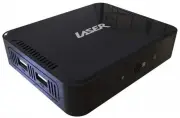
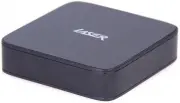
QUICK USER MANUAL MMC-B18 21 SPECIFICATIONS Interface Composite AV Out (Jack to RCA) HDMI USB x 3 LAN Micro SD Card Power Supply 5V 2A Dimensions 150 x 98 x 36mm Warranty Against Defects Laser Corporation Pty Ltd (“Laser”) warrants your new product to be free from defects in materials and workmanshi...