Page 3 - CONTENTS
1 CONTENTS Introduction 2 Maintenance ................................................................................... 2 Description 3 Connections and buttons .................................................................. 3Information on the LCD display ..........................................
Page 4 - MAINTENANCE; INTRODUCTION
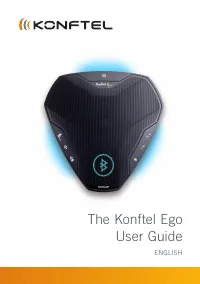
2 The Konftel Ego is a conference unit that can be connected to your mobile phone, tablet and computer to obtain crystal-clear, powerful OmniSound ® audio in your virtual meetings. • OmniSound ® audio optimisation technology with full duplex, echo cancellation and static reduction in HD bandwidth. (...
Page 5 - DESCRIPTION; LEDs; CONNECTIONS AND BUTTONS
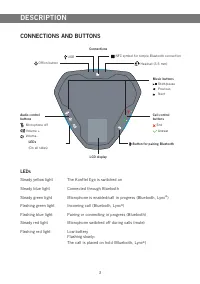
3 DESCRIPTION Connections Audio control buttons Microphone off Volume + Volume - Call control buttons End Answer Music buttons Start/pause Previous Next LEDs Steady yellow light The Konftel Ego is switched on Steady blue light Connected through Bluetooth Steady green light Microphone is enabled/call...
Page 6 - INFORMATION ON THE LCD DISPLAY; Manual display of battery status
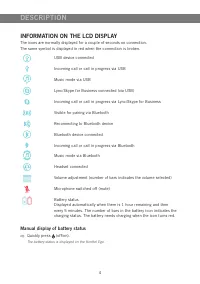
4 DESCRIPTION INFORMATION ON THE LCD DISPLAY The icons are normally displayed for a couple of seconds on connection. The same symbol is displayed in red when the connection is broken. USB device connected Incoming call or call in progress via USB Music mode via USB Lync/Skype for Business connected ...
Page 7 - TURNING OFF AND ON
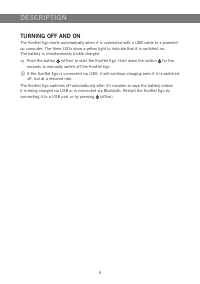
5 TURNING OFF AND ON The Konftel Ego starts automatically when it is connected with a USB cable to a powered-up computer. The three LEDs show a yellow light to indicate that it is switched on. The battery is simultaneously trickle charged. Push the button (off/on) to start the Konftel Ego. Hold do...
Page 8 - CONNECTING TO A COMPUTER; Adjusting the volume; USING WITH A COMPUTER
6 The Konftel Ego transforms your computer into high-quality conferencing equipment with OmniSound ® . Unlike normal computer speakers and microphones, the Konftel Ego provides full duplex (two-way audio) and efficient echo cancellation and static reduction. The computer identifies the Konftel Ego a...
Page 9 - USING AS A CONFERENCE UNIT
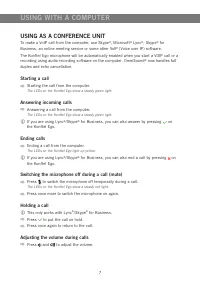
7 USING WITH A COMPUTER USING AS A CONFERENCE UNIT To make a VoIP call from the computer, use Skype ® , Microsoft ® Lync ® , Skype ® for Business, an online meeting service or some other VoIP (Voice over IP) software. The Konftel Ego microphone will be automatically enabled when you start a VOIP cal...
Page 10 - PAIRING AND CONNECTING; Pairing and connecting with NFC; Pairing without NFC; USING WITH A BLUETOOTH DEVICE
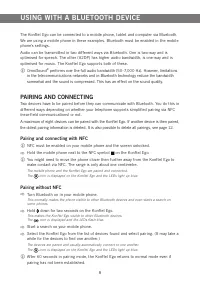
8 The Konftel Ego can be connected to a mobile phone, tablet and computer via Bluetooth. We are using a mobile phone in these examples. Bluetooth must be enabled in the mobile phone's settings.Audio can be transmitted in two different ways via Bluetooth. One is two-way and is optimised for speech. T...
Page 11 - RECONNECTING ALREADY PAIRED DEVICES
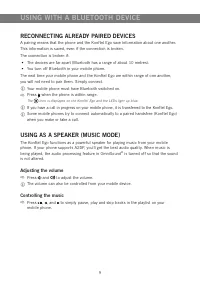
9 RECONNECTING ALREADY PAIRED DEVICES A pairing means that the phone and the Konftel Ego save information about one another. This information is saved, even if the connection is broken.The connection is broken if: • The devices are far apart (Bluetooth has a range of about 10 metres). • You turn off...
Page 13 - USING A HEADSET
11 Warning! Use of headphones/earbuds at high volumes can damage your hearing. Connect the headset to the port on the Konftel Ego. The sound automatically transfers to the headset. Unplug the headset. The sound automatically transfers to the Konftel Ego speakers. USING A HEADSET
Page 14 - KEYPAD TONE; CLEARING THE LIST OF PAIRED DEVICES; SETTINGS
12 KEYPAD TONE Hold down for five seconds to disable or enable the button clicking sound on the Konftel Ego. The icon indicates that the keypad tone feature is enabled. The icon indicates that the keypad tone feature is disabled. CLEARING THE LIST OF PAIRED DEVICES Hold down for five seconds to ...
Page 15 - INSTALLING KONFTEL UPGRADE UTILITY; UPGRADING SOFTWARE; UPGRADING SOFTWARE
13 You can upgrade software in the Konftel Ego using Konftel Upgrade Utility via a USB-connected PC with Microsoft ® Windows ® . Visit www.konftel.com/upgrades for more information. INSTALLING KONFTEL UPGRADE UTILITY Visit www.konftel.com/upgrades and select Konftel Ego. Download Konftel Upgrade...
Page 16 - TECHNICAL DATA
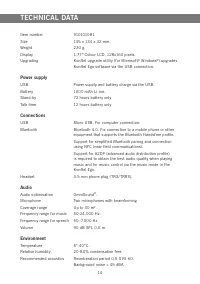
14 Item number 910101081. Size 145 x 134 x 32 mm. Weight 230 g. Display 1.77 " Colour LCD, 128x160 pixels. Upgrading Konftel upgrade utility (for Microsoft ® Windows ® ) upgrades Konftel Ego software via the USB connection. Power supply USB Power supply and battery charge via the USB. Battery 10...