Page 2 - FCC Information; User Instructions; User Information
FCC Information User Instructions The Federal Communications Commission Radio Frequency Interference Statement includes the following warning : NOTE : This equipment has been tested and found to comply with the limits for a Class B digital device pursuant to Part 15 of the FCC Rules. These limits ar...
Page 3 - DECLARATION OF CONFORMITY
HYUNDAI LCD T V HQL260WR/320WR Kind of equipment : LCD TV Safety : EN 60065 : 1998 / IEC60065 : 1998EMC : EN 55013 / 1990+A12 : 1994+A13 : 1996+A14 : 1999 EN 55022 : 1998+A1 : 2000 Class B EN 55024 : 1998+A1 : 2001EN 55020 : 1994+A11 : 1996+A13 : 1996+A14 : 1999+A12 : 1999EN 61000-3-2 : 2000, EN 610...
Page 4 - Important Tips; Second Tip
Important Tips Image Retention Effect(Image Sticking) 1. Cause : - If LCD TV displays the same pattern for a long period of time, Image Retention Effect may develop due to the LCD structure. - This is a common phenomenon that occurs in all LCD products on current market. 2. Prevention : - To avoid...
Page 5 - Image Sticking Precaution
HYUNDAI LCD T V HQL260WR/320WR Image Sticking Precaution Still Image/Panorama/Wide/4:3 in Motion Image • Precaution : - Image Sticking could be come from Still Image and Boundary line for a long time display and Brightness gap in Boundary. - This Matter(Image Sticking) is same thing under the othe...
Page 6 - Features
Features A Wide Array of Screen Settings You can choose different screen settings depending on the type of program you are watching or the surrounding conditions (the lighting or the outside weather conditions). You can switch among Standard, Sport, Natural and Mild, or you can configure the screen ...
Page 7 - Table of Contents
HYUNDAI LCD T V HQL260WR/320WR Table of Contents General Information Safety Precaution ................................................................ 5 Contents of the Package .................................................... 11 Separately Sold Products ............................................
Page 8 - Safety Precaution
WARNING WARNING 5 GENERAL INFORMATION Safety Precaution The contents of this section are provided for the safety of users and their property.Please read the instructions carefully before using. Do not connect multiple electricalappliances to a single outlet. - It may cause a fire due to overheating ...
Page 10 - WARNING
7 GENERAL INFORMATION Safety Precaution ....................................Continued from previous page The contents of this section are provided for the safety of users and their property.Please read the instructions carefully before using. WARNING WARNING Do not place any heat sources suchas radi...
Page 12 - ALERT
Safety Precaution ....................................Continued from previous page The contents of this section are provided for the safety of users and their property.Please read the instructions carefully before using. 9 GENERAL INFORMATION ALERT WARNING Do not allow children to climb orplay on th...
Page 14 - Contents of the Package
GENERAL INFORMATION 11 Contents of the Package To purchase additional parts, consult a distributor or selling agent. Products Sold Separately If you want to purchase separately sold products, consult a service center, electronics shops, or parts seller. 1 2 0 3 4 7 5 8 6 9 PIP ME NU TV/A V INF O MUT...
Page 15 - How to Use the Kensington Security Slot; * Kensington Technology Group
HYUNDAI LCD T V HQL260WR/320WR GENERAL INFORMATION 12 How to Use the Kensington Security Slot - This display unit supports a Kensington-type security device to secure your LCD TV. Kensington lock is not included. - To purchase and install the Kensington locking device, please refer to the following ...
Page 16 - How to Use the Rear Cap and Cable Holder
13 GENERAL INFORMATION How to Use the Rear Cap and Cable Holder The Rear Cap and Cable Holder allow you to organize the connection cables on the rear of the product. 1. Pressing and pulling the three hooks on the rear can detach the Rear Cap. 2. Connect your cables to the terminals of the rear. 3. O...
Page 17 - How to Adjust the View Angle; You can adjust the angle of the view for the desired view angle.
14 GENERAL INFORMATION HYUNDAI LCD T V HQL260WR/320WR -5 O How to Adjust the View Angle You can adjust the angle of the view for the desired view angle. You can adjust any angle within a range of 30º to the left or right. You can adjust the tilt of the TV from -5º to 10º after the installation. 10 O...
Page 18 - How To Install Wall Mount Support; Parts configuration chart
15 GENERAL INFORMATION How To Install Wall Mount Support 1. Caution 1. Install on the vertical wall surface only. 2. Do not install on the following places to protect the performance of LCD TV and to prevent malfunction. · Near sprinkler Detector, · Near heating devices, · Places where vibration or ...
Page 19 - How To Install Wall Mount Frame; Installation Method
16 GENERAL INFORMATION HYUNDAI LCD T V HQL260WR/320WR How To Install Wall Mount Frame 4. Installation Method 1. Unscrew screws fasted on 5 spots on the stand of LCD TV. 2. Fasten the Fixing Panel assembly on the back of LCD TV as shown on the picture. (Numbering step) 3. Fix the Base Frame Assy on t...
Page 20 - Parts Names and Functions; Front View
17 GENERAL INFORMATION - Power Indicator Staus - Parts Names and Functions Front View ɱ Source button Use this button to switch among inputsconnected to the LCD TV. ɲ Menu button Use this button to display or exit from menus. ɳ Volume buttons Use these buttons for your desired soundlevel. These butt...
Page 21 - Rear View
HYUNDAI LCD T V HQL260WR/320WR GENERAL INFORMATION 18 Rear View Power input terminal Power cord is connected here. D-SUB input terminal Connect to the DTV Receiver with D-Sub terminalor to RGB output terminal of a PC. Component input terminal for DVD or DTV Connect to the Component output terminal o...
Page 22 - Remote Control
GENERAL INFORMATION 19 Remote Control ❶ POWER/STANDBYUse this button to turn the TV set on or off. ❷ MUTEUse this button to turn the sound off completely. ❸ NUMERIC KEYS- Use these buttons to select channels and input digit . ❹ Pr/C/S(Program/Brodcast Channel/Cable Channel)Use this button to select ...
Page 23 - How to Insert Batteries in Remote Control
HYUNDAI LCD T V HQL260WR/320WR 20 GENERAL INFORMATION How to Insert Batteries in Remote Control *Battery type : 1.5V/BP-2KM(AAA/LR03G) Press and hold ∆ part and push to open cover. Insert batteries with properpolarities of + and - . Use the remote control with coverclosed. PICTURE MODE ( P. 35) Use ...
Page 25 - Connections; HYUND
Connecting Indoor/Outdoor TV Antenna (UHF/VHF) .................... 23 Connecting to the antenna input connectionon the external equipment ......................................................... 24 Before connecting the video/audio connections toexternal devices ......................................
Page 26 - CONNECTIONS; Connection Method; TV; outdoor antenna
23 CONNECTIONS Connecting Indoor/Outdoor TV Antenna(UHF/VHF) Connection Method Ensure to connect an antenna cable to the antenna input connection. How to Watch Turn on your LCD TV and press or on remote control unit to select TV . You can select TV SCART1 SCART2 AV1 VIDEO AV1 S-VHS AV2 VIDEO DTV PC ...
Page 28 - Video connectors; Types of video cable :; COMPONENT; Best picture quality is displayed in the following order.
CONNECTIONS 25 Before connecting the video connections to external devices ..... Please make sure to read the following information on connection to enjoy best picture quality. Video connectors Types of video cable : ➀ 15-Pin D-SUB ➁ COMPONENT ➂ S-VIDEO ➃ COMPOSITE ➄ FULL SCART ➅ HALF SCART Best pic...
Page 29 - Connecting a VCR, Cable/Satellite Receiver; Video
HYUNDAI LCD T V HQL260WR/320WR CONNECTIONS 26 Connecting a VCR, Cable/Satellite Receiver Connection Method Connect Video/S-Video cable between Video/S-Video output terminal of VCR or Cable/Satellite receiver andVideo/S-Video input terminal of LCD TV.(Connect cables and terminal in the same colors) C...
Page 30 - Connecting a DTV Receiver or DVD Player; DVD
27 CONNECTIONS )=,17 >1,-7 ;>1,-7 +75876-6<>1,-7 Connecting a DTV Receiver or DVD Player Connection Method Connect video cables(Y, Pb, Pr) between output terminals(Y, Pb, Pr) of DTV receiver or DVD player and theinput terminals(Y, Pb, Pr) of DTV/DVD(480i/480p/720p/1080i) on the rear of L...
Page 31 - Playing Back a Tape Recorded On a Camcorder
HYUNDAI LCD T V HQL260WR/320WR CONNECTIONS 28 Playing Back a Tape Recorded On a Camcorder Connection Method Connect Video cable between Video output terminal of Camcoder/Game player and Video input terminal ofLCD TV.(Connect cables and terminal in the same colors) Connect Audio cable (left:white col...
Page 32 - Connecting to a PC
CONNECTIONS 29 Connecting to a PC Connection Method Connect PC signal cable(15 pins D-SUB) between output terminal of PC and the D-SUB input terminal ofa LCD TV. Connect Audio cable between Audio output terminal of PC and Audio input terminal for PC of LCD TV.(Connect cables and terminal in the same...
Page 33 - Resolutions Supported in PC; Resolution
HYUNDAI LCD T V HQL260WR/320WR CONNECTIONS 30 Resolutions Supported in PC * Recommended Resolution is 1024x768@60Hz* Max Resolution is 1024x768@75Hz Resolution 31.47 31.47 37.86 37.50 31.47 37.88 48.08 46.88 48.36 56.48 60.02 Vertical frequency 70.09 59.94 72.80 75.00 70.08 60.32 72.18 75.00 60.00 7...
Page 34 - Scart Connection to the External Input/Output
31 CONNECTIONS Video Game Device Video Disc Player Satellite Receiver When switching voltage comes into the Scart-Pin 8 during viewing a TV program, the current mode will beswitched to Scart mode. Scart Connection to the External Input/Output Connection Method This end can be fitted with : A Scart c...
Page 35 - Scart Pin Specifications
32 CONNECTIONS HYUNDAI LCD T V HQL260WR/320WR Scart Pin Specifications If you wish to connect other equipment via the scart connectors on your TV, contact your dealer or a qualifiedtechnician to wire the A/V cable as illustrated below. - SCART 1 (FULL SCART) - SCART 2 (HALF SCART) P I N SIGNAL 1 Aud...
Page 37 - Picture Setup
How to Select the Picture Mode ............................................... 35 How to Set the Desired Picture .................................................. 36 How to Set PIP [Mode] ............................................................... 37 Supported PIP Table ...........................
Page 38 - PICTURE SETUP; How to Select the Picture Mode; How To Directly Select Picture Mode : Press button.
35 PICTURE SETUP Press Menu button. Menu items appear on the screen. Press Left, Right or OK button to select “Picture”. Press Up and Down buttons to move to “Mode”. Press Left and Right buttons, then the menu changes in order below. Standard Sport Natural Mild Custom Press MENU button after the set...
Page 39 - How to Set the Desired Picture; Users can manually adjust the picture in their own ways.
36 PICTURE SETUP HYUNDAI LCD T V HQL260WR/320WR How to Set the Desired Picture Users can manually adjust the picture in their own ways. Press Menu button. Menu items appear on the screen. Press Left, Right or OK button to select “Picture”. Press Up and Down buttons to Choose one of the items listed....
Page 41 - Supported PIP Table
Supported PIP Table PIP : O → Supported, X → Not Supported 38 PICTURE SETUP HYUNDAI LCD T V HQL260WR/320WR Press the SWAP button. The Main image and PIP image will switch with each otherwhenever you press this button. PC X X O O O O O O DTV X X O O O O O O PC DTV TV S-Video AV1 Video AV2 Video Scart...
Page 42 - This function allows you to tune your screen in PC Input Mode.
39 PICTURE SETUP Press Menu button. Menu items appear on the screen. Press Up and Down buttons to move to “Geometry”. Press Left, Right or OK button to move to select “Geometry”. Geometry menu appears. Press Up and Down buttons to Choose one of the items listed. Press Left and Right buttons to adjus...
Page 43 - This function allows you to tune your screen in DTV Input Mode.
HYUNDAI LCD T V HQL260WR/320WR 40 PICTURE SETUP Press Menu button. Menu items appear on the screen. Press Up and Down buttons to move to “Geometry”. Press Left, Right or OK button to move to select “Geometry”. Geometry menu appears. Press Up and Down buttons to Choose one of the items listed. Press ...
Page 45 - Sound Setup
How to Select the Audio Mode .................................................. 43 How to Set the Desired Audio .................................................... 44 How to Set the Balance, Volume and Source ............................ 45 How to Select SRS WOW(Surround) .............................
Page 46 - How to Select the Audio Mode; How To Directly Select Sound Mode : Press button.; SOUND SETUP
How to Select the Audio Mode - Users can adjust sound mode automatically as users want.- In SRS On mode, Equalizer in Sound Menu is not activated. How To Directly Select Sound Mode : Press button. Users can select Standard Music Film Speech Custom in order. 43 SOUND SETUP Press Menu button. Menu ite...
Page 47 - H Y U N D A I L C D T V H Q L 2 6 0; How to Set the Desired Audio; Users can manually adjust the sound in thier own ways.
H Y U N D A I L C D T V H Q L 2 6 0 How to Set the Desired Audio Users can manually adjust the sound in thier own ways. 44 SOUND SETUP HYUNDAI LCD T V HQL260WR/320WR Press Menu button. Menu items appear on the screen. Press Up and Down buttons to move to “Sound”. Press Left, Right or OK button to se...
Page 48 - How to Set the Balance, Volume and Sound Source
SOUND SETUP 45 How to Set the Balance, Volume and Sound Source Press Menu button. Menu items appear on the screen. Press Up and Down buttons to move to “Sound”. Press Left, Right or OK button to select “Sound”. Press Up and Down buttons to move to “Balance” or “Volume”. Then Press Left and Right but...
Page 50 - How to Listen to Stereo Sound / Dual Sound
47 SOUND SETUP How to Listen to Stereo Sound / Dual Sound - Users can set sound mode as users want. - This function is available only with the remote control. - Listening to stereo sound - Listening to the Dual sound Press the button on the remote control to select Mono or Stereo. Mono or Stereo be ...
Page 53 - Channel Setup
How to Store Program Automatically ......................................... 51 How to Edit Program Manually .................................................. 52 Teletext Feature ......................................................................... 55 Displaying the Teletext Information ..........
Page 54 - CHANNEL SETUP; How to Store Program Automatically
51 CHANNEL SETUP How to Store Program Automatically You can scan channels available to you and their availability depends on your country. Automatically allocated programme numbersmay not correspond to actual or desired programme numbers. However, you can sort the numbers manually and clear any chan...
Page 55 - How to Edit Program Manually
HYUNDAI LCD T V HQL260WR/320WR 52 CHANNEL SETUP 8 6 7 How to Edit Program Manually You can store the TV channels, including those received via cable networks when storing channels. Press Up and Down buttons to move to “Program”. Press Left and Right buttons to select to program. Press the Down butto...
Page 58 - Teletext Feature
55 CHANNEL SETUP Teletext Feature Most TV channels provide written information services via teletext.Information provided includes with the next entry it is same : Teletext information is often divided between several pages displayed in sequence,which can be accessed by : Teletext OSD(On-Screen-Disp...
Page 59 - Displaying the Teletext Information
HYUNDAI LCD T V HQL260WR/320WR CHANNEL SETUP 56 Displaying the Teletext Information You can display Teletext information at any time on your TV.For Teletext information to be display correctly channel reception to be stable otherwise- Information maybe missing or some pages may not be displayed. Sel...
Page 60 - TTX
57 CHANNEL SETUP TTX You can activate PIP while viewing TTX information. The TTX function is not available in the PIP image when the PIP is on. The original screen will be restoredwhen the SWAP is active. For details on PIP feature, please refer to the Picture Setup section on page 37~38. TV or VCR,...
Page 61 - Function Setup
How to Select the Aspect Ratio ................................................. 59 How to Freeze Picture ............................................................... 60 How to Set Key-Lock ................................................................. 61 How to OSD(On-Screen-Display) Display ...
Page 62 - FUNCTION SETUP; How to Select the Aspect Ratio; Panorama
59 FUNCTION SETUP How to Select the Aspect Ratio - Users can adjust Aspect Ratio as users want.- This function is available only with the remote control. Press the ASPECT button, then Aspect Ratiochanges in order below. Auto 16:9 15:9 4:3 Zoom 1~5 Panorama (HQL260WR) Auto 16:9 4:3 Zoom 1~5 Panorama ...
Page 63 - How to Freeze Picture; The user can temporarily stop the playing picture.
60 FUNCTION SETUP HYUNDAI LCD T V HQL260WR/320WR How to Freeze Picture The user can temporarily stop the playing picture. OSD menu displays the current aspect ratio.If you press the ASPECT button second time, aspect ratio will be changed according to Input mode as follows : HQL260WR - - Under DTV or...
Page 64 - This is to lock the control buttons on the front top of LCD TV.
61 FUNCTION SETUP How to Set Key-Lock This is to lock the control buttons on the front top of LCD TV. Press Menu button. Menu items appear on the screen. Press Up and Down buttons to move to “Advanced”. Press Left, Right or OK button to select “Advanced”. Press Up and Down buttons to move to “Local ...
Page 66 - How to Set No Key Operation Auto Power Off
How to Set No Key Operation Auto Power Off Automatically turns the power off if there is no button pressed for a period of timeafter AUTO Wake-Up turns the power on. 63 FUNCTION SETUP 1 2 3 MENU 4 Press Menu button. Menu items appear on the screen. Press Up and Down buttons to move to “Advanced”. Pr...
Page 67 - How to Set No Signal Timeout
How to Set No Signal Timeout - Automatically turns the power off if there is no broadcast signal for the set time.- This Function is available only to TV mode. 64 FUNCTION SETUP HYUNDAI LCD T V HQL260WR/320WR 1 2 3 If you set the time to 0, the TV will not use the auto power off function. MENU 4 Pre...
Page 68 - How to Set Your Favorite Channels; How To Directly Select
How to Set Your Favorite Channels This is to store TV channels or input sources you most frequently use. How To Directly Select Favorite Channel : Press button. The selection will switch whenever you press the Favorite button on the remote control. 65 FUNCTION SETUP - You can delete the selection by...
Page 69 - How to Set Noise Reduction and Use Factory Preset
How to Set Noise Reduction and Use Factory Preset Noise Reduction is to eliminate some noise on the screen and It is not applied to DTV and PC mode. 66 FUNCTION SETUP HYUNDAI LCD T V HQL260WR/320WR Press Menu button. Menu items appear on the screen. Press Up and Down buttons to move to “Advanced”. P...
Page 70 - Displaying Information and Clock
67 FUNCTION SETUP Displaying Information and Clock - You can view the channel information and setting status by pressing the “INFO” button on the remote control.- You can view the clock by pressing the “OK” button on the remote control. In case of applying TV input Press the INFO button. In case of ...
Page 71 - Choosing Your Language
HYUNDAI LCD T V HQL260WR/320WR FUNCTION SETUP 68 Choosing Your Language When you start using your TV for the first time, you must select your language preference in order to display mainmenus and sub menues, etc. 1 2 3 MENU 4 Press Menu button. Menu items appear on the screen. Press Up and Down butt...
Page 73 - Clock Setup
How to Set Date and Clock ........................................................ 71 How to Set On/Off Time ............................................................. 72 How to Set Update Program ...................................................... 74 How to Set Sleep Time .......................
Page 74 - CLOCK SETUP; How to Set Date and Clock
71 CLOCK SETUP How to Set Date and Clock You can set the current time so that it may be displayed by pressing the “INFO” button. You must also set a clock ifyou wish to use the automatic on or off timers. 1 2 3 MENU 4 5 6 7 Press Menu button. Menu items appear on the screen. Press Up and Down button...
Page 75 - How to Set On/Off Time
72 CLOCK SETUP HYUNDAI LCD T V HQL260WR/320WR How to Set On/Off Time This function allows you to automatically turn on your LCD TV at the preset time. 1 2 3 4 5 6 Press Menu button. Menu items appear on the screen. Press Up and Down buttons to move to “Clock”. Press Left, Right or OK button to selec...
Page 77 - How to Set Update Program
HYUNDAI LCD T V HQL260WR/320WR 5 6 How to Set Update Program Set the Program number if you want to update the time and date with the information carried by the broadcast signal.If you clear the Pr. number, the auto update function does not work. 74 CLOCK SETUP - You can erase and reset the program n...
Page 78 - How to Set Sleep Time; This function is available only with the remote control.
75 CLOCK SETUP How to Set Sleep Time This function is available only with the remote control. SLEEP Press the Sleep button, then Sleep Timechanges in order below. Sleep off Sleep5 Sleep10 Sleep20 Sleep30 Sleep60 Sleep90 Sleep120 Sleep180. If the Sleep time has been set, “Sleep 1” or “Sleep 2” will b...
Page 79 - Appendix
Glossary ..................................................................................... 77 Troubleshooting ....................................................................... 79 Care and Cleaning ..................................................................... 81 Product Specificatio...
Page 80 - APPENDIX; Glossary
77 APPENDIX Glossary Component video Component video is sent through three cables: two color shade (chrominance)signals and one brightness (luminance) signal. Component video achieves greatercolor accuracy than composite video or S-VIDEO by splitting chrominance intotwo separate portions. Composite ...
Page 82 - Troubleshooting
79 APPENDIX Troubleshooting Installation Problems Picture Problems Symptom How can I install an antenna? TV screen is not clear after installing an indoors antenna. How can I view cable broadcasting? Symptom Neither picture nor sound comes up. Picture turns on slowly after power is on. Vertical and ...
Page 84 - Care and Cleaning; Cabinet Cleaning; Wipe a soft dry cloth.; Screen Cleaning
APPENDIX 81 Care and Cleaning Cabinet Cleaning Wipe a soft dry cloth. Do not use inflammables like Benzene or Thinner, or wet clothes. Do not scratch the panel of TV with a fingernail or pointed object. Screen Cleaning Clean the screen with a soft cloth moistened in mild glassdetergent and dry with ...
Page 85 - Product Specifications
HYUNDAI LCD T V HQL260WR/320WR APPENDIX 82 Product Specifications - Specification is subject to change without notice for performance improvement.- Specification on ‘dead pixel’ of LCD panel applies to ISO13406-2 Standard. MODEL Display Input/Output Video System Power Dimension(W x D x H mm) Weight ...


 Hyundai 2006 Elantra
User Manual
Hyundai 2006 Elantra
User Manual
 Hyundai 2008 Santa Fe
User Manual
Hyundai 2008 Santa Fe
User Manual
 Hyundai 2009 Sonata
User Manual
Hyundai 2009 Sonata
User Manual
 Hyundai 2010 Elantra
User Manual
Hyundai 2010 Elantra
User Manual
 Hyundai 2008 Elantra
User Manual
Hyundai 2008 Elantra
User Manual
 Hyundai 2011 Accent
User Manual
Hyundai 2011 Accent
User Manual
 Hyundai 2011 Sonata
User Manual
Hyundai 2011 Sonata
User Manual
 Hyundai 2010 Santa Fe
User Manual
Hyundai 2010 Santa Fe
User Manual
 Hyundai 2012 Accent
User Manual
Hyundai 2012 Accent
User Manual
 Hyundai 2011 Tucson
User Manual
Hyundai 2011 Tucson
User Manual
 Hyundai 2012 Elantra
User Manual
Hyundai 2012 Elantra
User Manual
 Hyundai 2012 Santa Fe
User Manual
Hyundai 2012 Santa Fe
User Manual
 Hyundai 2012 Sonata
User Manual
Hyundai 2012 Sonata
User Manual
 Hyundai 2D/3D
User Manual
Hyundai 2D/3D
User Manual
 Hyundai Accent
Manual
Hyundai Accent
Manual
 Hyundai DVD/CD/MP3
User Manual
Hyundai DVD/CD/MP3
User Manual
 Hyundai E425D
User Manual
Hyundai E425D
User Manual
 Hyundai Elantra new
User Manual
Hyundai Elantra new
User Manual
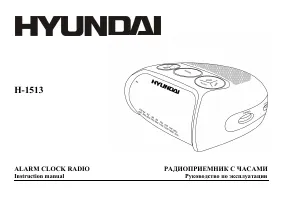 Hyundai H-1513
User Manual
Hyundai H-1513
User Manual
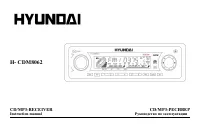 Hyundai H-CDM8062
User Manual
Hyundai H-CDM8062
User Manual