Hyundai H-CMMD4046 - Manuals
Hyundai H-CMMD4046 Car Radio – User Manual in PDF format online.
Manuals:
User Manual Hyundai H-CMMD4046
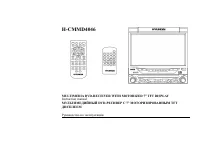
Summary
2 Dear customer! Thank you for purchasing our product. For safety, it is strongly recommended to read this manual carefully before connecting, operating and/or adjusting the product and keep the manual for reference in the future. Table of contents Table of contents ....................................
6 Important safeguards • Using the device at temperature below -10º may cause the breakage of the device. BEFORE USING PLEASE HEAT UP THE PASSENGER COMPARTMENT TO THE RECOMMENDED TEMPERATURE! • Read carefully through this manual to familiarize yourself with this high-quality sound system. • Disconne...
7 Installation/ connection This unit can be installed in any dashboard having an opening as shown on the picture. The dashboard should be ~ 4.5 – 5.5 mm thick in order to be able to support the unit. Installation 1. Insert the HALF SLEEVE into the dashboard (1), and bend the mount tabs outwards to f...
9 Electrical connection Caution: For some car models you may need to modify wiring of the supplied power cord. Contact your authorized car dealer before installing this unit.
11 Unit controls Monitor 1. BAND button Press it repeatedly to select your desired radio band during TUNER (RADIO) mode. 2. DIS / OSD butonn - Use DIS to show the time and the song name when playing a disk or SD/MMC card. - Use OSD to set up OSD. 3. MENU button Use it to show the MENU on the display...
12 Front panel 1. REL button Use it to detach the front panel. The system will turn the power off automatically in 20 seconds. 2 AF/REG button Use it to enable or disable AF mode (ALTERNATIVE FREQUENCY). To enable or disable REG mode (REGIONAL) press and hold on within 3 seconds REG button. 3 PTY bu...
15 Remote control for the unit 1. STANDBY button Press the button to turn the power on, press again to turn the power off. 2. IN/OUT button Press the button to move the monitor forward or backwards in three steps when the monitor is opened. 3. EJECT button 4. OSD button Press it to enter OSD setup p...
18 Remote control for the second monitor 1 NUMBERED buttons 2 AUDIO button To change the audio language. 3 SUBTITLE button (SUB) to change the subtitle language. 4 MUTE button 5 ; / < 3456 buttons Use these buttons to to go to previous/ next chapter or track, to go to previous/ next chapter or tr...
19 Changing the battery 1. Press the catch and at the same time pull out the battery tray (pic. 1). 2. Insert the 1 x lithium battery, type CR2025 (3V) battery with the stamped (+) mark facing upward. Insert the battery tray into the remote control (pic.2). Warning: Store the battery where children ...
20 Mini coloured LCD display When the monitor is closed the following indication will be available: - Basic Radio, CD or DVD information - RDS functions indicators (AF – alternative frequency indicator; TA – traffic announcement indicator; TP – traffic program indicator; PTY – program type function ...
22 Monitor operations Open/close TFT monitor 1. Press the OPEN/CLOSE button on the panel to open the monitor to the last viewing position. 2. Press the OPEN/CLOSE button to load the monitor to the unit. Monitor tilt angle adjustment • Press TILT on the panel or on the remote control to change the di...
23 Touch screen operations In any mode touch the left corner of the top area of the TFT display to open the main menu. Touch any point of the up right coner to display dual zone menu. Now you may touch and choose any option to operate. Touch operations for DVD / SD card
24 In DVD playback mode use the following areas of the display to use the desired function: MAIN MENU - to open the main menu; NEXT - to start playback of the next file; MENU – to show on the display the disk menu Touch operations for RADIO You may set and save radio stations as well as change radio...
25 General operations Reset the unit Operating the unit for the first time or after replacing the car battery, you must reset the unit. Press the RESET button on the front panel to restore the unit to the original factory settings. Power on/off Press POWER/MUTE button on the front panel or the STAND...
27 Digital tuner operations Note: RDS service availability varies with areas. Please understand if RDS service is not available in you area, the following service is not available, either. To activate this function enter RDS Menu by pressing TA/LOUD button on the Remote C ontrol. Mode selecting Pres...
29 Preset scan function • Preset scan: Press the P.SCN button on the panel or press and hold for 2 seconds the RPT/P.SCN button on the RC to scan all preset stations in the memory of the current band and stay on each memory stations for about 5 seconds. To stop preset scan, press this button again. ...
31 Disc operations Glossary PBC (PlayBack Control) PlayBack Control is a menu recorded on the disc with SVCD or VCD2.0 format. For the discs contained PBC, it can playback interactive software with the menu displayed on TV. And if the disc contains still images, it can playback high definition of st...
32 Discs for playback • This unit can play disc types: CD/DVD/CDDA/CD-R/-RW/DVD±R/±RW. • Compatible with formats: DVD-video/SVCD/VCD/HDCD/MP3/MP4/WMA/Picture-CD/JPEG. • The following file types are supported: Audio files: MP3 (*.mp3) WMA (*.wma) Video files: MP4 (*.avi, DIVX3.11/4.0/5.0/6.0 and XVID...
33 Loading a disc 1. Turn the pwer on (STANDBY button). 2. Insert the disc with the printed side facing upward into the slot. The unit will switch to DVD mode automatically. 3. Press the EJECT button on the panel to eject the disc. Playing/ pausing To ensure good system performance, wait until the u...
34 Scanning forward and backward 1. Press the < / ; buttons on the RC or button on the panel to select the speed of fast playing in forward direction: X2 => X4 => X8 => X16 =>X32. Press the PLAY/PAUSE button to return to normal playback. Note: During the disc playback when Fast Playba...
35 Random playback (for DVD/CD/VCD/MP3 discs) During disc playback, press the RDM button on the panel or RDM/BAND on the RCto start random playback of the disc. Press again to cancel. Intro playback (for CDDA/VCD discs) You can play the beginning of every track for 10 seconds in sequence. Keep on pr...
37 3. The VCD starts playing the selected title automatically or press PLAY/ PAUSE button to confirm the selected track for playback. 4. Press STOP button to return to menu. 5. Press MENU again to exit menu. Programming the playback 1. Press the PROG / 9 button on RC to enable the program function. ...
38 Video Menu You may adjust BRIGHT, CONTRAST, COLOUR AND SHARPNESS Screen Menu PICTURE: inverting the screen picture from normal to upside down FULL: changing to full screen mode. Use the Joystick Key. NORMAL: return to normal screen mode System Menu You may adjust the monitor position (IN/OUT FIX,...
42 2. To change the station use the ; / < buttons on the RC or ▲ / ▼ buttons on the panel to change the channels step by step in forward/backward direction. Display TV station To display current TV station number press the DISP button on the RC. AUX IN mode This mode is for using the unit as an A...
43 System setup menu .Use SETUP option to setup system function. Press SETUP to open the SETUP menu. Use cursor buttons to select the page: GENERAL SETUP, AUDIO SETUP, VIDEO SETUP, DOLBY PREFERENCE SETUP, or PREFERENCE SETUP. General setup • TV DISPLAY Normal/PS : When the unit connects to the norma...
45 - DYNAMIC If watching large dynamic scope movie program at night, to select this mode you can reduce the volume to a very low level, at the same time, to keep the fine details sounds. In this case, this doesn't disturb the family and keep the quality sounds. • EQUALIZER - EQ TYPE 8 EQ modes are a...
47 • PASSWORD When the password mode is ON you can change the password. Select PASSWORD => CHANGE. Use the cursor buttons to select the desired field. In the OLD PASSWORD field insert the old password or 136900 (if you forget the old one). In NEW PASSWORD field insert the new password. Insert it ...
48 Anti-theft system This unit is equipped with a mask panel which can be detached and taken with you, helping to deter theft. Detaching the front panel 1. Press the POWER button to turn the power off. 2. Press the RELEASE button on the front panel and pull it towards you and slightly to the left. 3...
49 Handling and cleaning discs • Dirty, scratched or warped discs may cause skip ping or noise. • Handle the disc only by the edges. To keep clean do not touch its surface. • Discs should be stored in their cases after use to avoid scratches. • Do not expose discs to direct sunlight, high humidity, ...
50 Troubleshooting guide Symptom Cause Solution No power. The car ignition is not on. The fuse is blown. If the power supply is properly connected to the car accessory switch the ignition key to “ACC”. Replace the fuse. Disc cannot be loaded. Presence of disc inside the player. Remove the disc in th...
51 Specification General Power supply: 12 V DC Current consumption: max. 10 A Maximum power output: 50 W x 4 channels Compatible formats: DVD/SVCD/VCD/HDCD/MPEG4/MP4/WMA/CDDA/Picture-CD/JPEG/ CD-R/-RW/DVD±R/±RW playback Dimensions (L x W x H) / weight: 78 x 190 x 50 mm / 2.5 kg Working temperature r...
53 ! . , / , . .................................................................................................................................................. 53 ............................................................................................................................ 57 / ........
61 ISO 1. ISO, , . 2. ISO , . 3. , , : A B 1 (+)--- 2 (-)--- / 3 (+)--- 4 12 (+)/ (-)--- / 5 / (+)--- 6 ((-)--- / 7 ACC+/ (+)--- 8 / (-)--- /
63 1 REL . . 2 AF / REG AF « ». REG « » ( 3 ). 3 PTY ( ) « » 4 5 P.SCAN . 1-6
72 (Picture 3) - : SCN ( ), RPT ( ), RDM ( ), - ( ). - . TV : / P , . : - , (picture 4). - 30° (picture 5). Picture № 4 Picture № 5 Picture 3
76 , (MENU), TFT- , . . . , . DVD DVD : – (MENU) B – ( DISP ) C – D – E – F – : MENU, PLAY/PAUSE, STOP, ; , < , 9 , : .
88 / ( CD/VCD ) DVD / VCD / CD, , / / , . ( CD/VCD/DVD ) DVD: AUDIO, . CD/VCD: AUDIO, : Left channel ( ) => Right channel ( ) => Stereo ( ). DVD 1. MENU , . 2. ◄ / ► , : – – . 3. MENU . PBC ( ) ( VCD ) VCD PBC, 1- . 1. MENU, . 2. , ▲ / ▼ ; / < . 3. , PLAY/ PAUSE, . 4. STOP, VCD. 5...
90 PICTURE: . FULL: . (IN / OUT FIX, TILT RANGE), (TILT). TV PICTURE / TV SOUND: TV : NTSC / PAL / SECAM; TV : B/G, I, D/K. PAL: SOUND1 B/G, SOUND2 I, SOUND3 D/K. SECAM: SOUND1 B/G, SOUND2 L/L, SOUND3 D/K. ( DVD/VCD ) ZOOM / AB . : 1 => 2 => 3 => 4 (1\2 =>1/3 =>1/4) => . ( ...
94 1. , . 2. : / ▲ / ▼ . DISP . AUX AV . AUX (DVD , , . .). , – . , . AUX IN . AUX IN.
96 . DVD . , DVD , , . • . • , . , SUBTITLE . - . • , , . , . • • : , DOLBY Pro LOGIC. : , . Surround : , DOLBY SURROUND.
99 • PBC PBC. • , , . , . , , . AUDIO SUBTITLE . • . • ( ) . . • , => , 4 , 8806 ( ). , , . , .
101 . , . 1. POWER, . 2. RELEASE , . 3. , . 1. , , . 2. , . 1. . 2. - , ( 1). 3. ( . 2). . 2 Pic.1
104 : 12 : 10 : 50 4 : DVD/SVCD/VCD/HDCD/MP3/MPEG4/WMA/CDDA/Picture-CD/JPEG/ CD-R/ -RW/DVD±R/±RW ( )/ : 178 190 50 / 2,2 : -20º - +60º ESP 40 CD, 120 3 : 7” : 480(W) 234 (H) : 16:9/4:3 : 300:1 : 350 / 2 : 110/130 FM : +/- 3 dB:40Hz~12.5Kz : S/N 30dB: 10dB
105 18 AM : 522-1620 12 DVD 90dB 90 dB 0,1% 20 Hz~20KHz 50 Wx4 4 Ω AUX IN 0,5 % 20Hz~20Hz 1 Vrms 600 Ω ≥ 2.5 Vrms 1.0±0.2V (CVBS) 75 Ω
Hyundai Car Radios Manuals
-
Hyundai CDM8044
User Manual
-
Hyundai H-1001
User Manual
-
Hyundai H-1002
User Manual
-
Hyundai H-1003
User Manual
-
Hyundai H-1004
User Manual
-
Hyundai H-1005
User Manual
-
Hyundai H-1006
User Manual
-
Hyundai H-1201
User Manual
-
Hyundai H-1202
User Manual
-
Hyundai H-1203
User Manual
-
Hyundai H-1204
User Manual
-
Hyundai H-1205
User Manual
-
Hyundai H-1206
User Manual
-
Hyundai H-1401
User Manual
-
Hyundai H-1402
User Manual
-
Hyundai H-1403
User Manual
-
Hyundai H-1403 White
User Manual
-
Hyundai H-1404
User Manual
-
Hyundai H-1405
User Manual
-
Hyundai H-1406
User Manual