Page 2 - Table of contents
2 Dear customer! Thank you for purchasing our product. For safety, it is strongly recommended to read this manual carefullybefore connecting, operating and/or adjusting the product and keep the manual for reference in the future. Table of contents Table of contents .....................................
Page 3 - Mode
3 General operations ........................................................................................................................................... 23 Reset the unit ............................................................................................................................
Page 4 - Manual
4 Playing the previous/ next track ................................................................................................................ 32Direct entering the number........................................................................................................................ 33S...
Page 6 - Important safeguards
6 Important safeguards · Using the device at temperature below -10º may cause the breakage of the device. BEFORE USING PLEASE HEATUP THE PASSENGER COMPARTMENT TO THE RECOMMENDED TEMPERATURE! · Read carefully through this manual to familiarize yourself with this high-quality sound system. · Disconnec...
Page 7 - Installation/ connection; appropriate tabs and bend them out with a screwdriver.
7 Installation/ connection This unit can be installed in any dashboard having an opening as shown on thepicture. The dashboard should be ~ 4.5 5.5 mm thick in order to be able to supportthe unit. Din front-mount (method 1) 1. Insert mounting bracket (2) into the dashboard (1), select the appropriate...
Page 8 - Removing the unit; indentions on one side facing upwards.
8 Removing the unit 1. Push trim ring upward and pull out the upper part. Push it downward and pull out the lower part.2. Unscrew 4 pieces M2 screws.3. Remove the rubber sheath.4. Use a screwdriver to bend straight the bended mounting tab and tip out the unit from the mounting bracket.5. Pull out th...
Page 9 - Electrical connection
Page 11 - Parking brake cable connections
11 Parking brake cable connections Note: for safety purpose professional installation for the following connections is recommended.
Page 12 - Unit controls; Monitor; Use this button to adjust the position of the monitor.; Front panel; Use it for preview scanning and storing radio stations.
12 Unit controls Monitor 1. TILT button Use this button to adjust the position of the monitor. 2. PICTURE button (PIC) Use it to adjust display effect. 3. TFT display4. WIDE button Use it to adjust display mode. 5. CLOSE button Use it to close the monitor. Front panel 1. BAND button Press it repeate...
Page 14 - Remote control
14 Remote control 1 SRC button Use this button to select the mode:RADIO/DISC/NAVI/TV/AUX1/AUX2/CAMERA. 2 EJECT button Use it to eject the disk. 3 MENU button Press it to open the disc menu. 4 TITLE button Use it to open the disc title list. 5 DISP button Use this button to show the playback info or ...
Page 17 - Changing the battery; remote control to take out the battery.
17 Changing the battery 1. Slide out the battery compartment tray at the bottom on the back of the remote control to take out the battery. 2. Use only button shaped lithium battery CR2025 (3V) , insert the battery into the battery tray in proper direction according to the (+) and (-) poles. Warning:...
Page 18 - LCD display; When disk is inside it shows the indication.
18 LCD display 1. Disc indicator. When disk is inside it shows the indication. 2. Repeat mode indication Shows if the Repeat mode is ON (RPT). 3. Main display area Shows the indication of Display characters, Playback time, Tuning frequency, Time and other textinformation. 4. Radio status indicator S...
Page 19 - Playback information display; there are
19 Playback information display Touch the top center area of the TFT LCD when playing a disk and the playback information will appear on theTFT:1. Indication of the disk type.2. DVD title information: the number of titles the disk has and the number of current track ( T:5/8 there are 8 titles in thi...
Page 20 - Monitor operations; Open/close TFT monitor; Press BAND on the panel.
20 Monitor operations Open/close TFT monitor 1. Press the OPEN/CLOSE button to open the monitor to the last viewing position.2. Press the OPEN/CLOSE button to load the monitor to the unit. TFT monitor auto open 1. Enter the GENERAL SETUP menu (please refer to HARDWARE Setup Menu chapter of this manu...
Page 21 - buttons on the RC or the; Parking cable function
21 Aspect ratio · Press DISP / WIDE button on the monitor or WIDE on the Remote Control repeatedly to select the aspectratio: FULL => NORMAL => STANDBY => NORMAL => FULL. Image setting 1. Press the PIC button on the RC on the monitor to enter the picture quality setting menu.2. Press the...
Page 22 - Touch screen operations; - You may put the playback information on the
22 Touch screen operations In any mode touch the left corner of the top area of the TFT display to open the Source Menu.Now you can select the playing source (DISC, Radio, TV, NAVI, camera, AUX`1 or AUX2, (if the TV tuner isconnected)) or by touching the proper button on the display. Touch operation...
Page 23 - General operations; Reset the unit; unit on it will resume the stored status that you set.; Volume control
23 General operations Reset the unit Operating the unit for the first time or after replacing the car battery, you mustreset the unit.Press the RESET button on the front panel to restore the unit to the originalfactory settings. Power on/off Press SRC button on the front panel or the POWER button on...
Page 24 - OR choose the desired option in the MAIN MENU.; Display operations
24 Setting the audio system Audio control allows you to adjust the audio system easily, to meet the in-car acoustic characteristics that varydepending on the type of car and its measurement.Press the AUDIO button on the RC repeatedly to choose the audio language in DVD Mode and audio channel toplay ...
Page 25 - Digital tuner operations; Mode selecting; program type function indicator)
25 Digital tuner operations Note: RDS service availability varies with areas. Please understand if RDS service is not available in you area, the following service is not available, either. To activate this function enter the RDS SETUP menu (please referto SYSTEM SETUP menu chapter of this manual). M...
Page 26 - seconds at each station until one station is selected.; Band selection
26 11. Backward search12. Backward search step by step13. Forward search14. Forward search step by step15. AS: Auto storing16. Changing radio bands17. 1 / 2 or 2 / 2): touch it to view the second page of the on-screen buttons18. MEM: storing current station into preset memory19. AF: touch it to acti...
Page 27 - Manual/ automatic tuning; Press the; Preset scan
27 Manual/ automatic tuning · Manual tuning: Press the 7 / 8 buttons on the RC or the / buttons on the panel repeatedly to select a station upward or downward step by step. Touch MEM on the display to store the station and, choose one ofPreset buttons (P1-P6) to store it under on of the cells. · Aut...
Page 29 - Selecting the PTY; RDS clock
29 PTY (Program Type) function Selecting the PTY 1. In TUNER (RADIO) mode press the ½ button on the screen to choose PTY Mode2. In PTY mode, press the desired program type directly to start search: News, Affairs, Info, Sport, Educate, Drama, Culture, Science, Varied, Pop M, Rock M, Easy M. 3. When P...
Page 30 - Disc operations; Glossary; Title
30 Disc operations Glossary PBC (PlayBack Control) PlayBack Control is a menu recorded on the disc with SVCD or VCD2.0 format. For the discs contained PBC, itcan playback interactive software with the menu displayed on TV. And if the disc contains still images, it canplayback high definition of stil...
Page 31 - Discs for playback; Max. Track number is 448
31 Discs for playback · This unit can play disc types: CD/DVD/CDDA/CD-R/-RW/DVD±R/±RW. · Compatible with formats: DVD-video/SVCD/VCD/HDCD/MP3/MP4/WMA/Picture-CD/JPEG. · The following file types are supported:Audio files: MP3 (*.mp3) WMA (*.wma)Video files: MP4 (*.avi, DIVX3.11/4.0/5.0/6.0 and XVID) ...
Page 32 - Loading a disc; Press the EJECT button on the panel to eject the disc.; Stop; playback will start from the very beginning.; Playing the previous/ next track; During playback press the
32 Loading a disc 1. Turn the power ON.2. Insert the disc with the printed side facing upward into the slot. The unit will switch to DVD mode automatically. 3. Press the EJECT button on the panel to eject the disc. Playing/ pausing To ensure good system performance, wait until the unit finishes read...
Page 33 - button on the RC or; Repeat playback; Press the REPT button on the RC repeatedly to repeat the playback:
33 Direct entering the number To enter the 2- or 3-digit number of the track or chapter press the desired buttons with digits on the RC. Forexample, to enter number 15 press 1 => 5. Press PLAY / PAUSE / ENTER to confirm OR use the numerickeypad on the screen, touch ENT to confirm. Scanning forwar...
Page 34 - the GOTO button repeatedly to select the Track or Disc search.; For DVD For VCD
34 Repeat A-B function (for DVD/CD/VCD discs) 1. During playback, press REPT A-B button repeatedly on the RC at the starting point of section you want to repeat (A). 2. Press REPT A-B button again at the ending point of the section you want to repeat (B). Section A-B repeating starts. 3. Press REPT ...
Page 37 - /6 Eng the disc has 6 subtitle languages, the current one is the 2; The playback status will be shown as following:; Changing the subtitle language (for DVD only)
37 On-screen display (OSD) 1. During playback touch the top center area to show the short playback information on display: DVD disc: T-Title (current/total)C Chapter (current/total)00:41:28 Current playback time of the current title 2/6 Eng the disc has 6 subtitle languages, the current one is the 2...
Page 38 - MP3/WMA files playback; To go to previous/ next file/ track use the
38 Changing angle (for DVD only) If DVD discs support multi-angle playback, press ANGLE button on the RC repeatedly to playback images indifferent camera angles. If discs doesn't support multi-angle playback, this function will not work. MP3/WMA files playback Insert the music disc into the disc slo...
Page 39 - MP3 overview; The unit may not play tracks in the order of Track numbers.
39 MP3 overview Notes on MP3: · MP3 is short for MPEG Audio Layer 3 and refers to an audio compression technology standard. · This product allows playback of MP3 files on DVD-R/-RW, DVD+R/+RW, CD-ROM, CD-R/-RW discs. · The unit can read MP3 files written in the format compliant with ISO 9660. Howeve...
Page 40 - Notes on creating your own CD-R or CD-RW containing MP3 files:; DO NOT store more than 448 MP3 files per disc.
40 Notes on creating your own CD-R or CD-RW containing MP3 files: · To enjoy high quality sound, we recommend converting to MP3 files with a sampling frequency of 44.1 kHzand a fixed bit rate o f 128 kbps. · DO NOT store more than 448 MP3 files per disc. · For ISO 9660 - compliant format, the maximu...
Page 41 - TV tuner operations; Switch to TV tuner mode
41 TV tuner operations Switch to TV tuner mode 1. Connect the TV set to the unit.2. Press the SRC button on the RC or on the panel repeatedly to select the TUNER (TV) mode. OR in the SOURCE Menu select the TV item. Auto tuning 1. Press the button on the panel or the 9 / : button on the RC to start a...
Page 42 - Scan tuning; scanning. OR Press ENTER button on the panel.; Select the TV station; Press the number buttons on the RC to recall the desired TV station.; Display TV station; AUX IN mode
42 Scan tuning 1. You can scan each stored channel for 10 seconds in sequence. Press the AS/PS button on the panel to start scanning. OR Press ENTER button on the panel. 2 Press any keys that refer to TV functions to stop auto searching.. Select the TV station Press the number buttons on the RC to r...
Page 43 - System setup menu; General setup
43 System setup menu Enter the Setup Menu by pressing SETUP button on the RC. Then choose the desired sub-menu. General setup 1. Enter the GENERAL SETUP menu.2. Use the buttons on the panel or 7 / 8 buttons on the RC or touch the desired item on the screen to select the desired setting: Clock mode,C...
Page 45 - RDS setup; set the clock adjusting method: ON (clock is adjusted by RDS; Rating; The initial password of the unit is null. Enter your password to
45 RDS setup RDS: set the RDS function: ON, OFF. CT: set the clock adjusting method: ON (clock is adjusted by RDS automatically), OFF (Clock cannot be adjusted by RDS). Rating This unit has the built in parental lock feature to prevent authorized person to view restricted disc content. Password: The...
Page 46 - Hardware; Choose either NORMAL or MIRROR images viewing.; TS CAL
46 3. PG, 4. PG-13, 5. PG-R, 6. R, 7. NC-17, 8. Adult (with the least limit when playing).When the rating is set go to PASSWORD setting and insert the password to lock the parental control. Load factory: select RESET to restore the factory default. But Password and Rating will remain unchanged. Hard...
Page 47 - Handling and cleaning discs; Cleaning; Cleaning the cabinet
47 Handling and cleaning discs · Dirty, scratched or warped discs may cause skip ping or noise. · Handle the disc only by the edges. To keep clean do not touch its surface. · Discs should be stored in their cases after use to avoid scratches. · Do not expose discs to direct sunlight, high humidity, ...
Page 48 - Troubleshooting guide; Symptom
48 Troubleshooting guide Symptom Cause Solution No power. The car ignition is not on.The fuse is blown. If the power supply is properly connected to the caraccessory switch the ignition key to ACC .Replace the fuse. Disc cannot be loaded. Presence of disc inside the player. Remove the disc in the pl...
Page 49 - Specification; General; Current consumption:; TFT display; Preset memory stations:
49 Specification General Power supply: 12 V DC Current consumption: max. 10 A Maximum power output: 50 W x 4 channels Compatible formats: DVD/SVCD/VCD/HDCD/MP3/MP4/WMA/CDDA/Picture-CD/JPEG/CD-R/-RW/DVD±R/±RW playback Dimensions (L x W x H) / weight: 178 x 190 x 50 mm / 2.3 kg Working temperature ran...
Page 50 - AM section; Audio specification; Color system
50 Specifications are subject to change without notice. Mass and dimension are approximate. AM section Frequency range: 522 kHz - 1620 kHz Preset memory stations: 12 Audio specification Maximum output: 2 Vrms (+/- 3 dB) Frequency response: 20 Hz - 20 KHz S/N ratio(A-vtd): 70 dB Line out Output: CD m...
Page 51 - LCD
51 ! . , , . .................................................................................................................................................... 51 ............................................................................................................................... 55 / .....
Page 54 - RDS
54 ........................................................................................................................... 92 .................................................................................................. 92 AUX....................................................................
Page 59 - ISO
59 : . . ISO 1. ISO, , . 2. ISO , . 3. , , : A B 1 (+)--- 2 (-)--- 3 (+)--- 4 12 (+)/ (-)--- 5 / (+)--- 6 ((-)--- 7 ACC+/ (+)--- 8 (-)---
Page 60 - DVD
Page 69 - HARDWARE
69 / 1. OPEN/CLOSE, . , . 2. OPEN/CLOSE, . 1. ( HARDWARE ). 2. / : · On ( .) ( . ); · Off ( .) ( . OPEN/CLOSE, ); · Manual ( ) ( OPEN/CLOSE, / ). , . 1) , BAND. 56 .
Page 79 - PTY
79 2. PTY : News, Affairs, Info, Sport, Educate, Drama, Culture, Science, Varied, Pop M, Rock M, Easy M. 3. , . , . , NONE, , PTY . RDS RDS, ( RDS ). , RDS . CT , , .
Page 82 - EJECT
82 1. . 2. . DVD. 3. EJECT , . / , . . PLAY/PAUSE, / . STOP/BAND . . PLAY/PAUSE . / 1. 9 , / . 2. : , / . 3. (1-9, 0) / . 2- 3- . , 15, 1 => 5.
Page 83 - RE
83 PLAY/PAUSE/ENTER . . 7 / 8 6 / 5 , : 2 => 4 => 8 => 20. PLAY/PAUSE ENTER ( ), . : , , . 1. 7 / 8 . : 2 => 4 => 8 => 20. PLAY/PAUSE, . 2. 7 / 8 . : 2 => 4 => 8 => 20. PLAY/PAUSE, . RE , : VCD/CD: REPEAT SINGLE ( ) => REPEAT OFF ( ) DVD: REPEAT TITLE ( ) => REPEAT C...
Page 85 - ENT
85 DVD VCD --:--:-- --:--:-- --:--:-- / ---/--- ---/--- ---/--- 2. 5 / 6 8 / 7 : Time ( ), Title/Chapter ( ), Track ( ). 3. : , , ( ). , 18 20 00 , : 1 => 8 => 2 => 0 => 0 => 0. PLAY/PAUSE, . : . , 20 8, : 2 => 0 => => 8. PLAY/PAUSE, . : . , 13, : 1 => 3. PLAY/PAUSE, . / (...
Page 86 - MENU; VCD
86 CD/VCD: AUDIO, : Left channel ( ) => Right channel ( ) => Stereo ( ). DVD 1. MENU , . 2. 7 / 8 56 , . 3. PLAY/PAUSE, . 1. TITLE , . 2. 6 / 5 6 / 5 . 3. PLAY/PAUSE, . PBC ( ) ( VCD ) VCD PBC, 1- . 1. MENU, . 2. , 4 / 3 7 / 8 . 3. , PLAY/ PAUSE, . 4. STOP, VCD. 5. MENU, .
Page 87 - DISP; ZOOM
87 1. DISP , : DVD : T - ( ) C ( ) 00:41:28 2/6 Eng 6 , 2 - . VCD : VCD2/0 Title: - / 00:02:18 . ( DVD/VCD ) ZOOM . : 1 => 2 => 3 => .
Page 88 - ANGLE
88 ( DVD ) . SUB-TITLE . , . ( DVD ) DVD- , ANGLE . , . 3/WMA 3/WMA . DIR +/-. / / . / 7 / 8 . AUDIO . REPEAT RANDOM .
Page 92 - AUX; AV
92 1. 10 . AS/PS ENTER. 2. PLAY/PAUSE STOP , . , . DISP . AUX AV . AUX (DVD , , . .). , . , . AUX IN . AUX IN.
Page 97 - AUTO
97 : . : / : On ( .) ( . ); Off ( .) ( . OPEN/CLOSE, ); Manual ( ) ( OPEN/CLOSE, / ). : SC, PAL AUTO . : , . , 1 6. , . .
Page 100 - ESP; FM
100 : 12 : 10 : 50 4 : DVD/SVCD/VCD/HDCD/MP3/MP4/WMA/CDDA/Picture-CD/JPEG/CD-R/ -RW/DVD±R/±RW ( )/ : 200 190 55 / 2,2 : -10º - +60º ESP 40 CD, 120 3 : : 480 234 dpi : 16:9 : 300:1 : 350 2 : : 110°, : 130° FM : 65.0 74.0 / 87.5 108.0 MHz : 6 24
Page 101 - AM; CD
101 AM : 522-1620 12 : 2 RMS (+/-3 ) : 20 20 (A-vtd): 70 CD . 2000 PAL/SECAM/NTSC65 . .


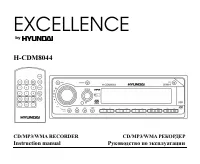 Hyundai CDM8044
User Manual
Hyundai CDM8044
User Manual
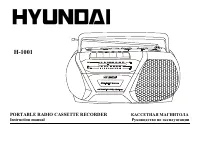 Hyundai H-1001
User Manual
Hyundai H-1001
User Manual
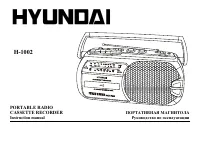 Hyundai H-1002
User Manual
Hyundai H-1002
User Manual
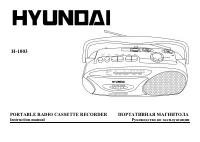 Hyundai H-1003
User Manual
Hyundai H-1003
User Manual
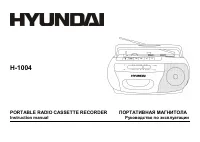 Hyundai H-1004
User Manual
Hyundai H-1004
User Manual
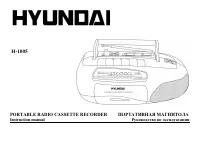 Hyundai H-1005
User Manual
Hyundai H-1005
User Manual
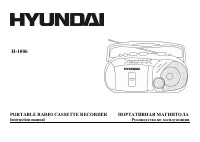 Hyundai H-1006
User Manual
Hyundai H-1006
User Manual
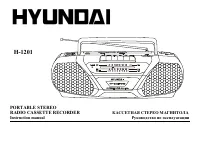 Hyundai H-1201
User Manual
Hyundai H-1201
User Manual
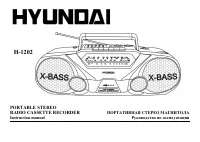 Hyundai H-1202
User Manual
Hyundai H-1202
User Manual
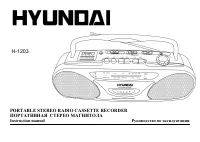 Hyundai H-1203
User Manual
Hyundai H-1203
User Manual
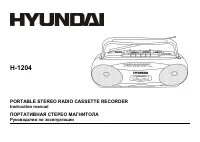 Hyundai H-1204
User Manual
Hyundai H-1204
User Manual
 Hyundai H-1205
User Manual
Hyundai H-1205
User Manual
 Hyundai H-1206
User Manual
Hyundai H-1206
User Manual
 Hyundai H-1401
User Manual
Hyundai H-1401
User Manual
 Hyundai H-1402
User Manual
Hyundai H-1402
User Manual
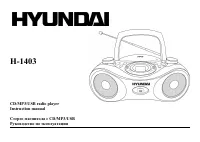 Hyundai H-1403
User Manual
Hyundai H-1403
User Manual
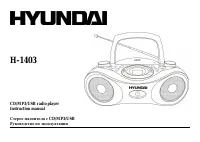 Hyundai H-1403 White
User Manual
Hyundai H-1403 White
User Manual
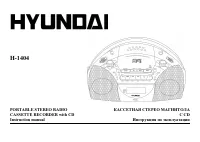 Hyundai H-1404
User Manual
Hyundai H-1404
User Manual
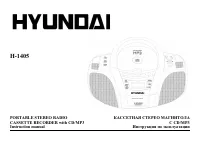 Hyundai H-1405
User Manual
Hyundai H-1405
User Manual
 Hyundai H-1406
User Manual
Hyundai H-1406
User Manual