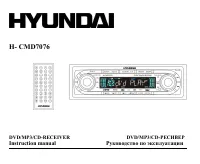
Page 2 - Table of contents
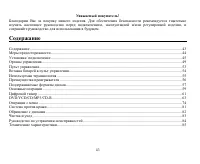
2 Dear customer! Thank you for purchasing our product. For safety, it is strongly recommended to read this manual carefully beforeconnecting, operating and/or adjusting the product and keep the manual for reference in the future. Table of contents Table of contents .....................................
Page 3 - Important safeguards; BEFORE USING PLEASE
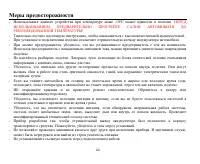
3 Important safeguards Using the device at temperature below -10º may cause the breakage of the device. BEFORE USING PLEASE HEAT UP THE PASSENGER COMPARTMENT TO THE RECOMMENDED TEMPERATURE! Read carefully through this manual to familiarize yourself with this high-quality sound system. Disconnect the...
Page 4 - Installation/Connections; Before the installation
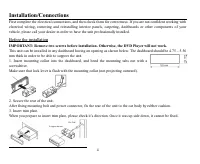
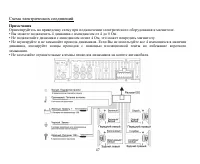
4 Installation/Connections First complete the electrical connections, and then check them for correctness. If you are not confident working withelectrical wiring, removing and reinstalling interior panels, carpeting, dashboards or other components of yourvehicle, please call your dealer in order to ...
Page 5 - Electrical connections; Speaker Wiring Notes; ends of the unused speaker outputs to prevent a short circuit.
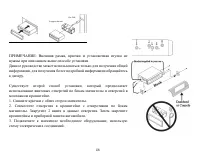
5 NOTE: Outer trim frame, hook, and mounting sleeve are not used for thisinstallation.This is only intended as a general guide; contact the vehicle's manufacturerfor specific instructions.This method of installation uses the screw holes at the sides of the unit andthe holes of the existing vehicle m...
Page 7 - Using the ISO Connector
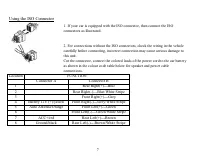
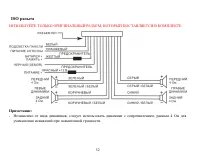
7 Using the ISO Connector 1. If your car is equipped with the ISO connector, then connect the ISOconnectors as illustrated. 2. For connections without the ISO connectors, check the wiring in the vehiclecarefully before connecting, incorrect connection may cause serious damage tothis unit.Cut the con...
Page 8 - Panel controls; Front panel
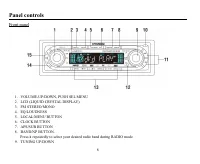
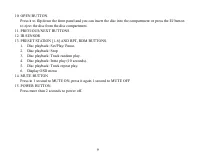
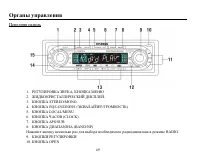
8 Panel controls Front panel 1. VOLUME-UP/DOWN, PUSH SEL MENU2. LCD (LIQUID CRYSTAL DISPLAY).3. FM STEREO/MONO4. EQ/LOUDNESS5. LOCAL/MENU BUTTON6. CLOCK BUTTON7. APS/SUB BUTTON8. BAND/NP BUTTON. Press it repeatedly to select your desired radio band during RADIO mode. 9. TUNING UP/DOWN
Page 10 - Back of the front panel
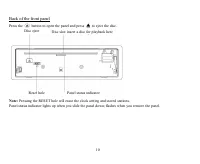
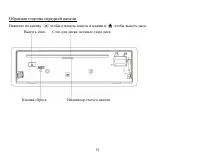
10 Back of the front panel Press the button to open the panel and press to eject the disc. Note: Pressing the RESET hole will erase the clock setting and stored stations. Panel status indicator lights up when you slide the panel down; flashes when you remove the panel. Disc slot: insert a disc for p...
Page 11 - ISO connector; PLEASE USE ONLY ORIGINAL CONNECTOR WHICH GOES WITH SET.
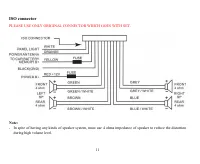
11 ISO connector PLEASE USE ONLY ORIGINAL CONNECTOR WHICH GOES WITH SET. Note: In spite of having any kinds of speaker system, must use 4 ohms impedance of speaker to reduce the distortionduring high volume level.
Page 12 - Remote control
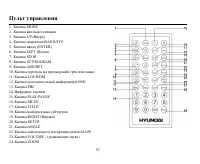
12 Remote control 1. MODE button2. Power on/off3. UP button4. BAND/SYS button5. ENTER button6. LEFT button7. STOP button8. ST/PROGRAM button9. AMS/RPT button10. SEEK - / PREVIOUS button11. LOC/RDM button12. OSD button13. PBC button14. Digit area15. PLAY/PAUSE button16. MUTE button17. TITLE button18....
Page 13 - Battery information of remote controller; Press the catch and at the same time pull out the battery tray.
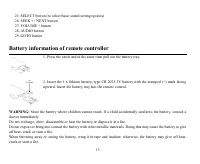
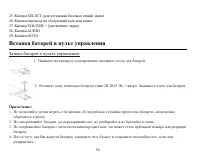
13 25. SELECT button (to select basic sound setting options)26. SEEK + / NEXT button27. VOLUME + button28. AUDIO button29. GOTO button Battery information of remote controller 1. Press the catch and at the same time pull out the battery tray. 2. Insert the 1 x lithium battery, type CR 2025 3V batter...
Page 14 - Glossary; Title
14 Glossary PBC (PlayBack Control) PlayBack Control is a menu recorded on the disc with SVCD or VCD2.0 format. For the discs contained PBC, it canplayback interactive software with the menu displayed on TV. And if the disc contains still images, it can playbackhigh definition of still image. Title T...
Page 15 - Features; Fully compatible
15 Features Fully compatible Fully compatible with the most popular discs formats such as DVD, CD, CD-R (containing MP3, JPEG), CD-RWrepresented in the market. Upgrade intelligently Support the function of upgrading the software for playing discs of new formats to keep up with the marketcompetition....
Page 16 - Compatible discs; DVD Video
16 Compatible discs DVD Video DVD disc include video and audio data. The data can contained by the 12 cm diameter of DVD disc is 7 times of onecan contained by the common CD-R disc. Its maximum continuous playback time can be up to 2 hours (one ofdouble-sided disc can be up to 4 hours). DVD disc sor...
Page 17 - DivX
17 Picture-CD Compatible with Picture-CD disc. Do not need setting the additional software. Picture-CD is a disc format that storesphoto with electronic file format developed by Kodak company. Photo-CD Compatible with Photo-CD disc. Do not need setting the additional soft ware. Photo-CD is a disc fo...
Page 18 - General operation; Power button; POWER; Mode Selection
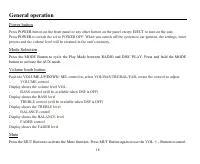
18 General operation Power button Press POWER button on the front panel or any other button on the panel except EJECT to turn on the unit. Press POWER to switch the set to POWER OFF. When you switch off the system or car ignition, the settings, tuner presets and the volume level will be retained in ...
Page 20 - Digital tuner; Choose Radio Band
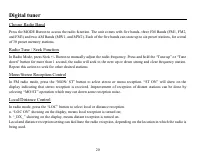
20 Digital tuner Choose Radio Band Press the MODE Button to access the radio function. The unit comes with five bands- three FM Bands (FM1, FM2,and FM3) and two AM Bands (MW1, and MW2). Each of the five bands can store up to six preset stations, for a totalof 30 preset memory stations. Radio Tune / ...
Page 21 - B. Scan Saved Stations
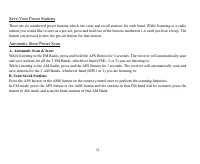
21 Save Your Preset Stations There are six numbered preset buttons which can store and recall stations for each band. While listening to a radiostation you would like to save as a pre-set, press and hold one of the buttons numbered 1-6 until you hear a beep. Thebutton you pressed is now the pre-set ...
Page 22 - Discs for playback
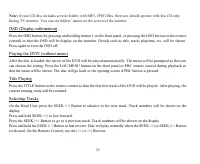
22 DVD/VCD/CD/MP3/CD-R Discs for playback This set can play all digital audio CD, HDCD, CD-R/RW, MP3,WMA, VCD, SVCD, DVD, DVD-ROM. The following file types are supported: Audio files: MP3 (*.mp3) WMA (*.wma)Video files: MP4 (*.avi, DIVX3.11/4.0/5.0 /6.XX and XVID) MPEG 2(*.vob) MPEG 1(*.dat)Picture ...
Page 28 - The functions of button 1-6 also apply to the mixed-disc play.; Back to the menu
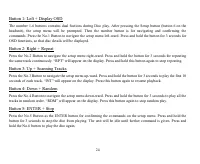
28 Press the SEEK |<< Button to go to a previous track. Track numbers will be shown on the display.Press and hold the SEEK |<< Button to fast reverse.Disc will play normally when the SEEK >>| or SEEK |<< Button is released.On the Remote Control, use the |<< or >>|...
Page 32 - Menu operation; ENTER buttons to select the desired item:; System setup; TV system; Select the TV system in the setting menu.; Screen saver
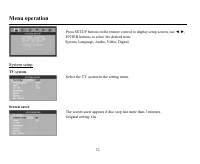
32 Menu operation Press SETUP button on the remote control to display setup screen, use , ENTER buttons to select the desired item: System, Language, Audio, Video, Digital. System setup TV system Select the TV system in the setting menu. Screen saver The screen saver appears if disc stop last more t...
Page 33 - Select TV type to watch wide screen movies.; Setting password
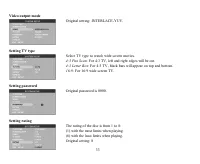
33 Video output mode Original setting: INTERLACE-YUV. Setting TV type Select TV type to watch wide screen movies. 4:3 Pan Scan : For 4:3 TV, left and right edges will be cut. 4:3 Letter Box : For 4:3 TV, black bars will appear on top and bottom. 16:9 : For 16:9 wide screen TV. Setting password Origi...
Page 34 - the limits can be worked only under the password locked status.; Load default; If this item is selected, the unit will return to original setting.; Language setup; Setting the on-screen display language; Select the language to be used for the on-screen display.; Setting the audio language
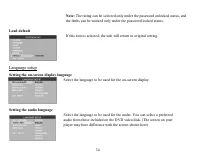
34 Note: The rating can be selected only under the password unlocked status, and the limits can be worked only under the password locked status. Load default If this item is selected, the unit will return to original setting. Language setup Setting the on-screen display language Select the language ...
Page 35 - Audio setup; Digital output; Select digital output format.
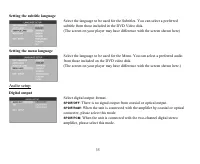
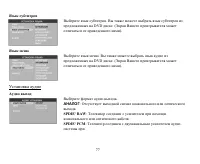
35 Setting the subtitle language Select the language to be used for the Subtitles. You can select a preferredsubtitle from those included in the DVD Video disk.(The screen on your player may have difference with the screen shown here) Setting the menu language Select the language to be used for the ...
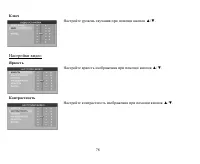
Page 36 - Setting volume; Setup the volume with the; Video setup; Brightness; Set the brightness of the video output with; Contrast; Set the contrast of the video output with
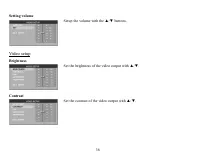
36 Setting volume Setup the volume with the buttons. Video setup Brightness Set the brightness of the video output with . Contrast Set the contrast of the video output with .
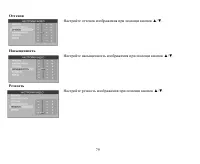
Page 37 - Hue; Set the hue of the video output with; Saturation; Set the saturation of the video output with; Sharpness; Set the sharpness of the video output with
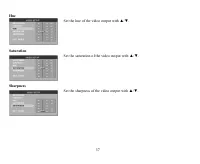
37 Hue Set the hue of the video output with . Saturation Set the saturation of the video output with . Sharpness Set the sharpness of the video output with .
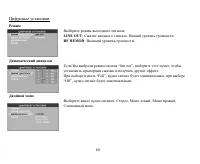
Page 38 - Digital setup; Output mode; Select the output mode:; LINE OUT; Select the audio channel from STEREO, MONO L, MONO R and MIX MONO.
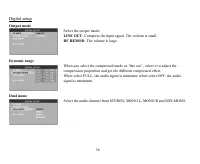
38 Digital setup Output mode Select the output mode: LINE OUT : Compress the input signal. The volume is small. RF REMOD : The volume is large. Dynamic range When you select the compressed mode as line out , select it to adjust thecompression proportion and get the different compressed effect.When s...
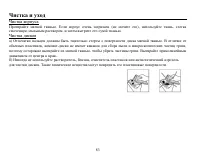
Page 40 - Handling discs; Dirty, scratched or warped discs may cause skip ping or noise.; Cleaning; Cleaning the cabinet
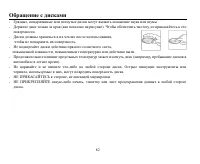
40 Handling discs Dirty, scratched or warped discs may cause skip ping or noise. Handle the disc only by the edges. To keep clean do not touch its surface. Discs should be stored in their cases after use to avoid scratches. Do not expose discs to direct sunlight, high humidity, high temperature or d...
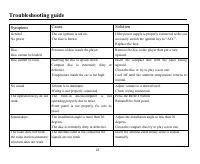
Page 41 - Troubleshooting guide; Symptom
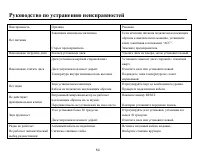
41 Troubleshooting guide Symptom Cause Solution GeneralNo power The car ignition is not on.The fuse is blown. If the power supply is properly connected to the caraccessory switch the ignition key to ACC .Replace the fuse. DiscDisc cannot be loaded. Presence of disc inside the player. Remove the disc...
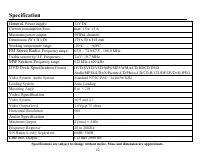
Page 42 - Specification; Maximum power output:; DVD Deck Specification
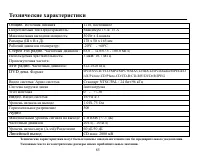
42 Specification Specifications are subject to change without notice. Mass and dimension are approximate. General. Power supply: 12V DC Current consumption/Fuse: max. 15A/ 15 A Maximum power output: 50Wx4 channels Dimensions (W x H x D) 178 x 50 x 165 mm Working temperature range: -20º - +60º FM Ste...
Page 45 - DVD
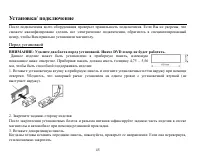
45 / . , , , . : . DVD . , . 4,75 5,56 , . 1. . , ( ). 2. . . 3. . , , . , .
Page 48 - ISO
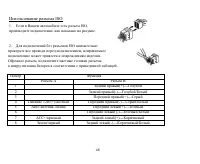
48 ISO 1. ISO, , . 2. ISO , . , . A B 1 (+)--- 2 (-)--- 3 (+)--- 4 12 (+)/ (-)--- 5 / (+)--- 6 ((-)--- 7 ACC+/ (+)--- 8 (-)---
Page 49 - OPEN
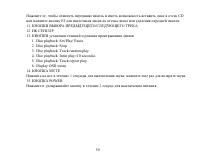
49 1. , 2. . 3. STEREO/MONO. 4. EQ/LOUDNESS ( ) 5. LOCAL/MENU 6. (CLOCK) 7. APS/SUB 8. (BAND/NP) RADIO. 9. 10. OPEN
Page 56 - icture CD Photo CD
56 1. DVD, CD, CD-R ( MP3, JPEG), CD-RW, . 2. , . 3. , 2- , , . 4. icture CD, Photo CD icture CD Photo CD . . 5. (Screen Saver) (Screen Saver). 5 , Screen Saver. .
Page 60 - MUT; LOUD; LOUD ON
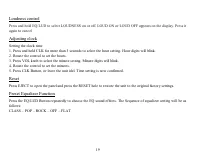
60 MUT , , , . LOUD EQ/LUD, . LOUD ON LOUD OFF. . 1. CLK 3 , . . 2. , . 3. VOL, . . 4. , . 5. CLK , . EJECT, . RESET, . EQ/LUD . : CLASS POP ROCK OFF FLAT
Page 64 - OSD; PBC
64 : EJECT, . . , . , LOAD, . : EJECT, . . , 5 . , , . : MP3, JPEG, . ( ) 1 OSD . . , . . DVD ( ) . . LOC/MENU PBC . PBC , . TITLE , . .
Page 66 - AUDIO
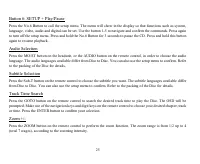
66 4: 4 . 3 . RDM . . 5: 5 . 3 . 5 . 6: SETUP + 6 . , , , , , . 1-5 . 6 . 3 . . MO/ST AUDIO . , . . Sub-T . , . .
Page 71 - CD
71 VCD/CD : EJECT, . . , . , LOAD, . : EJECT, . . , 5 . , , . : MP3, JPEG, . CD CD . . SEEK >>| . . SEEK >>| . SEEK |<< . . SEEK |<< . , SEEK >>| SEEK |<< , . .
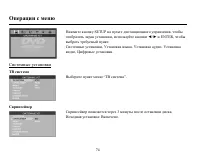
Page 74 - SETUP