Page 2 - Table of contents
2 Dear customer! Thank you for purchasing our product. For safety, it is strongly recommended to read this manual carefully beforeconnecting, operating and/or adjusting the product and keep the manual for reference in the future. Table of contents Table of contents .....................................
Page 3 - Important safeguards
3 Important safeguards · Using the device at temperature below -10º may cause the breakage of the device. BEFORE USING PLEASE HEAT UP THE PASSENGER COMPARTMENT TO THE RECOMMENDED TEMPERATURE! · Read carefully through this manual to familiarize yourself with this high-quality sound system. · Disconne...
Page 4 - Installation/Connections; Installation way
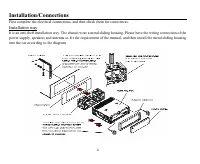
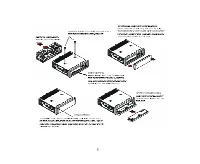
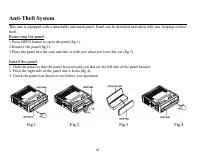
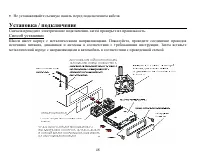
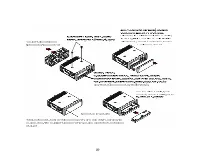
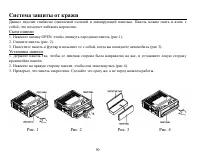
4 Installation/Connections First complete the electrical connections, and then check them for correctness. Installation way It is an anti-theft installation way. The chassis wear a metal sliding housing. Please have the wiring connection of thepower supply, speakers and antenna as for the requiremen...
Page 6 - Panel controls; Front panel
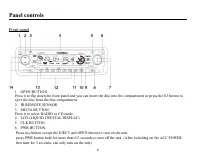
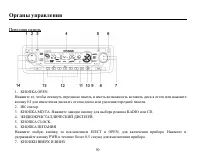
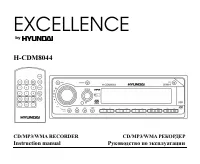
6 Panel controls Front panel 1. OPEN BUTTON. Press it to flip down the front panel and you can insert the disc into the compartment or press the EJ button to eject the disc from the disc compartment.2. IR REMOTE SENSOR3. MD/TA BUTTON. Press it to select RADIO or CD mode.4. LCD (LIQUID CRYSTAL DISPLA...
Page 7 - Back of the front panel; EJ BUTTON. Press it to eject disc from compartment
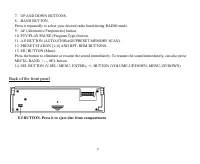
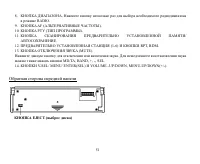
7 7. UP AND DOWN BUTTONS.8. BAND BUTTON.Press it repeatedly to select your desired radio band during RADIO mode.9. AF (Alternative Frequencies) button.10. PTY/PLAY/PAUSE (Program Type) button.11. A.P BUTTON (AUTO-STORAGE/PRESET MEMORY SCAN).12. PRESET STATION [1-6] AND RPT, RDM BUTTONS.13. MU BUTTON...
Page 8 - Rear RCA Line out socket
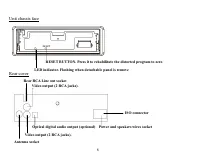
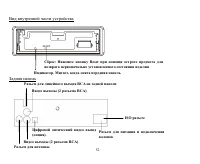
8 Unit chassis face Rear cover RESET BUTTON. Press it to rehabilitate the distorted program to zero Rear RCA Line out socket LED indicator. Flashing when detachable panel is remove Video output (2 RCA jacks). Antenna socket Optical digital audio output (optional) Power and speakers wires socket Vide...
Page 9 - ISO connector
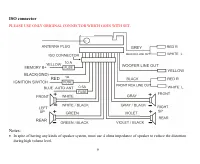
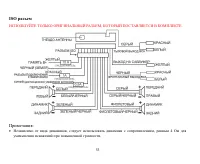
9 ISO connector PLEASE USE ONLY ORIGINAL CONNECTOR WHICH GOES WITH SET. Notes: · In spite of having any kinds of speaker system, must use 4 ohms impedance of speaker to reduce the distortionduring high volume level.
Page 10 - Remote control
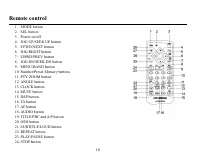
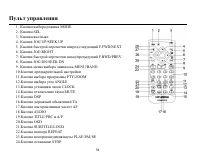
10 Remote control 1. MODE button2. SEL button3. Power on/off4. JOG UP/SEEK UP button5. F.FWD/NEXT button6. JOG RIGHT button7. F.BWD/PREV button8. JOG DN/SEEK DN button9. MENU/BAND button10. Number/Preset Memory buttons11. PTY/ZOOM button12. ANGLE button13. CLOCK button14. MUTE button15. DSP button16...
Page 11 - Battery Information of Remote Controller; Replace Battery in Remote Controller:
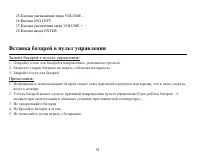
11 25. VOL button26. JOG LEFT button27. VOL+ button28. ENTER button Battery Information of Remote Controller Replace Battery in Remote Controller: 1. Remove the battery holder as the direction indicated by the arrow.2. Replace the old battery by a new battery with (+) polarity forward.3. Insert the ...
Page 12 - LCD description
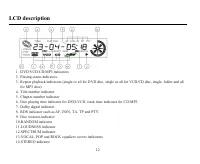
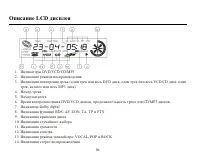
12 LCD description 1. DVD/VCD/CD/MP3 indicators2. Playing status indicators3. Repeat playback indicators (single or all for DVD disc, single or all for VCD/CD disc, single, folder and all for MP3 disc) 4. Title number indicator5. Chapter number indicator6. Disc playing time indicator for DVD/VCD, tr...
Page 13 - Glossary; Title
13 Glossary PBC (PlayBack Control) PlayBack Control is a menu recorded on the disc with SVCD or VCD2.0 format. For the discs contained PBC, it canplayback interactive software with the menu displayed on TV. And if the disc contains still images, it can playbackhigh definition of still image. Title T...
Page 14 - Features; Upgrade intelligently; Strong output function
14 Features 1. Fully compatible Fully compatible with the most popular discs formats such as DVD, CD, CD-R (containing MP3, JPEG), CD-RWrepresented in the market. 2. Upgrade intelligently Support the function of upgrading the software for playing discs of new formats to keep up with the marketcompet...
Page 15 - Compatible discs; DVD Video
15 Compatible discs DVD Video DVD disc include video and audio data. The data can contained by the 12 cm diameter of DVD disc is 7 times of onecan contained by the common CD-R disc. Its maximum continuous playback time can be up to 2 hours (one ofdouble-sided disc can be up to 4 hours). DVD disc sor...
Page 17 - Function of controls; AUDIO MODE AND LEVEL BUTTONS
17 Function of controls 1. POWER BUTTON Press the PWR button on the front panel or POWER button on the remote controller to turn on the unit. 2. MODE/TA BUTTON Press the MD/TA button on the front panel or MODE button on the remote controller to select DISC or RADIOmode. 3. AUDIO MODE AND LEVEL BUTTO...
Page 18 - CLOCK DISPLAY AND ADJUSTMENT BUTTONS
18 When you find the desired color of the LCD backlighting, press it and hold for more than 2 seconds again to set thecolor of the LCD backlighting and stop flashing. 5. CLOCK DISPLAY AND ADJUSTMENT BUTTONS Press CLK button on the front panel or the remote controller to display time on LCD. Press CL...
Page 19 - Radio Operation
19 Radio Operation 1. PRESET STATION [ 1-6 ] BUTTONS A). To memorize the current frequency, press any one of the six preset buttons (1-6) on the front panel or on theremote controller and hold it for more than 2 seconds.B). To recall the preset memory, press one of the preset buttons [1-6]. 2. A.P B...
Page 22 - Basic Disc Operation; Startup
22 Basic Disc Operation Startup Press PWR button to start the DVD player up. After turning on the DVD player, it willsearch for the disc automatically. Then it will playback automatically if there is a disc inthe disc compartment. Furthermore, please turn on TV set, and get ensured that thevideo out...
Page 23 - Loading Disc; Basic Playback
23 Common QuestionQ: Nothing is displayed on TV screen when the DVD player is turned on:A: Ensure that the TV was set to right video input (not TV channel); for example, if you make VIDEO1 INPUT ofTV and DVD player connected with each other, then you need to set TV to VIDEO1. Loading Disc 1. Flip Th...
Page 25 - Playback with DVD Video Menu
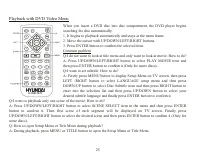
25 Playback with DVD Video Menu When you insert a DVD disc into disc compartment, the DVD player beginssearching the disc automatically:1. It begins to playback automatically and stays at the menu frame.2. Move the cursor with UP/DOWN/LEFT/RIGHT buttons.3. Press ENTER button to confirm the selected ...
Page 26 - Advanced Operation; Repeat Playback
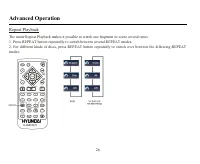
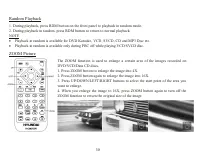
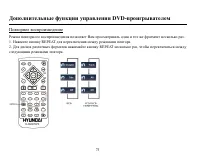
26 Advanced Operation Repeat Playback The mode Repeat Playback makes it possible to watch one fragment or scene several times.1. Press REPEAT button repeatedly to switch between several REPEAT modes.2. For different kinds of discs, press REPEAT button repeatedly to switch over between the following ...
Page 27 - Playback VCD/SVCD Disc with PBC Menu
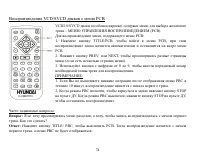
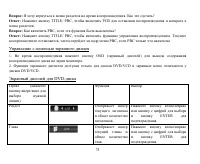
27 Playback VCD/SVCD Disc with PBC Menu VCD2.0/SVCD discs (especially Karaoke disc) contain menu for selecting desiredtrack - PBC (playback control) menu.While playing a disc containing PBC menu:1. Press TITLE/PBC button to turn on PBC, then it will playback automatically fro mthe beginning of the d...
Page 28 - Console Operation
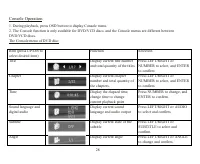
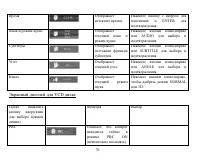
28 Console Operation 1. During playback, press OSD button to display Console menu.2. The Console function is only available for DVD/VCD discs, and the Console menus are different betweenDVD/VCD discs.The Console menu of DVD disc: Item (press UP/DN toselect desired item) Function Selection Title Disp...
Page 29 - Changing of Video Signal System
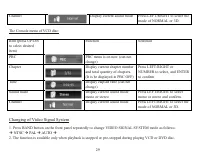
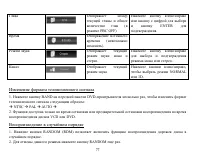
29 Channel Display current sound mode Press LEFT/RIGHT to select the mode of NORMAL or 3D. The Console menu of VCD disc: Item (press UP/DNto select desireditem) Function Selection PBC PBC menu is on now (can notchange) Chapter Display current chapter numberand total quantity of chapters.(It is be di...
Page 31 - Special Functions for DVD Discs
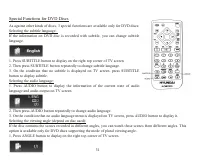
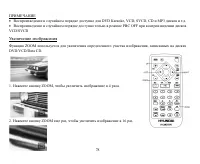
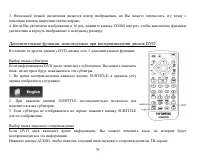
31 Special Functions for DVD Discs As against other kinds of discs, 3 special functions are available only for DVD discs:Selecting the subtitle language:If the information on DVD disc is recorded with subtitle, you can change subtitlelanguage. 1. Press SUBTITLE button to display on the right top cor...
Page 32 - Region Code
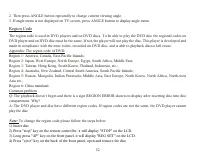
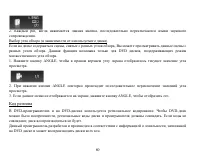
32 2. Then press ANGLE button repeatedly to change current viewing angle.3. If angle menu is not displayed on TV screen, press ANGLE button to display angle menu. Region Code The region code is used in DVD players and on DVD discs. To be able to play the DVD disc the regional codes onDVD player and ...
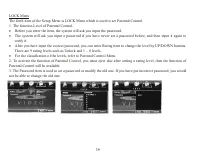
Page 33 - Parental Control
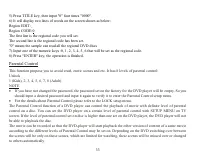
33 5) Press TITLE key, then input "0" four times "0000".6) It will display two lines of words on the screen shown as below:Region EDIT:_Region CODE:0The first line is the regional code you will set.The second line is the regional code has been set."0" means the sample can rea...
Page 34 - Playback of Data Disc and Audio CD
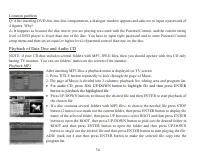
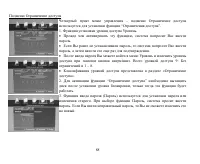
34 Common problemQ: After inserting DVD disc into disc compartment, a dialogue window appears and asks me to input a password of4 figures. Why?A: It happens so because the disc movie you are playing was rated with the Parental Control, and the current ratinglevel of DVD player is lower than one of t...
Page 35 - System Setup Menu
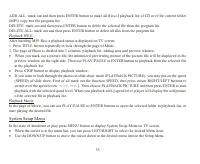
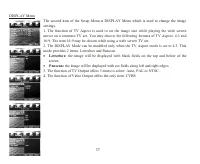
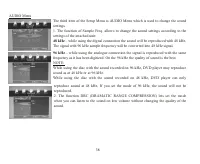
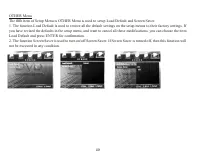
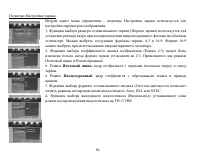
35 ADD ALL: mark out and then press ENTER button to make all files of playback list of CD or of the current folder(MP3) copy into the program list.DELETE: mark out and then press ENTER button to delete the selected file from the program list.DELETE ALL: mark out and then press ENTER button to delete...
Page 42 - Handling discs; Cleaning; Cleaning the cabinet
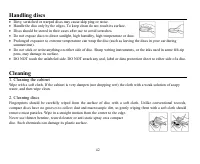
42 Handling discs · Dirty, scratched or warped discs may cause skip ping or noise. · Handle the disc only by the edges. To keep clean do not touch its surface. · Discs should be stored in their cases after use to avoid scratches. · Do not expose discs to direct sunlight, high humidity, high temperat...
Page 43 - Troubleshooting guide; Symptom; Disc
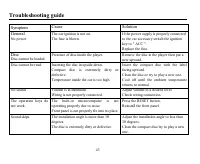
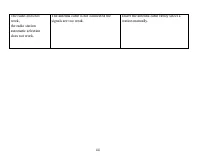
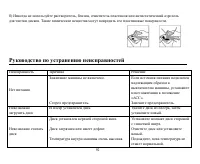
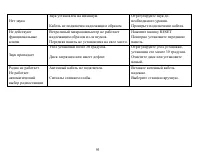
43 Troubleshooting guide Symptom Cause Solution General No power The car ignition is not on.The fuse is blown. If the power supply is properly connectedto the car accessory switch the ignitionkey to " ACC ".Replace the fuse. Disc Disc cannot be loaded. Presence of disc inside the player. Rem...
Page 45 - Specification; DVD Deck Specification
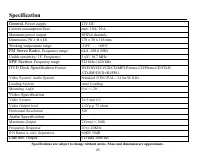
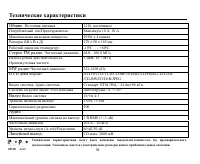
45 Specification Specifications are subject to change without notice. Mass and dimension are approximate. General. Power supply: 12V DC Current consumption/Fuse: max. 10A/ 10 A Maximum power output: 50Wx4 channels Dimensions (W x H x D) 178 x 50 x 165 mm Working temperature range: -10º - +60º FM Ste...
Page 53 - ISO
Page 56 - LCD
56 LCD 1. DVD/VCD/CD/MP3 2. 3. ( DVD , VCD/CD , , MP3 ) 4. 5. 6. DVD/VCD , CD/MP3 . 7. Dolby digital 8. RDS: AF, EON, TA, TP PTY. 9. 10. 11. 12. 13. : VOCAL, POP ROCK 14.
Page 61 - MODE
61 DISC RADIO 1. POWER POWER , . 2. MODE MODE : DISC ( ) RADIO ( ). 3. AUDIO MODE LEVEL. VOL+ VOL- . SEL , : VOL BASS TREBLE BALANCE FADER VOL+ VOL- . . SEL , , VOL+ VOL-, . .
Page 64 - BAND
64 1. [1-6] ) , (1 6) 2 . ) , [1-6]. 2. A.P. . . , , . FM1, FM2 FM3 . . ( ) , . 6 . . . 3. BAND RADIO BAND , , .
Page 76 - VCD
76 ). ENTER . . AUDIO . . SUBTITLE . ANGLE . . , NORMAL 3D. VCD ( ) , PBC ON ).
Page 83 - CD
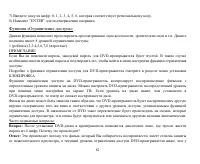
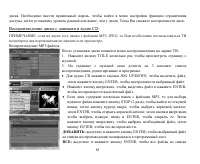
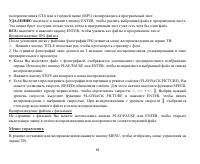
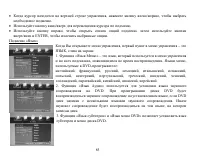
83 . , , , . . CD : MP3, JPEG, . MP3 . 1. TITLE , . 2. 3 : , . · CD JOG UP/DOWN, , ENTER, . · , ENTER, . · MP3, STOP (2 ), , , , ENTER, , , ENTER, . , , ENTER, . : ENTER, . : ENTER,