Page 2 - Table of contents
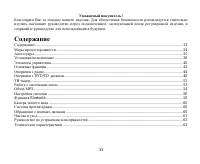
2 Dear customer! Thank you for purchasing our product. For safety, it is strongly recommended to read this manual carefullybefore connecting, operating and/or adjusting the product and keep the manual for reference in the future. Table of contents Table of contents......................................
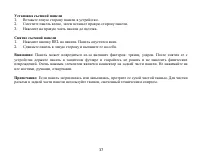
Page 3 - Important safeguards; Do not install the detachable panel before connecting the wire.
3 Important safeguards - Read carefully through this manual to familiarize yourself with this high-quality sound system. - Disconnect the vehicle's negative battery terminal while mounting and connecting the unit. - When replacing the fuse, be sure to use one with an identical amperage rating. Using...
Page 4 - Accessories; Wire connector
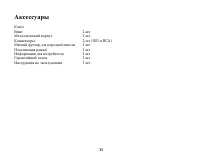
4 Accessories KeyScrew 2 pcs (To stable the deck) Mounting collar (Metal sleeve) 1 pc Wire connector 2 pcs (ISO and RCA) Front panel pouch 1 pc Trim plate (plastic frame) 1 pc Customer information 1 pc Warranty card 1 pc Instruction manual 1 pc
Page 5 - Installation/Connections; Installation
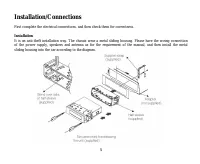
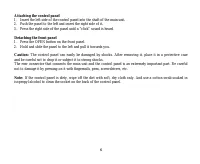
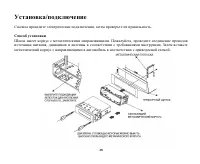
5 Installation/Connections First complete the electrical connections, and then check them for correctness. Installation It is an anti-theft installation way. The chassis wear a metal sliding housing. Please have the wiring connectionof the power supply, speakers and antenna as for the requirement of...
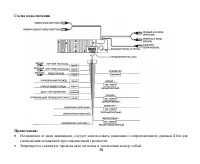
Page 7 - Connection diagram
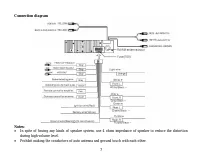
7 Connection diagram Notes: In spite of having any kinds of speaker system, use 4 ohms impedance of speaker to reduce the distortionduring high volume level.Prohibit making the conductors of auto antenna and ground touch with each other.
Page 9 - Panel controls; Front panel; To set the unit to the initial settings press RESET button.
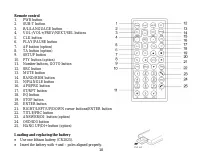
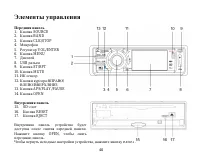
9 Panel controls Front panel 1. SOURCE button2. BAND button3. CLK/STOP button4. Microphone5. VOL/ENTER knob6. MENU button7. Display8. USB jack9. ST/RPT button10. MUTE button11. IR sensor12. Cursor buttons13. APS/PLAY/PAUSE button14. OPEN button Inner panel 15. SD-slot16. RESET button17. EJECT button...
Page 11 - General operations; Press MUTE button to turn off the sound. Press again to resume.
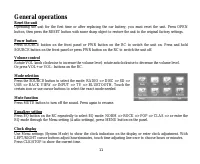
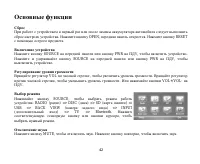
11 General operations Reset the unit Operating the unit for the first time or after replacing the car battery, you must reset the unit. Press OPENbutton, then press the RESET button with some sharp object to restore the unit to the original factory settings. Power button Press SOURCE button on the f...
Page 12 - Radio operations; BAND selection; manual or auto search.; Auto memory store
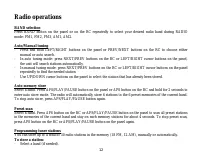
12 Radio operations BAND selection Press BAND button on the panel or on the RC repeatedly to select your desired radio band during RADIOmode: FM1, FM2, FM3, AM1, AM2. Auto/Manual tuning - Press and hold LEFT/RIGHT buttons on the panel or PREV/NEXT buttons on the RC to choose either manual or auto se...
Page 14 - The following file types are supported:
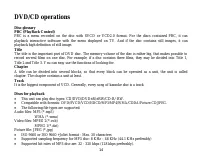
14 DVD/CD operations Disc glossaryPBC (PlayBack Control) PBC is a menu recorded on the disc with SVCD or VCD2.0 format. For the discs contained PBC, it canplayback interactive software with the menu displayed on TV. And if the disc contains still images, it canplayback high definition of still image...
Page 15 - Touch screen function; Press R/L button on the screen to switch between mono L; TIT; In play mode, press this button to exit the playing.; Playing/pausing playback
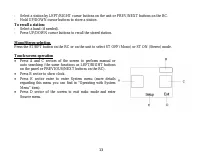
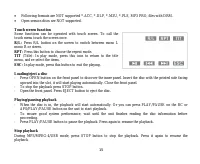
15 Following formats are NOT supported *.ACC, *.DLF, *.M3U, *.PLS, MP3 PRO, files with DRM.Open session discs are NOT supported. Touch screen function Some functions can be operated with touch screen. To call thetouch menu touch the screen once. R/L: Press R/L button on the screen to switch between ...
Page 17 - Press PBC again to exit the menu.; GOTO function; Press ENTER to confirm the operation.
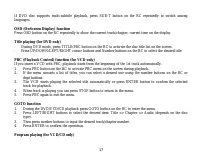
17 If DVD disc supports multi-subtitle playback, press SUB-T button on the RC repeatedly to switch amonglanguages. OSD (OnScreen Display) function Press OSD button on the RC repeatedly to show the current track/chapter, current time on the display. Title playing (for DVD only) - During DVD mode, pre...
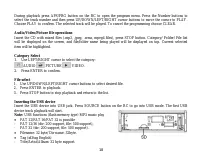
Page 18 - Category Select; AUDIO; File select; USB functions (flash memory type) MP3 music play
18 During playback press APS/PRG button on the RC to open the program menu. Press the Number buttons toselect the track number and then press UP/DOWN/LEFT/RIGHT cursor buttons to move the cursor to PLAY.Choose PLAY to confirm. The selected track will be played. To cancel the programming choose CLEAR...
Page 19 - SD cards
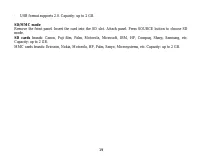
19 - USB format supports 2.0. Capacity: up to 2 GB. SD/MMC mode Remove the front panel. Insert the card into the SD slot. Attach panel. Press SOURCE button to choose SDmode. SD cards brands: Canon, Fuji film, Palm, Motorola, Microsoft, IBM, HP, Compaq, Sharp, Samsung, etc. Capacity: up to 2 GB.MMC c...
Page 20 - TV tuner; Channel Search
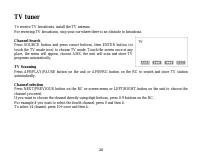
20 TV tuner To receive TV broadcasts, install the TV antenna.For receiving TV broadcasts, stop your car where there is no obstacle to broadcast. Channel Search Press SOURCE button and press cursor buttons, then ENTER button (ortouch the TV mode icon) to choose TV mode. Touch the screen once at anypl...
Page 21 - Operating with System Menu; Video Mode
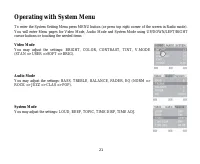
21 Operating with System Menu To enter the System Setting Menu press MENU button (or press top right corner of the screen in Radio mode).You will enter Menu pages for Video Mode, Audio Mode and System Mode using UP/DOWN/LEFT/RIGHTcursor buttons or touching the needed items Video Mode You may adjust ...
Page 22 - MP3 overview; Notes on MP3; MP3 data written by the method of packet write.; Notes on creating your own CD-Rs or CD-RWs containing MP3 files; kHz and a fixed bit rate o f 128 kbps.
22 MP3 overview Notes on MP3 - MP3 is short for MPEG Audio Layer 3 and refers to an audio compression technology standard.- This product allows playback of MP3 files on CD-ROM, CD-R or CD-RW discs.- The unit can read MP3 files written in the format compliant with ISO 9660. However it does not suppor...
Page 24 - System setup menu; This unit is suitable for all kinds of TV systems. You can select:
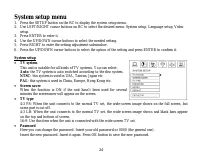
24 System setup menu 1. Press the SETUP button on the RC to display the system setup menu.2. Use LEFT/RIGHT cursor buttons on RC to select the desired menu: System setup, Language setup, Video setup. 3. Press ENTER to enter it.4. Use the UP/DOWN cursor buttons to select the needed setting.5. Press R...
Page 26 - Bluetooth operation; Note; If pairing success, the Bluetooth module will connect to mobile
26 Bluetooth operation Through Bluetooth function, the DVD unit establishes connection with Bluetooth handset. And then, these unitscan realize mutually control. Note : Some models of mobile phones are not supported by the Bluetooth module of this unit. Bluetooth mode Press the SRC button to go to m...
Page 27 - Dial call; Dial with the numeric button on the screen.; Call Transfer
27 Dial call Dial with the numeric button on the screen. Press the "0~9" buttons to input telephone number. Simultaneously, the input number will appear on the display. If a number is wronglyentered, press Green Arrow screen button to delete the incorrect number. Press ANSWER screen button t...
Page 28 - Back view camera
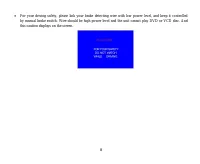
28 Back view camera This unit is equipped with back view camera output. The camera is used to observe the situation behind thevehicle when you are backing the car. Please connect your back view camera with the back car video input. And connect the detecting wire for back acar with the rear gear ligh...
Page 29 - Cleaning the cabinet
29 Anti-theft system This unit is equipped with a slide-down detachable and mask panel. Panel can be detached and taken with you,helping to deter theft. Handling compact discs - Dirty, scratched or warped discs may cause skip ping or noise.- Handle the disc only by the edges. To keep clean do not to...
Page 30 - Troubleshooting guide; Symptom
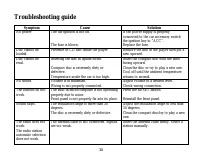
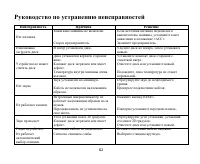
30 Troubleshooting guide Symptom Cause Solution No power The car ignition is not on. The fuse is blown. If the power supply is properlyconnected to the car accessory switchthe ignition key to “ACC”.Replace the fuse. Disc cannot beloaded. Presence of CD disc inside the player. Remove the disc in the ...
Page 31 - Specification; General
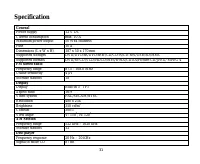
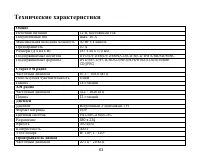
31 Specification General Power supply 12 V DC Current consumption max. 10 A Maximum power output 50 Wx4 channels Fuse 10 A Dimensions (L x W x H) 187 x 50 x 170 mm Supported storages DVD/DVD±R/DVD±RW/CD/CD-R/CD-RW/USB/SD/MMC Supported formats DVD/SVCD/VCD/HDCD/MP3/WMA/CDDA/Picture-CD/JPEG/ MPEG 4 FM...
Page 32 - ESP; Line out
32 ESP For audio CD: 40 sec/for MP3: 120 sec Line out 2 channel RCA (2V) Specifications are subject to change without notice. Dimensions are approximate.
Page 37 - REL
37 1. . 2. , . 3. . 1. REL . . 2. . : : , . . . , , . : , . , .
Page 45 - A C
45 30 (18 FM, 12 AM), . : - ( ). - , NEXT/PREV . - , . : - ( ). - , . ST/RPT , ST OFF ( ) ST ON ( ). A C ( , PREVIOUS/NEXT ). B, . E . . « »). D, .
Page 47 - OPEN
47 P3 : 32 - 320 ( 128 ). : *.ACC, *.DLF, *.M3U, *.PLS, MP3 PRO, DRM. . . . R/L: R/L mono L ( .) mono R ( .) stereo ( ). RPT: . TIT ( ): , . ESC: . - OPEN , . , . . - , STOP . - EJECT , . - . PLAY/PAUSE APS/PLAY/PAUSE , . - , , , . - PLAY/PAUSE, . PLAY/PAUSE , .
Page 51 - USB
51 3. STOP, . USB USB USB. SRC/PWR SOURCE, USB. . : FAT 12/ FAT 16/ FAT 32 - FAT 12/ 16 ( 200 , 500 ), - FAT 32 ( 200 , 500 ). : 32 : 32 . (id3tag ) - / / : 32 . USB 2.0. : 2 . SD/MMC . SD . . SOURCE, SD. SD: SD : Cannon, Fuji film, Palm, Motorola, Microsoft, IBM, HP, Compaq, Sharp, Samsung, . . : 2...
Page 52 - SOURCE
52 , . . SOURCE . ENTER ( ), TV. , . AMS, . APS/PLAY/PAUSE APS/PRG , . NEXT/PREVIOUS , . , 0-9 . , 4 0, 4. 14 10+, 4.
Page 56 - SETUP; NTSC
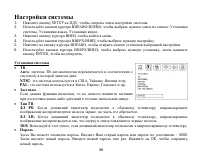
56 1. SETUP , . 2. , : , , . 3. , . 4. , . 5. , . 6. , , ENTER, . : , . NTSC : , , . PAL : , , . , . T 4:3 PS: , , . 4:3 LB: , , . 16:9: , . . – 0000. . . OK, .
Page 57 - DIVX; DivX
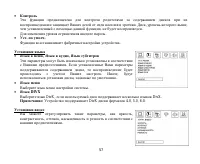
57 . , , , . . . . . , , . , . , , . . DIVX DivX, DivX. : DivX 4.0, 5.0, 6.0. , , , , .
Page 58 - Bluetooth; Bluetooth; Bluetooth
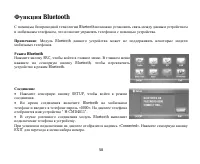
58 Bluetooth Bluetooth , . : Bluetooth . Bluetooth SRC, . Bluetooth, Bluetooth. SETUP, . Bluetooth «0000». “ H-CMD4011”. Bluetooth . «Connected». EXIT .
Page 63 - FM; TFT
63 12 , . 10 50 4 10 ( ) 187 50 170 DVD/DVD±R/DVD±RW/CD/CD-R/CD-RW/USB/SD/MMC DVD/SVCD/VCD/HDCD/MP3/MP4/WMA/CDDA/Picture-CD/JPEG FM 87,5 – 108,0 4 18 M 522 – 1620 12 3- TFT 16:9PAL/SECAM/NTSC480 x 234350 2 300:1 : 110 0 , : 120 0 20 – 20