Page 2 - Table of contents
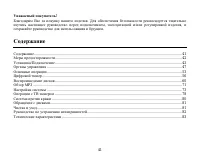
2 Dear customer! Thank you for purchasing our product. For safety, it is strongly recommended to read this manual carefully before connecting, operating and/or adjusting the product and keep the manual for reference in the future. Table of contents Table of contents ....................................
Page 3 - Important safeguards
3 Important safeguards Using the device at temperature below -10º may cause the breakage of the device. Before using please heat up the passenger compartment to the recommended temperature! Read carefully through this manual to familiarize yourself with this high-quality car stereo system. Disconnec...
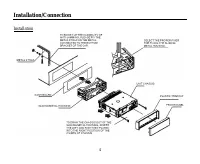
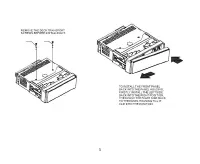
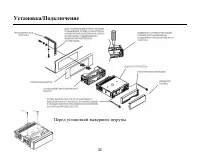
Page 4 - Installation/Connection; Installation
Page 6 - Electrical connection; Do not interchange the connection of the wiring!
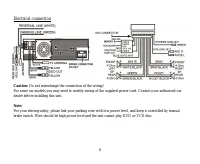
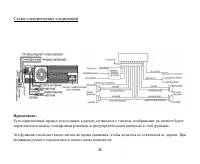
6 Electrical connection Caution: Do not interchange the connection of the wiring! For some car models you may need to modify wiring of the supplied power cord. Contact your authorized car dealer before installing this unit.
Page 7 - Using the ISO Connector; Function
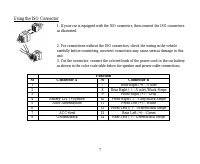
7 Using the ISO Connector 1. If your car is equipped with the ISO connector, then connect the ISO connectors as illustrated. 2. For connections without the ISO connectors, check the wiring in the vehicle carefully before connecting, incorrect connection may cause serious damage to this unit. 3. Cut ...
Page 8 - Panel controls; Front panel; UP and DN buttons
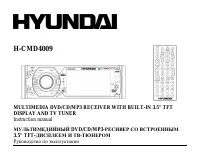
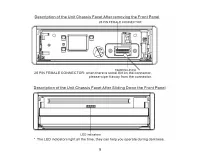
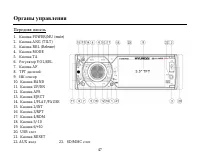
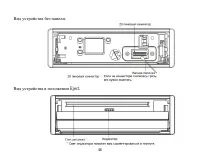
8 Panel controls Front panel 1. POWER/MU (mute) button 2. ANG (i.e. TILT) button 3. REL (Release) button 4. MODE button 5. TA button 6. VOL/SEL knob 7. AF button 8. TFT display 9. IR remote sensor 10. BAND button 11. UP and DN buttons 12. APS button 13. EJECT button 14. 1/PLAY/PAUSE button 15. 2/INT...
Page 10 - Remote control
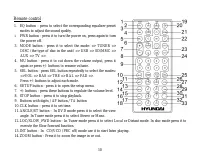
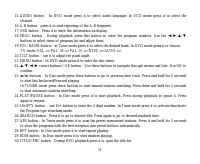
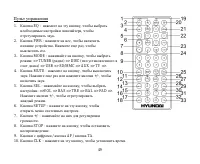
10 Remote control 1. EQ button – press to select the corresponding equalizer preset modes to adjust the sound quality. 2. PWR button - press it to turn the power on, press again to turn the power off. 3. MODE button - press it to select the mode: => TUNER => DISC (the type of disc in the unit)...
Page 12 - Changing the battery; Press the catch and at the same time pull out the battery tray.
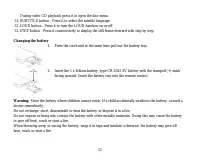
12 During video CD playback press it to open the disc menu. 31. SUBTITLE button - Press it to select the subtitle language. 32. LOUD button - Press it to turn the LOUD function on or off. 33. STEP button - Press it consecutively to display the still frame forward with step by step. Changing the batt...
Page 13 - General operation; Reset the unit; the unit on it will resume the stored status, which you set.; Volume control; the RC or rotating the VOL knob to adjust each mode.
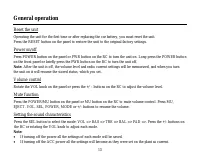
13 General operation Reset the unit Operating the unit for the first time or after replacing the car battery, you must reset the unit. Press the RESET button on the panel to restore the unit to the original factory settings. Power on/off Press POWER button on the panel or PWR button on the RC to tur...
Page 14 - Press the CLK button on the RC to show the clock on the display.; Loud mode; bass level immediately when the bass is not enough.; Equalizer mode
14 Mode control Press the MODE button on the panel or MODE button on the RC to select the different playing modes: => TUNER => DISC (the type of disc in the unit if there is any) => USB (if the USB device is inserted) => CARD (if the SD/ MMC card is inserted) => AUX => TV. Clock se...
Page 15 - Digital tuner; Band selection
15 Digital tuner Note: RDS (Radio Data System) service availability varies with areas. Please understand if RDS service is not available in you area, the following service is not available, either. Band selection Press the MODE button on the panel or MODE button on the RC to select the TUNER mode. P...
Page 16 - Press the button again to turn it of.; RDS function; PI: Program Identification Code – for identifying code.
16 Preset scan function Press the APS button to scan all preset stations in the memory of the current band and stay on each memory stations for about 5 seconds. To stop preset scan, press this button again. Auto memory store function Press the APS button on the panel and hold for 2 seconds to enter ...
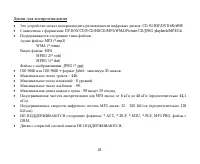
Page 18 - Disc operations; Disc glossary; playback high definition of still image.; Title; Title 2 and Title 3. You can easy use the functions of looking-for.; Chapter; chapter. The chapter contains a unit at least.; Track; Discs for playback; The following file types are supported:
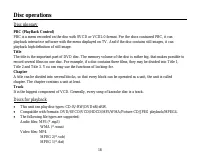
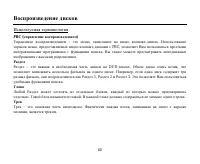
18 Disc operations Disc glossary PBC (PlayBack Control) PBC is a menu recorded on the disc with SVCD or VCD2.0 format. For the discs contained PBC, it can playback interactive software with the menu displayed on TV. And if the disc contains still images, it can playback high definition of still imag...
Page 20 - Loading a disc; When MMC/ SD card and USB device
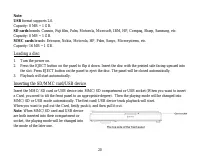
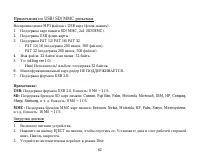
20 Note: USB format supports 2.0. Capacity: 8 MB ~ 1 GB. SD cards brands: Cannon, Fuji film, Palm, Motorola, Microsoft, IBM, HP, Compaq, Sharp, Samsung, etc. Capacity: 8 MB ~ 1 GB. MMC cards brands: Ericsson, Nokia, Motorola, HP, Palm, Sanyo, Microsystems, etc. Capacity: 16 MB ~ 1 GB. Loading a disc...
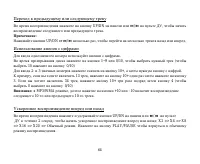
Page 21 - Stop playback; function is cancelled.; Playing the previous/next track; To input any number use the buttons with digits.
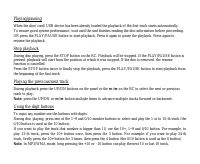
21 Playing/pausing When the disc/ card/ USB device has been already loaded the playback of the first track starts automatically. To ensure good system performance, wait until the unit finishes reading the disc information before proceeding. OR press the PLAY/PAUSE button to start playback. Press it ...
Page 22 - Scanning forward and backward; PLAY/PAUSE button to return to normal playback.; Repeat playback; Press the RPT button once or more to repeat the playback:
22 Scanning forward and backward Press and hold for 2 seconds the UP/DN buttons on the panel or the / on the RC to select the speed of fast playing in forward or backward direction: X2 => X4 => X8 => X16 => 20 => Normal. Press the PLAY/PAUSE button to return to normal playback. Slow p...
Page 23 - Random playback; PLAY/PAUSE button to open the root menu of the selected title.
23 2. Press A-B button again at the ending point of the section you want to repeat (point B). Section A-B repeating starts. 3. Press A-B button again to cancel the A-B repeat function. Intro playback (for CD/VCD) You can play the beginning of every track for 10 seconds in sequence. Press the INT but...
Page 24 - Search function; Press OK or PLAY/PAUSE button on the RC to start its playback.; Programming the playback; Press PROG button on the RC to enter program list.
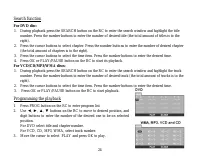
24 Search function For DVD disc: 1. During playback press the SEARCH button on the RC to enter the search window and highlight the title number. Press the number buttons to enter the number of desired title (the total amount of titles is to the right). 2. Press the cursor buttons to select chapter. ...
Page 25 - Selecting subtitle languages (for DVD only)
25 4. If you want to delete the list, move the cursor to CLEAR, press OK to delete all the list set before. 5. Press PROG again to exit program play. On-screen display (OSD) During playback press the OSD button on the RC repeatedly to turn on/ off the playback status. In DVD mode the display will sh...
Page 26 - buttons select the area desired.; Category Select; AUDIO; Folder select; select desired folder.
26 Changing size (for DVD/VCD) During playback press ZOOM button on the RC continuously to enlarge a certain area of the images on the screen: ZOOM X2, ZOOM X3, ZOOM X4, ZOOM X1⁄2, ZOMM X1/3, ZOOM X1⁄4, ZOOM OFF. Using the buttons select the area desired. Changing angle (for DVD only) If DVD disc su...
Page 27 - File select; ID3 function
27 2. Press OK to confirm. File select 1. Use / to enter file list and use / to select desired file. 2. Press OK to playback. For PICTURE, press PLAY/PAUSE to slide show the pictures. Press PROG to select picture refreshing style.For VIDEO and PICTURE, press STOP button to enter Category/Folder/File...
Page 28 - MP3 overview
28 MP3 overview Notes on MP3: MP3 is short for MPEG Audio Layer 3 and refers to an audio compression technology standard. This product allows playback of MP3 files on CD-ROM, CD-R or CD-RW discs. The unit can read MP3 files written in the format compliant with ISO 9660. However it does not support t...
Page 29 - Notes on creating your own CD-R or CD-RW containing MP3 files:; kHz and a fixed bit rate o f 128 kbps.
29 Notes on creating your own CD-R or CD-RW containing MP3 files: To enjoy high quality sound, we recommend converting to MP3 files with a sampling frequency of 44.1 kHz and a fixed bit rate o f 128 kbps. DO NOT store more than 448 MP3 files per disc. For ISO 9660 - compliant format, the maximum all...
Page 30 - System setup menu; System setup; TV system
30 System setup menu 1. Press the SETUP button on the RC to display the system setup menu. 2. Use the cursor buttons on RC to select the desired menu: System setup, Language setup, Audio setup, Video setup, Speaker setup, Digital setup.3. Press OK to enter it. 4. Use the cursor buttons to select the...
Page 31 - Language setup
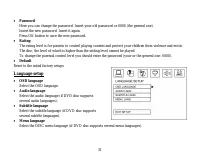
31 Password Here you can change the password. Insert your old password or 0000 (the general one). Insert the new password. Insert it again. Press OK button to save the new password. Rating The rating level is for parents to control playing content and protect your children from violence and erotic. ...
Page 32 - Audio setup; Audio out; : no digital signal out (optical or coaxial; Key; Setup basic music tone.; Video setup; Sharpness according to your preference.
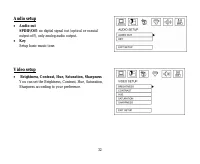
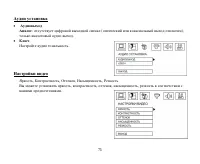
32 Audio setup Audio out SPDIF/Off : no digital signal out (optical or coaxial output off), only analog audio output. Key Setup basic music tone. Video setup Brightness, Contrast, Hue, Saturation, Sharpness You can set the Brightness, Contrast, Hue, Saturation, Sharpness according to your preference...
Page 33 - Speaker setup; Stereo; Digital setup; OP MODE
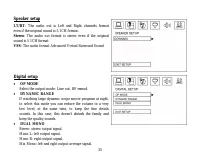
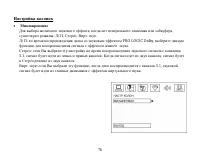
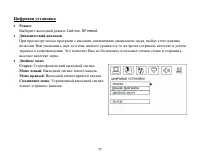
33 Speaker setup LT/RT : The audio out is Left and Right channels format even if the original sound is 5.1CH format. Stereo : The audio out format is stereo even if the original sound is 5.1CH format. VSS: The audio format Advanced Virtual Surround Sound Digital setup OP MODE Select the output mode:...
Page 34 - TV Operation; frequency will be saved in the channels from 1 to 95.
34 TV Operation 1. To switch on a suited video color system and a suited TV accompanying sound system In TV mode, short press the BAND button repeatedly to switch on a suited video color system of the 5 ones of the unit: PAL, SECAM, PAL M, PAL N, NTSC. If your monitor has only NTSC or PAL system, th...
Page 36 - Remove the panel; Press REL button to detach the panel.; Remove the unit; Insert both T-Keys into hole on the front of the set until they lock.
36 Anti-theft system Remove the panel 1. Press the POWER/MU button to turn the power off. 2. Press REL button to detach the panel. 3. Place the panel into the case and take it with you when you leave the car. Remove the unit 1. Remove the panel and the trim plate. 2. Insert both T-Keys into hole on ...
Page 37 - Handling discs; Dirty, scratched or warped discs may cause skip ping or noise.; Cleaning; Cleaning the cabinet; Such chemicals can damage its plastic surface.
37 Handling discs Dirty, scratched or warped discs may cause skip ping or noise. Handle the disc only by the edges. To keep clean do not touch its surface. Discs should be stored in their cases after use to avoid scratches. Do not expose discs to direct sunlight, high humidity, high temperature or d...
Page 38 - Troubleshooting guide; Symptom
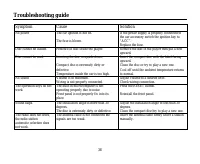
38 Troubleshooting guide Symptom Cause Solution No power The car ignition is not on. The fuse is blown. If the power supply is properly connected to the car accessory switch the ignition key to “ACC”. Replace the fuse. Disc cannot be loaded. Presence of disc inside the player. Remove the disc in the...
Page 39 - Specification; General
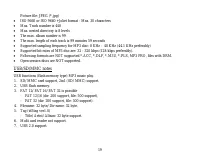
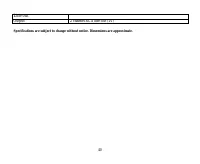
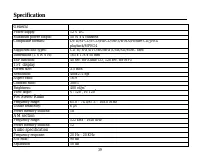
39 Specification General Power supply: 12 V DC Maximum power output: 50 W x 4 channels Compatible formats: DVD/SVCD/VCD/HDCD/MP3/WMA/Picture-CD/JPEG playback/MPEG4 Supported disc types: CD-R/-RW/DVD±R/±RW/USB/SD/MMC card Dimensions (L x W x H): 165 x 178 x 50 mm ESP function: 40 sec. for Audio CD, 1...
Page 40 - Line out
40 Line out Output: 2 channel RCA line-out (2V) Specifications are subject to change without notice. Dimensions are approximate.
Page 44 - REL
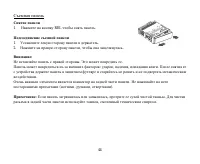
44 1. REL . 1. . 2. , . : . . : , , . . . ( , , ). : , . , .
Page 46 - ISO
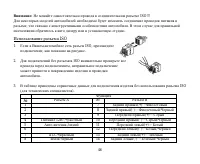
46 : ISO!!! , . . ISO 1. ISO, , . 2. ISO , . 3. ISO ). A B 1 7 (+)--- 2 8 (-)--- 3 9 (+)--- 4 12 (+)/ 10 (-)--- 5 / 11 (+)--- 6 12 ((-)--- 7 ACC+/ 13 (+)--- 8 14 (-)---
Page 54 - Loud; LOUD
54 SEL : => VOL => BAS => TRE => BAL => FAD =>. +/- VOL, . : . . MODE MODE , : => TUNER => DISC ( ) => USB ( ) => CARD ( SD/ MMC ) => AUX => TV =>. 1. CLK , . 2. LK, . VOL+/- +/- , . 3. SEL, . VOL+/- +/- , . Loud LOUD , Loud. , , .
Page 57 - Loc; LOC
57 : - ( ). - (1-6). : APS , 5 . . , APS. : APS 2 , 6 : 1~6. , APS. Mono/ Stereo ANGLE/ST , : MONO, STEREO. Loc 1) LOC LOCAL. 2) LOCAL , ( ). LOCAL .
Page 58 - RDS; AF
58 RDS : PI, PS, TP, PTY, TA, AF, DATA. PI: . PS: – . TP: – , . TA: – . AF: – , . AF ( ) , , . . AF, AF. AF , RDS . , . RDS , AF.
Page 59 - PTY
59 PTY 1. PTY , / PTY. 2. VOL +/- , : NEWS, AFFAIRS, INFO, SPORT, EDUCATE, DRAMA, CULTURE, SCIENCE, VARIED, WEATHER, FINANCE, CHILDREN, SOCIAL, RELIGION, PHONE IN, TRAVEL, LEISURE, DOCUMENT, PTY NONE, POP M, ROCK M, EASY M, LIGHT M, CLASSICS, OTHER M, JAZZ, COUNTRY, NATION M, OLDIES, FOLK M. 1. PTY ...
Page 63 - Stop; STOP
63 SD/ MMC/ USB SD/MMC USB ( SD/MMC , , ). . . , . : , , . / , SD/ MMC USB , . , , , . PLAY/PAUSE, . PLAY/PAUSE , . Stop DVD/ VCD/ CD/ MP3/ WMA . STOP . . PLAY/PAUSE, , . , . STOP , . PLAY/PAUSE, . SD
Page 66 - VCD
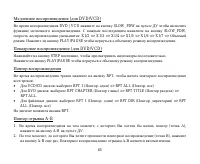
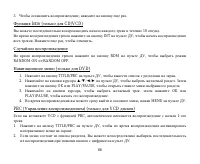
66 3. , . Intro ( CD/VCD) 10 . INT , . , . RDM , RANDOM ON => RANDOM OFF. ( DVD) 1. TITLE/PBC , . 2. , . OK PLAY/PAUSE, . 3. , , OK PLAY/PAUSE, . 4. , MENU . PBC ( ) ( VCD ) VCD PBC, 1- . 1. TITLE/PBC , . 2. , .
Page 67 - SEARCH
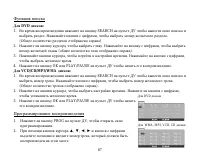
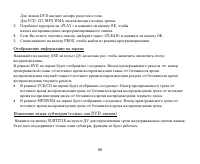
67 DVD : 1. SEARCH . , . ( ) 2. , . , ( ). 3. , . , . 4. OK PLAY/PAUSE . VCD/CD/MP3/WMA : 1. SEARCH . , . ( ). 2. , . , . 3. OK PLAY/PAUSE . 1. PROG , . 2. , , , , . DVD WMA, MP3, VCD, CD
Page 73 - SETUP; NTSC
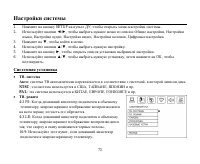
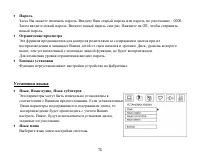
73 1. SETUP , . 2. , : , , , , , . 3. , . 4. , . 5. , . 6. , , OK, . . : , . NTSC : , , . PAL : , , . . 4:3 PS: , , . 4:3 LB: , , . 16:9: , .