Page 2 - Table of contents
2 Dear customer! Thank you for purchasing our product. For safety, it is strongly recommended to read this manual carefully before connecting, operating and/or adjusting the product and keep the manual for reference in the future. Table of contents Table of contents ....................................
Page 3 - Important safeguards; Do not install the detachable panel before connecting the wire.
3 Important safeguards • Using the device at temperature below -10º may cause the breakage of the device. BEFORE USING PLEASE HEAT UP THE PASSENGER COMPARTMENT TO THE RECOMMENDED TEMPERATURE! • Read carefully through this manual to familiarize yourself with this high-quality sound system. • Disconne...
Page 4 - Installation/ connection; Installation opening
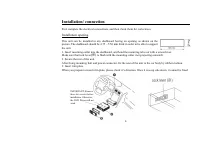
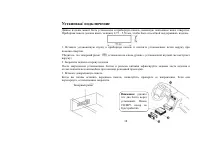
4 Installation/ connection First complete the electrical connections, and then check them for correctness. Installation opening This unit can be installed in any dashboard having an opening as shown on the picture. The dashboard should be 4.75 – 5.56 mm thick in order to be able to support the unit....
Page 5 - Detachable control panel; Detaching the control panel; Turn the Power off.
5 Detachable control panel Detaching the control panel • Turn the Power off. • Press OPEN button release the panel. • Pull the panel out. Attaching the control panel • Insert the left side of the control panel into the main unit. • Press the control panel right side until the “click” sound is heard....
Page 6 - Electrical connection
Page 7 - Using the ISO Connector; Location; Connector A
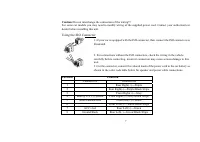
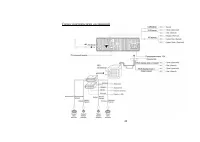
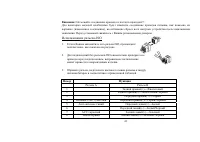
7 Caution: Do not interchange the connection of the wiring!!! For some car models you may need to modify wiring of the supplied power cord. Contact your authorized car dealer before installing this unit. Using the ISO Connector 1. If your car is equipped with the ISO connector, then connect the ISO ...
Page 8 - Panel controls; Front panel; buttons: in the menu press these buttons to navigate.
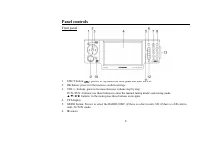
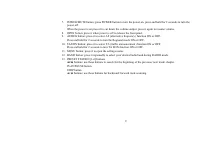
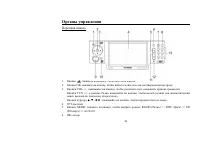
8 Panel controls Front panel 1. EJECT button ( ): press it to flip down the front panel and eject the CD. 2. OK button: press it in the menu to confirm settings. 3. VOL+/- buttons: press to increase/decrease volume step by step. TUN-/TUN+ buttons: use these buttons to enter the manual tuning mode/ s...
Page 10 - Remote control
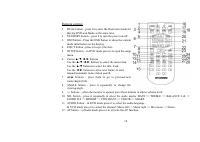
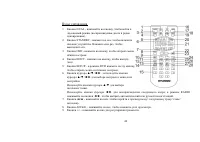
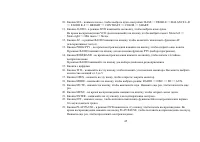
10 Remote control 1. DUAL button - press it to enter the Dual zone mode for playing DVD and Radio at the same time. 2. STANDBY button – press it to turn the power on/off. 3. OSD button - Press the OSD button to show the current mode information on the display. 4. EJECT button - press it to eject the...
Page 12 - Changing the battery; Press the catch and at the same time pull out the battery tray.; Inner panel; Press the
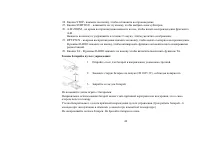
12 Changing the battery 1. Press the catch and at the same time pull out the battery tray. 2. Insert the 1 x lithium battery, type CR 2025 3V battery with the stamped (+) mark facing upward. Insert the battery tray into the remote control. Warning: Store the battery where children cannot reach. If a...
Page 13 - General operation; Reset the unit; The monitor will flip down accordingly.; Volume control
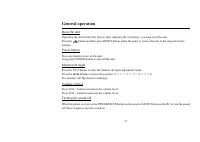
13 General operation Reset the unit Operating the unit for the first time or after replacing the car battery, you must reset the unit. Press the button and then press RESET button under the panel to restore the unit to the original factory settings. Power button Press any button to turn on the unit....
Page 15 - Mode setting
15 Mode setting Change playing mode in a sequence: RADIO, DISC (if there is a disc in unit), SD (if there is a SD card in unit), AUX IN mode. If you select RADIO mode, change radio band in sequence of: FM1, FM2, FM3, AM1, AM2. On-screen display (OSD) Press the OSD button to show the current mode inf...
Page 16 - Digital tuner; Band selection; press the; Programming tuner stations; To store a station:
16 Digital tuner Note: RDS (Radio Data System) service availability varies with areas. Please understand if RDS service is not available in you area, the following service is not available, either. Band selection Press MODE button to select the RADIO mode. Press the BAND button to select the desired...
Page 17 - Preset scan; Press PTY
17 Preset scan Press the RPT/P.SCN button on the RC to scan all preset stations in the memory of the current band and stay on each memory stations for about 5 seconds. To stop preset scan, press this button again. AF (Alternative Frequencies) function When the radio signal strength is poor, enable o...
Page 18 - Press PTY button for the 3; time to switch the PTY function off.; REG function
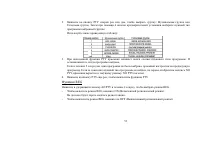
18 3. When PTY is selected, the radio starts to search corresponding PTY information, and stops if the corresponding PTY information is detected. If there are no keys entered for 2 seconds, previously selected PTY is searched. During 1 loop, if desired PTY is not found, NO PTY is flashed, then retur...
Page 19 - SD cards operations; Inserting the SD card; The unit will read the files automatically.; SD notes; brands
19 SD cards operations Inserting the SD card 1. Turn the power on. 2. Press the OPEN button on the panel to detach it. 3. Insert the SD card into SD slot. Then the playing mode will be changed into SD Card mode automatically. The unit will read the files automatically. 4. To enter the SD mode automa...
Page 20 - Functions; Discs operations; Glossary; Title
20 Functions The Play/pause, Previous/next track/ FR/FF functions are same as for Discs (see the Discs operations chapter of this instruction manual). Discs operations Glossary PBC (PlayBack Control) PlayBack Control is a menu recorded on the disc with SVCD or VCD2.0 format. For the discs contained ...
Page 23 - Repeat playback; Press the RPT button on the RC once or more to repeat the playback:
23 Repeat playback Press the RPT button on the RC once or more to repeat the playback: • For VCD/CD: display appears RPT ONE => RPT ALL => RPT OFF • For DVD: display appears RPT CHAP => RPT TITL => RPT OFF • For File disc: display appears RPT ONE => RPT DIR => RPT ALL => RPT OFF...
Page 26 - MP3 overview; The unit may not play tracks in the order of Track numbers.
26 MP3 overview Notes on MP3: • MP3 is short for MPEG Audio Layer 3 and refers to an audio compression technology standard. • This product allows playback of MP3 files on CD-ROM, CD-R or CD-RW discs. • The unit can read MP3 files written in the format compliant with ISO 9660. However it does not sup...
Page 27 - Notes on creating your own CD-R or CD-RW containing MP3 files:; DO NOT store more than 448 MP3 files per disc.
27 Notes on creating your own CD-R or CD-RW containing MP3 files: • To enjoy high quality sound, we recommend converting to MP3 files with a sampling frequency of 44.1 kHz and a fixed bit rate o f 128 kbps. • DO NOT store more than 448 MP3 files per disc. • For ISO 9660 - compliant format, the maxim...
Page 28 - DVD setup; Language setup; OSD language
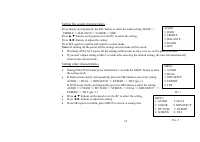
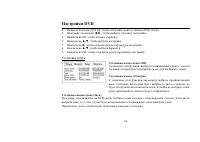
28 DVD setup 1. Press SETUP button to enter into the system setting main menu. 2. Press the ◄ / ► buttons to select one of the Setup Pages: LANGUAGE => VIDEO => AUDIO => RATING.. 3. Press OK to enter the page. 4. Press the ▲ / ▼ buttons to select the setting. 5. Press the ► button to highli...
Page 29 - Video setup; PAL is commonly used in Europe, NTSC is commonly used in the; Audio setup; Select OFF when you do not want any data on the Optical terminal.
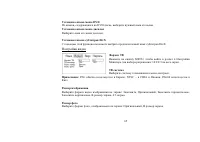
29 OSD language Select the instruction words function on or off, when you operate the DVD. DivX language With this option you can select the preferred language for the DIVX format’s disc. Video setup TV shape Select aspect ratio: 16:9 => 4:3. TV system Select this menu item to set up your preferr...
Page 30 - DRC setup; Select this menu item to set up your preferred filter mode.; Rating setup; Setting password; Default setting
30 DRC setup This function is to adjust the linear compression rate to obtain the different compression results of the signals. Standard set to “OFF”. Down sampling setup Select this menu item to set up your preferred filter mode. Rating setup Setting password This item is originally set as locked s...
Page 32 - Handling discs; Dirty, scratched or warped discs may cause skip ping or noise.; Cleaning; Cleaning the cabinet
32 Handling discs • Dirty, scratched or warped discs may cause skip ping or noise. • Handle the disc only by the edges. To keep clean do not touch its surface. • Discs should be stored in their cases after use to avoid scratches. • Do not expose discs to direct sunlight, high humidity, high temperat...
Page 33 - Troubleshooting guide; Symptom
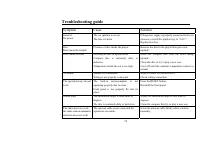
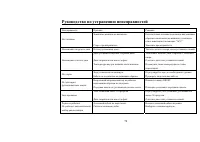
33 Troubleshooting guide Symptom Cause Solution General No power The car ignition is not on. The fuse is blown. If the power supply is properly connected to the car accessory switch the ignition key to “ACC”. Replace the fuse. Disc Disc cannot be loaded. Presence of disc inside the player. Remove th...
Page 34 - Specification; General; Current consumption:; TFT display; MW section; Preset memory stations:
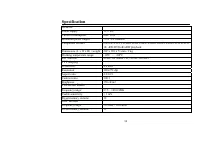
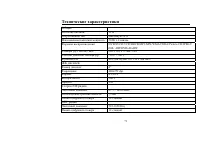
34 Specification General Power supply: 12 V DC Current consumption: max. 10 A Maximum power output: 50 W x 4 channels Compatible formats: DVD/SVCD/VCD/HDCD/MP3/MP4/WMA/CDDA/Picture-CD/JPEG/CD-R/ -RW/DVD±R/±RW playback Dimensions (L x W x H) / weight: 202 x 188 x 71 mm / 2 kg Working temperature rang...
Page 35 - Audio specification
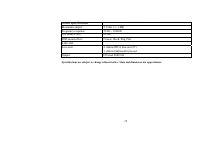
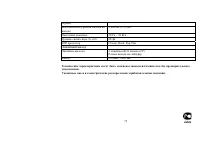
35 Specifications are subject to change without notice. Mass and dimension are approximate. Audio specification Maximum output: 2 Vrms (+/- 3 dB) Frequency response: 30 Hz - 18 KHz S/N ratio(A-vtd): 68 dB DSP sound effect: Classic, Rock, Pop, Flat Line out Line outs: 4 channel RCA line-out (2V) 1 ch...
Page 41 - ISO
41 : !!! , ( ), . . ISO 1. ISO, , . 2. ISO , . 3. , . A B 1 (+)--- 2 (-)--- / 3 (+)--- 4 12 (+)/ (-)--- / 5 / (+)--- 6 ((-)--- / 7 ACC+/ (+)--- 8 / (-)--- /
Page 43 - AF
43 7. POWER/ MUTE , . , . , . , . 8. OPEN: , . 9. AF/REG: , AF ( ). 2 , REG ( / ). 10. TA/EON: , TA ( ). 2 , EON ( ). 11. MENU: , . 12. B ND: . 13. [1-6] ; / < : / / . PLAY/PAUSE: , . , . STOP: , . 9 / : : , / .
Page 49 - DVD
49 • MENU, : BASS ( ) => TRE LE ( ) => BALANCE ( / ) => FADER ( / ) => DSP ( ). • ▲ / ▼ , . • ◄ / ► , . • SEL, . : . • . • - 3 , , . • DVD 2 MENU, . • OK, : AUDIO ( ) => DUAL ( ) => RDS SETUP ( RDS) => EXPERT => TILT ( ) ( . 1). DVD OK, : AUDIO ( ) => COLOR ( ) => PICTU...
Page 51 - RDS
51 : RDS ( ) . , RDS , . MODE, RADIO ( ) B ND, : FM1, FM2, FM3, AM1, AM2. , , . / • : ; / < 2 , . ; / < , . , 2 . . • А : ; / < , . , . , . , 2 . . 30 (18 FM, 12 AM). • : - ( ). - ; / < . - 2 1~6,
Page 53 - REG
53 2. PTY , : . 6 . : 3. PTY . , . 2 , . , NO PTY, , NO PTY . 4. PTY , PTY. REG AF/PTY 2 , REG. - REG, ON ( ): . - REG, OFF ( ):
Page 55 - OPEN; SD
55 SD- SD- 1. . 2. OPEN , . 3. SD- . SD. . 4. MODE. SD : 1. SD. 2. FAT 16/ FAT 32 - FAT 16 ( 200 , 500 ), - FAT 32 ( 200 , 500 ). 1. : 32 / : 32 . 2. (id3tag ver 2.0) - / / : 32 . 6. - . : SD: SD : Cannon, Fuji film, Palm, Motorola, Microsoft, IBM, HP, Compaq, Sharp, Samsung, . . : 8 M ~ 1 . SD , SD...
Page 58 - DISC
58 1. . 2. , . 3. . DISC ( ). , . 4. MODE. / , , , PLAY/PAUSE, . PLAY/PAUSE, . , . 1. ; , . 2. < , . 3. 1-9, 0, 10+ . 9 / : 2 ; / < , : 2, 4, 8, 16, 32. PLAY/PAUSE, . : , , .
Page 60 - VCD
60 . , . PBC ( ) ( VCD ) VCD PBC, 1- . 1. , . 2. , ; / < – . 3. , PLAY/ PAUSE, . 4. STOP , VCD. 5. , . 1. PROG , . ▲ , ▼ , ◄ , ► , . DVD . VCD CD . 2. PLAY/ PAUSE «PLAY» ENTER, . DVD MP3, VCD, CD
Page 61 - «CLEAR»; AUDIO; SUBTITLE; ANGLE
61 3. , «CLEAR» ENTER. 4. PROG, . • DVD : R/L AUDIO , ( , ). • VCD : R/L , : L R STEREO ( ). ( DVD ) , . , , . , , . . SUBTITLE . , . 5 , . ( DVD ) DVD- , ANGLE . - , . 1 , .
Page 64 - OSD
64 DVD 1. SETUP, DVD . 2. ◄ / ► , : 3. , . 4. ▲ / ▼ , . 5. ► , . 6. ▲ / ▼ , . 7. , . OSD - 5 , . . , . , . ( ) , DVD- , . , , . : .
Page 65 - PAL
65 DVD , DVD- , . . DivX DivX. MENU, 4 : 16:9/4:3 . . : PAL , NTSC – . PAL60 . : , , , , , 4:3 . , : , .
Page 71 - ESP; FM
71 : 12 : 10 : 50 4 : DVD/SVCD/VCD/HDCD/MP3/MP4/WMA/CDDA/Picture-CD/JPEG/C D-R/ -RW/DVD±R/±RW ( )/ : 202 188 71 / 2 : -10º - +60º ESP 40 CD, 120 3 : 4” : 480 272 dpi : 4:3/16:9 : 300:1 : 350 FM : 87.5 – 108.0 MHz : ≤ 1 18 MW : 522-1620 12