Page 2 - Table of contents
2 Dear customer! Thank you for purchasing our product. For safety, it is strongly recommended to read this manual carefullybefore connecting, operating and/or adjusting the product and keep the manual for reference in the future. Table of contents Table of contents .....................................
Page 3 - Important safeguards
3 Important safeguards Using the device at temperature below -10º may cause the breakage of the device. Before using pleaseheat up the passenger compartment to the recommended temperature!Disconnect the vehicle's negative battery terminal while mounting and connecting the unit.When replacing the fus...
Page 4 - Accessories
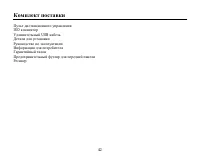
4 Accessories Remote controlISO connectorUSB cableMounting partsInstruction manualConsumer informationWarranty cardBlack front panel caseReceiver
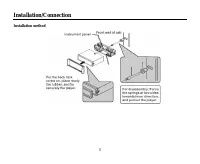
Page 5 - Installation/Connection; Installation method
Page 7 - Electrical connection
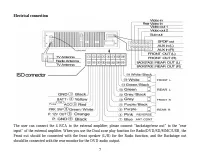
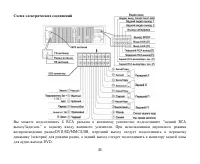
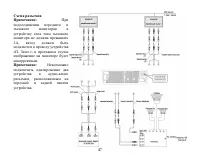
7 Electrical connection The user can connect the 4 RCA to the external amplifier; please connect “backstage/rear out” to the “rearinput” of the external amplifier. When you use the Dual zone play function for Radio/DVD/SD/MMC/USB, theFront out should be connected with the front speaker (L/R) for the...
Page 8 - after braking the car.; Using the ISO Connector
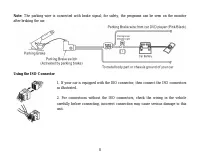
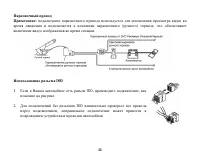
8 Note: The parking wire is connected with brake signal; for safety, the programs can be seen on the monitor after braking the car. Using the ISO Connector 1. If your car is equipped with the ISO connector, then connect the ISO connectorsas illustrated. 2. For connections without the ISO connectors,...
Page 9 - Before connecting the front/rear
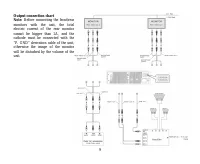
9 Output connection chartNote: Before connecting the front/rear monitors with the unit, the totalelectric current of the rear monitorcannot be bigger than 2A, and thecathode must be connected with the“P. GND” derivation cable of the unit,otherwise the image of the monitorwill be disturbed by the vol...
Page 10 - Rear camera and amplifier output connections
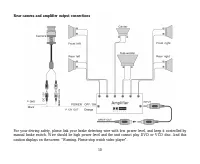
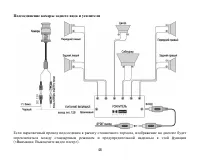
10 Rear camera and amplifier output connections For your driving safety, please link your brake detecting wire with low power level, and keep it controlled bymanual brake switch. Wire should be high power level and the unit cannot play DVD or VCD disc. And thiscaution displays on the screen: “Warnin...
Page 11 - Panel controls; Front panel
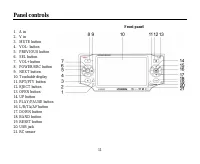
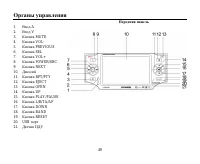
11 Panel controls Front panel 1. A in2. V in3. MUTE button4. VOL- button5. PREVIOUS button6. SEL button7. VOL+ button8. POWER/SRC button9. NEXT button10. Touchable display11. RPT/PTY button12. EJECT button13. OPEN button14. UP button15. PLAY/PAUSE button16. L/R/TA/AF button17. DOWN button18. BAND bu...
Page 12 - Remote control
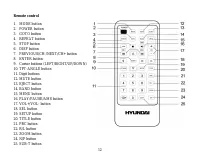
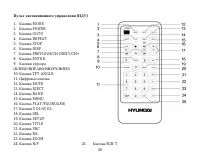
12 Remote control 1. MODE button2. POWER button3. GOTO button4. REPEAT button5. STOP button6. DISP button7. PREVIOUS/CH-/NEXT/CH+ button8. ENTER button9. Cursor buttons (LEFT/RIGHT/UP/DOWN)10. TFT-ANGLE button11. Digit buttons12. MUTE button13. EJECT button14. BAND button15. MENU button16. PLAY/PAUS...
Page 13 - Changing the battery; Press the catch and at the same time pull out the battery tray.
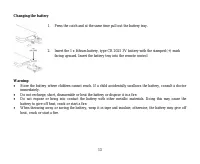
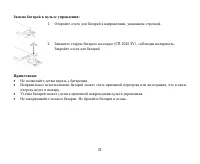
13 Changing the battery 1. Press the catch and at the same time pull out the battery tray. 2. Insert the 1 x lithium battery, type CR 2025 3V battery with the stamped (+) mark facing upward. Insert the battery tray into the remote control. Warning: Store the battery where children cannot reach. If a...
Page 14 - General operation; Note
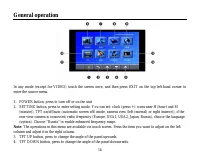
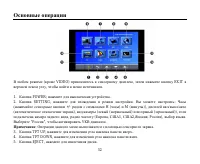
14 General operation In any mode (except for VIDEO) touch the screen once, and then press EXIT on the top left-hand corner toenter the source menu. 1. POWER button, press to turn off or on the unit2. SETTING button, press to enter setting mode. You can set: clock (press +/- icons near H (hour) and M...
Page 17 - Radio operation; Band selection
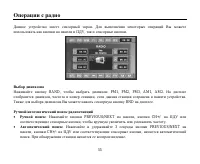
17 Radio operation This unit is equipped with a touch screen. To perform various operations you can use buttons on the RC, on thefront panel as well as screen touchable buttons. Band selection Press BAND button repeatedly to select FM1, FM2, FM3, AM1, AM2. Display will show the wave band,frequency a...
Page 18 - Store function; on the touchable screen, under which you want to store the station.; Preset scan function
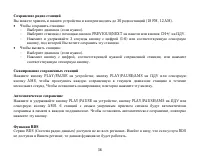
18 Store function You can store up to a total of 30 radio stations in the memory (18 FM, 12 AM). To store a station: - Select a band (if needed)- Select a station with PREVIOUS/NEXT buttons on the panel or CH+/- buttons on the RC.- Press and hold for 3 seconds a number button (1-6) on the RC or pres...
Page 22 - Loading a disc; Some USB driver models cannot be supported by this unit.; Stop playback
22 Loading a disc Press EJECT button on the panel to flip it down. Insert the disc with the printed side facing upward into theslot. Close the panel. The disc will be loaded and played automatically. If the unit is in another mode, pressMODE button on the RC or SRC button on the unit to select DISC ...
Page 23 - open the root menu of the selected title.
23 Playing the previous/next track During playback press PREVIOUS/NEXT buttons on the panel or CH+/- buttons on the RC (or on the screen) toselect the next or previous track to play. Fast forward and backward playback Press and hold for 2 seconds PREVIOUS/NEXT buttons on the panel or CH+/- buttons o...
Page 24 - Time; Press DISP button on the RC to show the current time.; Subtitles; During DVD or VCD playback press MENU button to enter the root menu
24 Time Press DISP button on the RC to show the current time. Subtitles Press SUB-T button to choose subtitle language (if available). Audio channel In DVD mode press R/L button on the RC or L/R/TA/AF button on the unit to change the audio language. InVCD and CD mode press this button to choose Left...
Page 25 - Rear–Play mode
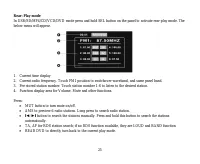
25 Rear–Play mode In USB/SD/MP4/CD/VCD/DVD mode press and hold SEL button on the panel to activate rear-play mode. Thebelow menu will appear. 1. Current time display2. Current radio frequency. Touch FM1 position to switchover waveband, and same panel band.3. Pre-stored station number. Touch station ...
Page 26 - Touch screen menu
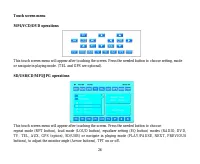
26 Touch screen menu MP4/VCD/DVD operations This touch screen menu will appear after touching the screen. Press the needed button to choose setting, modeor navigate in playing mode. (TEL and GPS are optional). SD/USB/CD/MP3/JPG operations This touch screen menu will appear after touching the screen....
Page 28 - MP3 overview; Notes on creating your own CD-R or CD-RW containing MP3 files:
28 MP3 overview Notes on MP3: MP3 is short for MPEG Audio Layer 3 and refers to an audio compression technology standard.This product allows playback of MP3 files on CD-ROM, CD-R or CD-RW discs.The unit can read MP3 files written in the format compliant with ISO 9660. However it does not supportthe ...
Page 30 - AUX touch screen operations; In AUX mode touch the screen once, the below menu will appear.
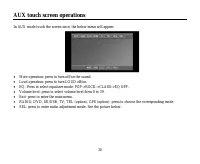
30 AUX touch screen operations In AUX mode touch the screen once, the below menu will appear. Mute operation: press to turn off/on the sound.Loud operation: press to turn LOUD off/on.EQ: Press to select equalizer mode: POP->ROCK->CLASS->EQ OFF.Volume level: press to select volume level form...
Page 32 - System setup menu; Language; : Some DVDs may not include the pre-selected; Video
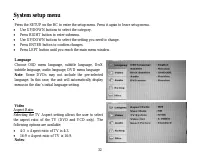
32 System setup menu Press the SETUP on the RC to enter the setup menu. Press it again to leave setup menu. Use UP/DOWN buttons to select the category.Press RIGHT button to enter submenu.Use UP/DOWN buttons to select the setting you need to change.Press ENTER button to confirm changes.Press LEFT but...
Page 33 - the TV system is auto switched according to the disc system.; Audio
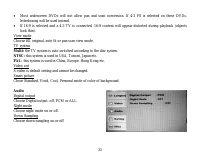
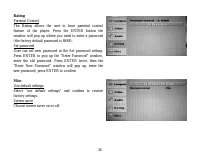
33 Most widescreen DVDs will not allow pan and scan conversion. If 4:3 PS is selected on these DVDs,letterboxing will be used instead.If 16:9 is selected and a 4:3 TV is connected, 16:9 content will appear distorted during playback (objectslook thin). View modeChoose fill, original, auto fit or pan ...
Page 35 - TV Operation; Scanning /Automatically memorizing channels; Pre-set frequency selection
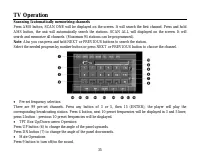
35 TV Operation Scanning /Automatically memorizing channels Press AMS button, SCAN ONE will be displayed on the screen. It will search the first channel. Press and holdAMS button, the unit will automatically search the stations. SCAN ALL will displayed on the screen. It willsearch and memorize all c...
Page 36 - Rear view camera
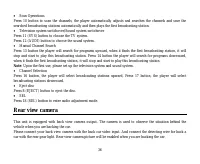
36 Scan Operations Press 10 button to scan the channels, the player automatically adjusts and searches the channels and save thesearched broadcasting stations automatically and then plays the first broadcasting station. Television system switchover/Sound system switchover Press 11 (SYS) button to ch...
Page 37 - Cleaning the cabinet
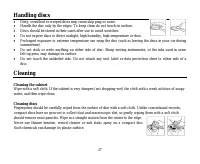
37 Handling discs Dirty, scratched or warped discs may cause skip ping or noise.Handle the disc only by the edges. To keep clean do not touch its surface.Discs should be stored in their cases after use to avoid scratches.Do not expose discs to direct sunlight, high humidity, high temperature or dust...
Page 38 - Troubleshooting guide
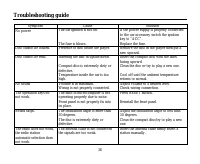
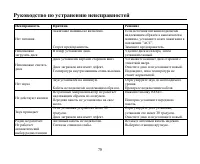
38 Troubleshooting guide Symptom Cause Solution No power The car ignition is not on. The fuse is blown. If the power supply is properly connectedto the car accessory switch the ignitionkey to “ACC”.Replace the fuse. Disc cannot be loaded. Presence of disc inside the player. Remove the disc in the pl...
Page 39 - Specification
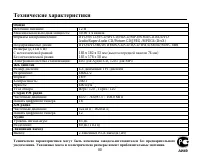
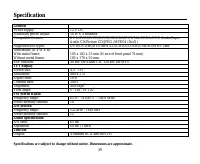
39 Specification General Power supply: 12 V DC Maximum power output: 50 W x 4 channels Compatible formats: DVD/SVCD/VCD/DVCD/HDCD/MP3/WMA/CDDA/DVD Audio/SuperAudio CD/Picture-CD/JPEG /MPEG4 (DivX) Supported disc types: DVD/DVD±R/DVD±RW/CD/CD-R/CD-RW/USB/SD/MMC card Dimensions (D x W x H)With metal f...
Page 46 - ISO
Page 52 - EXIT
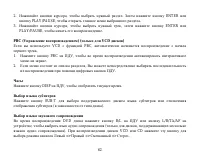
52 ( VIDEO) , EXIT , . 1. POWER; . 2. SETTING, . : +/- H ( ) M ( )), ), ( ( ) ( )), , ( , 1, 2, , ), . “ ”, . : . 3. TFT UP, . 4. TFT DOWN, . 5. EJECT, .
Page 55 - BND
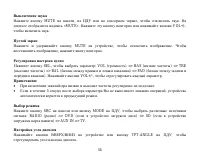
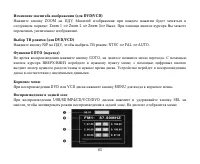
55 . , . BAND, : FM1, FM2, FM3, AM1, AM2. , , . BND . : PREVIOUS/NEXT , CH+/- , . : 3 PREVIOUS/NEXT , CH+/- , . .
Page 56 - RDS
56 30 (18 FM, 12 AM). : - ( ). - PREVIOUS/NEXT CH+/- . - 3 (1-6) , . : - ( ). - , , . PLAY/PAUSE , PLAY/PAUSE/AMS AMS, . , . PLAY/PAUSE , PLAY/PAUSE/AMS AMS. 6 . , . RDS RDS ( ) . , RDS , .
Page 59 - SVCD
59 PBC ( ) – , SVCD VCD2.0. , PBC, . . – DVD- . , . , , 1, 2 3. . , . . . – . , , .
Page 62 - VCD
62 2. , . ENTER PLAY/PAUSE, . 3. , , ENTER PLAY/PAUSE, . PBC ( ) ( VCD ) VCD PBC, . 1. PBC , . 2. , . DISP , . SUB-T ( ). DVD R/L L/R/TA/AF , ( , ). VCD CD => => => .
Page 64 - AMS
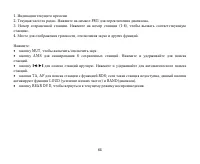
64 1. 2. . FM1 . 3. . (1-6), . 4. , . : MUT, . AMS 6 . . I I . . TA, AF RDS; , LOUD ( ) BAND( ). REAR DVD, .
Page 66 - ENTER
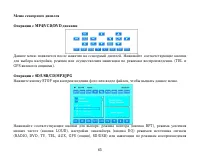
66 PLAY/PAUSE, NEXT, PREVIOUS), ( ), . : , . , , ENTER .
Page 69 - AUX
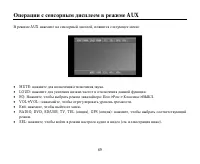
69 AUX AUX , : MUTE: . LOUD: . EQ: , : -> -> -> . VOL+/VOL-: , . Exit: , . RADIO, DVD, SD/USB, TV, TEL ( ), GPS ( ): , . SEL: , ( . ).
Page 70 - LOUD
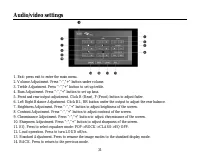
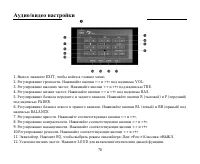
70 1. : EXIT, . 2. . «-» «+» VOL. 3. . «-» «+» TRE. 4. . «-» «+» BAS. 5. . R ( ) F ( ) FADER. 6. . BL ( ) BR ( ) BALANCE. 7. . «-» «+». 8. . «-» «+». 9. . «-» «+» 10. . «-» «+» 11. . EQ, : -> -> -> . 12. . LOUD .
Page 73 - DVD
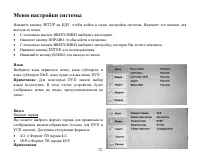
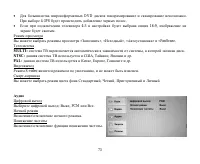
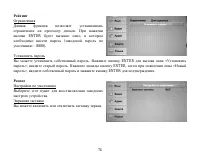
73 DVD . 4:3PS . 4:3 16:9, . « », « », « » «PanScan». MULTI: , . NTSC: , , . PAL: , , . S-video , . , , . : , PCM . . .
Page 75 - NEXT PREVIOUS
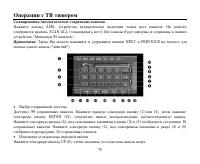
75 AMS, . SCAN ALL (« »). . ( 95 ). : NEXT PREVIOUS (“scan one”). 99 . (3) (5), ENTER (15), . (4), (3) (5) 10 . (2), (3) (5) 10 . UP (6), .