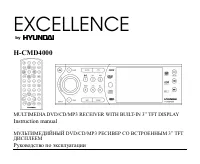
Page 2 - Table of contents
2 Dear customer! Thank you for purchasing our product. For safety, it is strongly recommended to read this manual carefullybefore connecting, operating and/or adjusting the product and keep the manual for reference in the future. Table of contents Table of contents .....................................
Page 3 - Important safeguards; BEFORE USING
3 Important safeguards Using the device at temperature below -10º may cause the breakage of the device. BEFORE USING PLEASE HEAT UP THE PASSENGER COMPARTMENT TO THE RECOMMENDED TEMPERATURE! Read carefully through this manual to familiarize yourself with this high-quality sound system. Disconnect the...
Page 4 - Installation/ connection; Installation opening
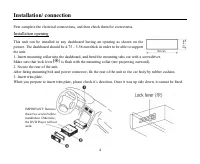
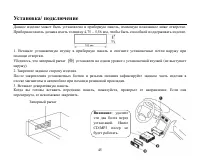
4 Installation/ connection First complete the electrical connections, and then check them for correctness. Installation opening This unit can be installed in any dashboard having an opening as shown on thepicture. The dashboard should be 4.75 5.56 mm thick in order to be able to supportthe unit.1. I...
Page 5 - Detachable control panel; Detaching the control panel; Press; Attaching the control panel; Insert the right side of the control panel into the main unit.
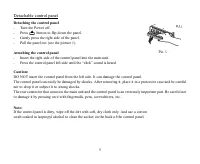
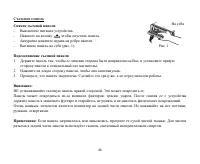
5 Detachable control panel Detaching the control panel Turn the Power off. Press button to flip down the panel. Gently press the right side of the panel. Pull the panel out (see the picture 1). Attaching the control panel Insert the right side of the control panel into the main unit. Press the contr...
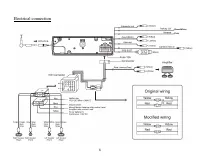
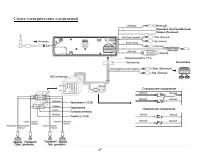
Page 6 - Electrical connection
Page 7 - Using the ISO Connector; Location; Connector A
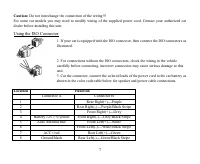
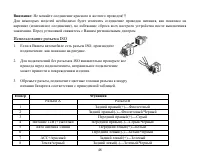
7 Caution: Do not interchange the connection of the wiring!!! For some car models you may need to modify wiring of the supplied power cord. Contact your authorized cardealer before installing this unit. Using the ISO Connector 1. If your car is equipped with the ISO connector, then connect the ISO c...
Page 8 - Panel controls; Front panel; Press it to flip down the front panel.
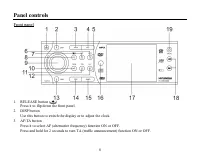
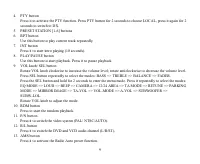
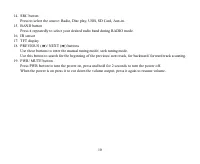
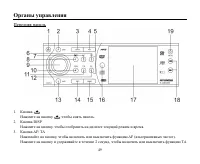
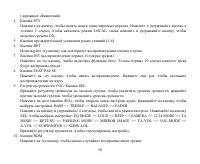
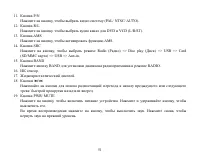
8 Panel controls Front panel 1. RELEASE button ( ) Press it to flip down the front panel. 2. DISP button Use this button to switch the display or to adjust the clock. 3. AF/TA button Press it to select AF (alternative frequency) function ON or OFF.Press and hold for 2 seconds to turn TA (traffic ann...
Page 11 - Remote control
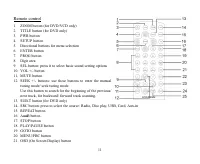
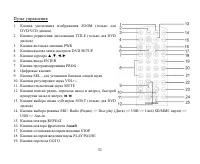
11 Remote control 1. ZOOM button (for DVD/VCD only)2. TITLE button (for DVD only)3. PWR button4. SETUP button5. Directional buttons for menu selection6. ENTER button7. PROG button8. Digit area9. SEL button: press it to select basic sound setting options10. VOL +/- button11. MUTE button12. SEEK +/- b...
Page 12 - Changing the battery; Press the catch and at the same time pull out the battery tray.
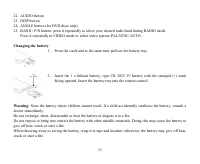
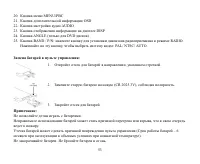
12 22. AUDIO button23. DISP button24. ANGLE button (for DVD discs only)25. BAND / P/N button: press it repeatedly to select your desired radio band during RADIO mode. Press it repeatedly in VIDEO mode to select video system: PAL/NTSC/AUTO. Changing the battery 1. Press the catch and at the same time...
Page 13 - Back of the front panel; Press the
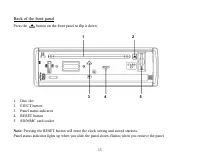
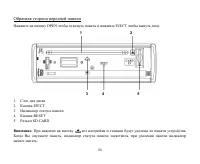
13 Back of the front panel Press the button on the front panel to flip it down. 1. Disc slot2. EJECT button3. Panel status indicator4. RESET button5. SD/MMC card socket Note: Pressing the RESET button will erase the clock setting and stored stations. Panel status indicator lights up when you slide t...
Page 14 - General operation; Reset the unit; unit on it will resume the stored status which you set.; Volume control; If turning off the power all the settings of each mode will be saved.
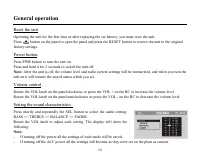
14 General operation Reset the unit Operating the unit for the first time or after replacing the car battery, you must reset the unit.Press button on the panel to open the panel and press the RESET button to restore the unit to the original factory settings. Power button Press PWR button to turn the...
Page 15 - Setting other characteristics; Rotate the VOL knob to select the desired mode:
15 If you don t adjust VOL knob within 3 seconds after selecting the desired setting, the unit will automaticallyreturn to the current mode being displayed. Setting other characteristics During FM mode, keep pressing SEL button for 2 seconds to enter another mode. Shortly and repeatedly press theSEL...
Page 16 - Turning the sound off
16 - TA ALARM During searching the radio does not retune but the double beep sound (alarm) is output. 7. RETUNE: To determine the initial time of automatic TA (Traffic Announcement) search. There are 2 modes: RETUNE L and RETUNE L.- RETUNE L: 180 seconds. - RETUNE S: 45 seconds. Note: Retune mode is...
Page 17 - Display operations; For DVD mode; Setting the time
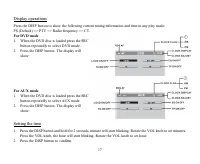
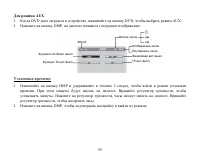
17 Display operations Press the DISP button to show the following current tuning information and time in any play mode:PS (Default) => PTY => Radio frequency => CT. For DVD mode 1. When the DVD disc is loaded press the SRC button repeatedly to select DVD mode. 2. Press the DISP button. The ...
Page 18 - Digital tuner; Band selection; Display will show the wave; Manual/ automatic tuning
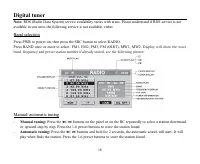
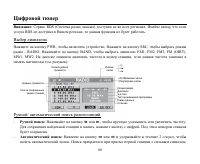
18 Digital tuner Note: RDS (Radio Data System) service availability varies with areas. Please understand if RDS service is not available in you area, the following service is not available, either. Band selection Press PWR to power on, then press the SRC button to select RADIO.Press BAND once or mor...
Page 19 - Programming tuner stations; buttons
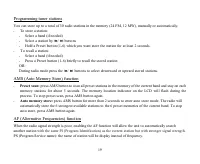
19 Programming tuner stations You can store up to a total of 30 radio stations in the memory (24 FM, 12 MW), manually or automatically. To store a station: - Select a band (if needed)- Select a station by 9 / : buttons - Hold a Preset button (1-6) which you want store the station for at least 2 seco...
Page 21 - Press PTY button for the 3; time to switch the PTY function off.; REG function; REGION OFF: PI code and covered area will not be searched.
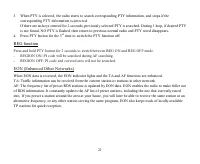
21 3. When PTY is selected, the radio starts to search corresponding PTY information, and stops if the corresponding PTY information is detected.If there are no keys entered for 2 seconds, previously selected PTY is searched. During 1 loop, if desired PTYis not found, NO PTY is flashed, then return ...
Page 22 - button on the panel to flip it down.
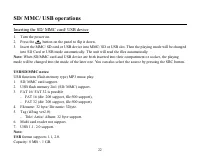
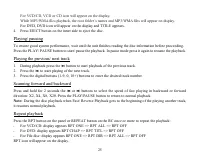
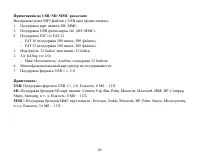
22 SD/ MMC/ USB operations Inserting the SD/ MMC card/ USB device 1. Turn the power on.2. Press the button on the panel to flip it down. 3. Insert the MMC/ SD card or USB device into MMC/ SD or USB slot. Then the playing mode will be changed into SD Card or USB mode automatically. The unit will read...
Page 23 - Glossary; Title
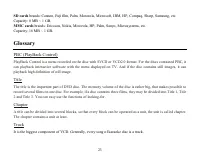
23 SD cards brands: Cannon, Fuji film, Palm, Motorola, Microsoft, IBM, HP, Compaq, Sharp, Samsung, etc. Capacity: 8 MB ~ 1 GB. MMC cards brands: Ericsson, Nokia, Motorola, HP, Palm, Sanyo, Microsystems, etc. Capacity: 16 MB ~ 1 GB. Glossary PBC (PlayBack Control) PlayBack Control is a menu recorded ...
Page 24 - Disc operations; Discs for playback
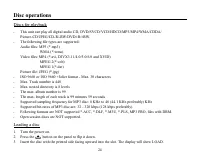
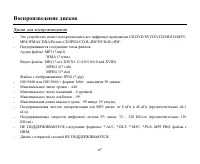
24 Disc operations Discs for playback This unit can play all digital audio CD, DVD/SVCD/VCD/HDCD/MP3/MP4/WMA/CDDA/Picture-CD/JPEG/CD-R/-RW/DVD±R/±RW. The following file types are supported:Audio files: MP3 (*.mp3) WMA (*.wma)Video files: MP4 (*.avi, DIVX3.11/4.0/5.0/6.0 and XVID) MPEG 2(*.vob) MPEG ...
Page 26 - GOTO function; buttons or the digit buttons.
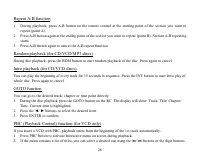
26 Repeat A-B function 1. During playback, press A-B button on the remote control at the starting point of the section you want to repeat (point A). 2. Press A-B button again at the ending point of the section you want to repeat (point B). Section A-B repeating starts. 3. Press A-B button again to c...
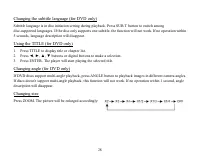
Page 28 - Press ZOOM. The picture will be enlarged accordingly:
28 Changing the subtitle language (for DVD only) Subtitle language is in disc initiation setting during playback. Press SUB.T button to switch amongdisc-supported languages. If the disc only supports one subtitle, the function will not work. If no operation within5 seconds, language description will...
Page 30 - MP3 overview; The unit may not play tracks in the order of Track numbers.; Notes on creating your own CD-R or CD-RW containing MP3 files:; DO NOT store more than 448 MP3 files per disc.
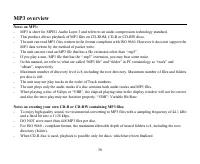
30 MP3 overview Notes on MP3: MP3 is short for MPEG Audio Layer 3 and refers to an audio compression technology standard. This product allows playback of MP3 files on CD-ROM, CD-R or CD-RW discs. The unit can read MP3 files written in the format compliant with ISO 9660. However it does not support t...
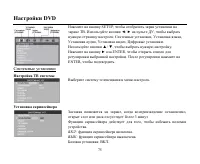
Page 32 - DVD setup; System setup; Setting TV system; Select the TV system in the setting menu.; Setting Screen saver; Open the screen protection.
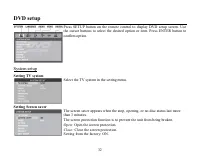
32 DVD setup Press SETUP button on the remote control to display DVD setup screen. Usethe cursor buttons to select the desired option or item. Press ENTER button toconfirm option. System setup Setting TV system Select the TV system in the setting menu. Setting Screen saver The screen saver appears w...
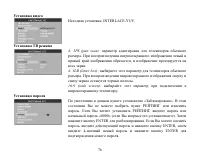
Page 33 - It is adapted to the TV with common size. The left and; Setting Password
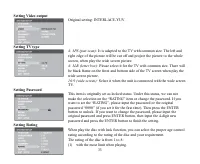
33 Setting Video output Original setting: INTERLACE-YUV. Setting TV type 4: 3PS (pan scan): It is adapted to the TV with common size. The left and right edge of the picture will be cut off and project the picture to the wholescreen, when play the wide screen picture. 4: 3LB (letter box): Please sele...
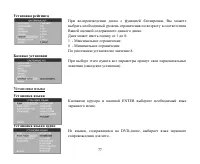
Page 34 - The rating can be selected only under the password setting status.; Default setting; If this item is selected, the unit will become the original setting.; Language setup; Setting OSD Language
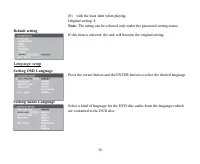
34 (8) with the least limit when playing.Original setting: 8. Note: The rating can be selected only under the password setting status. Default setting If this item is selected, the unit will become the original setting. Language setup Setting OSD Language Press the cursor button and the ENTER button...
Page 35 - Audio setup; Digital Output
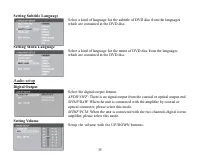
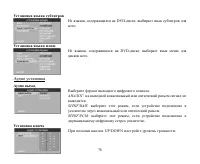
35 Setting Subtitle Language Select a kind of language for the subtitle of DVD disc from the languageswhich are contained in the DVD disc. Setting Menu Language Select a kind of language for the menu of DVD disc from the languageswhich are contained in the DVD disc. Audio setup Digital Output Select...
Page 36 - Video setup; Setting Brightness; Set the brightness of the video output with UP/DOWN buttons.; Setting Contrast; Set the contrast of the video output with UP/DOWN buttons.; Setting hue; Set the hue of the video output with UP/DOWN buttons.; Setting Saturation; Set the saturation of the video output with UP/DOWN buttons.
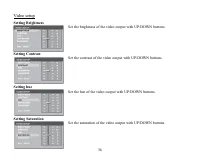
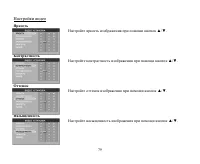
36 Video setup Setting Brightness Set the brightness of the video output with UP/DOWN buttons. Setting Contrast Set the contrast of the video output with UP/DOWN buttons. Setting hue Set the hue of the video output with UP/DOWN buttons. Setting Saturation Set the saturation of the video output with ...
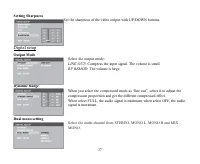
Page 37 - Setting Sharpness; Set the sharpness of the video output with UP/DOWN buttons.; Digital setup; Output Mode; Select the output mode:; Dynamic Range
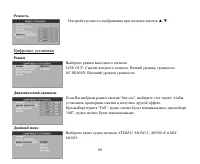
37 Setting Sharpness Set the sharpness of the video output with UP/DOWN buttons. Digital setup Output Mode Select the output mode: LINE OUT : Compress the input signal. The volume is small. RF REMOD : The volume is large. Dynamic Range When you select the compressed mode as line out , select it to a...
Page 38 - Remove the panel; button to flip down the panel.; Remove the unit
38 Anti-theft system Remove the panel 1. Press the PWR button to turn the power off.2. Press button to flip down the panel. 3. Gently press the right side of the panel.4. Pull the panel out.5. Place the panel into the case and take it with you when you leave the car. Remove the unit 1. Remove the pa...
Page 39 - Handling discs; Dirty, scratched or warped discs may cause skip ping or noise.; Cleaning; Cleaning the cabinet
39 Handling discs Dirty, scratched or warped discs may cause skip ping or noise. Handle the disc only by the edges. To keep clean do not touch its surface. Discs should be stored in their cases after use to avoid scratches. Do not expose discs to direct sunlight, high humidity, high temperature or d...
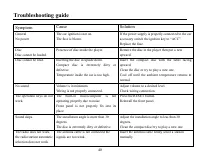
Page 40 - Troubleshooting guide; Symptom
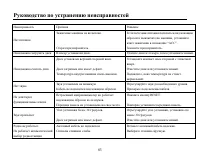
40 Troubleshooting guide Symptom Cause Solution GeneralNo power The car ignition is not on.The fuse is blown. If the power supply is properly connected to the caraccessory switch the ignition key to ACC .Replace the fuse. DiscDisc cannot be loaded. Presence of disc inside the player. Remove the disc...
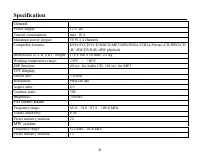
Page 41 - Specification; General; Current consumption:; TFT display; MW section; Preset memory stations:
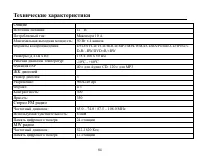
41 Specification General Power supply: 12 V DC Current consumption: max. 10 A Maximum power output: 50 W x 4 channels Compatible formats: DVD/SVCD/VCD/HDCD/MP3/MP4/WMA/CDDA/Picture-CD/JPEG/CD-R/ -RW/DVD±R/±RW playback Dimensions (L x W x H) / weight: 178 x 166 x 50 mm / 2.2 kg Working temperature ra...
Page 48 - ISO
48 : !!! , ( ), . . ISO 1. ISO, , . 2. ISO , . 3. , . A B 1 (+)--- 2 (-)--- 3 (+)--- 4 12 (+)/ (-)--- 5 / (+)--- 6 ((-)--- 7 ACC+/ (+)--- 8 (-)---
Page 58 - DVD
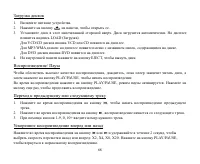
58 , PWR/MU , . , . SRC, : RADIO ( ) => DISC PLAY ( ) => USB ( USB ) => CARD ( SD/MMC ) => AUX-IN. RADIO BAND, : FM1, FM2, FM3, FM (OIRT), MW1, MW2. DISP, : => => => . DVD 1. DVD , DVD, DVD. 2. DISP, : LOUD ./ . ./ . ./ . ./ .
Page 59 - AUX
59 AUX 1. DVD , DVD, AUX. 2. DISP, : 1. DISP 2 , . . , . , . , . 2. DISP, . ./ . ./ . LOUD ./ . ./ .
Page 60 - RDS
60 : RDS ( ) . , RDS , . PWR, . SRC, - RADIO. B ND, : FM1, FM2, FM3, FM (OIRT), MW1, MW2. , , ( . ): / : 9 : , . , . . : 9 : 2 , . ,
Page 61 - AMS
61 . , . , . . 6 5 . : - ( ). - 9 / : . - 1~6, . : - ( ). - 1~6. : 9 / : , . : AMS, 5 . . , AMS. : AMS 2 , 6 1~6. , AMS.
Page 63 - REG
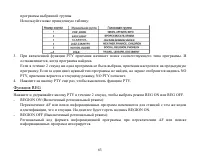
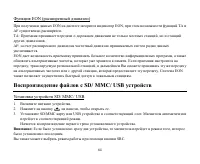
63 . : 3. PTY . , . 2 , . , NO PTY, , NO PTY . 4. PTY , PTY. REG PTY 2 , REG ON REG OFF. - REGION ON ( ): AF , . REGION ON. - REGION OFF ( ): AF .
Page 69 - GOTO
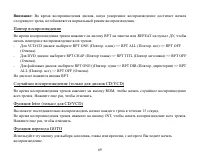
69 : , , . R REPEAT , : VCD/CD : RPT ONE ( . ) => RPT ALL ( . ) => RPT OFF ). DVD : RPT CHAP ( ) => RPT TITL ( ) => RPT OFF ). : RPT ONE () . => RPT DIR ( . ) => RPT ALL ( . ) => RPT OFF ( ). RPT. ( CD/VCD) RDM, . , . Intro ( CD/VCD) 15 . INT, . , . GOTO , , .
Page 70 - VCD
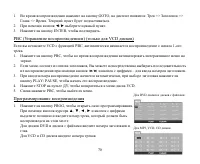
70 1. GOTO, : => => => . . 2. . 3. ENTER, . PBC ( ) ( VCD ) VCD PBC, 1- . 1. , . 2. , 9 / : . 3. , PLAY/ PAUSE, . 4. STOP , VCD. 5. , . 1. PROG, . , , , , . DVD . VCD CD . DVD MP3, VCD, CD
Page 71 - AUDIO
71 2. PLAY/ PAUSE «PLAY» ENTER, . 3. , «CLEAR» ENTER. 4. PROG, . DVD : R/L AUDIO , ( , ). VCD : R/L , : L R STEREO ( ). ( DVD ) . SUB.T . , . 5 , . ( DVD ) 1. TITLE, . 2. , , , . 3. ENTER. / .
Page 72 - ANGLE
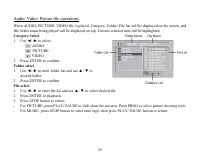
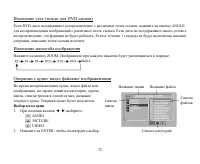
72 ( DVD ) DVD- , ANGLE . , . 1 , . ZOOM. : / / / , , , , . . 1. / : AUDIO PICTURE VIDEO. 2. ENTER, . .
Page 77 - ENTER
Page 80 - MONO
80 . : LINE OUT: . . RF REMOD: . line out , , . Full , , Off , . : STEREO, MONO L, MONO R MIX MONO .
Page 84 - ESP; FM
84 : 12 : 10 : 50 4 : DVD/SVCD/VCD/HDCD/MP3/MP4/WMA/CDDA/Picture-CD/JPEG/CD-R/ -RW/DVD±R/±RW ( ): 178 166 50 : -10º - +60º ESP 40 CD, 120 3 : : 960 240 dpi : 4:3 : 300 : 350 FM : 65.0 74.0 / 87.5 108.0 MHz : 6 24 MW : 522-1620 12
Page 85 - DSP
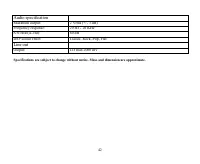
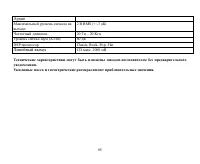
85 . . : 2 RMS (+/-3 ) : 20 20 (A-vtd): 60 DSP Classic, Rock, Pop, FlatCD . 2000