Page 2 - Table of contents
2 Dear customer! Thank you for purchasing our product. For safety, it is strongly recommended to read this manual carefully before connecting, operating and/or adjusting the product and keep the manual for reference in the future. Table of contents Table of contents.....................................
Page 4 - Important safeguards
4 Important safeguards • Using the device at temperature below -10º may cause the breakage of the device. Before using, please, heat up the passenger compartment to the recommended temperature! • Read carefully through this manual to familiarize yourself with this high-quality car stereo system. • D...
Page 5 - Multizone device description
5 Multizone device description Multizone definition means the ability of using the head device as the two synchronous signals source. For example by means of the two different signals distribution the user can listen to the radio or see the navigation information on the screen (the first zone), and ...
Page 6 - Installation/connection; Parking brake
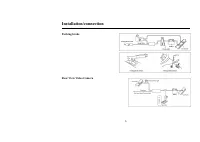
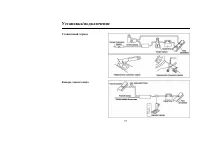
6 Installation/connection Parking brake Rear View Video Camera
Page 7 - Installation procedure
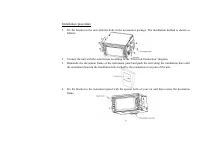
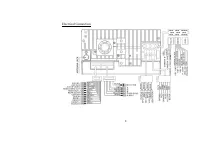
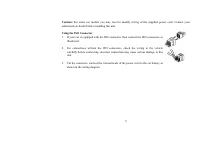
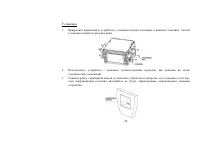
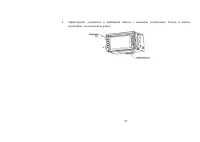
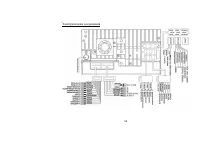
7 Installation procedure 1. Fix the bracket to the unit with the bolts in the accessories package. The installation method is shown as follows. 2. Connect the unit with the suited wires according to the “Electrical Connection” diagram. 3. Dismantle the decoration frame of the instrument panel and pu...
Page 8 - Electrical Connection
Page 10 - Unit controls; Monitor; button
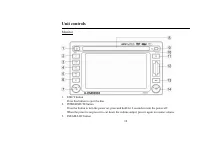
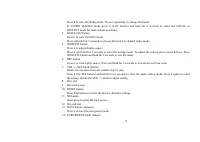
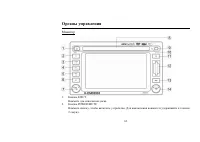
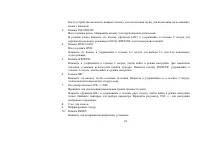
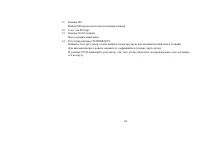
10 Unit controls Monitor 1. EJECT button Press this button to eject the disc. 2. POWER/MUTE button Press the button to turn the power on, press and hold for 2 seconds to turn the power off. When the power is on press it to cut down the volume output, press it again to resume volume. 3. FM/AM/LOC but...
Page 17 - Monitor operations
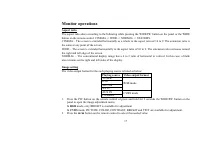
17 Monitor operations Aspect ratio The aspect ratio alters according to the following while pressing the WIDE/PIC button on the panel or the WIDE button on the remote control: CINEMA -> WIDE -> NORMAL -> STANDBY. CINEMA – The screen is extended horizontally as a whole to the aspect ratio of...
Page 18 - When parking brake applied
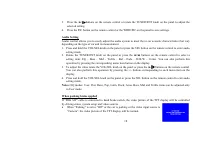
18 3. Press the : / buttons on the remote control or rotate the TUNER/ENT knob on the panel to adjust the selected setting. 4. Press the PIC button on the remote control or the WIDE/PIC on the panel to save settings. Audio Setting Audio control allows you to easily adjust the audio system to meet th...
Page 20 - General operations; Reset the unit
20 General operations Reset the unit When operating the unit for the first time or after replacing the car battery, or if the unit is working abnormally, you should reset the unit. Press the RESET button on the panel to restore the unit to the default factory settings. Power on/off Press POWER/MUTE ...
Page 21 - Digital tuner operations; name
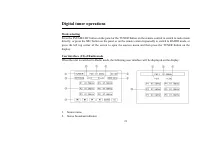
21 Digital tuner operations Mode selecting Press the FM/AM/LOC button on the panel or the TUNER button on the remote control to switch to radio mode directly, or press the SRC button on the panel or on the remote control repeatedly to switch to RADIO mode, or press the left top corner of the screen ...
Page 22 - Rotate the TUNER/ENT knob on the panel, or press; Automatic tuning; buttons on the remote control, or press the TUNER/ENT knob on
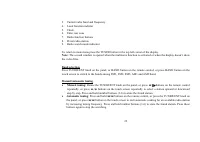
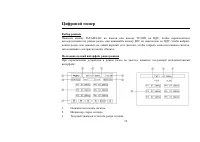
22 3. Current radio band and frequency 4. Local function indictor 5. Clock 6. Enter rear zone 7. Radio function buttons 8. Preset radio station 9. Radio search mode indicator To return to main menu press the TUNER button in the top left corner of the display. Note: The second window is opened when t...
Page 23 - Scan preset stations; Press the; II
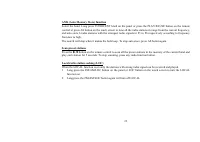
23 AMS (Auto Memory Store) function Select the band. Long press TUNER/ENT knob on the panel or press the PLAY/PAUSE button on the remote control or press AS button on the touch screen to tune all the radio stations in range from the current frequency, and auto store 6 radio stations with the stronge...
Page 24 - Disc operations; Glossary; Title
24 Disc operations Glossary PBC (PlayBack Control) PlayBack Control is a menu recorded on the disc with SVCD or VCD2.0 format. And if the disc contains still images, it can playback high definition of still image. Title The title is the important part of DVD disc. The memory volume of the disc is ra...
Page 25 - Discs for playback; Max. Track number is 448
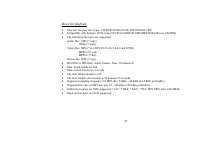
25 Discs for playback • This unit can play disc types: CD/DVD/CDDA/CD-R/-RW/DVD±R/±RW. • Compatible with formats: DVD-video/SVCD/VCD/HDCD/MP3/MP4/WMA/Picture-CD/JPEG. • The following file types are supported: Audio files: MP3 (*.mp3) WMA (*.wma) Video files: MP4 (*.avi, DIVX3.11/4.0/5.0/6.0 and XVID...
Page 26 - radio mode automatically.; Stop playback
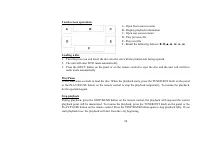
26 Touch screen operations A - Open front sources menu B - Display playback information C - Open rear sources menu D - Play previous file E - Play next file F - Recall the following buttons: ► / II, ■ , < , ; , : , < Loading a disc 1. Turn the power on and insert the disc into the slot with th...
Page 27 - Rotate the TUNER/ENT knob on the panel or press the; Repeat playback
27 Fast Forward (FF)/Fast Reverse (FR) Press : button on the remote control repeatedly to select the speed of FF or FR: X2 => X4 => X8 => X20. To resume normal playback, press the TUNER/ENT knob on the panel or the PLAY/PAUSE button on the remote control. Slow Forward (SF)/Slow Reverse (SR)...
Page 29 - Exit GOTO search mode
29 Press the numeric buttons to enter the time you want to start playback from (hh:mm:ss). For example, to enter time 18: 20: 00, press 1 => 8 => 2 => 0 => 0 => 0. Press the TUNER/ENT knob on the panel or the PLAY/PAUSE button on the remote control to start playback. • For Title/Chapt...
Page 31 - For DVD disc
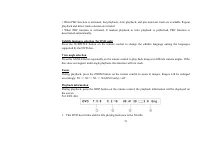
31 • When PBC function is activated, fast playback, slow playback, and previous/next track are available. Repeat playback and direct track selection are invalid. • When PBC function is activated, if random playback or intro playback is performed, PBC function is deactivated automatically. Subtitle l...
Page 32 - Playback status in 6-channel mode
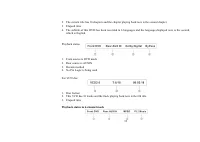
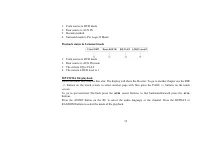
32 2. The current title has 16 chapters and the chapter playing back now is the second chapter. 3. Elapsed time 4. The subtitle of this DVD has been recorded in 6 languages and the language displayed now is the second, which is English. Playback status 1. Front source is DVD mode 2. Rear source is A...
Page 34 - MP3 overview; The unit may not play tracks in the order of Track numbers.
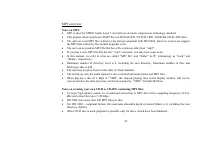
34 MP3 overview Notes on MP3: • MP3 is short for MPEG Audio Layer 3 and refers to an audio compression technology standard. • This product allows playback of MP3 files on DVD-R/-RW, DVD+R/+RW, CD-ROM, CD-R/-RW discs. • The unit can read MP3 files written in the format compliant with ISO 9660. Howeve...
Page 36 - The operation is the same as with DVD mode.
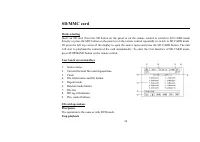
36 SD/MMC card Mode selecting Insert an SD card. Press the SD button on the panel or on the remote control to switch to SD CARD mode directly or press the SRC button on the panel or on the remote control repeatedly to switch to SD CARD mode. Or press the left top corner of the display to open the so...
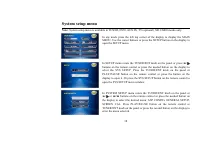
Page 38 - System setup menu; In SETUP menu rotate the TUNER/ENT knob on the panel or press
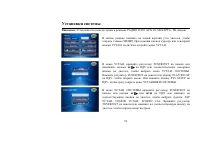
38 System setup menu Note: System setup menu is available in TUNER, DVD, AUX IN, TV (optional), SD CARD modes only. In any mode press the left top corner of the display to display the MAIN MENU. Use the cursor buttons or press the SETUP button on the display to open the SETUP menu. In SETUP menu rot...
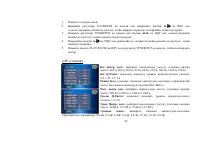
Page 39 - Audio sound processing (ASP) configuration; Bass center frequency:
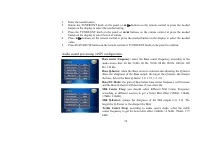
39 1. Enter the needed menu 2. Rotate the TUNER/ENT knob on the panel or : / buttons on the remote control or press the needed button on the display to select the needed setting. 3. Press the TUNER/ENT knob on the panel or ; / < buttons on the remote control or press the needed button on the disp...
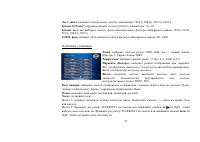
Page 40 - General setup; select the parking image mode: On (image is displayed when; Screen CAL
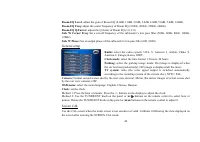
40 Room-EQ Level: adjust the gain of Room EQ (0.0dB, 1.0dB, 2.0dB, 3.0dB, 4.0dB, 5.0dB, 7.0dB, 9.0dB). Room-EQ Freq: adjust the center frequency of Room EQ (180Hz, 200Hz, 220Hz, 240Hz). Room-EQ Q-Factor: adjust the Q-factor of Room EQ (1.0, 2.0). Sub. W Corner Freq: Set a cut-off frequency of the su...
Page 41 - DVD setup menu
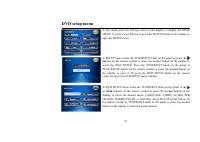
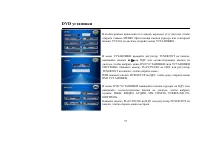
41 DVD setup menu In any mode press the left top corner of the display to display the MAIN MENU. Use the cursor buttons or press the SETUP button on the display to open the SETUP menu. In SETUP menu rotate the TUNER/ENT knob on the panel or press : / buttons on the remote control or press the needed...
Page 42 - Language
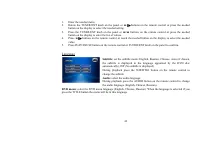
42 1. Enter the needed menu. 2. Rotate the TUNER/ENT knob on the panel or : / buttons on the remote control or press the needed button on the display to select the needed setting. 3. Press the TUNER/ENT knob on the panel or ; / < buttons on the remote control or press the needed button on the dis...
Page 43 - Video; set the angle indicator mode (when the DVD has multi-angle; Audio; use the built in pink noise to adjust each channel output
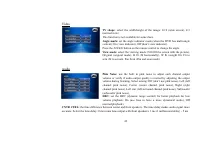
43 Video TV shape: select the width/height of the image: 16:9 (wide screen), 4:3 (normal view). This function is not available for some discs. Angle mark: set the angle indicator mode (when the DVD has multi-angle content): On (view indicator), Off (don’t view indicator). Press the ANGLE button on t...
Page 44 - SPK configuration; set up the front speakers: Large (suitable for speakers with good; Surround FX
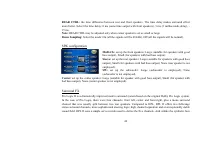
44 REAR CTRL: the time difference between rear and front speakers. The time delay makes surround effect more better. Select the time delay: 0 ms (same time output with front speakers), 3 ms (3 milliseconds delay), - 15 ms. Note: REAR CTRL may be adjusted only when center speaker is set as small or l...
Page 45 - Rating
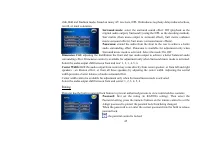
45 club, Hall and Stadium modes found on many AV receivers, DPL II introduces no phony delay-induced echoes, reverb, or tonal coloration. Surround mode: select the surround sound effect: Off (playback as the original audio output), Surround I (using the DPL as the decoding method), Surr matrix (from...
Page 47 - Other playback modes; Rear view camera mode; can be supported by the unit.
47 Other playback modes AUX-IN mode External AV devices can be connected with the unit through AUX IN function. For more details, please refer to “Electrical Connection” diagram. Press the SRC button on the panel or on the remote control repeatedly to switch to AUX IN mode, or press the left top cor...
Page 48 - Handling and cleaning discs; Dirty, scratched or warped discs may cause skip ping or noise.
48 Handling and cleaning discs • Dirty, scratched or warped discs may cause skip ping or noise. • Handle the disc only by the edges. To keep clean do not touch its surface. • Discs should be stored in their cases after use to avoid scratches. • Do not expose discs to direct sunlight, high humidity, ...
Page 49 - Troubleshooting guide; Symptom Cause
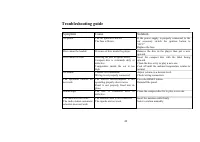
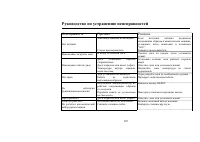
49 Troubleshooting guide Symptom Cause Solution No power. The car ignition is not on. The fuse is blown. If the power supply is properly connected to the car accessory switch the ignition button to “ACC”. Replace the fuse. Disc cannot be loaded. Presence of disc inside the player. Remove the disc in...
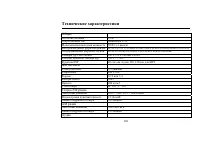
Page 50 - Specification; General; Current consumption:; TFT display; AM section; Preset memory stations:; Audio specification
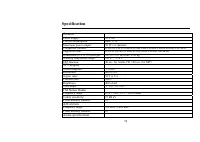
50 Specification General Power supply: 12 V DC Current consumption: max. 15 A Maximum power output: 50 W x 4 channels Compatible formats: DVD/SVCD/VCD/HDCD/MP3/MP4/WMA/CDDA/Picture-CD/JPEG Supported disks: DVD/DVD±R/DVD±RW/CD/CD-R/CD-RW/SD/MMC Dimensions (L x W x H)/weight: 185 x 178 x 100 mm / 2.98...
Page 51 - Vrms; Line out
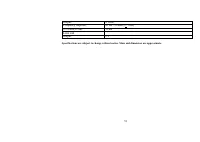
51 Output: 4 Vrms Frequency response: 20 Hz - 20 KHz (+ 3 dB) S/N ratio(A-vtd): 70 dB Line out Output: 2 V Specifications are subject to change without notice. Mass and dimension are approximate.
Page 52 - ASP
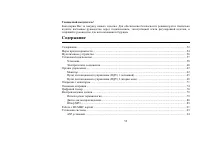
52 ! . , / , . ......................................................................................................................................................... 52 ...................................................................................................................................
Page 53 - DVD
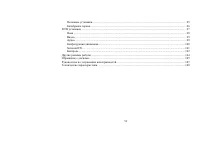
53 .................................................................................................................................... 95 ....................................................................................................................................... 96 DVD .....................
Page 61 - ISO
Page 62 - EJECT
Page 71 - NAVI
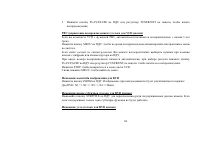
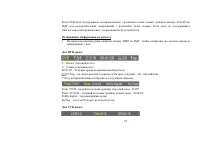
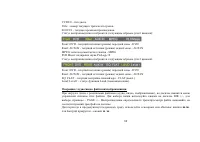
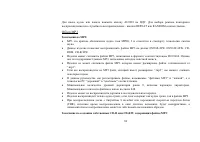
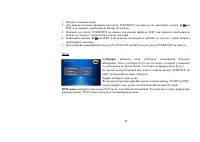
71 WIDE/PIC WIDE , : CINEMA ( ) => WIDE ( , 16:9) => NORMAL ( , 4:3) => STANDBY ( .). , : TUNER DVD SD Card NAVI RGB AUX IN CAMERA CVBS 1. PIC 2 WIDE/PIC , . 2. : / TUNER/ENT , : PICTURE ( ), COLOR ( ), CONTRAST ( ), BRIGHT ( ), TINT ( ). NAVI . CVBS : PICTURE ( ), COLOR ( ), CONTRAST ( ), ...
Page 73 - ILLUMI
73 • « » « .», « », . • « » « .» , « , !», . . , , ILLUMI ( . ), - . MUTE ( . ), . , . .
Page 75 - SRC
75 SRC , . ( ) : => DVD => SD => NAVI => AUX IN => .
Page 78 - AS; LOC
78 . TUNER/ENT PLAY/PAUSE AS , 6 (1-6). , . , TA/AS. ► / II , 5 . , . LOC ( ) LOC , . 1. FM/AM/LOC LOC , LOC. 2. FM/AM/LOC, LOC.
Page 85 - MENU
85 / , / , . ( CD/VCD/DVD ) DVD: AUDIO , ( DVD ). CD/VCD: AUDIO , : => => . 2- 6- [DVD/2-6CH] , . DVD 1. MENU , . 2. , TUNER/ENT , . 3. PLAY/PAUSE TUNER/ENT , . 1. TITLE , . 2. , TUNER/ENT , .
Page 86 - VCD; ZOOM; SUBTITLE
86 3. PLAY/PAUSE TUNER/ENT , . PBC ( ) ( VCD ) VCD PBC, 1- . MENU , . , . , PLAY/PAUSE TUNER/ENT , . STOP, VCD. MENU, . DVD ZOOM . : DVD: 1 => 2 => 3 => 4 => . ( DVD ) SUBTITLE . , . ( DVD )
Page 91 - SD
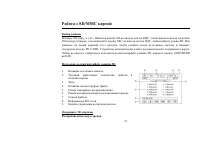
91 SD/MMC SD . SD , SD , SRC , SD. , SD CARD. . SD, STOP/BAND . SD 1. . 2. / . 3. . 4. . 5. . 6. . 7. . 8. ID3 . 9. . SD /
Page 93 - SYS SETUP
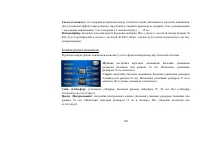
93 : , DVD, AUX IN, SD , ( ). , . . . . TUNER/ENT : / , . . TUNER/ENT PLAY/PAUSE , . SYS SETUP , . . TUNER/ENT : / ; / < , : ASP ., . ., SCREEN CAL. TUNER/ENT , .
Page 101 - ProLogic
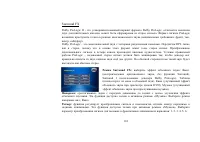
101 Surround FX Dolby ProLogic II - Dolby ProLogic, , . ProLogic ( : , , , ). Dolby ProLogic - . ё DPL , . . ProLogic - , ё . . Surround FX: : . ( , Surround), Surround I ( Dolby ProLogic), ( : ), ( DVD), ( ). : « » . « ». : ., . : . « ». : 1, 2, 3, 4, 5, 6.
Page 104 - AUX IN
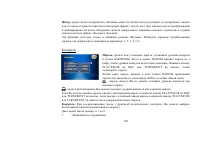
104 AUX IN AUX IN (AV) ( . ). SRC , AUX IN, , . AUX IN PLAY/PAUSE , AUX IN. ( . ). SRC , , , . PLAY/PAUSE , . : . NAVI ( ) ( . ). SRC , NAVI, , . NAVI PLAY/PAUSE , NAVI. : NAVI . ( ) .
Page 108 - ESP; FM
108 12 15 50 4 DVD/SVCD/VCD/HDCD/MP3/MP4/WMA/CDDA/Picture-CD/JPEG DVD/DVD±R/DVD±RW/CD/CD-R/CD-RW/SD/MMC ( )/ 185 178 100 /2,98 -20º - +70º ESP 40 CD, 120 3 5,5 480 234 16:9 3:4 300:1 400 / 2 : 110°, : 120° FM 65.0 – 74.0 / 87.5 – 108.0 MHz 15 18 AM 522-1620 12
Page 109 - RMS