Page 2 - Table of contents
2 Dear customer! Thank you for purchasing our product. For safety, it is strongly recommended to read this manual carefully before connecting, operating and/or adjusting the product and keep the manual for reference in the future. Table of contents Table of contents ....................................
Page 3 - Important safeguards; Do not install the detachable panel before connecting the wire.
3 Important safeguards • Read carefully through this manual to familiarize yourself with this high-quality sound system. • Disconnect the vehicle's negative battery terminal while mounting and connecting the unit. • When replacing the fuse, be sure to use one with an identical amperage rating. Using...
Page 4 - Installation/ Connections; Insert fingers into the groove in the front of frame and remove it.; Removing the unit
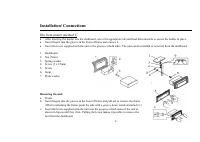
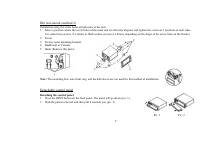
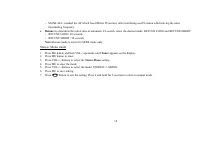
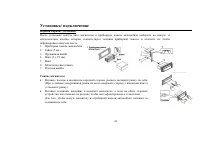
4 Installation/ Connections Din front-mount (method 1) • After inserting the holder into the dashboard, select the appropriate tab and bend them inwards to secure the holder in place. • Insert fingers into the groove in the front of frame and remove it. • Insert the levers supplied with the unit to ...
Page 5 - Detaching the control panel
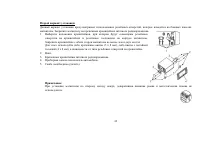
5 Din rear-mount (method 2) Installation using the screw holes at both sides of the unit. 1. Select a position where the screw holes of the main unit are fitted for aligned, and tighten the screws at 2 positions at each sides. Use either truss screws (5 x 8mm) or flush surface screws (4 x 8mm), depe...
Page 6 - Attaching the control panel; the control panel must be attached into the T-Joint.
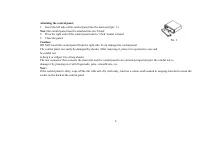
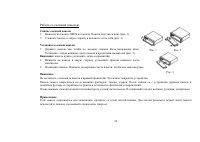
6 Attaching the control panel 1. Insert the left side of the control panel into the main unit (pic. 3). Note: the control panel must be attached into the T-Joint. 2. Press the right side of the control panel until a “click” sound is heard. 3. Close the panel. Caution: DO NOT insert the control panel...
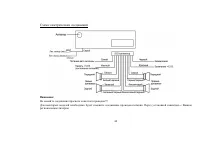
Page 7 - Electrical connections; Do not interchange the connection of the wiring!
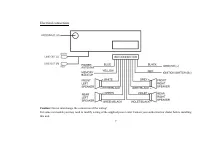
7 Electrical connections Caution: Do not interchange the connection of the wiring! For some car models you may need to modify wiring of the supplied power cord. Contact your authorized car dealer before installing this unit.
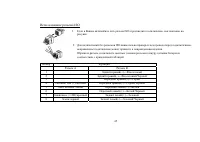
Page 8 - Using the ISO Connector; Location Function; Connector A
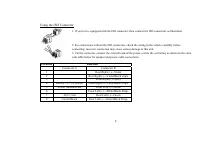
8 Using the ISO Connector 1. If your car is equipped with the ISO connector, then connect the ISO connectors as illustrated. 2. For connections without the ISO connectors, check the wiring in the vehicle carefully before connecting, incorrect connection may cause serious damage to this unit. 3. Cut ...
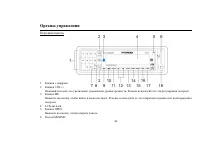
Page 9 - Panel controls
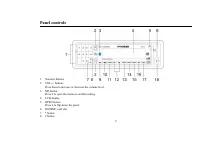
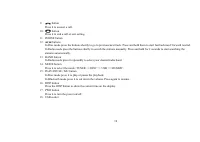
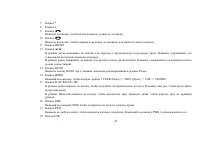
9 Panel controls 1. Numeric buttons 2. VOL+/- buttons Press them to increase or decrease the volume level. 3. ME button Press it to open the menu or confirm setting. 4. LCD display 5. OPEN button Press it to flip down the panel. 6. SD/MMC card slot 7. * button 8. # button
Page 11 - Inner panel; button
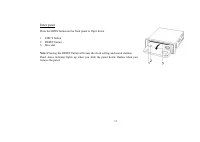
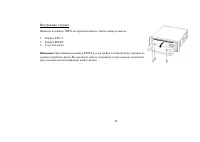
11 Inner panel Press the OPEN button on the front panel to flip it down. 1. EJECT button 2. RESET button 3. Disc slot Note: Pressing the RESET button will erase the clock setting and stored stations. Panel status indicator lights up when you slide the panel down; flashes when you remove the panel.
Page 12 - General operations; Reset the unit; the stored status which you set.; Volume control; Press ME button and then VOL- repeatedly until; Clock; appears on the display.
12 General operations Reset the unit Operating the unit for the first time or after replacing the car battery, you must reset the unit. Press OPEN button on the panel to open the panel and press the RESET button with thin hard object to restore the unit to the original factory settings. Power button...
Page 13 - Press the DISP button to show the clock on the display.; Setting the audio characteristics; Audio; Display settings; Display
13 6. Press ME to save setting. 7. Press button to exit the setting. Press it and hold for 2 seconds to return to normal mode. 8. Press the DISP button to show the clock on the display. Setting the audio characteristics 1. Press ME button and then VOL- repeatedly until Audio appears on the display. ...
Page 14 - Language setting; Language
14 6. Press ME to save setting. 7. Press button to exit the setting. Press it and hold for 2 seconds to return to normal mode. Language setting 1. Press ME button and then VOL- repeatedly until Language appears on the display. 2. Press ME button to enter. 3. Press VOL+/- buttons to select the langua...
Page 15 - Digital tuner operations; Band selection
15 Digital tuner operations Note: RDS (Radio Data System) service availability varies with areas. Please understand if RDS service is not available in you area, the following service is not available, either. Band selection Press the MODE button to select TUNER. Press BAND once or more to select: FM...
Page 17 - RDS options; Tuner; RDS option; When TP information gets lost at
17 7. Press button to exit the setting. Press it and hold for 2 seconds to return to normal mode. RDS options 1. Press ME button and then VOL- repeatedly until Tuner appears on the display. 2. Press ME button to enter. 3. Press VOL+/- buttons to select the RDS option : RDS scan => Traffic alert =...
Page 19 - into the mode of the latter one.
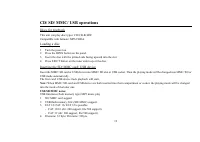
19 CD/ SD/ MMC/ USB operations Discs for playback This unit can play disc types: CD/CD-R/-RW. Compatible with formats: MP3/CDDA. Loading a disc 1. Turn the power on. 2. Press the OPEN button on the panel. 3. Insert the disc with the printed side facing upward into the slot. 4. Press EJECT button on ...
Page 20 - Playing the previous/ next track; During playback press the; Fast forward and backward playback; Press and hold the
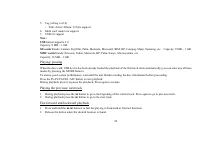
20 5. Tag (id3tag ver2.0) - Title/ Artist/ Album: 32 byte support. 6. Multi card reader not support. 7. USB 2.0 support. Note: USB format supports 2.0. Capacity: 8 MB ~ 1 GB. SD cards brands: Cannon, Fuji film, Palm, Motorola, Microsoft, IBM, HP, Compaq, Sharp, Samsung, etc. Capacity: 8 MB ~ 1 GB. M...
Page 21 - Entering the track number; Repeat playback; Repeat mode; Random playback; Random mode
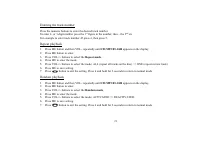
21 Entering the track number Press the numeric buttons to enter the desired track number. To enter 2- or 3-digit number press the 1 st figure in the number, then – the 2 nd etc. For example to enter track number 45 press 4, then press 5. Repeat playback 1. Press ME button and then VOL- repeatedly un...
Page 22 - Explorer mode; Electronic shock protection; ESP
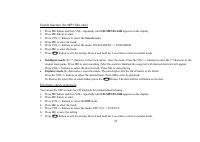
22 Search function (for MP3 files only) 1. Press ME button and then VOL- repeatedly until CD/MP3/FLASH appears on the display. 2. Press ME button to enter. 3. Press VOL+/- buttons to select the Search mode. 4. Press ME to enter the mode. 5. Press VOL+/- buttons to select the mode: INTELLIGENT => ...
Page 23 - Playing the multi-session disc; You can set the unit to play the multi-session discs or not.; MP3 overview; The unit may not play tracks in the order of Track numbers.
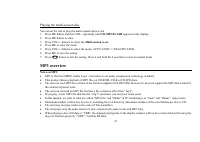
23 Playing the multi-session disc You can set the unit to play the multi-session discs or not. 1. Press ME button and then VOL- repeatedly until CD/MP3/FLASH appears on the display. 2. Press ME button to enter. 3. Press VOL+/- buttons to select the Multi-session mode. 4. Press ME to enter the mode. ...
Page 24 - Notes on creating your own CD-R or CD-RW containing MP3 files:; DO NOT store more than 256 MP3 files per disc.
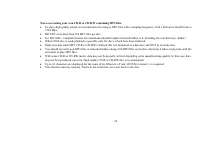
24 Notes on creating your own CD-R or CD-RW containing MP3 files: • To enjoy high quality sound, we recommend converting to MP3 files with a sampling frequency of 44.1 kHz and a fixed bit rate o f 128 kbps. • DO NOT store more than 256 MP3 files per disc. • For ISO 9660 - compliant format, the maxim...
Page 25 - How to perform pairing; button and the Bluetooth device name of the cellular phone will
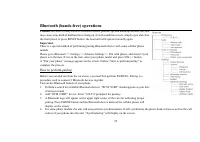
25 Bluetooth (hands-free) operations Caution: Because of many kinds of bluetooth mobile phones type and handling method, this unit may cause some kind of malfunction or hang up. If such condition occurs, simply open and close the front panel, or press RESET button, the head unit will operate normall...
Page 26 - Making calls using the car stereo interface
26 Note: • “RCM 728BT” is the Bluetooth device name of the car stereo. • If the unit does not perform auto synchronization after paring, your have to do this step manually. Please refer to your phone’s user manual on how to send Phonebook entries via Bluetooth. • Refer to your cellular user manual f...
Page 27 - Anna calls you, you will hear “Anna”. Press; Making calls using phone book; Phone book; letter of the contact you are looking for.
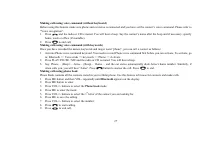
27 Making calls using voice command (without keyboard) Before using this feature, make sure phone and car stereo is connected and you have set the contact’s voice command. Please refer to “Voice recognition”. 1. Press and the radio or CD is muted. You will hear a beep. Say the contact’s name after t...
Page 28 - Voice recognition
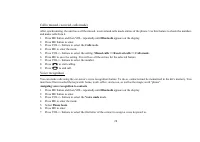
28 Calls (missed, received, calls made) After synchronizing, the unit have all the missed, received and calls made entries of the phone. Use this feature to check the numbers and make calls from it. 1. Press ME button and then VOL- repeatedly until Bluetooth appears on the display. 2. Press ME butto...
Page 29 - have to record it twice.; Assigning keywords; Bluetooth; Voice cmds
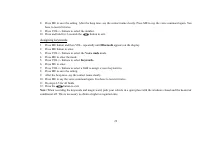
29 8. Press ME to save the setting. After the beep tone, say the contact name clearly. Press ME to say the voice command again. You have to record it twice. 9. Press VOL+/- buttons to select the number. 10. Press and hold for 2 seconds the button to exit. Assigning keywords 1. Press ME button and th...
Page 30 - Paired devices
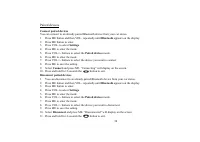
30 Paired devices Connect paired devices You can connect to an already paired Bluetooth device from your car stereo. 1. Press ME button and then VOL- repeatedly until Bluetooth appears on the display. 2. Press ME button to enter. 3. Press VOL- to select Settings . 4. Press ME to enter the mode. 5. P...
Page 31 - Volume settings
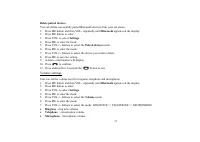
31 Delete paired devices You can delete successfully paired Bluetooth devices from your car stereo. 1. Press ME button and then VOL- repeatedly until Bluetooth appears on the display. 2. Press ME button to enter. 3. Press VOL- to select Settings . 4. Press ME to enter the mode. 5. Press VOL+/- butto...
Page 32 - Automatic answer; Working with contacts
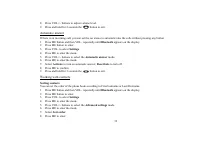
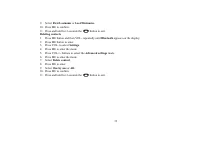
32 8. Press VOL+/- buttons to adjust volume level. 9. Press and hold for 2 seconds the button to exit. Automatic answer If there is an incoming call, you can set the car stereo to automatic take the calls without pressing any button. 1. Press ME button and then VOL- repeatedly until Bluetooth appear...
Page 34 - Bluetooth software update; How to update bluetooth software; see if an update is needed or not. Take note of the firmware version.
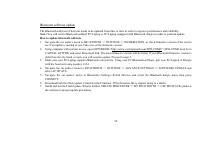
34 Bluetooth software update The Bluetooth software of this unit needs to be updated from time to time in order to improve performance and reliability. Note: You will need a Bluetooth enabled PC/Laptop or PC/Laptop equipped with Bluetooth dongle in order to perform update. How to update bluetooth so...
Page 35 - Handling discs; Dirty, scratched or warped discs may cause skip ping or noise.
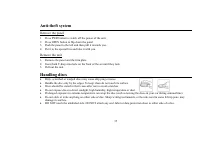
35 Anti-theft system Remove the panel 1. Press PWR button to switch off the power of the unit. 2. Press OPEN button to flip down the panel. 3. Push the panel to the left and then pull it towards you. 4. Put it to the special box and take it with you. Remove the unit 1. Remove the panel and the trim ...
Page 36 - Cleaning; Cleaning the cabinet
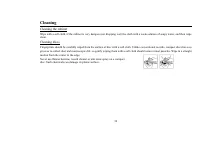
36 Cleaning Cleaning the cabinet Wipe with a soft cloth. If the cabinet is very dampen (not dropping wet) the cloth with a weak solution of soapy water, and then wipe clean. Cleaning discs Fingerprints should be carefully wiped from the surface of disc with a soft cloth. Unlike conventional records,...
Page 37 - Troubleshooting guide; Symptom
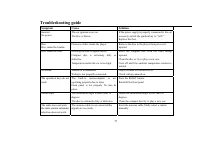
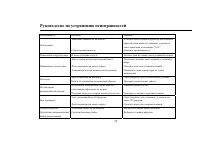
37 Troubleshooting guide Symptom Cause Solution General No power The car ignition is not on. The fuse is blown. If the power supply is properly connected to the car accessory switch the ignition key to “ACC”. Replace the fuse. Disc Disc cannot be loaded. Presence of disc inside the player. Remove th...
Page 38 - Specification; General
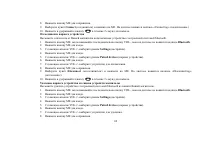
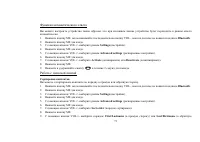
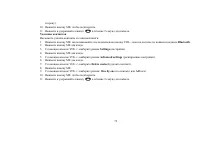
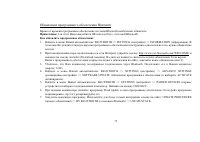
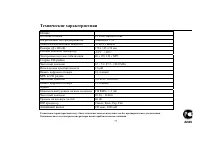
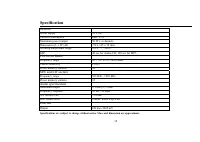
38 Specification Specifications are subject to change without notice. Mass and dimension are approximate. General Power supply 12 V DC Current consumption max. 15 A Maximum power output 50 W x 4 channels Dimensions (L x W x H) 178 x 165 x 50 mm Working temperature range -10º - +60º ESP 40 sec for Au...
Page 43 - OPEN
43 1. OPEN . ( . 1). 2. ( . 2). 1. , . ( . 3). В : . 2. , . 2. . , . В : . . - : , . . . , , . : , . , . . 3 . 1 . 2
Page 45 - ISO
45 ISO 1. ISO, , . 2. ISO , . , . A B 1 (+)--- 2 (-)--- / 3 (+)--- 4 12 (+)/ (-)--- / 5 / (+)--- 6 ((-)--- / 7 (+12 )/ (+)--- 8 / (-)--- /
Page 52 - RDS
52 В : RDS ( ) . , RDS , . MODE, - TUNER. B ND, : FM1, FM2, FM3, FM4 (OIRT), AM1, AM2. / • : 2 ; / < , . , . • : ; / < , / . , . 36 (24 FM, 12 ). • : - ( ). - . - 1~6, . • : - ( ). - 1~6.
Page 54 - RDS SCAN; Traffic alert; TP (Traffic Program –
54 5. VOL+/-, LOCAL ( ) => DISTANT ( ). 6. , . 7. , . 2 , . RDS 1. , VOL-, Tuner ( ). 2. , . 3. VOL+/-, RDS: RDS SCAN => TRAFFIC ALERT => REGION => MASK => RETUNE. 4. , . 5. VOL+/-, . 6. , . • RDS scan ( ): : ON ( .) OFF ( .). RDS SCAN , RDS . , . • Traffic alert ( ): ...
Page 55 - Region; Mask; AF; Retune; RETUNE LONG
55 • Region ( ): : ON ( .) OFF ( .). - REGION ON ( ): AF , . - REGION OFF ( ): AF ( ) . • Mask ( « »): : MASK DPI MASK ALL. - , (AF), , PI, AF. , . CD- , . AF . , : MASK DPI MASK ALL. - MASK DPI: . - MASK ALL: , , RDS. • Retune ( ): : RETUNE SHORT ( ) RETUNE LONG ( TA...
Page 66 - ME
66 ( ) , , , . 1. , . . . 2. , . ( ) , , - , : 1. . ( ). : BLUETOOTH => VOICE CMDS => KEYWORDS => PHONE => ACTIVATE. 2. PLAY/PAUSE / MU, . . 3. : … ( )… … ( )… … , . , « ». , . , . . : 1. ME, VOL-, Bluetooth . 2. ME . 3. VOL+/- Phone book ( ). 4. ME . 5. VOL+/- , ...
Page 77 - DSP
77 - . . 12 / 15 50 4 ( ) 178 165 50 -10º - +60º 40 CD, 120 c MP3 FM 65 – 74 / 87.5 - 108.0 2.8 µ 24 MW LW 522 - 1620 12 2 RMS (+/-3 ) 20 – 20 - (A-vtd) 60 DSP Classic, Rock, Pop, Flat CD . 2000