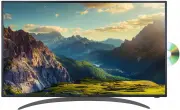
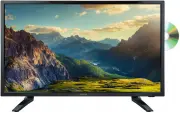
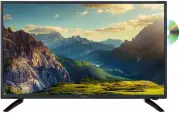
Page 3 - Welcome
3 After Sales Support Telephone: 1300 886 649 Email: [email protected] Welcome Congratulations on choosing to buy a HITACHI product. All products brought to you by HITACHI are manufactured to the highest standards of performance and safety and, as part of our philosophy of customer service and satis...
Page 4 - Contents
4 After Sales Support Telephone: 1300 886 649 Email: [email protected] Contents Welcome 3 Remote Control 5 Important Safety Instructions 9 Installation 14 Controls and Connections 17 Getting Started 23 Basic Operations 24 Electronic Program Guide (EPG) 26 Recording 27 Menu Settings 30 DVD Mode 41 US...
Page 5 - Remote Control
5 After Sales Support Telephone: 1300 886 649 Email: [email protected] CLE-1018B Remote Control 1 POWER: Set the unit in standby mode; press it again to switch it on. 2 GOTO: Jump to a different chapter of the DVD. 3 ANGLE: View DVD playback from different angles, if the DVD has this feature. 4 REPE...
Page 7 - Using the Remote Control; Battery Service Life
7 After Sales Support Telephone: 1300 886 649 Email: [email protected] Remote Control (Cont.) Using the Remote Control Inserting BatteriesInstall the batteries as illustrated in Fig 1, right. • Open the cover at the back of the remote control unit completely. • Insert two AAA size batteries accordin...
Page 9 - IMPORTANT WARNINGS AND CAUTIONS!; Important Safety Instructions
9 After Sales Support Telephone: 1300 886 649 Email: [email protected] Read this manual thoroughly before first use and keep it in a safe place for future reference, along with purchase receipt and carton. The safety precautions enclosed herein reduce the risk of fire, electric shock and injury when...
Page 10 - Electrical Safety and Cord Handling
10 After Sales Support Telephone: 1300 886 649 Email: [email protected] Important Safety Instructions (Cont.) Electrical Safety and Cord Handling • Voltage: Before installing this TV set, make sure your outlet voltage corresponds to the voltage stated on the TV’s rating label. • Protect from moistur...
Page 11 - Installation; • Follow instructions:
11 After Sales Support Telephone: 1300 886 649 Email: [email protected] Installation • Follow instructions: Only install this TV set in accordance with these instructions. • Location: This TV is designed for indoor, fixed location use only. It must not be used in portable or mobile applications as v...
Page 12 - Usage Conditions and Restrictions; Children: Supervise children to ensure they do not play with the TV.; Cleaning and Maintenance; When you clean up dust or water drops on the LCD panel or
12 After Sales Support Telephone: 1300 886 649 Email: [email protected] Important Safety Instructions (Cont.) Usage Conditions and Restrictions • Adjustments: Follow the instructions in this manual when installing and adjusting the TV set. Only adjust those controls that are covered in this manual, ...
Page 13 - Moving, Installing and Wall-Mounting the TV
13 After Sales Support Telephone: 1300 886 649 Email: [email protected] • Repair: If the TV requires repair, contact the after sales support line; never disassemble or modify the TV or attempt to service it yourself. • Service: Refer all servicing to qualified service personnel. Servicing is require...
Page 14 - Unpacking and Preparing the TV
14 After Sales Support Telephone: 1300 886 649 Email: [email protected] Unpacking and Preparing the TV Remove the TV carefully from its packaging, be careful not to apply any pressure to the front of the LCD screen. Some accessory items may be located in cut-out sections of the internal packaging, s...
Page 15 - Assembling the Base Stands; Attaching the Stand
15 After Sales Support Telephone: 1300 886 649 Email: [email protected] Installation (Cont.) Assembling the Base Stands If you want to use the TV standing on appropriate furniture, first find a suitable location where you can attach the TV base stands to the body of the TV. You will need to arrange ...
Page 16 - Wall-Mounting the TV
16 After Sales Support Telephone: 1300 886 649 Email: [email protected] Installation (Cont.) Wall-Mounting the TV • The TV set is equipped with holes on the back panel for use with wall-mounting brackets (not included). Please use the illustration below as a reference when buying wall-mounting brack...
Page 17 - Front and Side Button Controls; Controls and Connections
17 After Sales Support Telephone: 1300 886 649 Email: [email protected] Front and Side Button Controls Controls and Connections 1 LED LCD Display screen2 IR (infra-red) Sensor for remote control. Power Indicator: In standby mode the indicator light is red; when switching on the unit the indicator li...
Page 18 - Back Panel Connections; devices for optical audio signal output.; USB input: Connect a USB storage device for PVR recording and; multimedia file playback.
18 After Sales Support Telephone: 1300 886 649 Email: [email protected] Controls and Connections (Cont.) Back Panel Connections 1 POWER: Power Input2 EARPHONES output3 YPBPR input (Component): supports both SD (Standard Definition) and HD (High Definition) picture quality. 4 PC AUDIO input5 PC (VGA)...
Page 19 - Connecting to an AC Power Source
19 After Sales Support Telephone: 1300 886 649 Email: [email protected] Controls and Connections (Cont.) IMPORTANT! • Ensure all cables are disconnected from the main unit before connecting the TV to an AC power source. • Read through the instructions before connecting the TV to other equipment. Con...
Page 20 - Earphone Connection
20 After Sales Support Telephone: 1300 886 649 Email: [email protected] Controls and Connections (Cont.) Composite Video (CVBS) Connection Earphone Connection AV Cable (included) USB Connection Earphone cable (not included) USB device (not included) External Video / Media Player For a non high-def...
Page 21 - HDMI Connection
21 After Sales Support Telephone: 1300 886 649 Email: [email protected] Controls and Connections (Cont.) PC / VGA Connection HDMI Connection Use an HDMI cable to connect the unit with other devices to receive high-definition multimedia signal. VGA Cable (not included) Audio cable (not included) Use ...
Page 22 - Optical Connection
22 After Sales Support Telephone: 1300 886 649 Email: [email protected] Controls and Connections (Cont.) Optical Connection Component (YPbPr) Connection Use a optical cable (not included) to connect the unit with amplifier or other audio decoding device for optical audio signal output. External Vide...
Page 23 - POWER button, on the right lower side of the back panel (or on the; First Time Use; Getting Started
23 After Sales Support Telephone: 1300 886 649 Email: [email protected] Getting Started Once you have connected your TV antenna and other AV playback equipment (ie. CD player, amplifier, Blu-ray player) to the appropriate input sockets on the back of the TV, you will need to be comfortable with sele...
Page 24 - SOURCE button on the remote control (or on the lower side of the back; Basic Operations
24 After Sales Support Telephone: 1300 886 649 Email: [email protected] Selecting an Input Source • Press the SOURCE button on the remote control (or on the lower side of the back panel) to display the input source list. • Use the / navigation buttons to select the desired input source, then press O...
Page 25 - Favourites List; the favourite; Quick Select: Channels List
25 After Sales Support Telephone: 1300 886 649 Email: [email protected] Basic Operations (Cont.) Favourites List • While viewing a channel, press the FAV button on the remote control to enter the Favourites List menu. • Use the / buttons to select the favourite category and the / buttons to select t...
Page 26 - EPG button on the remote control.
26 After Sales Support Telephone: 1300 886 649 Email: [email protected] EPG stands for Electronic Program Guide. It is supplied by the program providers and offers information about the programs to be broadcast. You can access it in digital (DTV) mode by pressing the EPG button on the remote control...
Page 27 - Recording; When Watching a Program in DTV Mode:; RECORD button on the remote control to start recording directly.; To Watch a Recorded Program:; OK to start playback in full
27 After Sales Support Telephone: 1300 886 649 Email: [email protected] Recording One-Touch Recording (in DTV mode only) First, insert your USB memory device into the USB port. When Watching a Program in DTV Mode: • Press the RECORD button on the remote control to start recording directly. Press it ...
Page 28 - OK to play the program in time-; OK to select a function such as Fast Forward from
28 After Sales Support Telephone: 1300 886 649 Email: [email protected] Recording (Cont.) Time-Shift Recording and Playback (in DTV mode only) The Time-Shift function allows you to pause the live TV signal, then resume playback at your convenience.First, insert your USB memory device into the USB po...
Page 29 - Important Notes; We do not assume liability for any loss of data due to misuse
29 After Sales Support Telephone: 1300 886 649 Email: [email protected] Recording (Cont.) Important Notes When using the USB/Media function, remember the following important points:• We strongly recommend you back up all data in the USB storage device to another storage device so you do not risk los...
Page 30 - Menu Navigation; OK or to enter the submenu page.; Menu Settings
30 After Sales Support Telephone: 1300 886 649 Email: [email protected] This TV set contains different settings menus where you can program your preferred settings. Once you have programmed any settings, the unit will retain them in its memory until you change them, even when switching the unit to s...
Page 31 - Channel Scanning; MENU button on your remote control to display the main menu.
31 After Sales Support Telephone: 1300 886 649 Email: [email protected] Menu Settings (Cont.) Channel Scanning • Press the MENU button on your remote control to display the main menu. • Use the / buttons to select the Channel menu, then press to enter. • Use the / buttons to select the desired subme...
Page 32 - Channel Edit; MENU to return to the previous menu, or EXIT to exit the menu.; Signal Information
32 After Sales Support Telephone: 1300 886 649 Email: [email protected] Menu Settings (Cont.) Channel Edit • Using the / buttons, select “Channel Edit”, then press OK to enter. • If you want to delete, skip or move a channel, use the / buttons to select the channel, and then: • Press the RED button ...
Page 36 - Hotel Mode
36 After Sales Support Telephone: 1300 886 649 Email: [email protected] Hotel Mode • Press the button to enter. • Press the / buttons to select the desired item.• Press the / buttons to adjust the value.• Press OK or to enter the submenu.• Press the MENU button to return to the previous page. Active...
Page 37 - Setup Menu
37 After Sales Support Telephone: 1300 886 649 Email: [email protected] Setup Menu (DTV & ATV mode) • Press the MENU button on your remote control to display the main menu. • Use the / buttons to select the Setup menu, then use the / buttons to select the desired submenu. Menu Settings (Cont.) O...
Page 38 - OK or to enter. Use the; • Highlight the date and (or) time and press; OK to enter the adjusting page.; • Press; OK to confirm the setting press EXIT to cancel it.; SOURCE button on the unit or remote
38 After Sales Support Telephone: 1300 886 649 Email: [email protected] Menu Settings (Cont.) • Auto Sleep: This item is used to select the desired Auto Sleep (standby) duration. Available options: Off, 3/4/5 hours. • Time Zone: This item is used to select your desired time zone. • Time: Press OK or...
Page 39 - PVR Settings; File Manager; GREEN button to delete the highlighted file.; Device List; OK to edit the highlighted Scheduled Recording.; First Time Setup
39 After Sales Support Telephone: 1300 886 649 Email: [email protected] Menu Settings (Cont.) PVR Settings File Manager • Use the / buttons to select a recorded file.• Press the RED button on the remote control to play the highlighted file from the beginning. • Press the GREEN button to delete the h...
Page 40 - PC Settings; MENU button to display the main menu, then select Picture using the
40 After Sales Support Telephone: 1300 886 649 Email: [email protected] Menu Settings (Cont.) PC Settings • Connect a personal computer to this unit and power on both the computer and this unit. • Press the SOURCE button on the back panel, or on the remote control, to select PC input source. • Press...
Page 41 - DVD Mode; Basic DVD Movie Playback; Stopping Play; PLAY button again to resume; Skipping Ahead or Backward; Duri ng playback, press the
41 After Sales Support Telephone: 1300 886 649 Email: [email protected] DVD Mode Press the SOURCE button on the back panel, or on the remote control, to switch the unit to DVD mode. Basic DVD Movie Playback • Before placing a disc into the disc compartment, make sure there is no disc inside. Hold th...
Page 44 - Media File Playback; NOTE: The available repeat modes may vary for different discs.
44 After Sales Support Telephone: 1300 886 649 Email: [email protected] Media File Playback Music File Playback• Insert a disc which contains music files and after a few seconds, the screen will show all the folders on the disc. • Use the / / / buttons to select the folder you want to play, then pre...
Page 46 - JPEG File Playback; NOTE: If the picture is enlarged, use the
46 After Sales Support Telephone: 1300 886 649 Email: [email protected] JPEG File Playback • Insert a picture CD which contains JPEG picture files and after a few seconds, the screen will show all the folders on the disc. • Use the / / / buttons to select the folder you want to play, then press OK t...
Page 47 - Video CD Playback; Disc Handling and Maintenance Tips
47 After Sales Support Telephone: 1300 886 649 Email: [email protected] DVD Mode (Cont.) Video CD Playback When playing a VCD 2.0 with playback control (PBC), the player will show the VCD version. • Press the number buttons to select a corresponding track. Example: To play track 9, press 0 and 9, se...
Page 48 - DVD Menus
48 After Sales Support Telephone: 1300 886 649 Email: [email protected] DVD Mode (Cont.) DVD Menus The DVD player function of this TV set contains different settings menus where you can program your preferred settings. Once you have programmed any settings, the unit will retain them in its memory un...
Page 49 - Preference Setup Page
49 After Sales Support Telephone: 1300 886 649 Email: [email protected] DVD Mode (Cont.) Preference Setup Page TV Type: Select the TV system. Audio: Use this item to select the desired audio language, if your disc contains multiple audio languages. Subtitle: Use this item to select the desired subti...
Page 50 - Multimedia Playback; MEDIA button on the remote control to enter; Photo; OK to open the; USB Multimedia Playback
50 After Sales Support Telephone: 1300 886 649 Email: [email protected] Multimedia Playback • First, insert a USB memory device into one of the USB ports.• Press the SOURCE button on the back panel or the remote control to switch the unit to USB mode. (Alternatively, press the MEDIA button on the re...
Page 51 - Music; EXIT button to return to the previous menu.
51 After Sales Support Telephone: 1300 886 649 Email: [email protected] USB Multimedia Playback (Cont.) Music • Press the / buttons to select Music in the main menu, then press to enter it. Music files can only be played in this menu category. • Use the / buttons to select the desired folder or file...
Page 52 - Text
52 After Sales Support Telephone: 1300 886 649 Email: [email protected] USB Multimedia Playback (Cont.) Text • Press the / buttons to select Movie in the main menu, then press OK to enter it. Music files can only be played in this menu category. • Use the / buttons to select the desired folder or fi...
Page 53 - Problem; General Problems with the TV Set; FAQs
53 After Sales Support Telephone: 1300 886 649 Email: [email protected] If you experience any problems with your TV, check the list below and take any necessary steps before calling for service. If none of the solutions help you solve the problem, turn the power off and contact the after sales suppo...
Page 55 - Other Useful Information; Technical Specifications
55 After Sales Support Telephone: 1300 886 649 Email: [email protected] Display Device 40" (101cm) FHD LED LCD TV Resolution 1920 x 1080 Luminance 330 cd/m2 Contrast Ratio 4000 : 1 Aspect Ratio 16:9 Viewing Angle 176 (H) / 176 (V) USB Multimedia Playback Forma t Movie: AVI, MPEG, MPEG-4, TS, MKV...
Page 56 - Responsible Disposal
56 After Sales Support Telephone: 1300 886 649 Email: [email protected] Other Useful Information (Cont.) Responsible Disposal Packaging: The packaging of your TV has been selected from environmentally friendly materials and can usually be recycled. Please ensure these are disposed of correctly. Plas...
Page 57 - This page has been left blank intentionally.
57 After Sales Support Telephone: 1300 886 649 Email: [email protected] This page has been left blank intentionally.