Haier LE46D10F- Manuals
Haier LE46D10F– User Manual, Manual in PDF format online.
Manuals:
User Manual Haier LE46D10F


Summary
Contents Contents CautionSafety Information AccessoriesTechnical Specification Product Introduction Front View Rear View OSD Menu 1. CHANNEL menu 2. PICTURE menu 3. SOUND menu 4. TIME menu 5. OPTION menu Multimedia Operation 12-3 44 5 6 55 10-16 17-19 10-1112131415 Hotel Mode 16 Connections 7-8 Remo...
Caution Caution The exclamation point within an equilateral triangle is intend to alert the user to the presence of important operating and maintenance (servicing)instructions in the literature accompanying the appliance. The lightening flash with arrowhead symbol, within an equilateral triangleis i...
Safety information Mains supply This television is designed to operate from a 100-240 Volts 50Hz AC mains supply. Other power sourcesmay damage it. Check that the rating plate states 100-240V AC before you plug it in for the first time. The Mains plug We have fitted this television with a standard m...
Manual Haier LE46D10F


Summary
Contents Contents CautionSafety Information AccessoriesTechnical Specification Product Introduction Front View Rear View OSD Menu 1. CHANNEL menu 2. PICTURE menu 3. SOUND menu 4. TIME menu 5. OPTION menu Multimedia Operation 12-3 44 5 6 55 10-16 17-19 10-1112131415 Hotel Mode 16 Connections 7-8 Remo...
Caution Caution The exclamation point within an equilateral triangle is intend to alert the user to the presence of important operating and maintenance (servicing)instructions in the literature accompanying the appliance. The lightening flash with arrowhead symbol, within an equilateral triangleis i...
Safety information Mains supply This television is designed to operate from a 100-240 Volts 50Hz AC mains supply. Other power sourcesmay damage it. Check that the rating plate states 100-240V AC before you plug it in for the first time. The Mains plug We have fitted this television with a standard m...
Haier Manuals
-
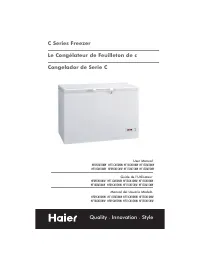 Haier HF11CM10NW
User Manual
Haier HF11CM10NW
User Manual
-
Haier HF11CM10NW
Manual
-
 Haier BCF46B
User Manual
Haier BCF46B
User Manual
-
 Haier HCC2230AGS
User Manual
Haier HCC2230AGS
User Manual
-
Haier HCC2230AGS
Installation Manual
-
 Haier HLTD500ACW
User Manual
Haier HLTD500ACW
User Manual
-
 Haier HRT18RCPB1
User Manual
Haier HRT18RCPB1
User Manual
-
 Haier HVTS18DTBB
User Manual
Haier HVTS18DTBB
User Manual
-
Haier HRT18RCWB1
User Manual
-
 Haier HRT18R1APB
User Manual
Haier HRT18R1APB
User Manual
-
 Haier ESA3159
User Manual
Haier ESA3159
User Manual
-
 Haier CPN11XCJ
User Manual
Haier CPN11XCJ
User Manual
-
Haier HLTD500AEW
User Manual
-
 Haier PBFS21EDAS
User Manual
Haier PBFS21EDAS
User Manual
-
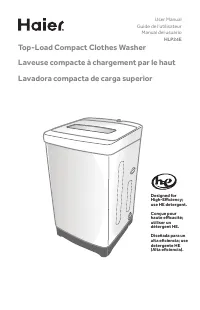 Haier HLP24E
User Manual
Haier HLP24E
User Manual
-
 Haier DWL4035DBWW
User Manual
Haier DWL4035DBWW
User Manual
-
Haier ESA3189
User Manual
-
 Haier CPN12XH9
User Manual
Haier CPN12XH9
User Manual
-
Haier CPN10XCJ
User Manual
-
Haier PBFS21EDBP
User Manual