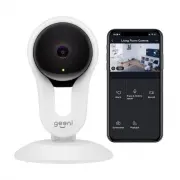
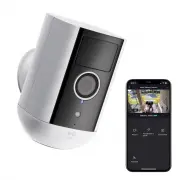
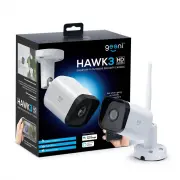
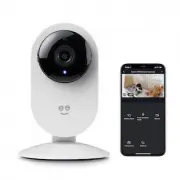
Page 2 - (Geeni can’t connect to 5GHz networks)
Contents Download & Register 2-4 Plug In 5 Connect (Easy Mode) 6-7 Connect (QR Code Mode) 8-9 Settings 10-11 Live View & Playback 12-13 Questions, Troubleshooting, Notices 14-15 What’s in the Box Get Ready • Smart Wi-Fi Camera • USB Cable • Mounting Adhesive • Power Adapter • User Manual • K...
Page 3 - Register an account on your Geeni app.; Enter your mobile phone number; Download the Geeni app from App Store or Google Play.
3 2 2 Register an account on your Geeni app. STEP 1. Enter your mobile phone number or email address. STEP 2. Enter the verification code and create a password. 1 Download the Geeni app from App Store or Google Play.
Page 4 - Login to the Geeni App.
5 4 STEP 3. Login to the App. 3 Plug In. How do I reset my device? Use the reset pin to press the Reset Button (as pictured) for several seconds until the camera starts to beep. Easy Mounting What does the blinking light mean? 2 Login to the Geeni App. *Optional: Insert Micro SD card as shown Soild ...
Page 5 - Geeni can’t connect to 5GHz networks.
7 6 STEP 1. In the Geeni app, on the top corner of the Devices screen, click (+). Choose “Video Camera“. STEP 2. Make sure the indicator light on the device is blinking Red, indicating the device is ready to connect. If not, follow instructions to Reset the device so that indicator light is blinking...
Page 6 - QR Code; Method 2: Backup QR Code Mode
9 8 QR Code 5 Add device. Method 2: Backup QR Code Mode STEP 1. Make sure the device is blinking red. (see reset instructions on p. 5) STEP 2. In the Geeni app, on the top corner of the Devices screen, click (+). Choose “Video Camera“. Choose “QR Code” in the top corner. STEP 3. Click Next and enter...
Page 7 - Settings; Access Camera Settings:
11 10 Settings Indicator Light: By default, the camera lights up to show it’s on. Switch “Indicator Light” off to hide the light. Flip: If you mount your camera upside down, toggling the “Flip” function will rotate the image so that it’s right side up. Time Watermark: Turn the time watermark on to a...
Page 9 - Frequently Asked Questions; How Much Video Can The Camera Record?
14 Frequently Asked Questions 1. Can I share with family and friends? Yes, you can share your cameras with family and friends who will have access to view the camera and control your bulbs, plugs, and other Geeni devices. In the Geeni app, press the Profile button and click on the “Device Sharing” b...
Page 10 - Make sure you entered the correct Wi-Fi password during the Wi-Fi
17 16 Troubleshooting System Requirements Technical Specifications Cannot connect to your Wi-Fi network. Make sure you entered the correct Wi-Fi password during the Wi-Fi setup. Check whether there are any Internet connection problems. If the Wi-Fi signal is too weak, reset your Wi-Fi router and try...
Page 11 - or tap; ‘Support’; for help in the Geeni app.
Can’t connect? Need help? DO NOT RETURN THIS PRODUCT TO THE STORE Geeni support: [email protected] (888) 232-3143 Toll-free (English Only) or tap ‘Support’ for help in the Geeni app.