Geeni GN-CW019-199 - User Manual
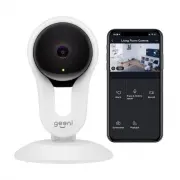
Geeni GN-CW019-199 Security Camera – User Manual, read for free online in PDF format. We hope this helps you resolve any issues you may have. If you have further questions, please contact us through the contact form.


Table of Contents:
- Page 2 – (Geeni can’t connect to 5GHz networks)
- Page 3 – Register an account on your Geeni app.; Enter your mobile phone number; Download the Geeni app from App Store or Google Play.
- Page 4 – How do I reset my device?; Press the Reset Button for several; Easy Mounting; Login to the Geeni App.; Slowly Blinking Blue; Ready to connect; LED Off; Connected; Rapidly Blinking Blue; Starting up
- Page 5 – Geeni can’t connect to 5GHz networks.
- Page 6 – Method 2: Backup QR Code Mode; QR Code
- Page 7 – Settings; Access Camera Settings:
- Page 9 – Frequently Asked Questions; How Much Video Can The Camera Record?
- Page 10 – Make sure you entered the correct Wi-Fi password during the Wi-Fi
- Page 11 – or tap; ‘Support’; for help in the Geeni app.
SMART WI-FI
C A M E R A
START GUIDE
"Loading the manual" means you need to wait until the file loads and becomes available for online reading. Some manuals are very large, and the time they take to appear depends on your internet speed.
Was this manual helpful?
About this manual
- Brand
- Geeni
- Model
- GN-CW019-199
- Document type
- User Manual
- Category
- Security Camera
- Language(s)
- English
- Pages
- 11
- File size
- 33.3 MB
- Format
Summary
Contents Download & Register 2-4 Plug In 5 Connect (Easy Mode) 6-7 Connect (QR Code Mode) 8-9 Settings 10-11 Live View & Playback 12-13 Questions, Troubleshooting, Notices 14-15 What’s in the Box Get Ready • Smart Wi-Fi Camera • Mounting Screws • USB Cable • Power Adapter • User Manual • Kno...
3 2 2 Register an account on your Geeni app. STEP 1. Enter your mobile phone number or email address. STEP 2. Enter the verification code and create a password. 1 Download the Geeni app from App Store or Google Play.
5 4 STEP 3. Login to the App. 3 Plug In. How do I reset my device? Press the Reset Button for several seconds until the camera starts to beep. Easy Mounting What does the blinking light mean? 2 Login to the Geeni App. *Optional: Insert microSD card as shown Slowly Blinking Blue Ready to connect LED ...


