Page 2 - Disclaimer
Disclaimer Thanks for purchasing ECOFLOW BLADE (hereinafter referred to as "the mower"). This is a battery-powered automatic robotic lawn mower, which is specially designed for mowing. Any other usages not clearly approved in this user manual may damage the automatic lawn mower and could res...
Page 3 - Table Of Contents; Seeking signal and fixing antenna/charging station
Table Of Contents Safety WarningsSymbols and Decals Product OverviewSelect Locations What's in the Box Installation Set up the working area Seeking signal and fixing antenna/charging station Maintenance Specifications FAQ Install the charging station Install the GNSS antenna Before setup Download Ec...
Page 4 - Safety Warnings; Before mowing
1 Safety Warnings Before mowing When mowing 1. Please read and follow the instructions and warnings carefully in the user manual before operating the mower. 2. The operator is responsible for accidents or hazards occurring to other people on their property. 3. Please regularly inspect the area where...
Page 5 - Disposal
2 5. During the manual control, do not overextend it and maintain balance at all times. Secure footing when the mower is moving on slopes. Always wear long trousers and work shoes. 6. Do not run while operating the mower or its peripherals. 7. In case of abnormal vibrations, please turn off the mowe...
Page 6 - Symbols and Decals
3 Symbols and Decals WARNING-Read instruction manual before operating the machine. WARNING-Do not ride on the machine. WARNING - Remove the disabling device before working on or lifting the machine (The disabling device means battery pack) *Make sure the battery is removed before working on or lifti...
Page 8 - Product Overview; EcoFlow Blade
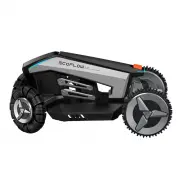
5 Product Overview Front Fig. 1 Side view of EcoFlow Blade Front Rear Rear 1. Headlight 2. Front wheel (omni-wheel) 3. Battery compartment cover 4. Back wheel (drive wheel) 5. Tail light 6. Power button 7. Start button 8. Recharge button 9. STOP button 10. Port for Lawn Sweeper Kit EcoFlow Blade ❶ ❾...
Page 10 - Charging Station & GNSS Antenna; GNSS antenna kit
7 Charging Station & GNSS Antenna GNSS antenna kit Charging station 1. LED indicator 2. Charging pad 3. Holes for nails 4. Extension cable connector 5. Power cable connector ❶ ❶ ❸ ❹ ❷ ❷ ❸ ❹ ❺ Fig. 3 GNSS Antenna kit Please be noted that Tube 1 has two different ends 1. Fork 2. Antenna tube 1 3. ...
Page 11 - Select Locations
8 Select Locations For a better performance, the following pink areas are not recommended for GNSS antenna and charging station. 1. Do not put the antenna or charging station between walls. < 4m/13 in 2. Do not keep the antenna or charging station under trees. Fig. 5 Unrecommended areas
Page 13 - Installation; Option 1; Install the GNSS antenna
10 Installation There are a couple of ways to install the antenna, here are two most common options for your reference. Option 1 1. Install tube 1 onto the fork and then install tube 2 onto tube 1. Install the GNSS antenna B2 B1 2. Slide the extension cable through the tubes.
Page 17 - Install the charging station
14 1. Connect the extension cable to the charging station. Install the charging station B1 A1 B1 B1 B1 B1 A1 A1 A2 B1 A1 A1 2. Connect the power cable to the charging station. Secure the cable connectors tightly to prevent the cable from being loose during use.
Page 19 - Seeking signal and fixing antenna/charging; Seeking signal
16 1. Remove the sticker attached to the front of the mower. Control, monitor, and customize your EcoFLow Blade from afar with the EcoFlow App. Download at: https://download.ecoflow.com/app Privacy policy By using EcoFlow Products, Applications, and Services, you consent to the EcoFlow Term of Use a...
Page 22 - Location for the antenna kit
19 1. Take off the protective covers. 1. Please be aware of sharp points of the fork, do not get yourself hurt. 2. Do not put anything on the antenna. Location for the antenna kit Location for charging station 2. Insert the antenna into the ground. After you have fixed the position of the antenna, n...
Page 25 - Set up the working area; Before setup
22 Set up the working area Before setup Clean your lawn Remove all the obstacles inside the working area, including toys, wires, stones, etc. Make sure that kids and pets are not near the mower. < 76mm/3 in
Page 27 - Working area
24 Working area 1. On "Guide to EcoFlow Blade" page, select "Create mower work map". 2. Follow the instructions and proceed to select "Start mapping". 3. Select "Mapping work area".
Page 30 - Restricted zone
27 1. We suggest that you move the mower near the area where you want to set up the "no- go zone", then tap the "start" button and tap "finish" button to end the process. 2. Please keep the restricted zones inside of the working area, otherwise, the app will remind you that y...
Page 31 - Path; LED Indication
28 Path 1. Select "Mapping channel" on the guide page. 2. Draw a path between two or more working areas by using the direction keys. Make sure you have created more than two working areas (see steps in working area ). LED Indication Light Color Status Meaning Head light Blue Dark blue as the...
Page 33 - Settings; Recharge/Return the charging station
30 Settings Start/Pause After "Guide to EcoFlow Blade", you can choose "Start working". Recharge/Return the charging station 1. Tap "Start", the mower will start mowing. 2. Tap "Pause" to pause the mower, and then tap again to resume the work. Option 1 While the mower...
Page 34 - Device sharing
31 Device sharing If you need to share this mower with someone else, please follow the steps below: 1. Tap the icon in the lower right. 2. Select "Device sharing". 1. If the mower is bonded with an account, then the new operators cannot connect to the mower unless the original account shares...
Page 36 - Firmware upgrade
33 3. Slide your finger to adjust the mowing height. Firmware upgrade Online upgrade 1. Tap the icon in the lower right and then tap "Firmware". 2. Select "Upgrade", and wait for the process to complete.
Page 38 - Maintenance; Lawn sweeper kit
35 Cleaning Transportation Hold the handle when you need to lift or move the mower. Maintenance Please do not use high-pressure water to clean the mower in case of component damage 1. Ensure that the mower is powered off, and remove the battery before cleaning. 2. Clean the mower with a damp clean c...
Page 43 - Specifications
40 Specifications Basic information Name EcoFlow Blade Model WR303 Size of the mower approx. 669*452*312 mm (26 × 18 × 12 in.) Size of the charging station approx. 715*501*205 mm (28 × 20 × 8 in.) Weight of the mower 12.3 kg (lbs) Weight with package 27.2 kg (lbs) Material Plastic and aluminium allo...
Page 45 - FAQ
42 FAQ 1. The robotic lawn mower cannot return to the charging station automatically. Why? It may not return to the charging station in the following cases: 1. The satellite signal is weak due to walls, trees or other obstacles within the range of 2m (6.56ft ) around the antenna. Solution: Move the ...