Page 2 - Abbreviations and Acronyms; User’s Guide
Notes, Notices, and Cautions NOTE: A NOTE indicates important information that helps you make better use of your computer. NOTICE: A NOTICE indicates either potential damage to hardware or loss of data and tells you how to avoid the problem. CAUTION: A CAUTION indicates a potential for property dama...
Page 3 - Contents; Finding Information; Index
Contents 3 Contents Finding Information . . . . . . . . . . . . . . . . . . . . . . . . . . . . . . . . 5 Setting Up Your Computer . . . . . . . . . . . . . . . . . . . . . . . . . . . . . 9 About Your Computer . . . . . . . . . . . . . . . . . . . . . . . . . . . . . . . 10 Front View . . . . . . ....
Page 5 - What Are You Looking For?; DellTM Product Information Guide
Quick Reference Guide 5 Finding Information NOTE: Some features or media may be optional and may not ship with your computer. Some features or media may not be available in certain countries. NOTE: Additional information may ship with your computer. What Are You Looking For? Find It Here • A diagnos...
Page 6 - Dell LatitudeTM User’s Guide; Start; Service Tag and Microsoft
6 Quick Reference Guide • How to remove and replace parts• Specifications• How to configure system settings• How to troubleshoot and solve problems Dell Latitude™ User’s Guide Microsoft Windows XP Help and Support Center 1 Click Start → Help and Support → Dell User and System Guides → System Guides ...
Page 7 - Go; Dell Support Utility; Windows Help and Support Center
Quick Reference Guide 7 • Solutions — Troubleshooting hints and tips, articles from technicians, online courses, and frequently asked questions • Community — Online discussion with other Dell customers • Upgrades — Upgrade information for components, such as memory, the hard drive, and the operating...
Page 8 - Dell QuickSet Help; To view; Operating System CD
8 Quick Reference Guide • Information on network activity, the Power Management Wizard, hotkeys, and other items controlled by Dell QuickSet. Dell QuickSet Help To view Dell QuickSet Help , right-click the icon in the Microsoft ® Windows ® taskbar. For more information on Dell QuickSet, see "Del...
Page 9 - Setting Up Your Computer; Product
Quick Reference Guide 9 Setting Up Your Computer CAUTION: Before you begin any of the procedures in this section, follow the safety instructions in the Product Information Guide . 1 Unpack the accessories box. 2 Set aside the contents of the accessories box, which you will need to complete the setup...
Page 10 - About Your Computer; Front View
10 Quick Reference Guide About Your Computer Front View 1 display 2 device status lights 3 keyboard 4 touch pad 5 display latch 6 speakers 7 touch pad buttons 8 keyboard status lights 9 power button 4 1 3 8 7 2 6 9 5
Page 11 - Left Side View
Quick Reference Guide 11 Left Side View Right Side View Back View CAUTION: Do not block, push objects into, or allow dust to accumulate in the air vents. Do not store your computer in a low-airflow environment, such as a closed briefcase, while it is running. Restricting the airflow can damage the c...
Page 12 - Bottom View
12 Quick Reference Guide Bottom View 1 USB connectors (2) 2 modem connector (RJ-11) 3 network connector (RJ-45) 4 S-video TV-out connector 5 serial connector 6 video connector 7 AC adapter connector 8 air vents 1 memory module/modem/WLAN Mini-Card/coin-cell battery cover 2 battery-bay latch release ...
Page 13 - Using a Battery; Battery Performance; Using optical drives
Quick Reference Guide 13 Using a Battery Battery Performance NOTE: For information about the Dell warranty for your computer, see the Product Information Guide or separate paper warranty document that shipped with your computer. For optimal computer performance and to help preserve BIOS settings, op...
Page 14 - Checking the Battery Charge; Power Meter; pressing and holding; Help
14 Quick Reference Guide CAUTION: Misuse of the battery may increase the risk of fire or chemical burn. Do not puncture, incinerate, disassemble, or expose the battery to temperatures above 60°C (140°F). Keep the battery away from children. Handle damaged or leaking batteries with extreme care. Dama...
Page 15 - press and hold; Power Options Properties; Charging the Battery; User’s; Removing the Battery
Quick Reference Guide 15 To check the battery health using the charge gauge, press and hold the status button on the battery charge gauge for at least 3 seconds. If no lights appear, the battery is in good condition, and more than 80 percent of its original charge capacity remains. Each light repres...
Page 16 - To remove the battery:; Storing a Battery
16 Quick Reference Guide NOTICE: You must remove all external cables from the computer to avoid possible connector damage.For information about replacing the second battery, which is located in the media bay, see "Using Multimedia" in your User’s Guide . To remove the battery: 1 If the compu...
Page 17 - Troubleshooting; Lockups and Software Problems; A C
Quick Reference Guide 17 Troubleshooting Lockups and Software Problems CAUTION: Before you begin any of the procedures in this section, follow the safety instructions in the Product Information Guide . The computer does not start up E N S U R E T H A T T H E A C A D A P T E R I S F I R M L Y C O N N...
Page 18 - Other software problems; C D; spyware; Dell Diagnostics
18 Quick Reference Guide Other software problems C H E C K T H E S O F T W A R E D O C U M E N T A T I O N O R C O N T A C T T H E S O F T W A R E M A N U F A C T U R E R F O R T R O U B L E S H O O T I N G I N F O R M A T I O N — • Ensure that the program is compatible with the operating system ins...
Page 19 - Starting the Dell Diagnostics From Your Hard Drive
Quick Reference Guide 19 Starting the Dell Diagnostics From Your Hard Drive The Dell Diagnostics is located on a hidden diagnostic utility partition on your hard drive. NOTE: If your computer cannot display a screen image, contact Dell (see "Contacting Dell" in your User’s Guide ). 1 Shut do...
Page 20 - Dell Diagnostics Main Menu; Option
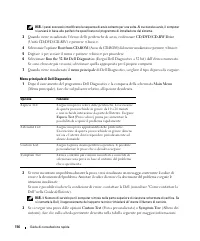
20 Quick Reference Guide 3 When the boot device list appears, highlight CD/DVD/CD-RW Drive and press <Enter>. 4 Select the Boot from CD-ROM option from the menu that appears and press <Enter>. 5 Type 1 to start the menu and press <Enter> to proceed. 6 Select Run the 32 Bit Dell Dia...
Page 21 - screen. To exit the Dell; Main; Tab
Quick Reference Guide 21 4 When the tests are completed, if you are running the Dell Diagnostics from the Drivers and Utilities CD , remove the CD. 5 When the tests are complete, close the test screen to return to the Main Menu screen. To exit the Dell Diagnostics and restart the computer, close the...
Page 25 - Snelle referentiegids
w w w . d e l l . c o m | s u p p o r t . d e l l . c o m Dell™ Latitude™ D520 Snelle referentiegids Model PP17L
Page 26 - Opmerkingen, kennisgevingen en waarschuwingen; Afkortingen en acroniemen; Gebruikershandleiding
Opmerkingen, kennisgevingen en waarschuwingen OPMERKING: Een OPMERKING duidt belangrijke informatie aan voor een beter gebruik van de computer. KENNISGEVING: Een KENNISGEVING duidt potentiële schade aan hardware of potentieel gegevensverlies aan en vertelt u hoe het probleem kan worden vermeden. WAA...
Page 27 - Inhoudsopgave; Informatie zoeken
Inhoudsopgave 27 Inhoudsopgave Informatie zoeken . . . . . . . . . . . . . . . . . . . . . . . . . . . . . . . . 29 De computer instellen . . . . . . . . . . . . . . . . . . . . . . . . . . . . . . 33 Over de computer . . . . . . . . . . . . . . . . . . . . . . . . . . . . . . . . 34 Vooraanzicht . ...
Page 29 - Hier kunt u het vinden; DellTM Productinformatiegids
Snelle referentiegids 29 Informatie zoeken OPMERKING: Sommige kenmerken of media kunnen optioneel zijn en niet zijn meegeleverd met uw computer. Sommige kenmerken of media zijn wellicht niet beschikbaar in bepaalde landen. OPMERKING: Mogelijk is er bij uw computer aanvullende informatie geleverd. Wa...
Page 30 - Dell LatitudeTM Gebruikershandleiding; Servicelabel en Microsoft
30 Snelle referentiegids • Onderdelen verwijderen en vervangen• Specificaties• Systeeminstellingen configureren• Problemen vaststellen en oplossen Dell Latitude™ Gebruikershandleiding Help en ondersteuning van Microsoft Windows XP 1 Klik op Start → Help and ondersteuning → Dell User and System Guide...
Page 32 - Help en ondersteuning van Windows; Wanneer u
32 Snelle referentiegids • Met Windows XP werken• Aan het werk met programma's en bestanden• Hoe pas ik mijn bureaublad aan Help en ondersteuning van Windows 1 Klik op Start → Help en ondersteuning . 2 Geef met een of meer woorden een beschrijving van het probleem en klik vervolgens op het pijltje. ...
Page 33 - De computer instellen; te volgen die u vindt in de; Productinformatiegids
Snelle referentiegids 33 De computer instellen WAARSCHUWING: Voordat u aan een van de procedures in deze sectie begint, dient u de veiligheidsinstructies te volgen die u vindt in de Productinformatiegids . 1 Haal de onderdelen uit de accessoiredoos. 2 Leg de onderdelen terzijde. U hebt deze nodig om...
Page 34 - Over de computer; Vooraanzicht
34 Snelle referentiegids Over de computer Vooraanzicht 1 beeldscherm 2 statuslampjes apparaat 3 toetsenbord 4 touchpad 5 displayvergrendeling 6 luidsprekers 7 knoppen voor touchpad 8 statuslampjes toetsenbord 9 aan/uit-knop 4 1 3 8 7 2 6 9 5
Page 35 - Linkeraanzicht
Snelle referentiegids 35 Linkeraanzicht Rechteraanzicht Achteraanzicht WAARSCHUWING: Blokkeer de luchtopeningen niet, duw er geen voorwerpen in en zorg dat er zich geen stof in ophoopt. Plaats de computer niet in een omgeving waar weinig lucht beschikbaar is, zoals een gesloten koffer, als de comput...
Page 36 - Onderaanzicht
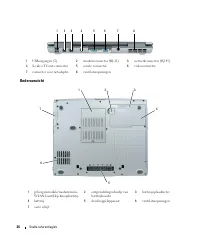
36 Snelle referentiegids Onderaanzicht 1 USB-ingangen (2) 2 modemconnector (RJ-11) 3 netwerkconnector (RJ-45) 4 S-video TV-out-connector 5 seriële connector 6 videoconnector 7 connector voor netadapter 8 ventilatieopeningen 1 geheugenmodule/modem/mini-WLAN-kaart/klep knoopbatterij 2 ontgrendelingssc...
Page 37 - Batterijen gebruiken; Batterijprestaties; De werkingsduur neemt aanzienlijk af door onder andere:
Snelle referentiegids 37 Batterijen gebruiken Batterijprestaties OPMERKING: Zie de Productinformatiegids of het afzonderlijke papieren garantiedocument dat met uw computer is meegeleverd voor informatie over de Dell-garantie voor uw computer. Voor optimale prestaties van de computer en tevens om te ...
Page 38 - De batterijlading controleren; Energiemeter
38 Snelle referentiegids WAARSCHUWING: Misbruik van de batterij kan de kans op brand of chemische brandwonden verhogen. Maak geen gaten in batterijen, gooi geen batterijen in het vuur, maak geen batterijen open en stel geen batterijen bloot aan een temperatuur hoger dan 60°C. Houd de batterij buiten...
Page 39 - De gezondheid van de batterij controleren; ingedrukt houden; Eigenschappen voor Energiebeheer; kunt u de instellingen voor de; Eigenschappen voor; De batterij opladen
Snelle referentiegids 39 De gezondheid van de batterij controleren OPMERKING: De gezondheid van de batterij kan op twee manieren worden gecontroleerd: door de ladingsmeter te gebruiken zoals hieronder wordt beschreven, en door de batterijmeter te gebruiken in Del QuickSet. Voor informatie over Quick...
Page 40 - De batterij verwijderen; De batterij verwijderen:
40 Snelle referentiegids De batterij verwijderen WAARSCHUWING: Voordat u deze procedures uitvoert, moet u de computer uitzetten, de netadapter uit het stopcontact halen, de modem losmaken van de wandaansluiting en de computer en alle andere externe kabels loskoppelen van de computer. WAARSCHUWING: H...
Page 41 - Een batterij opslaan; Foutopsporing; Vastlopen en softwareproblemen; Taakbeheer; Windows
Snelle referentiegids 41 Een batterij opslaan Verwijder de batterij als u de computer voor langere tijd opslaat. Een batterij verliest zijn lading als deze gedurende een lange periode wordt opgeslagen. Na een lange opslagperiode dient u de batterij volledig opnieuw te laden voordat u deze gebruikt (...
Page 42 - Er verschijnt een blauw scherm
42 Snelle referentiegids Er verschijnt een blauw scherm Z E T D E C O M P U T E R U I T — Als u geen reactie krijgt door op een toets op het toetsenbord te drukken of de muis te bewegen, moet u de aan/uit-knop minstens 8-10 seconden ingedrukt te houden totdat de computer uitgaat. Start de computer v...
Page 43 - Drivers and; Sluit de computer af.
Snelle referentiegids 43 Start Dell Diagnostics (Dell-diagnoseprogramma) vanaf uw vaste schijf of vanaf de cd Drivers and Utilities (Stuur- en hulpprogramma's, ook bekend als de ResourceCD ). Dell Diagnostics (Dell-diagnoseprogramma) starten vanaf de vaste schijf Dell Diagnostics (Dell-diagnoseprogr...
Page 44 - Drivers and Utilities straight formatting.; Run the 32 Bit Dell Diagnostics; Hoofdmenu Dell Diagnostics; hoofdmenu; Optie
44 Snelle referentiegids Het diagnoseprogramma starten vanaf de cd Drivers and Utilities (Stuur- en hulpprogramma's) 1 Plaats de cd Drivers and Utilities straight formatting. 2 Zet de computer uit en start deze opnieuw op. Wanneer het DELL-logo verschijnt, drukt u direct op <F12>. Als u te lan...
Page 45 - Custom Test; door het scherm met het; Tabblad
Snelle referentiegids 45 2 Als er tijdens een test een probleem wordt gedetecteerd, wordt er een bericht weergegeven met de foutcode en een beschrijving van het probleem. Noteer de foutcode en de beschrijving van het probleem en volg de instructies op het scherm. Als u de foutconditie niet kunt oplo...
Page 49 - Guide de référence rapide
w w w . d e l l . c o m | s u p p o r t . d e l l . c o m Dell™ Latitude™ D520 Guide de référence rapide Modèle PP17L
Page 51 - Sommaire; Recherche d'informations
Sommaire 51 Sommaire Recherche d'informations . . . . . . . . . . . . . . . . . . . . . . . . . . . . 53 Configuration de votre ordinateur . . . . . . . . . . . . . . . . . . . . . . . . 57 A propos de votre ordinateur . . . . . . . . . . . . . . . . . . . . . . . . . . 58 Vue frontale . . . . . . ....
Page 53 - Guide d'information sur le produit DellTM
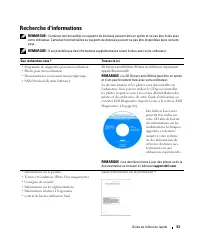
Guide de référence rapide 53 Recherche d'informations REMARQUE : Certaines fonctionnalités ou supports de données peuvent être en option et ne pas être livrés avec votre ordinateur. Certaines fonctionnalités ou supports de données peuvent ne pas être disponibles dans certains pays. REMARQUE : Il est...
Page 54 - Guide d'utilisation Dell LatitudeTM; Démarrer
54 Guide de référence rapide • Comment retirer et remplacer des pièces• Caractéristiques• Comment configurer les paramètres système• Comment dépanner et résoudre les problèmes Guide d'utilisation Dell Latitude™ Centre d'aide et de support Microsoft Windows XP 1 Cliquez sur Démarrer → Aide et support...
Page 55 - Utilitaire de support Dell
Guide de référence rapide 55 • Solutions — Astuces de dépannage, articles de techniciens, cours en ligne et questions fréquemment posées • Forum clients — Discussion en ligne avec d'autres clients Dell • Mises à niveau — Informations de mise à niveau pour les composants, tels que la mémoire, le disq...
Page 56 - Centre d'aide et de support de Windows; Aide de Dell QuickSet
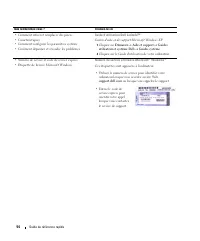
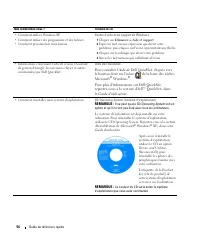
56 Guide de référence rapide • Comment utiliser Windows XP• Comment utiliser des programmes et des fichiers• Comment personnaliser mon bureau Centre d'aide et de support de Windows 1 Cliquez sur Démarrer → Aide et support . 2 Tapez un mot ou une expression qui décrit votre problème, puis cliquez sur...
Page 57 - Configuration de votre ordinateur; sécurité du; Guide d'information sur le produit
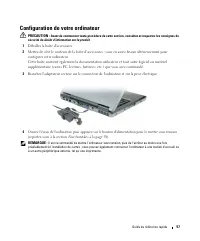
Guide de référence rapide 57 Configuration de votre ordinateur PRECAUTION : Avant de commencer toute procédure de cette section, consultez et respectez les consignes de sécurité du Guide d'information sur le produit . 1 Déballez la boîte d'accessoires. 2 Mettez de côté le contenu de la boîte d'acces...
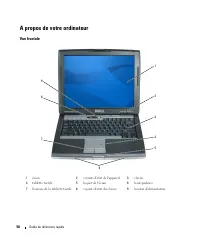
Page 58 - A propos de votre ordinateur; Vue frontale
58 Guide de référence rapide A propos de votre ordinateur Vue frontale 1 écran 2 voyants d'état de l'appareil 3 clavier 4 tablette tactile 5 loquet de l'écran 6 haut-parleurs 7 boutons de la tablette tactile 8 voyants d'état du clavier 9 bouton d'alimentation 4 1 3 8 7 2 6 9 5
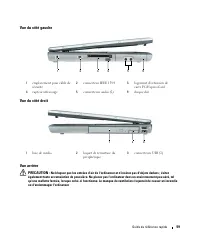
Page 59 - Vue du côté gauche
Guide de référence rapide 59 Vue du côté gauche Vue du côté droit Vue arrière PRECAUTION : Ne bloquez pas les entrées d'air de l'ordinateur et n'insérez pas d'objets dedans ; évitez également toute accumulation de poussière. Ne placez pas l'ordinateur dans un environnement peu aéré, tel qu'une malle...
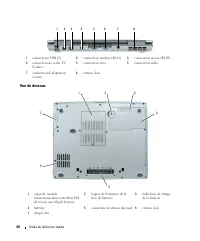
Page 60 - Vue du dessous
60 Guide de référence rapide Vue du dessous 1 connecteurs USB (2) 2 connecteur modem (RJ-11) 3 connecteur réseau (RJ-45) 4 connecteur de sortie TV S-vidéo 5 connecteur série 6 connecteur vidéo 7 connecteur d'adaptateur secteur 8 entrées d'air 1 capot de module mémoire/modem/carte Mini PCI de réseau ...
Page 61 - Utilisation d'une batterie; Performances de la batterie; Utilisation de lecteurs optiques.
Guide de référence rapide 61 Utilisation d'une batterie Performances de la batterie REMARQUE : Pour plus d'informations sur la garantie Dell de votre ordinateur, reportez-vous au Guide d'information produit ou à la page de garantie livrée avec votre ordinateur. Pour un fonctionnement optimal et afin...
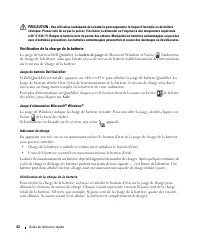
Page 62 - Vérification de la charge de la batterie; fenêtre de jauge; Jauge de batterie Dell QuickSet; Aide; Jauge d'alimentation Microsoft
62 Guide de référence rapide PRECAUTION : Une utilisation inadéquate de la batterie peut augmenter le risque d'incendie ou de brûlure chimique. Prenez soin de ne pas la percer, l'incinérer, la démonter ou l'exposer à une température supérieure à 60 °C (140 °F). Rangez la batterie hors de portée des ...
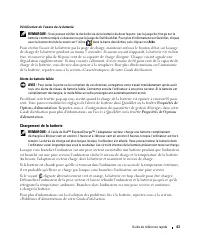
Page 63 - Vérification de l'usure de la batterie; Pour vérifier l'usure de la batterie par la jauge de charge,; Propriétés de; pour plus d'informations sur l'accès à QuickSet ou la fenêtre; Propriétés de Options; Chargement de la batterie; Si le voyant
Guide de référence rapide 63 Vérification de l'usure de la batterie REMARQUE : Vous pouvez vérifier la durée de vie de la batterie de deux façons : par la jauge de charge sur la batterie comme indiqué ci-dessous ou par la jauge de Dell QuickSet. Pour plus d'informations sur QuickSet, cliquez avec le...
Page 64 - Retrait de la batterie; Pour retirer la batterie :; Stockage de la batterie
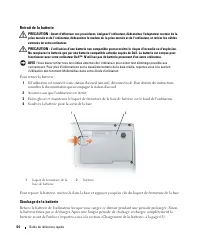
64 Guide de référence rapide Retrait de la batterie PRECAUTION : Avant d'effectuer ces procédures, éteignez l'ordinateur, débranchez l'adaptateur secteur de la prise murale et de l'ordinateur, débranchez le modem de la prise murale et de l'ordinateur, et retirez les câbles externes de votre ordinate...
Page 65 - Dépannage; Blocages et problèmes logiciels; Cliquez sur
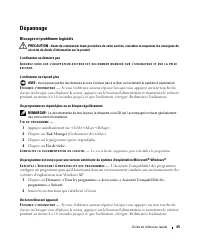
Guide de référence rapide 65 Dépannage Blocages et problèmes logiciels PRECAUTION : Avant de commencer toute procédure de cette section, consultez et respectez les consignes de sécurité du Guide d'information sur le produit . L'ordinateur ne démarre pas A S S U R E Z - V O U S Q U E L ' A D A P T A ...
Page 66 - Autres problèmes logiciels; Drivers and Utilities (Pilotes et utilitaires)
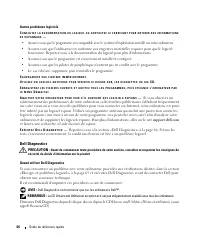
66 Guide de référence rapide Autres problèmes logiciels C O N S U L T E Z L A D O C U M E N T A T I O N D U L O G I C I E L O U C O N T A C T E Z L E F A B R I C A N T P O U R O B T E N I R D E S I N F O R M A T I O N S D E D É P A N N A G E — • Assurez-vous que le programme est compatible avec le s...
Page 67 - Démarrage de Dell Diagnostics depuis le CD Drivers and Utilities
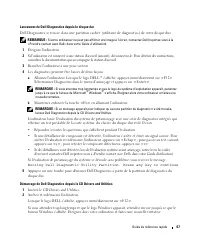
Guide de référence rapide 67 Lancement de Dell Diagnostics depuis le disque dur Dell Diagnostics se trouve dans une partition cachée (utilitaire de diagnostics) de votre disque dur. REMARQUE : Si votre ordinateur ne peut pas afficher une image à l'écran, contactez Dell (reportez-vous à la «Prendre c...
Page 68 - Menu principal de Dell Diagnostics
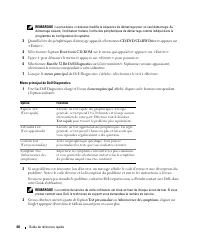
68 Guide de référence rapide REMARQUE : La procédure ci-dessous modifie la séquence de démarrage pour un seul démarrage. Au démarrage suivant, l'ordinateur traitera l'ordre des périphériques de démarrage comme indiqué dans le programme de configuration du système. 3 Quand la liste des périphériques ...
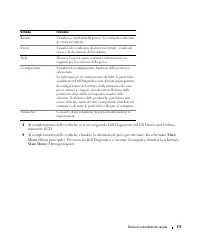
Page 69 - Drivers and Utilities,; Menu; Onglet
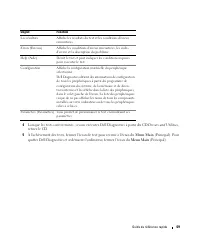
Guide de référence rapide 69 4 Lorsque les tests sont terminés, si vous exécutez Dell Diagnostics à partir du CD Drivers and Utilities, retirez le CD. 5 À l'achèvement des tests, fermez l'écran de test pour revenir à l'écran du Menu Main (Principal). Pour quitter Dell Diagnostics et redémarrer l'ord...
Page 73 - Schnellreferenzhandbuch
w w w . d e l l . c o m | s u p p o r t . d e l l . c o m Dell™ Latitude™ D520 Schnellreferenzhandbuch Modell PP17L
Page 74 - Anmerkungen, Hinweise und Vorsichtshinweise; oder sogar den Tod von Personen zur Folge haben können.; Abkürzungen und Akronyme; Benutzerhandbuch
Anmerkungen, Hinweise und Vorsichtshinweise ANMERKUNG: Eine ANMERKUNG macht auf wichtige Informationen aufmerksam, die Ihnen die Arbeit mit dem Computer erleichtern. HINWEIS: Ein HINWEIS weist auf eine mögliche Beschädigung von Hardware oder den Verlust von Daten hin und beschreibt, wie dieses Probl...
Page 75 - Inhalt; Informationsquellen
Inhalt 75 Inhalt Informationsquellen . . . . . . . . . . . . . . . . . . . . . . . . . . . . . . . 77 Einrichten des Computers . . . . . . . . . . . . . . . . . . . . . . . . . . . . 81 Wissenswertes über Ihren Computer . . . . . . . . . . . . . . . . . . . . . . 82 Vorderansicht . . . . . . . . . ....
Page 77 - Welche Informationen benötigen Sie?; DellTM-Produktinformationshandbuch
Schnellreferenzhandbuch 77 Informationsquellen ANMERKUNG: Einige Funktionen oder Datenträger sind möglicherweise optional und werden nicht mit Ihrem Computer geliefert. Einige Funktionen oder Datenträger sind möglicherweise in bestimmten Ländern nicht verfügbar. ANMERKUNG: Möglicherweise ist im Lief...
Page 78 - Dell LatitudeTM Benutzerhandbuch
78 Schnellreferenzhandbuch • Anleitungen zum Entfernen und Austauschen von Teilen • Technische Daten• Anleitungen zum Konfigurieren der Systemeinstellungen • Anleitungen zur Fehlerbeseitigung und zum Beheben von Störungen Dell Latitude™ Benutzerhandbuch Microsoft Windows XP Hilfe- und Supportcenter ...
Page 79 - Los; Dell Supportprogramm
Schnellreferenzhandbuch 79 • Lösungen — Hinweise zur Fehlerbehebung, Veröffentlichungen von Technikern, Online-Schulungen und häufig gestellte Fragen (FAQs) • Community — Online-Diskussion mit anderen Dell-Kunden • Upgrades (Aufrüstungen) — Aufrüstungsinformationen zu Komponenten, beispielsweise Spe...
Page 80 - Hilfe- und Supportcenter unter Windows
80 Schnellreferenzhandbuch • Anleitungen zum Arbeiten unter Windows XP• Anleitung zum Arbeiten mit Programmen und Dateien• Anleitung zum persönlichen Einrichten des Desktops Hilfe- und Supportcenter unter Windows 1 Klicken Sie auf Start → Hilfe und Support . 2 Geben Sie ein Wort oder einen Ausdruck ...
Page 81 - Einrichten des Computers; Sicherheitshinweise im; Produktinformationshandbuch
Schnellreferenzhandbuch 81 Einrichten des Computers VORSICHT: Bevor Sie die in diesem Abschnitt beschriebenen Anweisungen ausführen, lesen Sie zunächst die Sicherheitshinweise im Produktinformationshandbuch . 1 Packen Sie das Zubehör aus. 2 Legen Sie die für das Einrichten des Computers erforderlich...
Page 82 - Wissenswertes über Ihren Computer; Vorderansicht
82 Schnellreferenzhandbuch Wissenswertes über Ihren Computer Vorderansicht 1 Bildschirm 2 Gerätestatusanzeigen 3 Tastatur 4 Touchpad 5 Bildschirmverriegelung 6 Lautsprecher 7 Touchpadtasten 8 Tastaturstatusanzeigen 9 Netzschalter 4 1 3 8 7 2 6 9 5
Page 83 - Linke Seitenansicht
Schnellreferenzhandbuch 83 Linke Seitenansicht Rechte Seitenansicht Rückansicht VORSICHT: Achten Sie darauf, die Lüftungsschlitze nicht zu blockieren, schieben Sie keine Gegenstände hinein, und halten Sie die Lüftungsschlitze staubfrei. Bewahren Sie den Computer während des Betriebs nicht in schlech...
Page 84 - Unterseite
84 Schnellreferenzhandbuch Unterseite 1 USB-Anschlüsse (2) 2 Modemanschluss (RJ-11) 3 Netzwerkanschluss (RJ-45) 4 S-Video-TV-Ausgang 5 Serieller Anschluss 6 Monitoranschluss 7 Netzadapteranschluss 8 Lüftungsschlitze 1 Abdeckung für Speichermodul, Modem, WLAN Mini-Card und Knopfzellenbatterie 2 Akkuf...
Page 85 - Verwenden eines Akkus; Akkuleistung; Verwenden von optischen Laufwerken
Schnellreferenzhandbuch 85 Verwenden eines Akkus Akkuleistung ANMERKUNG: Informationen zur Dell™-Garantie für den Computer finden Sie im Produktinformationshandbuch bzw. in dem Garantieschein, der im Lieferumfang des Computers enthalten ist. Für eine optimale Leistung des Computers und zur Beibehalt...
Page 86 - Prüfen des Akkuladezustands; Energieanzeige; Akkuanzeige von DellTM QuickSet; Energieanzeige von Microsoft
86 Schnellreferenzhandbuch VORSICHT: Bei unsachgemäßer Verwendung des Akkus besteht Brand- oder Verätzungsgefahr. Sie dürfen den Akku nicht aufstechen, verbrennen, auseinander nehmen oder Temperaturen über 60°C aussetzen. Bewahren Sie den Akku außerhalb der Reichweite von Kindern auf. Handhaben Sie ...
Page 87 - Überprüfen des Akkuzustands; drücken; Eigenschaften von Energieoptionen; Aufladen des Akkus
Schnellreferenzhandbuch 87 Überprüfen des Akkuzustands ANMERKUNG: Sie können den Akkuzustand auf die beiden folgenden Weisen überprüfen: Indem Sie die Ladestandanzeige auf dem Akku wie nachstehend beschrieben verwenden oder indem Sie die Akkuanzeige in Dell QuickSet verwenden. Informationen zur Quic...
Page 88 - Entfernen des Akkus; So entfernen Sie den Akku:; Lagern eines Akkus
88 Schnellreferenzhandbuch Entfernen des Akkus VORSICHT: Führen Sie die folgenden Schritte aus, bevor Sie fortfahren: Computer ausschalten, Netzkabel aus der Steckdose und dem Computer ziehen, Modem vom Wandanschluss und vom Computer trennen sowie alle externen Kabel vom Computer trennen. VORSICHT: ...
Page 89 - Beheben von Störungen; Probleme mit Absturz und Software
Schnellreferenzhandbuch 89 Beheben von Störungen Probleme mit Absturz und Software VORSICHT: Bevor Sie die in diesem Abschnitt beschriebenen Anweisungen ausführen, lesen Sie zunächst die Sicherheitshinweise im Produktinformationshandbuch . Der Computer kann nicht gestartet werden V E R G E W I S S E...
Page 90 - Weitere softwarebezogene Probleme; S t a r t; Wenn die Leistung Ihres Computers gering ist, Ihr; Starten Sie Dell Diagnostics über die Festplatte oder über die CD
90 Schnellreferenzhandbuch Weitere softwarebezogene Probleme L E S E N S I E D I E D O K U M E N T A T I O N Z U D E M J E W E I L I G E N P R O G R A M M , O D E R S E T Z E N S I E S I C H M I T D E M H E R S T E L L E R D E R S O F T W A R E I N V E R B I N D U N G — • Stellen Sie sicher, dass da...
Page 91 - Starten von Dell Diagnostics über das Festplattenlaufwerk
Schnellreferenzhandbuch 91 Starten von Dell Diagnostics über das Festplattenlaufwerk Dell Diagnostics befindet sich auf der Festplatte in einer verborgenen Partition für Dienstprogramme. ANMERKUNG: Falls Ihr Computer nicht in der Lage ist, ein Monitorbild anzuzeigen, wenden Sie sich an Dell (siehe u...
Page 92 - Hauptmenü des Programms Dell Diagnostics; Hauptmenü
92 Schnellreferenzhandbuch Wenn das Dell-Logo angezeigt wird, drücken Sie sofort <F12>. Wenn Sie zu lange warten und das Windows-Logo eingeblendet wird, warten Sie, bis der Windows-Desktop angezeigt wird. Fahren Sie danach den Computer herunter und starten Sie ihn erneut. ANMERKUNG: Im nächste...
Page 93 - Registerkarte
Schnellreferenzhandbuch 93 Kann das Problem nicht gelöst werden, wenden Sie sich an Dell (siehe unter „Kontaktaufnahme mit Dell” im Benutzerhandbuch ). ANMERKUNG: Die Service-Tag-Nummer des Computers finden Sie im oberen Bereich der einzelnen Testbildschirme. Wenn Sie Kontakt zu Dell aufnehmen, werd...
Page 97 - Guida di consultazione rapida
w w w . d e l l . c o m | s u p p o r t . d e l l . c o m Dell™ Latitude™ D520 Guida di consultazione rapida Modello PP17L
Page 98 - Abbreviazioni ed acronimi
N.B., Avvisi e Attenzione N.B. Un N.B. indica informazioni importanti che contribuiscono a migliorare l'utilizzo del computer. AVVISO: Un AVVISO indica un danno potenziale all'hardware o perdita di dati e spiega come evitare il problema. ATTENZIONE: Un messaggio di ATTENZIONE indica un rischio di da...
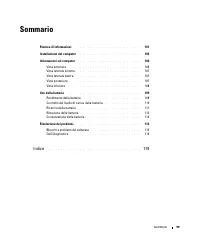
Page 99 - Sommario; Ricerca di informazioni; Indice
Sommario 99 Sommario Ricerca di informazioni . . . . . . . . . . . . . . . . . . . . . . . . . . . . 101 Installazione del computer . . . . . . . . . . . . . . . . . . . . . . . . . . 105 Informazioni sul computer . . . . . . . . . . . . . . . . . . . . . . . . . . . 106 Vista anteriore . . . . . . ...
Page 101 - Si trova qui; Guida alle informazioni sul prodotto DellTM
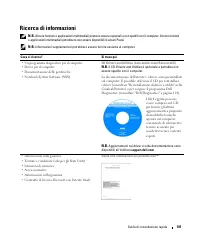
Guida di consultazione rapida 101 Ricerca di informazioni N.B. Alcune funzioni o applicazioni multimediali possono essere opzionali e non spediti con il computer. Alcune funzioni o applicazioni multimediali potrebbero non essere disponibili in alcuni Paesi. N.B. Informazioni supplementari potrebbero...
Page 102 - Guida dell'utente di Dell LatitudeTM
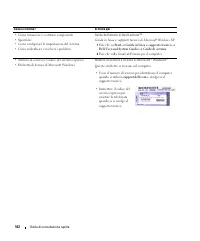
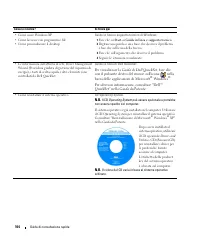
102 Guida di consultazione rapida • Come rimuovere e sostituire componenti• Specifiche• Come configurare le impostazioni del sistema• Come individuare e risolvere i problemi Guida dell'utente di Dell Latitude™ Guida in linea e supporto tecnico di Microsoft Windows XP 1 Fare clic su Start → Guida in ...
Page 103 - Sito Web del supporto tecnico della Dell — support.dell.com; Utilità Dell Support
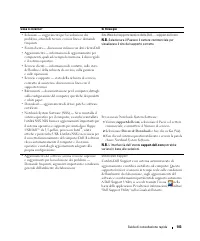
Guida di consultazione rapida 103 • Soluzioni — suggerimenti per la risoluzione dei problemi, articoli di tecnici, corsi in linea e domande frequenti • Forum clienti — discussione in linea con altri clienti Dell• Aggiornamenti — informazioni di aggiornamento per componenti, quali ad esempio la memor...
Page 104 - Guida in linea e supporto tecnico di Windows; Per visualizzare la; CD Operating System
104 Guida di consultazione rapida • Come usare Windows XP• Come lavorare con programmi e file• Come personalizzare il desktop Guida in linea e supporto tecnico di Windows 1 Fare clic su Start → Guida in linea e supporto tecnico . 2 Digitare una parola o una frase che descriva il problema e fare clic...
Page 105 - Installazione del computer; riportate nella; Guida alle informazioni sul prodotto
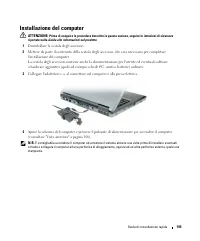
Guida di consultazione rapida 105 Installazione del computer ATTENZIONE: Prima di eseguire le procedure descritte in questa sezione, seguire le istruzioni di sicurezza riportate nella Guida alle informazioni sul prodotto . 1 Disimballare la scatola degli accessori. 2 Mettere da parte il contenuto de...
Page 106 - Informazioni sul computer; Vista anteriore
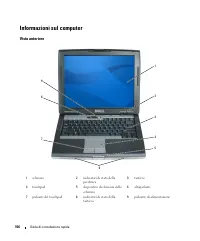
106 Guida di consultazione rapida Informazioni sul computer Vista anteriore 1 schermo 2 indicatori di stato della periferica 3 tastiera 4 touchpad 5 dispositivo di chiusura dello schermo 6 altoparlanti 7 pulsanti del touchpad 8 indicatori di stato della tastiera 9 pulsante di alimentazione 4 1 3 8 7...
Page 107 - Vista laterale sinistra
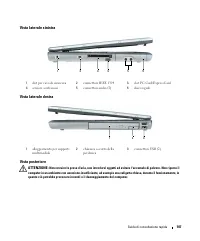
Guida di consultazione rapida 107 Vista laterale sinistra Vista laterale destra Vista posteriore ATTENZIONE: Non ostruire le prese d'aria, non introdurvi oggetti ed evitare l'accumulo di polvere. Non riporre il computer in un ambiente con aerazione-insufficiente, ad esempio una valigetta chiusa, dur...
Page 108 - Vista inferiore
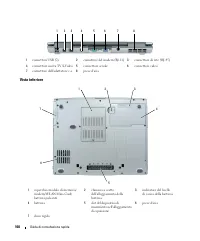
108 Guida di consultazione rapida Vista inferiore 1 connettori USB (2) 2 connettore del modem (RJ-11) 3 connettore di rete (RJ-45) 4 connettore uscita TV S-Video 5 connettore seriale 6 connettore video 7 connettore dell'adattatore c.a. 8 prese d'aria 1 coperchio modulo di memoria/modem/WLAN Mini-Car...
Page 109 - Uso della batteria; Rendimento della batteria; Uso delle unità ottiche
Guida di consultazione rapida 109 Uso della batteria Rendimento della batteria N.B. Per informazioni sulla garanzia fornita da Dell per il computer, consultare la Guida alle informazioni sul prodotto o il documento della garanzia spedito con il computer. Per mantenere prestazioni ottimali e le impos...
Page 110 - Controllo del livello di carica della batteria; Misuratore di alimentazione; Misuratore di alimentazione di DellTM QuickSet; Guida in linea; Misuratore di alimentazione di Microsoft
110 Guida di consultazione rapida ATTENZIONE: Non smaltire le batterie insieme ai rifiuti domestici. Quando la batteria non è più in grado di mantenere il livello di carica, contattare l'autorità locale preposta allo smaltimento dei rifiuti o l'ente per la protezione dell'ambiente per ottenere sugge...
Page 111 - Controllo della carica della batteria; tenere premuto; Proprietà - Opzioni risparmio energia; Ricarica della batteria
Guida di consultazione rapida 111 Controllo della carica della batteria Per controllare la carica della batteria, premere e rilasciare il pulsante di stato sull’indicatore di carica della batteria per accendere le spie che indicano il livello di carica. Ciascun indicatore rappresenta circa il 20 per...
Page 112 - Rimozione della batteria; Per rimuovere la batteria:
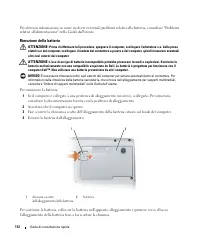
112 Guida di consultazione rapida Per ulteriori informazioni su come risolvere eventuali problemi relativi alla batteria, consultare "Problemi relativi all'alimentazione" nella Guida dell'utente . Rimozione della batteria ATTENZIONE: Prima di effettuare tali procedure, spegnere il computer, ...
Page 113 - Conservazione della batteria; Risoluzione dei problemi; Blocchi e problemi del software
Guida di consultazione rapida 113 Conservazione della batteria Se non si intende usare il computer per un certo periodo di tempo, rimuovere la batteria. Una batteria si scarica se non la si usa per un periodo prolungato, pertanto occorre ricaricarla completamente prima di usarla (consultare "Ric...
Page 114 - Appare una schermata blu; Avviare Dell Diagnostics dal disco rigido o dal CD
114 Guida di consultazione rapida Appare una schermata blu S P E G N E R E I L C O M P U T E R — Se il computer non risponde alla pressione di un tasto o al movimento del mouse, premere il pulsante di alimentazione e tenerlo premuto per almeno 8-10 secondi fino a quando il computer si spegne. Riavvi...
Page 115 - Avvio di Dell Diagnostics dal disco rigido; Booting
Guida di consultazione rapida 115 Avvio di Dell Diagnostics dal disco rigido Il programma Dell Diagnostics è ubicato in una partizione dell'utilità diagnostica nascosta del disco rigido. N.B. Se sullo schermo del computer non viene visualizzata alcuna immagine, contattare la Dell (consultare "Co...
Page 116 - Menu principale di Dell Diagnostics; Opzione; Express Test
116 Guida di consultazione rapida N.B. I passi successivi modificano la sequenza di avvio soltanto per una volta. Al successivo avvio, il computer si avvierà in base alle periferiche specificate nel programma di installazione del sistema. 3 Quando viene visualizzato l’elenco delle periferiche di avv...
Page 117 - CD Drivers and Utilities,; Scheda
Guida di consultazione rapida 117 4 Al completamento delle verifiche, se si sta eseguendo Dell Diagnostics dal CD Drivers and Utilities, rimuovere il CD. 5 Al completamento delle verifiche, chiudere la schermata di prova per ritornare alla schermata Main Menu (Menu principale). Per uscire da Dell Di...
Page 121 - Guia de Referência Rápida
w w w . d e l l . c o m | s u p p o r t . d e l l . c o m Dell™ Latitude™ D520 Guia de Referência Rápida Modelo PP17L
Page 122 - Guia do Utilizador
Notas, Avisos e Advertências NOTA: Uma NOTA fornece informações importantes para o ajudar a utilizar melhor o computador. AVISO: Um AVISO indica danos potenciais no hardware ou uma perda de dados e informa-o como pode evitar o problema. ADVERTÊNCIA: Uma ADVERTÊNCIA indica um potencial de danos do eq...
Page 123 - Índice; Como obter informações; Índice Remissivo
Índice 123 Índice Como obter informações . . . . . . . . . . . . . . . . . . . . . . . . . . . . 125 Configurar o computador . . . . . . . . . . . . . . . . . . . . . . . . . . . 129 Sobre o computador . . . . . . . . . . . . . . . . . . . . . . . . . . . . . . 130 Vista frontal . . . . . . . . . . ...
Page 125 - Encontre aqui; Guia de Informações do Produto DellTM
Guia de Referência Rápida 125 Como obter informações NOTA: Algumas características ou suportes de dados podem ser opcionais, não sendo fornecidos com o computador. Algumas características ou suportes de dados podem não estar disponíveis em determinados países. NOTA: O computador pode ser fornecido c...
Page 126 - Guia do Utilizador do Dell LatitudeTM; Iniciar; Etiqueta de Serviço e Licença do Microsoft
126 Guia de Referência Rápida • Como retirar e substituir peças• Especificações• Como configurar as definições do sistema• Como localizar avarias e solucionar problemas Guia do Utilizador do Dell Latitude™ Centro de ajuda e suporte do Microsoft Windows XP 1 Clique em Iniciar → Ajuda e suporte → Dell...
Page 127 - Utilitário de Suporte Dell
Guia de Referência Rápida 127 • Soluções — Sugestões para resolução de problemas, artigos de técnicos, cursos on-line, e perguntas colocadas frequentemente • Comunidade — Discussões on-line com outros clientes da Dell • Actualizações — Informações sobre actualizações para componentes como memória, u...
Page 128 - Centro de ajuda e suporte do Windows; Para visualizar a; CD do Sistema Operativo
128 Guia de Referência Rápida • Como utilizar o Windows XP• Como trabalhar com programas e ficheiros• Como personalizar a área de trabalho Centro de ajuda e suporte do Windows 1 Clique em Iniciar → Ajuda e suporte . 2 Introduza uma palavra ou expressão que descreva o problema e clique no ícone de se...
Page 129 - Configurar o computador; Guia
Guia de Referência Rápida 129 Configurar o computador ADVERTÊNCIA: Antes de iniciar qualquer procedimento desta secção, siga as instruções de segurança no Guia de Informações do Produto . 1 Abra a caixa de acessórios. 2 Separe os itens da caixa de acessórios necessários para a configuração do comput...
Page 130 - Sobre o computador; Vista frontal
130 Guia de Referência Rápida Sobre o computador Vista frontal 1 ecrã 2 luzes de estado do dispositivo 3 teclado 4 consola táctil 5 trinco do ecrã 6 altifalantes 7 botões da consola táctil 8 luzes de estado do teclado 9 botão de ligação 4 1 3 8 7 2 6 9 5
Page 131 - Vista lateral esquerda
Guia de Referência Rápida 131 Vista lateral esquerda Vista lateral direita Vista posterior ADVERTÊNCIA: Não bloqueie, não introduza objectos e nem permita a acumulação de poeira nas aberturas de ventilação. Não guarde o seu computador num ambiente com pouco fluxo de ar, como é o caso de uma mala fec...
Page 132 - Vista inferior
132 Guia de Referência Rápida Vista inferior 1 Conectores USB (2) 2 conector de modem (RJ-11) 3 ficha de rede (RJ-45) 4 Conector de saída de TV S-vídeo 5 conector de ligação em série 6 conector de vídeo 7 conector do adaptador de CA 8 aberturas de ventilação 1 Tampa do módulo de memória/modem/Mini-C...
Page 133 - Utilizar uma bateria; Capacidade da bateria; Utilização de unidades ópticas.
Guia de Referência Rápida 133 Utilizar uma bateria Capacidade da bateria NOTA: Para obter mais informações sobre a garantia Dell do seu computador, consulte o Guia de Informações do Produto ou o documento de garantia em separado fornecidos com o computador. Para um funcionamento ideal do computador ...
Page 134 - Verificar a carga da bateria; Indicador de energia; premir sem soltar
134 Guia de Referência Rápida ADVERTÊNCIA: Não elimine as baterias juntamente com lixo doméstico. Quando a sua bateria deixar de manter a carga, entre em contacto com a entidade ambiental responsável pela eliminação de resíduos para obter informações relativamente à eliminação de baterias de iões de...
Page 135 - Aviso de bateria fraca; Propriedades das opções de; Carregar a bateria
Guia de Referência Rápida 135 Verificar a carga da bateria Para verificar a carga da bateria, prima e solte o botão de estado no indicador de carga da bateria, para acender as luzes do nível de carga. Cada luz representa aproximadamente 20% da carga total da bateria. Por exemplo, se a bateria tiver ...
Page 136 - Remover a bateria; Para retirar a bateria:
136 Guia de Referência Rápida Para obter mais informações sobre a solução de problemas com a bateria, consulte “Problemas de energia” no Guia do Utilizador . Remover a bateria ADVERTÊNCIA: Antes de efectuar estes procedimentos, desligue o computador, desligue o adaptador de CA da tomada eléctrica e ...
Page 137 - Armazenar uma bateria; Resolução de problemas; Bloqueios e problemas de software; C A
Guia de Referência Rápida 137 Armazenar uma bateria Retire a bateria no caso de guardar o computador durante um período de tempo mais longo. A bateria descarrega-se durante um armazenamento prolongado. Após um período de armazenamento prolongado, carregue a bateria na totalidade antes de voltar a ut...
Page 138 - É apresentado um ecrã azul; e efectue uma procura pela palavra-chave
138 Guia de Referência Rápida É apresentado um ecrã azul D E S L I G U E O C O M P U T A D O R — Se ao premir uma tecla ou ao mover o rato não conseguir obter uma resposta, prima sem soltar a tecla de activação durante, pelo menos, 8 a 10 segundos até o computador se desligar. Em seguida, reinicie o...
Page 139 - Desligue o computador.
Guia de Referência Rápida 139 Inicie o Dell Diagnostics a partir da unidade de disco rígido ou do CD de Controladores e utilitários (também conhecido como ResourceCD ). Iniciar o Dell Diagnostics da unidade de disco rígido O Dell Diagnostics está localizado numa partição oculta do disco rígido onde ...
Page 140 - Arranque a partir de CD-ROM; Main Menu (Menu principal) do Dell Diagnostics; Opção
140 Guia de Referência Rápida Iniciar o Dell Diagnostics a partir do CD de Controladores e utilitários 1 Introduza o CD de Controladores e utilitários . 2 Desligue e reinicialize o computador. Quando o logótipo da DELL for apresentado, prima <F12> imediatamente. Se esperar demasiado tempo e se...
Page 141 - Guia do; Separador
Guia de Referência Rápida 141 2 Se for encontrado algum problema durante um teste, aparecerá uma mensagem com o código do erro e uma descrição do problema. Anote esse código de erro e a descrição do problema e siga as instruções apresentadas no ecrã. Se não conseguir resolver a condição de erro, con...
Page 145 - Guía de referencia rápida
w w w . d e l l . c o m | s u p p o r t . d e l l . c o m Dell™ Latitude™ D520 Guía de referencia rápida Modelo PP17L
Page 146 - Guía del usuario
Notas, avisos y precauciones NOTA: Una NOTA proporciona información importante que le ayuda a utilizar su equipo de la mejor manera posible. AVISO: Un AVISO indica la posibilidad de daños al hardware o pérdida de datos y le explica cómo evitar el problema. PRECAUCIÓN: Una PRECAUCIÓN indica un posibl...
Page 147 - Contenido; Localización de información
Contenido 147 Contenido Localización de información . . . . . . . . . . . . . . . . . . . . . . . . . 149 Configuración del equipo . . . . . . . . . . . . . . . . . . . . . . . . . . . 153 Acerca de su equipo . . . . . . . . . . . . . . . . . . . . . . . . . . . . . . 154 Vista frontal . . . . . . ....
Page 149 - Aquí lo encontrará; Guía de información del producto DellTM
Guía de referencia rápida 149 Localización de información NOTA: Algunas funciones o medios son opcionales y pueden no incluirse en su equipo. Algunas funciones o medios pueden no estar disponibles en determinados países. NOTA: Su equipo puede incluir información adicional. ¿Qué busca? Aquí lo encont...
Page 150 - Guía del usuario de Dell LatitudeTM; Etiqueta de servicio y licencia de Microsoft
150 Guía de referencia rápida • Cómo extraer y cambiar piezas• Especificaciones• Cómo configurar los parámetros del sistema• Cómo detectar y solucionar problemas Guía del usuario de Dell Latitude™ Centro de ayuda y soporte técnico de Microsoft Windows XP 1 Haga clic en Inicio → Centro de ayuda y sop...
Page 151 - Utilidad Dell Support
Guía de referencia rápida 151 • Soluciones. Consejos y sugerencias para la solución de problemas, artículos de técnicos, cursos en línea y preguntas más frecuentes. • Comunidad. Debates en línea con otros clientes de Dell.• Actualizaciones. Información de actualización para componentes como, por eje...
Page 152 - Centro de ayuda y soporte técnico de Windows; Ayuda de Dell QuickSet; CD del sistema operativo
152 Guía de referencia rápida • Cómo utilizar Windows XP• Cómo trabajar con programas y archivos• Cómo personalizar mi escritorio Centro de ayuda y soporte técnico de Windows 1 Haga clic en Inicio → Ayuda y soporte técnico . 2 Escriba una palabra o frase que describa el problema y, a continuación, h...
Page 153 - Configuración del equipo; seguridad incluidas en la; Guía de información del producto
Guía de referencia rápida 153 Configuración del equipo PRECAUCIÓN: Antes de comenzar cualquiera de los procedimientos de esta sección, siga las instrucciones de seguridad incluidas en la Guía de información del producto . 1 Desempaquete la caja de accesorios. 2 Saque el contenido de la caja de acces...
Page 154 - Acerca de su equipo
154 Guía de referencia rápida Acerca de su equipo Vista frontal 1 Pantalla 2 Indicadores de estado del dispositivo 3 Teclado 4 Ratón táctil 5 Seguro de la pantalla 6 Altavoces 7 Botones del ratón táctil 8 Indicadores de estado del teclado 9 Botón de alimentación 4 1 3 8 7 2 6 9 5
Page 155 - Vista lateral izquierda
Guía de referencia rápida 155 Vista lateral izquierda Vista lateral derecha Vista posterior PRECAUCIÓN: No introduzca objetos ni permita que el polvo se acumule en las rejillas de ventilación ni las bloquee. No almacene el equipo en un entorno -con poca ventilación, como un maletín cerrado, mientras...
Page 157 - Uso de la batería; Rendimiento de la batería; Inicio; Uso de unidades ópticas.
Guía de referencia rápida 157 Uso de la batería Rendimiento de la batería NOTA: Para obtener información acerca de la garantía Dell, consulte la Guía de información del producto o el documento separado de garantía que se envía junto con el equipo. Para el rendimiento óptimo del equipo y para facilit...
Page 158 - Comprobación de la carga de la batería; Medidor de energía; Medidor de batería DellTM QuickSet; Ayuda; Medidor de energía de Microsoft
158 Guía de referencia rápida PRECAUCIÓN: El uso incorrecto de la batería puede aumentar el riesgo de incendio o quemadura química. No perfore, incinere, desmonte o exponga la batería a temperaturas superiores a 60 °C (140 °F). Mantenga la batería fuera del alcance de los niños. Tenga mucho cuidado ...
Page 159 - Comprobación del estado de la batería; mantenga pulsado; Propiedades de las opciones de energía; Carga de la batería
Guía de referencia rápida 159 Comprobación del estado de la batería NOTA: Puede comprobar el estado de la batería de dos maneras: utilizando el medidor de carga de la batería según se describe a continuación y utilizando el medidor de batería en Dell QuickSet. Para obtener información acerca de Quic...
Page 160 - Extracción de la batería; Para extraer la batería:
160 Guía de referencia rápida Extracción de la batería PRECAUCIÓN: Antes de llevar a cabo estos procedimientos, apague el equipo, desconecte el adaptador de CA de la toma de alimentación eléctrica y del propio equipo, desconecte el módem del conector de pared y también del ordenador y retire cualqui...
Page 161 - Almacenamiento de una batería; Solución de problemas; Bloqueos y problemas con el software; El equipo no responde
Guía de referencia rápida 161 Almacenamiento de una batería Extraiga la batería cuando vaya a guardar el equipo durante un período largo. Las baterías se descargan durante los almacenamientos prolongados. Tras un largo período de almacenamiento, recargue la batería completamente antes de utilizarla ...
Page 162 - Aparece una pantalla azul fija; Inicie Dell Diagnostics desde la unidad de disco duro o del CD
162 Guía de referencia rápida Aparece una pantalla azul fija A P A G U E E L E Q U I P O — Si no puede conseguir que responda pulsando una tecla o moviendo el ratón, pulse el botón de alimentación durante unos 8 ó 10 segundos como mínimo hasta que se apague el equipo. A continuación, reinícielo. Otr...
Page 163 - Iniciar Dell Diagnostics desde la unidad de disco duro; Conecte el equipo a una toma de alimentación eléctrica.; Mantenga pulsada la tecla mientras se enciende el equipo.
Guía de referencia rápida 163 Iniciar Dell Diagnostics desde la unidad de disco duro Los Dell Diagnostics están situados en una partición oculta para la utilidad de diagnóstico (Diagnostic) de la unidad de disco duro. NOTA: Si el equipo no muestra ninguna imagen en la pantalla, póngase en contacto c...
Page 164 - Ejecutar Dell Diagnostics de 32 bits; Menú principal de Dell Diagnostics; Menú; Opción
164 Guía de referencia rápida Si espera demasiado y aparece el logotipo de Windows, siga esperando hasta que vea el escritorio de Windows. Después, apague el equipo y vuelva a intentarlo. NOTA: Los pasos de a continuación cambian la secuencia de inicio sólo una vez. En la siguiente rutina de inicio,...
Page 165 - Si ejecuta una prueba desde la opción; Ficha
Guía de referencia rápida 165 3 Si ejecuta una prueba desde la opción Custom Test (prueba personalizada) o Symptom Tree (árbol de síntomas), haga clic en la pestaña correspondiente que se describe en la tabla siguiente para obtener más información. 4 Una vez finalizadas las pruebas, si está ejecutan...








































 Dell 04YJJ6A00
User Manual
Dell 04YJJ6A00
User Manual
 Dell 10 Pro
User Manual
Dell 10 Pro
User Manual
 Dell 10
Manual
Dell 10
Manual
 Dell 1000
User Manual
Dell 1000
User Manual
 Dell 1014
User Manual
Dell 1014
User Manual
 Dell 1000W
User Manual
Dell 1000W
User Manual
 Dell 0JH552A01
User Manual
Dell 0JH552A01
User Manual
 Dell 10g
User Manual
Dell 10g
User Manual
 Dell 1100
User Manual
Dell 1100
User Manual
 Dell 11
User Manual
Dell 11
User Manual
 Dell 11 Pro
User Manual
Dell 11 Pro
User Manual
 Dell 110T
User Manual
Dell 110T
User Manual
 Dell 110T DLT1 Drive
User Manual
Dell 110T DLT1 Drive
User Manual
 Dell 1100 Laser Mono Printer
User Manual
Dell 1100 Laser Mono Printer
User Manual
 Dell 1100MP
User Manual
Dell 1100MP
User Manual