Page 2 - Abbreviations and Acronyms; Windows
Notes, Notices, and Cautions NOTE: A NOTE indicates important information that helps you make better use of your computer. NOTICE: A NOTICE indicates either potential damage to hardware or loss of data and tells you how to avoid the problem. CAUTION: A CAUTION indicates a potential for property dama...
Page 3 - Contents; Index
Contents 3 Contents Finding Information . . . . . . . . . . . . . . . . . . . . . . . . . . . . . . . . 5 Setting Up Your Computer . . . . . . . . . . . . . . . . . . . . . . . . . . . . . 7 About Your Computer . . . . . . . . . . . . . . . . . . . . . . . . . . . . . . . . 9 Front View . . . . . . ...
Page 7 - Setting Up Your Computer; Unpack the accessories box.; To view
Quick Reference Guide 7 Setting Up Your Computer CAUTION: Before you begin any of the procedures in this section, follow the safety instructions in the Product Information Guide . 1 Unpack the accessories box. 2 Set aside the contents of the accessories box, which you will need to complete the setup...
Page 9 - About Your Computer; Front View
Quick Reference Guide 9 About Your Computer Front View 1 display latch 8 touch pad/track stick buttons 2 display 9 track stick 3 power button 10 keyboard status lights 4 device status lights 11 volume control buttons 5 speakers (2) 12 mute button 6 keyboard 13 ambient light sensor 7 touch pad 1 5 2 ...
Page 10 - Left Side View
10 Quick Reference Guide Left Side View Right Side View 1 security cable slot 6 infrared sensor 2 air vents 7 wireless switch 3 1394 connector 8 wireless activity light 4 audio connectors 9 PC Card slot 5 ExpressCard slot 10 smart card slot 1 media bay 2 USB connectors (2) 1 2 6 3 4 7 5 8 9 10 1 2
Page 11 - Back View
Quick Reference Guide 11 Back View CAUTION: Do not block, push objects into, or allow dust to accumulate in the air vents. Do not store your computer in a low-airflow environment, such as a closed briefcase, while it is running. Restricting the airflow can damage the computer or cause a fire. Bottom...
Page 12 - Using a Battery; Battery Performance; Using optical drives
12 Quick Reference Guide Using a Battery Battery Performance NOTE: For information about the Dell warranty for your computer, see the Product Information Guide or separate paper warranty document that shipped with your computer. For optimal computer performance and to help preserve BIOS settings, op...
Page 13 - Checking the Battery Charge; Power Meter; DellTM QuickSet Battery Meter; Help; Microsoft; pressing and holding; press
Quick Reference Guide 13 CAUTION: Misuse of the battery may increase the risk of fire or chemical burn. Do not puncture, incinerate, disassemble, or expose the battery to temperatures above 65°C (149°F). Keep the battery away from children. Handle damaged or leaking batteries with extreme care. Dama...
Page 14 - To check the battery health using the charge gauge,; Charging the Battery; The battery is too hot to start charging if the; Replacing the Battery; To remove the battery:
14 Quick Reference Guide To check the battery health using the charge gauge, press and hold the status button on the battery charge gauge for at least 3 seconds. If no lights appear, the battery is in good condition, and more than 80 percent of its original charge capacity remains. Each light repres...
Page 15 - Using the tab on the battery, lift the battery out of the computer.; Storing a Battery; Troubleshooting; Dell Technical Update Service; To enroll for the Dell Technical Update service, go to
Quick Reference Guide 15 3 Slide the battery-bay latch release on the bottom of the computer until the release clicks. 4 Using the tab on the battery, lift the battery out of the computer. To replace the battery, place the battery in the bay and press down until the battery-bay latch release clicks....
Page 16 - Dell Diagnostics; When to Use the Dell Diagnostics; Start the Dell Diagnostics from either your hard drive or from the; Starting the Dell Diagnostics From Your Hard Drive; Shut down the computer.; During the assessment, answer any questions that appear.
16 Quick Reference Guide Dell Diagnostics CAUTION: Before you begin any of the procedures in this section, follow the safety instructions in the Product Information Guide . When to Use the Dell Diagnostics If you experience a problem with your computer, perform the checks in "Lockups and Softwar...
Page 17 - Starting the Dell Diagnostics From the Drivers and Utilities CD; Run the 32 Bit Dell Diagnostics; Dell Diagnostics Main Menu; Main
Quick Reference Guide 17 Starting the Dell Diagnostics From the Drivers and Utilities CD 1 Insert the Drivers and Utilities CD. 2 Shut down and restart the computer. When the DELL logo appears, press <F12> immediately. If you wait too long and the Windows logo appears, continue to wait until y...
Page 18 - Lockups and Software Problems; The computer does not start up; The computer stops responding
18 Quick Reference Guide 3 If you run a test from the Custom Test or Symptom Tree option, click the applicable tab described in the following table for more information. 4 When the tests are completed, if you are running the Dell Diagnostics from the Drivers and Utilities CD , remove the CD. When th...
Page 23 - Snelle Referentiegids
w w w . d e l l . c o m | s u p p o r t . d e l l . c o m Dell™ Latitude™ D820 Snelle Referentiegids Model PP04X
Page 24 - Opmerkingen, kennisgevingen en waarschuwingen; Afkortingen en acroniemen
Opmerkingen, kennisgevingen en waarschuwingen OPMERKING: Een OPMERKING duidt belangrijke informatie aan voor een beter gebruik van de computer. KENNISGEVING: Een KENNISGEVING duidt mogelijke beschadiging van de hardware of gegevensverlies aan en geeft aan hoe u dergelijke problemen kunt voorkomen. W...
Page 25 - Inhoud
Inhoud 25 Inhoud Informatie zoeken . . . . . . . . . . . . . . . . . . . . . . . . . . . . . . . . 27 Computer uitpakken en opstarten . . . . . . . . . . . . . . . . . . . . . . . . 31 Over de computer . . . . . . . . . . . . . . . . . . . . . . . . . . . . . . . . 32 Vooraanzicht . . . . . . . . . ...
Page 29 - Om
Snelle referentiegids 29 • Oplossingen— Probleemwijzer, tips en uitleg van monteurs en online-cursussen, FAQ's • Community — online-discussies met andere gebruikers van Dell-producten • Upgrades — upgrade-informatie voor onderdelen als het geheugen, de vaste schijf en het besturingssysteem. • Klante...
Page 31 - Computer uitpakken en opstarten; Haal de onderdelen uit de accessoiredoos.
Snelle referentiegids 31 Computer uitpakken en opstarten WAARSCHUWING: Voordat u met een van de procedures in dit gedeelte begint, moet u de veiligheidsinstructies in de Product Information Guide (productinformatiegids) raadplegen. 1 Haal de onderdelen uit de accessoiredoos. 2 Leg de onderdelen klaa...
Page 32 - Over de computer; Vooraanzicht
32 Snelle referentiegids Over de computer Vooraanzicht 1 Schermvergrendeling 8 knoppen voor touchpad/track stick 2 Scherm 9 trackstick 3 aan/uit-knop 10 statuslampjes toetsenbord 4 statuslampjes apparaat 11 volumeknoppen 5 speakers (2) 12 dempknop 6 toetsenbord 13 omgevingslichtsensor 7 touchpad 1 5...
Page 33 - Linkerzijaanzicht
Snelle referentiegids 33 Linkerzijaanzicht Rechterzijaanzicht 1 sleuf voor beveiligingskabel 6 infraroodsensor 2 ventilatoren 7 schakelaar draadloze modus 3 1394-poort 8 lampje draadloze modus actief 4 audio-connectors 9 sleuf voor PC-kaart 5 sleuf voor ExpressCard 10 sleuf voor smart card 1 mediaco...
Page 34 - Achteraanzicht
34 Snelle referentiegids Achteraanzicht WAARSCHUWING: Blokkeer de luchtopeningen niet, duw er geen voorwerpen in en zorg ervoor dat er geen stof in komt. Zet uw computer niet in een omgeving waar weinig lucht beschikbaar is, zoals een aktentas of wandkast. Als u dat toch doet, loopt u een brand- of ...
Page 35 - Batterijen gebruiken; Batterijprestatie; De werkduur wordt aanzienlijk verminderd door onder andere:
Snelle referentiegids 35 Batterijen gebruiken Batterijprestatie OPMERKING: Zie de Product Information Guide (Productinformatiegids) of het garantiedocument dat met uw computer is meegeleverd voor informatie over de Dell-garantie voor uw computer. Voor een optimale prestatie van de computer en om te ...
Page 36 - De lading van de batterij controleren; De Dell QuickSet Batterijmeter, het Microsoft Windows; DellTM QuickSet-batterijmeter; in de; Als de computer op een stopcontact is aangesloten, wordt een; Batterijmeter; De batterijlading (klik op de statusknop)
36 Snelle referentiegids WAARSCHUWING: Misbruik van de batterij kan de kans op brand of chemische brandwonden verhogen. Maak geen gaten in batterijen, gooi batterijen niet in het vuur, maak batterijen niet open en stel batterijen niet bloot aan een temperatuur hoger dan 65°C. Houd de batterij buiten...
Page 37 - statusknop van; Batterijwaarschuwing; Power Options Properties; De batterij opladen; De batterij is te warm om te beginnen met opladen als het; De batterij vervangen
Snelle referentiegids 37 Kijk het batterijvermogen na OPMERKING: U kunt het batterijvermogen op twee manieren controleren: met behulp van de batterijmeter zoals hieronder beschreven of met behulp van de batterijmeter in Dell QuickSet. Voor informatie over QuickSet, klikt u met de rechtermuisknop op ...
Page 38 - De batterij verwijderen:; Een batterij opslaan
38 Snelle referentiegids WAARSCHUWING: Het gebruik van een incompatibele batterij kan brand- of ontploffingsgevaar vergroten. Vervang de batterij uitsluitend met een compatibele batterij die u bij Dell hebt aangeschaft. De batterij is speciaal gemaakt voor een Dell™-computer. Gebruik geen batterij v...
Page 39 - Problemen oplossen; Dell Technische Updateservice; Wanneer het Dell-Diagnoseprogramma te gebruiken; Het Dell-diagnoseprogramma starten vanaf de vaste schijf; Sluit de computer af.
Snelle referentiegids 39 Problemen oplossen Dell Technische Updateservice De Technische Updateservice van Dell stuurt u automatisch een bericht via e-mail als er updates van software en hardware beschikbaar zijn voor uw computer. Deze dienst is gratis, en u kunt de instellingen m.b.t. inhoud, formaa...
Page 40 - Booting Dell Diagnostic Utility Partition (Opstarten vanaf
40 Snelle referentiegids OPMERKING: Als er een bericht verschijnt dat er geen diagnose-hulpprogramma is gevonden, start de Dell Diagnose dan via de Drivers and Utilities CD (Stuur en hulpprogramma's-cd). De computer voert een Pre-boot System Assessment (Systeemanalyse) uit, een reeks tests van het m...
Page 41 - Hoofdmenu Dell Diagnostics; Nadat het Dell-diagnoseprogramma is geladen en het
Snelle referentiegids 41 Hoofdmenu Dell Diagnostics 1 Nadat het Dell-diagnoseprogramma is geladen en het Main Menu (Hoofdmenu) wordt weergegeven, klikt u op de knop voor de gewenste optie. 2 Als er tijdens een test een probleem wordt opgespoord, verschijnt een bericht met de foutcode en een beschrij...
Page 42 - Hebt u het Dell-Diagnoseprogramma gestart vanaf de; Lock-ups en softwareproblemen; De computer start niet op; Klik op
42 Snelle referentiegids 4 Hebt u het Dell-Diagnoseprogramma gestart vanaf de Drivers and Utilities CD (Stuur- en hulpprogramma's-cd), dan moet u de cd verwijderen als de tests zijn voltooid. Als alle tests zijn voltooid, sluit u het testvenster om terug te keren naar het Main Menu (Hoofdmenu). Om h...
Page 43 - Klik op het programma dat niet meer reageert.; Er verschijnt een blauw venster
Snelle referentiegids 43 4 Klik op het programma dat niet meer reageert. 5 Klik op End Task (Taak beëindigen). C O N T R O L E E R D E S O F T W A R E D O C U M E N T A T I E — Indien nodig maakt u de installatie van het programma ongedaan en installeer u het opnieuw. Een programma is ontwikkeld voo...
Page 47 - Guide de référence rapide
w w w . d e l l . c o m | s u p p o r t . d e l l . c o m Dell™ Latitude™ D820 Guide de référence rapide Modèle PP04X
Page 49 - Table des matières
Table des matières 49 Table des matières Recherche d'informations . . . . . . . . . . . . . . . . . . . . . . . . . . . . 51 Configuration de votre ordinateur . . . . . . . . . . . . . . . . . . . . . . . . 55 À propos de votre ordinateur . . . . . . . . . . . . . . . . . . . . . . . . . . 56 Vue fr...
Page 54 - aide Dell QuickSet
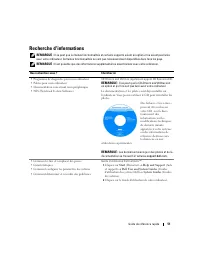
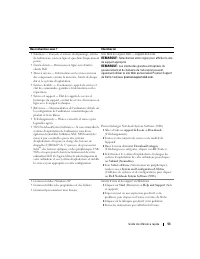
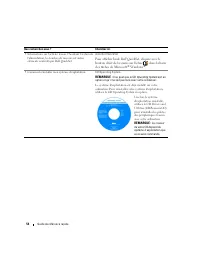
54 Guide de référence rapide • Informations sur l'activité réseau, l'Assistant Gestion de l'alimentation, les touches de raccourci et autres éléments contrôlés par Dell QuickSet Aide Dell QuickSet Pour afficher l' aide Dell QuickSet , cliquez avec le bouton droit de la souris sur l'icône , dans la b...
Page 55 - Configuration de votre ordinateur
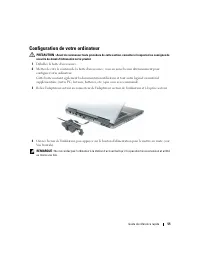
Guide de référence rapide 55 Configuration de votre ordinateur PRÉCAUTION : Avant de commencer toute procédure de cette section, consultez et respectez les consignes de sécurité du Guide d'information sur le produit . 1 Déballez la boîte d'accessoires. 2 Mettez de côté le contenu de la boîte d'acces...
Page 56 - À propos de votre ordinateur; Vue frontale
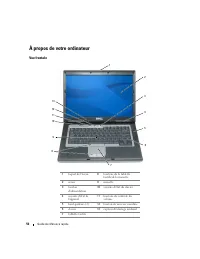
56 Guide de référence rapide À propos de votre ordinateur Vue frontale 1 loquet de l'écran 8 boutons de la tablette tactile/de la manette 2 écran 9 manette 3 bouton d'alimentation 10 voyants d'état du clavier 4 voyants d'état de l'appareil 11 boutons de contrôle du volume 5 haut-parleurs (2) 12 bout...
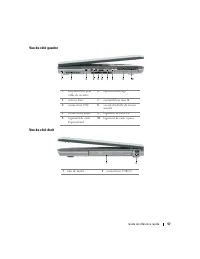
Page 57 - Vue du côté gauche
Guide de référence rapide 57 Vue du côté gauche Vue du côté droit 1 emplacement pour câble de sécurité 6 capteur infrarouge 2 entrées d'air 7 commutateur sans fil 3 connecteur 1394 8 voyant d'activité de réseau sans fil 4 connecteurs audio 9 logement de carte PC 5 logement de carte ExpressCard 10 lo...
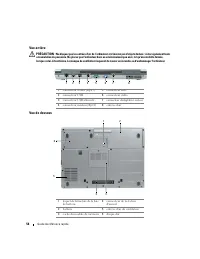
Page 58 - Vue arrière
58 Guide de référence rapide Vue arrière PRÉCAUTION : Ne bloquez pas les entrées d'air de l'ordinateur et n'insérez pas d'objets dedans ; évitez également toute accumulation de poussière. Ne placez pas l'ordinateur dans un environnement peu aéré, tel qu'une mallette fermée, lorsque celui-ci fonction...
Page 59 - Utilisation d'une batterie; Performances de la batterie; Utilisation de lecteurs optiques
Guide de référence rapide 59 Utilisation d'une batterie Performances de la batterie REMARQUE : Pour obtenir des informations sur la garantie Dell pour votre ordinateur, reportez-vous au Guide d'information sur le produit ou au document de garantie livré avec votre ordinateur. Pour un fonctionnement ...
Page 60 - Vérification de la charge de la batterie; Jauge de batterie Dell QuickSet; Jauge de Microsoft; en appuyant et en; appuyez
60 Guide de référence rapide PRÉCAUTION : Une utilisation inadéquate de la batterie peut augmenter le risque d'incendie ou de brûlure chimique. Prenez soin de ne pas la percer, l'incinérer, la démonter ou l'exposer à une température supérieure à 65 °C (149 °F). Conservez la batterie hors de portée d...
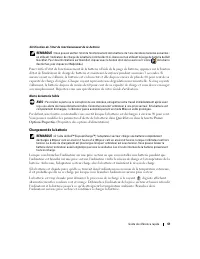
Page 61 - pendant au moins 3 secondes. Si; Alerte de batterie faible; Power; Chargement de la batterie; clignote affichant
Guide de référence rapide 61 Vérification de l'état de fonctionnement de la batterie REMARQUE : Vous pouvez vérifier l'état de fonctionnement de la batterie de l'une des deux manières suivantes : en utilisant l'indicateur de charge de la batterie comme décrit ci-dessous et en utilisant la jauge de b...
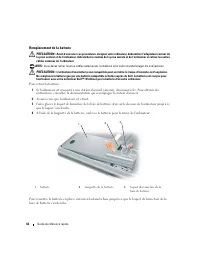
Page 62 - Remplacement de la batterie; Pour retirer la batterie :
62 Guide de référence rapide Remplacement de la batterie PRÉCAUTION : Avant d'exécuter ces procédures, éteignez votre ordinateur, débranchez l'adaptateur secteur de la prise secteur et de l'ordinateur, débranchez le modem de la prise murale et de l'ordinateur et retirez les autres câbles externes de...
Page 63 - Stockage de la batterie; Dépannage; Service Dell Technical Update; Quand utiliser Dell Diagnostics; Démarrage de Dell Diagnostics à partir du disque dur; Connectez l'ordinateur à une prise secteur.
Guide de référence rapide 63 Stockage de la batterie Retirez la batterie de l'ordinateur lorsque vous rangez ce dernier pendant une période prolongée. Sinon, la batterie finira par se décharger. Après une longue période d'inactivité, rechargez complètement la batterie avant de l'utiliser (reportez-v...
Page 64 - Booting Dell Diagnostic Utility Partition. Press any key to
64 Guide de référence rapide REMARQUE : Si vous attendez trop longtemps et que le logo du système d'exploitation apparaît, patientez jusqu'à ce que le bureau de Microsoft ® Windows ® s'affiche. Éteignez alors votre ordinateur et faites une nouvelle tentative. • Appuyez sur la touche <Fn> et ma...
Page 65 - Main Menu de Dell Diagnostics; Une fois Dell Diagnostics chargé et l'écran du
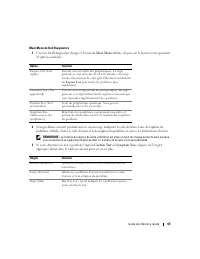
Guide de référence rapide 65 Main Menu de Dell Diagnostics 1 Une fois Dell Diagnostics chargé et l'écran du Main Menu affiché, cliquez sur le bouton correspondant à l'option souhaitée. 2 Si un problème survient pendant un test, un message indiquant le code d'erreur et une description du problème s'a...
Page 66 - CD Drivers and Utilities; Blocages et problèmes logiciels; L'ordinateur ne démarre pas; Cliquez sur
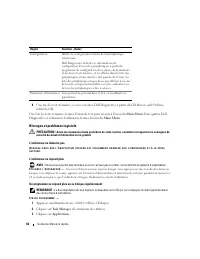
66 Guide de référence rapide 4 Une fois les tests terminés, si vous exécutez Dell Diagnostics à partir du CD Drivers and Utilities , retirez le CD. Une fois les tests terminés, fermez l'écran de test pour revenir à l'écran du Main Menu . Pour quitter Dell Diagnostics et redémarrer l'ordinateur, ferm...
Page 67 - Cliquez sur le programme qui ne répond plus.; Un écran bleu uni apparaît
Guide de référence rapide 67 4 Cliquez sur le programme qui ne répond plus. 5 Cliquez sur End Task (Fin de tâche). C O N S U L T E Z L A D O C U M E N T A T I O N D U L O G I C I E L — Le cas échéant, supprimez, puis réinstallez le programme. Un programme est conçu pour une version antérieure du sys...
Page 71 - Schnellreferenzhandbuch
w w w . d e l l . c o m | s u p p o r t . d e l l . c o m Dell™ Latitude™ D820 Schnellreferenzhandbuch Modell PP04X
Page 72 - Anmerkungen, Hinweise und Vorsichtshinweise; Abkürzungen und Akronyme
Anmerkungen, Hinweise und Vorsichtshinweise ANMERKUNG: Eine ANMERKUNG macht auf wichtige Informationen aufmerksam, die Ihnen die Arbeit mit dem Computer erleichtern. HINWEIS: Ein HINWEIS warnt vor möglichen Beschädigungen der Hardware oder vor Datenverlust und erläutert, wie das vermieden werden kan...
Page 73 - Inhalt; Stichwortverzeichnis
Inhalt 73 Inhalt Informationsquellen . . . . . . . . . . . . . . . . . . . . . . . . . . . . . . . 75 Einrichten des Computers . . . . . . . . . . . . . . . . . . . . . . . . . . . . 79 Wissenswertes über Ihren Computer . . . . . . . . . . . . . . . . . . . . . . 80 Vorderansicht . . . . . . . . . ....
Page 78 - Zur Anzeige der
78 Schnellreferenzhandbuch • Informationen zu Netzwerkaktivität, den Assistenten für die Energieverwaltung, Schnelltasten und andere von Dell QuickSet gesteuerte Elemente Dell QuickSet-Hilfe Zur Anzeige der Dell QuickSet-Hilfe klicken Sie mit der rechten Maustaste auf das Symbol in der Microsoft ® W...
Page 79 - Einrichten des Computers; Packen Sie das Zubehör aus.
Schnellreferenzhandbuch 79 Einrichten des Computers VORSICHT: Bevor Sie Arbeiten an den in diesem Abschnitt beschriebenen Komponenten ausführen, lesen Sie erst die Sicherheitshinweise im Produktinformationshandbuch . 1 Packen Sie das Zubehör aus. 2 Legen Sie die für das Einrichten des Computers erfo...
Page 80 - Wissenswertes über Ihren Computer; Vorderansicht
80 Schnellreferenzhandbuch Wissenswertes über Ihren Computer Vorderansicht 1 Bildschirmverriege-lung 8 Touchpad/Trackstick-Tasten 2 Bildschirm 9 Trackstick 3 Netzschalter 10 Tastaturstatusanzeigen 4 Gerätestatusanzeigen 11 Tasten zur Lautstärke-regelung 5 Lautsprecher (2) 12 Stummtaste 6 Tastatur 13...
Page 81 - Linke Seitenansicht
Schnellreferenzhandbuch 81 Linke Seitenansicht Rechte Seite 1 Sicherheitskabel-einschub 6 Infrarotsensor 2 Lüftungsschlitze 7 Wireless-Schalter 3 1394-Anschluss 8 Wireless-Aktivitätsanzeige 4 Audioanschlüsse 9 PC Card-Steckplatz 5 ExpressCard-Steckplatz 10 Steckplatz für Smart Card 1 Modulschacht 2 ...
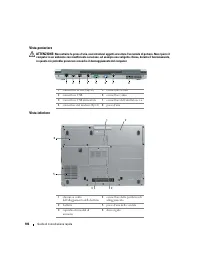
Page 82 - Rückansicht
82 Schnellreferenzhandbuch Rückansicht VORSICHT: Achten Sie darauf, die Lüftungsschlitze nicht zu blockieren, schieben Sie keine Gegenstände hinein, und halten Sie die Lüftungsschlitze staubfrei. Bewahren Sie den Computer während des Betriebs nicht in schlecht durchlüfteten Behältnissen wie einer ge...
Page 83 - Verwenden eines Akkus; Akkuleistung; Verwenden von optischen Laufwerken
Schnellreferenzhandbuch 83 Verwenden eines Akkus Akkuleistung ANMERKUNG: Informationen zur Dell-Garantie für Ihren Computer finden Sie im Produktinformationshandbuch oder auf dem separaten Garantiedokument, das im Lieferumfang des Computers enthalten ist. Für eine optimale Leistung des Computers und...
Page 84 - Prüfen des Akkuladezustands; Energieanzeige; Akkuanzeige von Dell QuickSet; Hilfe; einmaliges Drücken oder Gedrückthalten; drücken
84 Schnellreferenzhandbuch VORSICHT: Bei unsachgemäßer Verwendung des Akkus besteht Brand- oder Verätzungsgefahr. Sie dürfen den Akku nicht aufstechen, verbrennen, auseinander nehmen oder Temperaturen über 65 °C aussetzen. Bewahren Sie den Akku außerhalb der Reichweite von Kindern auf. Handhaben Sie...
Page 85 - Um den Akkuzustand mit der Ladeanzeige zu überprüfen,; Warnung „Akku niedrig“; Eigenschaften von Energieoptionen; Aufladen des Akkus; Bei abwechselnd; Austauschen des Akkus
Schnellreferenzhandbuch 85 Prüfen des Akkuzustands ANMERKUNG: Sie können den Akkuzustand auf zwei verschiedene Weisen prüfen: durch Kontrollieren der Ladestandanzeige auf dem Akku, wie nachstehend beschrieben, und durch Kontrolle der Akkuanzeige in Dell QuickSet. Weitere Informationen über QuickSet ...
Page 86 - So entfernen Sie den Akku:; Lagern eines Akkus
86 Schnellreferenzhandbuch VORSICHT: Bei Verwendung eines ungeeigneten Akkus besteht Brand- oder Explosionsgefahr. Ersetzen Sie die Akkus nur mit einem kompatiblen Akku von Dell. Der Akku ist für den Einsatz in Ihrem Dell™-Computer vorge-sehen. Verwenden Sie keinesfalls den Akku eines anderen Comput...
Page 87 - Beheben von Störungen; Technischer Update Service von Dell; Sie können sich auf; Wann wird das Programm Dell Diagnostics eingesetzt?; Drivers; Dell Diagnostics von Ihrer Festplatte starten; Fahren Sie den Computer herunter.
Schnellreferenzhandbuch 87 Beheben von Störungen Technischer Update Service von Dell Der technische Update-Service von Dell stellt proaktive E-Mail-Benachrichtigungen über Software- und Hardware-Aktualisierungen für Ihren Computer bereit. Der Service ist kostenlos und kann vom Benutzer in Bezug auf ...
Page 88 - Booting Dell Diagnostic Utility Partition (Starten der; Starten von Dell Diagnostics von der Drivers and Utilities CD
88 Schnellreferenzhandbuch ANMERKUNG: Wenn eine Meldung angezeigt wird, dass keine Partition für ein Diagnose-Dienstprogramm gefunden wurde, starten Sie Dell Diagnostics von Ihrer optionalen Drivers and Utilities CD . Der Computer führt die Überprüfung vor dem Systemstart durch, d. h. eine Reihe von...
Page 89 - Hauptmenü des Programms Dell Diagnostics; Hauptmenü
Schnellreferenzhandbuch 89 Hauptmenü des Programms Dell Diagnostics 1 Klicken Sie nach dem Laden von Dell Diagnostics und nachdem das Hauptmenü angezeigt wird auf die Schaltfläche für die von Ihnen gewünschte Option. 2 Wenn beim Test eine Störung gefunden wird, wird eine Meldung mit dem Fehlercode u...
Page 90 - Probleme mit Absturz und Software; Der Computer startet nicht
90 Schnellreferenzhandbuch 4 Nachdem die Tests abgeschlossen sind, wenn Sie Dell Diagnostics von der Drivers and Utilities CD ausführen, entfernen Sie die CD. Wenn die Tests abgeschlossen sind, schließen Sie den Testbildschirm schließen und kehren Sie zum Hauptmenü zurück. Schließen Sie zum Beenden ...
Page 91 - Ein Programm wurde für ein früheres Microsoft; Ein blauer Bildschirm wird angezeigt
Schnellreferenzhandbuch 91 2 Klicken Sie auf Task-Manager . 3 Klicken Sie auf Anwendungen . 4 Klicken Sie auf das Programm, das nicht mehr reagiert. 5 Klicken Sie auf Task beenden . S O F T W A R E - D O K U M E N T A T I O N L E S E N — Deinstallieren Sie gegebenenfalls das Programm und installiere...
Page 95 - Guida di consultazione rapida
w w w . d e l l . c o m | s u p p o r t . d e l l . c o m Dell™ Latitude™ D820 Guida di consultazione rapida Modello PP04X
Page 96 - Abbreviazioni ed acronimi
N.B., Avvisi e Attenzione N.B. Un N.B. indica informazioni importanti che contribuiscono a migliorare l'utilizzo del computer. AVVISO: Un AVVISO indica un danno potenziale all'hardware o perdita di dati e spiega come evitare il problema. ATTENZIONE: Un messaggio di ATTENZIONE indica una possibilità ...
Page 97 - Sommario; Indice
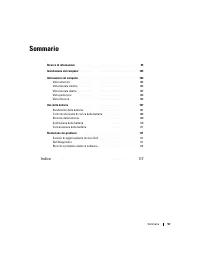
Sommario 97 Sommario Ricerca di informazioni . . . . . . . . . . . . . . . . . . . . . . . . . . . . . 99 Installazione del computer . . . . . . . . . . . . . . . . . . . . . . . . . . 103 Informazioni sul computer . . . . . . . . . . . . . . . . . . . . . . . . . . . 104 Vista anteriore . . . . . ....
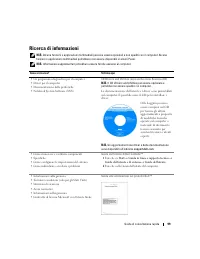
Page 102 - Per visualizzare la
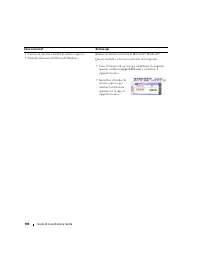
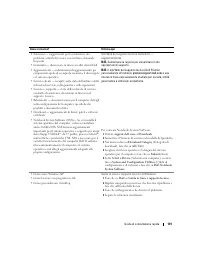
102 Guida di consultazione rapida • Informazioni sull'attività di rete, sulla Power Management Wizard (Procedura guidata di gestione del risparmio di energia), sui tasti di scelta rapida e su altri elementi controllati da Dell QuickSet Dell QuickSet Help (Guida di Dell QuickSet) Per visualizzare la ...
Page 103 - Installazione del computer; Disimballare la scatola degli accessori.
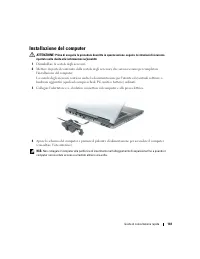
Guida di consultazione rapida 103 Installazione del computer ATTENZIONE: Prima di eseguire le procedure descritte in questa sezione, seguire le istruzioni di sicurezza riportate nella Guida alle informazioni sul prodotto . 1 Disimballare la scatola degli accessori. 2 Mettere da parte il contenuto de...
Page 104 - Informazioni sul computer; Vista anteriore
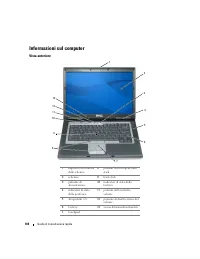
104 Guida di consultazione rapida Informazioni sul computer Vista anteriore 1 dispositivo di chiusura dello schermo 8 pulsanti del touchpad/track stick 2 schermo 9 track stick 3 pulsante di alimentazione 10 indicatori di stato della tastiera 4 indicatori di stato della periferica 11 pulsanti del Con...
Page 105 - Vista laterale sinistra
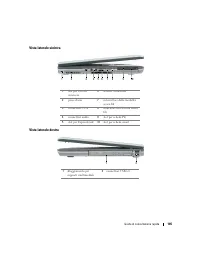
Guida di consultazione rapida 105 Vista laterale sinistra Vista laterale destra 1 slot per cavo di sicurezza 6 sensore a infrarossi 2 prese d'aria 7 interruttore della modalità senza fili 3 connettore 1394 8 indicatore dell'attività senza fili 4 connettori audio 9 slot per schede PC 5 slot per Expre...
Page 106 - Vista posteriore
106 Guida di consultazione rapida Vista posteriore ATTENZIONE: Non ostruire le prese d'aria, non introdurvi oggetti ed evitare l'accumulo di polvere. Non riporre il computer in un ambiente con insufficiente aerazione, ad esempio una valigetta chiusa, durante il funzionamento, in quanto ciò potrebbe ...
Page 107 - Uso della batteria; Rendimento della batteria; Uso delle unità ottiche
Guida di consultazione rapida 107 Uso della batteria Rendimento della batteria N.B. Per informazioni relative alla garanzia Dell per il computer, consultare la Guida alle informazioni sul prodotto o il documento di garanzia cartaceo separato fornito con il computer. Per mantenere prestazioni ottimal...
Page 108 - Controllo del livello di carica della batteria; Misuratore; Battery Meter (Misuratore alimentazione) di DellTM QuickSet; Misuratore alimentazione di Microsoft; premendo e tenendo premuto
108 Guida di consultazione rapida ATTENZIONE: Non smaltire le batterie insieme ai rifiuti domestici. Quando la batteria non è più in grado di mantenere il livello di carica, contattare l'autorità locale preposta allo smaltimento dei rifiuti o l'ente per la protezione dell'ambiente per ottenere sugge...
Page 109 - Per controllare il livello di carica della batteria,; tenere premuto; Avviso di batteria scarica; Proprietà - Opzioni risparmio energia; Ricarica della batteria; La batteria è troppo calda per essere caricata se l'indicatore
Guida di consultazione rapida 109 Controllo del livello di carica della batteria Per controllare il livello di carica della batteria, premere rilasciandolo il pulsante dello stato sull'indicatore del livello di carica della batteria per accendere gli indicatori che indicano il livello di carica. Cia...
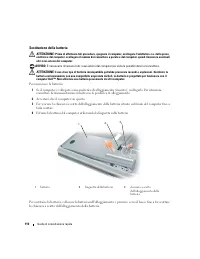
Page 110 - Sostituzione della batteria; Per rimuovere la batteria:
110 Guida di consultazione rapida Sostituzione della batteria ATTENZIONE: Prima di effettuare tali procedure, spegnere il computer, scollegare l'adattatore c.a. dalla presa elettrica e dal computer, scollegare il modem dal connettore a parete e dal computer, quindi rimuovere eventuali altri cavi est...
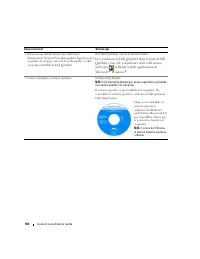
Page 111 - Conservazione della batteria; Risoluzione dei problemi; Servizio di aggiornamento tecnico Dell; Quando utilizzare il programma Dell Diagnostics; Si consiglia di stampare queste procedure prima di iniziare.; Avviare il programma Dell Diagnostics dal disco rigido o dal CD; Avvio del programma Dell Diagnostics dal disco rigido; Arrestare il sistema.
Guida di consultazione rapida 111 Conservazione della batteria Se non si intende usare il computer per un certo periodo di tempo, rimuovere la batteria. Una batteria si scarica se non la si usa per un periodo prolungato, Dopo un lungo periodo di conservazione, ricaricare la batteria completamente pr...
Page 113 - Main Menu (Menu principale) di Dell Diagnostics
Guida di consultazione rapida 113 Main Menu (Menu principale) di Dell Diagnostics 1 Dopo il caricamento del programma Dell Diagnostics e la comparsa della schermata Main Menu (Menu principale), fare clic sul pulsante relativo all'opzione desiderata. 2 Se viene riscontrato un problema durante la prov...
Page 114 - Blocchi e problemi relativi al software; Il computer non si avvia; Fare clic su
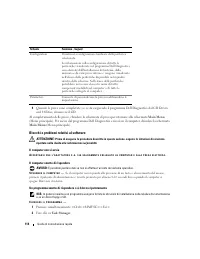
114 Guida di consultazione rapida 4 Quando le prove sono completate, se si sta eseguendo il programma Dell Diagnostics dal CD Drivers and Utilities, rimuovere il CD. Al completamento delle prove, chiudere la schermata di prova per ritornare alla schermata Main Menu (Menu principale). Per uscire dal ...
Page 119 - Guía de referencia rápida
w w w . d e l l . c o m | s u p p o r t . d e l l . c o m Dell™ Latitude™ D820 Guía de referencia rápida Modelo PP04X
Page 121 - Contenido; Índice
Contenido 121 Contenido Búsqueda de información . . . . . . . . . . . . . . . . . . . . . . . . . . . 123 Configuración del ordenador . . . . . . . . . . . . . . . . . . . . . . . . . 127 Acerca de su ordenador . . . . . . . . . . . . . . . . . . . . . . . . . . . . 128 Vista anterior . . . . . . . ...
Page 126 - Para ver la
126 Guía de referencia rápida • Información sobre la actividad de la red, el Power Management Wizard (Asistente para la administración de energía), teclas de acceso rápido y otros elementos controlados por Dell QuickSet Ayuda de Dell QuickSet Para ver la Dell QuickSet Help (Ayuda de Dell QuickSet), ...
Page 127 - Configuración del ordenador; Desempaquete la caja de accesorios.
Guía de referencia rápida 127 Configuración del ordenador PRECAUCIÓN: Antes de comenzar cualquiera de los procedimientos de esta sección, siga las instrucciones de seguridad que se encuentran en la Guía de información del producto . 1 Desempaquete la caja de accesorios. 2 Saque el contenido de la ca...
Page 128 - Acerca de su ordenador; Vista anterior
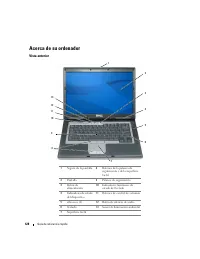
128 Guía de referencia rápida Acerca de su ordenador Vista anterior 1 Seguro de la pantalla 8 Botones de la palanca de seguimiento y de la superficie táctil 2 Pantalla 9 Palanca de seguimiento 3 Botón de alimentación 10 Indicadores luminosos de estado del teclado 4 Indicadores de estado del disposit...
Page 129 - Vista lateral izquierda
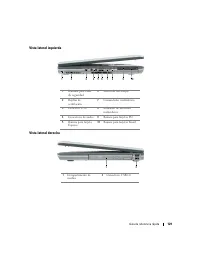
Guía de referencia rápida 129 Vista lateral izquierda Vista lateral derecha 1 Ranuara para cable de seguridad 6 Sensor de infrarrojos 2 Rejillas de ventilación 7 Conmutador inalámbrico 3 Conector 1394 8 Indicador de actividad inalámbrica 4 Conectores de audio 9 Ranura para tarjetas PC 5 Ranura para ...
Page 130 - Vista posterior
130 Guía de referencia rápida Vista posterior PRECAUCIÓN: No introduzca objetos ni permita que el polvo se acumule en las rejillas de ventilación ni las bloquee. No almacene el ordenador en un entorno con poca ventilación, como un maletín cerrado, mientras esté en funcionamiento. La circulación rest...
Page 131 - Uso de la batería; Rendimiento de la batería; Uso de unidades ópticas
Guía de referencia rápida 131 Uso de la batería Rendimiento de la batería NOTA: Para obtener más información acerca de la garantía de Dell para su ordenador, consulte la Guía de información del producto o el documento de garantía sobre papel que se envía con el ordenador. Para el rendimiento óptimo ...
Page 132 - Medidor de batería; Medidor de batería DellTM QuickSet; Ayuda; Medidor de energía de Microsoft; mantener pulsado; pulse
132 Guía de referencia rápida PRECAUCIÓN: El uso incorrecto de la batería puede aumentar el riesgo de incendio o quemadura química. No perfore, incinere, desmonte o exponga la batería a temperaturas superiores a 65°C (149 °F). Mantenga la batería fuera del alcance de los niños. Tenga mucho cuidado c...
Page 133 - pulse y mantenga; Advertencia de batería baja; Propiedades de Opciones de energía; Carga de la batería; parpadea; Sustitución de la batería
Guía de referencia rápida 133 Comprobación del estado de consumo de la batería NOTA: Puede comprobar el estado de consumo de la batería de dos maneras: mediante el medidor de carga de la batería descrito a continuación y mediante el medidor de batería (Battery Meter) de Dell QuickSet. Para obtener i...
Page 134 - Para extraer la batería:; Almacenamiento de una batería
134 Guía de referencia rápida AVISO: Debe eliminar todos los cables externos del ordenador para evitar que se produzcan posibles daños en el conector. PRECAUCIÓN: El uso de baterías incompatibles puede aumentar el riesgo de incendio o explosión. Sustituya la batería únicamente por baterías de Dell. ...
Page 135 - Solución de problemas; Servicio Dell Technical Update; Para suscribirse al servicio Dell Technical Update, vaya a; Cuándo utilizar los Dell Diagnostics (Diagnósticos Dell); Se recomienda imprimir estos procesos antes de empezar.; CD Drivers and; Inicio de Dell Diagnostics desde la unidad de disco duro; Apague el ordenador.
Guía de referencia rápida 135 Solución de problemas Servicio Dell Technical Update El servicio Dell Technical Update proporciona notificación proactiva mediante correo electrónico de actualizaciones de software y hardware para el ordenador. El servicio es gratuito y se puede personalizar su contenid...
Page 136 - Booting; Menú principal de Dell Diagnostics (Diagnósticos Dell)
136 Guía de referencia rápida El ordenador ejecutará la evaluación del sistema previa al inicio, una serie de pruebas iniciales de la tarjeta del sistema, el teclado, la unidad de disco duro y la pantalla. • Durante la evaluación, responda a las preguntas que puedan formularse. • Si se detecta un fa...
Page 137 - Si ejecuta una prueba desde la opción
Guía de referencia rápida 137 2 Si se produce un problema durante una prueba, aparecerá un mensaje con un código de error y una descripción del problema. Anote el código de error y la descripción del problema, y siga las instrucciones de la pantalla. NOTA: La etiqueta de servicio para su ordenador e...
Page 138 - Bloqueos y problemas con el software; El ordenador no se inicia; El ordenador no responde; Haga clic en
138 Guía de referencia rápida 4 Cuando las pruebas hayan finalizado, si está ejecutando Dell Diagnostics (Diagnósticos Dell) desde elCD Drivers and Utilities , extraiga el CD. Cuando las pruebas hayan finalizado, cierre la pantalla de prueba para volver a la pantalla Main Menu (Menú principal). Para...
Page 139 - Haga clic en el programa que ha dejado de responder.; Aparece una pantalla azul fija
Guía de referencia rápida 139 4 Haga clic en el programa que ha dejado de responder. 5 Haga clic sobre Finalizar tarea . C O M P R U E B E L A D O C U M E N T A C I Ó N D E L S O F T W A R E — Si es necesario, desinstale el programa y, a continuación, vuelva a instalarlo. Un programa está diseñado p...






























 Dell 04YJJ6A00
User Manual
Dell 04YJJ6A00
User Manual
 Dell 10 Pro
User Manual
Dell 10 Pro
User Manual
 Dell 10
Manual
Dell 10
Manual
 Dell 1000
User Manual
Dell 1000
User Manual
 Dell 1014
User Manual
Dell 1014
User Manual
 Dell 1000W
User Manual
Dell 1000W
User Manual
 Dell 0JH552A01
User Manual
Dell 0JH552A01
User Manual
 Dell 10g
User Manual
Dell 10g
User Manual
 Dell 1100
User Manual
Dell 1100
User Manual
 Dell 11
User Manual
Dell 11
User Manual
 Dell 11 Pro
User Manual
Dell 11 Pro
User Manual
 Dell 110T
User Manual
Dell 110T
User Manual
 Dell 110T DLT1 Drive
User Manual
Dell 110T DLT1 Drive
User Manual
 Dell 1100 Laser Mono Printer
User Manual
Dell 1100 Laser Mono Printer
User Manual
 Dell 1100MP
User Manual
Dell 1100MP
User Manual