Page 2 - Abbreviations and Acronyms; User’s Guide
Notes, Notices, and Cautions NOTE: A NOTE indicates important information that helps you make better use of your computer. NOTICE: A NOTICE indicates either potential damage to hardware or loss of data and tells you how to avoid the problem. CAUTION: A CAUTION indicates a potential for property dama...
Page 3 - Contents; Finding Information; Index
Contents 3 Contents Finding Information . . . . . . . . . . . . . . . . . . . . . . . . . . . . . . . . 5 Setting Up Your Computer . . . . . . . . . . . . . . . . . . . . . . . . . . . . . 9 About Your Computer . . . . . . . . . . . . . . . . . . . . . . . . . . . . . . . 10 Front View . . . . . . ....
Page 5 - What Are You Looking For?; DellTM Product Information Guide
Quick Reference Guide 5 Finding Information NOTE: Some features or media may be optional and may not ship with your computer. Some features or media may not be available in certain countries. NOTE: Additional information may ship with your computer. What Are You Looking For? Find It Here • A diagnos...
Page 6 - DellTM LatitudeTM User’s Guide; Start; Service Tag and Microsoft
6 Quick Reference Guide • How to remove and replace parts• Specifications• How to configure system settings• How to troubleshoot and solve problems Dell™ Latitude™ User’s Guide Microsoft Windows XP Help and Support Center 1 Click Start → Help and Support → Dell User and System Guides → System Guides...
Page 7 - Go; Dell Support Utility; Windows Help and Support Center
Quick Reference Guide 7 • Solutions — Troubleshooting hints and tips, articles from technicians, online courses, and frequently asked questions • Community — Online discussion with other Dell customers • Upgrades — Upgrade information for components, such as memory, the hard drive, and the operating...
Page 8 - Dell QuickSet Help; To view; Operating System CD
8 Quick Reference Guide • Information on network activity, the Power Management Wizard, hotkeys, and other items controlled by Dell QuickSet. Dell QuickSet Help To view Dell QuickSet Help , right-click the icon in the Microsoft ® Windows ® taskbar. For more information on Dell QuickSet, see "Del...
Page 9 - Setting Up Your Computer; Product
Quick Reference Guide 9 Setting Up Your Computer CAUTION: Before you begin any of the procedures in this section, follow the safety instructions in the Product Information Guide . 1 Unpack the accessories box. 2 Set aside the contents of the accessories box, which you will need to complete the setup...
Page 10 - About Your Computer
10 Quick Reference Guide About Your Computer See your online User’s Guide for detailed information about your computer. To access the User’s Guide (depending on your operating system), either double-click the User’s Guide icon on your desktop, or click the Start button, click Help and Support Center...
Page 11 - Front View
Quick Reference Guide 11 Front View 1 display latch 5 touch pad buttons 9 keyboard and network status lights 2 display 6 track stick 10 ambient light sensor 3 device status lights 7 keyboard 4 touch pad 8 speaker 1 2 3 4 5 7 8 6 9 10
Page 12 - Left View
12 Quick Reference Guide Left View Right View CAUTION: Do not block, push objects into, or allow dust to accumulate in the air vents. Do not store your computer in a low-airflow environment, such as a closed briefcase, while it is running. Restricting the airflow can damage the computer or cause a f...
Page 13 - Bottom View
Quick Reference Guide 13 NOTE: The D420 has been optimally designed to be used with the slim Media Base for docking. However, it is compatible with the D-Family D/Port and D/Dock. With the use of the D-Family D/Port and D/Dock, all ports can be effectively utilized except for the 1394 port. If the u...
Page 14 - Using a Battery; Battery Performance; Control Panel; Using optical drives
14 Quick Reference Guide Using a Battery Battery Performance NOTE: For information about the Dell warranty for your computer, see the Product Information Guide or separate paper warranty document that shipped with your computer. For optimal computer performance and to help preserve BIOS settings, op...
Page 15 - Checking the Battery Charge; Power Meter; Help
Quick Reference Guide 15 Checking the Battery Charge The Dell QuickSet Battery Meter, the Microsoft Windows Power Meter window and icon, the battery charge gauge and health gauge, and the low-battery warning provide information on the battery charge. Dell™ QuickSet Battery Meter If Dell QuickSet is ...
Page 16 - Power Options Properties; Charging the Battery; Replacing the Battery
16 Quick Reference Guide Low-Battery Warning NOTICE: To avoid losing or corrupting data, save your work immediately after a low-battery warning. Then connect the computer to an electrical outlet. If the battery runs completely out of power, hibernate mode begins automatically. By default, a pop-up w...
Page 17 - Slide the battery away from the computer.; Storing a Battery
Quick Reference Guide 17 3 Slide the two battery-bay release latches on the bottom of the computer until the latches click. 4 Slide the battery away from the computer. To replace the battery, place the battery in the bay and press down until the battery-bay latch release clicks. Storing a Battery Re...
Page 18 - Troubleshooting; Lockups and Software Problems; A C
18 Quick Reference Guide Troubleshooting Lockups and Software Problems CAUTION: Before you begin any of the procedures in this section, follow the safety instructions in the Product Information Guide . The computer does not start up E N S U R E T H A T T H E A C A D A P T E R I S F I R M L Y C O N N...
Page 19 - Other software problems; C D; spyware; Dell Diagnostics
Quick Reference Guide 19 Other software problems C H E C K T H E S O F T W A R E D O C U M E N T A T I O N O R C O N T A C T T H E S O F T W A R E M A N U F A C T U R E R F O R T R O U B L E S H O O T I N G I N F O R M A T I O N — • Ensure that the program is compatible with the operating system ins...
Page 20 - Starting the Dell Diagnostics From Your Hard Drive
20 Quick Reference Guide Starting the Dell Diagnostics From Your Hard Drive The Dell Diagnostics is located on a hidden diagnostic utility partition on your hard drive. NOTE: If your computer cannot display a screen image, contact Dell (see "Contacting Dell" in your User’s Guide ). 1 Shut do...
Page 21 - Dell Diagnostics Main Menu; Option
Quick Reference Guide 21 3 When the boot device list appears, highlight CD/DVD/CD-RW Drive and press <Enter>. 4 Select the Boot from CD-ROM option from the menu that appears and press <Enter>. 5 Type 1 to start the menu and press <Enter> to proceed. 6 Select Run the 32 Bit Dell Dia...
Page 22 - Drivers and; screen. To exit the; Main; Tab
22 Quick Reference Guide 4 When the tests are completed, if you are running the Dell Diagnostics from the Drivers and Utilities CD , remove the CD. 5 When the tests are complete, close the test screen to return to the Main Menu screen. To exit the Dell Diagnostics and restart the computer, close the...
Page 25 - Snelle referentiegids
w w w . d e l l . c o m | s u p p o r t . d e l l . c o m Dell™ Latitude™ D420 Snelle referentiegids Model PP09S
Page 26 - Opmerkingen, kennisgevingen en waarschuwingen; Afkortingen en acroniemen; Gebruikershandleiding
Opmerkingen, kennisgevingen en waarschuwingen OPMERKING: Een OPMERKING duidt belangrijke informatie aan voor een beter gebruik van de computer. KENNISGEVING: Een KENNISGEVING duidt potentiële schade aan hardware of potentieel gegevensverlies aan en vertelt u hoe het probleem kan worden vermeden. WAA...
Page 27 - Inhoudsopgave; Informatie zoeken
Inhoudsopgave 27 Inhoudsopgave Informatie zoeken . . . . . . . . . . . . . . . . . . . . . . . . . . . . . . . . 29 De computer installeren . . . . . . . . . . . . . . . . . . . . . . . . . . . . . 33 Over de computer . . . . . . . . . . . . . . . . . . . . . . . . . . . . . . . . 34 Vooraanzicht . ...
Page 29 - Hier kunt u het vinden; DellTM Productinformatiegids
Snelle referentiegids 29 Informatie zoeken OPMERKING: Sommige kenmerken of media kunnen optioneel zijn en niet worden geleverd met uw computer. Sommige kenmerken of media zijn wellicht niet beschikbaar in bepaalde landen. OPMERKING: Mogelijk is er bij uw computer aanvullende informatie geleverd. Waa...
Page 30 - DellTM LatitudeTM Gebruikershandleiding; Servicelabel en Microsoft
30 Snelle referentiegids • Onderdelen verwijderen en vervangen• Specificaties• Systeeminstellingen configureren• Problemen vaststellen en oplossen Dell™ Latitude™ Gebruikershandleiding Help en ondersteuning van Microsoft Windows XP 1 Klik op Start → Help en ondersteuning → Dell User and System Guide...
Page 32 - Wanneer u
32 Snelle referentiegids • Met Windows XP werken• Aan het werk met programma's en bestanden• Hoe pas ik mijn bureaublad aan? Help en ondersteuning van Windows 1 Klik op Start → Help en ondersteuning . 2 Geef met een of meer woorden een beschrijving van het probleem en klik vervolgens op het pijltje....
Page 33 - De computer installeren; te volgen die u vindt in de; Productinformatiegids
Snelle referentiegids 33 De computer installeren WAARSCHUWING: Voordat u aan een van de procedures in deze sectie begint, dient u de veiligheidsinstructies te volgen die u vindt in de Productinformatiegids . 1 Haal de onderdelen uit de accessoiredoos. 2 Leg de onderdelen terzijde. U hebt deze nodig ...
Page 34 - Over de computer; Zie de on line
34 Snelle referentiegids Over de computer Zie de on line gebruikshandleiding voor gedetailleerde informatie over de computer. U opent de Users Guide (Gebruikershandleiding) (afhankelijk van het besturingssysteem) door op het pictogram Users Guide (Gebruikershandleiding) op het bureaublad te dubbelkl...
Page 35 - Vooraanzicht
Snelle referentiegids 35 Vooraanzicht 1 displayvergrendeling 5 knoppen voor touchpad 9 statuslampjes toetsenbord en netwerk 2 beeldscherm 6 track stick 10 ambient light sensor 3 statuslampjes apparaat 7 toetsenbord 4 touchpad 8 luidspreker 1 2 3 4 5 7 8 6 9 10
Page 36 - Linkeraanzicht
36 Snelle referentiegids Linkeraanzicht Rechteraanzicht WAARSCHUWING: Blokkeer de luchtopeningen niet, duw er geen voorwerpen in en zorg dat er zich geen stof in ophoopt. Plaats de computer niet in een omgeving waar weinig lucht beschikbaar is, zoals een gesloten koffer, als de computer is ingeschak...
Page 37 - Onderaanzicht
Snelle referentiegids 37 OPMERKING: De D420 is optimaal ontworpen om te worden gebruikt met de kleine mediabasis voor koppeling, maar is wel compatibel met de D-familie D/Port en D/Dock. Met de D-familie D/Port en D/Dock kunnen alle poorten, behalve 1394, effectief worden gebruikt. Als het gebruik v...
Page 38 - Batterijen gebruiken; Batterijprestaties; Configuratiescherm; De werkingsduur neemt aanzienlijk af door onder andere:
38 Snelle referentiegids Batterijen gebruiken Batterijprestaties OPMERKING: Zie de Productinformatiegids of het afzonderlijke papieren garantiedocument dat met uw computer is meegeleverd voor informatie over de Dell-garantie voor uw computer. Voor optimale prestaties van de computer en tevens om te ...
Page 39 - De batterijlading controleren; De Dell QuickSet Battery Meter, het Microsoft Windows; op de taakbalk en; Lading van de batterij (de statusknop indrukken en
Snelle referentiegids 39 WAARSCHUWING: Misbruik van de batterij kan de kans op brand of chemische brandwonden verhogen. Maak geen gaten in batterijen, gooi geen batterijen in het vuur, maak geen batterijen open en stel geen batterijen bloot aan een temperatuur hoger dan 65°C. Houd de batterij buiten...
Page 40 - De gezondheid van de batterij controleren; ingedrukt houden; Eigenschappen voor Energiebeheer; De batterij opladen; Gebruikers handleiding
40 Snelle referentiegids De gezondheid van de batterij controleren OPMERKING: De gezondheid van de batterij kan op twee manieren worden gecontroleerd: door de ladingsmeter te gebruiken zoals hieronder wordt beschreven, en door de batterijmeter te gebruiken in Del QuickSet. Voor informatie over Quick...
Page 41 - De batterij verwijderen:
Snelle referentiegids 41 Replacing the Battery (de batterij vervangen) (batterij: verwijderen) WAARSCHUWING: Voordat u deze procedures uitvoert, moet u de computer uitzetten, de netadapter uit het stopcontact halen, de modem losmaken van de wandaansluiting en de computer en alle andere externe kabel...
Page 42 - Een batterij opslaan; Problemen oplossen; Vastlopen en softwareproblemen; Klik op; Taakbeheer; Klik op het programma dat niet meer reageert.; Taak beëindigen; Indien nodig maakt u de installatie van het programma
42 Snelle referentiegids Een batterij opslaan Verwijder de batterij als u de computer voor langere tijd opslaat. Een batterij verliest zijn lading als deze gedurende een lange periode wordt opgeslagen. Na een lange opslagperiode dient u de batterij volledig opnieuw te laden voordat u deze gebruikt (...
Page 43 - Windows; Volg de instructies op het scherm.
Snelle referentiegids 43 Er is een programma dat is ontwikkeld voor een eerdere versie van het Microsoft ® Windows ® -besturingssysteem V O E R D E W I Z A R D P R O G R A M M A C O M P A T I B I L I T E I T U I T — De wizard Programmacompatibiliteit configureert een programma op zodanige wijze dat ...
Page 44 - Sluit de computer af.
44 Snelle referentiegids Dell Diagnostics (Dell-diagnoseprogramma) WAARSCHUWING: Voordat u aan een van de procedures in deze sectie begint, dient u de veiligheidsinstructies te volgen die u vindt in de Productinformatiegids . Wanneer u Dell Diagnostics (Dell-diagnoseprogramma) moet gebruiken Als er ...
Page 45 - Run the 32 Bit Dell Diagnostics
Snelle referentiegids 45 De computer voert een systeemanalyse uit: een reeks begintests van het moederbord, het toetsenbord, de vaste schijf en het computerscherm. • Beantwoord tijdens de analyse eventuele vragen die worden gesteld. • Als er een fout wordt gedetecteerd, stopt de computer en wordt er...
Page 46 - Hoofdmenu Dell Diagnostics; hoofdmenu; klikt u op de knop voor de gewenste optie.; Custom Test; Optie
46 Snelle referentiegids Hoofdmenu Dell Diagnostics 1 Nadat het Dell-diagnoseprogramma is geladen en het scherm met het hoofdmenu wordt weergegeven, klikt u op de knop voor de gewenste optie. 2 Als er tijdens een test een probleem wordt gedetecteerd, wordt er een bericht weergegeven met de foutcode ...
Page 47 - op door het scherm met het; Tabblad
Snelle referentiegids 47 4 Als de tests zijn voltooid en u Dell Diagnostics (Dell-diagnoseprogramma) vanaf de cd Drivers and Utilities (Stuur- en hulpprogramma's) hebt uitgevoerd, moet u deze cd verwijderen. 5 Wanneer de tests zijn voltooid, sluit u het testscherm om terug te keren naar het scherm m...
Page 51 - Guide de référence rapide
w w w . d e l l . c o m | s u p p o r t . d e l l . c o m Dell™ Latitude™ D420 Guide de référence rapide Modèle PP09S
Page 52 - Remarques, avis et précautions; Abréviations et sigles
Remarques, avis et précautions REMARQUE : Une REMARQUE fournit des informations importantes qui vous aident à mieux utiliser votre ordinateur. AVIS : Un AVIS vous avertit d ' un risque de dommage matériel ou de perte de données et vous indique comment éviter le problème. PRÉCAUTION : Une PRÉCAUTION ...
Page 53 - Sommaire; Recherche d'informations
Sommaire 53 Sommaire Recherche d'informations . . . . . . . . . . . . . . . . . . . . . . . . . . . . 55 Configuration de votre ordinateur . . . . . . . . . . . . . . . . . . . . . . . . 59 A propos de votre ordinateur . . . . . . . . . . . . . . . . . . . . . . . . . . 60 Vue frontale . . . . . . ....
Page 55 - Guide d'information sur le produit DellTM
Guide de référence rapide 55 Recherche d'informations REMARQUE : Certaines fonctionnalités ou supports de données peuvent être en option et ne pas être livrés avec votre ordinateur. Certaines fonctionnalités ou supports de données peuvent ne pas être disponibles dans certains pays. REMARQUE : Il est...
Page 56 - Guide d'utilisation DellTM LatitudeTM; Démarrer
56 Guide de référence rapide • Comment retirer et remplacer des pièces• Caractéristiques• Comment configurer les paramètres système• Comment dépanner et résoudre les problèmes Guide d'utilisation Dell™ Latitude™ Centre d'aide et de support Microsoft Windows XP 1 Cliquez sur Démarrer → Aide et suppor...
Page 57 - Utilitaire de support Dell
Guide de référence rapide 57 • Solutions — Astuces de dépannage, articles de techniciens, cours en ligne et questions fréquemment posées • Forum clients — Discussion en ligne avec d'autres clients Dell • Mises à niveau — Informations de mise à niveau pour les composants, tels que la mémoire, le disq...
Page 58 - Centre d'aide et de support de Windows; Aide de Dell QuickSet
58 Guide de référence rapide • Comment utiliser Windows XP• Comment utiliser des programmes et des fichiers• Comment personnaliser mon bureau Centre d'aide et de support de Windows 1 Cliquez sur Démarrer → Aide et support . 2 Tapez un mot ou une expression qui décrit votre problème, puis cliquez sur...
Page 59 - Configuration de votre ordinateur; sécurité du; Guide d'information sur le produit
Guide de référence rapide 59 Configuration de votre ordinateur PRÉCAUTION : Avant de commencer toute procédure de cette section, consultez et respectez les consignes de sécurité du Guide d'information sur le produit . 1 Déballez la boîte d'accessoires. 2 Mettez de côté le contenu de la boîte d'acces...
Page 60 - A propos de votre ordinateur; Guide de l'utilisateur
60 Guide de référence rapide A propos de votre ordinateur Cliquez sur le Guide de l'utilisateur en ligne pour des informations détaillées sur votre ordinateur. Pour accéder au Guide de l'utilisateur (selon votre système d ' exploitation), vous pouvez soit faire un double-clic sur l ' icône Guide de ...
Page 61 - Vue frontale
Guide de référence rapide 61 Vue frontale 1 loquet de l'écran 5 boutons de la tablette tactile 9 Voyants d'état du clavier et du réseau 2 écran 6 ergot de pointage 10 capteur d'éclairage ambiant 3 voyants d'état de l'appareil 7 clavier 4 tablette tactile 8 haut-parleur 1 2 3 4 5 7 8 6 9 10
Page 62 - Vue de gauche
62 Guide de référence rapide Vue de gauche Vue de droite PRÉCAUTION : Ne bloquez pas les entrées d'air de l'ordinateur et n'insérez pas d'objets dedans ; évitez également toute accumulation de poussière. Ne placez pas l'ordinateur dans un environnement peu aéré, tel qu'une mallette fermée, lorsque c...
Page 63 - Vue du dessous
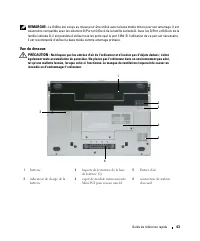
Guide de référence rapide 63 REMARQUE : Le D420 a été conçu au mieux pour être utilisé avec la base média mince pour son amarrage. Il est néanmoins compatible avec les solutions D/Port et D/Dock de la famille Latitude D. Avec les D/Port et D/Dock de la famille Latitude D, il est possible d'utiliser ...
Page 64 - Utilisation d'une batterie; Performances de la batterie; Panneau de configuration; L'autonomie de la batterie varie en fonction de l'utilisation.
64 Guide de référence rapide Utilisation d'une batterie Performances de la batterie REMARQUE : Pour plus d'informations sur la garantie Dell de votre ordinateur, reportez-vous au Guide d'information produit ou à la page de garantie livrée avec votre ordinateur. Pour un fonctionnement optimal et afin...
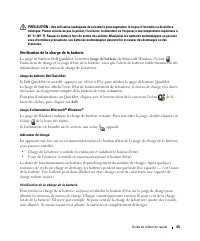
Page 65 - Vérification de la charge de la batterie; Jauge de batterie; Jauge de batterie Dell QuickSet; Aide; Jauge d'alimentation Microsoft
Guide de référence rapide 65 PRÉCAUTION : Une utilisation inadéquate de la batterie peut augmenter le risque d'incendie ou de brûlure chimique. Prenez soin de ne pas la percer, l'incinérer, la démonter ou l'exposer à une température supérieure à 65 °C (149 °F). Rangez la batterie hors de portée des ...
Page 66 - Vérification de l'usure de la batterie; Pour vérifier l'usure de la batterie par la jauge de charge,; Propriétés de; pour plus d'informations sur l'accès à QuickSet ou la fenêtre; Propriétés de Options; Charge de la batterie; Si le voyant
66 Guide de référence rapide Vérification de l'usure de la batterie REMARQUE : Vous pouvez vérifier la durée de vie de la batterie de deux façons : par la jauge de charge sur la batterie comme indiqué ci-dessous ou par la jauge de Dell QuickSet. Pour plus d'informations sur QuickSet, cliquez avec le...
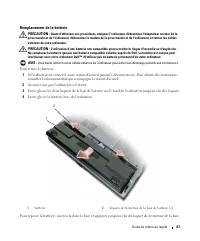
Page 67 - Remplacement de la batterie; Pour retirer la batterie :
Guide de référence rapide 67 Remplacement de la batterie PRÉCAUTION : Avant d'effectuer ces procédures, éteignez l'ordinateur, débranchez l'adaptateur secteur de la prise murale et de l'ordinateur, débranchez le modem de la prise murale et de l'ordinateur, et retirez les câbles externes de votre ord...
Page 68 - Stockage de la batterie; Dépannage; Blocages et problèmes logiciels
68 Guide de référence rapide Stockage de la batterie Retirez la batterie de l'ordinateur lorsque vous rangez ce dernier pendant une période prolongée. Sinon, la batterie finira par se décharger. Après une longue période de stockage, rechargez complètement la batterie avant de l'utiliser (reportez-vo...
Page 69 - Un écran bleu uni apparaît
Guide de référence rapide 69 Un écran bleu uni apparaît É T E I G N E Z L ' O R D I N A T E U R — Si vous n'obtenez aucune réponse lorsque vous appuyez sur une touche du clavier ou lorsque vous déplacez la souris, appuyez sur le bouton d'alimentation et maintenez-le enfoncé pendant au moins 8 à 10 s...
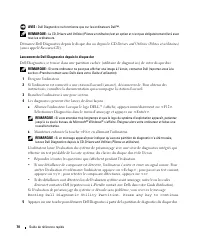
Page 70 - Démarrez Dell Diagnostics depuis le disque dur ou depuis le CD
70 Guide de référence rapide AVIS : Dell Diagnostics ne fonctionne que sur les ordinateurs Dell™. REMARQUE : Le CD Drivers and Utilities (Pilotes et utilitaires) est en option et n'est pas obligatoirement livré avec tous les ordinateurs. Démarrez Dell Diagnostics depuis le disque dur ou depuis le CD...
Page 71 - Menu principal de Dell Diagnostics; menu
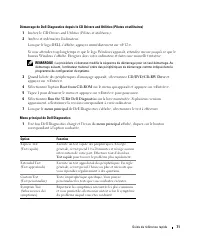
Guide de référence rapide 71 Démarrage de Dell Diagnostics depuis le CD Drivers and Utilities (Pilotes et utilitaires) 1 Insérez le CD Drivers and Utilities (Pilotes et utilitaires) . 2 Arrêtez et redémarrez l'ordinateur. Lorsque le logo DELL s'affiche, appuyez immédiatement sur <F12>. Si vous...
Page 72 - Si vous effectuez un test à partir de l'option; Onglet
72 Guide de référence rapide 2 Si un problème est rencontré lors d'un test, un message affiche le code d'erreur et une description du problème. Notez le code d'erreur et la description du problème et suivez les instructions à l'écran. Si vous ne pouvez pas résoudre le problème, contactez Dell (repor...
Page 75 - Schnellreferenzhandbuch
w w w . d e l l . c o m | s u p p o r t . d e l l . c o m Dell™ Latitude™ D420 Schnellreferenzhandbuch Modell PP09S
Page 76 - Anmerkungen, Hinweise und Vorsichtshinweise; oder sogar den Tod von Personen zur Folge haben können.; Abkürzungen und Akronyme; Benutzerhandbuch
Anmerkungen, Hinweise und Vorsichtshinweise ANMERKUNG: Eine ANMERKUNG macht auf wichtige Informationen aufmerksam, mit denen Sie den Computer besser einsetzen können. HINWEIS: Ein HINWEIS warnt vor möglichen Beschädigungen der Hardware oder Datenverlust und zeigt, wie diese vermieden werden können. ...
Page 77 - Inhalt; Informationsquellen; Stichwortverzeichnis
Inhalt 77 Inhalt Informationsquellen . . . . . . . . . . . . . . . . . . . . . . . . . . . . . . . 79 Einrichten des Computers . . . . . . . . . . . . . . . . . . . . . . . . . . . . 83 Informationen über den Computer . . . . . . . . . . . . . . . . . . . . . . . . 84 Vorderansicht . . . . . . . . ....
Page 79 - Welche Ressourcen oder Informationen benötigen Sie?; DellTM-Produktinformationshandbuch
Schnellreferenzhandbuch 79 Informationsquellen ANMERKUNG: Eine Funktionen und Medien sind optional und möglicherweise nicht im Lieferumfang Ihres Computers enthalten. Einige Funktionen sind möglicherweise in bestimmten Ländern nicht verfügbar. ANMERKUNG: Möglicherweise ist im Lieferumfang des Comput...
Page 80 - DellTM LatitudeTM-Benutzerhandbuch
80 Schnellreferenzhandbuch • Anleitungen zum Entfernen und Austauschen von Teilen• Technische Daten• Anleitungen zum Konfigurieren der Systemeinstellungen• Fehlerbehebung und Beheben von Störungen Dell™ Latitude™-Benutzerhandbuch Microsoft Windows XP Hilfe- und Supportcenter 1 Klicken Sie auf Start ...
Page 81 - Los; Dell Support-Dienstprogramm
Schnellreferenzhandbuch 81 • Lösungen — Hinweise zum Beheben von Störungen, Veröffentlichungen von Technikern, Online-Schulungen und häufig gestellte Fragen (FAQs) • Community — Onlinediskussionen mit anderen Dell-Kunden • Upgrades — Informationen zum Upgrade von Komponenten, beispielsweise Speicher...
Page 82 - Windows Hilfe- und Supportcenter
82 Schnellreferenzhandbuch • Anleitungen zum Arbeiten unter Windows XP• Anleitung zum Arbeiten mit Programmen und Dateien• Anleitung zum persönlichen Einrichten des Desktops Windows Hilfe- und Supportcenter 1 Klicken Sie auf Start → Hilfe und Support . 2 Geben Sie ein Wort oder einen Ausdruck ein, d...
Page 83 - Einrichten des Computers; Sicherheitshinweise im; Produktinformationshandbuch
Schnellreferenzhandbuch 83 Einrichten des Computers VORSICHT: Bevor Sie die in diesem Abschnitt beschriebenen Vorgänge ausführen, lesen Sie zunächst die Sicherheitshinweise im Produktinformationshandbuch . 1 Packen Sie das Zubehör aus. 2 Legen Sie die für das Einrichten des Computers erforderlichen ...
Page 84 - Informationen über den Computer; BenutzerhandbuchIs this icon
84 Schnellreferenzhandbuch Informationen über den Computer Detailinformationen zu Ihrem Computer erhalten Sie in der Onlineversion des Benutzerhandbuchs . Um auf das Benutzerhandbuch zuzugreifen, doppelklicken Sie auf das Symbol BenutzerhandbuchIs this icon localized? If not, revert, please and put ...
Page 85 - Vorderansicht
Schnellreferenzhandbuch 85 Vorderansicht 1 Bildschirmverriegelung 5 Touchpadtasten 9 Tatstatur- und Netzwerk-Statusanzeigen 2 Bildschirm 6 Trackstick 10 Umgebungslichtsensor 3 Gerätestatusanzeigen 7 Tastatur 4 Touchpad 8 Lautsprecher 1 2 3 4 5 7 8 6 9 10
Page 86 - Linke Ansicht
86 Schnellreferenzhandbuch Linke Ansicht Rechte Ansicht VORSICHT: Achten Sie darauf, die Lüftungsschlitze nicht zu blockieren, schieben Sie keine Gegenstände hinein, und halten Sie die Lüftungsschlitze staubfrei. Bewahren Sie den Computer während des Betriebs nicht in schlecht durchlüfteten Umgebung...
Page 87 - Unterseite
Schnellreferenzhandbuch 87 ANMERKUNG: Der D420 wurde für den Anschluss an eine Slim-Media Base optimiert. Darüber hinaus ist das Gerät auch mit D-Family D/Port und D/Dock kompatibel. Bei Verwendung von Geräten der Baureihen D-Family D/Port bzw. D/Dock können alle Anschlüsse bis auf den FireWire-Ansc...
Page 88 - Verwenden eines Akkus; Akkuleistung; Systemsteuerung; Energieoptionen; Verwenden von optischen Laufwerken
88 Schnellreferenzhandbuch Verwenden eines Akkus Akkuleistung ANMERKUNG: Weitere Informationen zur Dell™-Garantie für den Computer finden Sie im Produktinformationshandbuch bzw. in dem Garantieschein, der im Lieferumfang des Computers enthalten ist. Für eine optimale Leistung des Computers und zur B...
Page 89 - Prüfen des Akkuladezustands; Akkuanzeige von DellTM QuickSet; Energieanzeige von Microsoft
Schnellreferenzhandbuch 89 VORSICHT: Bei unsachgemäßer Verwendung des Akkus besteht Brand- oder Verätzungsgefahr. Sie dürfen den Akku nicht aufstechen, verbrennen, auseinander nehmen oder Temperaturen über 65°C aussetzen. Bewahren Sie den Akku außerhalb der Reichweite von Kindern auf. Handhaben Sie ...
Page 90 - Überprüfen des Akkuzustands; drücken; Eigenschaften von Energieoptionen; Aufladen des Akkus
90 Schnellreferenzhandbuch Überprüfen des Akkuzustands ANMERKUNG: Sie können den Akkuzustand auf die beiden folgenden Weisen überprüfen: Indem Sie die Ladestandanzeige auf dem Akku wie nachstehend beschrieben verwenden oder indem Sie die Akkuanzeige in Dell QuickSet verwenden. Weitere Informationen ...
Page 91 - Ersetzen des Akkus; So entfernen Sie den Akku:
Schnellreferenzhandbuch 91 Ersetzen des Akkus VORSICHT: Schalten Sie vor der Durchführung der folgenden Schritte den Computer ab, ziehen Sie die Stecker des Netzstromadapters aus der Steckdose und dem Computer heraus, ziehen Sie die Stecker des Modems aus dem Wandstecker und dem Computer heraus, und...
Page 92 - Lagern eines Akkus; Beheben von Störungen; Probleme mit Absturz und Software
92 Schnellreferenzhandbuch Lagern eines Akkus Entfernen Sie den Akku, wenn Sie den Computer für längere Zeit lagern möchten. Akkus entladen sich während einer längeren Lagerzeit. Nach einer langen Lagerung sollten Sie den Akku wieder vollständig aufladen, bevor Sie ihn verwenden (siehe unter „Auflad...
Page 93 - Ein blauer Bildschirm wird angezeigt
Schnellreferenzhandbuch 93 Ein blauer Bildschirm wird angezeigt A U S S C H A L T E N D E S C O M P U T E R S — Wenn der Computer nicht mehr reagiert und auch nicht durch Drücken einer Taste auf der Tastatur bzw. Bewegen der Maus aktiviert werden kann, halten Sie den Netzschalter mindestens acht bis...
Page 94 - Starten Sie Dell Diagnostics über die Festplatte oder über die CD; Fahren Sie den Computer herunter.; Diagnostics; im
94 Schnellreferenzhandbuch ANMERKUNG: Die CD Drivers and Utilities ist optional und möglicherweise nicht im Lieferumfang aller Computer enthalten. Starten Sie Dell Diagnostics über die Festplatte oder über die CD Drivers and Utilities (auch als ResourceCD bezeichnet). Starten von Dell Diagnostics üb...
Page 95 - Starten von Dell Diagnostics über die Drivers and Utilities CD; Dell Diagnostics-Hauptmenü; Hauptmenü
Schnellreferenzhandbuch 95 Starten von Dell Diagnostics über die Drivers and Utilities CD 1 Legen Sie die Drivers and Utilities- CD ein. 2 Fahren Sie den Computer herunter, und starten Sie ihn erneut. Wenn das Dell-Logo angezeigt wird, drücken Sie unmittelbar danach <F12>. Wird das Windows-Log...
Page 96 - Drivers and Utilities-; Registerkarte
96 Schnellreferenzhandbuch 2 Tritt während eines Tests ein Problem auf, werden in einer Systemmeldung der Fehlercode und eine Beschreibung des Problems angezeigt. Notieren Sie sich den Fehlercode und die Problembeschreibung, und befolgen Sie die Anweisungen auf dem Bildschirm. Kann das Problem nicht...
Page 99 - DellTM LatitudeTM D420; Guida di consultazione rapida
w w w . d e l l . c o m | s u p p o r t . d e l l . c o m Dell™ Latitude™ D420 Guida di consultazione rapida Modello PP09S
Page 100 - Abbreviazioni ed acronimi
N.B., Avvisi e Attenzione N.B. Un N.B. indica informazioni importanti che contribuiscono a migliorare l'utilizzo del computer. AVVISO: un AVVISO indica un danno potenziale all'hardware o perdita di dati e spiega come evitare il problema. ATTENZIONE: un messaggio di ATTENZIONE indica un rischio di da...
Page 101 - Sommario; Ricerca di informazioni; Indice analitico
Sommario 101 Sommario Ricerca di informazioni . . . . . . . . . . . . . . . . . . . . . . . . . . . . 103 Installazione del computer . . . . . . . . . . . . . . . . . . . . . . . . . . 107 Informazioni sul computer . . . . . . . . . . . . . . . . . . . . . . . . . . . 108 Vista frontale . . . . . . ...
Page 103 - Si trova qui; Guida alle informazioni sul prodotto DellTM
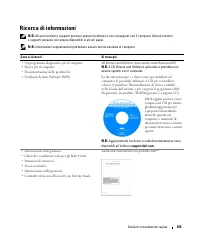
Guida di consultazione rapida 103 Ricerca di informazioni N.B. Alcune funzioni o supporti possono essere facoltativi e non consegnati con il computer. Alcune funzioni o supporti possono non essere disponibili in alcuni paesi. N.B. Informazioni supplementari potrebbero essere fornite assieme al compu...
Page 104 - Guida dell'utente di DellTM LatitudeTM
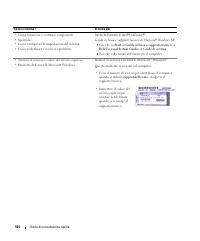
104 Guida di consultazione rapida • Come rimuovere e sostituire componenti• Specifiche• Come configurare le impostazioni del sistema• Come individuare e risolvere i problemi Guida dell'utente di Dell™ Latitude™ Guida in linea e supporto tecnico di Microsoft Windows XP 1 Fare clic su Start → Guida in...
Page 105 - Sito Web del supporto tecnico della Dell — support.dell.com; Utilità Dell Support
Guida di consultazione rapida 105 • Soluzioni — suggerimenti per la risoluzione dei problemi, articoli di tecnici, corsi in linea e domande frequenti • Forum clienti — discussione in linea con altri clienti Dell• Aggiornamenti — informazioni di aggiornamento per componenti, quali ad esempio la memor...
Page 106 - guida in linea e supporto tecnico di Windows; Per visualizzare la; CD Operating System
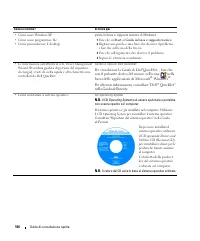
106 Guida di consultazione rapida • Come usare Windows XP• Come usare programmi e file• Come personalizzare il desktop guida in linea e supporto tecnico di Windows 1 Fare clic su Start → Guida in linea e supporto tecnico . 2 Digitare una parola o una frase che descriva il problema e fare clic sull'i...
Page 107 - Installazione del computer; riportate nella; Guida alle informazioni sul prodotto
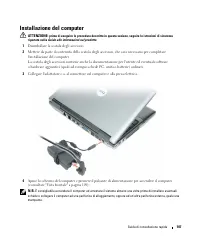
Guida di consultazione rapida 107 Installazione del computer ATTENZIONE: prima di eseguire le procedure descritte in questa sezione, seguire le istruzioni di sicurezza riportate nella Guida alle informazioni sul prodotto . 1 Disimballare la scatola degli accessori. 2 Mettere da parte il contenuto de...
Page 108 - Informazioni sul computer; Consultare la; e quindi su; e di sistema; Modem e scheda di rete:
108 Guida di consultazione rapida Informazioni sul computer Consultare la Guida dell'utente in linea per informazioni dettagliate relative al computer. Per accedere alla Guida dell'utente (in funzione del sistema operativo), fare doppio clic sull'icona Guida dell'utente sul desktop oppure fare clic ...
Page 109 - Vista frontale
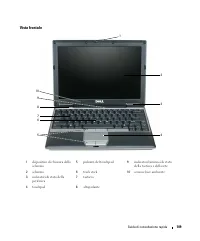
Guida di consultazione rapida 109 Vista frontale 1 dispositivo di chiusura dello schermo 5 pulsanti del touchpad 9 indicatori luminosi di stato della tastiera e della rete 2 schermo 6 track stick 10 sensore luce ambiente 3 indicatori di stato della periferica 7 tastiera 4 touchpad 8 altoparlante 1 2...
Page 110 - Vista da sinistra
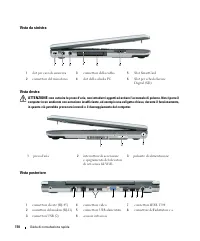
110 Guida di consultazione rapida Vista da sinistra Vista destra ATTENZIONE: non ostruire le prese d'aria, non introdurvi oggetti ed evitare l'accumulo di polvere. Non riporre il computer in un ambiente con aerazione insufficiente, ad esempio una valigetta chiusa, durante il funzionamento, in quanto...
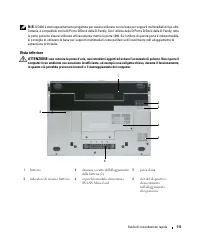
Page 111 - Vista inferiore
Guida di consultazione rapida 111 N.B. Il D420 è stato appositamente progettato per essere utilizzato con la base per supporti multimediali di tipo slim. Tuttavia, è compatibile con la D/Port e D/Dock della D-Family. Con l'utilizzo della D/Port e D/Dock della D-Family, tutte le porte possono essere ...
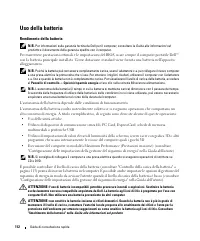
Page 112 - Uso della batteria; Rendimento della batteria; Pannello di controllo; Uso delle unità ottiche
112 Guida di consultazione rapida Uso della batteria Rendimento della batteria N.B. Per informazioni sulla garanzia fornita da Dell per il computer, consultare la Guida alle informazioni sul prodotto o il documento della garanzia spedito con il computer. Per mantenere prestazioni ottimali e le impos...
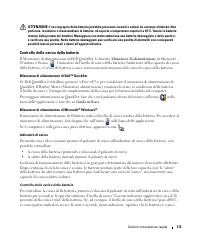
Page 113 - Controllo della carica della batteria; Misuratore di alimentazione; Misuratore di alimentazione di DellTM QuickSet; Guida in linea; Misuratore di alimentazione di Microsoft
Guida di consultazione rapida 113 ATTENZIONE: l'uso improprio della batteria potrebbe provocare incendi o ustioni da sostanze chimiche. Non perforare, incenerire o disassemblare la batteria, né esporla a temperature superiori a 65°C. Tenere la batteria lontano dalla portata dei bambini. Maneggiare c...
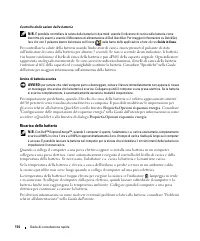
Page 114 - Controllo della salute della batteria; tenere premuto; Proprietà-Opzioni risparmio energia; Ricarica della batteria
114 Guida di consultazione rapida Controllo della salute della batteria N.B. È possibile controllare la salute della batteria in due modi: usando l'indicatore di carica sulla batteria come descritto più avanti e usando il Misuratore di alimentazione di Dell QuickSet. Per maggiori informazioni su Qui...
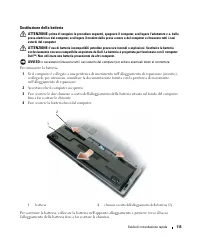
Page 115 - Sostituzione della batteria; Per rimuovere la batteria:
Guida di consultazione rapida 115 Sostituzione della batteria ATTENZIONE: prima di eseguire le procedure seguenti, spegnere il computer, scollegare l'adattatore c.a. dalla presa elettrica e dal computer, scollegare il modem dalla presa a muro e dal computer e rimuovere tutti i cavi esterni del compu...
Page 116 - Conservazione della batteria; Risoluzione dei problemi; Blocchi e problemi del software
116 Guida di consultazione rapida Conservazione della batteria Se non si intende usare il computer per un certo periodo di tempo, rimuovere la batteria. Una batteria si scarica se non la si usa per un periodo prolungato, pertanto occorre ricaricarla completamente prima di usarla (consultare "Ric...
Page 117 - Appare una schermata blu; Avviare Dell Diagnostics dal disco rigido o dal CD
Guida di consultazione rapida 117 Appare una schermata blu S P E G N E R E I L C O M P U T E R — Se il computer non risponde alla pressione di un tasto o al movimento del mouse, premere il pulsante di alimentazione e tenerlo premuto per almeno 8-10 secondi fino a quando il computer si spegne. Riavvi...
Page 118 - Booting
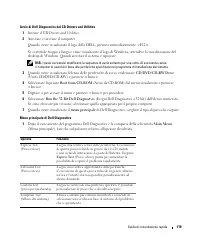
118 Guida di consultazione rapida Avvio di Dell Diagnostics dal disco rigido Il programma Dell Diagnostics è ubicato in una partizione dell'utilità diagnostica nascosta del disco rigido. N.B. Se sullo schermo del computer non viene visualizzata alcuna immagine, contattare la Dell (consultare "Co...
Page 119 - Avvio di Dell Diagnostics dal CD Drivers and Utilities; Menu principale di Dell Diagnostics; Opzione
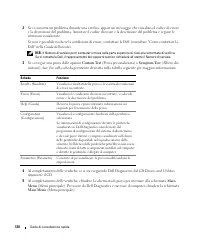
Guida di consultazione rapida 119 Avvio di Dell Diagnostics dal CD Drivers and Utilities 1 Inserire il CD Drivers and Utilities . 2 Arrestare e riavviare il computer. Quando viene visualizzato il logo della DELL, premere immediatamente <F12>. Se si attende troppo a lungo e viene visualizzato i...
Page 120 - Se si esegue una prova dalle opzioni; Scheda
120 Guida di consultazione rapida 2 Se si riscontra un problema durante una verifica, appare un messaggio che visualizza il codice di errore e la descrizione del problema. Annotare il codice di errore e la descrizione del problema e seguire le istruzioni visualizzate. Se non è possibile risolvere la...
Page 123 - Guía de referencia rápida
w w w . d e l l . c o m | s u p p o r t . d e l l . c o m Dell™ Latitude™ D420 Guía de referencia rápida Modelo PP09S
Page 124 - Guía del usuario
Notas, avisos y precauciones NOTA: Una NOTA proporciona información importante que le ayuda a utilizar su equipo de la mejor manera posible. AVISO: Un AVISO indica la posibilidad de daños al hardware o pérdida de datos y le explica cómo evitar el problema. PRECAUCIÓN: Una PRECAUCIÓN indica un posibl...
Page 125 - Contenido; Localización de información; Índice
Contenido 125 Contenido Localización de información . . . . . . . . . . . . . . . . . . . . . . . . . 127 Configuración de su equipo . . . . . . . . . . . . . . . . . . . . . . . . . . 131 Acerca de su equipo . . . . . . . . . . . . . . . . . . . . . . . . . . . . . . 132 Vista frontal . . . . . . ....
Page 127 - Aquí lo encontrará; Guía de información del producto DellTM
Guía de referencia rápida 127 Localización de información NOTA: Algunas funciones o medios son opcionales y pueden no incluirse en su equipo. Es posible que algunas funciones o medios no estén disponibles en determinados países. NOTA: Su equipo puede incluir información adicional. ¿Qué busca? Aquí l...
Page 128 - Guía del usuario de DellTM LatitudeTM; Inicio; Etiqueta de servicio y licencia de Microsoft
128 Guía de referencia rápida • Cómo extraer y cambiar piezas• Especificaciones• Cómo configurar los parámetros del sistema• Cómo detectar y solucionar problemas Guía del usuario de Dell™ Latitude™ Centro de ayuda y soporte técnico de Microsoft Windows XP 1 Haga clic en Inicio → Centro de ayuda y so...
Page 129 - Utilidad Dell Support
Guía de referencia rápida 129 • Soluciones: consejos y sugerencias para la solución de problemas, artículos de técnicos, cursos en línea y preguntas más frecuentes • Comunidad: conversaciones en línea con otros clientes de Dell • Actualizaciones: información de actualización para componentes, como l...
Page 130 - Centro de ayuda y soporte técnico de Windows; Ayuda de Dell QuickSet; CD del sistema operativo
130 Guía de referencia rápida • Cómo utilizar Windows XP• Cómo trabajar con programas y archivos• Cómo personalizar mi escritorio Centro de ayuda y soporte técnico de Windows 1 Haga clic en Inicio → Ayuda y soporte técnico . 2 Escriba una palabra o frase que describa el problema y, a continuación, h...
Page 131 - Configuración de su equipo; seguridad incluidas en la; Guía de información del producto
Guía de referencia rápida 131 Configuración de su equipo PRECAUCIÓN: Antes de comenzar cualquiera de los procedimientos de esta sección, siga las instrucciones de seguridad incluidas en la Guía de información del producto . 1 Desempaquete la caja de accesorios. 2 Saque el contenido de la caja de acc...
Page 132 - Acerca de su equipo; Guía de usuario
132 Guía de referencia rápida Acerca de su equipo Para obtener más información acerca de su equipo, consulte la Guía del usuario en línea. Para acceder a la Guía del usuario (dependiendo de la configuración de su sistema operativo), haga doble clic en el icono de la Guía de usuario del escritorio o ...
Page 133 - Vista frontal
Guía de referencia rápida 133 Vista frontal 1 Seguros de la pantalla 5 Botones del ratón táctil 9 Indicadores luminosos de estado del teclado y la red 2 Pantalla 6 Palanca de seguimiento 10 Sensor de luz ambiente 3 Indicadores luminosos de estado del dispositivo 7 Teclado 4 Ratón táctil 8 Altavoz 1 ...
Page 134 - Vista izquierda
134 Guía de referencia rápida Vista izquierda Vista derecha PRECAUCIÓN: No introduzca objetos ni permita que el polvo se acumule en las rejillas de ventilación ni las bloquee. No almacene el equipo en un entornocon poca ventilación, como un maletín cerrado, mientras esté en funcionamiento. La circul...
Page 135 - Vista posterior
Guía de referencia rápida 135 Vista posterior NOTA: El D420 tiene un diseño optimizado para usarse acoplado a la delgada base para medios. No obstante, también es compatible con D-Family D/Port y D/Dock. Empleando D-Family D/Port y D/Dock se pueden utilizar eficazmente todos los puertos excepto el 1...
Page 136 - Vista inferior
136 Guía de referencia rápida Vista inferior PRECAUCIÓN: No introduzca objetos ni permita que el polvo se acumule en las rejillas de ventilación ni las bloquee. No almacene el equipo en un entorno-con poca ventilación, como un maletín cerrado, mientras esté en funcionamiento. La circulación restring...
Page 137 - Uso de la batería; Rendimiento de la batería; Panel de control; Uso de unidades ópticas.
Guía de referencia rápida 137 Uso de la batería Rendimiento de la batería NOTA: Para obtener información acerca de la garantía Dell para su equipo, consulte la Guía de información del producto o el documento separado de garantía que se envía junto con el ordenador. Para el rendimiento óptimo del equ...
Page 138 - Comprobación de la carga de la batería; Medidor de energía; Medidor de batería DellTM QuickSet; Ayuda; Medidor de energía de Microsoft
138 Guía de referencia rápida PRECAUCIÓN: El uso incorrecto de la batería puede aumentar el riesgo de incendio o quemadura química. No perfore, incinere, desmonte o exponga la batería a temperaturas superiores a 65 °C (149 °F). Mantenga la batería fuera del alcance de los niños. Tenga mucho cuidado ...
Page 139 - Comprobación del estado de la batería; mantenga pulsado; Propiedades de las opciones de energía; Carga de la batería
Guía de referencia rápida 139 Comprobación del estado de la batería NOTA: Puede comprobar el estado de consumo de la batería de dos maneras: utilizando el medidor de carga de la batería según se describe a continuación y utilizando el medidor de batería en Dell QuickSet. Para obtener información ace...
Page 140 - Sustitución de la batería; Para extraer la batería:
140 Guía de referencia rápida Sustitución de la batería PRECAUCIÓN: Antes de llevar a cabo estos procedimientos, apague el equipo, desconecte el adaptador de CA de la toma de alimentación eléctrica y del propio equipo, desconecte el módem del conector de pared y del ordenador y retire cualquier otro...
Page 141 - Almacenamiento de una batería; Solución de problemas; Bloqueos y problemas con el software; C A; El equipo no responde
Guía de referencia rápida 141 Almacenamiento de una batería Extraiga la batería cuando vaya a guardar el equipo durante un período largo. Las baterías se descargan durante los almacenamientos prolongados. Tras un largo período de almacenamiento, recargue la batería completamente antes de utilizarla ...
Page 142 - Aparece una pantalla azul fija
142 Guía de referencia rápida Aparece una pantalla azul fija A P A G U E E L E Q U I P O : Si no puede conseguir que responda pulsando una tecla o moviendo el ratón, pulse el botón de alimentación durante unos 8 ó 10 segundos como mínimo hasta que se apague el equipo. A continuación, reinícielo. Otr...
Page 143 - Iniciar Dell Diagnostics desde la unidad de disco duro; Conecte el equipo a una toma de alimentación eléctrica.; Mantenga pulsada la tecla mientras se enciende el equipo.
Guía de referencia rápida 143 Iniciar Dell Diagnostics desde la unidad de disco duro Los Dell Diagnostics están situados en una partición oculta para la utilidad de diagnóstico (Diagnostic) de la unidad de disco duro. NOTA: Si el equipo no muestra ninguna imagen en la pantalla, póngase en contacto c...
Page 144 - Iniciar Dell Diagnostics desde el CD Drivers and Utilities; Ejecutar Dell Diagnostics de 32 bits; Menú principal de Dell Diagnostics; Menú; Opción
144 Guía de referencia rápida Iniciar Dell Diagnostics desde el CD Drivers and Utilities 1 Inserte el CD Drivers and Utilities . 2 Apague y reinicie el equipo. Cuando aparezca el logotipo de DELL, pulse <F12> inmediatamente. Si espera demasiado y aparece el logotipo de Windows, siga esperando ...
Page 145 - Main Menu; Ficha
Guía de referencia rápida 145 2 Si se produce un problema durante una prueba, aparecerá un mensaje con un código de error y una descripción del problema. Anote el código de error y la descripción del problema, y siga las instrucciones de la pantalla. Si no puede resolver el error, póngase en contact...



































 Dell 04YJJ6A00
User Manual
Dell 04YJJ6A00
User Manual
 Dell 10 Pro
User Manual
Dell 10 Pro
User Manual
 Dell 10
Manual
Dell 10
Manual
 Dell 1000
User Manual
Dell 1000
User Manual
 Dell 1014
User Manual
Dell 1014
User Manual
 Dell 1000W
User Manual
Dell 1000W
User Manual
 Dell 0JH552A01
User Manual
Dell 0JH552A01
User Manual
 Dell 10g
User Manual
Dell 10g
User Manual
 Dell 1100
User Manual
Dell 1100
User Manual
 Dell 11
User Manual
Dell 11
User Manual
 Dell 11 Pro
User Manual
Dell 11 Pro
User Manual
 Dell 110T
User Manual
Dell 110T
User Manual
 Dell 110T DLT1 Drive
User Manual
Dell 110T DLT1 Drive
User Manual
 Dell 1100 Laser Mono Printer
User Manual
Dell 1100 Laser Mono Printer
User Manual
 Dell 1100MP
User Manual
Dell 1100MP
User Manual