Page 2 - Warnings; REGULATORY INFORMATION; Relocate the receiving antenna.; CAUTION
Warnings 1 DEAR CUSTOMER: Before operating, please read all these safety and operating instructions completely and then retain this manual for future reference. Always comply with the following precautions to avoid dangerous situations and ensure peak performance of your product. RISK OF ELECTRI...
Page 3 - IMPORTANT WARNINGS AND CAUTIONS!; or
Warnings 2 IMPORTANT WARNINGS AND CAUTIONS! Electrical energy can perform many useful functions, but it can also cause personal injuries and property damage if improperly handled. This product has been engineered and manufactured with the highest priority on safety. BUT IMPROPER USE CAN RESULT I...
Page 4 - excessive heat such as sunshine, fire or the like.
Warnings 3 11. Wall mounting ---When mounting the product on a wall, be sure to install the product according to the method recommended by the manufacturer. This is a safety feature. 12. Stand --- Do not place the product on an unstable trolley, stand, tripod or table. Placing the product on an ...
Page 5 - IMPORTANT INFORMATION
Warnings 4 IMPORTANT INFORMATION If a television is not positioned in a sufficiently stable location, it can be potentially hazardous due to falling. Many injuries, particularly to children, can be avoided by taking simple precautions such as: a. Using cabinets or stands recommended by the manuf...
Page 6 - Safety Instructions; IMPORTANT SAFETY INSTRUCTIONS; Do not block any ventilation openings.
5 Safety Instructions IMPORTANT SAFETY INSTRUCTIONS 1. Read these instructions. 2. Keep these instructions. 3. Heed all warnings. 4. Follow all instructions. 7. Do not block any ventilation openings. Ventilation should not be impeded by covering the ventilation openings with items such as newspa...
Page 7 - Protect the power cord from being
6 Safety Instructions 10. Protect the power cord from being walked on or pinched particularly at plugs, convenience receptacles, and the point where they exit from the apparatus. 13. For added protection for this product during a lightning storm, or when it is left unattended and unused for long...
Page 8 - Main; Front; n Unit Con; Panel; but; VOLUME; ntrols; change mod
Main Front PO- L- S C (C V (C NO ◆ n Unit Con Panel OWER/MENU Long Press foShort Press fo CHANNEL but CURSOR butt VOLUME butto CURSOR butt OTE: Keypad may ntrols U Button : r power off. or power on / h tons: / tons: ▲ / ▼ in m ons: + / - tons: ▶ / ◀ in m change mod 7 RemoPowe home page. menu mod...
Page 10 - Getti; If AV; ing Starte; V works as mi; ed; ease choose t
Getti Cable Beforeand SaTake o NOTE Whe or ot Whe part) • LAN: interf • HDM conne cable NOTE Wh fear t • ANT: • DIGIT the D • HEAD• USB2 • PC: C other clock • COM such Y/Pb signa cableaudio • AV O NOTE: If AV cable. NOTE The powe Ple do no Bef the exthe in The signa ing Starte In...
Page 12 - Remote Control; The buttons of the original remote control are as following:
Remote Control 11 The buttons of the original remote control are as following: 1. : Power, Press to enter or exit the standby mode. 2. : Press to mute or restore sound. 1 2 3. II: Pause (in Media/PVR mode). 3 4 Press to start time shift function (in DTV 5 6 mode). : Press to enter the MIX mode i...
Page 15 - Basic Operation
14 Basic Operation Turning on and off the TV • Turn on the TV Plug the power cord into a suitable power point, then press the POWER ( ) button, on the lower side of the back panel (or on the remote control, making sure to aim it at the sensor at the front of the TV); • Turn off the TV Press the ...
Page 17 - Menu Operation; Setting; How to Navigate Menus
16 Menu Operation Setting Channel Picture Sound Network System Lock Timer Support How to Navigate Menus Before using the TV follow the steps below to learn how to navigate the menu in order to select and adjust different functions. The access step may differ depending on the selected menu. 1. Pr...
Page 19 - The picture reproduction rate is adjusted.
18 Menu Operation 19 Skip: Press the BLUE button to skip the channel. (Your TV set will skip the channel automatically when using to view the channels.) • Signal Information (In DTV mode): Display the current Signal Information. Configuring the Picture Menu • Picture Mode: You can select the typ...
Page 20 - Configuring the Sound Menu; When the AD Switch is set On, the AD Volume can be adjusted.; OK
19 Menu Operation Configuring the Sound Menu • Sound Mode: You can select a sound mode to suit your personal preferences. Seven-stage equalization sound can be adjusted when the sound mode is set to User. - Surround Sound: Press ▲ / ▼ buttons to select Surround Sound, you can select Off, Low, Mi...
Page 21 - Network Function Operation Instruction; Connecting to a Wired Network
Menu Operation 20 Network Function Operation Instruction You can set up your TV so that it can access the Internet through your local area network (LAN) using a wired or wireless connection. Connecting to a Wired Network • You can attach your TV to your LAN using cable in three ways: You can a...
Page 24 - If Your TV Fails to Connect to the Internet
Menu Operation 23 If Your TV Fails to Connect to the Internet : • Your TV may not be able to connect to the Internet because your ISP has permanently registered the MAC address (a unique identifying number) of your PC or modem, which it then authenticates each time you connect to the Internet ...
Page 26 - There are two types of recording:; Instant Recording; and; Schedule Recording
Menu Operation 25 There are two types of recording: Instant Recording and Schedule Recording .
Page 29 - Configuring the Lock Menu
Menu Operation 28 For large file sizes and large capacity storage devices, the loading speed may be longer. The recognition speed of a USB storage device may vary depending on the device. When connecting or disconnecting the USB storage device, ensure the TV is not in USB mode, otherwise the...
Page 30 - Configuring the Timer Menu
Menu Operation 29 Support Setting / USB Up gr ad e In ter n et Up d ate Ch eck Softwar e Version In stal l ati on Gui d e View End-User License Agreement App Setti n g s Configuring the Timer Menu • Auto Sync.: If set it to ON, the TV will sync the local clock according to the DTV broadcasting t...
Page 32 - Press
Menu Operation 30 Q.MENU Press Q.MENU button on the remote control to display the quick menu. Press ▲ / ▼ to select the items, and press the OK/ ► button; then press ▲ / ▼ buttons to adjust. (Options: Picture Mode, Sound Mode, Sleep Timer, Aspect Ratio, Sports Mode, Subtitle Languages, etc…) Pre...
Page 33 - Home Page
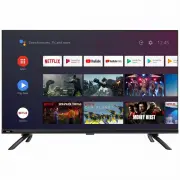
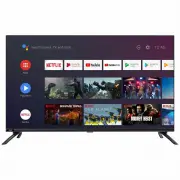
Home Page 31 Smart Home Operation Introduction Home is an entry interface for all the other functions, which could enter from this interface layer by layer. Via using home menu function, different needs of users could be met, making them fully enjoy video and audio effects brought by the machi...
Page 37 - Applications
35 Home Page Applications Press SOURCE ( ) button on the remote to display the home main interface. Then use the Arrow buttons to select the desired APP and press OK button to view. Or press the hotkey on the remote control to enter the desired APP directly. ■ Netflix Sign in to your Netflix ® a...
Page 38 - Teletext
36 Teletext Using the teletext feature • Display teletext 1. Select a TV station with a teletext signal. 2. Press the button to enter teletext mode. 3. Press the button to enter Mix mode, this function enables you to superimpose the teletext page over the TV program. 4. Press the button 2nd retu...
Page 39 - Troubleshooting Guide; Troubleshooting
37 Troubleshooting Guide Troubleshooting Before contact the service technician, perform the following simple checks. If any program still persists, unplug the TV and calling for serving. PROBLEM POSSIBLE SOLUTION No sound and picture - Check whether the main plug has been connected to a wall let...
Page 40 - Maintenance
38 Troubleshooting Guide Maintenance Early malfunctions can be prevented. Careful and regular cleaning can extend the amount of time you will have your new TV. Be sure to turn the power off and unplug the power cord before you begin any cleaning. Cleaning the screen 1. Here’s a great way to keep...