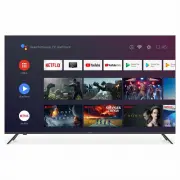
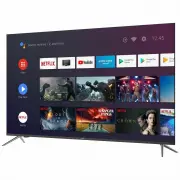
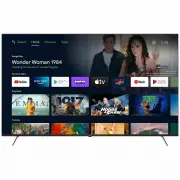
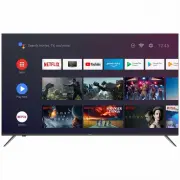
Page 3 - Contents; Picture menu
Contents Safety Information OSD Menu 1. Channel menu 2. 3. 4. 2 6 17-24 17-18 1920 21 22 23 Names of earch Part 7-11 Connections Remote Control Basic Operation 12-14 15-16 Multimedia Operation 25-27 Recording Operation 28-29 5. 5. Picture menu Sound menu Time menu Look menu Setup menu 32 Specificati...
Page 4 - б©»® Í«°° ́§
Page 7 - Important Safety Instructions; Warnings and Precautions
Important Safety Instructions Warnings and Precautions To prevent any injuries, the following safety precautions should be observed in the installation, use servicing and maintenance of this equipment.Before operating this equipment, please read this manual completely and keep it for futurereference...
Page 9 - Names of each part; Front View; STANDBY; to turn on and of f.; Press to display the input source menu.
User ’ s Guide TV Set Stand Base,4 Screws Remote Control Names of each part Batteries Front View 1). (IR) Infrared Receiver: Receives IR signals from the remote control. (Power on/Standby)LED Indicator: Press STANDBY to turn on and of f. Indicator on(Red) Standby mode Indicator on(Green) Power on mo...
Page 10 - Connections; Connect to video output terminal of external devices.
Connections TV Aerial: Connect antenna or cable 75 Ohm coaxial to receive TV signal. AC POWER IN: Connect to power. HDMI1/2/3(UHD 4K): Connect it to the HDMI of DVD or other equipment. VGA: For PC display.Connect it to the D-Sub 15 pins analog output connector of the PC. PCAudio in: Connect it to th...
Page 11 - Making Video and Audio Connections; ease make sure the correct input source is
Connections 3 Video Audio Audio (UHD 4K) (UHD 4K) (UHD 4K) USB L in R in Making Video and Audio Connections Connecting an AV Device with an HDMI Cable Not all AV devices have the ability to connect to a TV, please refer to the owner's manual of yourAV device for compatibility and connection procedur...
Page 15 - Remote Control
Page 17 - in front of the TV. The
Remote Control 1. Press and lift the back cover to open the battery compartment of the remote control.2. Insert two 1.5V AAA size batteries. Make sure to match the (+) and (-) ends of the batteries with the (+) and (-) ends indicated in the battery compartment.3. Close the battery compartment cover....
Page 18 - Basic Operation; se for a long period of time.
Basic Operation Power on/off 1. Connect one end of the RF coaxial cable to the aerial socket on the wall and the other end of the cable to the Aerial socket at the rear bottom of yourTV. 2. Connect the mains cable to the mains socket after you have completed all the connections.3. At this stage, the...
Page 19 - Input Source select
button to select the function item, press button to adjust/setup, Basic Operation Input Source select Press SOURCE button on the TV set or remote control to display input source menu, and use CH+/- button on the TV set or button on remote control to select the input source, press OK button on the re...
Page 20 - OSD Menu; Description
DTV Manual Tuning Press OK button to enter the DTV Manual Tuning menu, select a DTV channel, and press OK button to start searching. OSD Menu 1. CHANNEL menu Description Auto Tuning Press Press the MENU button on theremote to enter the CHANNELmenu, use the button onthe remote to select the submenu. ...
Page 21 - Press
OSD Menu Programme Edit Press OK button to enter the Programme Edit menu as the following picture. Skip: Select a channel and press the BLUE button to label the channel, as long as the channel has a skip label it will be skipped when searching through the channels with the CH+/- buttons. This allows...
Page 23 - Treble
OSD Menu 3. SOUND menu Description Sound Mode: Allows you to select among: Standard, Music, Movie, Sports and Personal. Treble (Can be adjusted when the sound mode is Personal) : Controls the relative intensity of higher pitched sounds. Bass (Can be adjusted when the sound mode is set to Personal): ...
Page 27 - First Time Installation:
OSD Menu 6. SETUP menu Description OSD Language: Allows you to select menu language. TT Language: Allows you to select teletext language. Audio Language: Allows you to select audio language. Subtitle Language: Allows you to select subtitle language. Hearing Impaired: Turn on/off the Hearing Impaired...
Page 28 - Multimedia Operation; OK; button to; RED; button on the file to delete the file.; MAINS MENU: PHOTO MUSIC MOVIE TEXT
Multimedia Operation Press / / / buttons to select and the OK button to activate the file or open folder. Press OK button to play the files in full screen mode. When in full screen mode press the OK button to show the option menu on the bottom of the screen or press stop button to return to files.No...
Page 31 - Recording Operation; PVR settings; Press the MENU button, select SETUP menu, and select
Recording Operation PVR settings Press the MENU button, select SETUP menu, and select “ PVR File System ” , then press OK button to enter the setting menu. 1. PVR File System Note: You select a recorded programme, and press OK button to program.Note: You can delete a recorded programme by pressing t...
Page 32 - REC; Recording; To display the recorder menu.
Recording Operation When you press REC button in DTV mode, the screen will display the recording menu as below: Record and Time shift function buttons 1) Recording menu 2) Timeshift menu REC: Press to start recording. Note: a. display and exit the navigation menu by pressing the REC . b. Press STOP ...
Page 33 - USB Multimedia Playback Format
USB Multimedia Playback Format Codec Media File Ext. Video Audio Remark Max Solution: 1920 × 1080 .mpg MPEG-1, MPEG-2 Max Data Rate: 40 Mbps DivX, Xvid, MJPEG, .avi MPEG-4 SP/ASP, H.264 .ts MPEG-2, H.264 .mov . mkv MPEG-4 SP/ASP, H.264 .dat MPEG-1 MPEG-4 SP/ASP, H.264 Max Solution: 1920 × 1080 Max D...
Page 34 - Maintenance and Service
Simple Troubleshooting Maintenance and Service If the display fails or performance dramatically deteriorates, check the display in accordancewith the following instructions. Remember to check the peripherals to pin point the source of the failure. No Power - Press either the power button or the Stan...
Page 35 - Specifications
Specifications Features and specifications are subject to change without prior notice. Model BP5040UHD Panel System 50 inch UHD LED TV Display Resolution 3840 (H) x 2160 (V) pixels (UHD 4K) Television System PAL l/BG/DK/SECAM/BG/DK L L' Brightness 250cd/m 2 Contrast Ratio 5000:1 Power Source AC100-2...
Page 36 - ©©©ò3⁄4 ́¿«°«2μ¬ó¿«-¬®¿ ́·¿ò1⁄2±3ò¿«
Ú±® ½«-¬±³»® -«°°±®¬ ¿²¼ ¬± ®»¹·-¬»® §±«® ©¿®®¿²¬§ ª·-·¬æ ©©©ò¾´¿«°«²µ¬ó¿«-¬®¿´·¿ò½±³ò¿« Ñ«® ¹±±¼- ½±³» ©·¬¸ ¹«¿®¿²¬»»- ¬¸¿¬ ½¿²²±¬ ¾» »¨½´«¼»¼ «²¼»® ¬¸» ß«-¬®¿´·¿² ݱ²-«³»® Ô¿©ò DZ« ¿®» »²¬·¬´»¼ ¬± ¿ ®»°´¿½»³»²¬ ±® ®»º«²¼ º±® ¿ ³¿¶±® º¿·´«®» ¿²¼ º±® ½±³°»²-¿¬·±² º±® ¿²§ ±¬¸»® ®»¿-±²¿¾´§ º±®»-»»¿¾´»...