Page 3 - CONTENTS
CONTENTS General Safety 4 Installation 8 Wall Mounting Instructions 9 Controls and Connections 10 Remote Control 12 Initial Setup 15 Android TV - Home Screen 20 Add apps to Home Screen 20 Google Play Store 21 Google Assistant 22 Discover 23 Inputs 24 Settings 25 Network 26 Channel Menu 27 Device Pre...
Page 4 - IMPORTANT INFORMATION; GENERAL SAFETY
4 Read this manual thoroughly before you start using the TV.Store this manual, the completed warranty card, your receipt and the product packaging.The safety precautions instructions reduces the risk of fire, electric shock and injury when correctly complied to. Please follow all instructions and ta...
Page 5 - Installation
5 Installation Please follow instruction when installing this product in accordance with the instruction manual. This product must be positioned in a sufficiently stable location, it can be potentially hazardous due to falling and can cause injury, particularly to children if it positioned incorrect...
Page 6 - It is STRONGLY RECOMMENDED that you ANCHOR this product.
6 If a television is not positioned in a sufficiently stable location, it can be potentially hazardous due to falling. Many injuries, particularly to children, can be avoided by taking simple precautions such as: • Using cabinets or stands recommended by the manufacturer of the television. • Only us...
Page 8 - INSTALLATION
8 Install the stand as described below, or if you want to mount it to a wall, please contact a professional installer. Please ensure the TV is not plugged into the wall socket and furthermore we recommend to get another person to assist in the following task. Attaching the stand Step 1 Place a soft ...
Page 9 - Wall-Mounting Instructions; BACK OF TV
9 Wall-Mounting Instructions Please ensure the TV is not plugged into the wall socket and furthermore we recommend to get another person to assist in the following task. • We recommend you use a professional installer as we assume no liability for any eventual damage to the product or injury to your...
Page 10 - CONTROLS AND CONNECTIONS
10 CONTROLS AND CONNECTIONS Channel Up / Up (menu) Volume Up/ Right (menu) Volume Down/ Left (menu) Channel Down / Down (menu) Long Press - Standby Short Press - Select
Page 11 - USB INPUT; USB connection; BOTTOM PORTS
11 1. USB INPUT 2. HDMI 1 / ARC3. HEADPHONE PORT4. RJ45 (ETHERNET)5. OPTICAL6. USB INPUT7. HDMI 38. HDMI 29. VIDEO10. AUDIO L & R11. ANTENNA (RF) USB connection Insert a USB storage device into the USB port to record, playback of video/music/photo. CONTROLS AND CONNECTIONS BOTTOM PORTS SIDE PORT...
Page 12 - REMOTE CONTROL
Page 15 - INITIAL SETUP
15 INITIAL SETUP For the first initial setup, on screen setup wizard will guide you through setting up your TV. Please follow according to onscreen guide to setup your TV correctly. Be sure to follow the below prompts to pair your Bluetooth remote control. After the pairing is successful, you can no...
Page 20 - ANDROID TV - HOME SCREEN
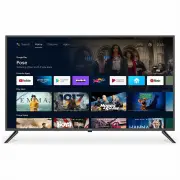
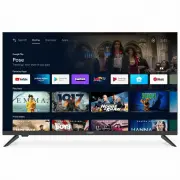
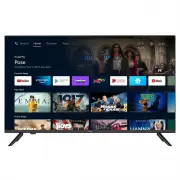
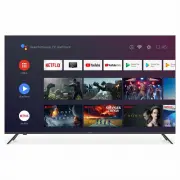
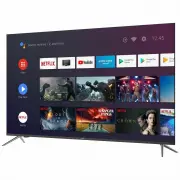
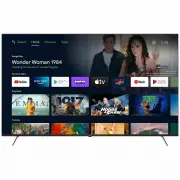
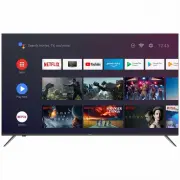
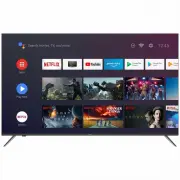
20 ANDROID TV - HOME SCREEN Once you have completed initial setup, you will now enter the ANDROID TV home screen. 1. Open Google Assistant to start a voice search. 2. HOME - Main page to enter Live TV, view your pre-installed and downloaded applications. 3. DISCOVER - Once signed in with a Google Ac...
Page 21 - GOOGLE PLAY STORE
21 GOOGLE PLAY STORE To have access and to download applications from the Google Play Store, you must sign in with a Gmail account. Once you open Google Play Store , you will be prompted to sign in or create a new account. Once you have signed in, you will be brought to the below page, scroll throug...
Page 22 - Whats the weather today?; GOOGLE ASSISTANT
22 Whats the weather today? GOOGLE ASSISTANT Allow for the voice box to appear at the bottom of your TV screen, stating: “Listening” then speak clearly towards the top of your remote control for Google Assistant to hear you. Once Google Assistant understands, what you have requested will be actioned...
Page 23 - DISCOVER
23 If you havent already signed into Google Play using your Google Account. When selecting DISCOVER tab on the top of home page, you will be prompted to sign in. Note: if already signed in, your Google Account will already appear. 1. Once signed into Google, you can select the apps you want recommen...
Page 24 - INPUT MENU
24 INPUT MENU To access INPUT menu, either select INPUT via the SETTINGS Menu or press the INPUT button on your remote control to have quick access to INPUT menu. The options that are AVAILABLE will be highlighted, PORTS that are not in use, you will not be able to access.
Page 27 - CHANNEL MENU
27 CHANNEL MENU To access CHANNEL menu, select SETTING icon (#5 on page 20) via the HOME screen. Then go down and select “CHANNEL” . Channels Display the scan sub-menu based on different channel installatino modes. Antenna - Set the signal type to antenna, when set to antenna the TV can now receive ...
Page 29 - INPUT SETTINGS MENU
29 INPUT SETTINGS MENU To access INPUT SETTINGS menu, 1. Select SETTING icon (#5 on page 20) via the HOME screen. 2. Select “Device Preferences” 3. Then go down and select “INPUTS” .
Page 30 - POWER SETTINGS MENU
30 POWER SETTINGS MENU To access POWER SETTINGS menu, 1. Select SETTING icon (5) via the HOME screen. 2. Select “Device Preferences” 3. Then go down and select “POWER” . Sleep Timer - Options of Off, 10 mins, 20 mins, 30 mins, 40 mins, 50 mins, 60 mins, 90 mins and 120 mins to auto turn off your TV....
Page 31 - PICTURE SETTINGS MENU
31 PICTURE SETTINGS MENU To access PICTURE SETTINGS menu, 1. Select SETTING icon (5) via the HOME screen. 2. Select “Device Preferences” 3. Then go down and select “PICTURE” . Picture Mode - Options to choose from - Standard, Vivid, Sport, Movie, Game, Energy Saving, User. HDR - The default setting ...
Page 32 - SOUND SETTINGS MENU
32 SOUND SETTINGS MENU To access SOUND SETTINGS menu, 1. Select SETTING icon (5) via the HOME screen. 2. Select “Device Preferences” 3. Then go down and select “SOUND” . Sound Style - Options to choose from - Standard, Vivid, Sports, Movie, Music, News, User. Speakers - TV Speakers or External Speak...
Page 33 - HOME SCREEN; SCREEN SAVER
33 HOME SCREEN SCREEN SAVER To access HOME SCREEN menu, 1. select SETTING icon (#5 on page 20) via the HOME screen. 2. Select “Device Preferences” 3. Then go down and select “HOME SCREEN” . To access SCREEN SAVER menu, 1. select SETTING icon (#5 on page 20) via the HOME screen. 2. Select “Device Pre...
Page 37 - GENERAL PROBLEMS WITH TV SET; FAQS
Page 39 - SPECIFICATIONS
39 Operating System Android TV 9.0 Resolution 1920 x 1080 Display Colours 16.7 Million Contrast ratio: 3000 : 1 Aspect Ratio AUTO Refresh Rate 60Hz ETHERNET / WiFi Yes / 802.11 b/g/n Multimedia PlaybackFormat underUSB Mode Movie: MPEG, TS, TRP, TP, MP4, MOV, 3GPP, 3GP, AVI, MKV, ASF, DIVX, FLV, SWF,...
Page 40 - Ayonz Pty Ltd
40 CUSTOMER SUPPORT: [email protected] DISTRIBUTED BY: Ayonz Pty Ltd