Page 2 - Introduction
© 2022 by AVerMedia 2 Introduction This document is your User Guide for the Webcam PW515. We have written this guide to provide you with the information you need to quickly and smoothly use the webcam. After a quick introduction of the webcam and who this product is intended for, we will dive into i...
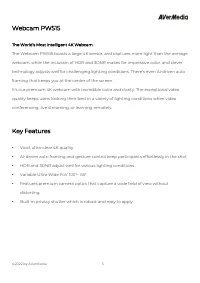
Page 3 - Key Features; HDR and 3DNR adjust well for various lighting conditions.
© 2022 by AVerMedia 3 Webcam PW515 The World’s Most Intelligent 4K Webcam The Webcam PW515 boasts a large 4K sensor, and captures more light than the average webcam, while the inclusion of HDR and 3DNR makes for impressive color, and clever technology adjusts well for challenging lighting conditions...
Page 5 - Product Overview
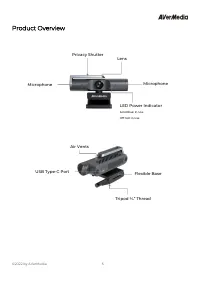
© 2022 by AVerMedia 5 Product Overview Microphone LED Power Indicator Solid Blue: In Use Off: Not in Use Privacy Shutter Microphone Lens Flexible Base Tripod ¼” Thread USB Type-C Port Air Vents
Page 6 - Installation; Adjust the clip/base to secure the webcam on your monitor.
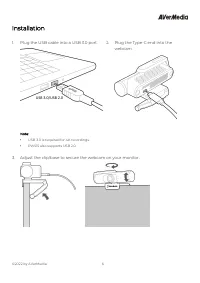
© 2022 by AVerMedia 6 Installation 1. Plug the USB cable into a USB 3.0 port. 2. Plug the Type-C end into the webcam. Note: • USB 3.0 is required for 4K recordings. • PW515 also supports USB 2.0. 3. Adjust the clip/base to secure the webcam on your monitor.
Page 7 - image when additional people enter its field of view.
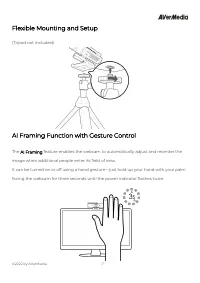
© 2022 by AVerMedia 7 Flexible Mounting and Setup (Tripod not included) AI Framing Function with Gesture Control The AI Framing feature enables the webcam to automatically adjust and recenter the image when additional people enter its field of view. It can be turned on or off using a hand gesture—ju...
Page 8 - Using CamEngine 4; our CamEngine 4 software.
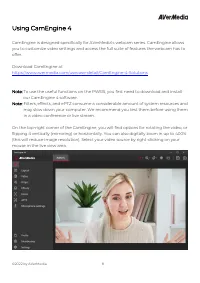
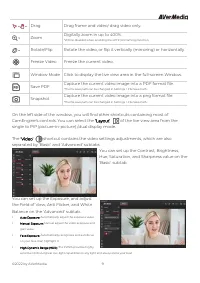
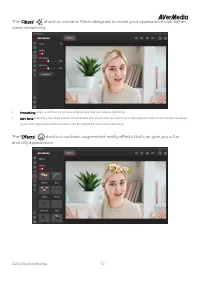
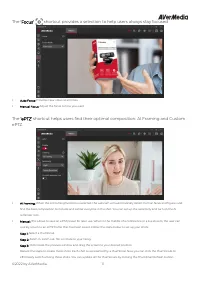
© 2022 by AVerMedia 8 Using CamEngine 4 CamEngine is designed specifically for AVerMedia’s webcam series. CamEngine allows you to customize video settings and access the full suite of features the webcam has to offer. Download CamEngine at https://www.avermedia.com/usecase-detail/CamEngine-4-Solutio...
Page 12 - CamEngine System Requirements
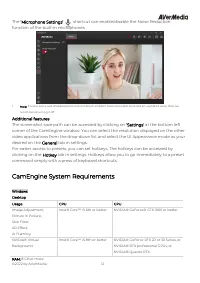
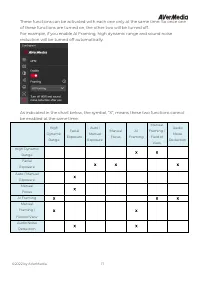
© 2022 by AVerMedia 12 The ‘Microphone Settings’ shortcut can enable/disable the Noise Reduction function of the built-in microphones. • Note: If a user is in a well-shielded space with minimum ambient noise and wants to record an unaltered voice, then we recommend turning it off. Additional feature...
Page 13 - The DSP Bandwidth Limitation:
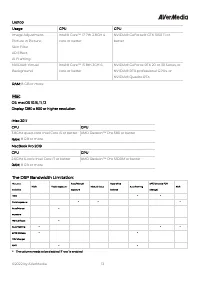
© 2022 by AVerMedia 13 Laptop Usage CPU GPU Image Adjustment, Picture in Picture, Skin Filter, AR Effect, AI Framing Intel® Core™ i7 7th 2.8GH 4 core or better NVIDIA® GeForce® GTX 1050 Ti or better NVIDIA® Virtual Background Intel® Core™ i5 8th 3GH 6 core or better NVIDIA® GeForce RTX 20 or 30 Seri...
Page 14 - Contact Us; Please contact us; About AVerMedia
© 2022 by AVerMedia 14 Contact Us Please contact us here should you have any questions or suggestions. About AVerMedia AVerMedia empowers people to easily connect and boldly create through innovative audiovisual technology. Our solutions help people work productively, build new relationships, and ex...