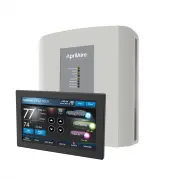
Page 2 - – Humidification automatic or manual control .; WARNING
TABLE OF CONTENTS FEATURES . . . . . . . . . . . . . . . . . . . . . . . . . . . . . . . . . . . . . . . . . . . . . . . . . 2 DISPLAY OVERVIEW . . . . . . . . . . . . . . . . . . . . . . . . . . . . . . . . . . . . . . . . 3 Home Screen . . . . . . . . . . . . . . . . . . . . . . . . . . . . . . . ...
Page 3 - DISPLAY OVERVIEW; HOME SCREEN; Touch; Display may differ depending on equipment/options installed.
DISPLAY OVERVIEW HOME SCREEN NOTE: SCREEN BRIGHTENS AFTER FIRST TOUCH . OUTDOOR TEMPERATURE & HUMIDITY HEATING AND COOLING EQUIPMENT STATUS HOLD MENU & STATUS DETAILED EQUIPMENT STATUS HEAT BLAST MODE & STATUS WEATHER FORECAST & ALLERGY REPORT ACTIVE ALERTS & ALERT SETTINGS CURRE...
Page 4 - Search and install the; Aprilaire Wi-Fi Thermostat App; from the App Store .; iOS; Open the app on your device .
WI-FI SETUP – iOS iOS DOWNLOAD THE APP 1. Search and install the Aprilaire Wi-Fi Thermostat App from the App Store . iOS CREATE A NEW APRILAIRE ACCOUNT 2. Open the app on your device . 3. Tap New User . 4. Fill out the form and tap Create . 5. A confirmation email will be sent to you . Click the c...
Page 5 - Select your home network.
WI-FI SETUP – iOS iOS CONNECT YOUR WI-FI THERMOSTAT TO YOUR HOME NETWORK 6. Confirm your thermostat is in Wi-Fi setup mode . The signal indicator will be strobing . 7. Open the app and select Connect a new thermostat from the Login screen . IMPORTANT: DO NOT LOG IN. 8. Open Settings . 9. Select Wi-...
Page 6 - Tap; ADDITIONAL RESOURCES; Visit
WI-FI SETUP – iOS iOS ADD THERMOSTAT TO USER ACCOUNT 16. Enter your Email Address and Password . 17. Tap Login . The MAC ID for the thermostat will be filled in the box . Do not change it . 18. Enter a name for your thermostat (i .e . Office, Den, Kitchen), thermostat location (i .e . House, Cabin,...
Page 7 - WI-FI SETUP – Android; Android
WI-FI SETUP – Android Android DOWNLOAD THE APP 1. Search and install the Aprilaire Wi-Fi Thermostat App from Google Play . Android CREATE A NEW APRILAIRE ACCOUNT 2. Open the app on your device . 3. Tap New User . 4. Fill out the form and tap Create . 5. A confirmation email will be sent to you . C...
Page 10 - THERMOSTAT OPERATION; SELECT SYSTEM MODE
THERMOSTAT OPERATION SELECT SYSTEM MODE 1. Touch MODE to open the Thermostat Mode screen . 2. Select the desired mode . 3. Touch Done to save any changes . Touch Back to discard your changes . The thermostat will automatically discard your changes if one minute elapses without touching Done . Note: ...
Page 11 - SELECT FAN SETTING; FAN
THERMOSTAT OPERATION SELECT FAN SETTING When the fan mode is changed during a scheduled event, it remains in that mode until the next event starts . To learn about scheduled events, see pages 14-17 . 1. Touch FAN to open the Fan Mode screen . 2. Select the desired mode . 3. Touch Done to save any ch...
Page 12 - SET TIME AND DATE; Menu
THERMOSTAT OPERATION SET TIME AND DATE The thermostat will automatically retrieve Time and Date from the internet (if connected and registered) . If the thermostat is used without an internet connection the time can be manually adjusted . To set the time: 1. Touch Menu to open the Menu screen . 2. T...
Page 13 - Done
THERMOSTAT OPERATION SET TIME AND DATE (continued) To set the date: 6. Touch the current date . The Set Date pop-up will appear . 7. Touch the or arrows to set correct month, date and year . 8. Touch Done to save any changes . Touch Back to discard your changes . The thermostat will automatically di...
Page 14 - SCHEDULE AND HOLDS; UNDERSTANDING SCHEDULES; AUTO
SCHEDULE AND HOLDS UNDERSTANDING SCHEDULES The daily schedule is split into four events: WAKE: Temperature when you wake up in the morning . LEAVE: Temperature when you are away from the house . RETURN: Temperature when you return home . SLEEP: Temperature you would prefer while sleeping . The times...
Page 15 - CHANGING SCHEDULES; To set the start time:
SCHEDULE AND HOLDS CHANGING SCHEDULES 1. Touch Menu to open the Menu screen . 2. Touch Schedule to open the Set Schedule screen . The current day of the week will be displayed on the Set Schedule screen . From this screen you can change the start time, heat and cool setpoints, and fan mode for each ...
Page 16 - To set the temperature:; To set the fan mode:
SCHEDULE AND HOLDS CHANGING SCHEDULES (continued) To set the temperature: 6. Touch the event heat or cool setpoint . The Set Temperature pop-up will appear . 7. Touch the or arrows to set the desired event temperature . 8. Touch Done to save any changes . Touch Back to discard your changes . To set ...
Page 17 - Copy this Day
SCHEDULE AND HOLDS CHANGING SCHEDULES (continued) To copy one day's schedule to other days: 1. Touch Copy this Day to open the Schedule Menu screen . 2. Select the day(s) you want to copy the schedule to . 3. Touch Done when finished . You will then be prompted to confirm your selections . 4. Touch ...
Page 18 - SCHEDULE HOLDS; Temporary Hold
SCHEDULE AND HOLDS SCHEDULE HOLDS Temporary Hold 1. Touch the or arrows to set your desired temperature . The Set Temporary Hold pop-up will appear . 2. The temporary hold will run until the current schedule event ends . You can select a different time by touching the or arrows on the Set Temporary ...
Page 19 - Vacation Hold; Cancel Hold
SCHEDULE AND HOLDS SCHEDULE HOLDS (continued) Vacation Hold This energy saving feature allows you to suspend the programmed schedule for extended periods of time . The temperature and dehumidification setpoint (optional) you select will be maintained continuously until the vacation hold end date and...
Page 20 - HEAT BLAST
SCHEDULE AND HOLDS SCHEDULE HOLDS (continued) Heat Blast® (if installed) Heat Blast will raise the current room temperature by 3°F to 5°F once, and then resume normal operation . This feature is only available if it was enabled by your installer and the thermostat is in Heat or Emergency Heat mode ....
Page 21 - STATUS
STATUS The Operating Status screen shows you the current status of all equipment controlled by this thermostat . ON indicates that the equipment is currently active . OFF indicates that the equipment is not active and cannot become active without changing its corresponding mode . IDLE means that the...
Page 22 - ALERTS
ALERTS Alerts are used to communicate special information to you . Some of the alerts are controlled by your settings (i .e . High/Low Temperature, High/Low Relative Humidity [RH]), and others are system alerts that may require a specific action by you or your installer to resolve .If any alerts are...
Page 24 - MAINTENANCE REMINDERS
ALERTS MAINTENANCE REMINDERS Maintenance reminders appear when it is time to service your equipment, based on the limits set by your installer . In some cases, you may need to service your installed equipment before the maintenance reminder has appeared on the thermostat . Any maintenance reminders ...
Page 25 - WEATHER
WEATHER The Weather screen displays the current weather, two-day forecast and current pollen information, if available . The information displayed is based on your postal code . 1. Touch WEATHER to open the Weather screen . 2. Touch Settings to open the Weather Settings screen . 3. Touch the postal ...
Page 26 - INDOOR AIR QUALITY FUNCTIONS; HUMIDITY CONTROL; Automatic Mode; Humidity Control
INDOOR AIR QUALITY FUNCTIONS HUMIDITY CONTROL This thermostat can control the relative humidity (RH) in your home when you have an additional humidifier and/or dehumidifier installed . Dehumidification can be achieved one of two ways, either with a whole-home dehumidifier or with your air conditioni...
Page 27 - Manual Mode; Dehumidification; Off
INDOOR AIR QUALITY FUNCTIONS HUMIDITY CONTROL (continued) Manual Mode In manual mode, it is important to anticipate a drop in outdoor temperature and to reduce the setting accordingly to avoid excessive condensation . Use the table on the right side of the Humidifier Control screen to determine the ...
Page 28 - EVENT BASEDTM AIR CLEANING; Air Cleaning
INDOOR AIR QUALITY FUNCTIONS EVENT BASED™ AIR CLEANING If an air cleaner is installed, the thermostat will activate the fan for the purpose of air cleaning . 1. Touch Air Cleaning on the home screen to open the Air Cleaner Control screen . TEMPORARY EVENTS Event Clean (3 Hour): When you need the fan...
Page 29 - FRESH AIR; Fresh Air
INDOOR AIR QUALITY FUNCTIONS FRESH AIR If ventilation is installed, fresh air is periodically drawn into your home through your heating and cooling system . The schedule is based on installer-calculated requirements . Occasionally, you may need more fresh air than what is scheduled . This thermostat...
Page 30 - USER PREFERENCES
USER PREFERENCES This thermostat comes with a programmable schedule, a temperature scale set to Fahrenheit, default Away settings and with no screen lockout in place . These settings may not suit every homeowner’s needs and can be adjusted in the User Preferences screen . 1. Touch Menu to open the M...
Page 31 - AWAY BUTTON; Away Button
USER PREFERENCES AWAY BUTTON While this thermostat has heating and cooling setpoints pre-programmed for use with the Away feature, you may prefer other temperatures . The steps below do not activate or deactivate the Away mode, but they do tell the thermostat what setpoints to use when you choose to...
Page 33 - LOCKOUTS; Lockouts
USER PREFERENCES LOCKOUTS A lockout is used to prevent any changes to the thermostat from the Home screen . 1. Touch Lockouts to open the Lockouts screen . 2. Select Full to enable the thermostat lockout . Select None to disable the thermostat lockout . 3. Touch Done to save the changes . Note: To t...
Page 34 - TEMPERATURE SCALE; Temperature Scale
USER PREFERENCES TEMPERATURE SCALE The temperature scale on the thermostat can be set to Fahrenheit or Celsius . This affects all settings in the thermostat . 1. Touch Temperature Scale to open the Temperature Scale screen . 2. Select Fahrenheit or Celsius . 3. Touch Done to save any changes . Touch...
Page 35 - SCHEDULE SETTINGS; Schedule Settings
USER PREFERENCES SCHEDULE SETTINGS While the schedule settings can be user-adjusted, it may become necessary to reset the schedule to the factory defaults or to disable the schedule entirely . 1. Touch Schedule Settings to open the Schedule Settings screen . 2. Select Off to disable the schedule . T...
Page 36 - CLEAN SCREEN
CLEAN SCREEN The touch screen can be temporarily disabled in order to clean it . Use a damp cloth with water or household glass cleaner . Do not spray liquids directly on the screen . 1. Touch Menu to open the Menu screen . 2. Touch Clean Screen to disable the touch screen for 30 seconds . The therm...
Page 37 - WI-FI MAINTENANCE AND TROUBLESHOOTING; WI-FI STATUS INDICATOR; You should have one to four bars .; Internet connection lost.; Thermostat is connected to the access
WI-FI MAINTENANCE AND TROUBLESHOOTING WI-FI STATUS INDICATOR Connected, operating normally. You should have one to four bars . Internet connection lost. Thermostat is connected to the access point/router, but not the internet . MP4 Strobing icon. Thermostat has not been configured to be used with a ...
Page 38 - CLEARING ROUTER SETTINGS; To clear router settings:
WI-FI MAINTENANCE AND TROUBLESHOOTING CLEARING ROUTER SETTINGS If you purchase a new Wi-Fi router or change the security settings on your existing router, the router settings in the thermostat need to be cleared so the new Wi-Fi router settings can be entered . To clear router settings: 1. Touch Men...
Page 39 - REMOVING THE THERMOSTAT FROM A USER ACCOUNT
WI-FI MAINTENANCE AND TROUBLESHOOTING REMOVING THE THERMOSTAT FROM A USER ACCOUNT This thermostat can only be registered to one User Account . If this thermostat has previously been registered to an account that is no longer active or no longer applicable to this home, it will need to be unregistere...
Page 40 - DISABLING THE WI-FI RADIO; To disable the thermostat’s Wi-Fi radio:
WI-FI MAINTENANCE AND TROUBLESHOOTING DISABLING THE WI-FI RADIO The Wi-Fi radio can be manually disabled while maintaining all other network settings . To disable the thermostat’s Wi-Fi radio: 1. Touch Menu to open the Menu screen . 2. Touch Wi-Fi Settings to open the Wi-Fi Settings screen . 3. Touc...
Page 41 - FIVE YEAR LIMITED WARRANTY; WARRANTY REGISTRATION
FIVE YEAR LIMITED WARRANTY Your Research Products Corporation Aprilaire® thermostat is expressly warranted for five (5) years from date of installation to be free from defects in materials or workmanship . Research Products Corporation’s exclusive obligation under this warranty shall be to supply, w...
Page 42 - FCC DECLARATION; IC STATEMENT
Aprilaire.com P .O . Box 1467 Madison, WI 53701-1467800-545-2219 F: 608-257-4357 U .S . Patent Numbers 8,146,376, 8,596,078 and other patents pending ©2017 Aprilaire – A division of Research Products Corporation 10011744 B2206994C 6 .17 FCC DECLARATION Compliance Statement (Part 15.19) This device c...