Page 3 - Contents; ENGLISH; Operating Instructions; WARNING
3 -EN Contents ENGLISH Operating Instructions WARNING WARNING ....................................................... 6 CAUTION ........................................................ 6 PRECAUTIONS ............................................... 6 Getting Started Accessory List .......................
Page 4 - Other Functions
4 -EN Contents ENGLISH Other Functions Displaying the Text .................................................. 22 About the indication display ........................... 23About “Text” .......................................................... 23 Option Menu Setting ....................................
Page 5 - Pandora; Listening to Pandora; Information; Installation and Connections; LIMITED WARRANTY
5 -EN Contents ENGLISH Flash Memory (optional) Connecting the Flash Memory (optional) ....... 35Playback ...................................................................... 35Repeat Play ................................................................. 36M.I.X. (Random Play) ........................
Page 6 - CAUTION
6 -EN Operating Instructions WARNING This symbol means important instructions. Failure to heed them can result in serious injury or death. DO NOT OPERATE ANY FUNCTION THAT TAKES YOUR ATTENTION AWAY FROM SAFELY DRIVING YOUR VEHICLE. Any function that requires your prolonged attention should only be...
Page 9 - Source Selection; Detaching and Attaching the Front Panel; Getting Started; Detaching
9 -EN Accessory List • Head unit ..................................................................................1• Power cable...............................................................................1• USB extension cable.................................................................1• Mi...
Page 10 - Setting the Time and Calendar
10 -EN Initial System Start-Up Be sure to press the RESET switch when using the unit for the first time, after changing the car battery, etc. 1 Turn off the unit power. 2 Press y (OPEN) to open the front panel, and then remove it. 3 Press RESET with a ballpoint pen or similar pointed object. Adjusti...
Page 11 - Listening to Radio; Presetting Stations Manually; Presetting Stations Automatically; Tuning to Preset Stations; HD RadioTM Reception
11 -EN This unit is able to receive signals based on the terrestrial digital radio broadcasting standard.When current AM/FM broadcasters are transmitting digital audio and data services, HD Radio signals are on-the-air in their service area. You can receive their digital broadcast and enjoy high qua...
Page 12 - Frequency Search Function; Receiving a Multicast Station; Multicast Station Search; Storing the tag information
12 -EN Frequency Search Function You can search for a radio station by its frequency. 1 Press ENTER in Radio mode to activate the search mode. 2 Turn the Rotary encoder to select “Frequency SEARCH”, and then press ENTER to enter the frequency search mode. * * Operation is not required when Lis...
Page 13 - About the Feature Logos; Playback
13 -EN About the Feature Logos • Digital, CD-quality sound. HD Radio Technology enables local radio stations to broadcast a clean digital signal. AM sounds like today’s FM and FM sounds like a CD. • Program Service Data: Contributes to the superior user experience of HD Radio Technology. Presents so...
Page 14 - Repeat Play; Searching for CD Text; Search Position Memory; Folder Name Search mode
14 -EN • The playback time may not be correctly displayed when a VBR (Variable Bit Rate) recorded file is played back. • Press k VIEW to switch the display. For details, refer to “Displaying the Text” on page 22. Repeat Play 1 Press z 4 . The song is played back repeatedly. RPT *1 RPT *2 (off ...
Page 16 - Terminology; Sound Setting
16 -EN Bit rate This is the “sound” compression rate specified for encoding. The higher the bit rate, the higher the sound quality, but also the larger the files. Sampling rate This value shows how many times per second the data is sampled (recorded). For example, music CDs use a sampling rate of 44...
Page 17 - Audio Setup; Adjusting the Band; Adjusting the Level; Setting the Source Volume Level
17 -EN Audio Setup You can flexibly customize the unit to suit your own preference and usage. From the AUDIO SETUP menu, Audio Setting can be modified. 1 Press and hold AUDIO SETUP for at least 2 seconds to activate the SETUP mode. 2 Turn the Rotary encoder to select Audio, and then press ENTER...
Page 18 - Connecting to an External Amplifier; Customizing the Media Xpander setting; Turning Subwoofer ON/OFF
18 -EN When the subwoofer is on, you can adjust the subwoofer output level (refer to “Adjusting Subwoofer Level/Bass Level/Treble Level/Balance (Between Left and Right)/Fader (Between Front and Rear)/Defeat” on page 16). Setting item: Subwoofer Setting contents: OFF / ON (Initial setting) OFF: No ...
Page 19 - Adjusting the Slope; Adjusting SPATIAL
19 -EN 5 Repeat steps 3 to 4 to complete the setting of other bands. You can change the unit, (cm or inch) of time correction. Setting item: TCR Parameter Setting contents: cm (Initial setting) / inch cm: Time correction value is in centimetres. inch: Time correction value is in inches. Before per...
Page 20 - About Time Correction; Example 1: Front Left Seat
20 -EN The stored Parametric EQ/T.Correction and X-Over settings are in the preset memory. 1 After selecting any item of the Parametric EQ/T.Correction/X-Over mode (e.g. Band), press any one of the preset buttons (1 through 6) that has your desired characteristic in memory to recall the stored setti...
Page 21 - About the Crossover
21 -EN About the Crossover Crossover (X-Over): This unit is equipped with an active crossover. The crossover limits the frequencies delivered to the outputs. Each channel is controlled independently. Thus, each speaker pair can be driven by the frequencies for which they have been optimally designed...
Page 22 - Displaying the Text
22 -EN Notes • HPF (high pass filter): Cuts the lower frequencies and allows the higher frequencies to pass. • LPF (low pass filter): Cuts the higher frequencies and allows the lower frequencies to pass. • Slope: The level change (in dB) for a frequency change of one octave.• The higher the slope va...
Page 23 - Option Menu Setting; About the indication display; About “Text”
23 -EN The display in MP3/WMA/AAC mode: The display in BLUETOOTH Audio mode: *1 When an HD Radio signal is received, text information such as Radio Station, Artist, etc., is displayed.If there is no text information, nothing will be displayed. *2 Displayed during playback of a disc with CD Text.If t...
Page 24 - Applying TuneIt; Adjusting the sound via Smartphone
24 -EN 3 Turn the Rotary encoder to change the setting, and then press ENTER . After the setting, the display will return to the current source automatically. Setting item: HD Radio mode: Tuner Setup *1 VOL LV ADJ *2 MX Setup *3 Tuner Setup SiriusXM mode: Alert Memory *4 SiriusXM Setup ...
Page 25 - Receiving Notification (Ready on future update); Setting; Facebook Notification Function; SETUP
25 -EN Some functions may be available in a future version of TuneIt. Note • Depending on the paired Smartphone, the follows functions may not available even though the TuneIt version is updated. Receiving Notification (Ready on future update) When the Smartphone connected to this unit receives noti...
Page 26 - Setting the AUX SETUP mode; Setting the AUX NAME mode; Demonstration; Changing Lighting Color; General Setting
26 -EN Notes • Pressing r returns to the previous SETUP mode. • If no operation is performed for 60 seconds, SETUP is canceled. General is selected on the setup main menu in step 2. Setting the Clock Display (Clock Mode) You can select the clock display type, 12-hour or 24-hour, depending on your pr...
Page 27 - Tuner Setting
27 -EN Dimmer Control Set the Dimmer control to Auto to decrease the illumination brightness of the unit with the head lights of the vehicle ON. This mode is useful if you feel the unit’s backlighting is too bright at night. Setting item: Dimmer Setting contents: Manual / Auto (Initial setting) Di...
Page 28 - Setting the USB Skip function; iPod/iPhone Search Mode Setting
28 -EN Listen Mode: While receiving a live broadcast, the setting value is the same as that in Listen Mode, refer to “Switching the listening mode” on page 27. Setting the TUNER (FM) tone quality This unit can set your preferred tone quality for FM radio source. Setting item: FM Tuner Setup Settin...
Page 29 - Setup Before Using; BT Hands Free Calling; About BLUETOOTH; Before Using BLUETOOTH Function
29 -EN Setup Before Using BLUETOOTH is a wireless technology allowing communication between a mobile device or personal computer over short distances. This enables a hands-free call or data transmission between BLUETOOTH compatible devices. BLUETOOTH transmission is available in the unlicensed 2.4 G...
Page 30 - BLUETOOTH SETUP; Setting the BLUETOOTH Device
30 -EN BLUETOOTH SETUP The following steps 1 to 5 are common to the various BLUETOOTH functions. For details, refer to each individual function. Note • Set “Bluetooth IN” to ON, and then perform BLUETOOTH SETUP operation. Refer to “Setting the BLUETOOTH Connection (Bluetooth IN)” on page 30. 1 Press...
Page 31 - Setting the BLUETOOTH sound quality
31 -EN 2 Turn the Rotary encoder to select the name of the device to be connected from the Device Search list and then press ENTER . 3 If this unit is successfully connected to a BLUETOOTH compatible device, “Connected” is displayed, and then the unit returns to normal mode. Depending on the Smar...
Page 32 - Hands-Free Phone Control
32 -EN When a call is received, you can set whether to receive it automatically or not. Setting item: Auto Answer Setting contents: OFF (Initial setting) / ON OFF: When a call is received, it is not answered automatically. Press f or ENTER to receive the call. ON: When a call is received, it is...
Page 33 - Redialing a Number In Outgoing History; Dialing a Number In Incoming History; Dialing a Number In The Phone Book; Phone book Alphabet Search Function; Calling
33 -EN Notes • You can perform this operation only when a Voice recognition compatible Smartphone is connected. If the Smartphone is not compatible with the Voice recognition, “No Support” is displayed for 2 seconds. • The Voice recognition function performance depends on the recognition range of th...
Page 34 - Bluetooth Audio Operation; Call waiting function
34 -EN 4 Turn the Rotary encoder to select the third letter (e.g. C), and then press ENTER . The names stored in phone book which begin with “MIC” are searched. 5 Turn the Rotary encoder to select the desired name (e.g. Michael James), and then press ENTER to make the call. Notes • If the sele...
Page 35 - Recalling the Bluetooth Audio Mode
35 -EN Press V SOURCE to select the BLUETOOTH Audio mode. 1 Press . Returns the beginning of the song being played back. 2 Press . Forwards the next song.Pressing and holding or will fast backward/fast forward track continuously. Note • The action depends on the paired device. Press . A ...
Page 36 - Searching for a desired Song; Select Folder
36 -EN Repeat Play 1 Press z 4 . The song is played back repeatedly. RPT *1 RPT *2 (off ) RPT *1 Only a file is repeatedly played back. *2 Only files in a folder are repeatedly played back. 2 To cancel repeat play, select (off ) with the above procedure. Note • During repeat play, setting M....
Page 37 - Connecting an iPod/iPhone; Setting the iPod Control
37 -EN Connecting an iPod/iPhone An iPod/iPhone can be connected to this unit by using the Interface cable for iPod (included with iPod/iPhone). When this unit is connected by using the cable, the controls on the iPod are not functional. Notes • Internet and telephone functions of the iPod touch or ...
Page 38 - Direct Search Function
38 -EN Searching for a desired Song An iPod/iPhone can contain hundreds of songs. This unit utilizes various methods to make searches for desired content as simple as possible.Each music category has its own individual hierarchy as shown below. Choose a music category from the list below to narrow s...
Page 39 - Alphabet search function
39 -EN Change Playlist/Artist/Album/Genre/Composer/Episode Playlist/Artist/Album/Genre/Composer/Episode can be easily changed. For example, if you listen to a song from a selected album, the previous or next album can be selected. Press 1 or 2 to change to the previous or next Playlist/ Artist/A...
Page 41 - “Thumbs” Feedback; Searching for a Desired Station; QuickMix; Bookmarking a Desired Song or Artist; Creating a New Station
41 -EN “Thumbs” Feedback You can personalize your stations with “Thumbs Up” or “Thumbs Down” feedback, which the system takes into account for future music selections. During playback, press u or d for thumbs up or thumbs down. Note • In some situations, “Thumbs” feedback may not be available. Searc...
Page 42 - Receiving Channels with the SiriusXM Tuner
42 -EN Search Position Memory During playback, you can quickly return to the last-selected hierarchy level in the search mode. Press r . The hierarchy you selected last in the search mode is displayed. Changing the Display Press k VIEW . * TAG informationIf there is no text information, nothing will...
Page 43 - SiriusXM Setting; Managing Artist and Song Alerts
43 -EN SiriusXM Setting The following steps 1 to 5 are common to the various SiriusXM functions. For details, refer to each individual function. 1 Press and hold AUDIO SETUP for at least 2 seconds to activate the SETUP mode. 2 Turn the Rotary encoder to select “SiriusXM”, and then press ENTER ....
Page 44 - Checking the SiriusXM Radio ID Number; Storing Channel Presets; Tuning Channels using Presets
44 -EN Edit Code: Change the passcode. 1 Input the old passcode as steps 1 to 4 in “How to input passcode?”. After the old passcode is entered, the new passcode input screen will be displayed. 2 Input the new passcode as steps 1 to 4 in “How to input passcode?”. A confirm screen will be displayed an...
Page 45 - Receiving and Tuning to an Alert; Search Function; Searching by Channel
45 -EN Receiving and Tuning to an Alert Whenever a stored sports team, artist, or song is playing on another channel, an interruption Alert appears on the unit display. To tune to the game, artist or song identified by the alert, follow the steps below: 1 Turn the Rotary encoder to select the desire...
Page 46 - Replay Function; Parental Lock Function; Storing iTunes Tagging information; Changing the Display
46 -EN Replay Function In SiriusXM mode, you can pause, rewind and replay of live SiriusXM Satellite Radio. 1 While listening to a SiriusXM channel, press to enter the Replay mode, which mutes the audio. The display will show “ D ” while in this mode. 2 Press again to resume playback of the stor...
Page 47 - In Case of Difficulty
47 -EN In Case of Difficulty If you encounter a problem, turn the power off, then on again. If the unit is still not functioning normally, review the items in the following checklist. This guide will help you isolate the problem if the unit is at fault. Otherwise, make sure the rest of your system i...
Page 48 - Indication for Flash Memory
48 -EN • Mechanism error. 1 Press the button and eject the CD. If not ejecting, consult your Alpine dealer. 2 When the error indication remains after ejecting, press the button again. If the error indication still does not turn off after pressing the button for a few times, consult your Alpine...
Page 49 - Indication for Pandora
49 -EN • The SiriusXM Satellite Radio antenna or cable is either damaged or not connected correctly to the SiriusXM Tuner.– Check that the SiriusXM antenna cable is connected to the SiriusXM Tuner and check that the antenna cable is not kinked or otherwise damaged. Replace the antenna if necessary. ...
Page 50 - Specifications
50 -EN Specifications FM TUNER SECTION AM TUNER SECTION CD PLAYER SECTION PICKUP USB SECTION BLUETOOTH SECTION GENERAL * Primary amplifier ratings per CEA-2006 Standard • Power output: measured at 4 Ohms and ≤ 1% THD+N• S/N: 80 dBA (reference: 1 W into 4 Ohms) CHASSIS SIZE NOSEPIECE SIZE Note • Due ...
Page 51 - Warning
51 -EN Installation and Connections Before installing or connecting the unit, please read the following and refer to “Operating Instructions” on page 6 for proper use. Warning MAKE THE CORRECT CONNECTIONS. Failure to make the proper connections may result in fire or product damage. USE ONLY IN CAR...
Page 52 - Installation; Removal
52 -EN Installation CAUTION When you install this unit in your car, do not remove the detachable front panel.If the detachable front panel is removed during installation, you might press too hard and warp the metal plate that holds it in place.The main unit must be mounted within 35 degrees of the...
Page 53 - Remove the iPod/iPhone; Connect Flash Memory; Remove Flash Memory; Mounting the Microphone
53 -EN Connect USB cable to an iPod/iPhone with Interface cable for iPod. Remove the iPod/iPhone Remove the iPod/iPhone from Interface cable for iPod. Notes • After changing the unit to a source other than the USB iPod, remove the iPod/iPhone. If the iPod/iPhone is removed in the USB iPod mode, data...
Page 54 - Connections
54 -EN Connections REMOTE TURN-ON IGNITION GND SPEAKERRIGHT FRONT SPEAKERRIGHT REAR SPEAKERLEFT REAR SPEAKERLEFT FRONT POWER ANT ILLUMINATION BATTERY Amplifier Amplifier Amplifier (Black) (Black) To Flash Memory or iPod/iPhone To amplifier (Blue/White) To the instrument cluster illumination lead To ...
Page 56 - HOW TO OBTAIN WARRANTY SERVICE:; HOW WE LIMIT IMPLIED WARRANTIES:
LIMITED WARRANTY ALPINE ELECTRONICS OF AMERICA, INC. AND ALPINE OF CANADA INC. (“Alpine”), are dedicated to quality craftsmanship and are pleased to offer this Warranty. We suggest that you read it thoroughly. Should you have any questions, please contact your Dealer or contact Alpine at one of the ...


 Alpine X800D-U
Manual
Alpine X800D-U
Manual
 Alpine INE-W987D
Manual
Alpine INE-W987D
Manual
 Alpine IVA-D511R
Manual
Alpine IVA-D511R
Manual
 Alpine X902D-F
Manual
Alpine X902D-F
Manual
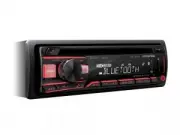 Alpine CDE-203BT
Manual
Alpine CDE-203BT
Manual
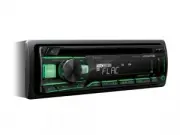 Alpine CDE-201R
Manual
Alpine CDE-201R
Manual
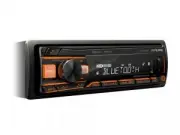 Alpine UTE-200BT
Manual
Alpine UTE-200BT
Manual
 Alpine CDA-105
Manual
Alpine CDA-105
Manual
 Alpine PKG-RSE3DVD
Manual
Alpine PKG-RSE3DVD
Manual
 Alpine PMD-B100
Manual
Alpine PMD-B100
Manual
 Alpine CDM-7871
Manual
Alpine CDM-7871
Manual
 Alpine MRP-T130
Manual
Alpine MRP-T130
Manual
 Alpine MRV-F307
Manual
Alpine MRV-F307
Manual
 Alpine CDA-7969
Manual
Alpine CDA-7969
Manual
 Alpine CDA-9856
Manual
Alpine CDA-9856
Manual
 Alpine TDA-7553E
Manual
Alpine TDA-7553E
Manual
 Alpine SWR-1241D
Manual
Alpine SWR-1241D
Manual
 Alpine SEC-100S
Manual
Alpine SEC-100S
Manual
 Alpine MRD-M500
Manual
Alpine MRD-M500
Manual
 Alpine CDE-9852
Manual
Alpine CDE-9852
Manual