Acer Aspire 8940G - Manuals
Acer Aspire 8940G Laptop – User Manual in PDF format online.
Manuals:
User Manual Acer Aspire 8940G


Summary
3 First things first We would like to thank you for making an Acer notebook your choice for meeting your mobile computing needs. Your guides To help you use your Acer notebook, we have designed a set of guides:First off, the Just for Starters... poster helps you get started with setting up your comp...
4 English Your Acer notebook tour After setting up your computer as illustrated in the Just for Starters... poster, let us show you around your new Acer notebook. Top view # Icon Item Description 1 Acer Crystal Eye webcam Web camera for video communication. (only for certain models) 2 Microphone Int...
6 English 1. The front panel indicators are visible even when the computer cover is closed up. Hotkeys The computer employs hotkeys or key combinations to access most of the computer's controls like screen brightness and volume output.To activate hotkeys, press and hold the <Fn> key before pre...
Acer Laptops Manuals
-
 Acer Aspire 1690
Manual
Acer Aspire 1690
Manual
-
 Acer Aspire 3050
User Manual
Acer Aspire 3050
User Manual
-
 Acer Aspire 3100
User Manual
Acer Aspire 3100
User Manual
-
 Acer Aspire 3690
User Manual
Acer Aspire 3690
User Manual
-
 Acer Aspire 4220
User Manual
Acer Aspire 4220
User Manual
-
 Acer Aspire 4310
User Manual
Acer Aspire 4310
User Manual
-
 Acer Aspire 4320
User Manual
Acer Aspire 4320
User Manual
-
 Acer Aspire 4336
User Manual
Acer Aspire 4336
User Manual
-
 Acer Aspire 4830TG-2313G50
User Manual
Acer Aspire 4830TG-2313G50
User Manual
-
 Acer Aspire 5620
Manual
Acer Aspire 5620
Manual
-
 Acer Aspire 5630
Manual
Acer Aspire 5630
Manual
-
 Acer Aspire 7530G_7230-703G25Mi_G32Mi
User Manual
Acer Aspire 7530G_7230-703G25Mi_G32Mi
User Manual
-
 Acer Aspire 7552G-X926G64Bikk
User Manual
Acer Aspire 7552G-X926G64Bikk
User Manual
-
 Acer Aspire 7750ZG-B943G32Mnkk
User Manual
Acer Aspire 7750ZG-B943G32Mnkk
User Manual
-
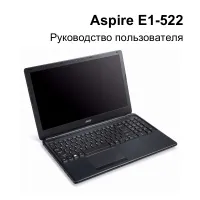 Acer Aspire E1-522
User Manual
Acer Aspire E1-522
User Manual
-
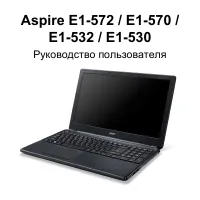 Acer Aspire E1-530G
User Manual
Acer Aspire E1-530G
User Manual
-
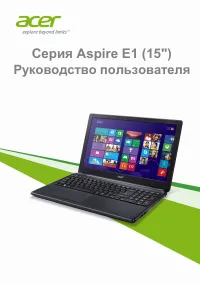 Acer Aspire E1-530G (Windows 8.1)
User Manual
Acer Aspire E1-530G (Windows 8.1)
User Manual
-
Acer Aspire E1-530G-21174G50Dnkk (NX.MEUEU.004)
User Manual
-
Acer Aspire E1-530G-21174G50MNII (NX.MJ5EU.001)
User Manual
-
Acer Aspire E1-530G-21174G75MNII (NX.MJ5EU.002)
User Manual