Page 3 - ENGLISH; Contents
ENGLISH 1 - EN Contents Instructions Warning .................................................................. 3 Points for Safe Use ........................................... 3 About the software license of the product .......... 5 Preparation work....................................................
Page 5 - Instructions; Points for Safe Use; Warning
3 - EN Instructions Points for Safe Use • Please read this manual carefully before using the machine and system components. This manual contains instructions on how to use this product safely and effectively. If failure to follow the instructions in this manual causes malfunctions, Alpine will not a...
Page 6 - Notice
4 - EN Do not let the cable be entangled with surrounding objects Arrange the wires and cables in accordance with the requirements of the manual to prevent them from becoming obstructive while driving. Cables or wires that obstruct or hang on the steering wheel, shift lever, brake pedal, etc. are ex...
Page 7 - Precautions; About the software license of the product
5 - EN Precautions Product cleaning Please use a dry soft cloth to clean the product regularly. If the dirt is difficult to remove, soak a soft cloth with water only. Any other solvent may dissolve. temperature Before turning on the machine, please make sure that the temperature in the car is betwee...
Page 8 - Accessory List; Preparation work
6 - EN Accessory List Preparation work Machine Screw × 10 Self-tapping Screw × 4 Mounting Brackets × 2 20P Input Cable 12P Output Cable USB Cable Main Unit External Bluetooth Module (KCE-800BT ) Wired controller (RUX-CSP1) Controller cable
Page 9 - Connections and Functions
7 - EN Connections and Functions ' 0 2 % External Bluetooth Car audio player (Sold separately) ACC (Red) Ignition key Battery To External Power Amplifier etc. REMO ( Yellow/Red) Car audio player (Sold separately) High Level IN1+ ( White) High Level IN1- ( White/Black) High Level IN2+ (Blue) High Lev...
Page 11 - Pairing The Device
9 - EN 1 Open the settings menu of the smart device. 2 Go to the Bluetooth settings and make sure it is turned on. 3 Scan for devices. 4 The tablet or phone will find DSP-HD-XXXXXX.Click to connect to it. Note: • The light on the Bluetooth adapter will flash until a device has been paired. Once a de...
Page 12 - Computer Software Introduction; Computer Software; Precautions installation
10 - EN • The software can only be used under the Microsoft® Windows® operating system. Operating system: Windows 10, Windows 11CPU: 2.9GHz or higher Memor y card: 1GB or higher Hard Disk: 512MB or more free space Computer screen resolution: 2560 × 1440 or higher • Before connecting the PXE-C80-88 m...
Page 13 - Connection Settings; Firmware Update Settings; Connection
11 - EN Setting items: Connection Setting content: Connection/disconnected Connection Settings 1 Connect the USB cable and open the software, it will automatically go online. After the connection is successful, the connection icon will show green [ ]. 2 After online, click the connection icon to dis...
Page 14 - Restore Factory Settings; Restore factory settings page; Shutdown delay setting; Shutdown delay page; Language Settings; About page; Encryption/Decryption page; Encryption Settings
12 - EN Setting item: Firmware update 1 Click the “ > ” button to select the upgrade file. 2 Click the “ Update ” button to upgrade the firmware. The upgrade progress reaches 100%, indicating that the firmware upgrade is successful. 3 Click the “ OK ” button to exit the firmware update. After the...
Page 15 - Master volume setting
13 - EN Setting item: Master volume Setting content: 0~35 (initial value: 12) 1 You can adjust the total volume by pressing and holding the left mouse button, dragging the volume fader left or right, or scrolling the mouse wheel. 2 Click the main volume [ ] button to set the total volume mute [ ], c...
Page 16 - Home Page; Output type custom page; Main Source Selection
14 - EN Home Page Home Page Setting items: Home Page Setting content: Main source selection/Main source attenuation/Mix source selection/Channel settings/X-Over settings Setting items: Main source selection Setting content: Coaxial/USB Audio/Bluetooth/Hi.Level/AUX You can press and hold the left but...
Page 17 - EQ; EQ page
15 - EN Sync settings page Click [ ], The optional sync is “Copy EQ/Vol(dB) from left to right” or “Copy EQ/Vol(dB) from right to left”. Lock settings page Click[ ],It will lock all the output channel type. Reset settings page Click[ ],It will clear all the output channel type to Null. Setting items...
Page 18 - EQ curve display; Channel Mute Setting
16 - EN Refer to “Output type custom page” (page 14). Setting items: Channel mute Setting content: Mute/off The output has 31 bands of EQ adjustable, and there are two interfaces of graphic equalization and parametric equalization. EQ Gain step Setting items: EQ Gain step Setting content: 0.1 (initi...
Page 19 - TCR; Sync Settings
17 - EN 4 Click [Reset EQ], the parameters of all equalizers of the current channel return to the initial state. 5 Click [G.EQ Mode] to pop up a warning box “Confirm P.EQ to G.EQ mode?”, press OK to switch to [G.EQ Mode], click [P.EQ Mode] to pop up a warning box “Confirm G.EQ to P.EQ mode?”, press ...
Page 20 - Input mode selection page; Output mode selection; Output mode selection page; AntiEQ page
18 - EN 3 The delay units are ms (milliseconds), inch (inches) and cm (centimeters). Delay range: 0.000~20.000 milliseconds; 0~692 cm; 0~273 inches. Mix After the PXE-C80-88 machine sets the sound source signal into the audio processor, it is divided into the volume of each output channel, and the p...
Page 21 - AutoEQ; Neutralize tone controls and processes
19 - EN Refer to “Output type custom page” (page 14) . 1 Default is Fixed [ ], There is no RTA data. 2 Click one channel Unfixed [ ], begin to display RTA data. 3 10 bands of EQ adjustable to make the RTA data is flat. Refer to “EQ Adjustment” (page 16). Refer to “Equalizer Settings” (page 16). Hold...
Page 22 - Microphone movement; Perform measurement; Measurement
20 - EN This section explains the measurement portion of AutoEQ. Microphone movement Correct microphone movement during sound measurement is critical to getting a good result from AutoEQ. Please read this section carefully. 1 Overview To make a measurement, you will move the microphone through the s...
Page 23 - Tuning
21 - EN With measurement complete, you are ready to tune the sound in the vehicle. Tuning screen This section is an introduction to the tuning screen.It will cover the controls shown on the screen without discussing procedure. Figure 6 - The tuning screen with its default options shown. 1 Side Panel...
Page 25 - Managing Amps
23 - EN This section covers how to manage saved amps in AutoEQ and how to reconnect to an amp you have already worked on. Reconnect to an amp To reconnect to an amp you have worked on previously, you must have that amp connected to your PC via USB. The amp will appear in the Recently connected list....
Page 26 - Setup; Mobile Phone App
24 - EN This manual explains how to use the Alpine AutoEQ app on an iPhone to per form equalization.Here is an overview of the process: 1 Setup A list of required software and hardware. 2 Connect Connect the iPhone app to the Alpine amp. 3 Volume adjustment The app will assist you in setting the rig...
Page 29 - Wired Controller
27 - EN Connect the wired controller (RUX-CSP1) to the DSP correctly, and ensure that it starts normally before use. Startup Screen After the wired controller is started, the dynamic startup screen appears, as shown in Figure 1. Master Volume After it is star ted, enter the main interface of the wir...
Page 31 - Channel Settings
29 - EN Note: When a sound source is selected, it cannot then be selected again as the mix sound source; doing so causes the mix sound source to be invalid, as shown in Figure 7-2. If no operation is performed for about 4 seconds, it will exit from the inter face to the main interface (Master Volume...
Page 33 - Specifications
31 - EN Specifications Performance Power Output Rated: 4Ω, 14.4V, 10%THD CH1-6: 50W, CH7-8: 150W RCA Output Rated: 10kΩ, 14.4V, 0.1%THD CH1-8: 4Vrms THD+N High level: 2Vrms into 4Ω ≤0.1% RCA: 2Vrms into 10kΩ ≤0.06% S/N High level: 40k-AES17+A-weighted ≥80dB RCA: 40k-AES17+A-weighted ≥95dB Input Volt...
Page 34 - Function Parameter
32 - EN Function Parameter Inputs 8ch High-level6ch RCACoaxial Digital SignalBluetooth AudioUSB Audio (DAC) Outputs 8ch High-level8ch RCA Output Channel Signal Gain Range: -60dB~+6dB Output Signal Equalizer Type: Parametric / Graphic EqualizerFrequency: 20Hz~20kHz (1Hz steps)Q value: 0.404~28.852Gai...
Page 35 - Apache License; Open Source License
33 - EN Apache License Version 2.0, January 2004 http://www.apache.org/licenses/ TERMS AND CONDITIONS FOR USE, REPRODUCTION, AND DISTRIBUTION1. Definitions. “License” shall mean the terms and conditions for use, reproduction, and distribution as defined by Sections 1 through 9 of this document. “Lic...
Page 39 - The MIT License
37 - EN The MIT License =============== Copyright (c) 2016-2017 ZeroMQ communityCopyright (c) 2016 VOCA AS / Harald NøklandCopyright (c) 2009-2011 250bpm s.r.o.Copyright (c) 2011 Botond BalloCopyright (c) 2007-2009 iMatix Corporation Permission is hereby granted, free of charge, to any person obtain...
Page 43 - ALPS ALPINE EUROPE GmbH; 㼷崣歏㶩 ⚥㕂剣ꣳⰖ
ALPS ALPINE NORTH AMERICA, INC. 1500 Atlantic BIvd, Auburn Hills, Michigan 48326, U.S.A. Phone 1-800-ALPINE-1 (1-800-257- 4631) ALPS ALPINE EUROPE GmbH Ohmstrasse 4.85716 Unterschleissheim, Germany Phone: +49 (0) 89-32 42 640 For contact information on your respective country, please visit www.alpin...


 Alpine HDZ-65 User Manual
 Alpine HDZ-65C User Manual
 Alpine HDZ-65CS User Manual
 Alpine PSS-22WRA User Manual
 Alpine PSS-24WRA User Manual
 Alpine PXE-0850X User Manual
 Alpine R2-W8D2 User Manual
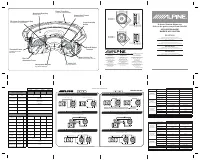 Alpine RS-W10D2 User Manual
 Alpine SPV-65-JLT User Manual