Page 3 - C o nte nts O ve rvie w
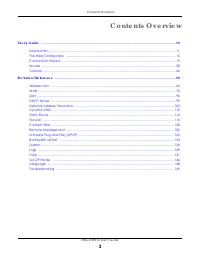
Contents Overview NBG-418N v2 User’s Guide 3 C o nte nts O ve rvie w Use r’ s G uid e ...................................................................................................................................... 1 0 Introduction .................................................................
Page 4 - Ta b le o f C o nte nts
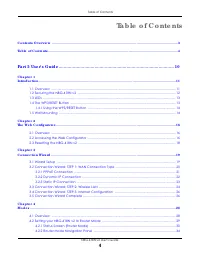
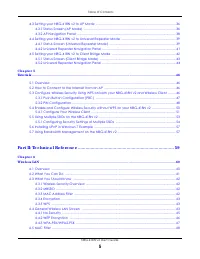
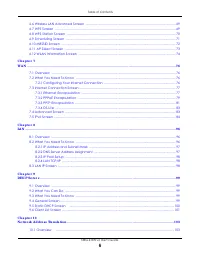
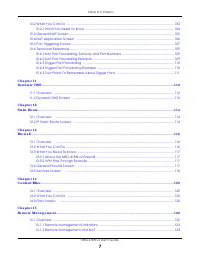
Table of Contents NBG-418N v2 User’s Guide 4 Ta b le o f C o nte nts C o nte nts O ve rvie w ............................................................................................................................. 3 Ta b le o f C o nte nts ..........................................................
Page 11 - HA PTER; Intro d uc tio n; WLAN
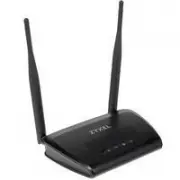
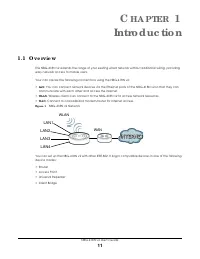
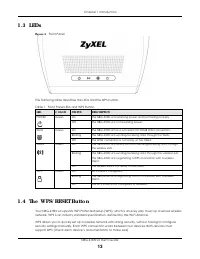
NBG-418N v2 User’s Guide 11 C HA PTER 1 Intro d uc tio n 1 .1 O ve rvie w The NBG-418N v2 extends the range of your existing wired network without additional wiring, providing easy network access to mobile users. Your can create the following connections using the NBG-418N v2: • LA N . You can conne...
Page 14 - .5 Wa ll Mo unting
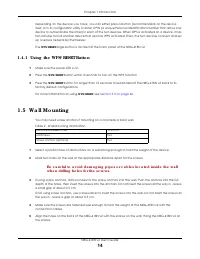
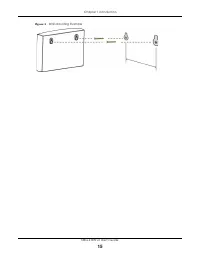
Chapter 1 Introduction NBG-418N v2 User’s Guide 14 Depending on the devices you have, you can either press a button (recommended) on the device itself, or in its configuration utility or enter a PIN (a unique Personal Identification Number that allows one device to authenticate the other) in each of...
Page 16 - The We b C o nfig ura to r; .2 A c c e ssing the We b C o nfig ura to r
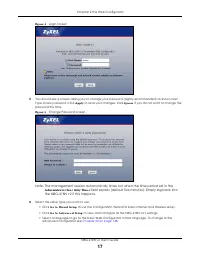
NBG-418N v2 User’s Guide 16 C HA PTER 2 The We b C o nfig ura to r 2 .1 O ve rvie w This chapter describes how to access the NBG-418N v2 Web Configurator and provides an overview of its screens. The Web Configurator is an HTML-based management interface that allows easy setup and management of the N...
Page 18 - .3 Re se tting the NBG - 4 1 8 N v2
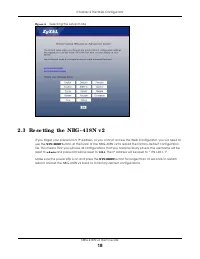
Chapter 2 The Web Configurator NBG-418N v2 User’s Guide 18 Fig ure 6 Selecting the setup mode 2 .3 Re se tting the NBG - 4 1 8 N v2 If you forget your password or IP address, or you cannot access the Web Configurator, you will need to use the WPS/ RESET button at the back of the NBG-418N v2 to reloa...
Page 19 - C o nne c tio n Wiza rd; .1 Wiza rd Se tup
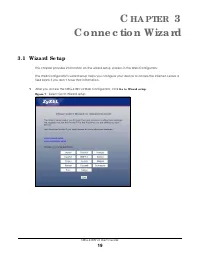
NBG-418N v2 User’s Guide 19 C HA PTER 3 C o nne c tio n Wiza rd 3 .1 Wiza rd Se tup This chapter provides information on the wizard setup screens in the Web Configurator. The Web Configurator’s wizard setup helps you configure your device to access the Internet. Leave a field blank if you don’t have...
Page 20 - .2 C o nne c tio n Wiza rd : STEP 1 : WA N C o nne c tio n Typ e
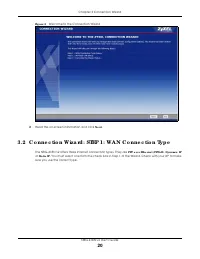
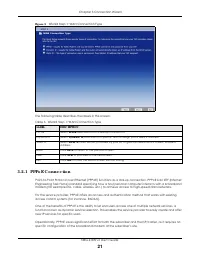
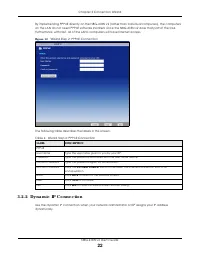
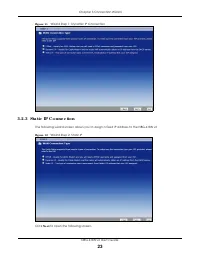
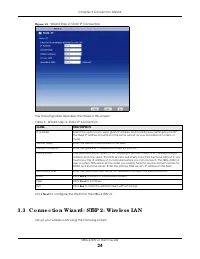
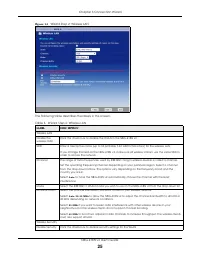
Chapter 3 Connection Wizard NBG-418N v2 User’s Guide 20 Fig ure 8 Welcome to the Connection Wizard 2 Read the on-screen information and click Ne xt . 3 .2 C o nne c tio n Wiza rd : STEP 1 : WA N C o nne c tio n Typ e The NBG-418N v2 offers three Internet connection types. They are PPP o ve r Ethe rn...
Page 26 - .4 C o nne c tio n Wiza rd : STEP 3 : Inte rne t C o nfig ura tio n; .5 C o nne c tio n Wiza rd C o m p le te
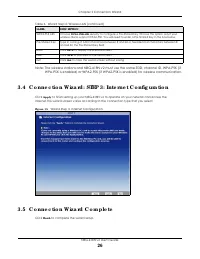
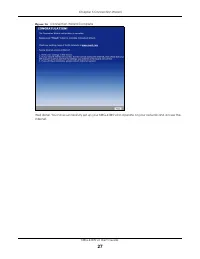
Chapter 3 Connection Wizard NBG-418N v2 User’s Guide 26 Note: The wireless stations and NBG-418N v2 must use the same SSID, channel ID, WPA-PSK (if WPA-PSK is enabled) or WPA2-PSK (if WPA2-PSK is enabled) for wireless communication. 3 .4 C o nne c tio n Wiza rd : STEP 3 : Inte rne t C o nfig ura tio...
Page 28 - Mo d e s; LEW
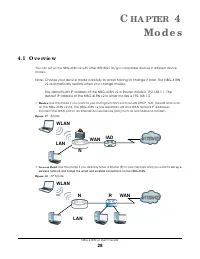
NBG-418N v2 User’s Guide 28 C HA PTER 4 Mo d e s 4 .1 O ve rvie w You can set up the NBG-418N v2 with other IEEE 802.11b/g/n compatible devices in different device modes. Note: Choose your device mode carefully to avoid having to change it later. The NBG-418N v2 automatically restarts when you chang...
Page 29 - .2 Se tting yo ur NBG - 4 1 8 N v2 to Ro ute r Mo d e; AP
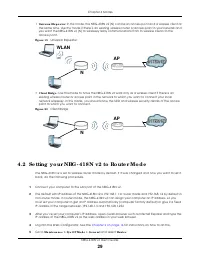
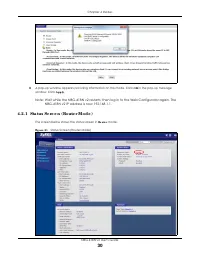
Chapter 4 Modes NBG-418N v2 User’s Guide 29 • Unive rsa l Re p e a te r : In this mode, the NBG-418N v2 (N) can be an access point and a wireless client at the same time. Use this mode if there is an existing wireless router or access point in your network and you want the NBG-418N v2 (N) to wireles...
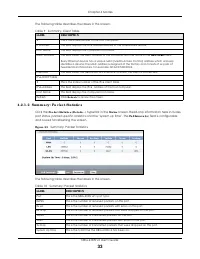
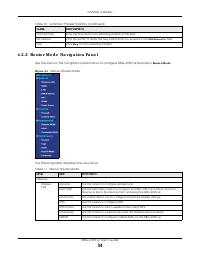
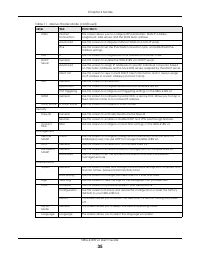
Page 34 - .2 .2 Ro ute r Mo d e Na vig a tio n Pa ne l
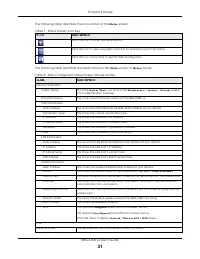
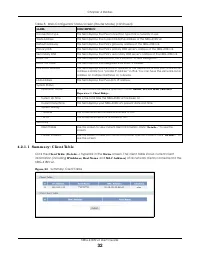
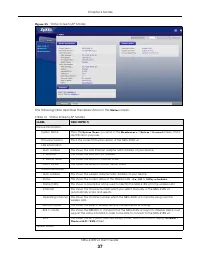
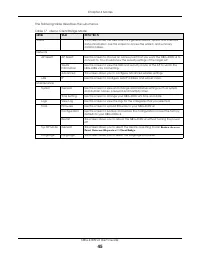
Chapter 4 Modes NBG-418N v2 User’s Guide 34 4 .2 .2 Ro ute r Mo d e Na vig a tio n Pa ne l Use the menu in the navigation panel menus to configure NBG-418N v2 features in Ro ute r Mo d e . Fig ure 2 4 Menus: Router Mode The following table describes the sub-menus. Poll Interval(s) Enter the time int...
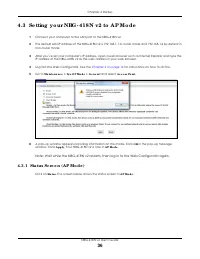
Page 36 - .3 Se tting yo ur NBG - 4 1 8 N v2 to A P Mo d e
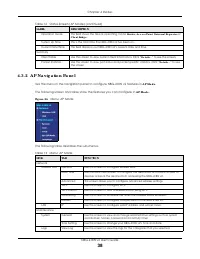
Chapter 4 Modes NBG-418N v2 User’s Guide 36 4 .3 Se tting yo ur NBG - 4 1 8 N v2 to A P Mo d e 1 Connect your computer to the LAN port of the NBG-418N v2. 2 The default LAN IP address of the NBG-418N v2 is 192.168.1.1 in router mode and 192.168.1.2 by default in non-router mode. 3 After you’ve set y...
Page 39 - .4 Se tting yo ur NBG - 4 1 8 N v2 to Unive rsa l Re p e a te r Mo d e
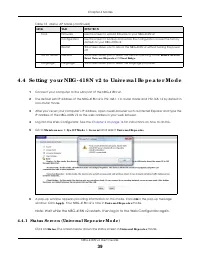
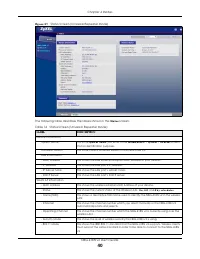
Chapter 4 Modes NBG-418N v2 User’s Guide 39 4 .4 Se tting yo ur NBG - 4 1 8 N v2 to Unive rsa l Re p e a te r Mo d e 1 Connect your computer to the LAN port of the NBG-418N v2. 2 The default LAN IP address of the NBG-418N v2 is 192.168.1.1 in router mode and 192.168.1.2 by default in non-router mode...
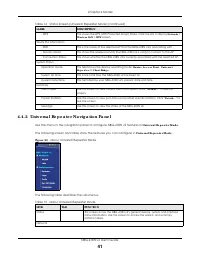
Page 41 - .4 .2 Unive rsa l Re p e a te r Na vig a tio n Pa ne l
Chapter 4 Modes NBG-418N v2 User’s Guide 41 4 .4 .2 Unive rsa l Re p e a te r Na vig a tio n Pa ne l Use the menu in the navigation panel to configure NBG-418N v2 features in Unive rsa l Re p e a te r Mo d e . The following screen and table show the features you can configure in Unive rsa l Re p e a...
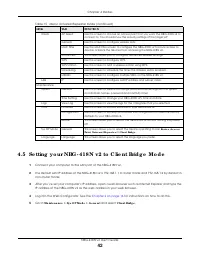
Page 42 - .5 Se tting yo ur NBG - 4 1 8 N v2 to C lie nt Brid g e Mo d e
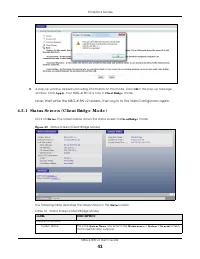
Chapter 4 Modes NBG-418N v2 User’s Guide 42 4 .5 Se tting yo ur NBG - 4 1 8 N v2 to C lie nt Brid g e Mo d e 1 Connect your computer to the LAN port of the NBG-418N v2. 2 The default LAN IP address of the NBG-418N v2 is 192.168.1.1 in router mode and 192.168.1.2 by default in non-router mode. 3 Afte...
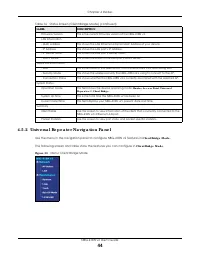
Page 44 - .5 .2 Unive rsa l Re p e a te r Na vig a tio n Pa ne l
Chapter 4 Modes NBG-418N v2 User’s Guide 44 4 .5 .2 Unive rsa l Re p e a te r Na vig a tio n Pa ne l Use the menu in the navigation panel to configure NBG-418N v2 features in C lie nt Brid g e Mo d e . The following screen and table show the features you can configure in C lie nt Brid g e Mo d e . F...
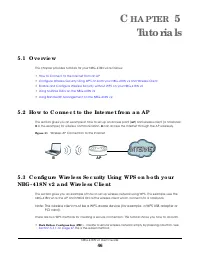
Page 46 - Tuto ria ls; .2 Ho w to C o nne c t to the Inte rne t fro m a n A P
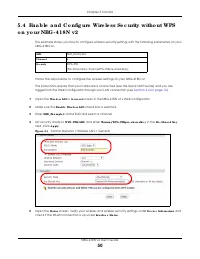
NBG-418N v2 User’s Guide 46 C HA PTER 5 Tuto ria ls 5 .1 O ve rvie w This chapter provides tutorials for your NBG-418N v2 as follows: • How to Connect to the Internet from an AP • Configure Wireless Security Using WPS on both your NBG-418N v2 and Wireless Client • Enable and Configure Wireless Secur...
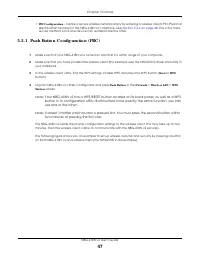
Page 48 - Wireless Client; SECURITY INFO
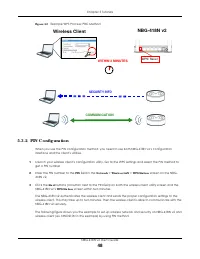
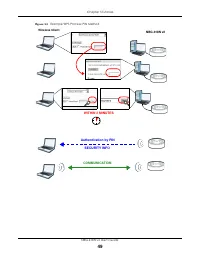
Chapter 5 Tutorials NBG-418N v2 User’s Guide 48 Fig ure 3 2 Example WPS Process: PBC Method 5 .3 .2 PIN C o nfig ura tio n When you use the PIN configuration method, you need to use both NBG-418N v2’s configuration interface and the client’s utilities. 1 Launch your wireless client’s configuration u...
Page 49 - Authentication by PIN; COMMUNICATION
Chapter 5 Tutorials NBG-418N v2 User’s Guide 49 Fig ure 3 3 Example WPS Process: PIN Method Authentication by PIN SECURITY INFO WITHIN 2 MINUTES Wireless Client NBG-418N v2 COMMUNICATION
Page 51 - .4 .1 C o nfig ure Yo ur Wire le ss C lie nt
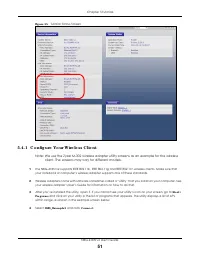
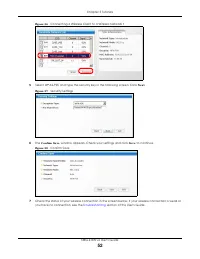
Chapter 5 Tutorials NBG-418N v2 User’s Guide 51 Fig ure 3 5 Tutorial: Status Screen 5 .4 .1 C o nfig ure Yo ur Wire le ss C lie nt Note: We use the Zyxel M-302 wireless adapter utility screens as an example for the wireless client. The screens may vary for different models. 1 The NBG-418N v2 support...
Page 53 - .5 Using Multip le SSIDs o n the NBG - 4 1 8 N v2
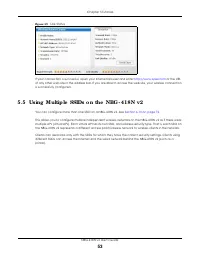
Chapter 5 Tutorials NBG-418N v2 User’s Guide 53 Fig ure 3 9 Link Status If your connection is successful, open your Internet browser and enter http://www.zyxel.com or the URL of any other web site in the address bar. If you are able to access the web site, your wireless connection is successfully co...
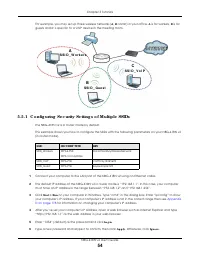
Page 54 - .5 .1 C o nfig uring Se c urity Se tting s o f Multip le SSIDs; SS I D _ W o r k e r s
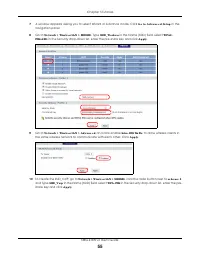
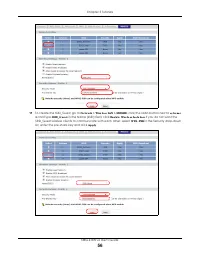
Chapter 5 Tutorials NBG-418N v2 User’s Guide 54 For example, you may set up three wireless networks ( A , B and C ) in your office. A is for workers, B is for guests and C is specific to a VoIP device in the meeting room. 5 .5 .1 C o nfig uring Se c urity Se tting s o f Multip le SSIDs The NBG-418N ...
Page 57 - .6 Insta lling UPnP in Wind o ws 7 Exa m p le; .7 Using Ba nd wid th Ma na g e m e nt o n the NBG - 4 1 8 N v2
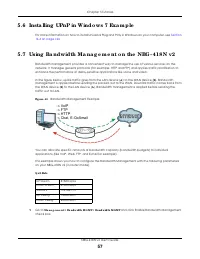
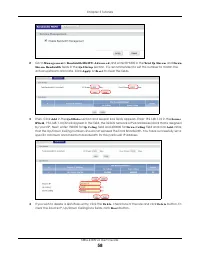
Chapter 5 Tutorials NBG-418N v2 User’s Guide 57 5 .6 Insta lling UPnP in Wind o ws 7 Exa m p le For more information on how to install Universal Plug and Play in Windows on your computer, see Section 16.4 on page 126 5 .7 Using Ba nd wid th Ma na g e m e nt o n the NBG - 4 1 8 N v2 Bandwidth managem...
Page 59 - A RT; II; Te c hnic a l Re fe re nc e
Page 60 - Wire le ss LA N
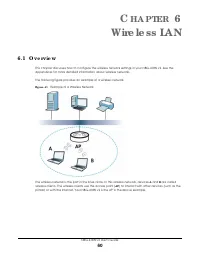
NBG-418N v2 User’s Guide 60 C HA PTER 6 Wire le ss LA N 6 .1 O ve rvie w This chapter discusses how to configure the wireless network settings in your NBG-418N v2. See the appendices for more detailed information about wireless networks. The following figure provides an example of a wireless network...
Page 61 - .2 Wha t Yo u C a n Do
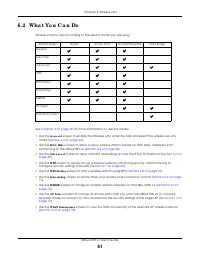
Chapter 6 Wireless LAN NBG-418N v2 User’s Guide 61 6 .2 Wha t Yo u C a n Do Wireless screens vary according to the device mode you are using. See Chapter 4 on page 28 for more information on device modes. • Use the G e ne ra l screen to enable the Wireless LAN, enter the SSID and select the wireless...
Page 62 - .3 Wha t Yo u Sho uld Kno w; .3 .1 Wire le ss Se c urity O ve rvie w
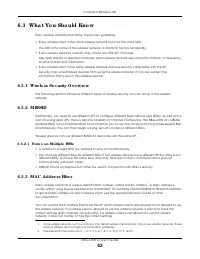
Chapter 6 Wireless LAN NBG-418N v2 User’s Guide 62 6 .3 Wha t Yo u Sho uld Kno w Every wireless network must follow these basic guidelines. • Every wireless client in the same wireless network must use the same SSID. The SSID is the name of the wireless network. It stands for Service Set IDentity. •...
Page 63 - .4 G e ne ra l Wire le ss LA N Sc re e n
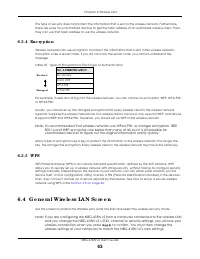
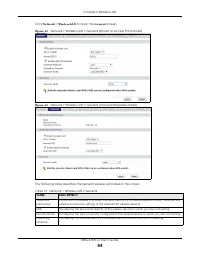
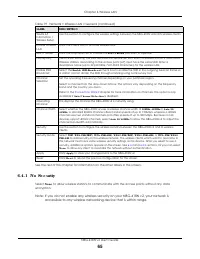
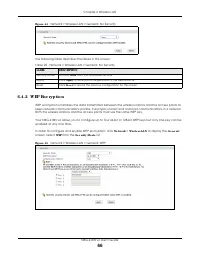
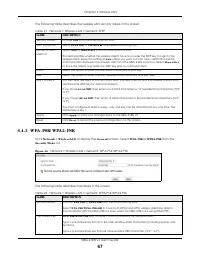
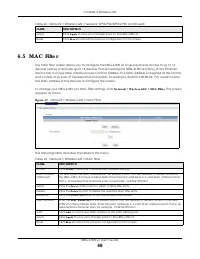
Chapter 6 Wireless LAN NBG-418N v2 User’s Guide 63 This type of security does not protect the information that is sent in the wireless network. Furthermore, there are ways for unauthorized devices to get the MAC address of an authorized wireless client. Then, they can use that MAC address to use the...
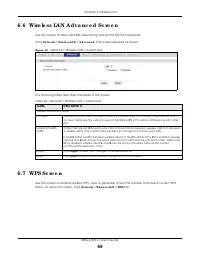
Page 69 - .6 Wire le ss LA N A d va nc e d Sc re e n
Chapter 6 Wireless LAN NBG-418N v2 User’s Guide 69 6 .6 Wire le ss LA N A d va nc e d Sc re e n Use this screen to allow intra-BSS networking and set the RTS/CTS Threshold. Click Ne two rk > Wire le ss LA N > A d va nc e d . The screen appears as shown. Fig ure 4 8 Network > Wireless LAN &g...
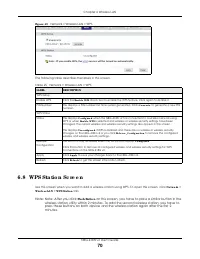
Page 70 - .8 WPS Sta tio n Sc re e n
Chapter 6 Wireless LAN NBG-418N v2 User’s Guide 70 Fig ure 4 9 Network > Wireless LAN > WPS The following table describes the labels in this screen. 6 .8 WPS Sta tio n Sc re e n Use this screen when you want to add a wireless station using WPS. To open this screen, click Ne two rk > Wire le...
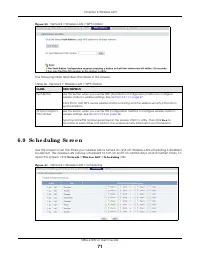
Page 71 - .9 Sc he d uling Sc re e n
Chapter 6 Wireless LAN NBG-418N v2 User’s Guide 71 Fig ure 5 0 Network > Wireless LAN > WPS Station The following table describes the labels in this screen. 6 .9 Sc he d uling Sc re e n Use this screen to set the times your wireless LAN is turned on and off. Wireless LAN scheduling is disabled...
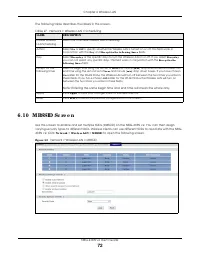
Page 72 - .1 0 MBSSID Sc re e n
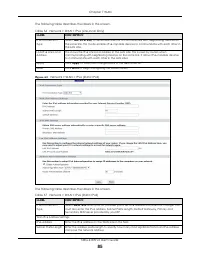
Chapter 6 Wireless LAN NBG-418N v2 User’s Guide 72 The following table describes the labels in this screen. 6 .1 0 MBSSID Sc re e n Use this screen to enable and set multiple SSIDs (MBSSID) on the NBG-418N v2. You can then assign varying security types to different SSIDs. Wireless clients can use di...
Page 73 - .1 1 A P Se le c t Sc re e n
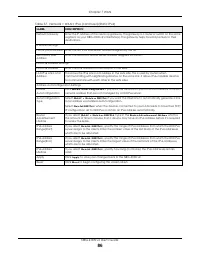
Chapter 6 Wireless LAN NBG-418N v2 User’s Guide 73 The following table describes the labels in this screen. 6 .1 1 A P Se le c t Sc re e n Use this screen to choose an access point that you want the NBG-418N v2 in universal repeater mode) to connect to. You should know the security settings of the t...
Page 74 - .1 2 WLA N Info rm a tio n Sc re e n
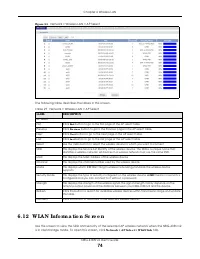
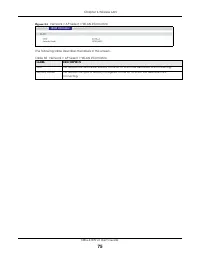
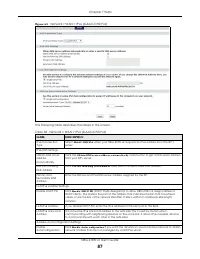
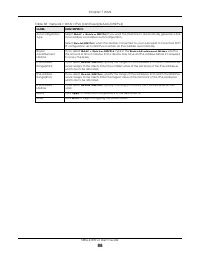
Chapter 6 Wireless LAN NBG-418N v2 User’s Guide 74 Fig ure 5 3 Network > Wireless LAN > AP Select The following table describes the labels in this screen. 6 .1 2 WLA N Info rm a tio n Sc re e n Use this screen to view the SSID and security of the selected AP wireless network when the NBG-418N ...
Page 76 - .2 Wha t Yo u Ne e d To Kno w; .2 .1 C o nfig uring Yo ur Inte rne t C o nne c tio n; Enc a p sula tio n Me tho d
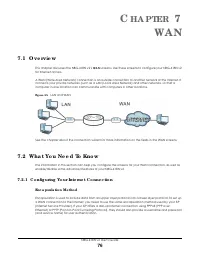
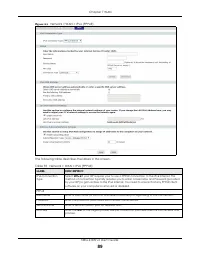
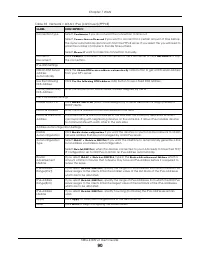
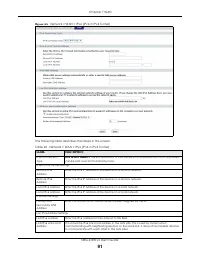
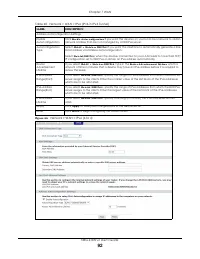
NBG-418N v2 User’s Guide 76 C HA PTER 7 WA N 7 .1 O ve rvie w This chapter discusses the NBG-418N v2’s WA N screens. Use these screens to configure your NBG-418N v2 for Internet access. A WAN (Wide Area Network) connection is an outside connection to another network or the Internet. It connects your...
Page 77 - .3 Inte rne t C o nne c tio n Sc re e n
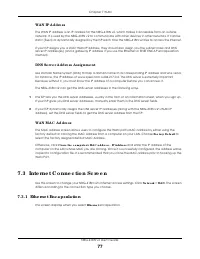
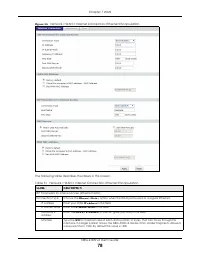
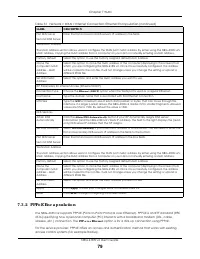
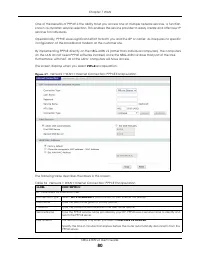
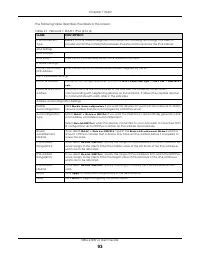
Chapter 7 WAN NBG-418N v2 User’s Guide 77 WA N IP A d d re ss The WAN IP address is an IP address for the NBG-418N v2, which makes it accessible from an outside network. It is used by the NBG-418N v2 to communicate with other devices in other networks. It can be static (fixed) or dynamically assigne...
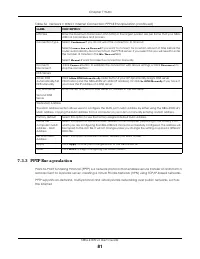
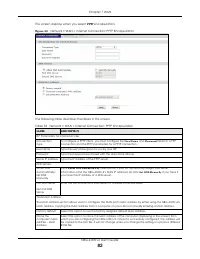
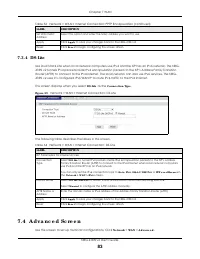
Page 83 - .4 A d va nc e d Sc re e n
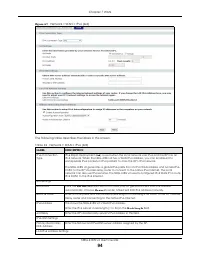
Chapter 7 WAN NBG-418N v2 User’s Guide 83 7 .3 .4 DS- Lite Use Dual Stack Lite when local network computers use IPv4 and the ISP has an IPv6 network. The NBG-418N v2 tunnels IPv4 packets inside IPv6 encapsulation packets to the ISP’s Address Family Transition Router (AFTR) to connect to the IPv4 Int...
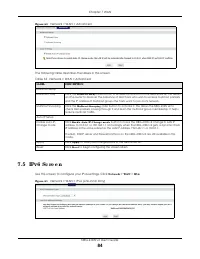
Page 84 - .5 IPv6 Sc re e n
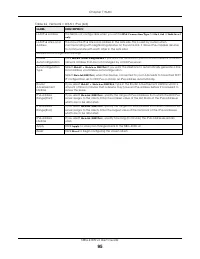
Chapter 7 WAN NBG-418N v2 User’s Guide 84 Fig ure 6 0 Network > WAN > Advanced The following table describes the labels in this screen. 7 .5 IPv6 Sc re e n Use this screen to configure your IPv6 settings. Click Ne two rk > WA N > IPv6 . Fig ure 6 1 Network > WAN > IPv6 (Link-local ...
Page 96 - .2 Wha t Yo u Ne e d To Kno w
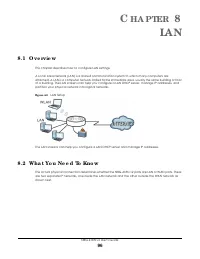
NBG-418N v2 User’s Guide 96 C HA PTER 8 LA N 8 .1 O ve rvie w This chapter describes how to configure LAN settings. A Local Area Network (LAN) is a shared communication system to which many computers are attached. A LAN is a computer network limited to the immediate area, usually the same building o...
Page 97 - .2 .1 IP A d d re ss a nd Sub ne t Ma sk
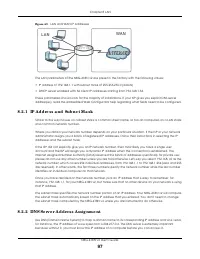
Chapter 8 LAN NBG-418N v2 User’s Guide 97 Fig ure 6 9 LAN and WAN IP Addresses The LAN parameters of the NBG-418N v2 are preset in the factory with the following values: • IP address of 192.168.1.1 with subnet mask of 255.255.255.0 (24 bits) • DHCP server enabled with 32 client IP addresses starting...
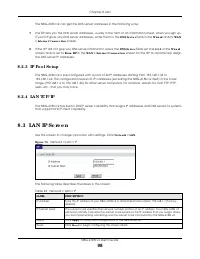
Page 98 - .3 LA N IP Sc re e n
Chapter 8 LAN NBG-418N v2 User’s Guide 98 The NBG-418N v2 can get the DNS server addresses in the following ways. 1 The ISP tells you the DNS server addresses, usually in the form of an information sheet, when you sign up. If your ISP gives you DNS server addresses, enter them in the DNS Se rve r fi...
Page 99 - DHC P Se rve r; .2 Wha t Yo u C a n Do
NBG-418N v2 User’s Guide 99 C HA PTER 9 DHC P Se rve r 9 .1 O ve rvie w DHCP (Dynamic Host Configuration Protocol, RFC 2131 and RFC 2132) allows individual clients to obtain TCP/IP configuration at start-up from a server. You can configure the NBG-418N v2’s LAN as a DHCP server or disable it. When c...
Page 100 - .5 Sta tic DHC P Sc re e n
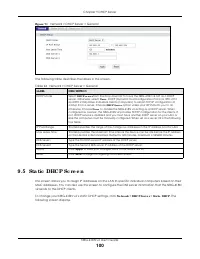
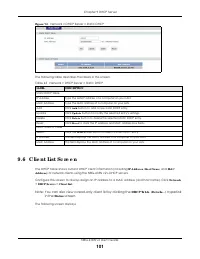
Chapter 9 DHCP Server NBG-418N v2 User’s Guide 100 Fig ure 7 1 Network > DHCP Server > General The following table describes the labels in this screen. 9 .5 Sta tic DHC P Sc re e n This screen allows you to assign IP addresses on the LAN to specific individual computers based on their MAC addr...
Page 101 - .6 C lie nt List Sc re e n
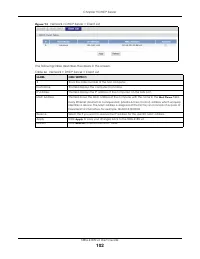
Chapter 9 DHCP Server NBG-418N v2 User’s Guide 101 Fig ure 7 2 Network > DHCP Server > Static DHCP The following table describes the labels in this screen. 9 .6 C lie nt List Sc re e n The DHCP table shows current DHCP client information (including IP A d d re ss , Ho st Na m e and MA C A d d ...
Page 103 - Ne two rk A d d re ss Tra nsla tio n; 0 .1 O ve rvie w; 0 .2 Wha t Yo u C a n Do; IP address; WAN; assigned by ISP
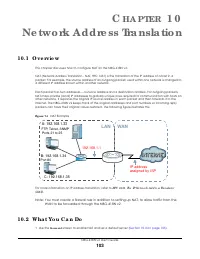
NBG-418N v2 User’s Guide 103 C HA PTER 1 0 Ne two rk A d d re ss Tra nsla tio n 1 0 .1 O ve rvie w This chapter discusses how to configure NAT on the NBG-418N v2. NAT (Network Address Translation - NAT, RFC 1631) is the translation of the IP address of a host in a packet. For example, the source add...
Page 104 - G lo b a l/ Lo c a l; Wha t NA T Do e s
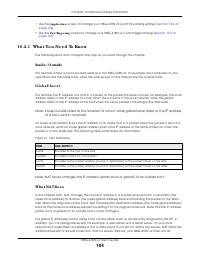
Chapter 10 Network Address Translation NBG-418N v2 User’s Guide 104 • Use the A p p lic a tio n screen to change your NBG-418N v2’s port forwarding settings ( Section 10.4 on page 106 ). • Use the Po rt Trig g e ring screen to change your NBG-418N v2’s port trigger settings ( Section 10.5 on page 10...
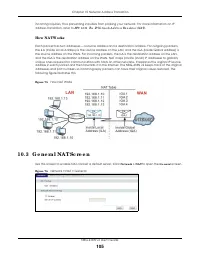
Page 105 - Ho w NA T Wo rks; 0 .3 G e ne ra l NA T Sc re e n
Chapter 10 Network Address Translation NBG-418N v2 User’s Guide 105 incoming inquiries, thus preventing intruders from probing your network. For more information on IP address translation, refer to RFC 1631 , The IP Ne tw o rk Ad d re ss Tra nsla to r (NAT) . Ho w NA T Wo rks Each packet has two add...
Page 106 - 0 .4 NA T A p p lic a tio n Sc re e n
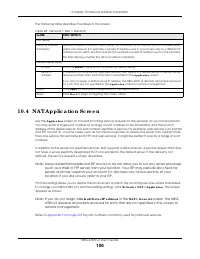
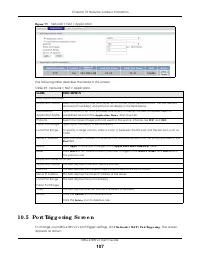
Chapter 10 Network Address Translation NBG-418N v2 User’s Guide 106 The following table describes the labels in this screen. 1 0 .4 NA T A p p lic a tio n Sc re e n Use the A p p lic a tio n screen to forward incoming service requests to the server(s) on your local network. You may enter a single po...
Page 107 - 0 .5 Po rt Trig g e ring Sc re e n
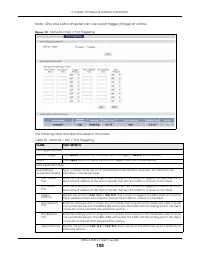
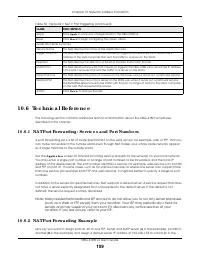
Chapter 10 Network Address Translation NBG-418N v2 User’s Guide 107 Fig ure 7 7 Network > NAT > Application The following table describes the labels in this screen. 1 0 .5 Po rt Trig g e ring Sc re e n To change your NBG-418N v2’s port trigger settings, click Ne two rk > NA T > Po rt Tri...
Page 109 - 0 .6 Te c hnic a l Re fe re nc e; 0 .6 .1 NA T Po rt Fo rwa rd ing : Se rvic e s a nd Po rt Num b e rs; 0 .6 .2 NA T Po rt Fo rwa rd ing Exa m p le
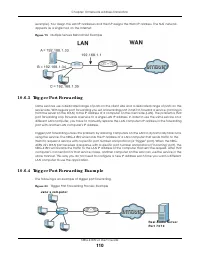
Chapter 10 Network Address Translation NBG-418N v2 User’s Guide 109 1 0 .6 Te c hnic a l Re fe re nc e The following section contains additional technical information about the NBG-418N v2 features described in this chapter. 1 0 .6 .1 NA T Po rt Fo rwa rd ing : Se rvic e s a nd Po rt Num b e rs A po...
Page 110 - 0 .6 .3 Trig g e r Po rt Fo rwa rd ing
Chapter 10 Network Address Translation NBG-418N v2 User’s Guide 110 example). You assign the LAN IP addresses and the ISP assigns the WAN IP address. The NAT network appears as a single host on the Internet. Fig ure 7 9 Multiple Servers Behind NAT Example 1 0 .6 .3 Trig g e r Po rt Fo rwa rd ing Som...
Page 111 - 0 .6 .5 Two Po ints To Re m e m b e r A b o ut Trig g e r Po rts
Chapter 10 Network Address Translation NBG-418N v2 User’s Guide 111 1 Jane requests a file from the Real Audio server (port 7070). 2 Port 7070 is a “trigger” port and causes the NBG-418N v2 to record Jane’s computer IP address. The NBG-418N v2 associates Jane's computer IP address with the "inco...
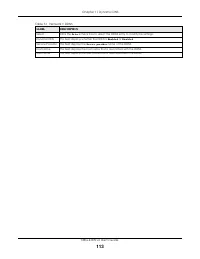
Page 112 - Dyna m ic DNS; 1 .1 O ve rvie w; 1 .2 Dyna m ic DNS Sc re e n
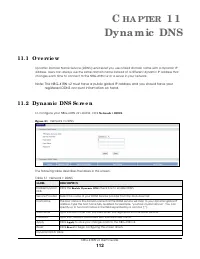
NBG-418N v2 User’s Guide 112 C HA PTER 1 1 Dyna m ic DNS 1 1 .1 O ve rvie w Dynamic Domain Name Service (DDNS) services let you use a fixed domain name with a dynamic IP address. Users can always use the same domain name instead of a different dynamic IP address that changes each time to connect to ...
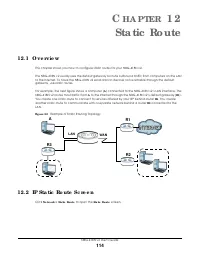
Page 114 - Sta tic Ro ute; 2 .1 O ve rvie w; 2 .2 IP Sta tic Ro ute Sc re e n
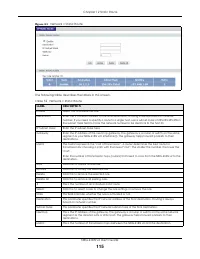
NBG-418N v2 User’s Guide 114 C HA PTER 1 2 Sta tic Ro ute 1 2 .1 O ve rvie w This chapter shows you how to configure static routes for your NBG-418N v2. The NBG-418N v2 usually uses the default gateway to route outbound traffic from computers on the LAN to the Internet. To have the NBG-418N v2 send ...
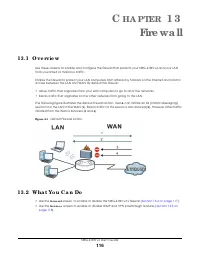
Page 116 - Fire wa ll; 3 .1 O ve rvie w; 3 .2 Wha t Yo u C a n Do
NBG-418N v2 User’s Guide 116 C HA PTER 1 3 Fire wa ll 1 3 .1 O ve rvie w Use these screens to enable and configure the firewall that protects your NBG-418N v2 and your LAN from unwanted or malicious traffic. Enable the firewall to protect your LAN computers from attacks by hackers on the Internet an...
Page 117 - 3 .3 Wha t Yo u Ne e d To Kno w; 3 .3 .2 VPN Pa ss Thro ug h Fe a ture s; 3 .4 G e ne ra l Fire wa ll Sc re e n
Chapter 13 Firewall NBG-418N v2 User’s Guide 117 1 3 .3 Wha t Yo u Ne e d To Kno w The NBG-418N v2’s firewall feature physically separates the LAN and the WAN and acts as a secure gateway for all data passing between the networks. 1 3 .3 .1 A b o ut the NBG - 4 1 8 N v2 Fire wa ll The NBG-418N v2 fi...
Page 118 - 3 .5 Se rvic e s Sc re e n
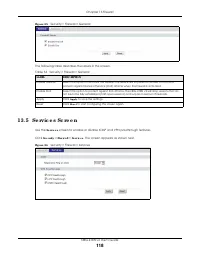
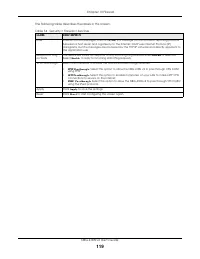
Chapter 13 Firewall NBG-418N v2 User’s Guide 118 Fig ure 8 5 Security > Firewall > General The following table describes the labels in this screen. 1 3 .5 Se rvic e s Sc re e n Use the Se rvic e s screen to enable or disable ICMP and VPN passthrough features. Click Se c urity > Fire wa ll &...
Page 120 - C o nte nt Filte r; 4 .2 Wha t Yo u C a n Do; 4 .3 Filte r Sc re e n
NBG-418N v2 User’s Guide 120 C HA PTER 1 4 C o nte nt Filte r 1 4 .1 O ve rvie w Content filter allows you to block specific URLs. The NBG-418N v2 checks the URL’s domain name (or IP address) and file path separately when performing keyword blocking. The URL’s domain name or IP address is the charac...
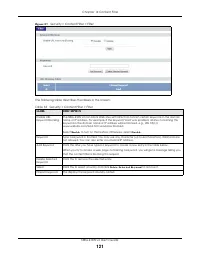
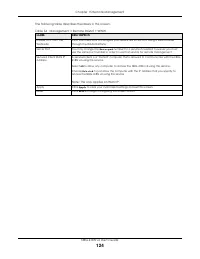
Page 123 - 5 .2 WWW Sc re e n
Chapter 15 Remote Management NBG-418N v2 User’s Guide 123 1 5 .1 .1 Re m o te Ma na g e m e nt Lim ita tio ns Remote management over WAN will not work when: 1 You have disabled that service in the remote management screen. 2 The IP address in the Se c ure d C lie nt WA N IP A d d re ss field does no...
Page 125 - 6 .1 O ve rvie w; 6 .2 Wha t Yo u Ne e d to Kno w; NA T Tra ve rsa l; C a utio ns with UPnP
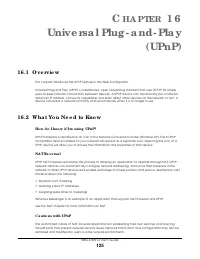
NBG-418N v2 User’s Guide 125 C HA PTER 1 6 Unive rsa l Plug - a nd - Pla y (UPnP) 1 6 .1 O ve rvie w This chapter introduces the UPnP feature in the Web Configurator. Universal Plug and Play (UPnP) is a distributed, open networking standard that uses TCP/IP for simple peer-to-peer network connectivi...
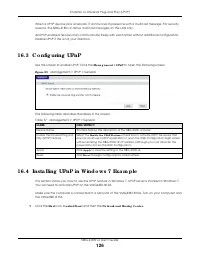
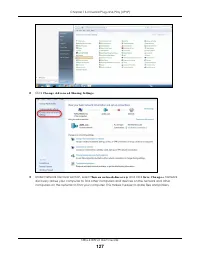
Page 126 - 6 .3 C o nfig uring UPnP; 6 .4 Insta lling UPnP in Wind o ws 7 Exa m p le
Chapter 16 Universal Plug-and-Play (UPnP) NBG-418N v2 User’s Guide 126 When a UPnP device joins a network, it announces its presence with a multicast message. For security reasons, the NBG-418N v2 allows multicast messages on the LAN only. All UPnP-enabled devices may communicate freely with each ot...
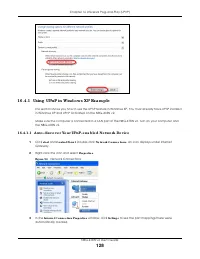
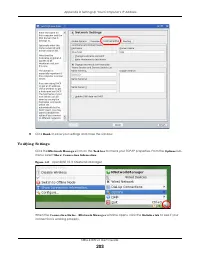
Page 128 - 6 .4 .1 Using UPnP in Wind o ws X P Exa m p le
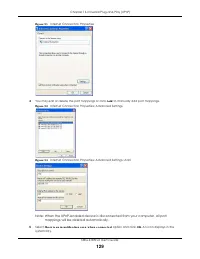
Chapter 16 Universal Plug-and-Play (UPnP) NBG-418N v2 User’s Guide 128 1 6 .4 .1 Using UPnP in Wind o ws X P Exa m p le This section shows you how to use the UPnP feature in Windows XP. You must already have UPnP installed in Windows XP and UPnP activated on the NBG-418N v2. Make sure the computer i...
Page 130 - 6 .4 .2 We b C o nfig ura to r Ea sy A c c e ss
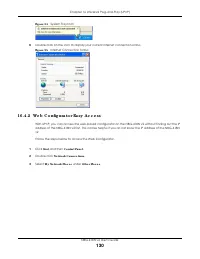
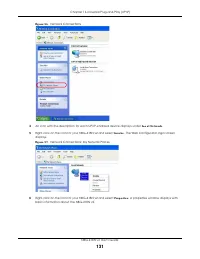
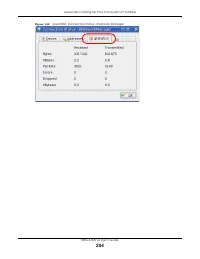
Chapter 16 Universal Plug-and-Play (UPnP) NBG-418N v2 User’s Guide 130 Fig ure 9 4 System Tray Icon 6 Double-click on the icon to display your current Internet connection status. Fig ure 9 5 Internet Connection Status 1 6 .4 .2 We b C o nfig ura to r Ea sy A c c e ss With UPnP, you can access the we...
Page 133 - Ba nd wid th MG MT; 7 .2 Wha t Yo u C a n Do
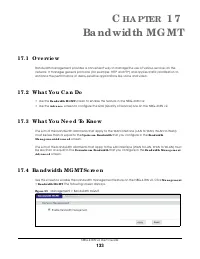
NBG-418N v2 User’s Guide 133 C HA PTER 1 7 Ba nd wid th MG MT 1 7 .1 O ve rvie w Bandwidth management provides a convenient way to manage the use of various services on the network. It manages general protocols (for example, HTTP and FTP) and applies traffic prioritization to enhance the performance...
Page 134 - 7 .5 A d va nc e d Sc re e n
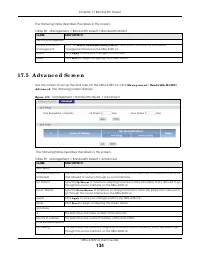
Chapter 17 Bandwidth MGMT NBG-418N v2 User’s Guide 134 The following table describes the labels in this screen. 1 7 .5 A d va nc e d Sc re e n Use this screen to set up the QoS rules for the NBG-418N v2. Click Ma na g e m e nt > Ba nd wid th MG MT > A d va nc e d . The following screen display...
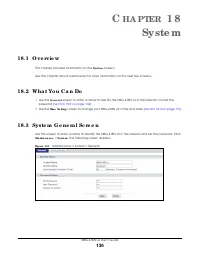
Page 136 - 8 .2 Wha t Yo u C a n Do; 8 .3 Syste m G e ne ra l Sc re e n
NBG-418N v2 User’s Guide 136 C HA PTER 1 8 Syste m 1 8 .1 O ve rvie w This chapter provides information on the Syste m screens. See the chapter about wizard setup for more information on the next few screens. 1 8 .2 Wha t Yo u C a n Do • Use the G e ne ra l screen to enter a name to identify the NBG...
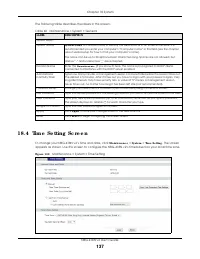
Page 137 - 8 .4 Tim e Se tting Sc re e n
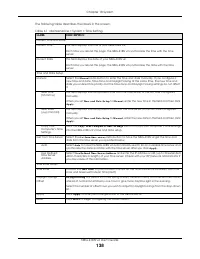
Chapter 18 System NBG-418N v2 User’s Guide 137 The following table describes the labels in this screen. 1 8 .4 Tim e Se tting Sc re e n To change your NBG-418N v2’s time and date, click Ma inte na nc e > Syste m > Tim e Se tting . The screen appears as shown. Use this screen to configure the N...
Page 139 - Lo g s; 9 .2 Wha t Yo u Ne e d to Kno w
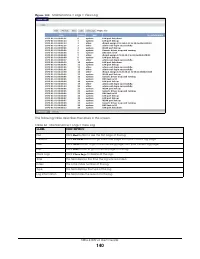
Chapter 19 Logs NBG-418N v2 User’s Guide 139 C HA PTER 1 9 Lo g s 1 9 .1 O ve rvie w This chapter contains information about configuring general log settings and viewing the NBG-418N v2’s logs. The Web Configurator allows you to look at all of the NBG-418N v2’s logs in one location. 1 9 .2 Wha t Yo ...
Page 141 - To o ls; 0 .2 Wha t Yo u C a n Do; 0 .3 Firm wa re Up lo a d Sc re e n
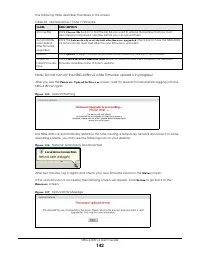
Chapter 20 Tools NBG-418N v2 User’s Guide 141 C HA PTER 2 0 To o ls 2 0 .1 O ve rvie w This chapter shows you how to upload a new firmware, upload or save backup configuration files and restart the NBG-418N v2. 2 0 .2 Wha t Yo u C a n Do • Use the Firm wa re screen to upload firmware to your NBG-418...
Page 143 - 0 .4 C o nfig ura tio n Sc re e n; 0 .4 .2 Re sto re C o nfig ura tio n
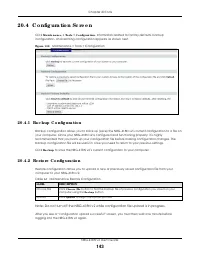
Chapter 20 Tools NBG-418N v2 User’s Guide 143 2 0 .4 C o nfig ura tio n Sc re e n Click Ma inte na nc e > To o ls > C o nfig ura tio n . Information related to factory defaults, backup configuration, and restoring configuration appears as shown next. Fig ure 1 0 8 Maintenance > Tools > C...
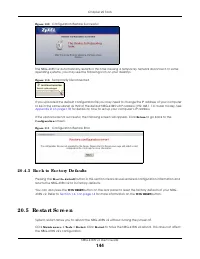
Page 144 - 0 .4 .3 Ba c k to Fa c to ry De fa ults; 0 .5 Re sta rt Sc re e n
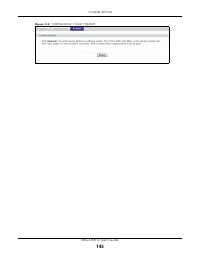
Chapter 20 Tools NBG-418N v2 User’s Guide 144 Fig ure 1 0 9 Configuration Restore Successful The NBG-418N v2 automatically restarts in this time causing a temporary network disconnect. In some operating systems, you may see the following icon on your desktop. Fig ure 1 1 0 Temporarily Disconnected I...
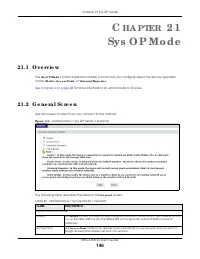
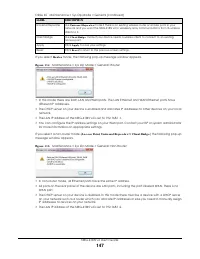
Page 146 - Sys O P Mo d e; 1 .2 G e ne ra l Sc re e n
Chapter 21 Sys OP Mode NBG-418N v2 User’s Guide 146 C HA PTER 2 1 Sys O P Mo d e 2 1 .1 O ve rvie w The Sys O P Mo d e (System Operation Mode) function lets you configure select the device operation mode: Ro ute r , A c c e ss Po int , or Unive rsa l Re p e a te r . See Chapter 4 on page 28 for more...
Page 148 - La ng ua g e; 2 .1 La ng ua g e Sc re e n
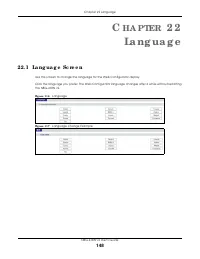
Chapter 22 Language NBG-418N v2 User’s Guide 148 C HA PTER 2 2 La ng ua g e 2 2 .1 La ng ua g e Sc re e n Use this screen to change the language for the Web Configurator display. Click the language you prefer. The Web Configurator language changes after a while without restarting the NBG-418N v2. Fi...
Page 149 - Tro ub le sho o ting
NBG-418N v2 User’s Guide 149 C HA PTER 2 3 Tro ub le sho o ting This chapter offers some suggestions to solve problems you might encounter. The potential problems are divided into the following categories. • Power, Hardware Connections, and LEDs • NBG-418N v2 Access and Login • Internet Access • Res...
Page 150 - 3 .2 NBG - 4 1 8 N v2 A c c e ss a nd Lo g in
Chapter 23 Troubleshooting NBG-418N v2 User’s Guide 150 2 3 .2 NBG - 4 1 8 N v2 A c c e ss a nd Lo g in I don’t know the IP address of my NBG-418N v2. 1 The default web address in Ro ute r Mo d e is http://myrouter. 2 The default IP address in router mode is 1 9 2 .1 6 8 .1 .1 and in non-router mode...
Page 151 - 3 .3 Inte rne t A c c e ss
Chapter 23 Troubleshooting NBG-418N v2 User’s Guide 151 5 Reset the device to its factory defaults, and try to access the NBG-418N v2 with the default IP address. 6 If the problem continues, contact the network administrator or vendor, or try one of the advanced suggestions. A d va nc e d Sug g e st...
Page 152 - 3 .4 Re se tting the NBG - 4 1 8 N v2 to Its Fa c to ry De fa ults
Chapter 23 Troubleshooting NBG-418N v2 User’s Guide 152 1 Check the hardware connections, and make sure the LEDs are behaving as expected. See the Quick Start Guide and Section 1.3 on page 13 . 2 Reboot the NBG-418N v2. 3 If the problem continues, contact your ISP. The Internet connection is slow or...
Page 153 - 3 .5 Wire le ss Pro b le m s
Chapter 23 Troubleshooting NBG-418N v2 User’s Guide 153 2 3 .5 Wire le ss Pro b le m s I cannot access the NBG-418N v2 or ping any computer from the WLAN. 1 Make sure the wireless LAN is enabled on the NBG-418N v2. 2 Make sure the wireless adapter on the wireless station is working properly. 3 Make ...
Page 154 - PPEN D IX; C usto m e r Sup p o rt
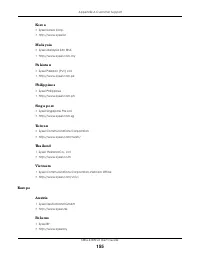
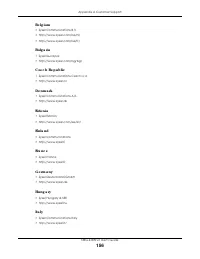
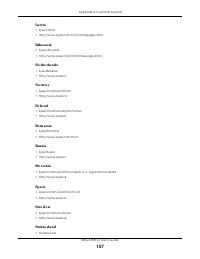
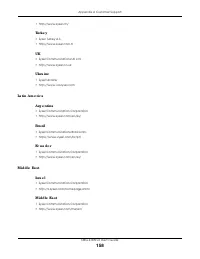
NBG-418N v2 User’s Guide 154 A PPEN D IX A C usto m e r Sup p o rt In the event of problems that cannot be solved by using this manual, you should contact your vendor. If you cannot contact your vendor, then contact a Zyxel office for the region in which you bought the device. See http ://w w w .zyx...
Page 160 - IP A d d re sse s a nd Sub ne tting; Intro d uc tio n to IP A d d re sse s
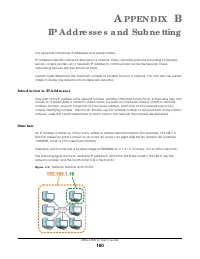
NBG-418N v2 User’s Guide 160 A PPEN D IX B IP A d d re sse s a nd Sub ne tting This appendix introduces IP addresses and subnet masks. IP addresses identify individual devices on a network. Every networking device (including computers, servers, routers, printers, etc.) needs an IP address to communi...
Page 161 - Sub ne t Ma sks
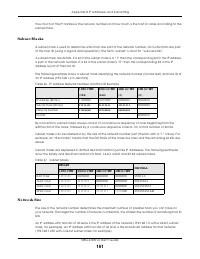
Appendix B IP Addresses and Subnetting NBG-418N v2 User’s Guide 161 How much of the IP address is the network number and how much is the host ID varies according to the subnet mask. Sub ne t Ma sks A subnet mask is used to determine which bits are part of the network number, and which bits are part ...
Page 162 - No ta tio n
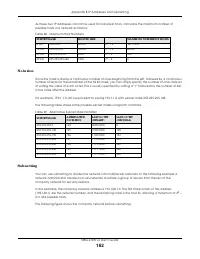
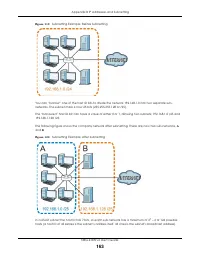
Appendix B IP Addresses and Subnetting NBG-418N v2 User’s Guide 162 As these two IP addresses cannot be used for individual hosts, calculate the maximum number of possible hosts in a network as follows: No ta tio n Since the mask is always a continuous number of ones beginning from the left, followe...
Page 164 - Exa m p le : Fo ur Sub ne ts
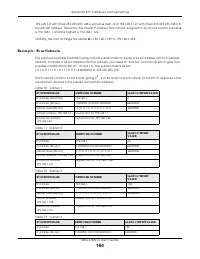
Appendix B IP Addresses and Subnetting NBG-418N v2 User’s Guide 164 192.168.1.0 with mask 255.255.255.128 is subnet A itself, and 192.168.1.127 with mask 255.255.255.128 is its broadcast address. Therefore, the lowest IP address that can be assigned to an actual host for subnet A is 192.168.1.1 and ...
Page 165 - Exa m p le : Eig ht Sub ne ts
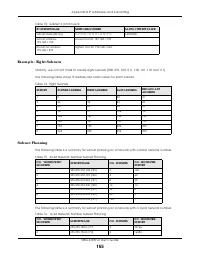
Appendix B IP Addresses and Subnetting NBG-418N v2 User’s Guide 165 Exa m p le : Eig ht Sub ne ts Similarly, use a 27-bit mask to create eight subnets (000, 001, 010, 011, 100, 101, 110 and 111). The following table shows IP address last octet values for each subnet. Sub ne t Pla nning The following...
Page 166 - C o nfig uring IP A d d re sse s
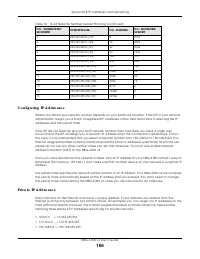
Appendix B IP Addresses and Subnetting NBG-418N v2 User’s Guide 166 C o nfig uring IP A d d re sse s Where you obtain your network number depends on your particular situation. If the ISP or your network administrator assigns you a block of registered IP addresses, follow their instructions in select...
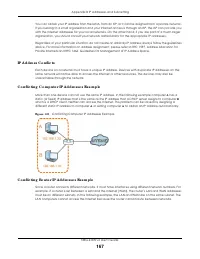
Page 167 - IP A d d re ss C o nflic ts; C o nflic ting Ro ute r IP A d d re sse s Exa m p le
Appendix B IP Addresses and Subnetting NBG-418N v2 User’s Guide 167 You can obtain your IP address from the IANA, from an ISP, or it can be assigned from a private network. If you belong to a small organization and your Internet access is through an ISP, the ISP can provide you with the Internet add...
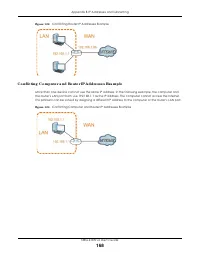
Page 168 - C o nflic ting C o m p ute r a nd Ro ute r IP A d d re sse s Exa m p le
Appendix B IP Addresses and Subnetting NBG-418N v2 User’s Guide 168 Fig ure 1 2 2 Conflicting Router IP Addresses Example C o nflic ting C o m p ute r a nd Ro ute r IP A d d re sse s Exa m p le More than one device can not use the same IP address. In the following example, the computer and the route...
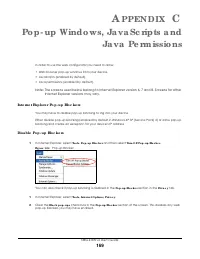
Page 169 - Po p - up Wind o ws, Ja va Sc rip ts a nd; Inte rne t Exp lo re r Po p - up Blo c ke rs
NBG-418N v2 User’s Guide 169 A PPEN D IX C Po p - up Wind o ws, Ja va Sc rip ts a nd Ja va Pe rm issio ns In order to use the web configurator you need to allow: • Web browser pop-up windows from your device. • JavaScripts (enabled by default). • Java permissions (enabled by default). Note: The scre...
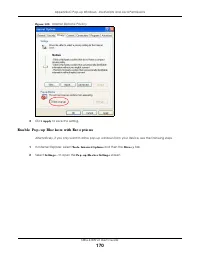
Page 170 - Ena b le Po p - up Blo c ke rs with Exc e p tio ns
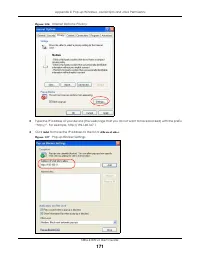
Appendix C Pop-up Windows, JavaScripts and Java Permissions NBG-418N v2 User’s Guide 170 Fig ure 1 2 5 Internet Options: Privacy 3 Click A p p ly to save this setting. Ena b le Po p - up Blo c ke rs with Exc e p tio ns Alternatively, if you only want to allow pop-up windows from your device, see the...
Page 172 - Ja va Sc rip ts
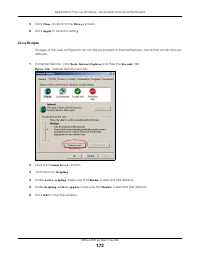
Appendix C Pop-up Windows, JavaScripts and Java Permissions NBG-418N v2 User’s Guide 172 5 Click C lo se to return to the Priva c y screen. 6 Click A p p ly to save this setting. Ja va Sc rip ts If pages of the web configurator do not display properly in Internet Explorer, check that JavaScripts are...
Page 173 - Ja va Pe rm issio ns
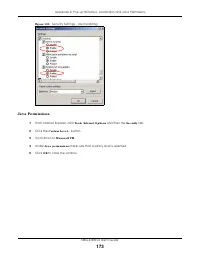
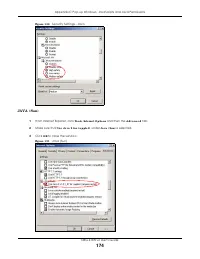
Appendix C Pop-up Windows, JavaScripts and Java Permissions NBG-418N v2 User’s Guide 173 Fig ure 1 2 9 Security Settings - Java Scripting Ja va Pe rm issio ns 1 From Internet Explorer, click To o ls , Inte rne t O p tio ns and then the Se c urity tab. 2 Click the C usto m Le ve l... button. 3 Scroll...
Page 175 - Mo zilla Fire fo x
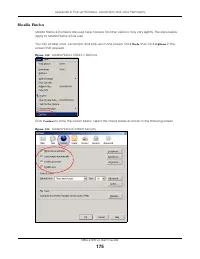
Appendix C Pop-up Windows, JavaScripts and Java Permissions NBG-418N v2 User’s Guide 175 Mo zilla Fire fo x Mozilla Firefox 2.0 screens are used here. Screens for other versions may vary slightly. The steps below apply to Mozilla Firefox 3.0 as well. You can enable Java, Javascripts and pop-ups in o...
Page 176 - O p e ra; Ena b ling Ja va
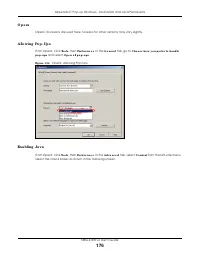
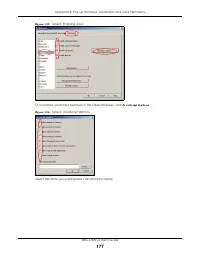
Appendix C Pop-up Windows, JavaScripts and Java Permissions NBG-418N v2 User’s Guide 176 O p e ra Opera 10 screens are used here. Screens for other versions may vary slightly. A llo wing Po p - Up s From Opera, click To o ls , then Pre fe re nc e s . In the G e ne ra l tab, go to C ho o se ho w yo u...
Page 178 - Se tting Up Yo ur C o m p ute r’ s IP
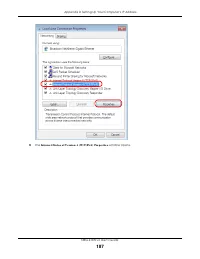
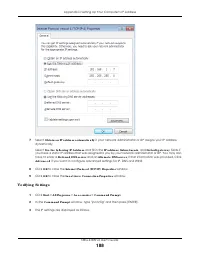
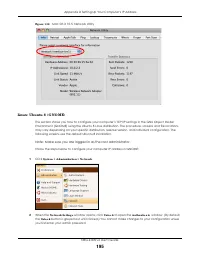
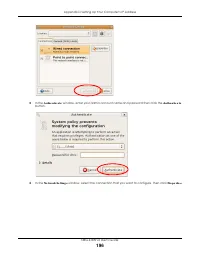
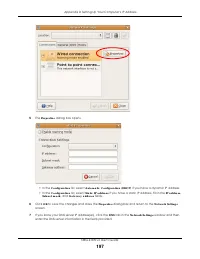
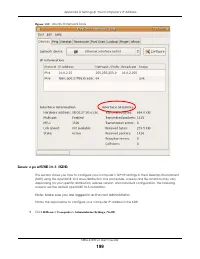
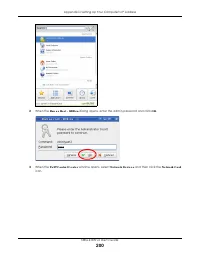
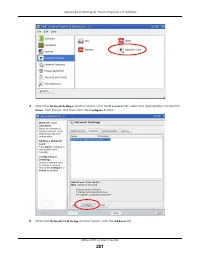
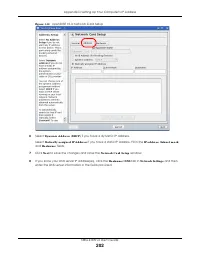
NBG-418N v2 User’s Guide 178 A PPEN D IX D Se tting Up Yo ur C o m p ute r’ s IP A d d re ss Note: Your specific NBG-418N v2 may not support all of the operating systems described in this appendix. See the product specifications for more information about which operating systems are supported. This ...
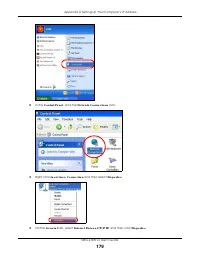
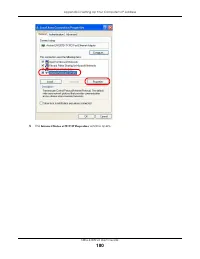
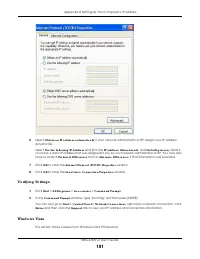
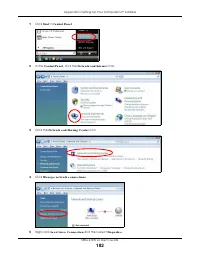
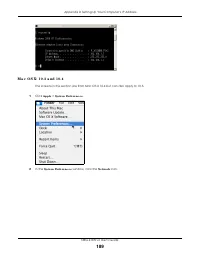
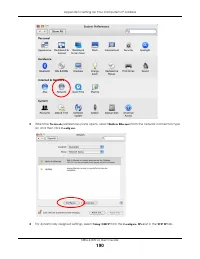
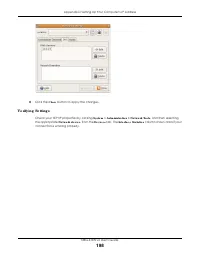
Page 188 - Ve rifying Se tting s
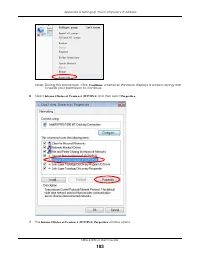
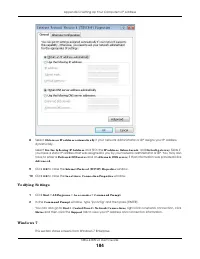
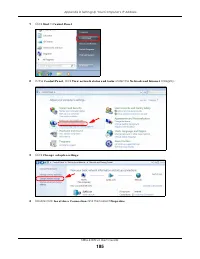
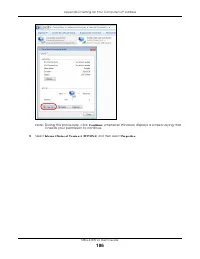
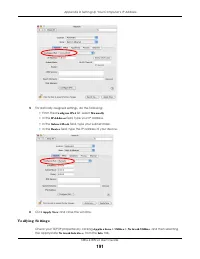
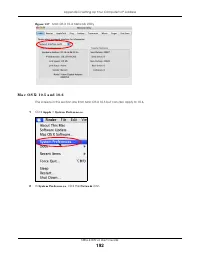
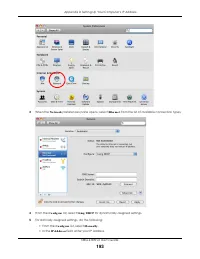
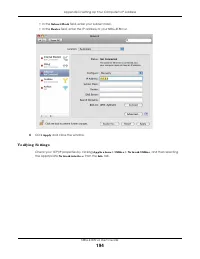
Appendix D Setting Up Your Computer’s IP Address NBG-418N v2 User’s Guide 188 7 Select O b ta in a n IP a d d re ss a uto m a tic a lly if your network administrator or ISP assigns your IP address dynamically. Select Use the fo llo wing IP A d d re ss and fill in the IP a d d re ss , Sub ne t m a sk...
Page 205 - Wire le ss LA Ns; Wire le ss LA N To p o lo g ie s
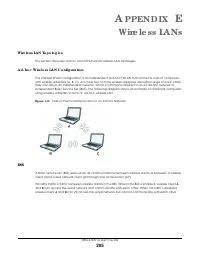
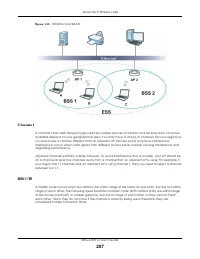
NBG-418N v2 User’s Guide 205 A PPEN D IX E Wire le ss LA Ns Wire le ss LA N To p o lo g ie s This section discusses ad-hoc and infrastructure wireless LAN topologies. A d - ho c Wire le ss LA N C o nfig ura tio n The simplest WLAN configuration is an independent (Ad-hoc) WLAN that connects a set of ...
Page 206 - ESS
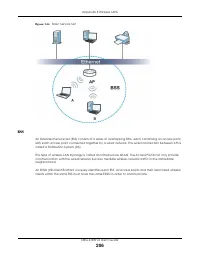
Appendix E Wireless LANs NBG-418N v2 User’s Guide 206 Fig ure 1 4 4 Basic Service Set ESS An Extended Service Set (ESS) consists of a series of overlapping BSSs, each containing an access point, with each access point connected together by a wired network. This wired connection between APs is called...
Page 207 - C ha nne l
Appendix E Wireless LANs NBG-418N v2 User’s Guide 207 Fig ure 1 4 5 Infrastructure WLAN C ha nne l A channel is the radio frequency(ies) used by wireless devices to transmit and receive data. Channels available depend on your geographical area. You may have a choice of channels (for your region) so ...
Page 208 - Fra g m e nta tio n Thre sho ld
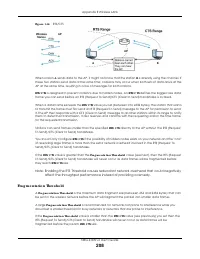
Appendix E Wireless LANs NBG-418N v2 User’s Guide 208 Fig ure 1 4 6 RTS/CTS When station A sends data to the AP, it might not know that the station B is already using the channel. If these two stations send data at the same time, collisions may occur when both sets of data arrive at the AP at the sa...
Page 209 - Pre a m b le Typ e; IEEE 8 0 2 .1 1 g Wire le ss LA N
Appendix E Wireless LANs NBG-418N v2 User’s Guide 209 Pre a m b le Typ e Preamble is used to signal that data is coming to the receiver. Short and long refer to the length of the synchronization field in a packet. Short preamble increases performance as less time sending preamble means more time for...
Page 210 - RA DIUS
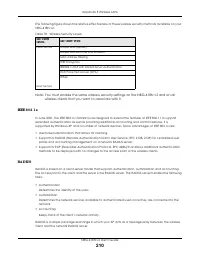
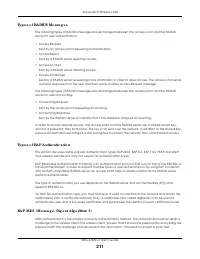
Appendix E Wireless LANs NBG-418N v2 User’s Guide 210 The following figure shows the relative effectiveness of these wireless security methods available on your NBG-418N v2. Note: You must enable the same wireless security settings on the NBG-418N v2 and on all wireless clients that you want to asso...
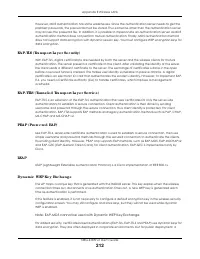
Page 212 - LEA P
Appendix E Wireless LANs NBG-418N v2 User’s Guide 212 However, MD5 authentication has some weaknesses. Since the authentication server needs to get the plaintext passwords, the passwords must be stored. Thus someone other than the authentication server may access the password file. In addition, it i...
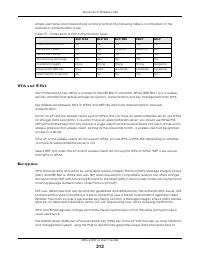
Page 213 - WPA a nd WPA 2
Appendix E Wireless LANs NBG-418N v2 User’s Guide 213 simple user name and password pair is more practical. The following table is a comparison of the features of authentication types. WPA a nd WPA 2 Wi-Fi Protected Access (WPA) is a subset of the IEEE 802.11i standard. WPA2 (IEEE 802.11i) is a wire...
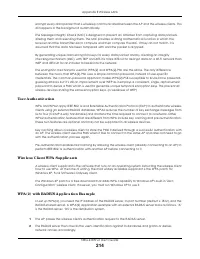
Page 214 - Use r A uthe ntic a tio n; WPA (2 ) with RA DIUS A p p lic a tio n Exa m p le
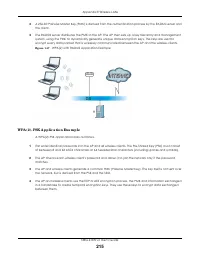
Appendix E Wireless LANs NBG-418N v2 User’s Guide 214 encrypt every data packet that is wirelessly communicated between the AP and the wireless clients. This all happens in the background automatically. The Message Integrity Check (MIC) is designed to prevent an attacker from capturing data packets,...
Page 216 - Se c urity Pa ra m e te rs Sum m a ry
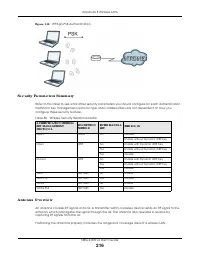
Appendix E Wireless LANs NBG-418N v2 User’s Guide 216 Fig ure 1 4 8 WPA(2)-PSK Authentication Se c urity Pa ra m e te rs Sum m a ry Refer to this table to see what other security parameters you should configure for each authentication method or key management protocol type. MAC address filters are n...
Page 218 - C o m m o n Se rvic e s
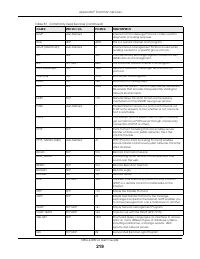
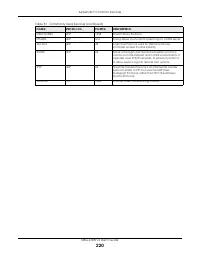
NBG-418N v2 User’s Guide 218 A PPEN D IX F C o m m o n Se rvic e s The following table lists some commonly-used services and their associated protocols and port numbers. For a comprehensive list of port numbers, ICMP type/code numbers and services, visit the IANA (Internet Assigned Number Authority)...
Page 221 - Le g a l Info rm a tio n
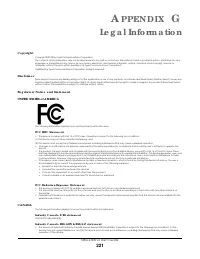
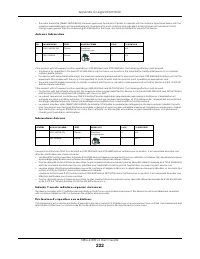
NBG-418N v2 User’s Guide 221 A PPEN D IX G Le g a l Info rm a tio n C o p yrig ht Copyright © 2018 by Zyxel Communications Corporation. The contents of this publication may not be reproduced in any part or as a whole, transcribed, stored in a retrieval system, translated into any language, or transm...
Page 229 - Ind e x
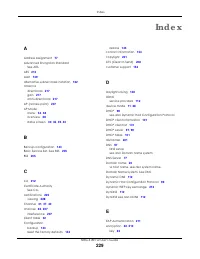
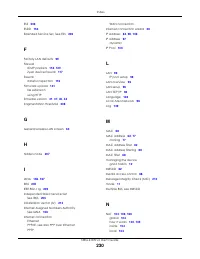
Index NBG-418N v2 User’s Guide 229 Ind e x A Address Assignment 77 Advanced Encryption Standard See AES. AES 213 Alert 139 alternative subnet mask notation 162 antenna directional 217 gain 217 omni-directional 217 AP (access point) 207 AP Mode menu 34 , 38 overview 28 status screen 30 , 36 , 39 , 43...






 Zyxel 50 Manual
 Zyxel 56K II, 56K Plus II Manual
 Zyxel 100 Manual
 Zyxel 110 Manual
 Zyxel 128 Manual
 Zyxel 128MH Manual
 Zyxel 310 Manual
 Zyxel 660R-6XC Manual
 Zyxel 841 Manual
 Zyxel AG-225H Manual
 Zyxel AMG1302 Manual
 Zyxel ANT3218 Manual
 Zyxel Comet 336P Manual