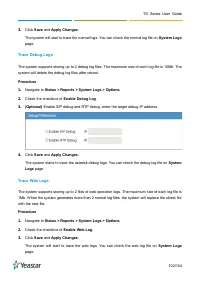
Page 2 - Copyright; Warranty
TG Series User Guide 2/104 Copyright Copyright 2006-2019 Yeastar Information Technology Co., Ltd. All rights reserved. No parts of this publication may be reproduced or transmitted in any form or by any means, electronic or mechanical, photocopying, recording, or otherwise, for any purpose, without ...
Page 3 - Table of Contents
TG Series User Guide 3/104 Table of Contents About This Guide ..........................................................................................................................7 TG Series Overview ..................................................................................................
Page 7 - About This Guide; We begin by; Products Covered
TG Series User Guide 7/104 About This Guide Thanks for choosing Yeastar TG Series GSM/3G/4G gateway. This guide will help you learn how to operate and manage your TG gateway. In this guide, we describe every detail on the functionality and configuration of the TG series gateway. We begin by assuming...
Page 8 - TG Series Overview; TG200 Gateway Overview; TG200 Gateway Front Panel
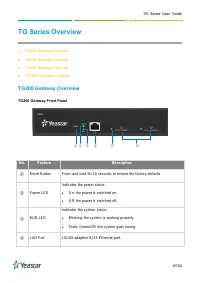
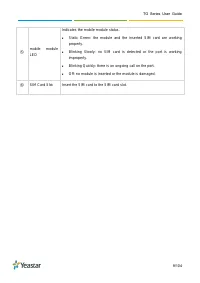
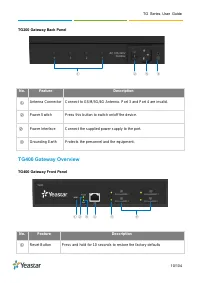
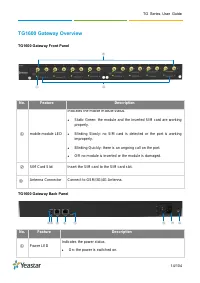
TG Series User Guide 8/104 TG Series Overview TG200 Gateway Overview TG400 Gateway Overview TG800 Gateway Overview TG1600 Gateway Overview TG200 Gateway Overview TG200 Gateway Front Panel No. Feature Description ① Reset Button Press and hold for 10 seconds to restore the factory defaults ② P...
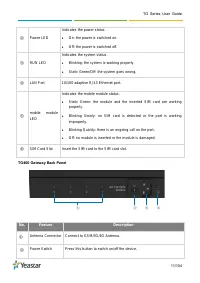
Page 10 - TG400 Gateway Overview; TG400 Gateway Front Panel
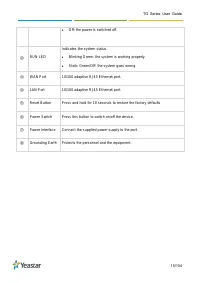
TG Series User Guide 10/104 TG200 Gateway Back Panel No. Feature Description ① Antenna Connector Connect to GSM/3G/4G Antenna. Port 3 and Port 4 are invalid. ② Power Switch Press this button to switch on/off the device. ② Power Interface Connect the supplied power supply to the port. ④ Grounding Ear...
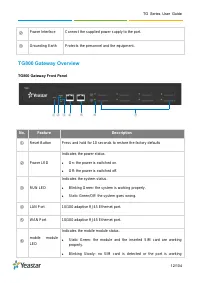
Page 12 - TG800 Gateway Overview; TG800 Gateway Front Panel
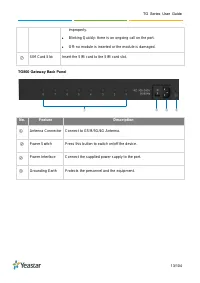
TG Series User Guide 12/104 ② Power Interface Connect the supplied power supply to the port. ③ Grounding Earth Protects the personnel and the equipment. TG800 Gateway Overview TG800 Gateway Front Panel No. Feature Description ① Reset Button Press and hold for 10 seconds to restore the factory defaul...
Page 16 - Hardware Installation; Package Contents; Item
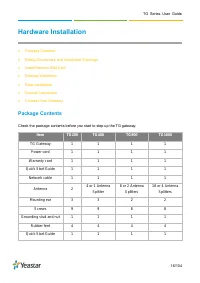
TG Series User Guide 16/104 Hardware Installation Package Contents Safety Disclaimers and Installation Warnings Insert/Remove SIM Card Desktop Installation Rack Installation Ground Connection Connect Your Gateway Package Contents Check the package contents before you start to step up t...
Page 17 - Safety Disclaimers and Installation Warnings; Power; Environment; Insert/Remove SIM Card; Procedure; Press the SIM card to remove the SIM card.
TG Series User Guide 17/104 Safety Disclaimers and Installation Warnings To avoid unexpected accident, personal injury or device damage, read the safety disclaimers and installation warnings. Power Use only the power cord provided with the Yeastar TG gateway. Make sure that the supply voltage ma...
Page 18 - Desktop Installation; WARNING
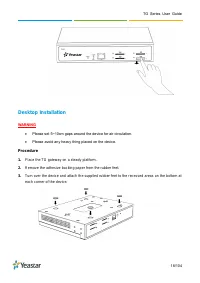
TG Series User Guide 18/104 Desktop Installation WARNING Please set 5~10cm gaps around the device for air circulation. Please avoid any heavy thing placed on the device. Procedure 1. Place the TG gateway on a steady platform. 2. Remove the adhesive backing paper from the rubber feet. 3. Turn ove...
Page 19 - Connect Antennas; Rack Installation
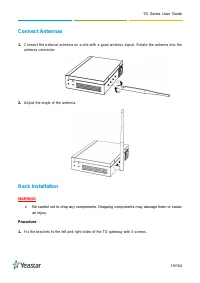
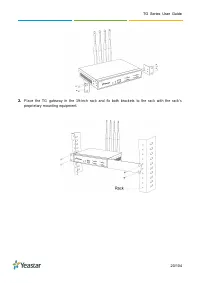
TG Series User Guide 19/104 Connect Antennas 1. Connect the external antenna on a site with a good wireless signal. Rotate the antenna into the antenna connector. 2. Adjust the angle of the antenna. Rack Installation WARNING Be careful not to drop any components. Dropping components may damage the...
Page 21 - Ground Connection
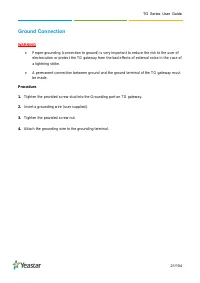
TG Series User Guide 21/104 Ground Connection WARNING Proper grounding (connection to ground) is very important to reduce the risk to the user of electrocution or protect the TG gateway from the bad effects of external noise in the case of a lightning strike. A permanent connection between groun...
Page 22 - Connect Your Gateway
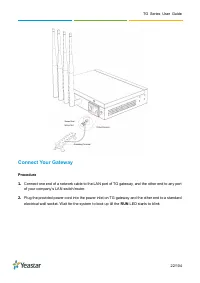
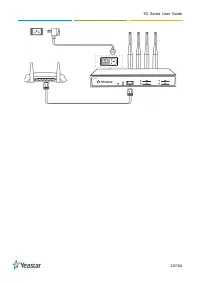
TG Series User Guide 22/104 Connect Your Gateway Procedure 1. Connect one end of a network cable to the LAN port of TG gateway, and the other end to any port of your company’s LAN switch/router. 2. Plug the provided power cord into the power inlet on TG gateway and the other end to a standard electr...
Page 24 - Getting Started; Log in Web User Interface; Enter; Login
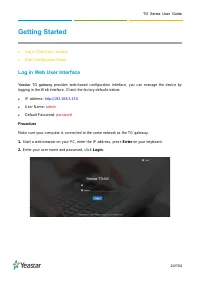
TG Series User Guide 24/104 Getting Started Log in Web User Interface Web Configuration Panel Log in Web User Interface Yeastar TG gateway provides web-based configuration interface, you can manage the device by logging in the W eb interfac e. Check the factory defaults below: IP address: http...
Page 25 - Web Configuration Panel; Apply Changes
TG Series User Guide 25/104 Web Configuration Panel There are 4 main sections on the W eb Configuration Panel for users to check the TG gateway ’s status and configure it. Status: Check System Status, Port Status, Trunk Status, Network Status and check call logs, system logs. System: Configure N...
Page 26 - Manage Mobile Modules; Configure Mobile Module Profile; General; Trunk Name; Mobile Number
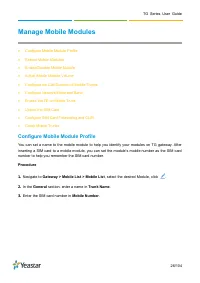
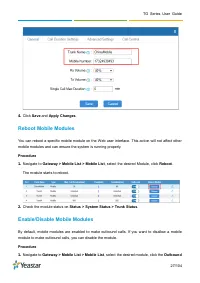
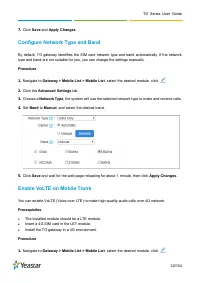
TG Series User Guide 26/104 Manage Mobile Modules Configure Mobile Module Profile Reboot Mobile Modules Enable/Disable Mobile Module Adjust Mobile Module Volume Configure the Call Duration of Mobile Trunks Configure Network Mode and Band Enable VoLTE on Mobile Trunk Unlock the SIM Ca...
Page 28 - Adjust Mobile Module Volume
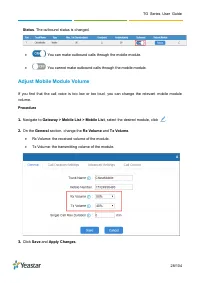
TG Series User Guide 28/104 Status . The outbound status is changed. You can make outbound calls through the mobile module. You cannot make outbound calls through the mobile module. Adjust Mobile Module Volume If you find that the call voice is too low or too loud, you can change the relevant mo...
Page 29 - Configure the Call Duration of Mobile Trunks; Set a Single Call Duration of Mobile Trunk
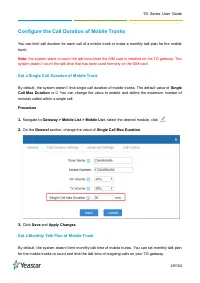
TG Series User Guide 29/104 Configure the Call Duration of Mobile Trunks You can limit call duration for each call of a mobile trunk or make a monthly talk plan for the mobile trunk. Note: the system starts to count the talk time when the SIM card is installed on the TG gateway. The system doesn’t c...
Page 31 - Set Talk Time Alarm of Mobile Trunks; Port; Prompt
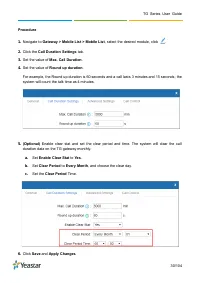
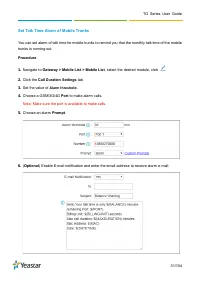
TG Series User Guide 31/104 Set Talk Time Alarm of Mobile Trunks You can set alarm of talk time for mobile trunks to remind you that the monthly talk time of the mobile trunks is running out. Procedure 1. Navigate to Gateway > Mobile List > Mobile List , select the desired module, click . 2. C...
Page 33 - Unlock the SIM Card; Configure SIM Card Forwarding and CLIR
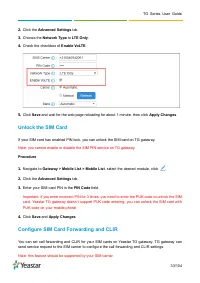
TG Series User Guide 33/104 2. Click the Advanced Settings tab. 3. Choose the Network Type to LTE Only . 4. Check the checkbox of Enable VoLTE . 5. Click Save and wait for the web page reloading for about 1 minute, then click Apply Changes . Unlock the SIM Card If your SIM card has enabled PIN lock,...
Page 34 - Group Mobile Trunks
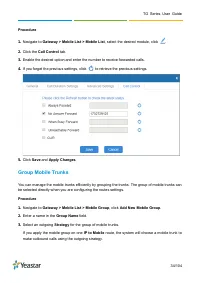
TG Series User Guide 34/104 Procedure 1. Navigate to Gateway > Mobile List > Mobile List , select the desired module, click . 2. Click the Call Control tab. 3. Enable the desired option and enter the number to receive forwarded calls. 4. If you forget the previous settings, click to retrieve t...
Page 35 - Selected; Save; Apply
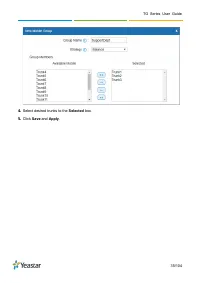
TG Series User Guide 35/104 4. Select desired trunks to the Selected box. 5. Click Save and Apply .
Page 36 - Connect TG Gateway to Your PBX (Account Mode)
TG Series User Guide 36/104 Connect TG Gateway to Your PBX (Account Mode) If you choose account mode, you need to create one VoIP account on TG gateway, and configure the following settings Connect TG Gateway to Your PBX (Account Mode) On your PBX, set up an outbound route for the VoIP trunk O...
Page 37 - Set up a Mobile to IP Route (Account Mode)
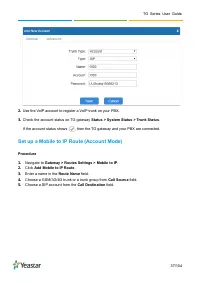
TG Series User Guide 37/104 2. Use the VoIP account to register a VoIP trunk on your PBX. 3. Check the account status on TG gateway Status > System Status > Trunk Status . If the account status shows , then the TG gateway and your PBX are connected. Set up a Mobile to IP Route (Account Mode) P...
Page 38 - Set up an IP to Mobile Route (Account Mode)
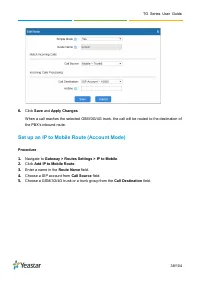
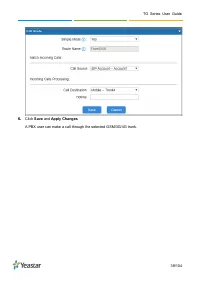
TG Series User Guide 38/104 6. Click Save and Apply Changes When a call reaches the selected GSM/3G/4G trunk, the call will be routed to the destination of the PBX’s inbound route. Set up an IP to Mobile Route (Account Mode) Procedure 1. Navigate to Gateway > Routes Settings > IP to Mobile . 2...
Page 39 - Apply Changes
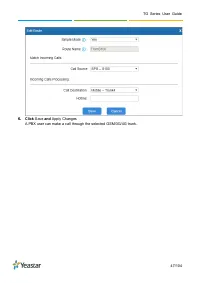
TG Series User Guide 39/104 6. Click Save and Apply Changes A PBX user can make a call through the selected GSM/3G/4G trunk.
Page 40 - Connect TG Gateway to Your PBX (Register Trunk); Connect TG Gateway to Your PBX (Register Trunk Mode)
TG Series User Guide 40/104 Connect TG Gateway to Your PBX (Register Trunk) If you choose register trunk mode, you need to create one VoIP account on your PBX, and use the account to register a VoIP trunk on Yeastar TG gateway. Connect TG Gateway to Your PBX (Register Trunk Mode) Set up a Mobile...
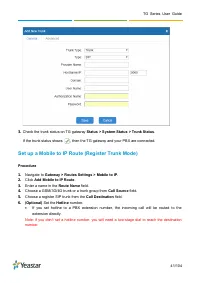
Page 41 - Set up a Mobile to IP Route (Register Trunk Mode)
TG Series User Guide 41/104 3. Check the trunk status on TG gateway Status > System Status > Trunk Status . If the trunk status shows , then the TG gateway and your PBX are connected. Set up a Mobile to IP Route (Register Trunk Mode) Procedure 1. Navigate to Gateway > Routes Settings > M...
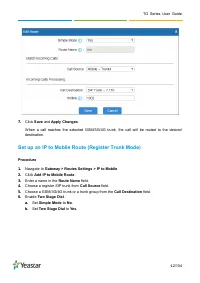
Page 42 - Set up an IP to Mobile Route (Register Trunk Mode)
TG Series User Guide 42/104 7. Click Save and Apply Changes When a call reaches the selected GSM/3G/4G trunk, the call will be routed to the desired destination. Set up an IP to Mobile Route (Register Trunk Mode) Procedure 1. Navigate to Gateway > Routes Settings > IP to Mobile . 2. Click Add ...
Page 44 - Connect TG Gateway to Your PBX (Peer Trunk); Connect TG Gateway to Your PBX (Peer Trunk Mode)
TG Series User Guide 44/104 Connect TG Gateway to Your PBX (Peer Trunk) If you choose peer trunk mode, you need to create one peer trunk on TG gateway and configure the following settings: On your PBX, create a peer trunk which connects to TG gateway On your PBX, set up an outbound route for the...
Page 45 - Set up a Mobile to IP Route (Peer Trunk Mode)
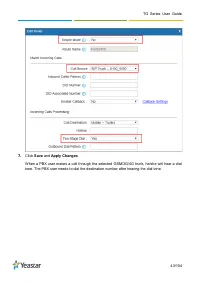
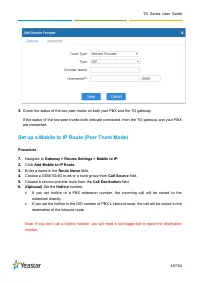
TG Series User Guide 45/104 3. Check the status of the two peer trunks on both your PBX and the TG gateway. If the status of the two peer trunks both indicate connected, then the TG gateway and your PBX are connected. Set up a Mobile to IP Route (Peer Trunk Mode) Procedure 7. Navigate to Gateway >...
Page 46 - Set up an IP to Mobile Route (Peer Trunk Mode)
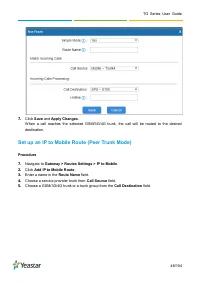
TG Series User Guide 46/104 7. Click Save and Apply Changes . When a call reaches the selected GSM/3G/4G trunk, the call will be routed to the desired destination. Set up an IP to Mobile Route (Peer Trunk Mode) Procedure 7. Navigate to Gateway > Routes Settings > IP to Mobile . 2. Click Add IP...
Page 48 - Call Control; Route Calls Based on Caller ID
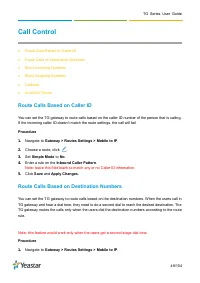
TG Series User Guide 48/104 Call Control Route Calls Based on Caller ID Route Calls on Destination Numbers Block Incoming Numbers Block Outgoing Numbers Callback AutoCLIP Route Route Calls Based on Caller ID You can set the TG gateway to route calls based on the caller ID number of the p...
Page 49 - Block Incoming Numbers
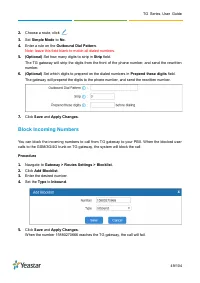
TG Series User Guide 49/104 2. Choose a route, click . 3. Set Simple Mode to No . 4. Enter a rule on the Outbound Dial Pattern . Note: leave this field blank to match all dialed numbers. 5. (Optional) Set how many digits to strip in Strip field. The TG gateway will strip the digits from the front of...
Page 50 - Set up Callback for Specific Numbers
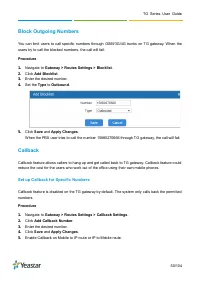
TG Series User Guide 50/104 Block Outgoing Numbers You can limit users to call specific numbers through GSM/3G/4G trunks on TG gateway. When the users try to call the blocked numbers, the call will fail. Procedure 1. Navigate to Gateway > Routes Settings > Blocklist . 2. Click Add Blocklist . ...
Page 51 - Set up Callback for All Numbers
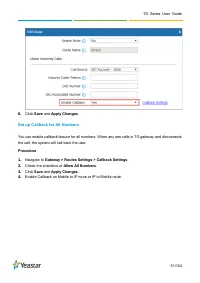
TG Series User Guide 51/104 6. Click Save and Apply Changes . Set up Callback for All Numbers You can enable callback feature for all numbers. When any one calls in TG gateway and disconnects the call, the system will call back the user. Procedure 1. Navigate to Gateway > Routes Settings > Cal...
Page 52 - Add Callback Rules
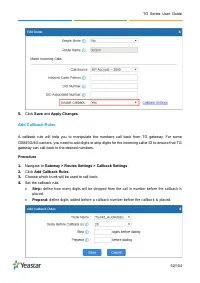
TG Series User Guide 52/104 5. Click Save and Apply Changes . Add Callback Rules A callback rule will help you to manipulate the numbers call back from TG gateway. For some GSM/3G/4G carriers, you need to add digits or strip digits for the incoming caller ID to ensure that TG gateway can call back t...
Page 53 - AutoCLIP Route; Set up AutoCLIP Route; Manage Messages
TG Series User Guide 53/104 5. Click Save and Apply Changes . AutoCLIP Route Yeastar TG gateway can automatically stores records of failed outgoing call to AutoCLIP route table. When the called person calls back, TG gateway will route the call directly to the original caller's extension. Set up Auto...
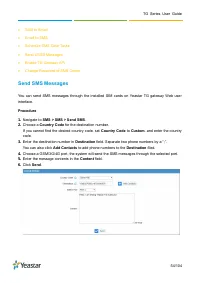
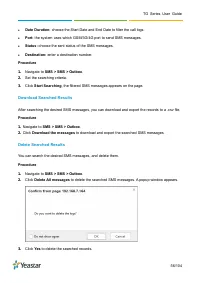
Page 55 - Manage SMS Contacts; Add an SMS Contact; Manage Sent SMS Messages; Check the Status of Sent SMS Messages
TG Series User Guide 55/104 Manage SMS Contacts Add an SMS Contact A contact list allows you to target and text contacts with common interests. Once you have all your contacts created on TG gateway, you can send SMS messages to a single contact or a group or all contacts by directly selecting rather...
Page 57 - Manage Received SMS Messages; View Received SMS Messages; Reply SMS Messages
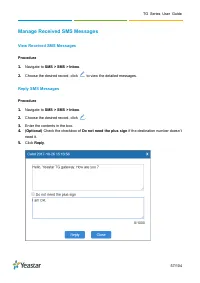
TG Series User Guide 57/104 Manage Received SMS Messages View Received SMS Messages Procedure 1. Navigate to SMS > SMS > Inbox . 2. Choose the desired record, click to view the detailed messages. Reply SMS Messages Procedure 1. Navigate to SMS > SMS > Inbox . 2. Choose the desired record...
Page 59 - SMS to Email; Configure Email POP3 Settings
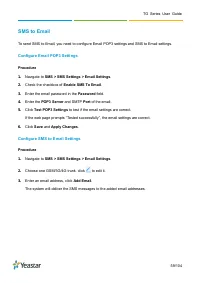
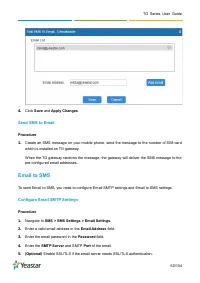
TG Series User Guide 59/104 SMS to Email To send SMS to Email, you need to configure Email POP3 settings and SMS to Email settings. Configure Email POP3 Settings Procedure 1. Navigate to SMS > SMS Settings > Email Settings . 2. Check the checkbox of Enable SMS To Email . 3. Enter the email pas...
Page 60 - Send SMS to Email; Email to SMS; Configure Email SMTP Settings
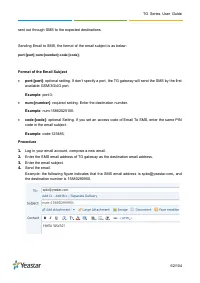
TG Series User Guide 60/104 4. Click Save and Apply Changes . Send SMS to Email Procedure 1. Create an SMS message on your mobile phone, send the message to the number of SIM card which is installed on TG gateway. When the TG gateway receives the message, the gateway will deliver the SMS message to ...
Page 63 - Send a USSD Message
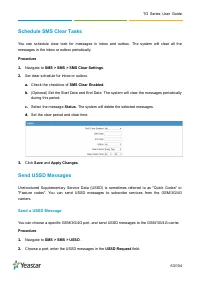
TG Series User Guide 63/104 Schedule SMS Clear Tasks You can schedule clear task for messages in inbox and outbox. The system will clear all the messages in the inbox or outbox periodically. Procedure 1. Navigate to SMS > SMS > SMS Clear Settings . 2. Set clear schedule for inbox or outbox. a....
Page 64 - Send; Send USSD Messages in Bulk; Exit USSD Sessions
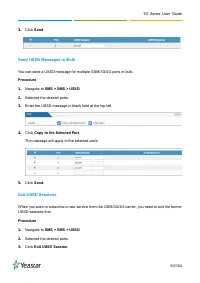
TG Series User Guide 64/104 3. Click Send . Send USSD Messages in Bulk You can send a USSD message for multiple GSM/3G/4G ports in bulk. Procedure 1. Navigate to SMS > SMS > USSD . 2. Selected the desired ports. 3. Enter the USSD message in blank field at the top left. 4. Click Copy to the Sel...
Page 65 - Enable TG Gateway API; Change Password of SMS Center
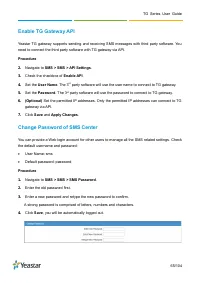
TG Series User Guide 65/104 Enable TG Gateway API Yeastar TG gateway supports sending and receiving SMS messages with third party software. You need to connect the third party software with TG gateway via API. Procedure 2. Navigate to SMS > SMS > API Settings . 3. Check the checkbox of Enable ...
Page 66 - Configure System Settings; Change Web Login Password; Change Date and Time
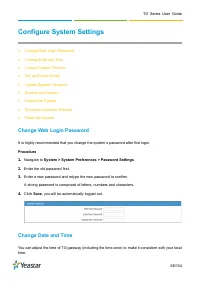
TG Series User Guide 66/104 Configure System Settings Change Web Login Password Change Date and Time Upload Custom Prompts Set up System Email Update System Firmware Backup and Restore Reboot the System Schedule Automatic Reboots Reset the System Change Web Login Password It is hig...
Page 67 - Upload Custom Prompts
TG Series User Guide 67/104 Procedure 1. Navigate to System > System Preferences > Date and Time . 2. Select your current and correct Time Zone . 3. (Optional) Enable the Daylight Saving Time if you need it in your place. 4. Check Synchronize with NTP Server, the system will adjust its interna...
Page 68 - Set up System Email
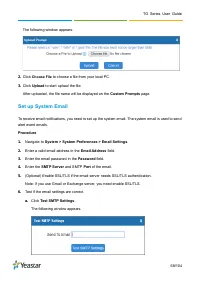
TG Series User Guide 68/104 The following window appears. 2. Click Choose File to choose a file from your local PC. 3. Click Upload to start upload the file. After uploaded, the file name will be displayed on the Custom Prompts page. Set up System Email To receive email notifications, you need to se...
Page 69 - Update System Firmware; Update Firmware through HTTP Server; BIN
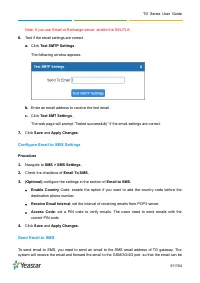
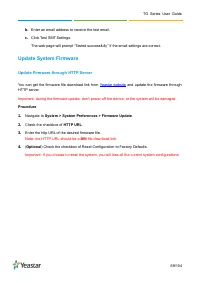
TG Series User Guide 69/104 b. Enter an email address to receive the test email. c. Click Test SMT Settings. The web page will prompt “Tested successfully” if the email settings are correct. Update System Firmware Update Firmware through HTTP Server You can get the firmware file download link from Y...
Page 70 - Start; Upgrade Firmware through TFTP Server
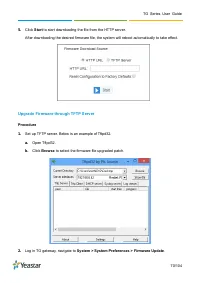
TG Series User Guide 70/104 5. Click Start to start downloading the file from the HTTP server. After downloading the desired firmware file, the system will reboot automatically to take effect. Upgrade Firmware through TFTP Server Procedure 1. Set up TFTP server. Below is an example of Tftpd32. a. Op...
Page 71 - TFTP Server; File Name
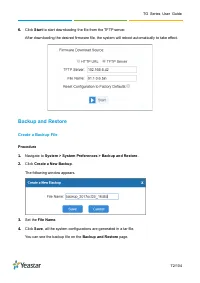
TG Series User Guide 71/104 3. Check the checkbox of TFTP Server . 4. Enter the IP address of the TFTP server in TFTP Server field. 5. Enter the name of firmware in File Name field. Note: The file name should be a BIN file name.
Page 72 - Backup and Restore; Create a Backup File
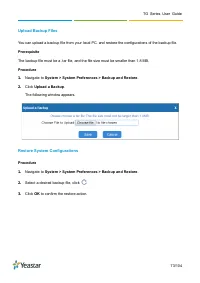
TG Series User Guide 72/104 6. Click Start to start downloading the file from the TFTP server. After downloading the desired firmware file, the system will reboot automatically to take effect. Backup and Restore Create a Backup File Procedure 1. Navigate to System > System Preferences > Backup...
Page 74 - Reboot Now; Reboot the System
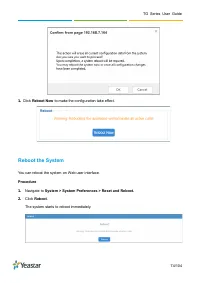
TG Series User Guide 74/104 1. Click Reboot Now to make the configuration take effect. Reboot the System You can reboot the system on Web user interface. Procedure 1. Navigate to System > System Preferences > Reset and Reboot. 2. Click Reboot . The system starts to reboot immediately.
Page 75 - Schedule Automatic Reboots
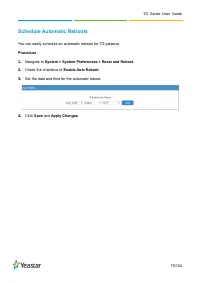
TG Series User Guide 75/104 Schedule Automatic Reboots You can easily schedule an automatic reboots for TG gateway. Procedure 1. Navigate to System > System Preferences > Reset and Reboot. 2. Check the checkbox of Enable Auto Reboot . 3. Set the date and time for the automatic reboot. 4. Click...
Page 76 - Reset the System; Reset to Factory Defaults
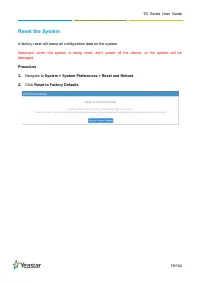
TG Series User Guide 76/104 Reset the System A factory reset will erase all configuration data on the system. Important: when the system is being reset, don’t power off the device, or the system will be damaged. Procedure 1. Navigate to System > System Preferences > Reset and Reboot. 2. Click ...
Page 77 - Configure System Network; Change the IP Address of TG Gateway; Static IP Address
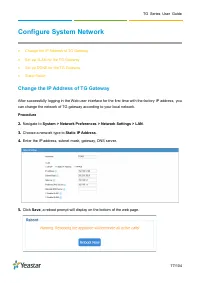
TG Series User Guide 77/104 Configure System Network Change the IP Address of TG Gateway Set up VLAN for the TG Gateway Set up DDNS for the TG Gateway Static Route Change the IP Address of TG Gateway After successfully logging in the Web user interface for the first time with the factory IP ...
Page 78 - Set up VLAN for the TG Gateway; Set up OpenVPN Network
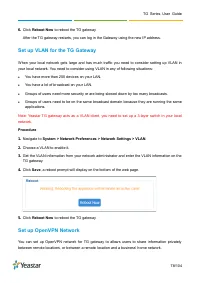
TG Series User Guide 78/104 6. Click Reboot Now to reboot the TG gateway. After the TG gateway restarts, you can log in the Gateway using the new IP address. Set up VLAN for the TG Gateway When your local network gets large and has much traffic you need to consider setting up VLAN in your local netw...
Page 79 - Set up DDNS for the TG Gateway
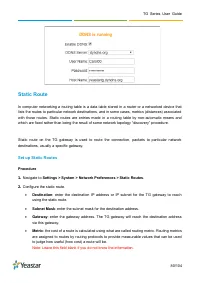
TG Series User Guide 79/104 Procedure 1. Navigate to System > Network Preferences > OpenVPN , check the checkbox of Enable VPN . 2. Click Choose file , choose the OpenVPN configuration file from your local PC. Note: the configuration file should be a compressed tar file. 3. Click Import . 4. C...
Page 80 - Static Route; Set up Static Routes; Destination; Subnet Mask; Gateway
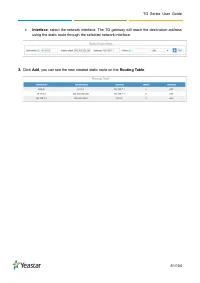
TG Series User Guide 80/104 Static Route In computer networking a routing table is a data table stored in a router or a networked device that lists the routes to particular network destinations, and in some cases, metrics (distances) associated with those routes. Static routes are entries made in a ...
Page 81 - Interface; Add; Routing Table
TG Series User Guide 81/104 Interface : select the network interface. The TG gateway will reach the destination address using the static route through the selected network interface. 3. Click Add , you can see the new created static route on the Routing Table .
Page 82 - Configure VoIP Settings; Group VoIP Trunks
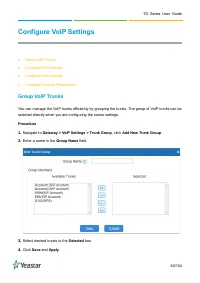
TG Series User Guide 82/104 Configure VoIP Settings Group VoIP Trunks Configure SIP Settings Configure IAX Settings Configure General Preferences Group VoIP Trunks You can manage the VoIP trunks efficiently by grouping the trunks. The group of VoIP trunks can be selected directly when you ar...
Page 83 - Configure SIP Settings; Configure SIP General Settings; Option
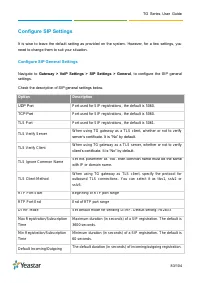
TG Series User Guide 83/104 Configure SIP Settings It is wise to leave the default setting as provided on the system. However, for a few settings, you need to change them to suit your situation. Configure SIP General Settings Navigate to Gateway > VoIP Settings > SIP Settings > General , to...
Page 84 - Configure NAT Settings
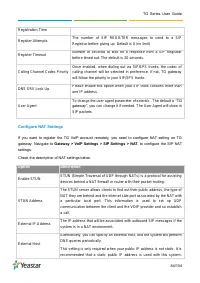
TG Series User Guide 84/104 Registration Time Register Attempts The number of SIP REGISTER messages to send to a SIP Registrar before giving up. Default is 0 (no limit) Register Timeout Number of sec onds to wait for a response from a SIP Registrar before timed out. The default is 20 seconds. Callin...
Page 85 - Configure SIP Codec Settings
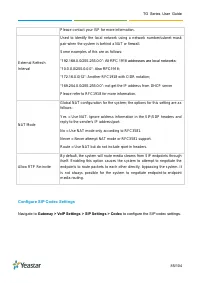
TG Series User Guide 85/104 Please contact your ISP for more information. External Refresh Interval Used to identify the loc al network using a network number/subnet mask pair when the system is behind a NAT or firewall. Some examples of this are as follows: “192.168.0.0/255.255.0.0”: All RFC 1918 a...
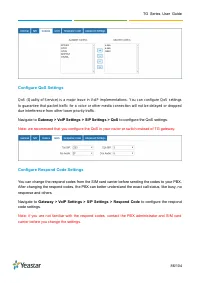
Page 86 - Gateway > VoIP Settings > SIP Settings > Respond Code
TG Series User Guide 86/104 Configure QoS Settings QoS (Quality of Service) is a major issue in VoIP implementations. You can configure QoS settings to guarantee that packet traffic for a voice or other media connection will not be delayed or dropped due interference from other lower priority traffi...
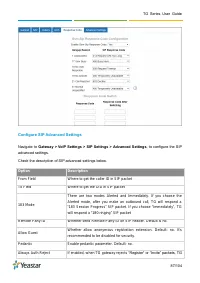
Page 87 - Configure SIP Advanced Settings; Gateway > VoIP Settings > SIP Settings > Advanced Settings
TG Series User Guide 87/104 Configure SIP Advanced Settings Navigate to Gateway > VoIP Settings > SIP Settings > Advanced Settings , to configure the SIP advanced settings. Check the description of SIP advanced settings below. Option Description From Field W here to get the caller ID in SIP...
Page 88 - Configure IAX Settings; Configure General Preferences; Gateway > VoIP Settings > General Preferences
TG Series User Guide 88/104 gatew ay always respond the packets using “SIP 404 NOT FOUND”. It ’s recommended to be enabled for security. OPTIONS Response 200 If you choose “No”, when TG receive a n OPTION SIP packet, TG will respond a “404 NOT FOUND” SIP packets. If you choose, TG will respond a “20...
Page 90 - Secure Your Gateway; Security Center; Configure Alert Settings; Configure IP Attack Alert Settings
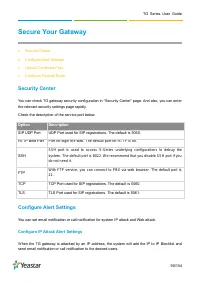
TG Series User Guide 90/104 Secure Your Gateway Security Center Configure Alert Settings Upload Certificate Files Configure Firewall Rules Security Center You can check TG gateway security configuration in “Security Center” page. And also, you can enter the relevant security settings page ra...
Page 91 - Configure User Lockout Alert Settings
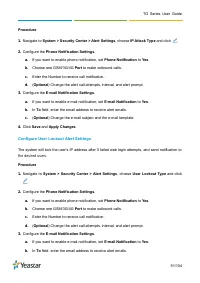
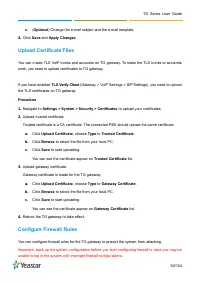
TG Series User Guide 91/104 Procedure 1. Navigate to System > Security Center > Alert Settings , choose IP Attack Type and click . 2. Configure the Phone Notification Settings . a. If you want to enable phone notification, set Phone Notification to Yes . b. Choose one GSM/3G/4G Port to make ou...
Page 93 - Add a Firewall Rule
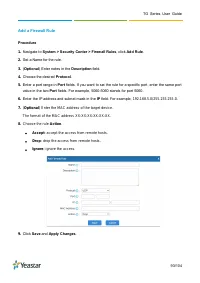
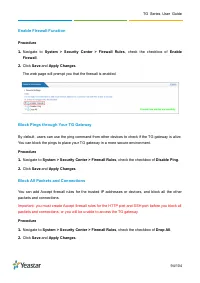
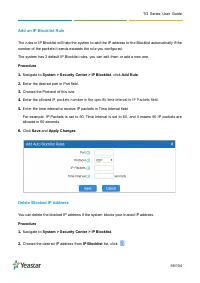
TG Series User Guide 93/104 Add a Firewall Rule Procedure 1. Navigate to System > Security Center > Firewall Rules , click Add Rule . 2. Set a Name for the rule. 3. ( Optional ) Enter notes in the Description field. 4. Choose the desired Protocol . 5. Enter a port range in Port fields. If you ...
Page 96 - System Status; Check Trunk Status; Status > System Status > Trunk Status; Mobile Trunk Status; Status
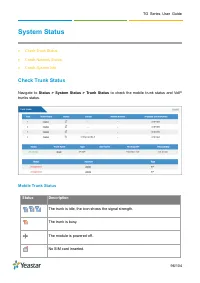
TG Series User Guide 96/104 System Status Check Trunk Status Check Network Status Check System Info Check Trunk Status Navigate to Status > System Status > Trunk Status to check the mobile trunk status and VoIP trunks status. Mobile Trunk Status Status Description The trunk is idle, the ...
Page 97 - Check Network Status; Status > System Status > Network Status
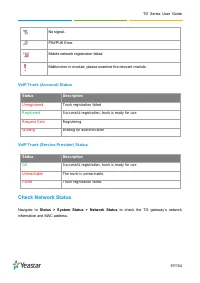
TG Series User Guide 97/104 No signal. PIN/PUK Error. Mobile network registration failed. Malfunction in module; please examine the relevant module. VoIP Trunk (Account) Status Status Description Unregistered Trunk registration failed Registered Successful registration, trunk is ready for use Reques...
Page 98 - Check System Info
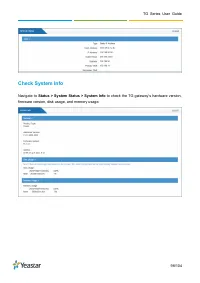
TG Series User Guide 98/104 Check System Info Navigate to Status > System Status > System Info to check the TG gateway’s hardware version, firmware version, disk usage, and memory usage.
Page 99 - Reports; Call Logs; Call Logs; View Call Logs; View
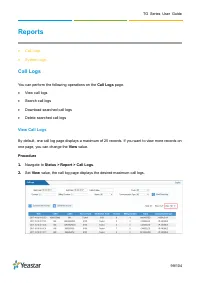
TG Series User Guide 99/104 Reports Call Logs System Logs Call Logs You can perform the following operations on the Call Logs page. View call logs Search call logs Download searched call logs Delete searched call logs View Call Logs By default, one call log page displays a maximum of 25 ...
Page 101 - System Logs; Trace Hardware Logs
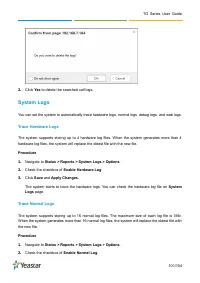
TG Series User Guide 101/104 2. Click Yes to delete the searched call logs. System Logs You can set the system to automatically trace hardware logs, normal logs, debug logs, and web logs. Trace Hardware Logs The system supports storing up to 4 hardware log files. When the system generates more than ...