TP-Link TL-SG1024DE - Manual
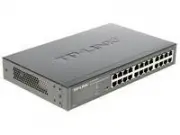
TP-Link TL-SG1024DE Switch – Manual, read for free online in PDF format. We hope this helps you resolve any issues you may have. If you have further questions, please contact us through the contact form.


Table of Contents:
- Page 2 – COPYRIGHT & TRADEMARKS; FCC STATEMENT; CE Mark Warning
- Page 3 – Safety Information
- Page 4 – CONTENTS
- Page 6 – Package Contents
- Page 7 – Chapter 1 About this Guide; Intended Readers
- Page 9 – Chapter 2 Introduction; Overview of the Switch; Resiliency and Availability; Manageability; Appearance Description
- Page 11 – Chapter 3 Login to the Switch; admin; Login; Enter
- Page 12 – Apply; Save Config
- Page 13 – Chapter 4 System
- Page 14 – IP Address Setting; System
- Page 16 – Port Setting
- Page 21 – Port Mirror; Mirrored Port
- Page 27 – Chapter 5 VLAN
- Page 28 – MTU VLAN
- Page 29 – Port Based VLAN; VLAN
- Page 31 – VLAN ID; VLAN Name; Port; Untagged
- Page 34 – Chapter 6 QoS; QoS; QoS Mode
- Page 37 – Port-based Priority Setting; Bandwidth Control
- Page 39 – Storm Control Setting
- Page 41 – Appendix A: Specifications
- Page 42 – Appendix B: Configuring the PCs; Start; Control Panel; Network and Internet Connections; Network
TL-SG1016DE/TL-SG1024DE
16/24-port Gigabit Easy Smart Switch
REV1.0.2
1910010980
"Loading the manual" means you need to wait until the file loads and becomes available for online reading. Some manuals are very large, and the time they take to appear depends on your internet speed.
Was this manual helpful?
About this manual
- Brand
- TP-Link
- Model
- TL-SG1024DE
- Document type
- Manual
- Category
- Switch
- Language(s)
- English
- Pages
- 43
- File size
- 920 KB
- Format
Other Manuals for TP-Link TL-SG1024DE
Summary
COPYRIGHT & TRADEMARKS Specifications are subject to change without notice. is a registered trademark of TP-LINK TECHNOLOGIES CO., LTD. Other brands and product names are trademarks or registered trademarks of their respective holders. No part of the specifications may be reproduced in any form ...
IV Safety Information When product has power button, the power button is one of the way to shut off the product; When there is no power button, the only way to completely shut off power is to disconnect the product or the power adapter from the power source. Don’t disassemble the product, or mak...
CONTENTS Package Contents .......................................................................................................................... 1 Chapter 1 About this Guide........................................................................................................... 2 1.1 Intended ...
Ask a question
Related manuals
Popular TP-Link Switches


More TP-Link Switches models
 TP-Link TL-SG1016D Manual
 TP-Link TL-SG1016DE Manual
 TP-Link TL-SG1016PE User Manual
 TP-Link TL-SG1024 Manual
 TP-Link TL-SG1024D Manual
 TP-Link TL-SG1210MP User Manual
 TP-Link TL-SG1210P User Manual
 TP-Link TL-SG1428PE User Manual
 TP-Link TL-SG2016P User Manual
 TP-Link TL-SG2210MP User Manual
 TP-Link TL-SG2218 User Manual
 TP-Link TL-SG2428P User Manual
 TP-Link TL-SG3210 Manual
 TP-Link TL-SG3210XHP-M2 User Manual
 TP-Link TL-SG3428MP User Manual
 TP-Link TL-SG3428X User Manual
 TP-Link TL-SG3452 User Manual