Page 2 - Table of Contents; Chapter 1: Introduction; Buttons on the TV
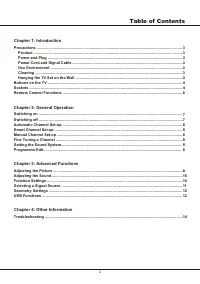
Table of Contents 2 Chapter 1: Introduction Chapter 2: General Operation Chapter 3: Advanced Functions Chapter 4: Other Information 14 3333333446 77888888 91010111212 Precautions ............................................................................................................................
Page 3 - Precautions; Do not attempt to open the cabinet; Warning: This operation requires two people.
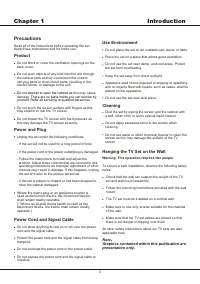
Introduction 3 Chapter 1 Precautions Product Read all of the instructions before operating the set. Keep these instructions well for future use. Do not block or cover the ventilation openings on the back cover. Do not push objects of any kind into this unit through the cabinet slots as they could to...
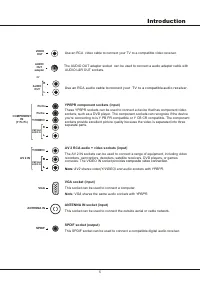
Page 4 - Introduction; Sockets; all sockets available on all models.; Note; rovides an uncompressed digital; AUDIO; composite video connection.; USB; The number of USB sockets on the TV may vary according to TV model.
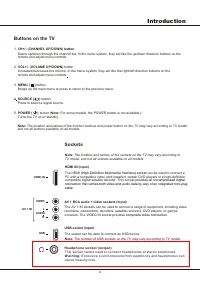
4 Introduction Sockets Note: The location and names of the sockets on the TV may vary according to TV model, and not all sockets available on all models. 1. CH+/- ( CHANNEL UP / DOWN) button Scans up/down through the channel list. In the menu system, they act like the up/down direction buttons on th...
Page 5 - This socket can be used to connect a computer.; VGA; SPDIF; or
Introduction 5 VGA socket (input) This socket can be used to connect a computer. Note: VGA shares the same audio sockets with YPBPR. VGA ANTENNA IN ANTENNA IN socket (input) This socket can be used to connect the outside aerial or cable network. VIDEO OUT AUDIO OUT adapter Use an RCA video cable to ...
Page 6 - Remote Control Functions; Exits the menu system or teletext mode.; For some models, there is no teletext function
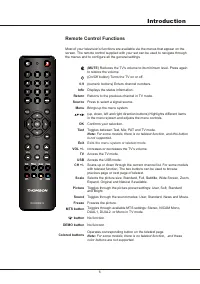
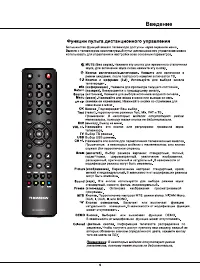
6 Introduction Remote Control Functions Most of your television's functions are available via the menus that appear on the screen. The remote control supplied with your set can be used to navigate through the menus and to configure all the general settings. Source Press to select a signal source. (O...
Page 7 - Switching on; ANTENNA IN; the back of the television might differ depending on the model.; Switching off
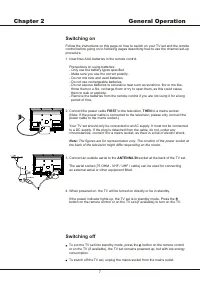
7 Chapter 2 General Operation Switching on Follow the instructions on this page on how to switch on your TV set and the remote control before going on to following pages describing how to use the channel set-up procedure. 1. Insert two AAA batteries in the remote control. Precautions on using batter...
Page 8 - General Operation; Automatic Channel Set-up; Depending on the number of channels you; Manual Channel Set-up; Programme Edit
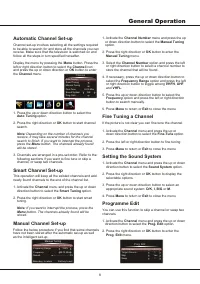
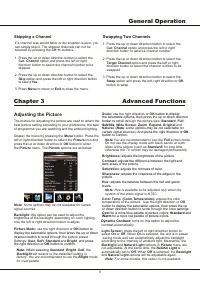
8 General Operation Automatic Channel Set-up Channel set-up involves selecting all the settings required to be able to search for and store all the channels you can receive. Make sure that the television is switched on and follow all the steps in turn specified hereafter. Display the menu by pressin...
Page 9 - Swapping Two Channels; Advanced Functions; Adjusting the Picture; When selecting
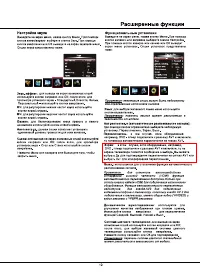
Note: You are recommended to use the Full screen mode. Do not use the display mode with black bands on both sides of the picture (such as Standard ) for long time, otherwise the TV screen may be damaged permanently. 100 Standard Full 50505050 0 Backlight Picture ModeScaleBrightnessContrastSaturation...
Page 10 - Some options may be not available for certain; Adjusting the Sound; Menu; For HDMI source, the smart switch function is
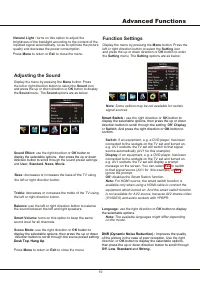
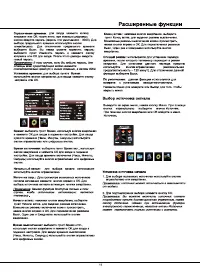
Advanced Functions 1 0 Note: Some options may be not available for certain signal sources. Setting LanguageDNR Color SystemWatch Time LimitTime SettingSleep Time Default English Standard Auto Off DNR (Dynamic Noise Reduction) : Improves the quality of the picture in the case of poor reception. U but...
Page 11 - Selecting a Signal Source; The available source might differ depending
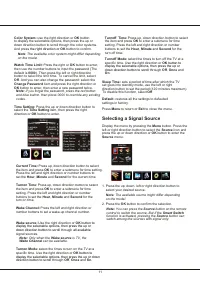
11 Time Setting: Press the up or down direction button to select the Time Setting item, then press the right direction or OK button to enter. Current Time: Press up, down direction button to select the item and press OK to enter a submenu for time setting. Press the left and right direction or numbe...
Page 12 - USB Functions
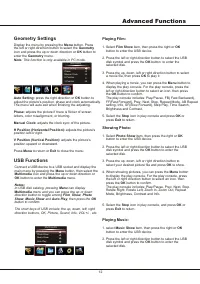
Advanced Functions Connect a USB device to a USB socket and display the main menu by pressing the Menu button, then select the Multimedia icon and press the up or down direction or OK button to enter the Multimedia menu. Notes: In USB disk catalog, pressing Menu can display Multimedia menu and you c...
Page 13 - The parameters of; Attention and Frequently Asked Questions; This system supports the following file formats:; Auto Play; This function is only available when the pictures; Frequently Asked Questions:; -The format of file is not matched or the file is harmed.
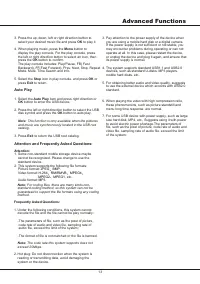
1 3 Advanced Functions 3. Pay attention to the power supply of the device when you are using a mobile hard disk or a digital camera. If the power supply is not sufficient or not stable, you may encounter problems during operating or can not operate at all. In this case, please restart the device, or...
Page 14 - Troubleshooting; button to increase volume.
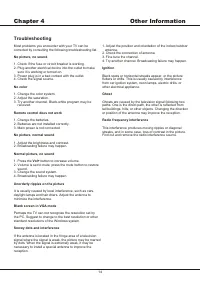
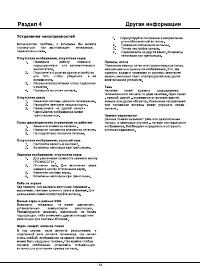
1 4 Chapter 4 Other Information Troubleshooting Most problems you encounter with your TV can be corrected by consulting the following troubleshooting list. No picture, no sound 1. Check if the fuse or circuit breaker is working.2. Plug another electrical device into the outlet to make sure it is wor...
Page 15 - Содержание; Раздел; Настройка изображения
Содержание 2 Раздел 1: Введение Раздел 2 Основные операции : Раздел 3 Расширенные функции : Раздел 4 Другая информация : 14 3 333333 4 4 6 77888888 9 10 10 11 12 12 Меры предосторожности ................................................................................................................ ...
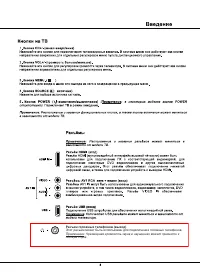
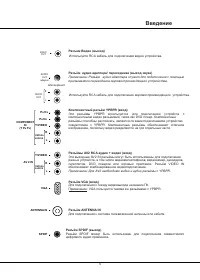
Page 18 - Введение; Компонентный разъём; AV; Разъём; прилагаемого переходника звуковоспроизводящего устройства.
Введение 5 VGA ANTENNA IN Y/VIDEO P B /C B P R /C R COMPONENT IN (Y P B P R ) R L CMP/VGAAUDIO IN AV 2 IN Y/VIDEO R L CMP/VGAAUDIO IN Разъём аудио адаптера/ переходника (выход звука) Примечание: Разъём аудио адаптера служит для подключения с помощью Компонентный разъём YPBPR (вход) Эти разъёмы YPBPR...
Page 20 - Включение; Рисунки приведены только в качестве примера.; Выключение
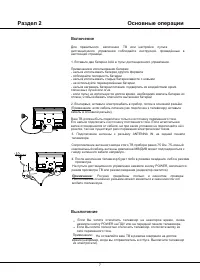
Раздел 2 Основные операции Включение Для правильного включения ТВ или настройки пульта дистанционного управления соблюдайте инструкции, приведённые в настоящей странице. 1. Вставьте две батареи ААА в пульт дистанционного управления. Примечания в использовании батареи: - нельзя использовать батареи д...
Page 21 - Основные операции; VHFL
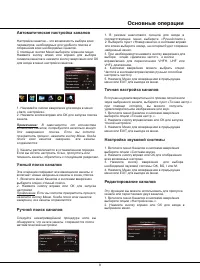
Основные операции Автоматическая настройка каналов Настройка каналов – это возможность выбора всех параметров, необходимых для удобного поиска и сохранения всех необходимых каналов. С помощью кнопки Меню выберите экранное меню. Нажмите кнопку влево или вправо для выбора символа каналов и нажмите кно...
Page 22 - Пропуск канала; Расширенные функции; EXIT
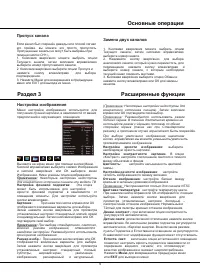
9 Основные операции Пропуск канала Если канал был сохранён дважды или плохой сигнал его приёма. вы можете его просто пропустить. Пропущенные каналы не могут быть выбраны при помощи кнопок СН+/-. 1. Кнопками вверх/вниз можете выбрать опцию Текущего канала, затем кнопками вправо/влево выберите номер п...
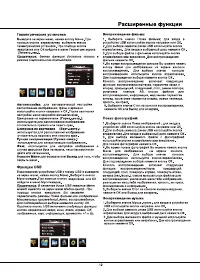
Page 26 - Автоматическое воспроизведение:; Часто задаваемые вопросы:; JPEG; Наиболее часто задаваемые вопросы:
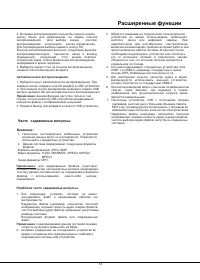
13 Расширенные функции 4. Во время воспроизведения музыки Вы можете нажать кнопку Меню для изображения на экране консоли воспроизведения. Для выбора значка консоли воспроизведения используйте кнопки вправо\влево. Для подтверждения выбора нажмите кнопку ОК. Консоль воспроизведения включает следующие ...
Page 28 - Технические характеристики моделей; КОМПЛЕКТАЦИЯ
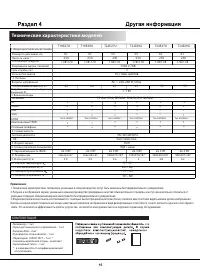
Примечание: 1. Те хнические характеристики телевизора, указанные в этом руководстве, могут быть изменены без предварительного уведомления. 2. Рисунки и изображения экрана, указанные в данном руководстве приведены в качестве объяснительного примера, и могут незначительно отличаться от реальных операц...