Page 3 - Preface; Conventions
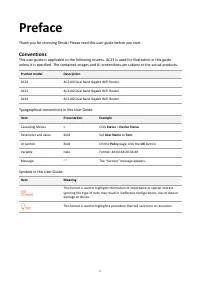
ii Preface Thank you for choosing Tenda! Please read this user guide before you start. Conventions This user guide is applicable to the following routers. AC23 is used for illustration in this guide unless it is specified. The contained images and UI screenshots are subject to the actual products. P...
Page 4 - Technical Support
iii Technical Support If you need more help, contact us by any of the following means. We will be glad to assist you as soon as possible. Hotline Global: (86) 755-27657180 (China Time Zone) Email [email protected] United States: 1-800-570-5892 (Toll Free: 7 x 24 hours) Canada: 1-888-998-8966 (Toll F...
Page 5 - Content
iv Content 1 Get to know your device ........................................................................................................... 1 1.1 Introduction ....................................................................................................................... 1 1.2 LED indica...
Page 10 - Get to know your device; Introduction; LED indicator
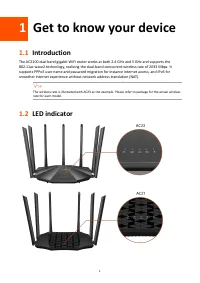
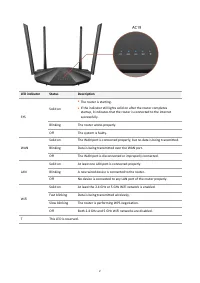
1 1 Get to know your device 1.1 Introduction The AC2100 dual band gigabit WiFi router works at both 2.4 GHz and 5 GHz and supports the 802.11ac wave2 technology, realizing the dual - band concurrent wireless rate of 2033 Mbps. It supports PPPoE user name and password migration for instance internet ...
Page 12 - Ports and buttons
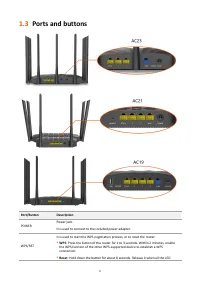
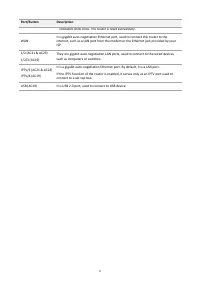
3 1.3 Ports and buttons Port/Button Description POWER Power jack. It is used to connect to the included power adapter. WPS/RST It is used to start the WPS negotiation process, or to reset the router. ⚫ WPS : Press the button of the router for 1 to 3 seconds. Within 2 minutes, enable the WPS function...
Page 14 - Label
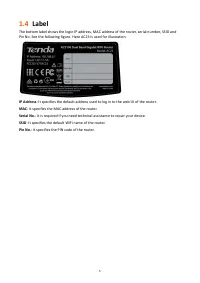
5 1.4 Label The bottom label shows the login IP address, MAC address of the router, serial number, SSID and Pin No. See the following figure. Here AC23 is used for illustration. IP Address : It specifies the default address used to log in to the web UI of the router. MAC : It specifies the MAC addre...
Page 15 - Web UI; Log in to the web UI
6 2 Web UI 2.1 Log in to the web UI Step 1 Connect your smartphone to the WiFi network, or connect your computer to a LAN port (1, 2 and IPTV/3 for AC23 and AC21, and 1, 2, 3 and IPTV/4 for AC19) of the router (AC23 is used for illustration here). Step 2 Start a web browser on the device connected t...
Page 16 - Log out of the web UI
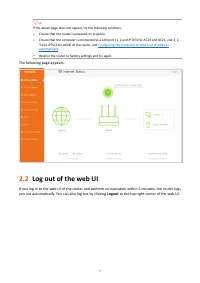
7 If the above page does not appear, try the following solutions: ⚫ Ensure that the router is powered on properly. ⚫ Ensure that the computer is connected to a LAN port (1, 2 and IPTV/3 for AC23 and AC21, and 1, 2, 3 and IPTV/4 for AC19) of the router, and Configuring the computer to obtain an IP ad...
Page 17 - Web UI layout
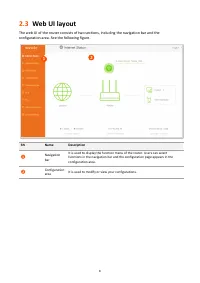
8 2.3 Web UI layout The web UI of the router consists of two sections, including the navigation bar and the configuration area. See the following figure. SN Name Description ❶ Navigation bar It is used to display the function menu of the router. Users can select functions in the navigation bar and t...
Page 18 - Internet status
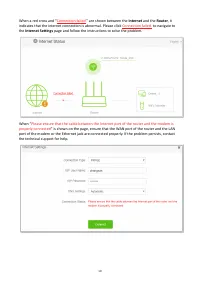
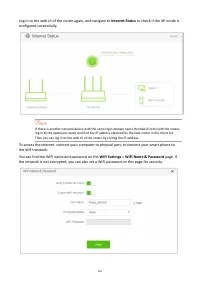
9 3 Internet status Log in to the web UI of the router and choose Internet Status to enter the page. On this page, you can find the following information. − Internet status − Wireless information − System information − Online devices information − USB information 3.1 Internet status To view internet...
Page 22 - Wireless information
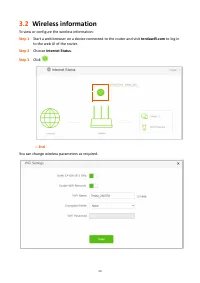
13 3.2 Wireless information To view or configure the wireless information: Step 1 Start a web browser on a device connected to the router and visit tendawifi.com to log in to the web UI of the router. Step 2 Choose Internet Status . Step 3 Click . --- End You can change wireless parameters as requir...
Page 23 - System information; Basic information
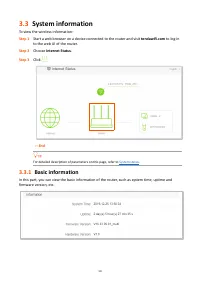
14 3.3 System information To view the wireless information: Step 1 Start a web browser on a device connected to the router and visit tendawifi.com to log in to the web UI of the router. Step 2 Choose Internet Status . Step 3 Click . --- End For detailed description of parameters on this page, refer ...
Page 25 - WiFi status
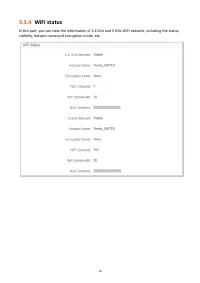
16 3.3.4 WiFi status In this part, you can view the information of 2.4 GHz and 5 GHz WiFi network, including the status, visibility, hotspot name and encryption mode, etc.
Page 26 - IPv6 status
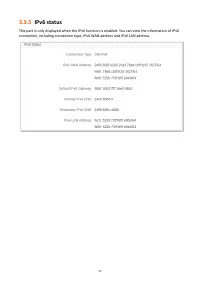
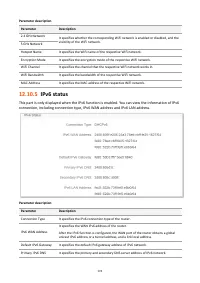
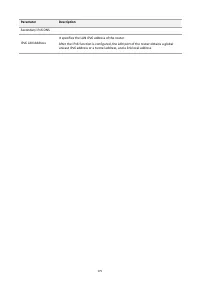
17 3.3.5 IPv6 status This part is only displayed when the IPv6 function is enabled. You can view the information of IPv6 connection, including connection type, IPv6 WAN address and IPv6 LAN address.
Page 27 - Online device information; Add devices to the blacklist
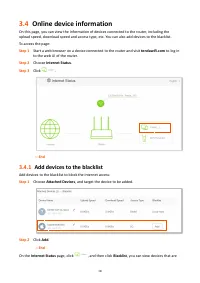
18 3.4 Online device information On this page, you can view the information of devices connected to the router, including the upload speed, download speed and access type, etc. You can also add devices to the blacklist. To access the page: Step 1 Start a web browser on a device connected to the rout...
Page 28 - Remove devices from the blacklist
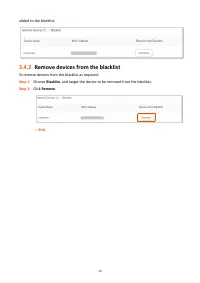
19 added to the blacklist. 3.4.2 Remove devices from the blacklist To remove devices from the blacklist as required: Step 1 Choose Blacklist , and target the device to be removed from the blacklist. Step 2 Click Remove . --- End
Page 29 - USB information
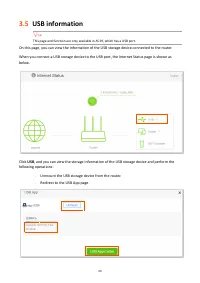
20 3.5 USB information This page and function are only available in AC19, which has a USB port. On this page, you can view the information of the USB storage device connected to the router. When you connect a USB storage device to the USB port, the Internet Status page is shown as below. Click USB ,...
Page 31 - Internet settings; Access the internet with a PPPoE account
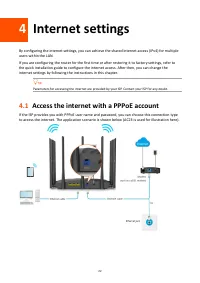
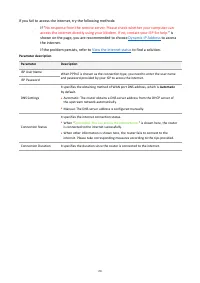
22 4 Internet settings By configuring the internet settings, you can achieve the shared internet access (IPv4) for multiple users within the LAN. If you are configuring the router for the first time or after restoring it to factory settings, refer to the quick installation guide to configure the int...
Page 34 - Access the internet through dynamic IP address
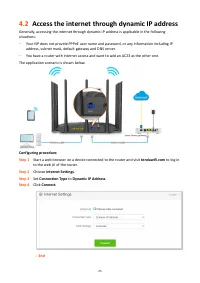
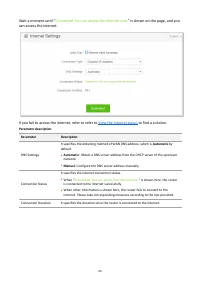
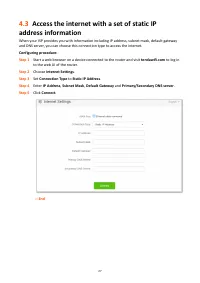
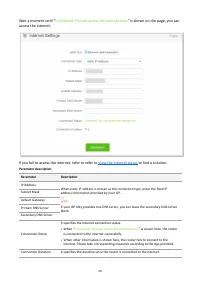
25 4.2 Access the internet through dynamic IP address Generally, accessing the internet through dynamic IP address is applicable in the following situations: − Your ISP does not provide PPPoE user name and password, or any information including IP address, subnet mask, default gateway and DNS server...
Page 38 - WiFi settings; WiFi name & password; Overview
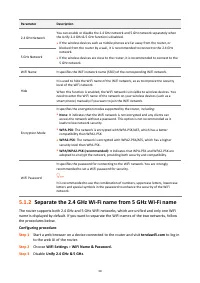
29 5 WiFi settings 5.1 WiFi name & password 5.1.1 Overview To access the configuration page, log in to the web UI of the router, and navigate to WiFi Settings > WiFi Name & Password . On this page, you can configure basic WiFi parameters, such as the WiFi name and password. Parameter desc...
Page 40 - Change the WiFi name and WiFi password
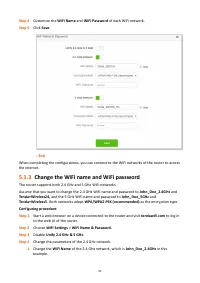
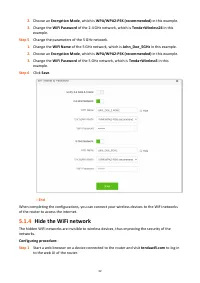
31 Step 4 Customize the WiFi Name and WiFi Password of each WiFi network . Step 5 Click Save . --- End When completing the configurations, you can connect to the WiFi networks of the router to access the internet. 5.1.3 Change the WiFi name and WiFi password The router supports both 2.4 GHz and 5 GH...
Page 41 - Hide the WiFi network
32 2. Choose an Encryption Mode , which is WPA/WPA2-PSK (recommended) in this example. 3. Change the WiFi Password of the 2.4 GHz network, which is Tenda+Wireless24 in this example. Step 5 Change the parameters of the 5 GHz network. 1. Change the WiFi Name of the 5 GHz network, which is John_Doe_5GH...
Page 42 - Connect to a hidden WiFi network
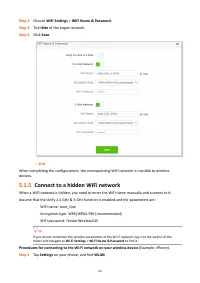
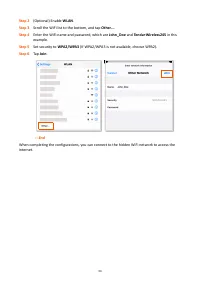
33 Step 2 Choose WiFi Settings > WiFi Name & Password. Step 3 Tick Hide of the target network. Step 4 Click Save . --- End When completing the configurations, the corresponding WiFi network is invisible to wireless devices. 5.1.5 Connect to a hidden WiFi network When a WiFi network is hidden,...
Page 44 - WiFi schedule; An example of configuring WiFi schedule
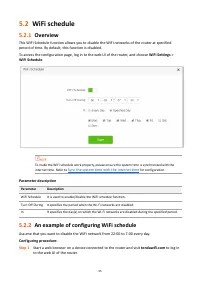
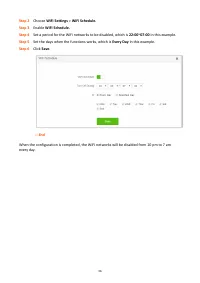
35 5.2 WiFi schedule 5.2.1 Overview This WiFi Schedule function allows you to disable the WiFi networks of the router at specified period of time. By default, this function is disabled. To access the configuration page, log in to the web UI of the router, and choose WiFi Settings > WiFi Schedule ...
Page 46 - Wireless repeating
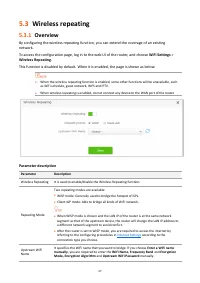
37 5.3 Wireless repeating 5.3.1 Overview By configuring the wireless repeating function, you can extend the coverage of an existing network. To access the configuration page, log in to the web UI of the router, and choose WiFi Settings > Wireless Repeating . This function is disabled by default. ...
Page 47 - Extend the existing WiFi network; Method 1: Set the new router to WISP mode; New router
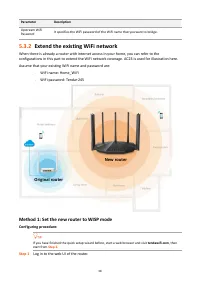
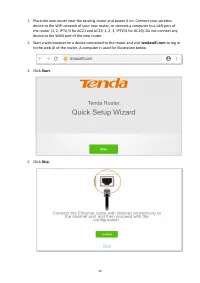
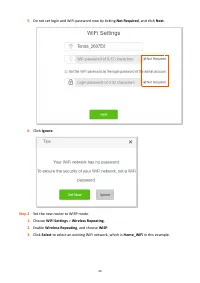
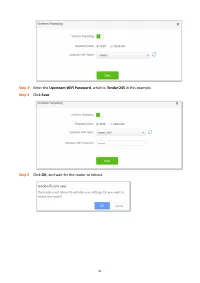
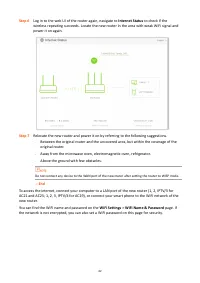
38 Parameter Description Upstream WiFi Password It specifies the WiFi password of the WiFi name that you want to bridge. 5.3.2 Extend the existing WiFi network When there is already a router with internet access in your home, you can refer to the configurations in this part to extend the WiFi networ...
Page 52 - Method 2: Set the new router to Client+AP mode
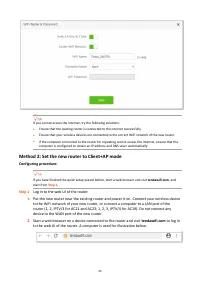
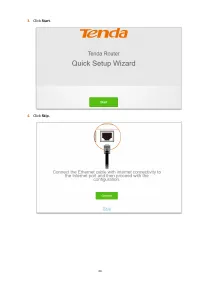
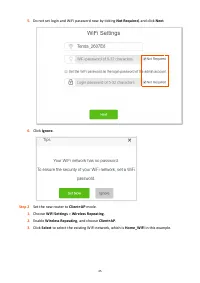
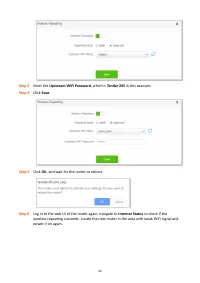
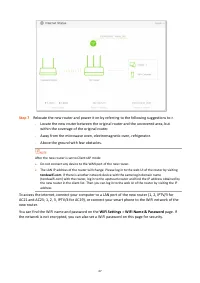
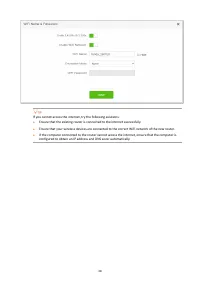
43 If you cannot access the internet, try the following solutions: ⚫ Ensure that the existing router is connected to the internet successfully. ⚫ Ensure that your wireless devices are connected to the correct WiFi network of the new router. ⚫ If the computer connected to the router for repeating can...
Page 60 - Transmit power
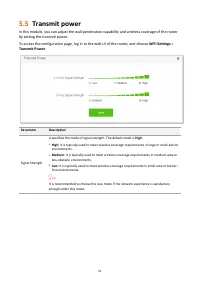
51 5.5 Transmit power In this module, you can adjust the wall - penetration capability and wireless coverage of the router by setting the transmit power. To access the configuration page, log in to the web UI of the router, and choose WiFi Settings > Transmit Power . Parameter Description Signal ...
Page 61 - Connect devices to the WiFi network using the WPS
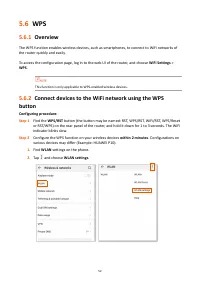
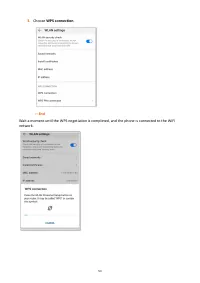
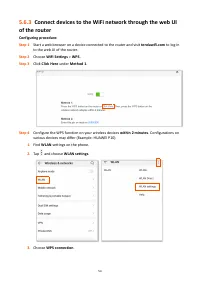
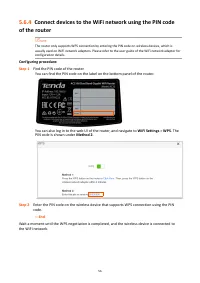
52 5.6 WPS 5.6.1 Overview The WPS function enables wireless devices, such as smartphones, to connect to WiFi networks of the router quickly and easily. To access the configuration page, log in to the web UI of the router, and choose WiFi Settings > WPS . This function is only applicable to WPS - ...
Page 68 - AP mode
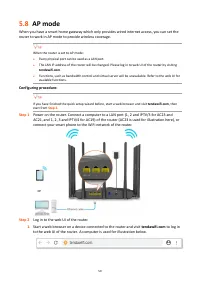
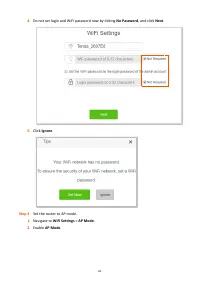
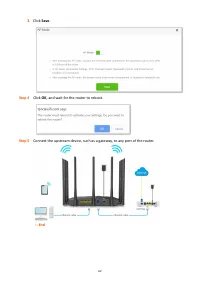
59 5.8 AP mode When you have a smart home gateway which only provides wired internet access, you can set the router to work in AP mode to provide wireless coverage. When the router is set to AP mode: ⚫ Every physical port can be used as a LAN port. ⚫ The LAN IP address of the router will be changed....
Page 75 - Guest network
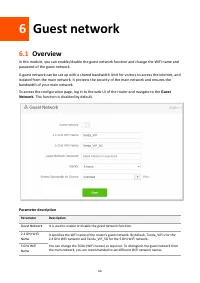
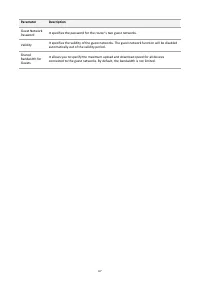
66 6 Guest network 6.1 Overview In this module, you can enable/disable the guest network function and change the WiFi name and password of the guest network. A guest network can be set up with a shared bandwidth limit for visitors to access the internet, and isolated from the main network. It protec...
Page 77 - An example of configuring the guest network
68 6.2 An example of configuring the guest network Scenario : A group of friends are going to visit your home and stay for about 8 hours. Goal : Prevent the use of WiFi network by guests from affecting the network speed of your computer for work purposes. Solution : You can configure the guest netwo...
Page 79 - Parental control
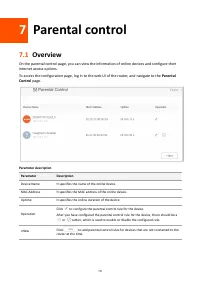
70 7 Parental control 7.1 Overview On the parental control page, you can view the information of online devices and configure their internet access options. To access the configuration page, log in to the web UI of the router, and navigate to the Parental Control page. Parameter description Paramete...
Page 80 - Configure the parental control rule
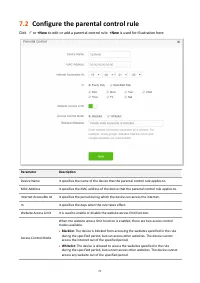
71 7.2 Configure the parental control rule Click or +New to edit or add a parental control rule. +New is used for illustration here. Parameter Description Device Name It specifies the name of the device that the parental control rule applies to. MAC Address It specifies the MAC address of the device...
Page 81 - An example of adding parental control rules
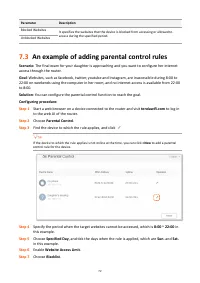
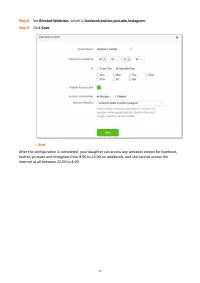
72 Parameter Description Blocked Websites It specifies the websites that the device is blocked from accessing or allowed to access during the specified period. Unblocked Websites 7.3 An example of adding parental control rules Scenario : The final exam for your daughter is approaching and you want t...
Page 83 - PPTP server
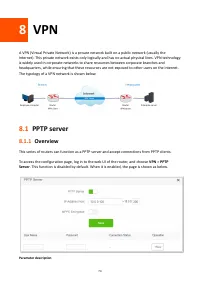
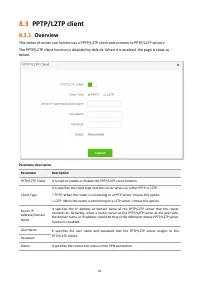
74 8 VPN A VPN (Virtual Private Network) is a private network built on a public network (usually the Internet). This private network exists only logically and has no actual physical lines. VPN technology is widely used in corporate networks to share resources between corporate branches and headquart...
Page 84 - Enable internet users to access resources of the LAN
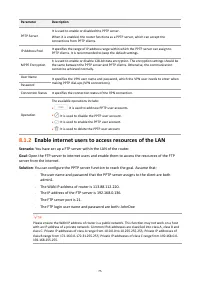
75 Parameter Description PPTP Server It is used to enable or disabled the PPTP server. When it is enabled, the router functions as a PPTP server, which can accept the connections from PPTP clients. IP Address Pool It specifies the range of IP address range within which the PPTP server can assign to ...
Page 89 - Online PPTP users
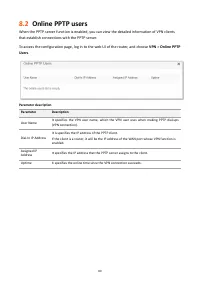
80 8.2 Online PPTP users When the PPTP server function is enabled, you can view the detailed information of VPN clients that establish connections with the PPTP server. To access the configuration page, log in to the web UI of the router, and choose VPN > Online PPTP Users . Parameter description...
Page 91 - Access VPN resources with the router
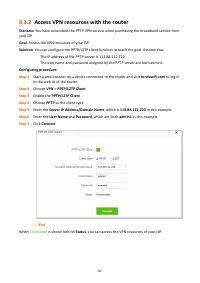
82 8.3.2 Access VPN resources with the router Scenario: You have subscribed the PPTP VPN service when purchasing the broadband service from your ISP. Goal : Access the VPN resources of your ISP. Solution : You can configure the PPTP/L2TP client function to reach the goal. Assume that: − The IP addre...
Page 92 - USB app
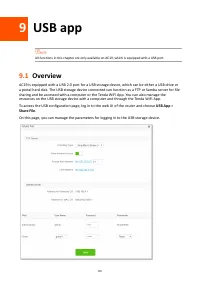
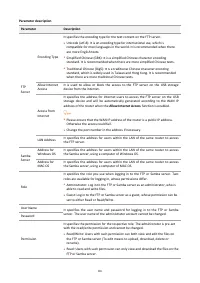
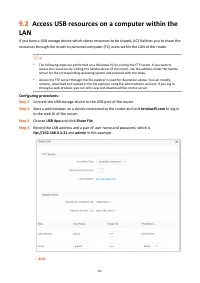
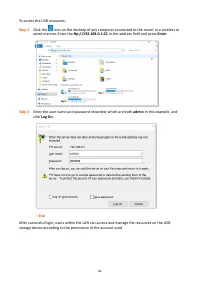
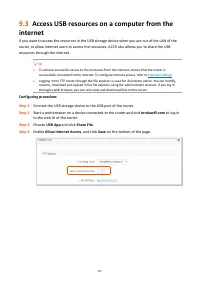
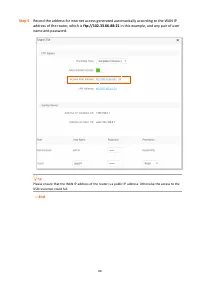
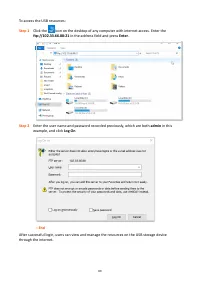
83 9 USB app All functions in this chapter are only available on AC19, which is equipped with a USB port. 9.1 Overview AC19 is equipped with a USB 2.0 port for a USB storage device, which can be either a USB drive or a portal hard disk. The USB storage device connected can function as a FTP or Samba...
Page 99 - Access USB resources with the Tenda WiFi App
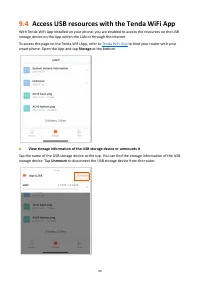
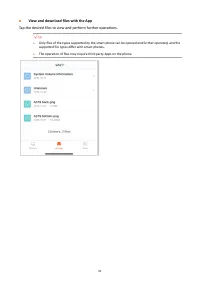
90 9.4 Access USB resources with the Tenda WiFi App With Tenda WiFi App installed on your phone, you are enabled to access the resources on the USB storage device on the App within the LAN or through the internet. To access the page on the Tenda WiFi App, refer to Tenda WiFi App to bind your router ...
Page 101 - IPv6 WAN settings; Connect to the IPv6 network of ISPs; DHCPv6
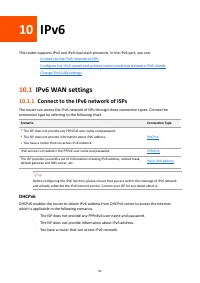
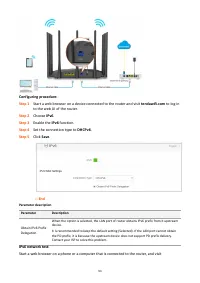
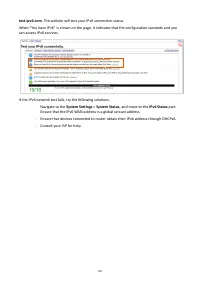
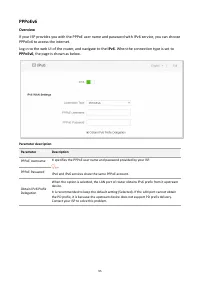
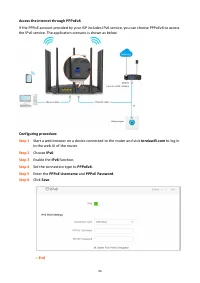
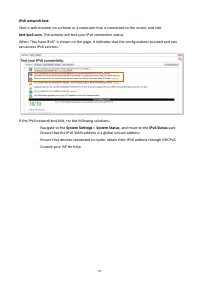
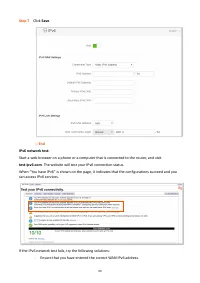
92 10 IPv6 This router supports IPv4 and IPv6 dual stack protocols. In the IPv6 part, you can: − Connect to the IPv6 network of ISPs − Configure the IPv6 tunnel and achieve communications between IPv6 islands − Change IPv6 LAN settings 10.1 IPv6 WAN settings 10.1.1 Connect to the IPv6 network of ISP...
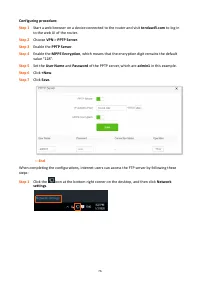
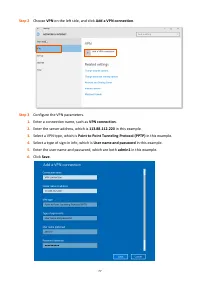
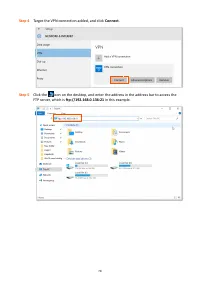
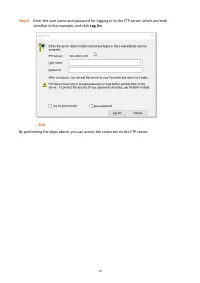
Page 107 - Static IPv6 Address
98 Static IPv6 Address Overview When your ISP provides you with information including IPv6 address, subnet mask, default gateway and DNS server, you can choose this connection type to access the internet with IPv6. Log in to the web UI of the router, and navigate to the IPv6 . When the connection ty...
Page 110 - IPv6 tunnel
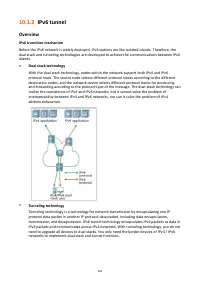
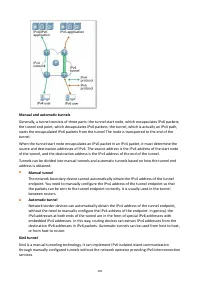
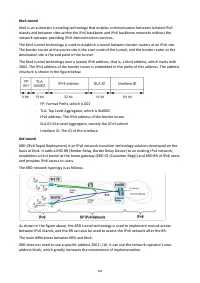
101 10.1.2 IPv6 tunnel Overview IPv6 transition mechanism Before the IPv6 network is widely deployed, IPv6 stations are like isolated islands. Therefore, the dual stack and tunneling technologies are developed to achieve the communications between IPv6 islands. ◼ Dual stack technology With the dual ...
Page 113 - Configure IPv6 tunnel
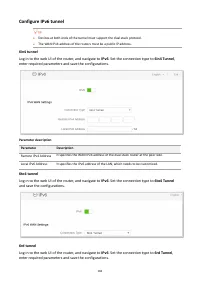
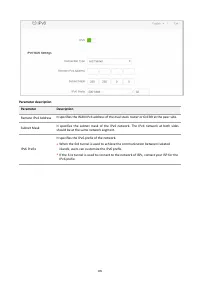
104 Configure IPv6 tunnel ⚫ Devices at both ends of the tunnel must support the dual stack protocol. ⚫ The WAN IPv4 address of the routers must be a public IP address. 6in4 tunnel Log in to the web UI of the router, and navigate to IPv6 . Set the connection type to 6in4 Tunnel , enter required param...
Page 115 - Examples of IPv6 tunnel configuration
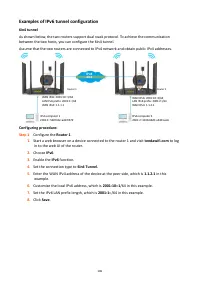
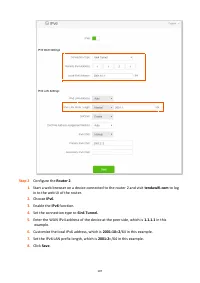
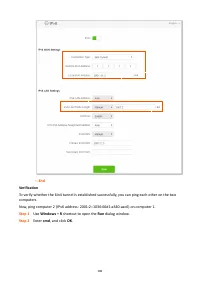
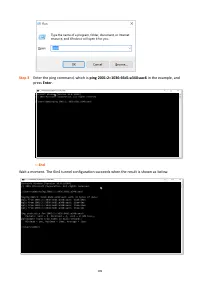
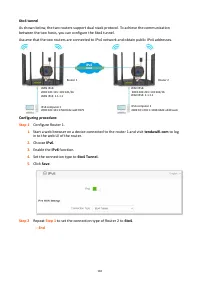
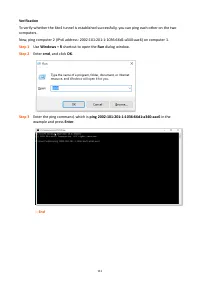
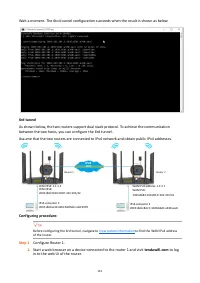
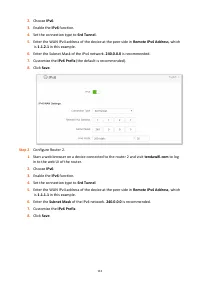
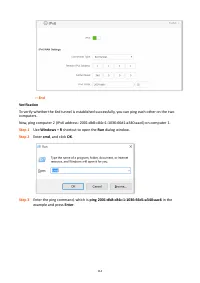
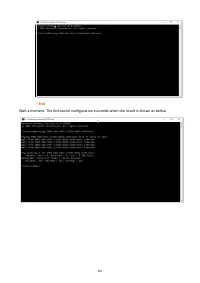
106 Examples of IPv6 tunnel configuration 6in4 tunnel As shown below, the two routers support dual stack protocol. To achieve the communication between the two hosts, you can configure the 6in4 tunnel. Assume that the two routers are connected to IPv4 network and obtain public IPv4 addresses. Config...
Page 125 - IPv6 LAN settings
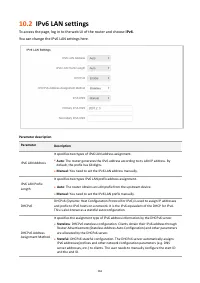
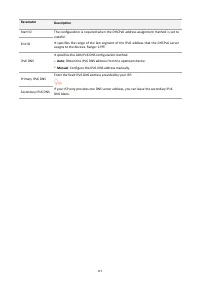
116 10.2 IPv6 LAN settings To access the page, log in to the web UI of the router and choose IPv6 . You can change the IPv6 LAN settings here. Parameter description Parameter Description IPv6 LAN Address It specifies two types of IPv6 LAN address assignment. ⚫ Auto : The router generates the IPv6 ad...
Page 127 - Advanced settings; Bandwidth control; Set the upload and download speed limit for users
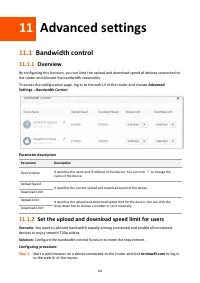
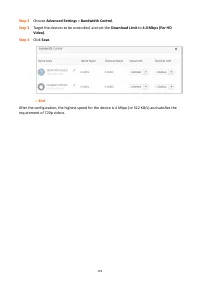
118 11 Advanced settings 11.1 Bandwidth control 11.1.1 Overview By configuring this function, you can limit the upload and download speed of devices connected to the router and allocate the bandwidth reasonably. To access the configuration page, log in to the web UI of the router and choose Advanced...
Page 129 - IPTV
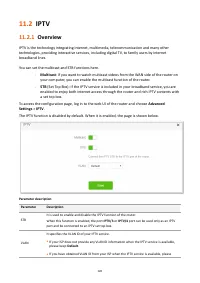
120 11.2 IPTV 11.2.1 Overview IPTV is the technology integrating internet, multimedia, telecommunication and many other technologies, providing interactive services, including digital TV, to family users by internet broadband lines. You can set the multicast and STB functions here. − Multicast : If ...
Page 130 - Watch IPTV programs through the router
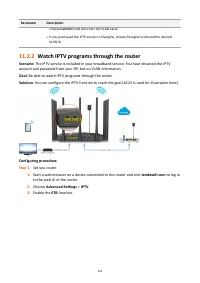
121 Parameter Description choose Custom VLAN and enter the VLAN value. ⚫ If you purchased the IPTV service in Shanghai, choose Shanghai VLAN and the desiredVLAN ID. 11.2.2 Watch IPTV programs through the router Scenario: The IPTV service is included in your broadband service. You have obtained the I...
Page 131 - Watch multicast videos through the router
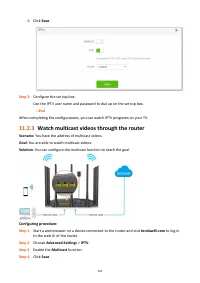
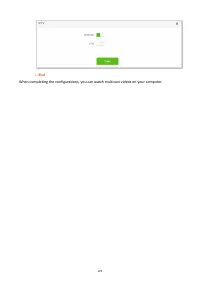
122 4. Click Save . Step 2 Configure the set top box. Use the IPTV user name and password to dial up on the set top box. --- End When completing the configurations, you can watch IPTV programs on your TV. 11.2.3 Watch multicast videos through the router Scenario: You have the address of multicast vi...
Page 133 - Tenda WiFi App
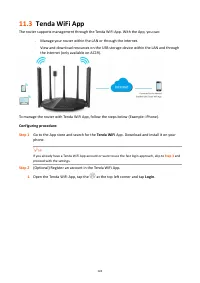
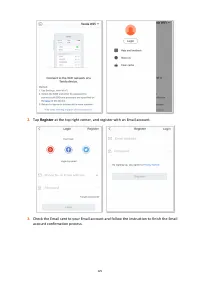
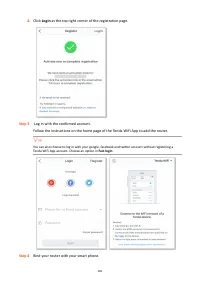
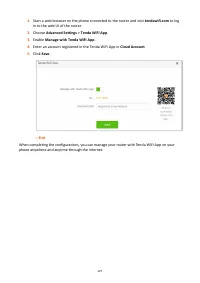
124 11.3 Tenda WiFi App The router supports management through the Tenda WiFi App. With the App, you can: − Manage your router within the LAN or through the internet. − View and download resources on the USB storage device within the LAN and through the internet (only available on AC19). To manage t...
Page 137 - Sleeping mode
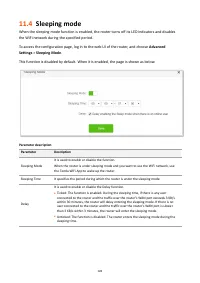
128 11.4 Sleeping mode When the sleeping mode function is enabled, the router turns off its LED indicators and disables the WiFi network during the specified period. To access the configuration page, log in to the web UI of the router, and choose Advanced Settings > Sleeping Mode . This function ...
Page 138 - LED control
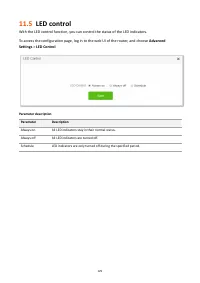
129 11.5 LED control With the LED control function, you can control the status of the LED indicators. To access the configuration page, log in to the web UI of the router, and choose Advanced Settings > LED Control . Parameter description Parameter Description Always on All LED indicators stay in...
Page 139 - Filter MAC address; Only allow specified device to access the internet
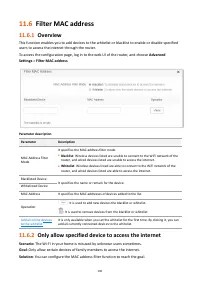
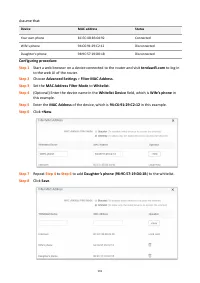
130 11.6 Filter MAC address 11.6.1 Overview This function enables you to add devices to the whitelist or blacklist to enable or disable specified users to access the internet through the router. To access the configuration page, log in to the web UI of the router, and choose Advanced Settings > F...
Page 142 - Firewall
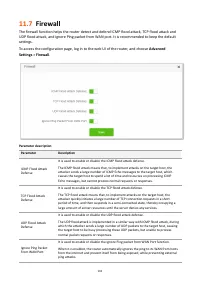
133 11.7 Firewall The firewall function helps the router detect and defend ICMP flood attack, TCP flood attack and UDP flood attack, and ignore Ping packet from WAN port. It is recommended to keep the default settings. To access the configuration page, log in to the web UI of the router, and choose ...
Page 143 - Static route
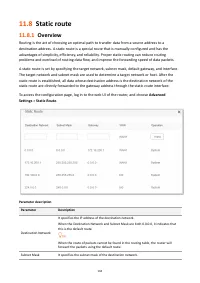
134 11.8 Static route 11.8.1 Overview Routing is the act of choosing an optimal path to transfer data from a source address to a destination address. A static route is a special route that is manually configured and has the advantages of simplicity, efficiency, and reliability. Proper static routing...
Page 144 - Add a static route rule
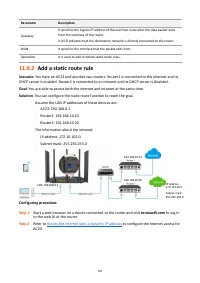
135 Parameter Description Gateway It specifies the ingress IP address of the next hop route after the data packet exits from the interface of the router. 0.0.0.0 indicates that the destination network is directly connected to the router. WAN It specifies the interface that the packet exits from. Ope...
Page 146 - DDNS
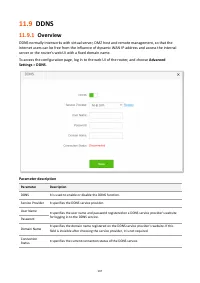
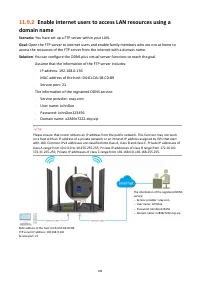
137 11.9 DDNS 11.9.1 Overview DDNS normally interworks with virtual server, DMZ host and remote management, so that the internet users can be free from the influence of dynamic WAN IP address and access the internal server or the router ’s web UI with a fixed domain name. To access the configuration...
Page 150 - Virtual server; Enable internet users to access LAN resources
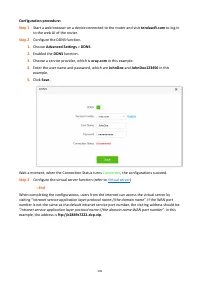
141 11.10 Virtual server 11.10.1 Overview By default, internet users cannot actively access the LAN of the router. The virtual server function opens a port of the router, and binds the LAN server to the port using the server ’s IP address and intranet service port. All access requests to the WAN por...
Page 154 - DMZ host
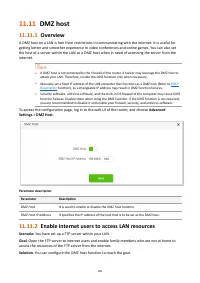
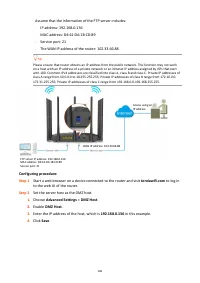
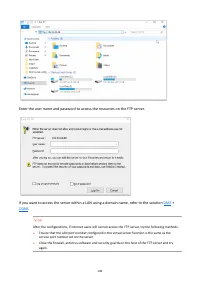
145 11.11 DMZ host 11.11.1 Overview A DMZ host on a LAN is free from restrictions in communicating with the internet. It is useful for getting better and smoother experience in video conferences and online games. You can also set the host of a server within the LAN as a DMZ host when in need of acce...
Page 158 - UPnP
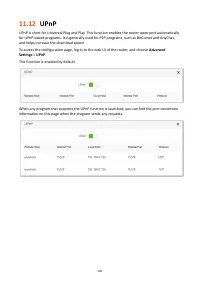
149 11.12 UPnP UPnP is short for Universal Plug and Play. This function enables the router open port automatically for UPnP - based programs. It is generally used for P2P programs, such as BitComet and AnyChat, and helps increase the download speed. To access the configuration page, log in to the we...
Page 159 - System settings; LAN settings
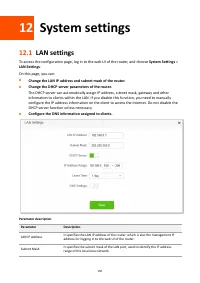
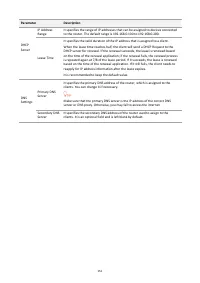
150 12 System settings 12.1 LAN settings To access the configuration page, log in to the web UI of the router, and choose System Settings > LAN Settings . On this page, you can: ◼ Change the LAN IP address and subnet mask of the router. ◼ Change the DHCP server parameters of the router. The DHCP ...
Page 161 - DHCP reservation; Assign static IP addresses to LAN clients
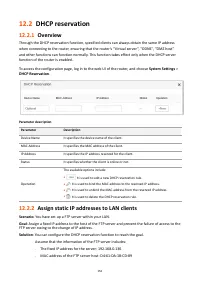
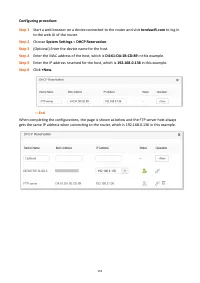
152 12.2 DHCP reservation 12.2.1 Overview Through the DHCP reservation function, specified clients can always obtain the same IP address when connecting to the router, ensuring that the router's "Virtual server", "DDNS", "DMZ host" and other functions can function normally. T...
Page 163 - WAN settings; Change MTU value
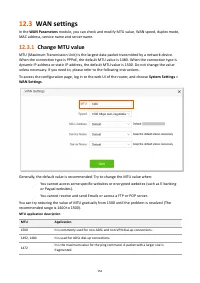
154 12.3 WAN settings In the WAN Parameters module, you can check and modify MTU value, WAN speed, duplex mode, MAC address, service name and server name. 12.3.1 Change MTU value MTU (Maximum Transmission Unit) is the largest data packet transmitted by a network device. When the connection type is P...
Page 164 - Change the WAN speed and duplex mode
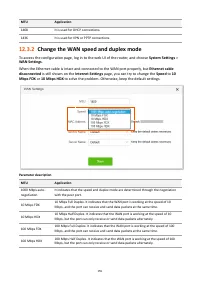
155 MTU Application 1468 It is used for DHCP connections. 1436 It is used for VPN or PPTP connections. 12.3.2 Change the WAN speed and duplex mode To access the configuration page, log in to the web UI of the router, and choose System Settings > WAN Settings . When the Ethernet cable is intact an...
Page 165 - Change the MAC address of the WAN port
156 12.3.3 Change the MAC address of the WAN port If you still cannot access the internet after completing Internet Settings , it could be the result of the ISP’s configuration to bind the internet account information with a fixed MAC address. In this case, you can clone and change the MAC address o...
Page 166 - Change the service name and server name
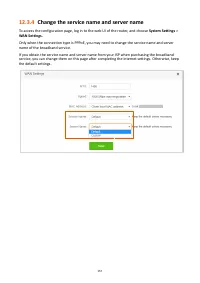
157 12.3.4 Change the service name and server name To access the configuration page, log in to the web UI of the router, and choose System Settings > WAN Settings. Only when the connection type is PPPoE, you may need to change the service name and server name of the broadband service. If you obta...
Page 167 - Time settings; Sync system time with the internet time
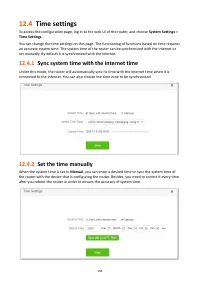
158 12.4 Time settings To access the configuration page, log in to the web UI of the router, and choose System Settings > Time Settings. You can change the time settings on this page. The functioning of functions based on time requires an accurate system time. The system time of the router can be...
Page 168 - Login password
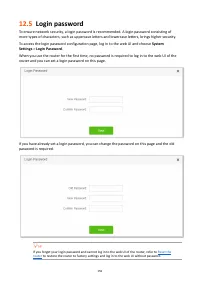
159 12.5 Login password To ensure network security, a login password is recommended. A login password consisting of more types of characters, such as uppercase letters and lowercase letters, brings higher security. To access the login password configuration page, log in to the web UI and choose Syst...
Page 169 - Reboot and reset; Reboot the router; Reset the router; Reset the router using the reset button
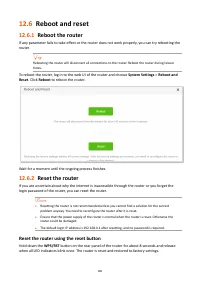
160 12.6 Reboot and reset 12.6.1 Reboot the router If any parameter fails to take effect or the router does not work properly, you can try rebooting the router. Rebooting the router will disconnect all connections to the router. Reboot the router during leisure times. To reboot the router, log in to...
Page 170 - Reset the router on the web UI
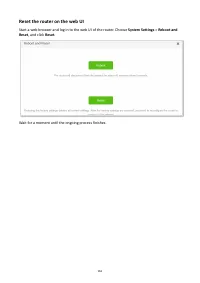
161 Reset the router on the web UI Start a web browser and log in to the web UI of the router. Choose System Settings > Reboot and Reset , and click Reset . Wait for a moment until the ongoing process finishes.
Page 171 - Upgrade firmware; Online upgrade
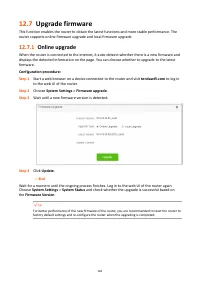
162 12.7 Upgrade firmware This function enables the router to obtain the latest functions and more stable performance. The router supports online firmware upgrade and local firmware upgrade. 12.7.1 Online upgrade When the router is connected to the internet, it auto - detects whether there is a new ...
Page 172 - Local upgrade
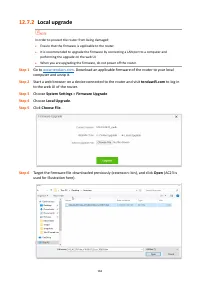
163 12.7.2 Local upgrade In order to prevent the router from being damaged: ⚫ Ensure that the firmware is applicable to the router. ⚫ It is recommended to upgrade the firmware by connecting a LAN port to a computer and performing the upgrade on the web UI. ⚫ When you are upgrading the firmware, do n...
Page 174 - Backup the configurations of the router
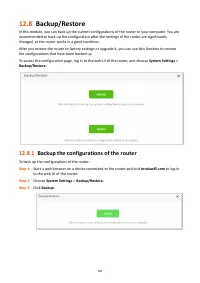
165 12.8 Backup/Restore In this module, you can back up the current configurations of the router to your computer. You are recommended to back up the configuration after the settings of the router are significantly changed, or the router works in a good condition. After you restore the router to fac...
Page 175 - Restore previous configurations of the router
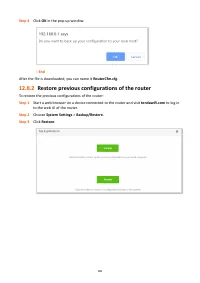
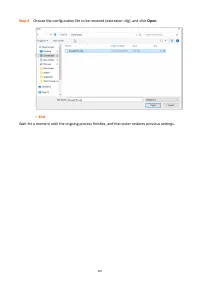
166 Step 4 Click OK in the pop - up window. --- End After the file is downloaded, you can name it RouterCfm.cfg . 12.8.2 Restore previous configurations of the router To restore the previous configurations of the router: Step 1 Start a web browser on a device connected to the router and visit tendaw...
Page 177 - Remote management
168 12.9 Remote management 12.9.1 Overview Generally, the web UI of the router can only be accessed on devices that are connected to the router by a LAN port or wireless connection. When you encounter a network fault, you can ask for remote technical assistance, which improves efficiency and reduces...
Page 178 - Enable Tenda techical support to acces and manage the
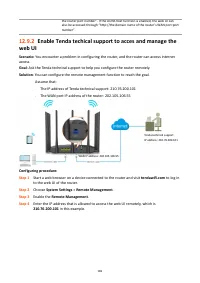
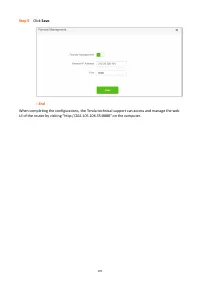
169 the router:port number ” . If the DDNS host function is enabled, the web UI can also be accessed through “ http://the domain name of the router ’ s WAN port:port number ” . 12.9.2 Enable Tenda techical support to acces and manage the web UI Scenario: You encounter a problem in configuring the ro...
Page 180 - System status
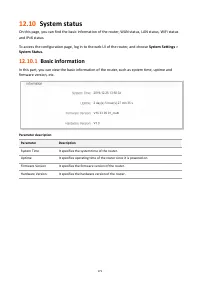
171 12.10 System status On this page, you can find the basic information of the router, WAN status, LAN status, WiFi status and IPv6 status. To access the configuration page, log in to the web UI of the router, and choose System Settings > System Status. 12.10.1 Basic information In this part, yo...
Page 181 - WAN status; LAN status
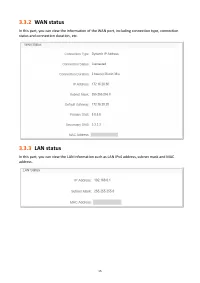
172 12.10.2 WAN status In this part, you can view the information of the WAN port, including connection type, connection status and connection duration, etc. Parameter description Parameter Description Connection Type It specifies the internet IPv4 connection type of the WAN port. Connection Status ...
Page 185 - System log
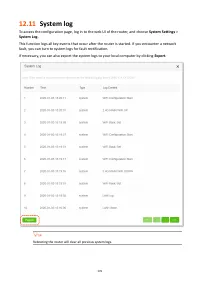
176 12.11 System log To access the configuration page, log in to the web UI of the router, and choose System Settings > System Log. This function logs all key events that occur after the router is started. If you encounter a network fault, you can turn to system logs for fault rectification. If n...
Page 186 - Automatic Maintenance
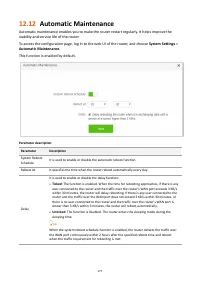
177 12.12 Automatic Maintenance Automatic maintenance enables you to make the router restart regularly. It helps improve the stability and service life of the router. To access the configuration page, log in to the web UI of the router, and choose System Settings > Automatic Maintenance. This fun...
Page 187 - Configuring the computer to obtain an IPv4
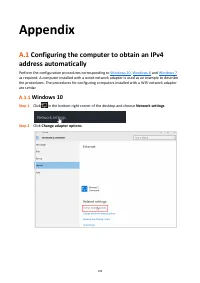
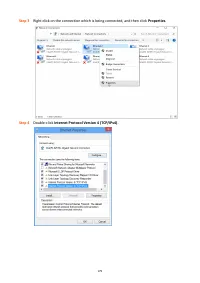
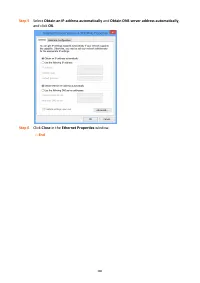
178 Appendix A.1 Configuring the computer to obtain an IPv4 address automatically Perform the configuration procedures corresponding to Windows 10 , Windows 8 and Windows 7 as required. A computer installed with a wired network adapter is used as an example to describe the procedures. The procedures...
Page 190 - Windows 8
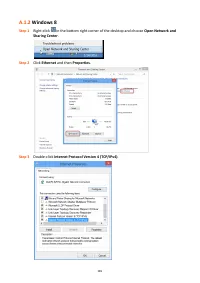
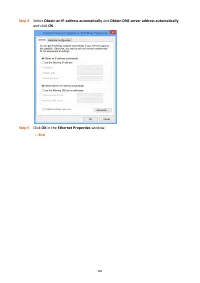
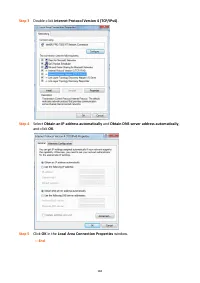
181 A.1.2 Windows 8 Step 1 Right - click in the bottom right corner of the desktop and choose Open Network and Sharing Center . Step 2 Click Ethernet and then Properties . Step 3 Double - click Internet Protocol Version 4 (TCP/IPv4) .
Page 192 - Windows 7
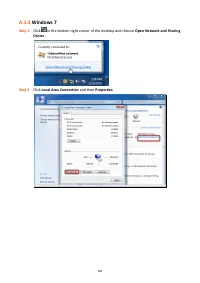
183 A.1.3 Windows 7 Step 1 Click in the bottom right corner of the desktop and choose Open Network and Sharing Center . Step 2 Click Local Area Connection and then Properties .
Page 194 - Default parameters
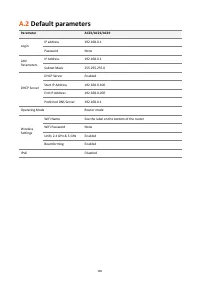
185 A.2 Default parameters Parameter AC23/AC21/AC19 Login IP address 192.168.0.1 Password None LAN Parameters IP Address 192.168.0.1 Subnet Mask 255.255.255.0 DHCP Server DHCP Server Enabled Start IP Address 192.168.0.100 End IP Address 192.168.0.200 Preferred DNS Server 192.168.0.1 Operating Mode R...
Page 195 - Acronyms and Abbreviations
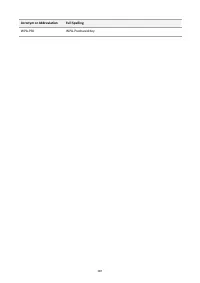
186 A.3 Acronyms and Abbreviations Acronym or Abbreviation Full Spelling AES Advanced Encryption Standard AP Access Point BR Border Relay CE Customer Edge DDNS Dynamic Domain Name System DHCP Dynamic Host Configuration Protocol DHCPv6 Dynamic Host Configuration Protocol for IPv6 DMZ Demilitarized Zo...